 TL;DR:
VLC is the most reliable first choice for testing 8K video playback across Android, iPhone, and Windows 11, but smooth performance ultimately depends on whether your device hardware natively decodes the file's specific codec and frame rate.
● Choose KMPlayer on Android for integrated playback controls, Infuse on iPhone for managing network media libraries, and mpv on Windows 11 for granular configuration over the GPU decoder path.
● Use FFprobe via a terminal to verify the actual media metadata, dimensions, and pixel format if an 8K file fails to load, distinguishing unsupported codecs from structural file damage.
● Generate a separate 4K viewing derivative if your phone processor or PC lacks the hardware decoding capacity for an 8K HEVC or AV1 stream, as switching apps cannot overcome physical device limitations.
Ask AI for a summary
 ChatGPT
 Perplexity
 Gemini
 Claude
 Grok
Grok
Looking for an 8K video player that actually handles your file? Android, iPhone and Windows 11 apps have different codec and hardware limits, so a listing that says “8K” is not enough. VLC is a useful first choice across platforms; KMPlayer advertises 4K–8K support on Android; and PC users can evaluate VLC or mpv with a suitable GPU. This guide shows how to choose, inspect an 8K file and tell device limitations from a damaged or missing video.
In This Article
-
- Method 1. Verify the Real Video Resolution with FFprobe
- Method 2. Open an 8K File with VLC on Android
- Method 3. Import a Local Video into VLC on iPhone
- Method 4. Play a Local 8K Clip in VLC on Windows 11
- Method 5. Check VLC Codec Information and Investigate Stutter
- Method 6. Recover a Deleted Local 8K Video Only When the Source Is Missing
Part 1. What Makes an 8K Video Player Work?
An 8K video is typically 7680 × 4320 pixels—four times the pixel count of 4K UHD. But an app accepting an MP4 or MKV file does not automatically mean it can decode every 8K stream. A capable video player needs support for the actual compression codec, an adequate hardware or software decoder, sufficient bandwidth and memory, and an output path that the device can handle.
The practical goal is not to make a phone screen physically show 33 million separate pixels. Most phones scale that image to their display. Instead, choose a player that can open the source with correct audio and reliable motion, and confirm whether the device can decode the particular codec and frame rate. A file labeled “8K” is not evidence of the player successfully decoding it.
8K Resolution, Codec, Frame Rate, and Hardware
File resolution describes the stored picture dimensions. H.264, HEVC/H.265, AV1 and VP9 describe different ways the pixels are compressed. A container such as MP4, MOV, MKV or WebM packages streams and metadata; it does not guarantee that the player knows how to decode the video inside. An 8K30 AV1 file and an 8K60 HEVC file can behave very differently even on the same machine.
Hardware decoding can relieve CPU pressure when the device supports the exact codec, bit depth, profile and resolution. Support is not universal: an app may support HEVC generally while the built-in decoder tops out at 4K, or may fail on 10-bit HDR video. Software decoding can be an alternative for some files but 8K streams can overwhelm a phone processor. Full-screen playback smoothness is the observable test, not a product page badge.
Choose by Device and Symptom
Before installing several players, make one small decision: are you comparing apps, troubleshooting a file that stutters everywhere, or handling a deleted camera recording? Use the table to avoid spending time on the wrong solution.
| Situation | First choice | Check |
| Android phone, local UHD file | VLC for Android, or KMPlayer if you need its interface features | Device chipset decoder and frame rate |
| iPhone, local or network file | VLC for Mobile, or Infuse for supported library workflows | Codec profile, Files transfer and iPhone processing limits |
| Windows 11 / desktop | VLC or mpv with appropriate hardware decoding | GPU decoder, drivers and codec details |
| Video is completely missing | Preserve source storage and consider video recovery | Do not overwrite deleted data |
| 8K test video will not play on any device | Check integrity and actual container/codec first | Distinguish damaged file from unsupported codec |
For readers seeking files rather than software, our guide to legitimate 8K video downloads addresses test samples and file acquisition separately. This page focuses on playing media that you already own or are permitted to use.
Part 2. Best 8K Video Players for Android
Android is the strongest existing search theme for this page. The shortlist below distinguishes official app claims from independent 8K performance verification, which still depends on your phone and the particular source file.
VLC for Android: Flexible Local and Network Playback
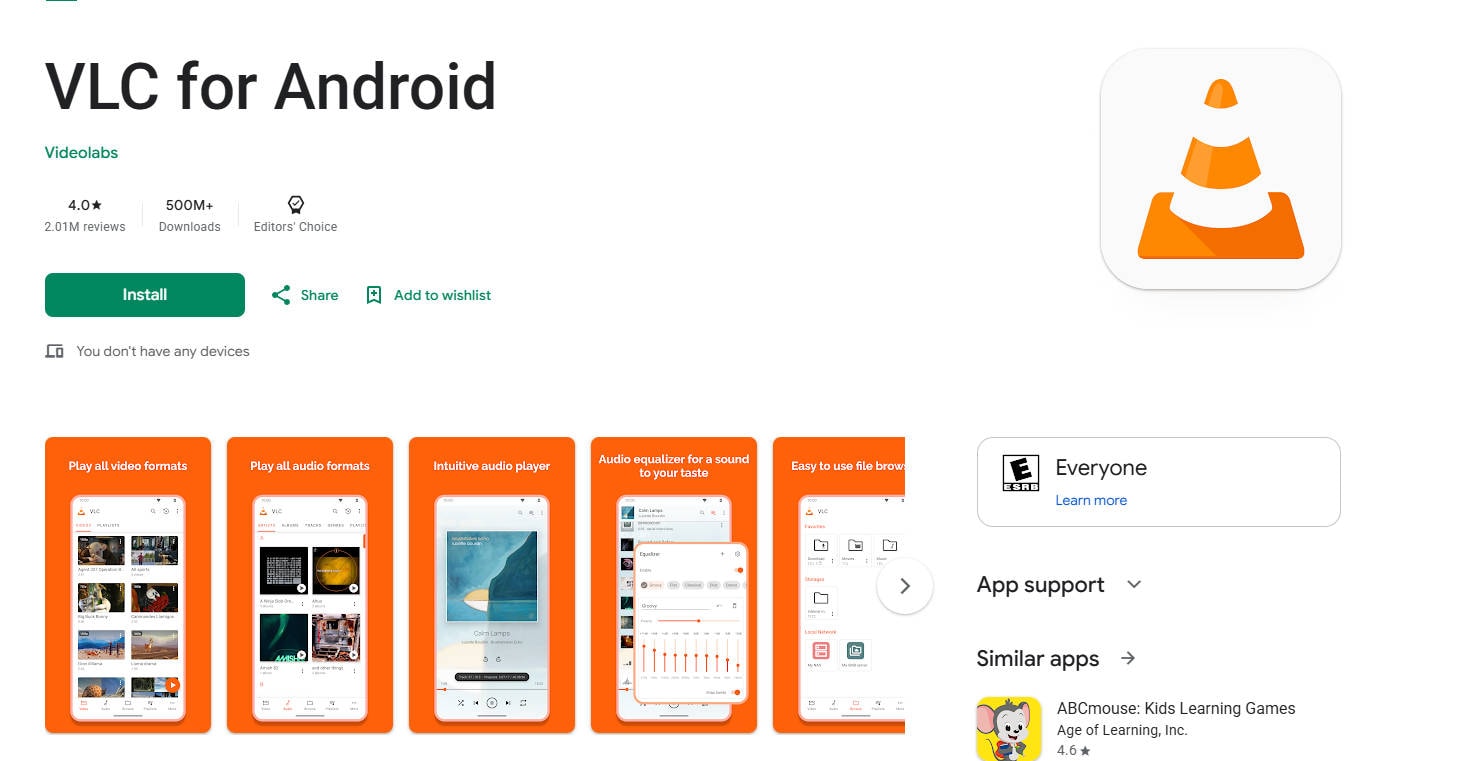
VLC is an open-source media player that handles many video and audio codecs and local/network media. Its Android user guide documents video browsing, player controls and hardware acceleration options. VLC is a sensible first test because it avoids unknown sideloaded APKs, not because it guarantees smooth 8K footage on every device.
The Android interface lets users navigate a local video collection and open files without first converting them. For best results use a source you can legally copy to the phone, and confirm whether the phone chipset supports the file codec at the desired resolution. The official VLC Android video browser documentation describes the workflow.
KMPlayer: An Android App Advertising 4K–8K Support
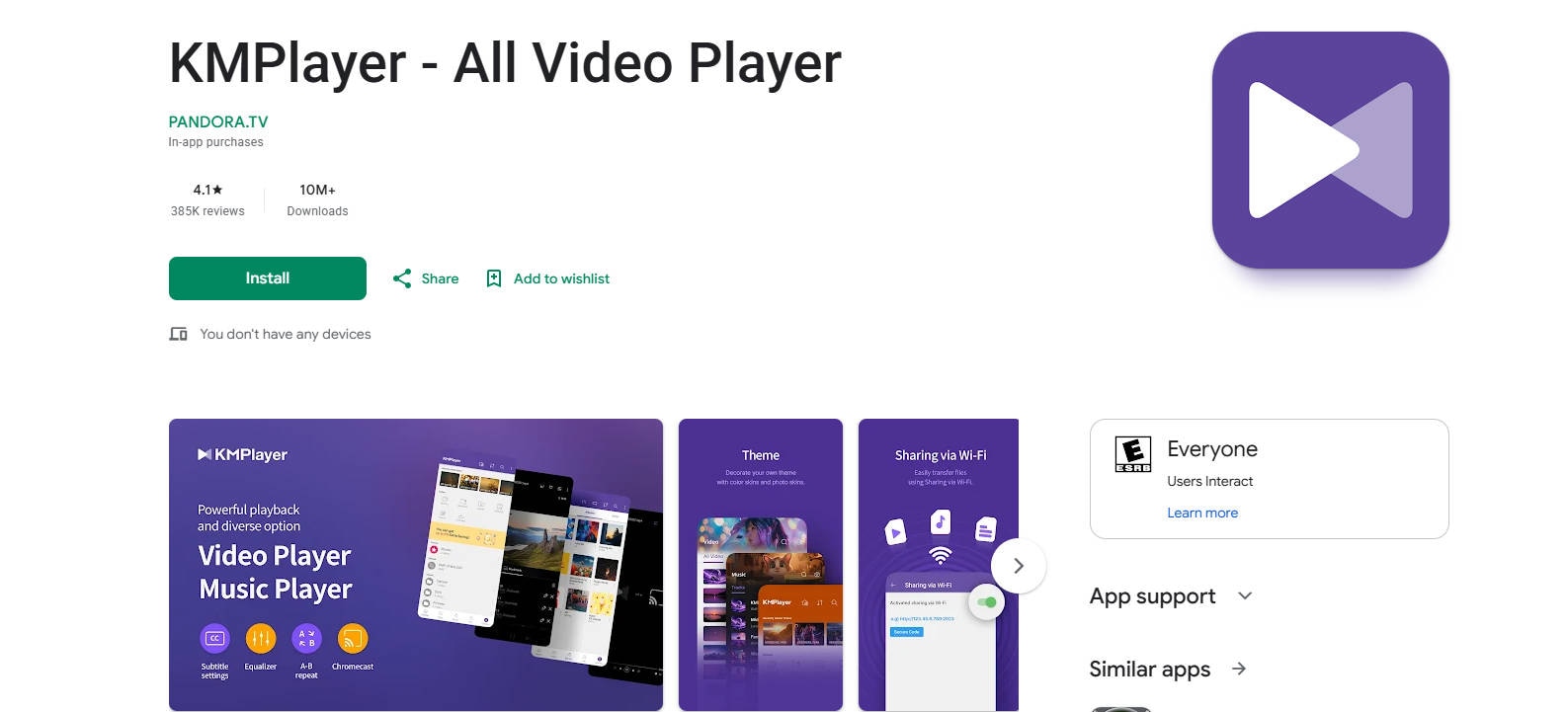
The official KMPlayer Android listing promotes 4K to 8K video playback and provides playback-speed controls, subtitles and other convenience features. That is a vendor feature claim, not a benchmark across all Android chipsets, files or high-bitrate 8K60 recordings. Compare a demanding sample on your actual handset before assuming the label equals smooth hardware playback.
KMPlayer may appeal if you want an interface with playlists, playback controls and streaming-related options. Check the current app permissions and store listing before installing. We do not recommend a “mod APK” to unlock premium features: modified installation files create security and integrity risks unrelated to decoding 8K video.
Other Android Players and Why 8K Labels Are Not Enough
Some apps market themselves as 8K, 4K or Ultra HD players, yet their descriptions may not identify a tested codec, resolution, frame rate or device. MX Player and other mainstream media apps may open high-resolution video but should be evaluated against a known test file rather than ranked above VLC or KMPlayer without direct evidence. An “8K IPTV Player” is often an IPTV service/client brand, not proof of native 8K local-file decoding.
For a practical shortlist, start with the current Play Store version of VLC and KMPlayer, then use the same source file to test whether seeking, audio sync and battery/thermal behavior remain acceptable. Do not compare one app playing a low-bitrate clip against another playing a different HDR recording.
Part 3. Best 8K Video Player Options for iPhone
A third-party iOS player may recognize HEVC, MP4, MKV or AV1, yet that is not a blanket guarantee that an iPhone can play native 8K smoothly. iOS model, chipset, thermal behavior, storage bandwidth and the app’s actual decoder path all matter. Choose according to how you import and organize files.
VLC for Mobile: Free Local-File Option
VLC for Mobile is available through the App Store and supports local playback plus several methods of getting files onto a device. It is a reasonable starting option for testing one lawful sample, with clear controls and no requirement to promise that every 8K format works. The official iOS VLC guide documents local media synchronization and downloads; menu labels may move across versions.
For a large 8K file, transfer over a reliable local connection and leave ample storage. If you see stuttering, compare a verified 4K version before assuming that the file has been damaged. Decoding support does not increase your iPhone’s physical display resolution.
Infuse: Media Libraries and Network Shares
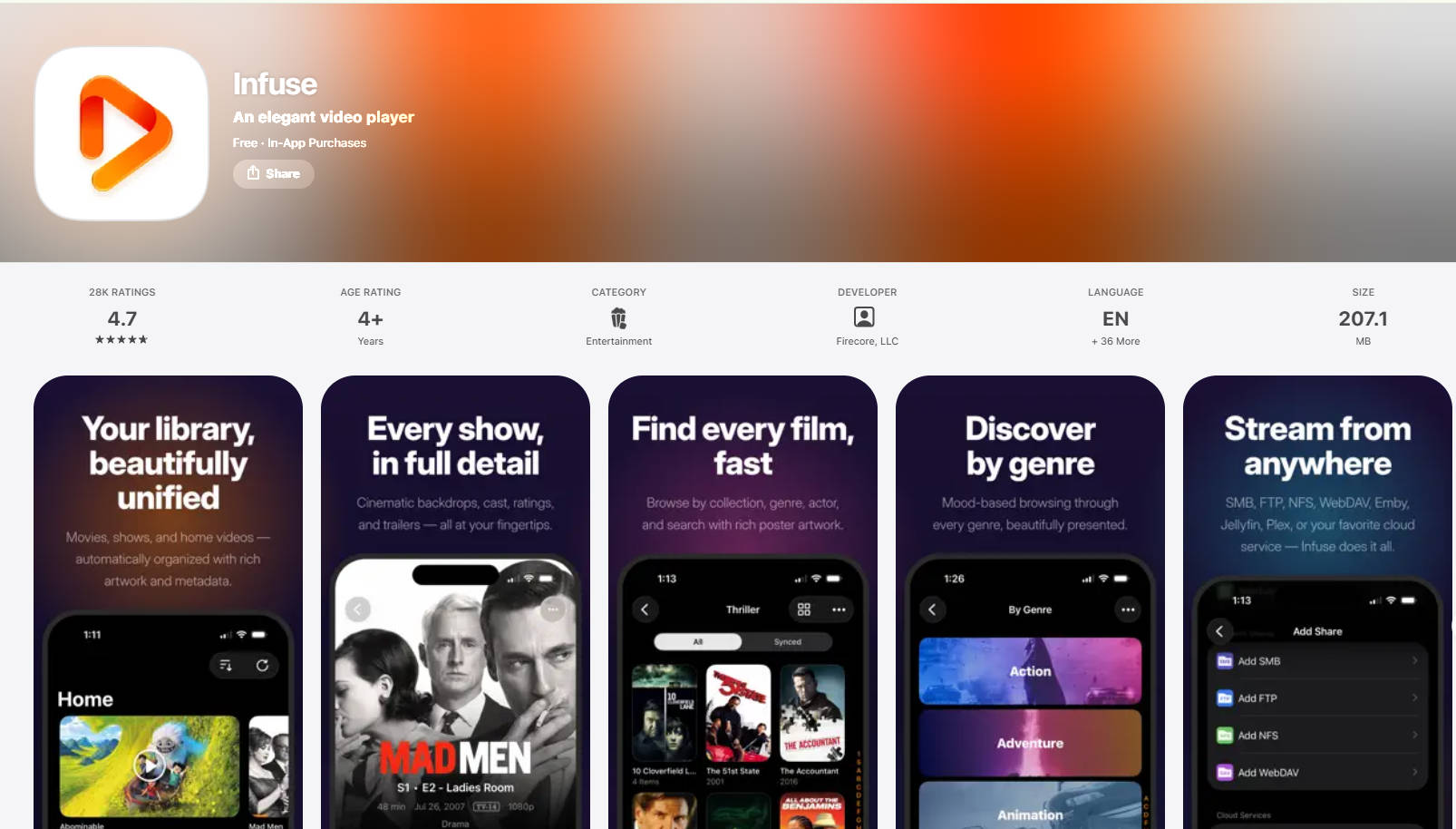
Infuse is another maintained iPhone player aimed at organized media libraries and network access, with broad codec and format support. A richer library experience can be useful for stored movies, but it does not prove 8K decode on every iPhone. Check the current App Store listing, supported version and available hardware when using demanding files.
For users streaming a large local file, distinguish a network bottleneck from decoder overload: test the file copied to internal storage first, then test a supported SMB or other network share. A network path that fails while the local file works suggests transfer bandwidth or server behavior rather than corrupted video frames.
8Player and Older iOS Recommendations: Verify First
The old version of this article also recommended 8Player, an unnamed “5K 8K Video Player” and Tiger Player. Do not treat historical product names or prices as current facts. 8Player may be relevant for certain network library workflows where its current App Store listing is available; verify updates and codec claims before buying. Tiger Player’s historical public listing describes 720p/1080p, not validated native 8K decode, so we do not present it as a confirmed 8K choice.
For “8k video player for iphone,” the defensible recommendation is to use a maintained player with a clear source and test it on the specific phone. If real-time 8K playback is unavailable, use a 4K viewing derivative while preserving the original 8K master separately.
Part 4. Best 8K Video Player for PC and Windows 11
On a desktop the GPU decoding path, system drivers, file codec and playback settings can make a larger difference than switching apps. Start with an established player and a local control file before installing codec packs or unknown executables.
VLC for Windows 11: Broad Codec Coverage
VideoLAN documents 8K and 10-bit support in its VLC 3.x release notes, along with hardware decoding improvements. This makes VLC an evidence-backed first option for 8K files on a reasonably equipped Windows 11 computer. It is not a promise of real-time 8K60 for every GPU or processor. Use the official installer, not a repackaged “8K VLC” download.
The controls for opening a file and looking up codec information are documented by VideoLAN. Begin with hardware-accelerated decoding on the standard/automatic path; do not universally turn it off just because a file stutters. If Windows or an older driver mishandles one codec, compare settings one at a time and revert changes that make playback worse.
mpv and Other Desktop Options
mpv is a technically capable cross-platform video player with configurable hardware decoding and detailed diagnostics. It is useful when you want granular control over the decoder path, but its many settings may be less approachable than VLC. Its manual explains `hwdec` behavior and why automatic detection is conditional rather than universal.
Other Windows media players can be useful, but avoid ranking them as universally “better for 8K” without side-by-side tests using the same codec and bitrate. When troubleshooting VLC specifically, the related VLC UHD playback configuration guide covers the overlap in hardware decoding and playback symptoms, while the current page owns cross-device 8K player selection.
What Windows 11 Hardware Must Supply
A 7680 × 4320 file can contain HEVC, AV1 or another codec and may require 10-bit profiles and HDR. A display advertised as 8K and a GPU capable of presenting an 8K desktop do not necessarily mean its hardware video decoder supports every 8K encoded stream. Decoder generation, software version, CPU fallback, thermal behavior and storage speed all matter.
For fair comparisons, record the source codec, bit depth, frame rate and bitrate. If a file plays smoothly at 4K but freezes at 8K on every player, investigate the device performance envelope before buying a different app.
Part 5. How to Play and Verify an 8K Video on Your Device
These steps deliberately separate file verification, importing a local video and diagnosing playback. Each procedure uses a real documented interface or a real recorded metadata test. The sample frames in the VLC screenshots are ordinary tutorial files, not an independent proof of sustained 8K playback.
Method 1. Verify the Real Video Resolution with FFprobe
Use this when a video is labeled “8K” but might be an upscale or a smaller file. FFprobe reads media metadata and can reveal file dimensions, stream codec, pixel format and frame rate. It does not measure whether your phone can decode the file at full speed. Our first-party command example runs on a synthetic single-frame 7680 × 4320 H.264 test MP4: it checks reported metadata, not real-world 8K performance.
Step 1. Install a trusted FFmpeg/FFprobe build using the official FFmpeg website or your system package manager, and keep the source file unchanged.
Step 2. Open a terminal in the folder containing your local video. Run ffprobe -v error -select_streams v:0 -show_entries stream=codec_name,width,height,pix_fmt,r_frame_rate -of default=noprint_wrappers=1 "video.mp4", substituting your real filename.
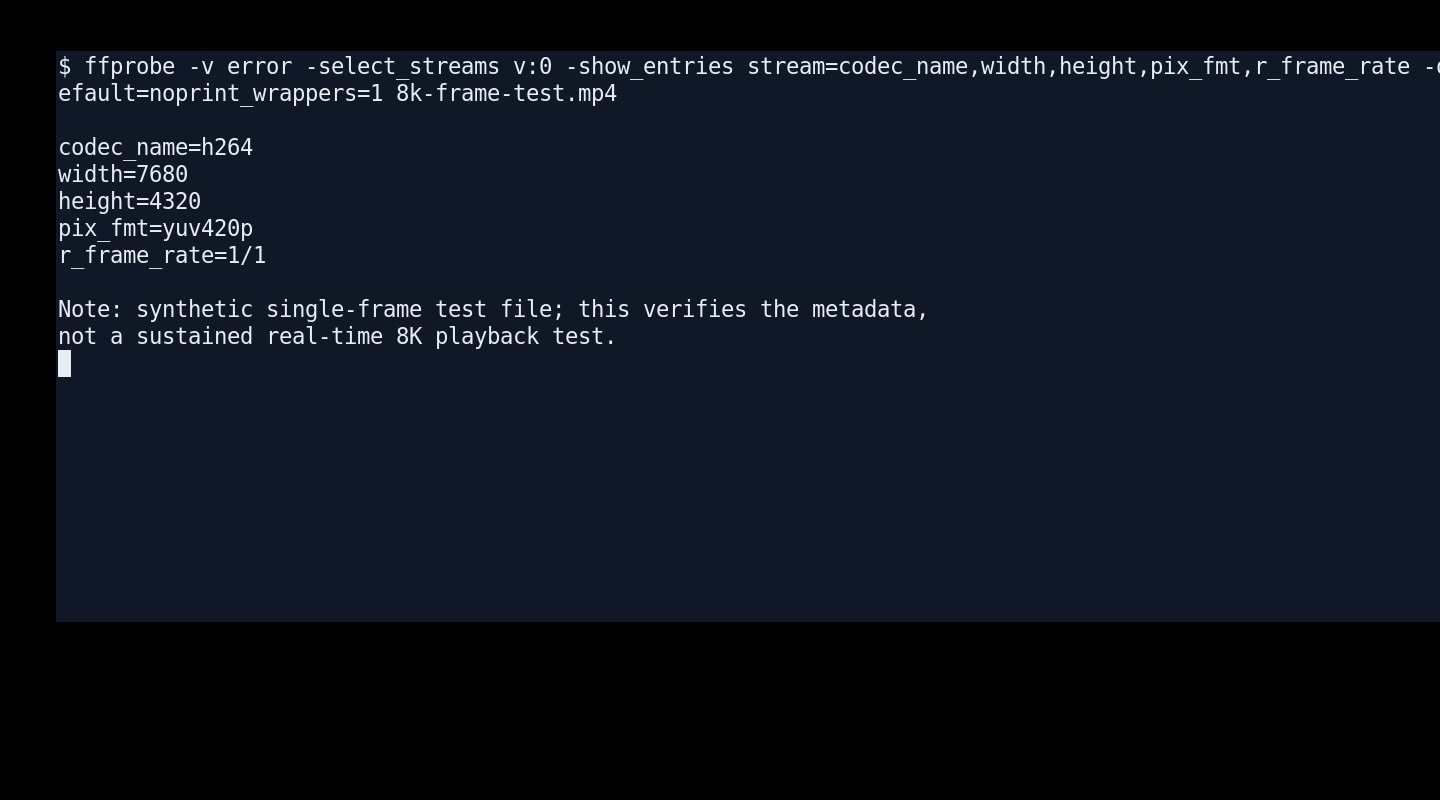
Step 3. Read the `width` and `height` fields: 7680 and 4320 indicate a nominal 8K UHD stored frame. Compare the codec and frame rate too; higher dimensions alone do not prove good source detail or fluid playback.
Success: the source has verifiable video-stream metadata. If it fails: an unreadable container, encrypted file or missing stream may be involved. Preserve the original and try another known-good video rather than repeatedly converting an uncertain source.
Method 2. Open an 8K File with VLC on Android
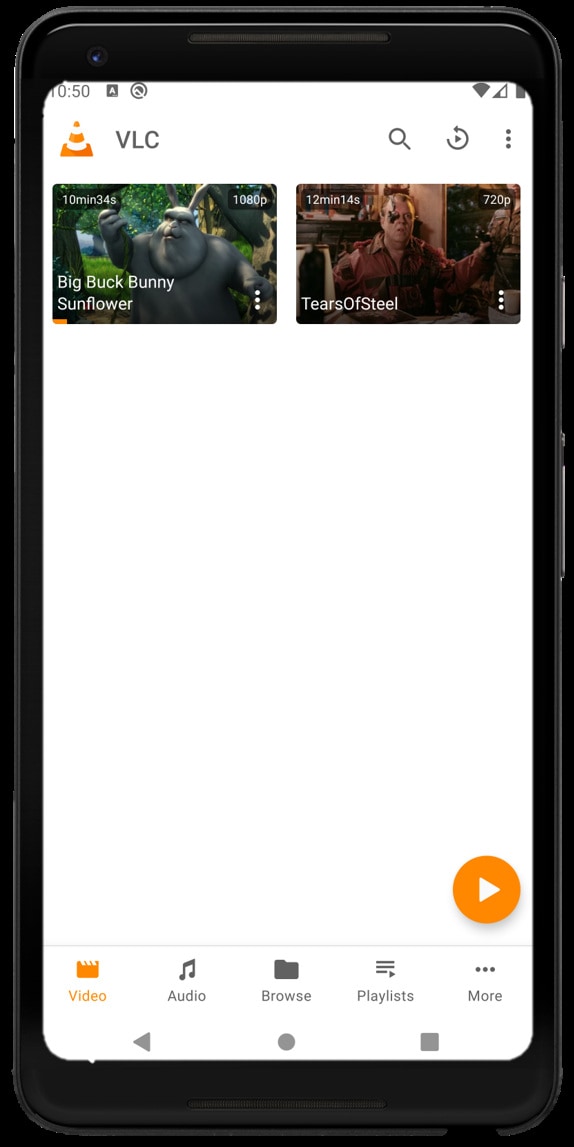
Use this only when the video was lawfully obtained and has already been transferred to the Android device. VideoLAN’s Android 3.x guide shows the Video tab and folder browsing flow. The example interface is genuine but is not itself 8K footage.
Step 1. Install the current official VLC for Android from Google Play. Check available storage, then copy a short local test clip onto the device.
Step 2. Open VLC, enter the Video section or browse the stored media folder, and choose the local file.
Step 3. Play, pause and seek to several points. Watch for black frames, dropped motion, delayed audio or overheating while the same file plays on a capable desktop.
Success: the clip starts, seeks and keeps audio in sync. If it fails: verify the exact codec and lower-bitrate control file; switch player only after checking whether the phone can hardware-decode that stream.
Method 3. Import a Local Video into VLC on iPhone
Use this workflow to open a locally owned file, not to claim that the iPhone is an 8K display. iOS VLC offers documented Downloads and file-transfer routes; older screenshots can differ from the current menu layout.
Step 1. Install the official VLC for Mobile app from Apple’s App Store, and use Files, a permitted local transfer, or the documented VLC media transfer option to place the clip on the phone.
Step 2. In VLC, open the appropriate local-files or Downloads area and select the newly transferred file, as shown in VideoLAN’s iOS guide.
Step 3. Test a short representative segment including audio and a seek operation. If the high-resolution source stutters, play a separately encoded 4K derivative for viewing while keeping the 8K original safe.
Success: the file is accessible and plays on the phone within its decoding limits. If it fails: distinguish failed file transfer, unsupported codec and thermal/processing limits. Never interpret a smooth 1080p clip as proof of real-time 8K support.
Method 4. Play a Local 8K Clip in VLC on Windows 11
On a PC, test the actual sample in an updated VLC installation before switching apps or changing system codecs. A local copy avoids making bandwidth the first confounding variable.
Step 1. Install VLC from the official VideoLAN website and copy your licensed test file to local storage.
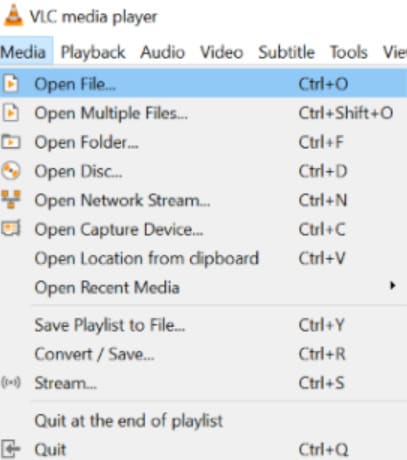
Step 2. Select Media > Open File or use the keyboard shortcut Ctrl+O; browse to the local 8K clip.
Step 3. Play the clip and watch at least two segments while noting the file’s codec, bitrate and behavior. If playback remains smooth, there is no need to change hardware acceleration.
Success: stable playback and seeking. If it fails: try a known-good 4K comparison file, check GPU driver and hardware decoding availability, and use the next method to inspect the stream rather than disabling every decoding option.
Method 5. Check VLC Codec Information and Investigate Stutter
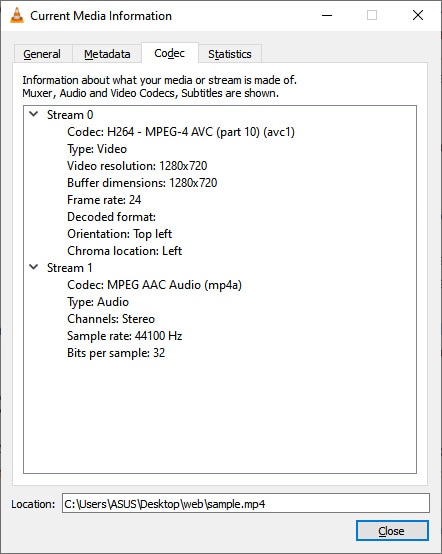
This is the first useful diagnosis when VLC opens an 8K file but the picture freezes or audio falls out of sync. It can reveal whether the tested file is HEVC, AV1 or H.264 and show its source dimensions. Use the current player’s displayed labels; UI location may differ by platform/version.
Step 1. Start playback on the affected Windows computer and open Tools > Codec Information or the corresponding Media Information dialog.
Step 2. Read the video codec, video resolution and frame rate and compare them with your device’s documented decoder support.
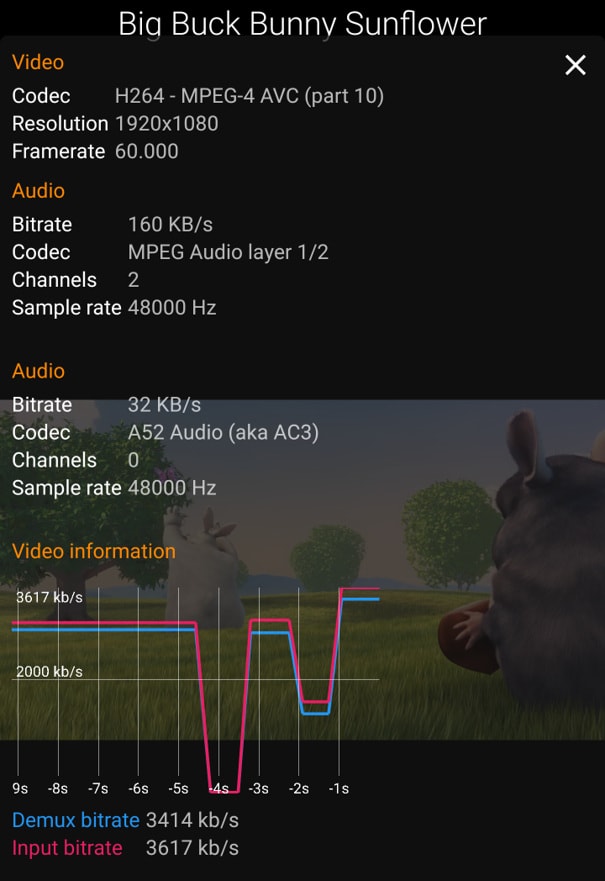
Step 3. Where a hardware-decoding setting is available, compare the default automatic mode against one alternative only if the hardware/driver is suspected. Revert the setting when it causes new symptoms, and test the same file after each change.
Success: you have identified a codec or performance mismatch and a reproducible working configuration. If it fails: create a 4K viewing copy on a capable computer, then examine whether the source file itself has read/decode errors. Related choppy video playback troubleshooting helps isolate ordinary decode stutter.
Method 6. Recover a Deleted Local 8K Video Only When the Source Is Missing
If a camera card or hard drive no longer contains your original 8K clip, changing players cannot bring it back. This is a data-loss task, not a codec issue. Avoid new downloads, exports or video processing on the affected source drive because writes can overwrite recoverable material. Recoverit Video Recovery can be considered for supported storage/file cases; it cannot retrieve removed videos from a streaming platform account or guarantee success.

Step 1. Stop recording, saving new media or running disk repairs on the affected drive. Connect the drive in a read-only-safe workflow where feasible.
Step 2. Use the Recoverit Video Recovery feature to scan a supported source drive and inspect found video candidates before attempting restoration.

Step 3. If a recognizable candidate is found, recover to a different healthy drive and test the exported video in VLC. If the restored file is truncated or corrupted, treat that as a separate media-repair problem.
Success: a recovered local clip opens and seeks from a separate destination. If it fails: stop unnecessary source writes and consider a specialist; neither Recoverit nor a new 8K player can guarantee missing or overwritten frames will be restored. See the distinct damaged MP4 troubleshooting article if the file still exists but is structurally unreadable.
Part 6. Frequently Confused 8K Player Problems
Different failure modes require different actions, so use a symptom rather than a generic “does not support 8K” label. The following distinctions also protect original camera footage from unnecessary conversions.
An 8K Player App Is Not an 8K Downloader
The page targets playback: choosing a player, opening a lawful local or network file and verifying decode performance. A player may offer a network stream feature, but it does not automatically grant permission to download copyrighted video or supply an 8K file. Downloading or streaming from licensed sources is a separate user task.
A Corrupted 8K File Is Different from an Unsupported Codec
If the same file opens normally on another capable device, the original is less likely to be structurally corrupt; investigate the first device’s codec profile, software or memory limits. If multiple known-capable players report parse/read errors at the same file position, save the original intact and use file repair diagnostics. Recovering a deleted file from a memory card is yet another workflow. The VLC files not playing troubleshooting guide explains nearby player-level symptoms without turning this comparison into a repair article.
“8K” in an App Name Is Not Independent Performance Evidence
A credible 8K comparison documents the test file’s exact resolution, codec, profile, bit depth, frame rate and bitrate, the device model and OS version, and whether playback remains stable during seeking. Vendor store copy may support listing a claimed feature, but cannot substitute for a tested matrix. For the Apple and Android apps above, no blanket cross-device playback benchmark is claimed.
Conclusion
For most Android readers, start with VLC for Android and compare the current KMPlayer app if you prefer its controls. On iPhone, VLC and maintained library apps such as Infuse are plausible playback choices, but neither the app name nor file support proves smooth native 8K decoding on your particular phone. On Windows 11, VLC or mpv paired with suitable GPU decoding is a practical starting point.
The reliable decision is to check the actual stored resolution and codec, play a known-good clip, then separate hardware limits from file damage or loss. Keep the original 8K source safe, use a lower-resolution viewing copy when needed, and choose data recovery only for a genuinely missing local file.
FAQ
-
What is the best 8K video player for Android?
VLC for Android is a reliable general-purpose first choice. KMPlayer officially advertises 4K–8K support, but smooth 8K performance depends on the phone, codec, profile, frame rate and bitrate. -
Can an iPhone play 8K video files?
Some player apps can recognize or attempt to decode high-resolution files, but real-time 8K playback is not guaranteed across iPhone models. Test the actual source and use a 4K viewing copy when necessary. -
Which 8K player works on Windows 11?
VLC and mpv can open supported high-resolution video streams. Successful full-speed playback depends on your installed version, GPU decoder, codec, profile, driver and source bitrate. -
Does VLC support 8K and AV1?
VideoLAN documents 8K/UHD capabilities in VLC 3.x; actual playback of a given AV1 or HEVC file still depends on platform and hardware/software decoding support. -
Is there an 8K video player APK I should sideload?
Use current official store listings where possible. A modified or unofficial APK does not add hardware decoder capabilities and may create device security risks. -
Will converting an 8K MP4 fix stutter?
A carefully encoded 4K derivative may make a demanding source easier to watch, but conversion changes the video and does not recover lost frames. Preserve the original before transcoding. -
Can Recoverit fix an unsupported 8K codec?
No. Codec and decoder incompatibility is a player or hardware problem. Recoverit Video Recovery is relevant when a local video file is missing from supported storage; file repair is a distinct task.


