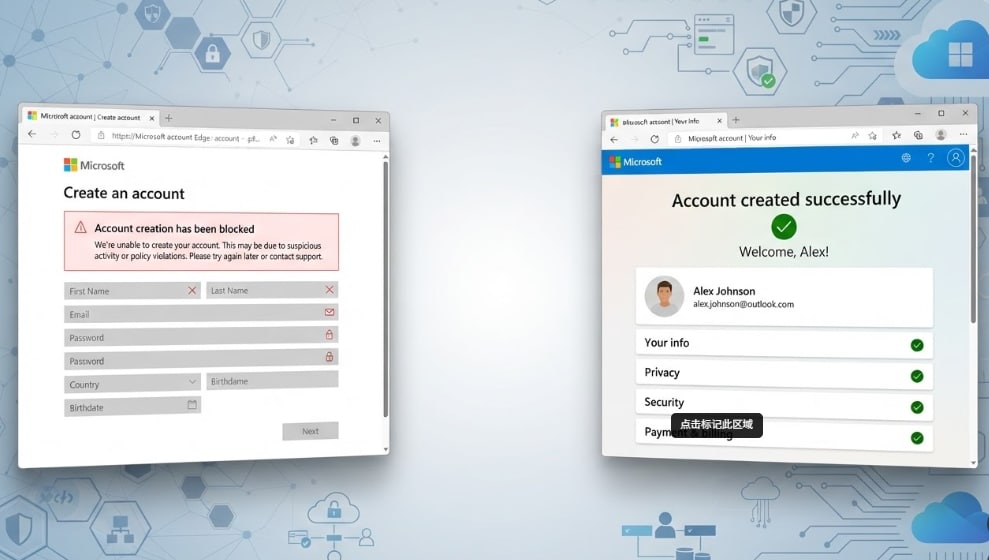

Seeing the message Microsoft Account Creation Has Been Blocked while trying to create a new Microsoft account? This error can appear when Microsoft detects unusual sign-up behavior, repeated verification requests, suspicious network activity, or account details that trigger its security system. It can stop you from setting up Windows, accessing Outlook, using OneDrive, downloading apps from Microsoft Store, or signing in to Xbox services.
The good news is that the block is often temporary and can usually be fixed with safe, official methods. This guide explains why Microsoft Account Creation Has Been Blocked appears, how to resolve it step by step, and how to protect or recover important local files if account issues interrupt Windows setup, reset, or data migration.
Try Recoverit to Recover Lost Local Files
 Security Verified. 3,591,664 people have downloaded it.
In this article
Part 1. What Does Microsoft Account Creation Has Been Blocked Mean?
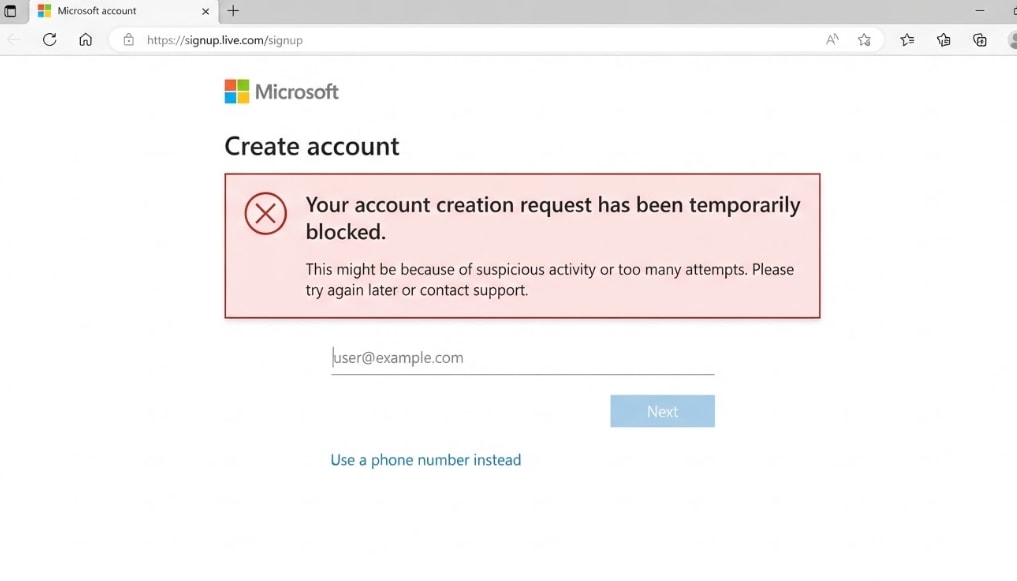
The error Microsoft Account Creation Has Been Blocked means Microsoft has temporarily stopped your attempt to create a new account. This does not always mean you did something wrong. Microsoft uses automated security checks to prevent spam, fake accounts, bots, phishing, and suspicious sign-up behavior.
When the system sees repeated requests, unusual network signals, unreliable verification details, or activity that looks automated, it may block account creation to protect users and Microsoft services. The issue can happen on Windows setup, Outlook.com, Microsoft Store, Xbox sign-in, or the Microsoft account creation page.
Part 2. Why Does Microsoft Block Account Creation?
There are several common reasons why Microsoft Account Creation Has Been Blocked may appear. Understanding the cause can help you choose the right fix and avoid triggering the block again.
| Reason | What It Means |
| Too Many Attempts | Creating accounts or requesting verification codes too many times in a short period can trigger a temporary block. |
| Suspicious Network | VPNs, proxies, public Wi-Fi, shared office networks, or datacenter IPs may look risky to Microsoft security systems. |
| Verification Problems | Incorrect phone numbers, SMS delivery issues, repeated code requests, or unsupported numbers can stop sign-up. |
| Reused Email Address | An email address that was already used for a Microsoft account may not be available for a new account. |
| Browser Session Error | Old cookies, cached sign-in sessions, or browser extensions can interfere with Microsoft account pages. |
| Unusual Device Activity | Microsoft may block sign-up if the device, region, or activity pattern looks automated or risky. |

Part 3. How to Fix Microsoft Account Creation Has Been Blocked
To fix Microsoft Account Creation Has Been Blocked, start with safer, simpler methods first. Use official Microsoft pages, accurate information, and a trusted network. Avoid scripts, fake numbers, disposable emails, or automated sign-up tools.
Fix 1. Wait and Try Again Later
Sometimes this block is temporary. If Microsoft detects too many attempts from your device, email, phone number, or IP address, waiting several hours or up to 24 hours may help.
Close the sign-up page, stop requesting verification codes, and try again later from a stable home network. This is especially helpful if you recently entered codes incorrectly or attempted to create several accounts.
Fix 2. Use the Official Microsoft Account Creation Page
Make sure you are creating your account from Microsoft’s official page, not a third-party link. Go to the official Microsoft account creation guide and follow the correct sign-up path.
If you need a new Outlook email address, go to Outlook.com and choose Create free account. Avoid pages that copy Microsoft branding, as they may steal your information or create more account security problems.
Fix 3. Try Another Sign-Up Method
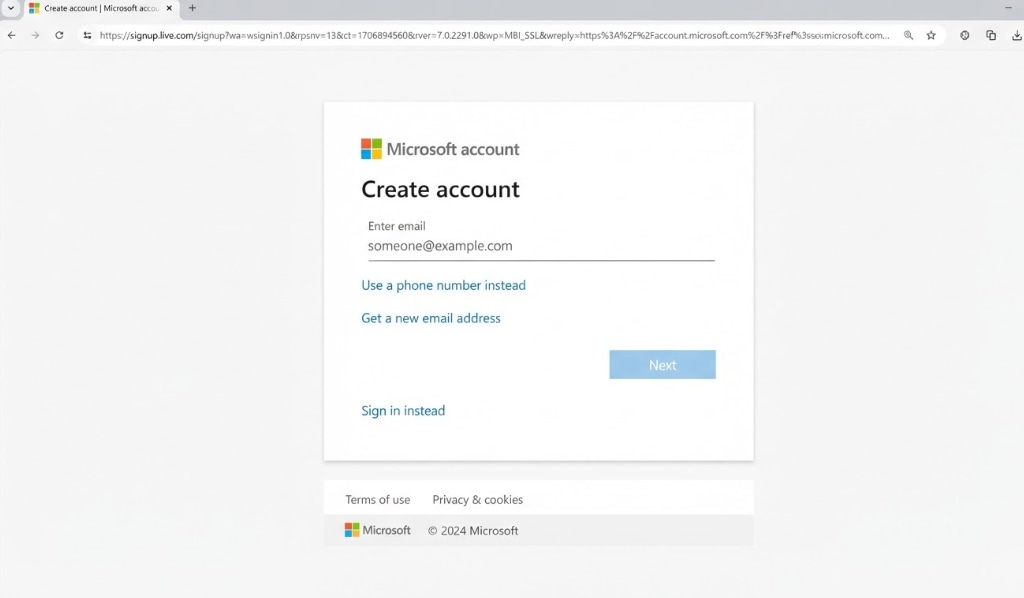
If one sign-up method is blocked, try another valid method. For example, if phone-based account creation fails, use an email address you control. If creating a new Outlook address fails, try registering with an existing email address.
You can also try signing out of all Microsoft services in your browser before starting again. If you are setting up Windows and cannot create a new account, use an existing Microsoft account first and add the new account later.
Fix 4. Turn Off VPN, Proxy, or Public Wi-Fi
VPNs, proxies, public Wi-Fi, and shared office or school networks can trigger security checks. If many sign-up attempts come from the same IP address, Microsoft may temporarily block account creation from that network.
Instructions. Turn off your VPN or proxy, switch to a trusted home Wi-Fi or mobile hotspot, restart your browser, and try creating the account again. A normal residential connection is usually more reliable for account creation.
Fix 5. Clear Browser Cache or Use InPrivate Mode
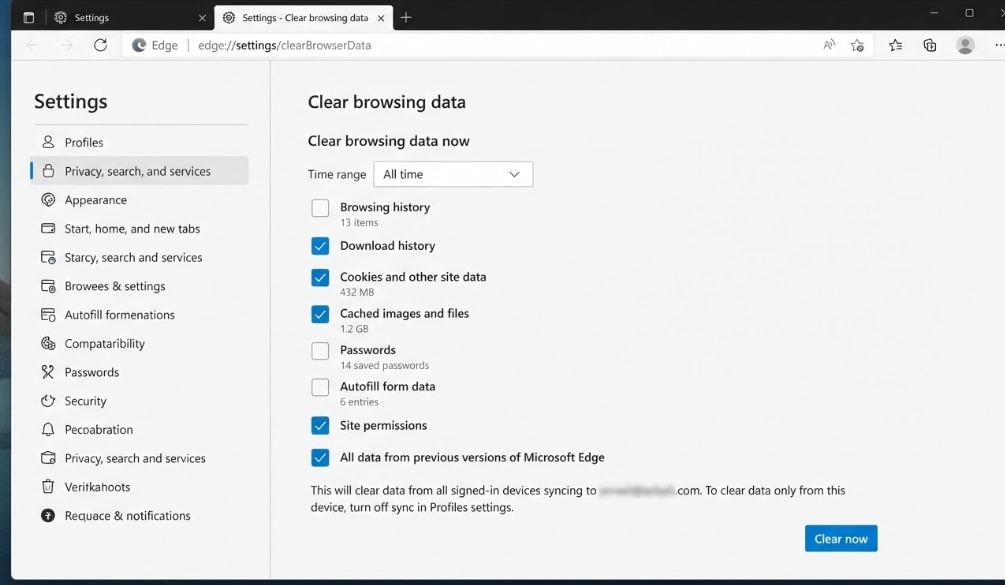
Corrupted cookies, cached login sessions, or browser extensions may interfere with Microsoft sign-up pages. If the page keeps looping, freezing, or showing Microsoft Account Creation Has Been Blocked, try a clean browser session.
You can clear cookies and cache, use Microsoft Edge InPrivate mode, try another browser, disable ad blockers temporarily, and sign out of other Microsoft accounts before trying again.
Fix 6. Check Verification Code Issues
If the block happens during verification, the issue may be related to email or SMS code delivery. Microsoft may limit verification if there are too many requests or if the traffic looks unusual.
Check that the email or phone number is correct, review your junk or spam folder, make sure your SMS inbox is not full, and avoid requesting too many codes repeatedly. You can also review Microsoft’s verification code troubleshooting guide.
Fix 7. Use a Real Mobile Number
If Microsoft asks for phone verification, use a real mobile number that can receive SMS codes. Temporary phone numbers, VOIP numbers, or numbers used across too many accounts may not work.
If your number has reached a usage limit, wait and try again later or use another valid number that belongs to you. Do not use disposable number services, as they can increase the chance of being blocked.
Fix 8. Check Whether the Email Address Was Used Before
If you are trying to create a new Microsoft account with an email address that was previously connected to another Microsoft account, it may be unavailable.
Microsoft states that addresses used for Microsoft accounts cannot always be reused, even if the old account was closed. In this case, use a different email address or create a new Outlook.com address.
Fix 9. Try Another Trusted Device
Sometimes the block is connected to your browser session, device, or local network. If clearing cookies and changing networks does not help, try creating the account on another trusted device.
For example, use another PC, a phone browser, Microsoft Edge instead of Chrome, or a home network instead of office or school Wi-Fi. Avoid automated tools or repeated sign-up attempts.
Fix 10. Unlock Your Existing Microsoft Account First
If the real issue is that an existing Microsoft account is locked, do not keep creating new accounts to avoid the problem. Use Microsoft’s official unlock process first.
Microsoft explains that accounts may be locked when activity appears suspicious or violates its terms. You can visit Microsoft’s locked account help page and follow the official recovery steps.
Part 4. What If You Are Stuck During Windows Setup?
Some users see Microsoft Account Creation Has Been Blocked while setting up a new Windows PC. If this happens, you may not be able to continue sign-in, sync OneDrive, access Microsoft Store, or complete personalization settings normally.
If possible, use an existing Microsoft account first and add the new account later. Depending on your Windows version and setup flow, you may also be able to create a local account and switch to a Microsoft account afterward.
Before resetting, reinstalling Windows, or changing account settings, back up important files from these locations:
- Desktop
- Documents
- Downloads
- Pictures
- Videos
- OneDrive local sync folder
- External drives used during setup or migration
Pro Tip. Recover Lost Local Files with Recoverit
Account creation problems can sometimes lead users to reset Windows, reinstall the system, switch user accounts, or move files manually. These actions can create data loss risks if they are done in a hurry. If important local files are missing after a failed setup, Windows reset, account switch, or accidental deletion, Wondershare Recoverit can help scan your storage device and recover lost data.
Recoverit does not unlock Microsoft accounts or recover cloud-only OneDrive files. Instead, it is designed to recover deleted or lost local files from HDDs, SSDs, USB drives, SD cards, external drives, and other storage devices.
Key Features
- Local File Recovery: Recoverit can recover documents, photos, videos, emails, archives, and other files lost from local drives or external storage devices.
- Multiple Data Loss Scenarios: It supports recovery after accidental deletion, formatting, Windows reset, system crash, failed transfer, and drive errors.
- Preview Before Recovery: You can preview recoverable files before saving them to a safe location.
Guide to Recover Lost Files with Recoverit
Follow these steps if files are missing after account setup, reset, or migration problems:
Step 1. Select the Location Where Files Were Lost
Launch Recoverit and go to Hard Drives and Locations. Choose the drive or folder where your missing files were originally stored.

Step 2. Scan for Deleted or Missing Files
Recoverit will start scanning the selected location. During the scan, it searches for deleted, lost, or missing files and displays recoverable results.

Step 3. Preview and Recover Needed Files
Preview the discovered files when available. Select the files you need, click Recover, and save them to another safe location instead of the original drive.

Conclusion
Microsoft Account Creation Has Been Blocked usually appears when Microsoft detects unusual sign-up behavior, repeated verification requests, suspicious networks, reused account information, or browser session problems. To fix it, wait before trying again, use the official Microsoft sign-up page, turn off VPN or proxy, clear browser data, use a valid email or mobile number, and try another trusted device.
If the issue happens during Windows setup, avoid resetting or reinstalling Windows before backing up your files. If important local files are already missing after account or system changes, Wondershare Recoverit can help scan the drive and recover lost data safely.
FAQ
-
Why does Microsoft Account Creation Has Been Blocked appear?
It usually appears when Microsoft detects too many sign-up attempts, suspicious network activity, verification issues, reused account information, or behavior that looks automated. -
Is Microsoft Account Creation Has Been Blocked permanent?
Not always. In many cases, the block is temporary. Waiting several hours or up to 24 hours and trying again from a trusted network may help. -
Can a VPN cause Microsoft Account Creation Has Been Blocked?
Yes. VPNs, proxies, public Wi-Fi, and shared networks can trigger Microsoft security checks. Try using a trusted home network or mobile hotspot instead. -
Can Recoverit fix Microsoft Account Creation Has Been Blocked?
No. Recoverit cannot unlock or create Microsoft accounts. It helps recover local files that may be lost after Windows reset, reinstall, account switch, accidental deletion, or storage problems.


