
 TL;DR:
To resolve Palworld 1.0 startup crashes, freezing, or black screens on Steam, completely remove outdated mods, verify game file integrity, and ensure the game is installed on an SSD rather than an HDD.
● Always back up your local save data located at %LOCALAPPDATA%\Pal\Saved\SaveGames before initiating any repairs, verifying files, or reinstalling the game.
● Manually delete old mods, mod loaders, and custom .pak files from the Pal\Binaries\Win64 and Pal\Content\Paks folders, as lingering files will continue to cause version conflicts.
● If save files disappear after a crash or reinstallation, immediately stop using the affected drive to prevent data overwriting and use Wondershare Recoverit to restore the missing files to a separate storage location.
Ask AI for a summary
 ChatGPT
 Perplexity
 Gemini
 Claude
 Grok
Grok
Many Steam players report that Palworld 1.0 is not launching, crashing on startup, freezing on the loading screen, or showing a black screen on PC. These issues can happen after a major update, especially when old mods, corrupted game files, outdated graphics drivers, or overlay tools conflict with the new version. This guide explains why Palworld 1.0 may fail to load and shows practical ways to fix the issue. You will also learn how to recover missing Palworld save files if they disappear after a crash, update, or reinstall.
Try Recoverit to Recover Lost Game Save Files
 Security Verified. 3,591,664 people have downloaded it.
In this article
Part 1. Why Is Palworld 1.0 Not Launching or Crashing on PC?
When Palworld 1.0 crashes right after launch, the issue is usually related to your local PC environment. A major game update may change files, dependencies, save behavior, or mod compatibility. As a result, Palworld may fail to open, get stuck loading, freeze, or only show a black screen.
Common Causes of Palworld 1.0 Startup Problems
Below are the most common reasons why Palworld 1.0 is not loading on Steam:
| Reason | Cause |
| Old Mods | Outdated mods or mod loaders may conflict with Palworld 1.0 and cause startup crashes. |
| Corrupted Game Files | Missing or damaged Steam files can stop essential game assets from loading. |
| Outdated GPU Driver | Old graphics drivers may cause black screen, freezing, or rendering failure. |
| Overlay Conflict | Steam Overlay, Discord Overlay, Xbox Game Bar, OBS, or MSI Afterburner may interfere with the game. |
| Slow Drive | Installing Palworld on an old HDD may cause long loading times, freezing, or startup issues. |
| Save or Config Error | Damaged local configuration files or save data may prevent the game from loading correctly. |
Before Fixing: Back Up Your Palworld Save Files
Some fixes involve deleting mods, verifying game files, clearing settings, or reinstalling Palworld. Before making major changes, back up your save folder first. For the Steam version, Palworld save files are usually stored in:
%LOCALAPPDATA%\Pal\Saved\SaveGames
Press Windows + R, paste the path above, and copy the SaveGames folder to another safe location, such as your desktop, external drive, or cloud storage.

Part 2. How to Fix Palworld 1.0 Not Launching, Crashing, Freezing, or Black Screen
You can try the following solutions one by one to fix Palworld 1.0 not launching on Steam. Start with simple fixes, then move to deeper repair methods if the issue continues.
Fix 1. Restart Steam and Your PC
Temporary Steam process errors can stop Palworld from opening properly. Close Palworld and Steam completely, then open Task Manager and end any remaining Steam or Palworld processes. Restart your PC, launch Steam again, and try opening Palworld.
Fix 2. Check Palworld PC Requirements
Palworld may freeze, crash, or show a black screen if your PC does not meet the required specifications. According to the Palworld Steam page, the game requires a 64-bit Windows system, 16 GB RAM, DirectX 11 support, and an SSD.
If Palworld is installed on an HDD, move or reinstall it to an SSD. This can reduce long loading times and prevent freezing during startup.
Fix 3. Remove Old Palworld Mods Completely
Old mods are one of the most common reasons Palworld 1.0 crashes on startup. After a major update, disabling mods may not be enough if mod files remain inside the game folder.
Instructions. Open Steam Library, right-click Palworld, and choose Manage > Browse local files. Check folders such as Pal\Binaries\Win64 and Pal\Content\Paks. Remove old mod files, mod loaders, and custom .pak files. If you use Steam Workshop mods, unsubscribe from outdated mods as well.
Fix 4. Verify Integrity of Game Files on Steam
Corrupted or missing game files can cause Palworld to crash, freeze, or fail to load. Steam has a built-in repair tool that checks your installation and downloads clean replacements when needed.
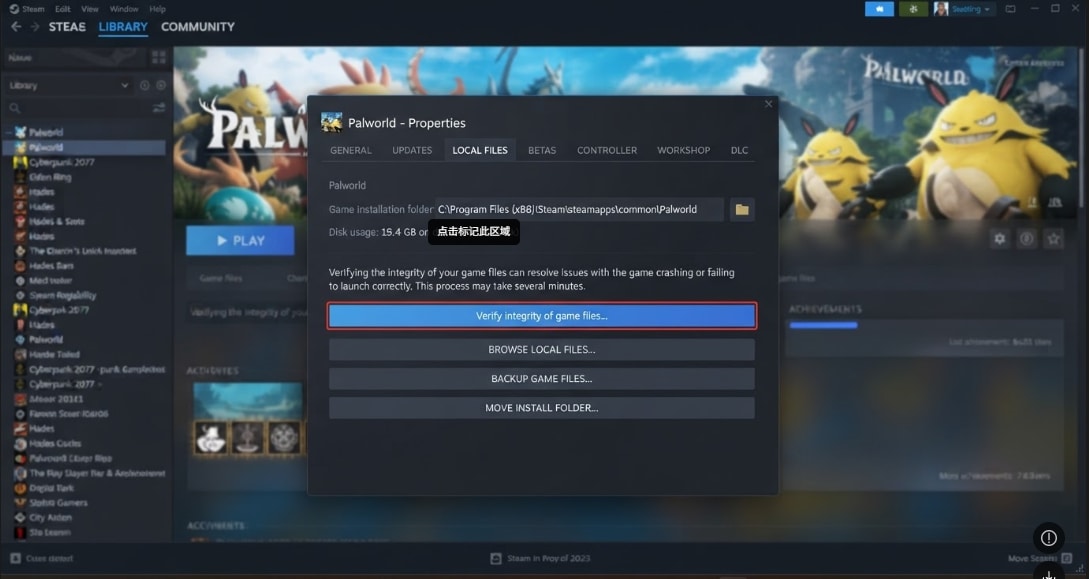
Step 1. Open Steam and go to Library. Right-click Palworld and choose Properties.
Step 2. Open the Installed Files tab and click Verify integrity of game files. Wait for Steam to finish checking, then restart your PC and launch the game again.
Fix 5. Update Your Graphics Driver
An outdated graphics driver may cause Palworld black screen, startup crash, or frozen loading screen. Visit the official NVIDIA, AMD, or Intel website to download the latest driver for your GPU. After installation, restart your computer before launching Palworld again.
Fix 6. Run Palworld as Administrator
Palworld may fail to launch if it cannot access required folders or write configuration files. Running the game with administrator permission can fix permission-related startup errors.
Instructions. Open the Palworld installation folder, right-click the executable file, and choose Properties. Go to the Compatibility tab, check Run this program as an administrator, and click Apply. You can also run Steam as administrator before opening the game.
Fix 7. Disable Steam Overlay and Other Overlays
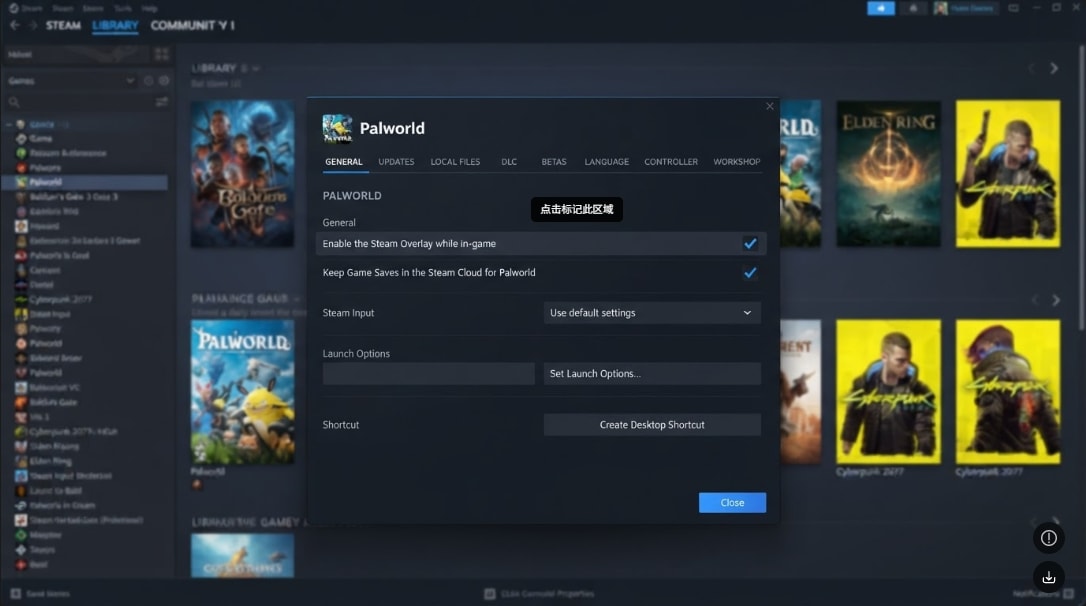
Overlay tools can conflict with Palworld and cause black screen or freezing issues. Disable Steam Overlay, Discord Overlay, Xbox Game Bar, NVIDIA Overlay, AMD Overlay, MSI Afterburner, RivaTuner, and OBS capture hooks temporarily.
Instructions. In Steam, right-click Palworld, select Properties, and turn off Enable the Steam Overlay while in-game. Then relaunch the game.
Fix 8. Allow Palworld Through Firewall or Antivirus
Security software may block Palworld after an update changes game files. Open Windows Security or your third-party antivirus program and add both Steam and Palworld to the allowed list. Also check the quarantine section to make sure no game files were blocked by mistake.
Fix 9. Clear Steam Download Cache
A corrupted Steam download cache can cause incomplete updates, which may lead to Palworld not loading or crashing.
Instructions. Open Steam, go to Settings > Downloads, and click Clear Download Cache. Sign back into Steam, verify Palworld game files again, and launch the game.
Fix 10. Reinstall Palworld on an SSD
If none of the methods work, reinstalling Palworld may fix deeper installation problems. Before uninstalling, back up your SaveGames folder. After that, uninstall Palworld from Steam, restart your PC, and reinstall the game on an SSD. Launch it without mods first to confirm that the base game runs normally.
Pro Tip. Recover Lost Palworld Save Files with Recoverit
After fixing Palworld 1.0 not launching, some players may face another problem: their save files are missing. This can happen after deleting the wrong folder, removing mods, reinstalling the game, moving Palworld from HDD to SSD, formatting a drive, or experiencing a system crash.
If your Palworld save files disappear, stop using the drive where the files were stored. New data may overwrite deleted files and reduce the recovery chance. In this case, Recoverit can help scan your PC, SSD, HDD, external drive, or other storage devices to find lost game files.
Key Features
- Game Save File Recovery: Recoverit can help recover lost or deleted game save files, folders, screenshots, videos, and other related data from your computer or external storage devices.
- Support for Multiple Data Loss Scenarios: It works for accidental deletion, formatting, system crash, failed transfer, drive error, and other common file loss situations.
- Preview Before Recovery: Recoverit allows users to scan and preview recoverable files before saving them to a safe location.
Guide to Recover Lost Palworld Save Files with Recoverit
You can follow these steps to retrieve missing Palworld save files:
Step 1. Select the Location Where Palworld Save Files Were Stored
Launch Recoverit and go to Hard Drives and Locations. Choose the drive or folder where the Palworld save folder was originally stored.

Step 2. Scan for Missing Palworld Data
Recoverit will start scanning the selected location. During the scan, it searches for deleted, lost, or missing Palworld save files and displays recoverable results.

Step 3. Recover and Save Palworld Files to a Safe Location
Preview the discovered files when available. Select the Palworld files you need, click Recover, and save them to another safe location. Do not restore them to the same drive immediately to avoid overwriting recoverable data.

Conclusion
Palworld 1.0 not launching, crashing on startup, freezing, or showing a black screen on Steam can usually be fixed by removing old mods, verifying game files, updating graphics drivers, disabling overlays, and reinstalling the game on an SSD. Before trying deeper fixes, always back up your Palworld save folder. If your save files are already missing after a crash, reinstall, or accidental deletion, Wondershare Recoverit can help you scan the drive and recover lost Palworld data before it is overwritten.
FAQ
-
Why is Palworld 1.0 not launching on Steam?
Palworld 1.0 may fail to launch because of outdated mods, corrupted Steam files, old graphics drivers, overlay conflicts, antivirus blocking, or damaged local configuration files. -
Does verifying Palworld game files delete my saves?
No. Steam file verification checks and repairs core game files. However, it is still recommended to back up your SaveGames folder before making major changes. -
Where are Palworld Steam save files stored?
Palworld Steam save files are usually stored under %LOCALAPPDATA%\Pal\Saved\SaveGames. You can open this path with Windows + R and copy the folder as a backup. -
Can Recoverit recover deleted Palworld save files?
Yes. If the files have not been overwritten, Recoverit can scan the original drive and help recover deleted or lost Palworld save files, folders, screenshots, videos, and other game-related data.


