

SD cards are widely used in everyday devices, powering cameras, drones, smartphones, and action cams. That is why, when corruption occurs on a memory card due to an issue, users become frustrated. It displays messages such as “Card not formatted” or “Access denied.”
The good news is that most corrupted SD cards can be repaired with a few simple steps. So, this guide covers 10 efficient methods to know how to fix a corrupted SD card. Furthermore, you will be introduced to a recovery software to retrieve lost data.
Try Recoverit to Perform SD Card Recovery
 Security Verified. 3,591,664 people have downloaded it.
In this article
-
- Check SD Card for Physical Damage
- Try the SD Card on Another Device or Reader
- Use Recovery Software to Restore Lost Files

- Run CHKDSK Command to Fix File System Errors
- Change Drive Letter to the SD Card
- Reinstall or Update SD Card Drivers
- Use Windows Repair Tool to Fix the SD Card
- Format a RAW SD Card to FAT32
- Create a New Partition on the SD Card
- Full Format to Repair Corrupted SD Card
Part 1. Common Causes of SD Card Corruption You Should Know
Before you fix a corrupted SD card, let’s take a closer look at the key factors that commonly trigger SD card corruption:
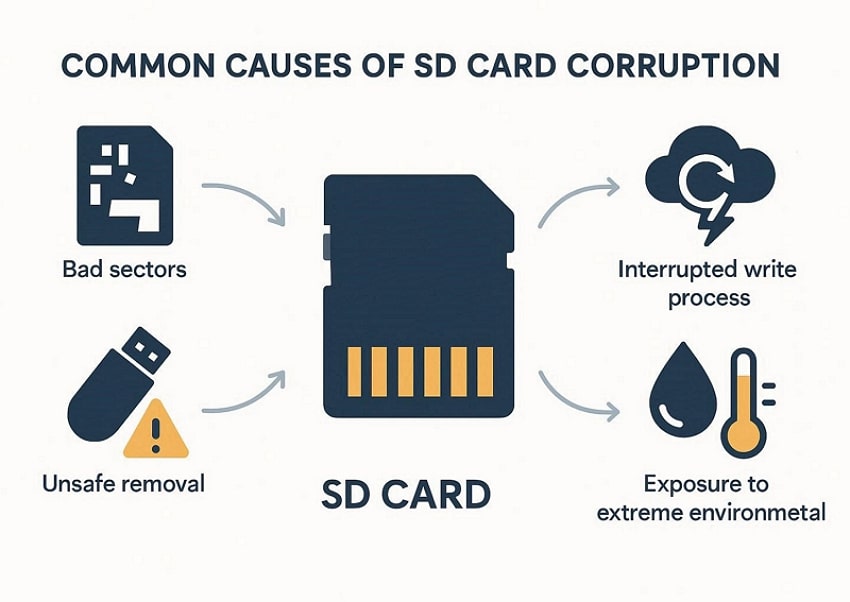
- Bad Sectors: Over time, your memory cards can develop bad sectors, leading to data corruption. It's mainly caused by repeatedly overwriting data on the SD card.
- Manufacturing Defects: Users sometimes mistakenly purchase low-quality or counterfeit SD cards. When these cards are overused, they slowly wear out and stop working.
- Firmware Corruption: Mostly, controller issues can be caused by sudden power outage issues. This will cause the SD card to show an inaccurate capacity or a total read failure.
- Improper Ejection: Yanking the card out without safely ejecting from the device. It will eventually interrupt write operations, causing file system errors.
- Sudden Power Shutdown: Removing the card or device during writes disrupts data storage. However, most people face this issue, which can lead to complete data loss.
Can You Restore Lost Data from SanDisk SD Cards or USB Drives?
Yes, lost data from SanDisk SD cards or USB drives can often be restored if the storage device is not severely physically damaged. When files are deleted or lost due to formatting or corruption, they usually remain on the storage media until overwritten. Using a reliable data recovery tool as soon as possible significantly increases the chances of retrieving photos, videos, and documents safely.
Part 2. 5 Signs Your SD Card Is Corrupted and Needs Repair
Let’s first identify the common symptoms that signal a corrupted SD card to avoid the hassle of corrupted memory card recovery:
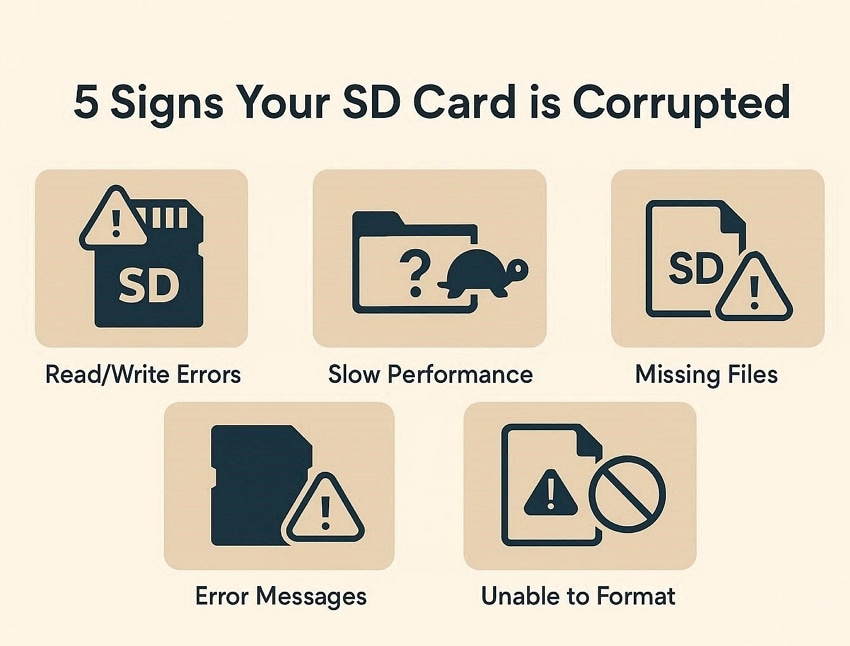
- Card Not Detected: Devices such as cameras or computers fail to recognize the SD card. Despite multiple insertions and port changes, it is not detectable on the device.
- Format Prompt Appears: Your Windows or Mac repeatedly asks to format the card. It will display errors such as "The disk needs to be formatted" or “Access Denied” prompts.
- Incorrect Capacity: After corruption, a card with approximately 256 GB of storage shows very little free space. Even after reinsertion, it is damaging other file systems which is frustrating.
- Missing Files: Suddenly, files have disappeared from their "View" tab or show as corrupted. When accessing files, it shows a prompt that signals file system damage.
- Read/Write Failures: While saving the file, your device starts showing a "write-protected" message. This is a common error that is caused by slow transfers and copy freezes.
Part 3. Repair Corrupted SD Cards: Simple Steps to Restore Your Data
Now that you understand why SD cards fail, let’s walk through the practical steps to know how to recover data from a corrupted SD card:
1. Check SD Card for Physical Damage
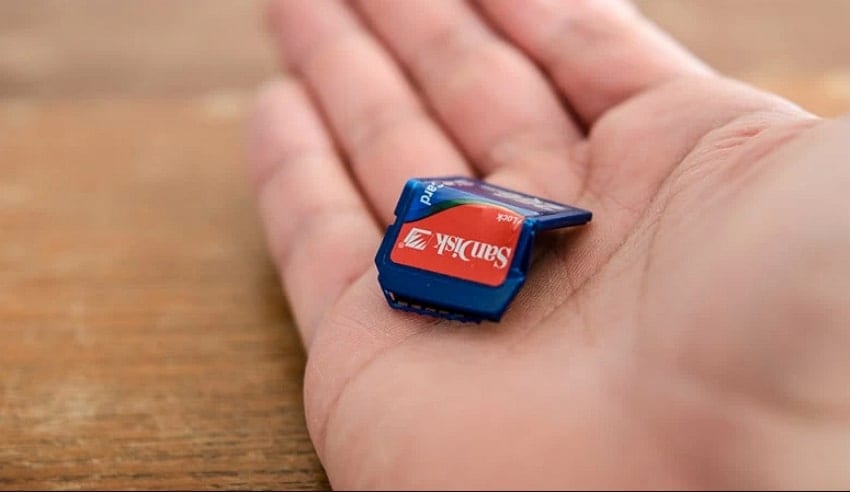
Checking an SD card for physical damage is a crucial first step, as it distinguishes between faulty hardware. In this method, you simply check for cracks, scratches, or water damage. Furthermore, always check for the lock switch, as sometimes it has been locked, due to which it does not write. If you encounter any of these issues, it is recommended that you seek professional help.
2. Try the SD Card on Another Device or Reader
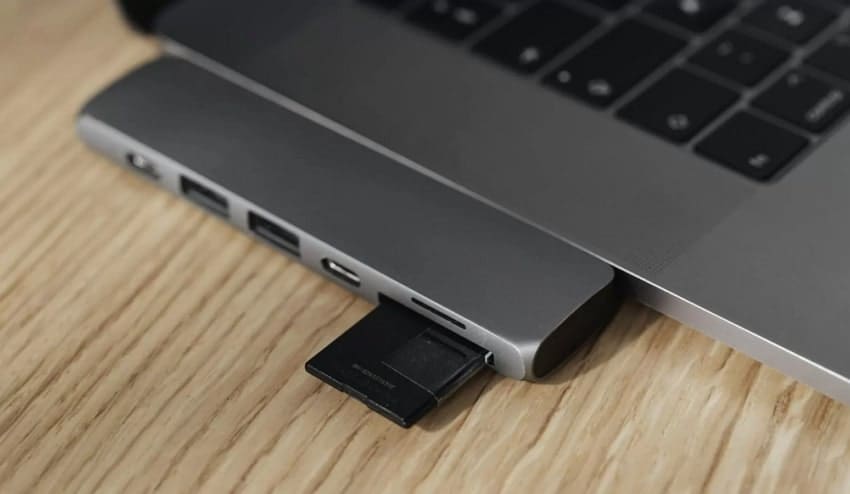
While knowing how to recover a corrupted SD card, you can try changing the card reader. If users are using a laptop with a built-in SD card, grab a USB reader and test in various other ports. Afterwards, if changing ports does not work, then try on another device. With this move, it isolates whether the issue stems from faulty hardware, drivers, or ports.
3. Use Recovery Software to Restore Lost Files
Imagine a Lahore-based wedding photographer frantically scanning his drone footage SD card after a power surge. When he checked the data, he found that the SD card was corrupted and was prompted to format it. In this case, we recommend using Wondershare Recoverit, which provides corrupted memory card recovery using its advanced AI technology.
This tool lets you restore data from various devices, including SD cards, PCs, and Cameras. Being a patented technology, it ensures that all recovered data is accurately formatted. Furthermore, you can process multiple files in a single run to save time. Users can easily access this tool in both online and desktop versions.
Key Features
- Versatile Memory Card Recovery: Recoverit supports all memory cards, including CF, SD, Memory Stick, and other outdated formats.
- Scanning Modes: Users can choose between both Quick scanning and Deep scanning modes, making it easier to cater to every data loss scenario.
- File Types Support: This tool provides efficient support to almost 100+ file formats, including images, audios and other files from SD cards.
An Extensive Guide on How to Recover Lost Data with Recoverit
After examining its outstanding features, let's explore how to recover data from a corrupted SD card:
- Connect the SD Card to Your PC
First, ensure your device is connected to the corrupted SD card. Following this, choose the “SD Card Recovery” option from the left sidebar.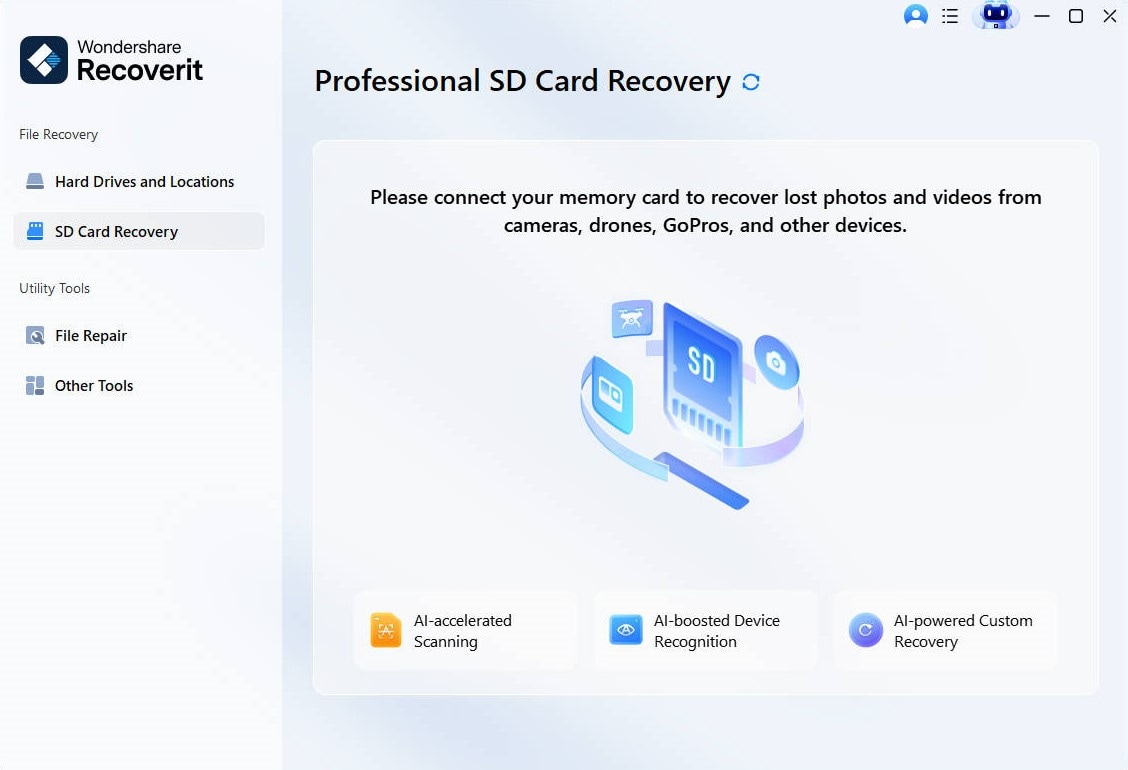
- Let the Tool Scan the Lost Files
After connecting the SD card, it will automatically start the “Quick Scan” procedure. If you are unable to find the lost file, you can also switch to Deep scanning mode for efficient results.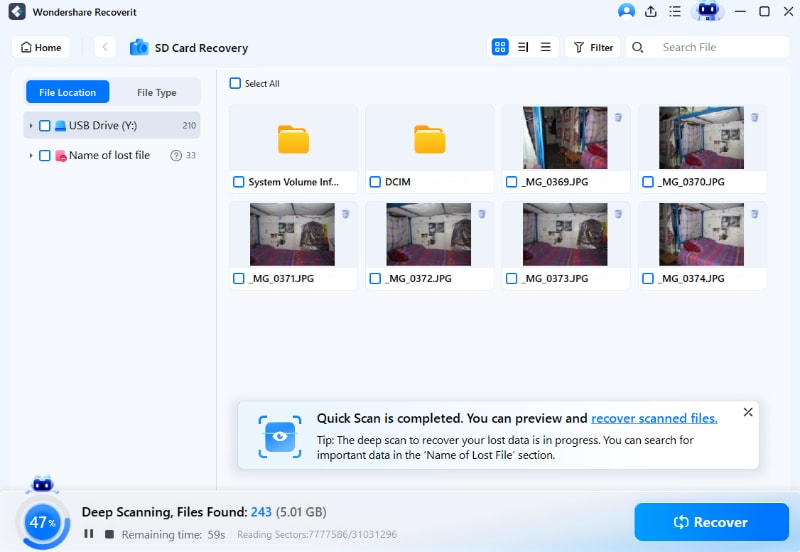
- Examine and Complete the Recovery Procedure
Here, you can preview the recovered outcome to check the completeness and hit the “Recovery” button to save selected files and finish recovery.
4. Run CHKDSK Command to Fix File System Errors
To recover data from a corrupted SD card, running the CHKDSK method is an efficient method. It recovers lost or inaccessible files before any formatting and provides maximum success. This method is helpful to extend the card's life and avoid wasting money on new cards every now and then. Furthermore, it is capable of fixing file system errors or RAW states, so let's go through its detailed guide below:
- Initiate by opening Command Prompt and selecting the "Open" option to enter its interface.
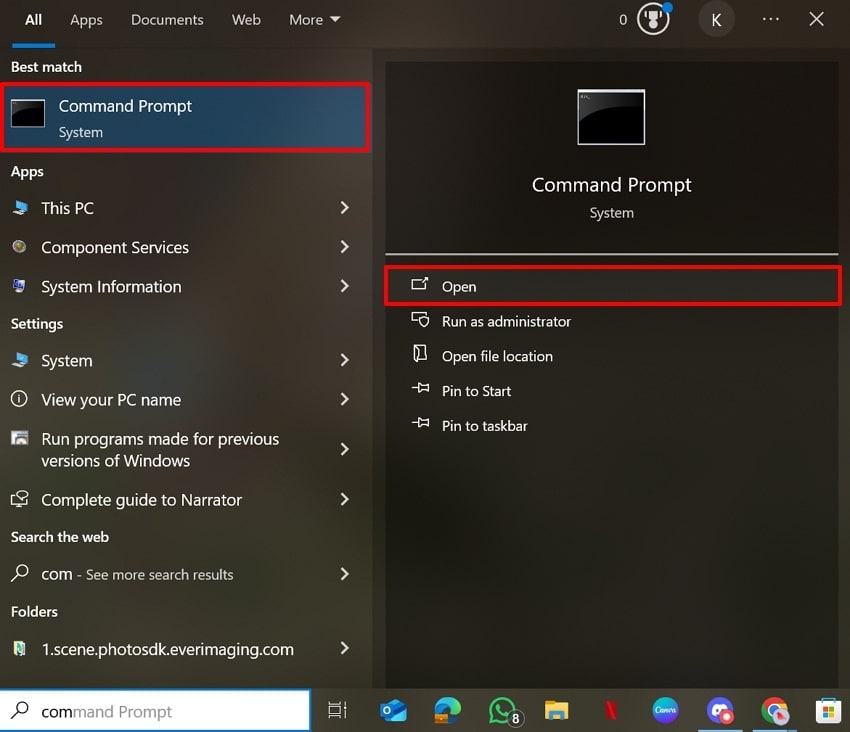
- Upon entering the interface, enter the "chkdsk X: /x /r" command and press the "Enter" button. Here, the "X' parameter will dismount the card, and the "/r" parameter locates the bad sectors.
- This process will take a few hours to complete and depends mainly on the size of your SD card.
More details about Fix Corrupted/Damaged SD Card Using Chkdsk.
5. Change Drive Letter to the SD Card
Changing Driver Letter is essential when Windows conflicts are causing the issue, as duplicate drivers are the primary cause. Mostly conflicting letters make the card invisible in the file explorer, so reassign the card visibility. Furthermore, it's a non-destructive method to fix a corrupted SD card instantly. This is also considered a quick alternative to bypass driver/port glitches when hardware tests pass.
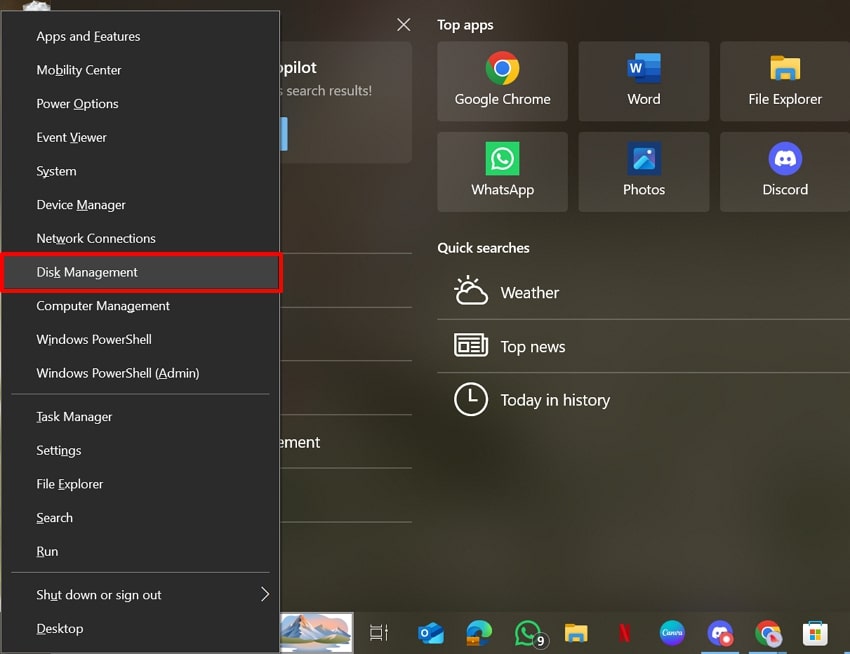
- Initiate by pressing "Windows + X" and choose the "Disk Management" option from the pop-up menu to enter its interface.
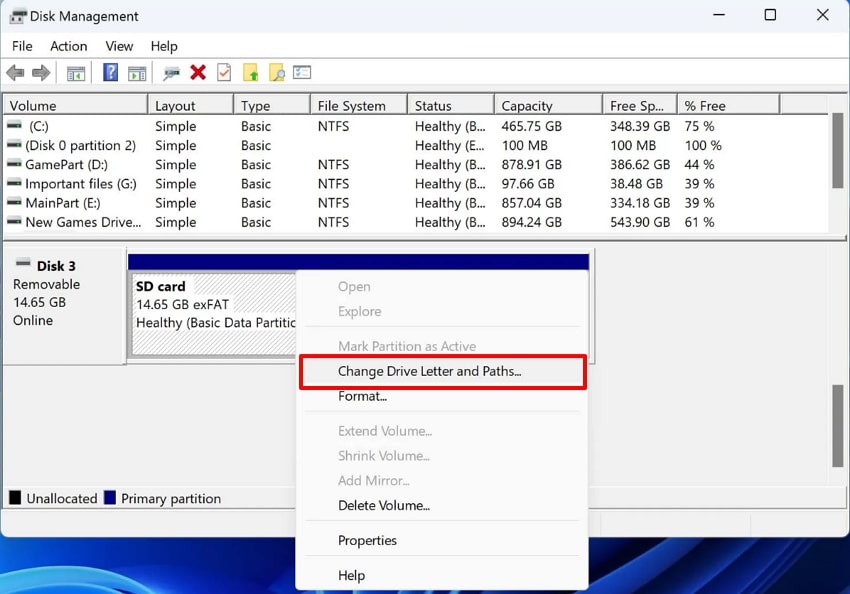
- Following this, navigate to the SD card section and choose the “Change Driver Letter and Paths” option.
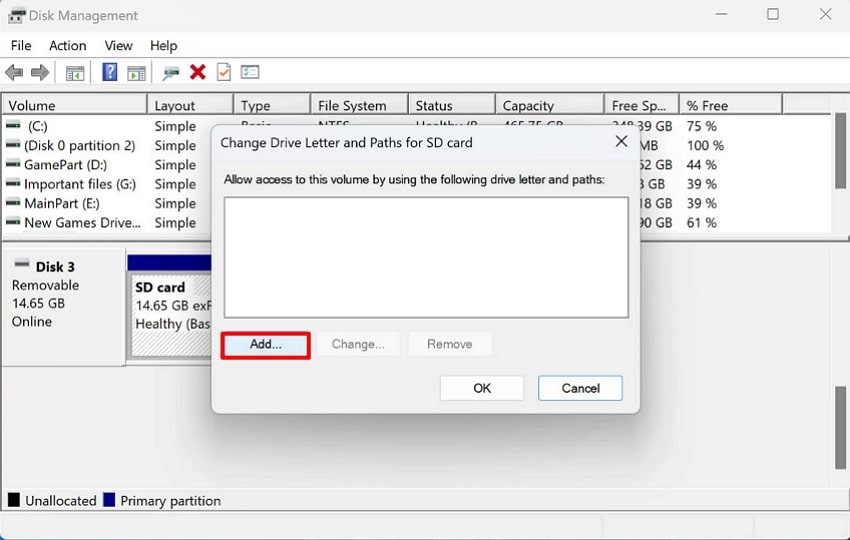
- Next, click on the "Add" button to choose the desired driver letter for the SD card.
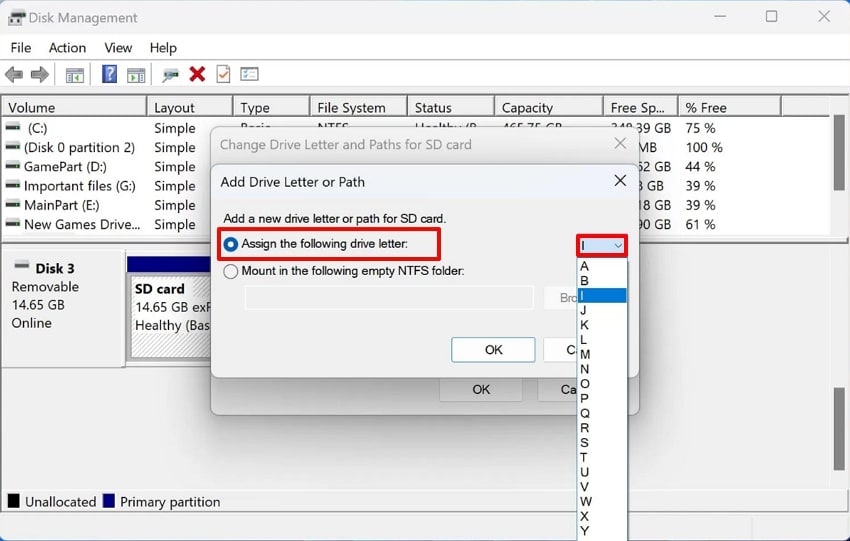
- At the end, enable the “Assign the Following Driver Letter” option. Next, choose the desired letter and click the “OK” button to save the changes.
6. Reinstall or Update SD Card Drivers
If your device is showing corruption due to outdated software, then reinstall or update your driver. Updating drivers can easily resolve Windows glitches or conflicts instantly. Moreover, it can handle exFAT/FAT32 more reliably, reducing future mount failures. Unlike other third-party tools, it doesn’t risk the SD card data, making it a quick solution. So, we provided a detailed guide on how to fix a corrupted SD card below:
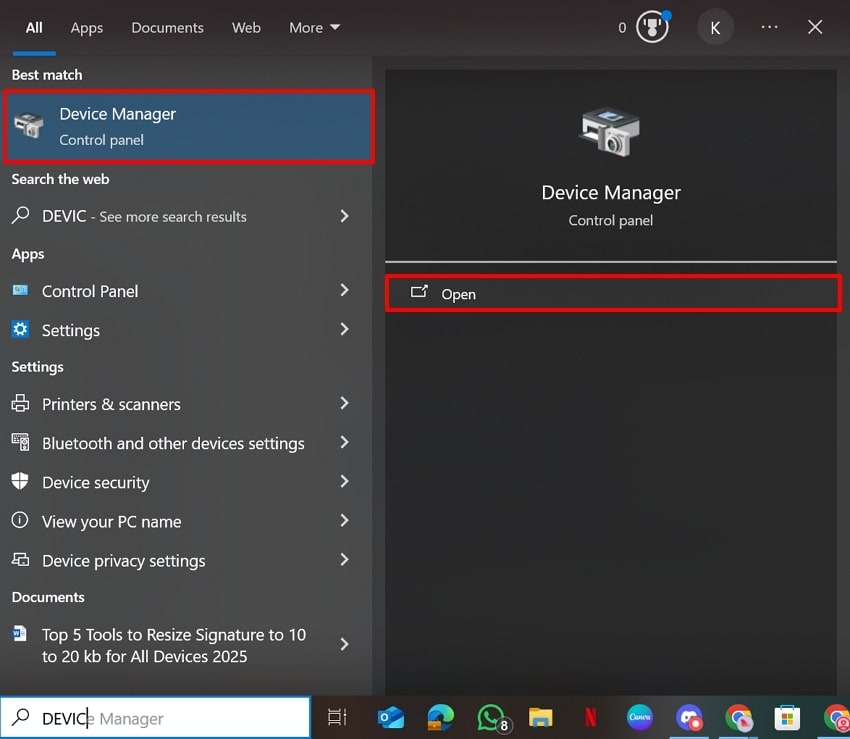
- By going to the Windows menu, search for “Device Manager” and click on the “Open” button to enter the interface.
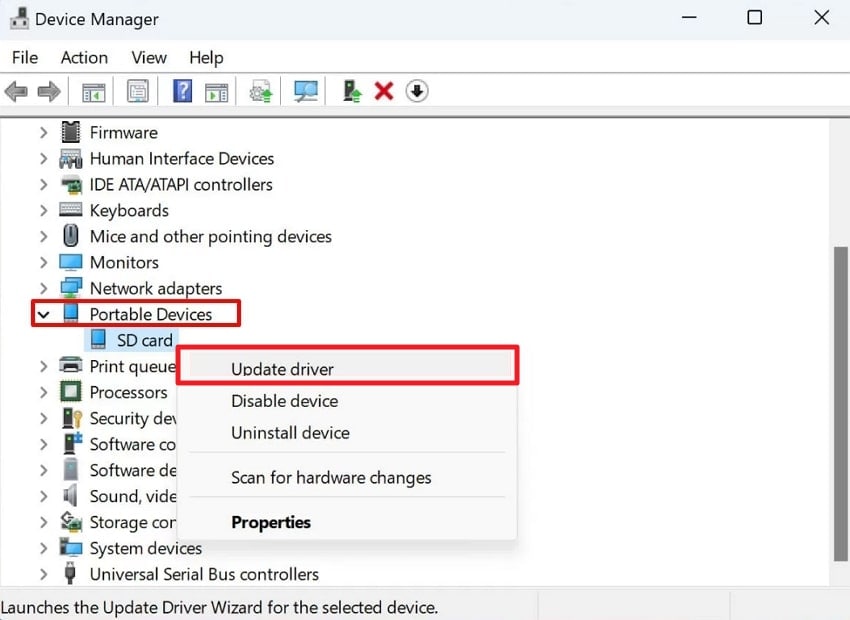
- Following this, navigate to the "Portable Devices", right-click the "SD card" and select the "Update Driver" option.
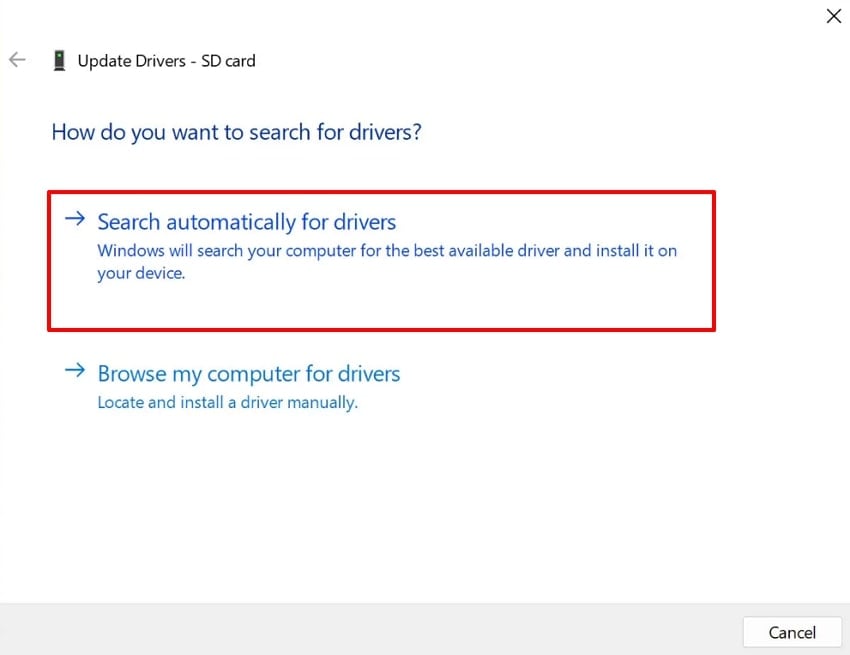
- Finally, choose the "Search Automatically for Drivers" to let the device start updating automatically.
7. Use Windows Repair Tool to Fix the SD Card
Besides opting for a third-party tool, you can fix a corrupted SD card using the built-in "File Explorer" utility. It automatically scans and repairs errors such as lost clusters or directory issues, making it ideal for improper ejection. The foremost benefit is that it uses the read-only method, preserving content better than third-party apps. You can also schedule repairs on restart, ensuring completeness, so let’s explore its steps:
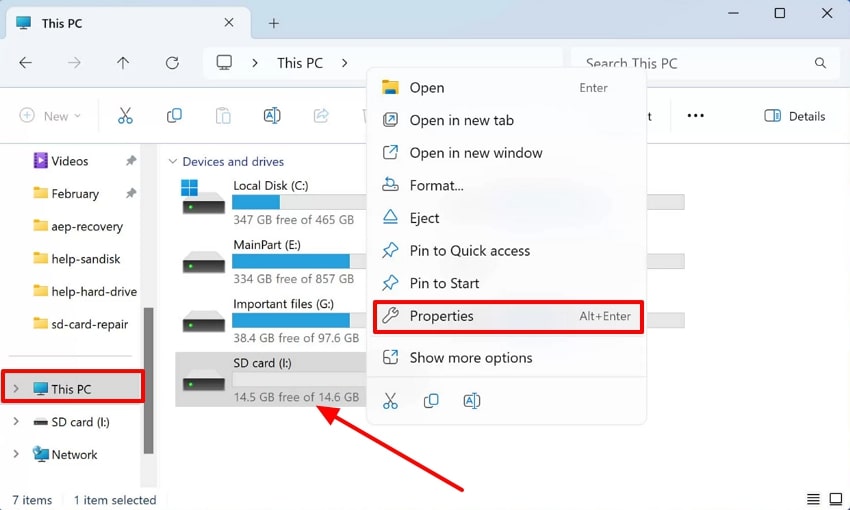
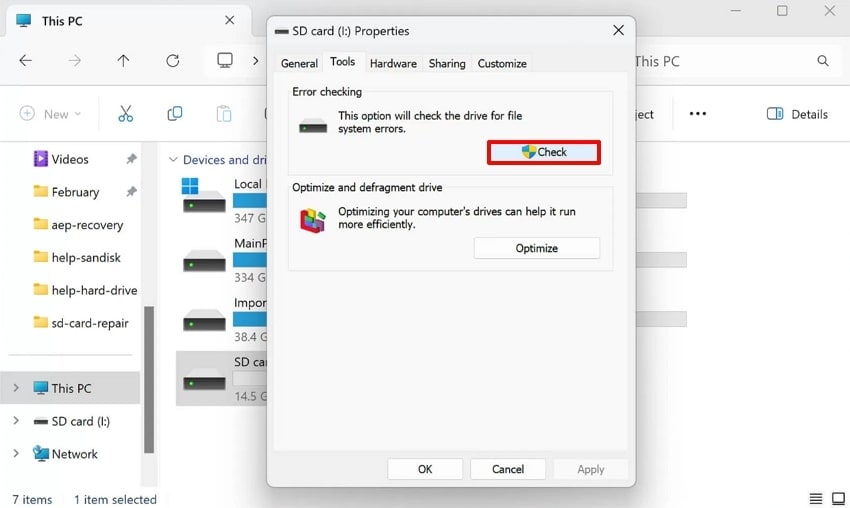
- Open the File Explorer interface, choose the “This PC” option from the left side. Next, right-click the SD Card and select the “Properties” option.
- Now, click on the “Tools” tab and click on the “Check” button to start the scanning.
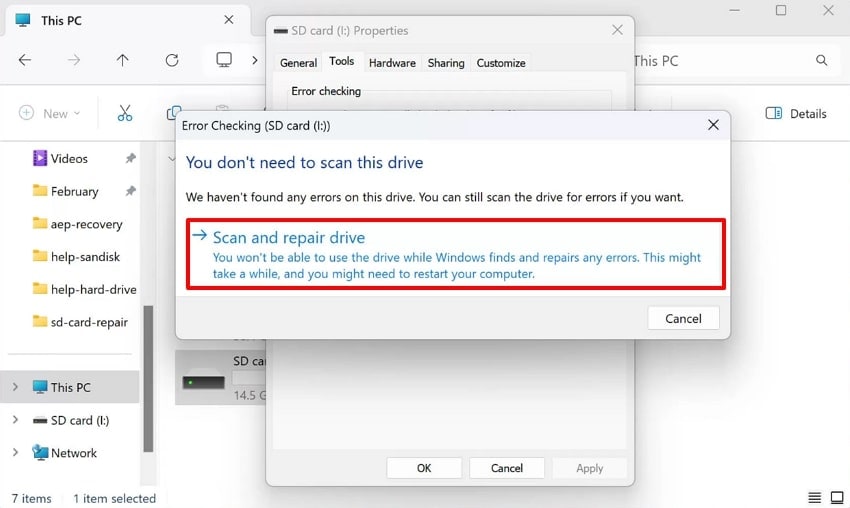
- Finally, select the "Scan and Repair Drive" option to start the scanning procedure to fix the corrupted SD card.
8. Format a RAW SD Card to FAT32
Formatting a RAW SD card to FAT32 file system is a last-resort method to revive unusable cards. It only rebuilds the file system, but only after data recovery attempts, since it erases everything. The FAT32 works across Windows, Mac, Linux, cameras, and consoles, unlike NTFS. Moreover, it is best for ≤32GB SDs with a 4GB file limit to prevent future corruption. Let's explore its detailed guide in the process of learning corrupted memory card recovery:
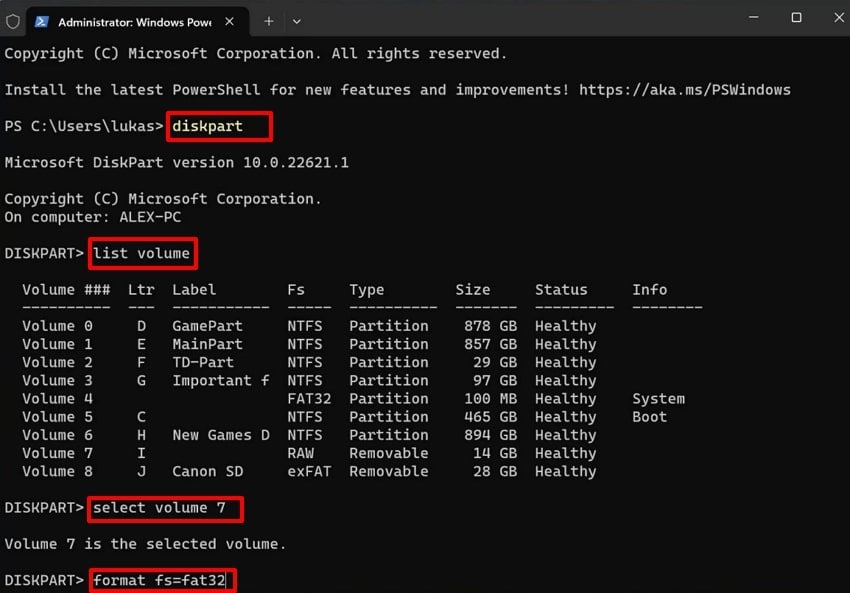
Instructions. After entering the Command Prompt interface, enter the "Diskpart" command and hit the "Enter" button. Following this, enter the "List Volume" prompt, which will provide a list of volumes. Here, enter the "select Volume" to enter the desired volume you want to repair, and then enter the "format fs=fat32."
9. Create a New Partition on the SD Card
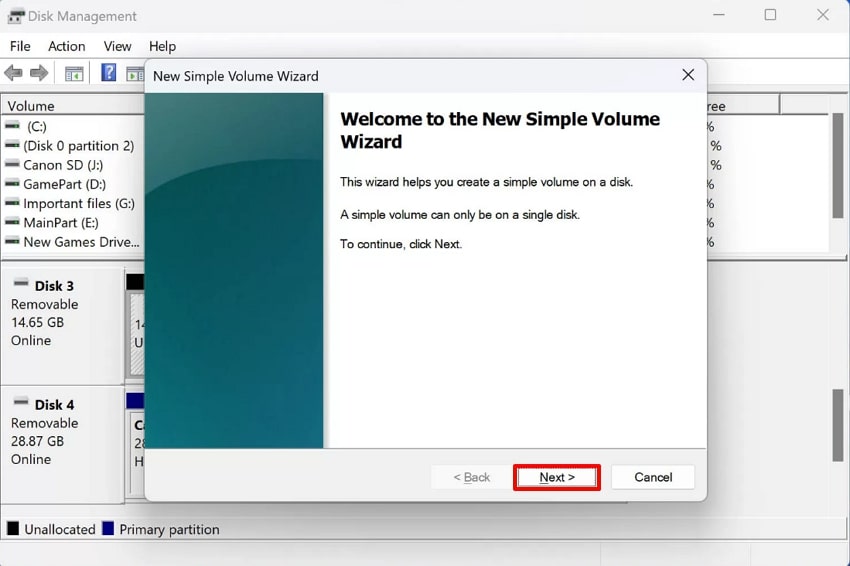
Sometimes an SD card may appear corrupted or not appear at all because its storage space has become unallocated. In this case, the first step should be to recover your data from the corrupted SD card, as a new partition will erase it. Then, create a new partition to reclaim the entire storage space after data recovery. So, let's drive into its detailed stepwise guide below to use this method:
- Initiate by opening the "Disk Management" utility, right-clicking the "Unallocated Space", and selecting the "New Simple Volume" option.
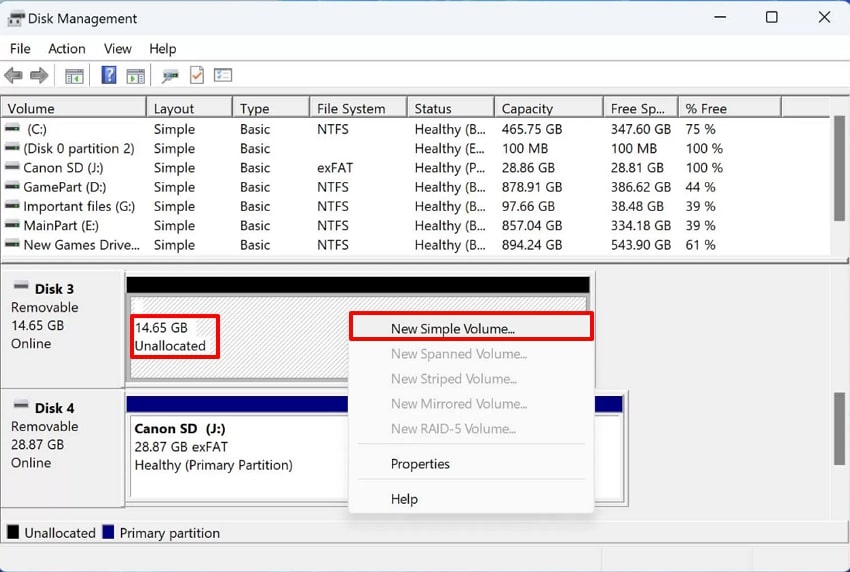
- Now, click on the “Next” button and follow the given instructions to create a new SD card partition.
10. Full Format to Repair Corrupted SD Card
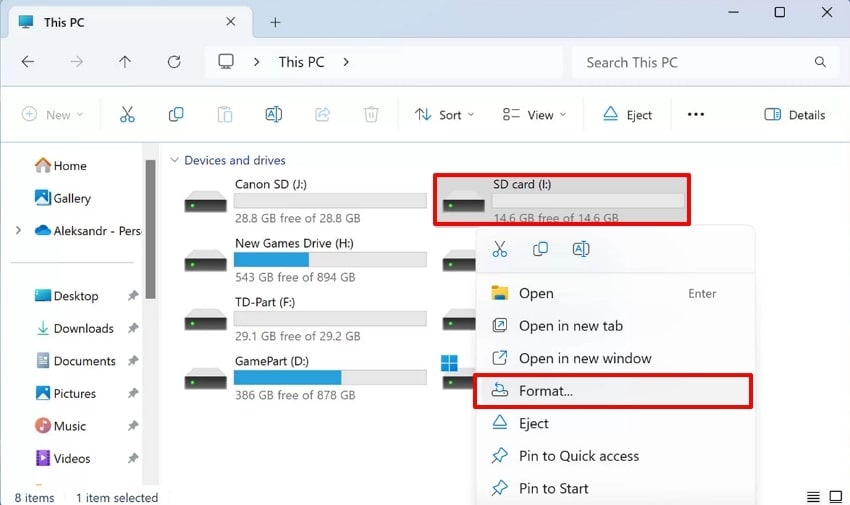
If no other method works, the last option is to format the SD card to fix the complex corruptions. It will eliminate hidden bad sectors and reset firmware inconsistencies to address persistent issues. By formatting, you can also optimize speed and reliability, which are crucial for cameras and drones. Upon hearing its key features, let’s explore its detailed stepwise guide given below to fix a corrupted SD card:
- Upon entering the File Explorer, right-click on the SD card and choose the “Format” option from the pop-up menu.
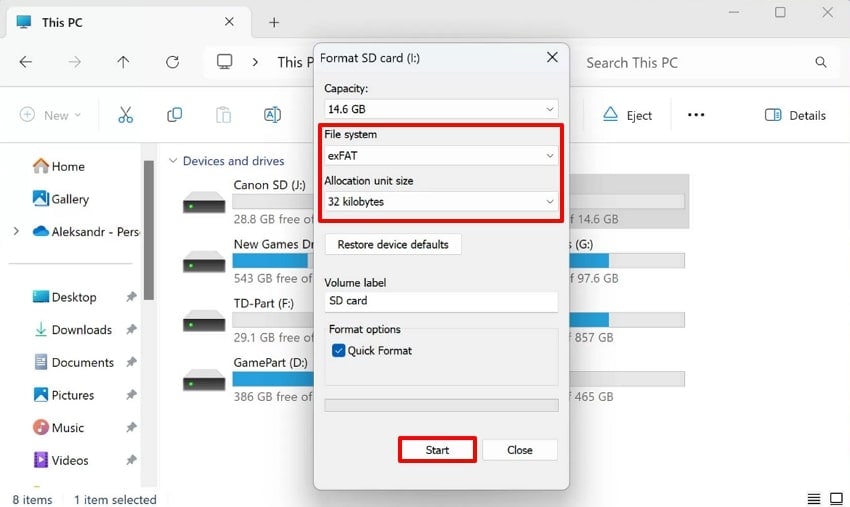
- Following this, choose the desired “File system” and “Allocation Unit Size.” Uncheck the “Quick Format” option and hit the “Start” button to initiate the formatting procedure.
Part 4. Try 5 Preventive Measures to Avoid Future Data Loss
To minimize the risk of corrupted memory card recovery, it’s wise to adopt these preventive best practices:
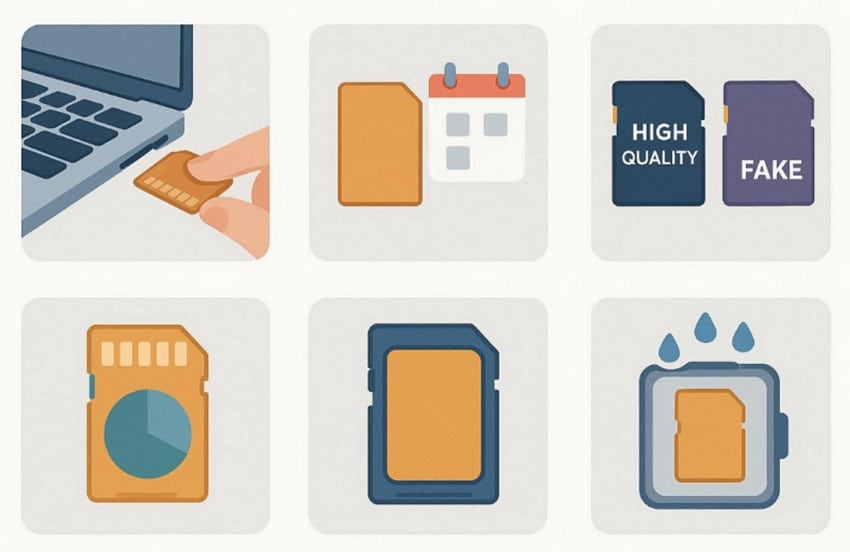
- Safely Eject SD Card: Interrupting while writing can lead to the corruption of the saved data. So, always use the “Safely Remove Hardware” option every time to avoid these errors.
- Regular Formatting: Cameras allocate tables more than the PC, so try to format every2-3 months. However, make sure the data is backed up on another device or in cloud storage.
- Buy Quality Cards: Most fake SD cards offer less storage than they actually advertise. Always buy quality cards from reliable brands like Samsung Pro and SanDisk Extreme Pro.
- Avoid Full Storage: Ensure you maintain 10-20% of the SD card free to extend its lifespan. This storage is required for its wear-leveling algorithms, accelerating NAND degradation.
- Store-Protected: Micro SD cards instantly stop working when exposed to sweat, sand, or fingerprints on gold contacts. It is recommended to use a waterproof cover and rotate 2-3 cards per shoot for a smoother workflow.
Conclusion
In conclusion, fixing the SD card has become much easier with the right approaches. So, this article has covered 10 efficient methods to know how to fix a corrupted SD card with a detailed stepwise guide. Furthermore, if you lost your data due to corruption, we recommend using Wondershare Recoverit, which lets you retrieve essential data with 99.5% data accuracy.
FAQ
-
1. Can I fix a corrupted SD card without losing photos?
Yes, you can repair a corrupted SD card by using non-destructive methods like CHKDSK /f, drive letter changes. You can also reinstall or repair the driver, as sometimes the main issue is only a compatibility issue. -
2. Why does my 128GB SanDisk show as 0 bytes?
This issue can be caused by RAW partition table corruption from a power loss. In this scenario, first recover your files using Recoverit and then format the card to FAT32 for full capacity. -
3. Can Mac users follow Windows CHKDSK steps?
No, they can't use this utility, but they can opt for Disk Utility First Aid equivalent. Furthermore, users can recover their lost data using Recoverit, which provides broader compatibility. -
4. What happens if your essential data is lost due to the SD card corruption?
In this scenario, we recommend using Wondershare Recoverit to recover data from a corrupted SD card. This efficient tool offers you both Quick and deep scanning modes to cater to most data loss scenarios.
 ChatGPT
 Perplexity
 Google AI Mode
 Grok
Grok