
 TL;DR:
To resolve the Claude Code API Error 400 invalid_request_error, verify your ANTHROPIC_API_KEY in the .env file, ensure the exact model name is used, and restrict concurrent tool executions to prevent session conflicts.
● Clear corrupted session states by typing the /rewind or /reset commands directly in the terminal before resubmitting your original prompt.
● Decrease the maximum parallel tool calls from the default limit of 10 down to 1 or 2 to prevent overlapping file edits during code refactoring.
● Separate dependent multi-step tool chains into sequential API requests and verify that MCP servers for databases like Supabase or Pinecone are running compatible versions.
Ask AI for a summary
 ChatGPT
 Perplexity
 Gemini
 Claude
 Grok
Grok
You are in the middle of a Claude Code session and refactoring files. The screen freezes, and an error is displayed on the screen: "API Error: 400 – invalid_request_error." You try to use the same command and make changes to the prompt, but the error is still there. Many users have faced this issue, either with a "Bad Request" message or a "tool use concurrency issues" error.
The good news is that you can resolve this error using different methods. In this article, we will learn about different solutions to resolve the Claude Code API error 400. Read the article till the end to learn how to resolve this issue in no time.
Try Recoverit to Perform Data Recovery
 Security Verified. 3,591,664 people have downloaded it.
In this article
Part 1. What Is Claude Code API Error 400: An Introduction
It is a "bad request" error, which means the server received your request but could not process it because something in the request was invalid. In the Claude Code ecosystem, it often shows up when the conversation gets too large. It also occurs when the model name or parameters are wrong, or the tool flow becomes inconsistent during a session.
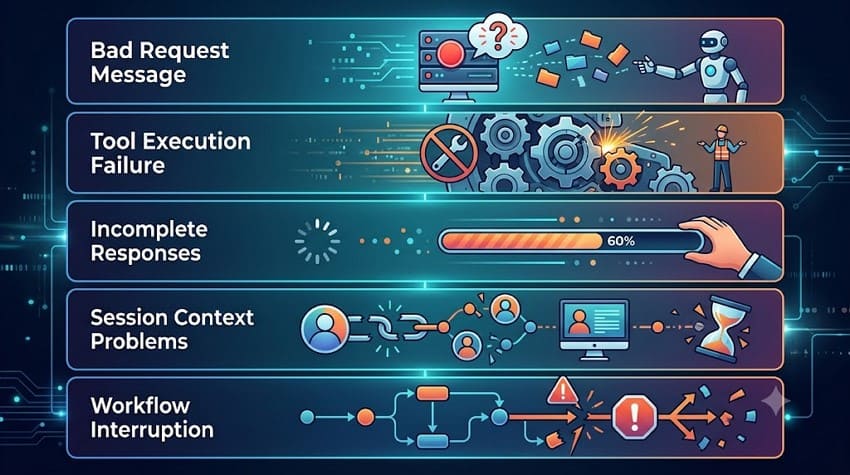
Common Symptoms of Claude Code API Error 400
- Bad Request Message: Claude Code displays a "400 Bad Request" error. This indicates that the API cannot process the submitted request due to invalid input.
- Tool Execution Failure: One or more tools fail to run successfully, preventing the tool from completing the requested task.
- Incomplete Responses: The model starts processing a request but stops before generating a complete answer.
- Session Context Problems: Existing conversation history causes the API request to fail validation and return an error.
- Workflow Interruption: Users face workflow termination before all planned actions are executed.
When the Error Typically Appears
- During Initial API Setup: The “Claude Code 400 invalid_request_error” error often appears when the API setup is not configured properly in the initial setup.
- Using Multiple Tools: Error 400 may occur when several tools are called at the same time and create a conflict.
- While Testing Custom Integrations: Users face this error when custom applications or plugins use unsupported tool parameters in the API.
- After Modifying Request Parameters: The error can occur when users add invalid fields or parameter formats that do not meet the API's requirements.
- After Updating Libraries: Another scenario in which the error occurs is when you have updated the dependencies, and there is a compatibility issue.
Why Does Claude Code API Error 400 Occur?
- Incorrect Model Name: The API may return a 400 error if the request references an unavailable or misspelled model.
- Improper Request Payload: This platform may return a 400 error if the request is missing information or contains incorrect data.
- API Key Not Valid: Claude Code cannot verify your request due to an invalid API key.
- Concurrent Tool Call Conflicts: Running too many tools at the same time can confuse the system and cause the request to fail.
- Invalid Message Structure: The error may also occur because your messages are arranged incorrectly or do not follow the format expected by the API.
Part 2. Understanding Concurrent Tool Usage Issues in Claude Code
You learned what the Claude Code Error 400 is and why it occurs in the previous part. The next step is to understand how using multiple tools at a time can cause usage issues in Claude Code.
How Parallel Tool Calls Create API Conflicts
Parallel tool calls can cause API conflicts when multiple actions attempt to use the same session simultaneously. This can cause broken call-result sequences. At times, a tool finishes with another one running, which results in a 400 Error. Two tools ending at the same time can cause the system to process events in a wrong order.
Examples of Concurrency-Related Error 400 Scenarios
- Editing the Same File: One tool is updating app.js, while another tool is also trying to modify app.js, which can create conflicting changes and trigger Error 400.
- Making Parallel Code Changes: Two separate tool calls attempting to refactor the authentication module can create overlapping edits.
- Running Multiple Tools Together: A code-analysis tool and a code-editing tool are launched at the same time within a single request instead of running sequentially.
- Reading and Writing a File at the Same Time: One tool reads configuration data from config.json, while another updates the same file.
Best Practices for Managing Multiple Tool Calls
- Single-Thread Flow: Let one tool call finish before starting the next to avoid ordering conflicts.
- Dispatcher Model: Use one controller to plan calls, then execute them in a managed sequence.
- Batch Execution: Group similar requests to avoid firing many small calls at once.
- Error Isolation: Handle each tool failure separately so one bad call does not break everything.
- Clear Tool Schema: Make sure every tool has strict input rules and a consistent output format.
Part 3. Claude Code API Request Failed with Error 400: How to Fix It
The “Fix Claude Code Error 400” methods are divided into 3 categories since this error can originate from different sources. Each category group is discussed in the section below, along with its solution:
Group 1 – Basic API Correctness (Generic Error 400)
Simple API issues cause many Claude Code Error 400 cases. The following fixes focus on the most common request-related issues that trigger generic Error 400 responses:
Fix 1. Check Claude API Key Validity and Format
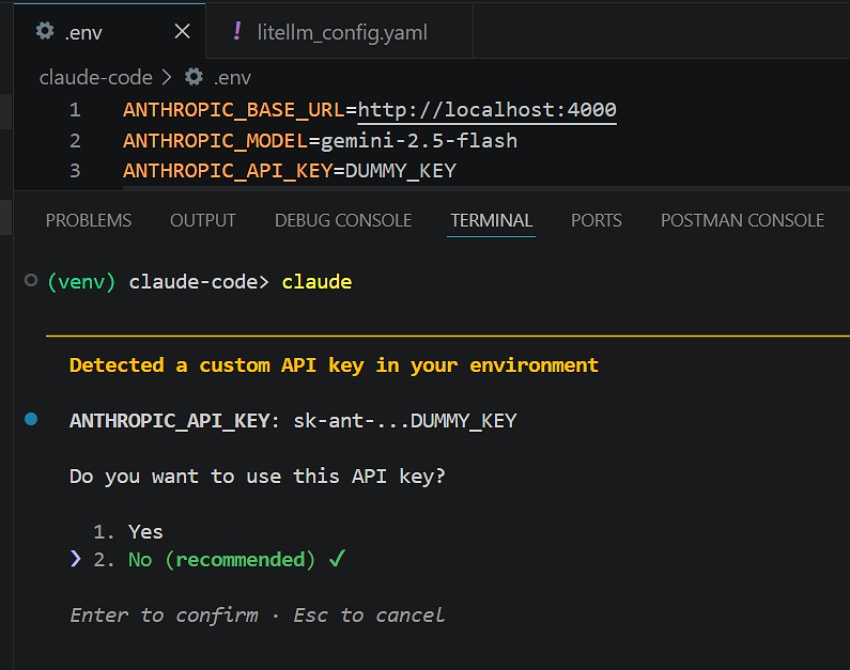
An invalid API key is one of the most common reasons behind Claude Code API Error 400. Verify that the key is correctly copied without any formatting mistakes. Claude Code detects the value stored in the ANTHROPIC_API_KEY environment variable before proceeding. Open your connected .env file and verify that the key is current and properly formatted.
Fix 2. Verify the Claude Model Name in Your Request
Claude Code may reject a request if it references a model that does not exist or is no longer supported. Review the model name in your configuration and compare it with the models currently available. For example, if the model is Opus (claude-opus-4-20250514), you must call it with the same name while writing the code. Even a small spelling mistake can trigger “Claude Code 400 invalid_request_error.”
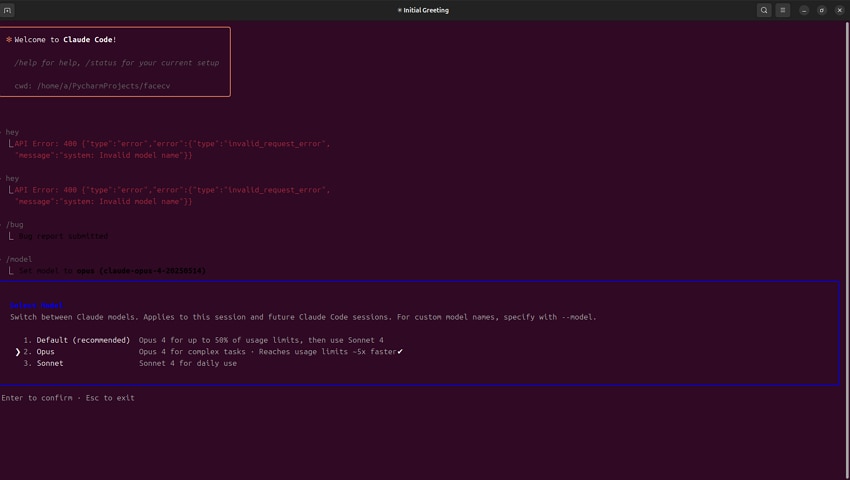
Fix 3. Validate Request Payload Structure
An incorrect request payload can stop the workflow from understanding your request. Go through the JSON structure and ensure all important fields are added and formatted. The code should follow the clear structure, including the model name, message content, user role, and token limits. Minor issues like missing brackets or wrong nesting can cause the Claude Code Error 400.
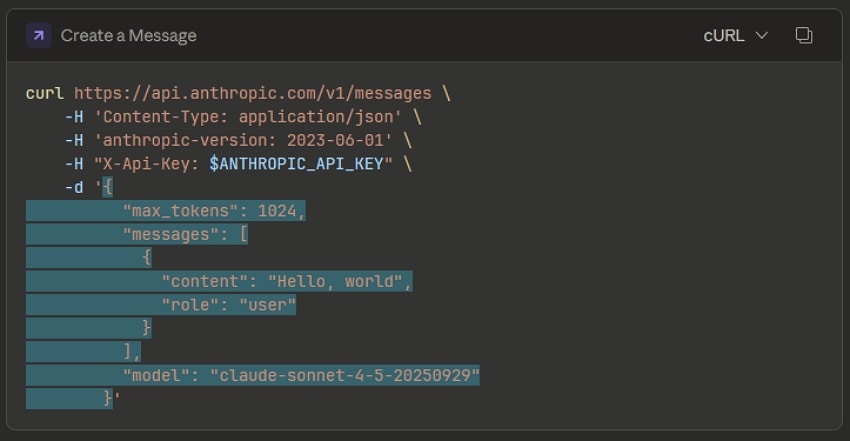
Fix 4. Check Tool Input Parameters
Another fix to resolve the Claude Code Error 400 is to check the input parameters. Review each tool call and confirm that all required arguments are included and match the expected data types. The input should have a proper structure with nesting and formatting. This is how an input should be written in the correct format:
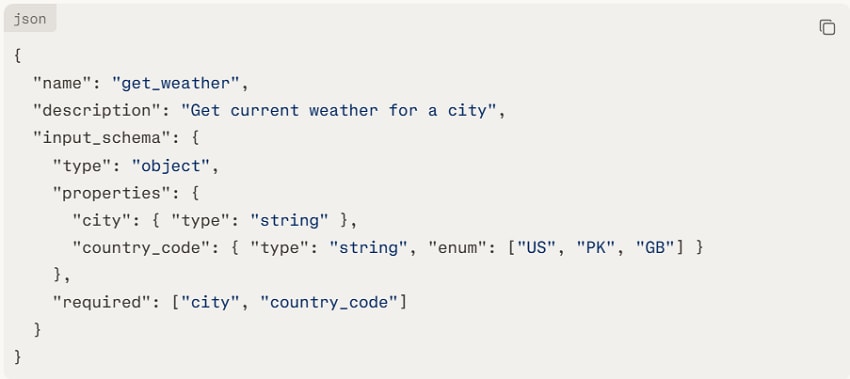
You will get the following output when you run the input given above with proper formatting:
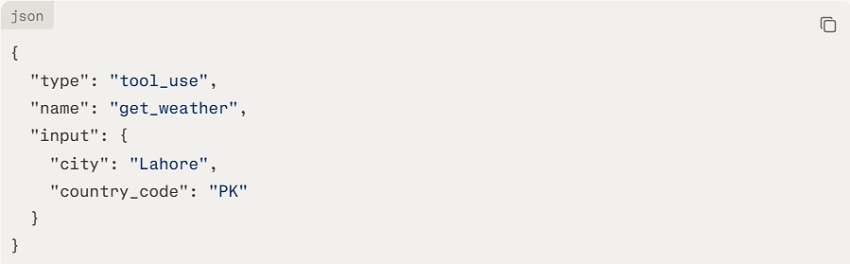
This proper input structure, with no irregularities, will help you eliminate the 400 error.
Group 2 – Concurrency and Tool‑Use Behavior
If the Claude Code API Error 400 still occurs even after the code is properly formatted, the usage of the tools within the workflow could be the reason. The following fixes focus on reducing concurrency issues:
Fix 5. Retry the Request with a Single Tool Call
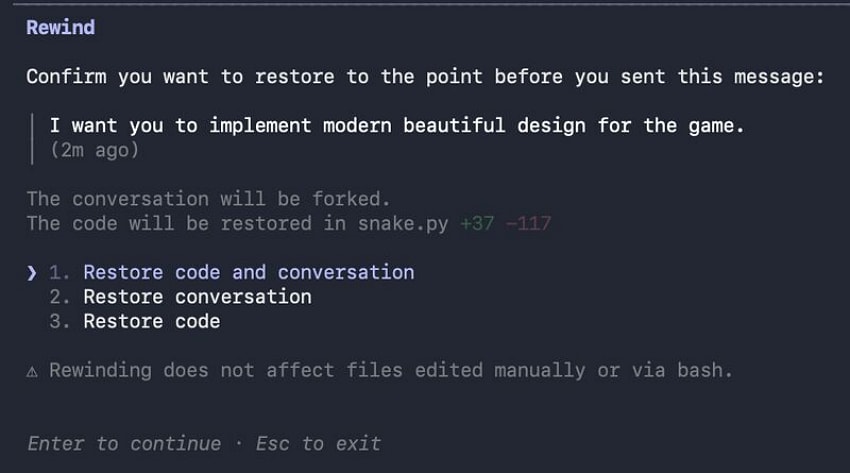
You can start by clearing the current session state if a concurrency issue causes the error. Use the /rewind or /reset command in the Terminal to remove the corrupted state and restore to the previous point. Resubmit your original prompt once the session is reset. You can also input a command like "Execute using a single tool call only without parallelization" to stop the platform from running multiple tools.
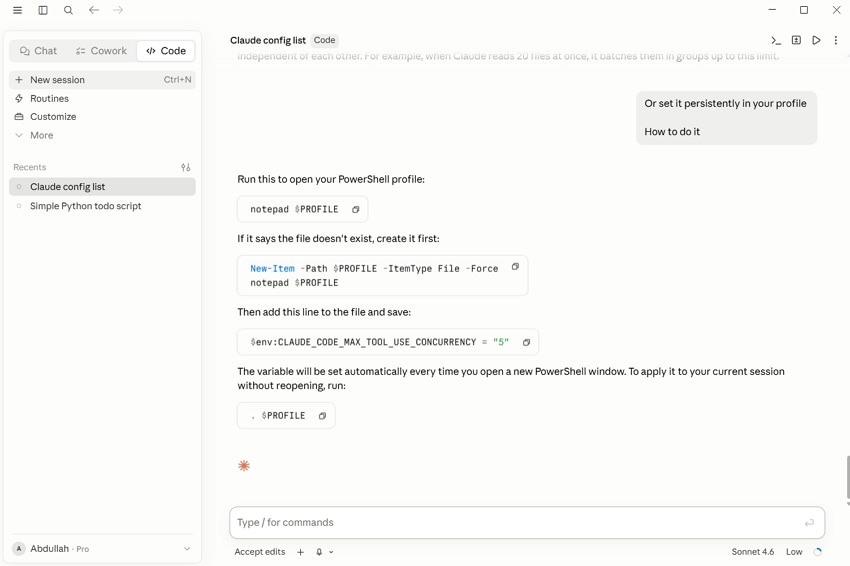
Fix 6. Reduce Concurrent Tool Executions
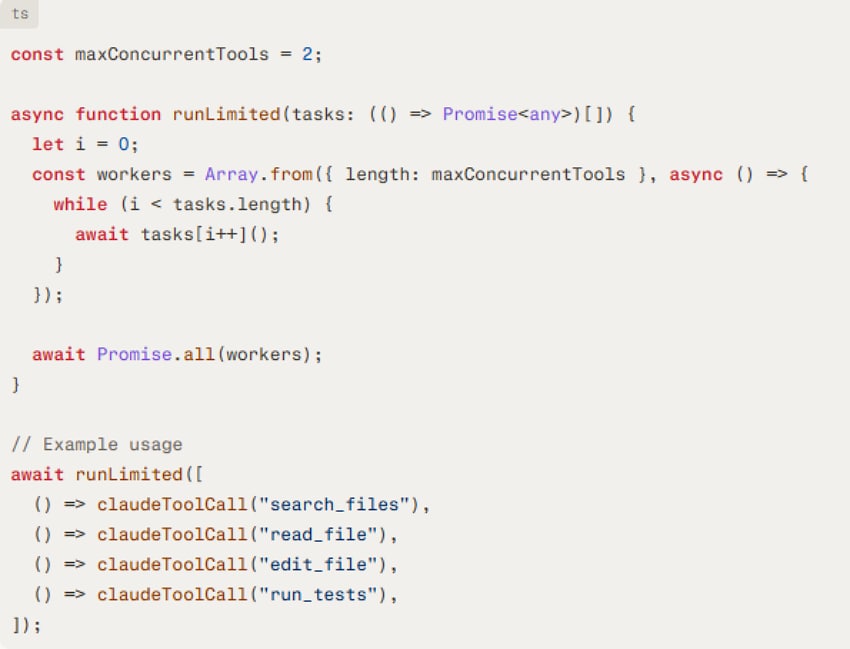
Another method to fix the “Claude Code 400 invalid_request_error” is by reducing the number of concurrent operations and allowing each tool sufficient time. For instance, if your setup includes a variable that controls the maximum number of parallel tool calls, lowering its value from a higher number, which is 10 by default, to 2 or 1 can prevent execution conflicts. Here is how you can write the code to reduce concurrent tools:
Fix 7. Separate Parallel Tasks into Independent Requests
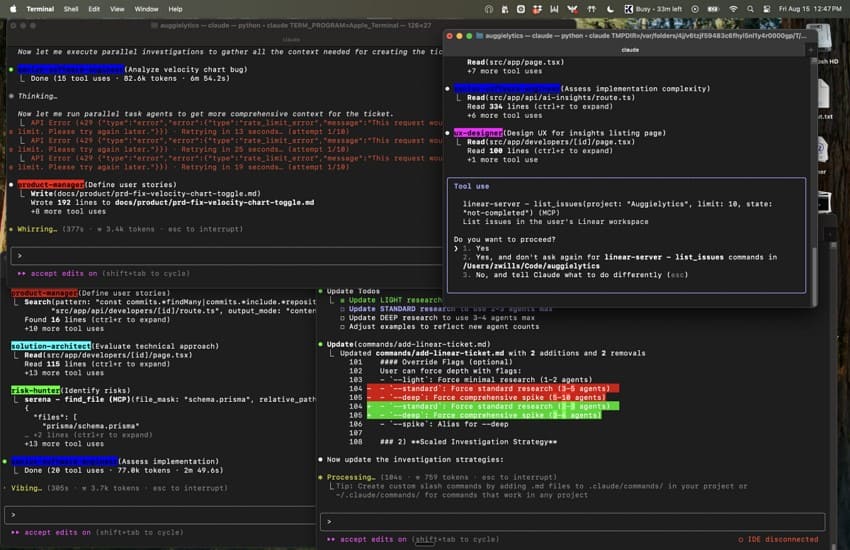
Divide your tasks into separate API requests and process them independently to avoid conflicts. For example, perform code analysis in one request and file modification in another. Separating parallel operations reduces dependency issues and makes it easier to identify the exact step that is triggering the error.
Fix 8. Restructure Multi‑Step Tool Chains into Sequential Requests
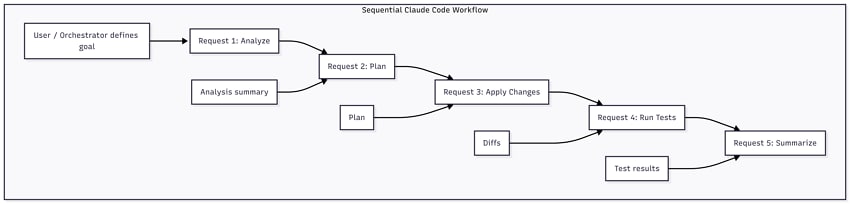
Some workflows require the output of one tool before another tool can execute successfully. Running these dependent tools at the same time can create invalid execution. You can start with Request 1 as the analysis. The summary of the analysis can help you write for Request 2, which is Plan. Organize the workflow so that each tool completes its task before the next one begins.
Group 3 – Environment and integration
The source of Claude Code Error 400 may lie within the development environment or integration setup. The fixes provided below focus on identifying and resolving environment-related issues that may be preventing the tool from executing:
Fix 9. Reset the Session Context
The code session that has been running for a long period of time can cause the error to take place. Resetting the session context can clear problematic state information and provide a fresh environment for new requests. You can create the new session by clicking on the “New Session” option located in the top-left corner. This will start the process with a clean session with the old conflicts removed.
Fix 10. Update the Claude SDK or Integration
SDK or third-party integrations that are not up-to-date may use unsupported parameters or older request formats. Compatibility issues can arise if your development environment is not updated. Check whether newer versions of the SDKs and integrations are available. Installing the latest updates can fix the Claude Code Error 400 caused by outdated software components.
Fix 11. Debug Custom Tool Implementations
Errors in application code can cause Claude Code requests to fail even when the API itself is working correctly. You can debug the code by editing it and removing the errors.
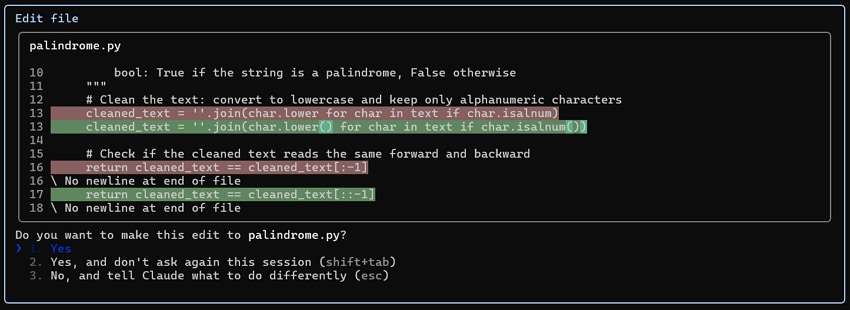
In the above image, lower and isalnum were written without brackets, so Python did not run them properly. After adding (), the code works correctly.
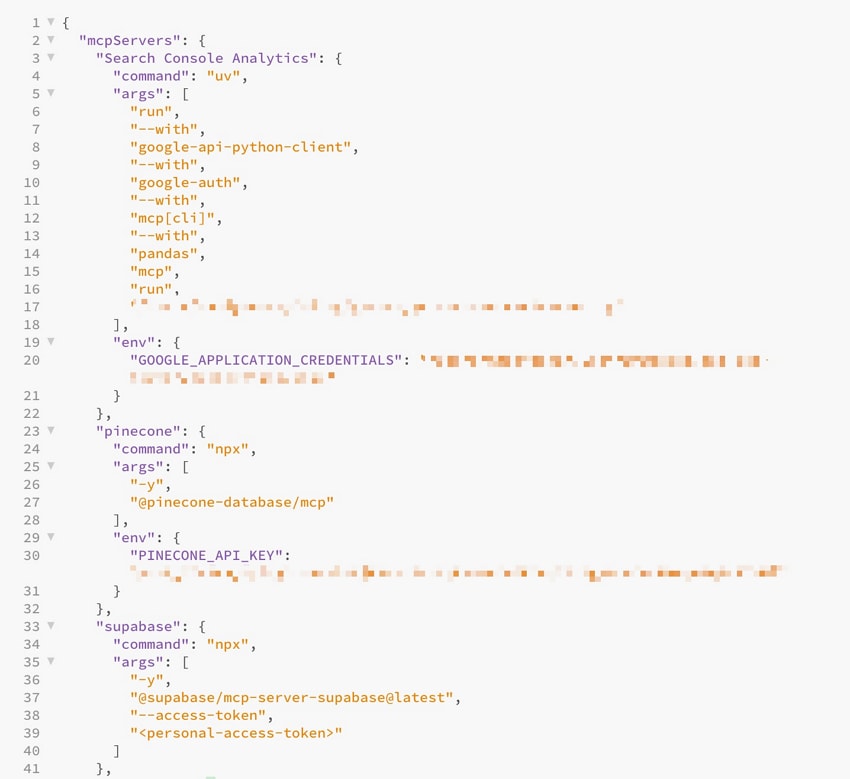
Setting Up MCP Servers Correctly
If you are using MCP servers, ensure they are configured properly and compatible with your Claude Code version. This connects Claud Code to a Supabase database for backend management. You can use the "npx” command to launch the latest Supabase MCP server. The Pinecode server connects Claude Code to a Pinecone database, which is commonly used to store and search AI embeddings and knowledge data.
Pro Tip. Accidentally Deleted Your Claude Code Files? Recover Them Instantly
Some users face missing source files while troubleshooting the Claude Code API Error 400. Claude performs agentic file operations such as creating and deleting files during development workflows. A file can be overwritten or deleted in some situations. This is where Recoverit can help in recovering such important source files. The software works with internal hard drives and other storage devices to find where your project files were stored.
It is a professional data recovery solution designed to retrieve deleted or lost files. The tool can scan the affected drive and recover recoverable data before it is permanently overwritten. It offers both quick and deep scanning modes to locate recently deleted files as well as data that has been missing for a longer period. Its preview feature lets you verify recoverable files and reduces the risk of recovering unnecessary data.
Coherent Features Offered By Recoverit
- Formatted Drive Recovery: Retrieves project files from drives that were accidentally formatted during the Claud Code running.
- Wide File Format Support: Supports recovery of 1000+ file types like source code files or development resources.
- File Integrity Preservation: Maintains the original file structure and content whenever the document is retrieved after loss or damage.
Quick Guide to Recover Claud Code Files Using Recoverit
As discussed, Recoverit allows its users to get back the files lost or deleted while troubleshooting the Claude Code Error 400. Look into the steps mentioned below to learn how to use this tool for retrieving your source files:
Step 1. Choose the Drive Folder
Launch Recoverit on your device and access its homepage. Access the “Hard Drives and Locations” section from the left and choose the drive from the options provided by clicking on it.

Step 2. Select Files During Scan
The tool will begin the scan once you choose the location. Select the data that you want to recover and press the "Recover” button located at the bottom.

Step 3. Check Recovered Data and Save
Preview the recovered files within Recoverit’s interface to check the files’ integrity. Press the “Recover” button to save the retrieved files to your device.

Conclusion
The article discussed various solutions for resolving the Claude Code 400 Error when running a project. It also discussed what the error is and why it occurs in the first place. Most people lose their data files during troubleshooting. One tool that helps you get back the source files is Recoverit. The tool uses advanced technology to scan the device and get back your files.
Frequently Asked Questions
-
1. What is Claude Code Error 400?
The Claude Code Error 400 takes place when the main system receives a request but doesn’t process it. The error can be directed from invalid parameters, incorrect model names, or other reasons. -
2. Can concurrent tool calls cause Claude Code Error 400?
Running multiple tools at the same time can create conflicts in the tool execution order. This may trigger a 400 Bad Request error in the Claude Code ecosystem. -
3. What should I do if Claude Code accidentally deletes my source files?
Stop using the affected drive immediately to avoid overwriting the deleted data. You can then use Recoverit Data Recovery to scan the drive and restore lost source code files and project folders. -
4. Can Recoverit restore files lost during Claude Code troubleshooting?
Tools like Recoverit can get back files lost due to accidental deletion or overwriting. The tool uses advanced technology to get back your data by running a deep scan.


