
 TL;DR:
Disney+ Error Code 83 is a background compatibility or network connection failure that halts streaming, which you can primarily resolve by disabling network masking tools or ensuring your device meets the platform's minimum operating requirements.
● Verify that your hardware meets the specific compatibility prerequisites, requiring iOS 16.5 or later, Android 8.0 or higher, Windows 10 or higher, or macOS 11 or higher, alongside a minimum internet speed of 5 Mbps.
● Temporarily disable all active VPNs, proxy servers, and network bridge drivers, as these tools interfere with Disney's region verification and trigger the error even on stable connections.
● For Xbox console users, you must configure your network to an Open or Moderate NAT type and ensure the console's region settings exactly match your Disney+ account region to prevent DRM failures and streaming blocks.
Ask AI for a summary
 ChatGPT
 Perplexity
 Gemini
 Claude
 Grok
Grok
Watching your favorite Disney show feels great until a common error ruins it. Problems like Disney+ Error Code 83 are something many users have already seen before where it’s available. This error ruins your streaming night of a new Marvel episode, as it usually comes up with no clear explanation.
According to The Disney+ Help Center, the Error Code 83 is generally connected to device compatibility errors or connectivity problems. Fortunately, there are multiple and simple ways to fix that problem. Hence, this guide explains what error 83 is and the best ways to fix it.
Try Recoverit to Perform Data Recovery
 Security Verified. 3,591,664 people have downloaded it.
In this article
Part 1. A Brief Overview of Disney+ Error Code 83
Disney Error Code 83 is a device compatibility or streaming connection error. It usually means the app cannot verify your device or internet connection properly, regardless of the region or internet provider. This check happens in the background every time you try to start something new across the platform. If the check fails, the app stops the video and shows this error instead.
Sometimes the error shows up even on devices that should work perfectly fine. A report from Business Insider claims that outdated apps and weak internet often trigger Disney+ playback errors. This error mainly affects mobile phones and game consoles. However, it does not mean your account is banned or that your subscription ended.
Common Symptoms of Disney+ Error 83
This section covers several noticeable symptoms that often appear during Disney+ Error Code 83:
- App Freezing: The Disney+ app freezes or crashes right before the movie or episode starts, leaving you stuck on loading.
- Blank Screen: Your videos fail to load properly and display a blank screen or show a sad icon instead of playing them across Disney+.
- Login Problems: This error can also show up right when you are trying to log in. Error Code 83 can stop you from even reaching your profiles or home screen.
- Show Switching: The error sometimes appears when you move between different shows or episodes quickly, interrupting your playback during the session.
- Keeps Restarting: Disney+ app keeps restarting, and every time you try again, it continues to show the same error.
Why Does Disney+ Error Code 83 Occur? Potential Reasons
Below are several reasons why the Disney error code 83 may suddenly appear on your screen:
- Old Device: Older phones, TVs, or computers may fail Disney Plus compatibility checks during streaming.
- VPN Trouble: VPNs and proxy tools confuse Disney's servers and block your access to content, showing errors and triggering Error Code 83.
- Server Down: If Disney+ servers are overloaded, this leads to the error even if the device and the internet are operating perfectly.
- Old App: An outdated Disney Plus app can fail to meet the latest security requirements and streaming protocols.
- Bad Cache: Old or corrupted cache files can conflict with app updates and break playback, thus resulting in Error Code 83.
Part 2. Troubleshooting Disney+ Error Code 83: Best Listed Solutions
A streaming error at the wrong moment can completely ruin your relaxing evening plans. In this specific section, every working solution to fix Disney+ Error 83 is listed for your ease:
Fix 1. Check Disney+ Server Status
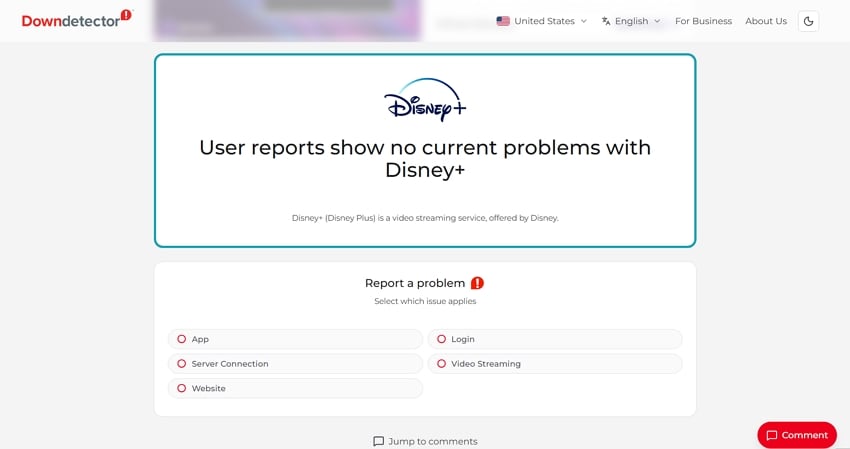
Before you try anything else, check if Disney+ servers are working fine. When server issues happen, videos may not load or start properly. Sometimes, Disney error code 83 appears because Disney+ servers face temporary problems. You can visit a free website like Downdetector to see live server reports. Disney also posts updates on its official Twitter and support page during outages.
Fix 2. Restart Disney Plus and Your Device
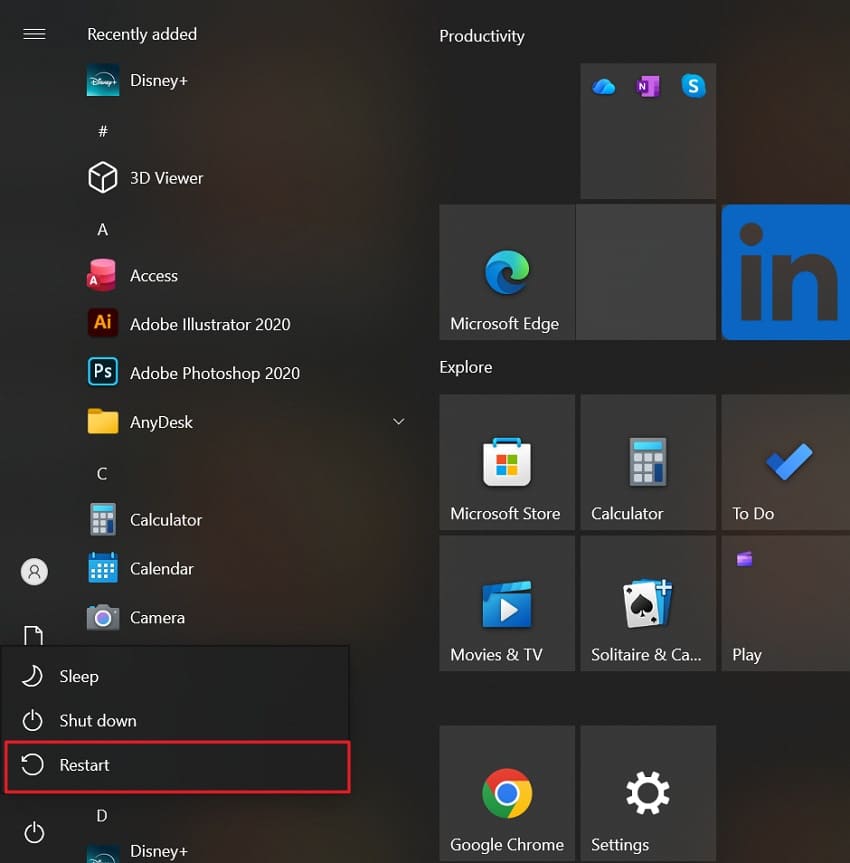
A simple restart can also fix many small bugs that cause Disney+ Error Code 83. Therefore, you should restart the app to remove temporary broken data that builds up during a normal session. This gives Disney+ a clean starting point without any leftover broken files. It also clears RAM, resets network modules, and other background system processes. Go through the given steps to restart Disney+ and the device:
Restart Disney Plus
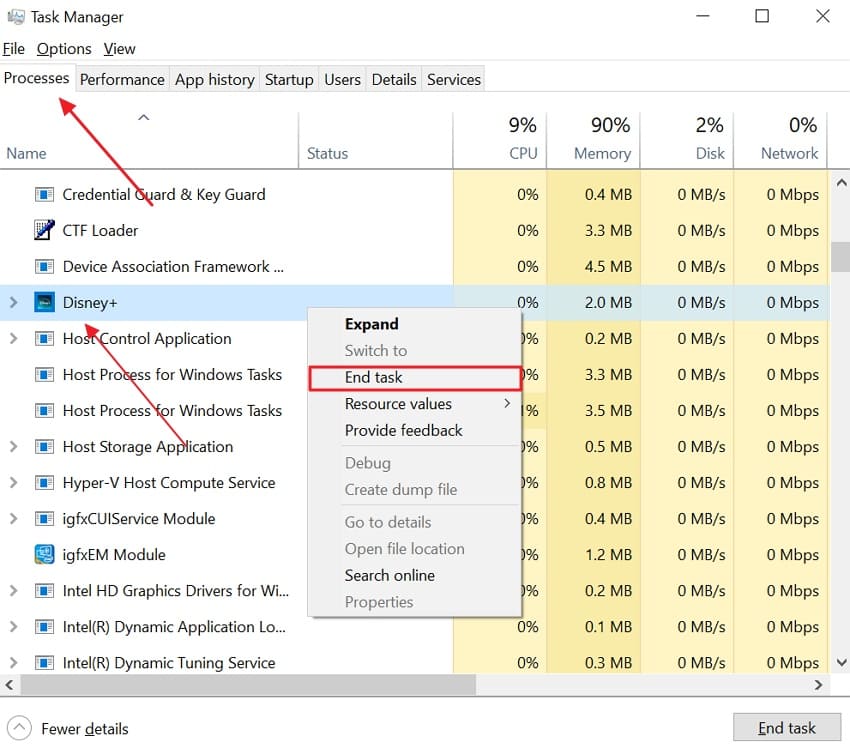
Instructions. Press “Ctrl + Shift + Esc” to open “Task Manager” and find Disney+ under the “Processes” tab. Right-click and opt for “End task,” then wait a few seconds and launch it again.
Restart the Computer
Instructions. Click the “Start” menu, select the “Power" icon, and opt for “Restart.”
Fix 3. Check and Improve Your Internet Connection
Sometimes, a poor internet connection is the only reason behind Disney Error Code 83. This streaming site needs at least 5 Mbps for standard streaming to work. Weak network quality can block videos from loading or playing. So, you should visit a speed test site like fast.com or speedtest.net to check your speed. Alternatively, switch to another connection if your Wi-Fi is slow or unstable for better stability.
Fix 4. Disable VPNs, Proxies, and Network Filters
An active VPN or proxy can sometimes interfere with Disney+ streaming services. It checks your location before allowing protected content to play. These tools block certain connections that the app needs to confirm your account and region. Thus, disabling these tools temporarily may fix Disney+ error 83. Some network filters and custom DNS also block important data needed for streaming. Follow the given steps to disable these tools:
Disable VPN
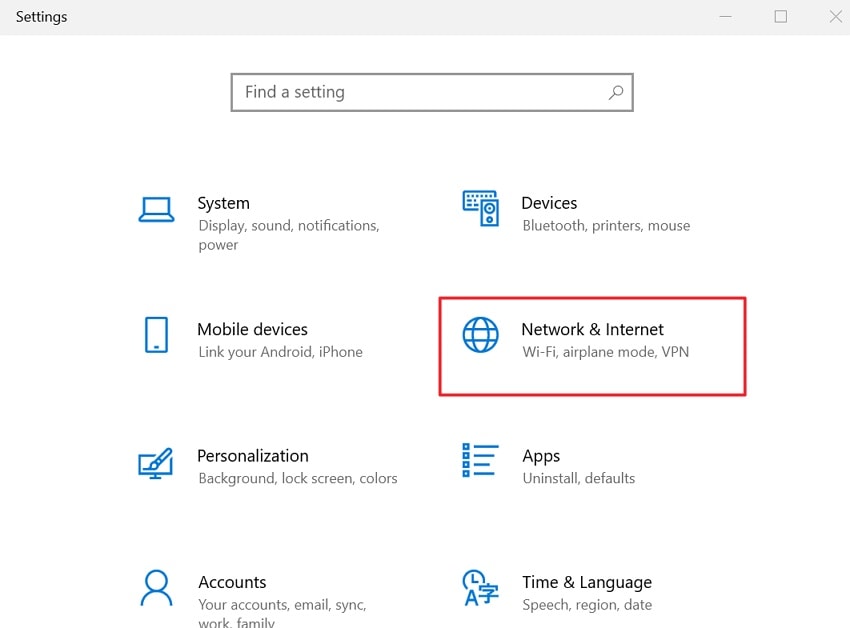
Step 1. Press “Windows + I” to open “Settings” and opt for “Network & Internet.”
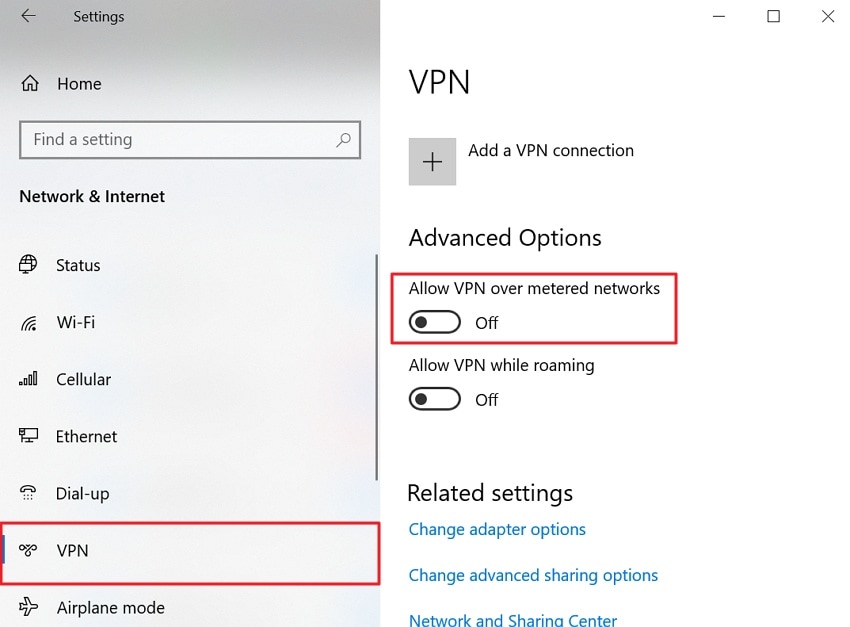
Step 2. Next, go to the “VPN” section and toggle off “Allow VPN Over Metered Networks.”
Turn Off Proxies
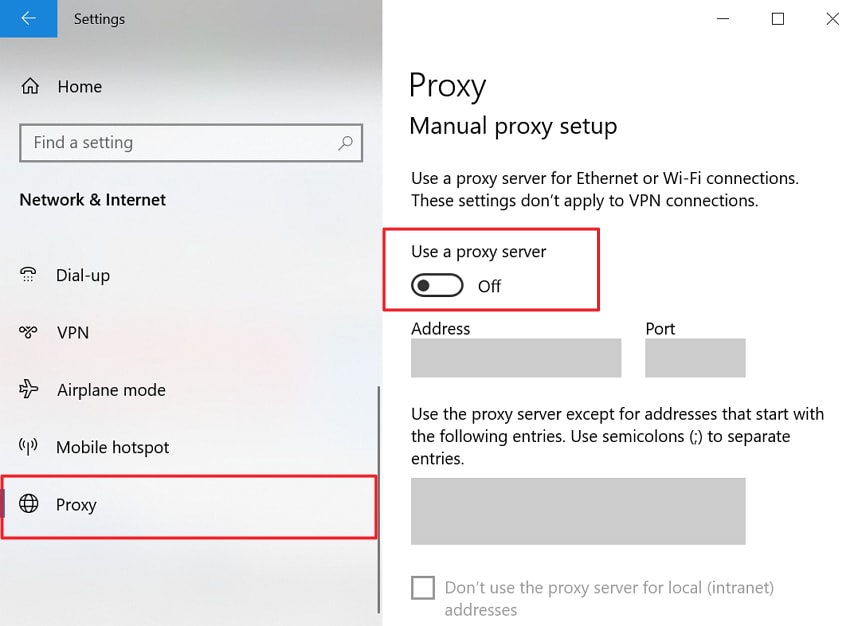
Instructions. Open the “Settings” app and go to the “Proxy” section, then turn off the “Use a Proxy Server” toggle.
Disable Network Filters
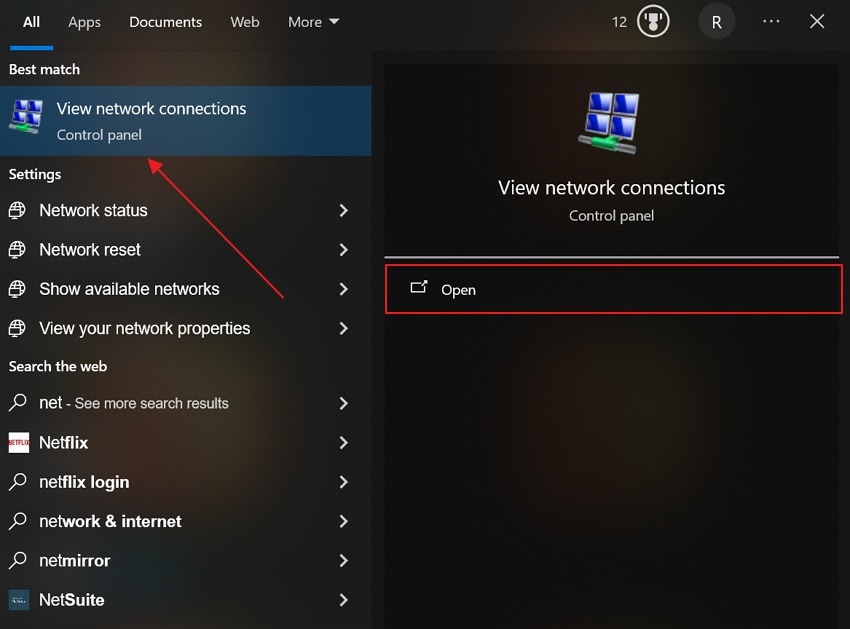
Step 1. From the “Start” menu, search for “View Network Connections” and choose “Open.”
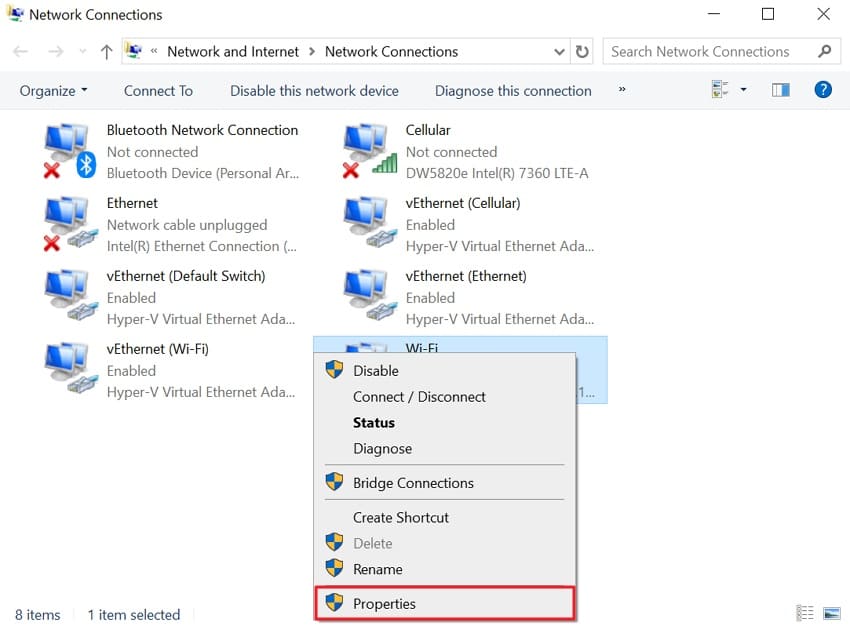
Step 2. Afterward, right-click the connected network and choose “Properties.”
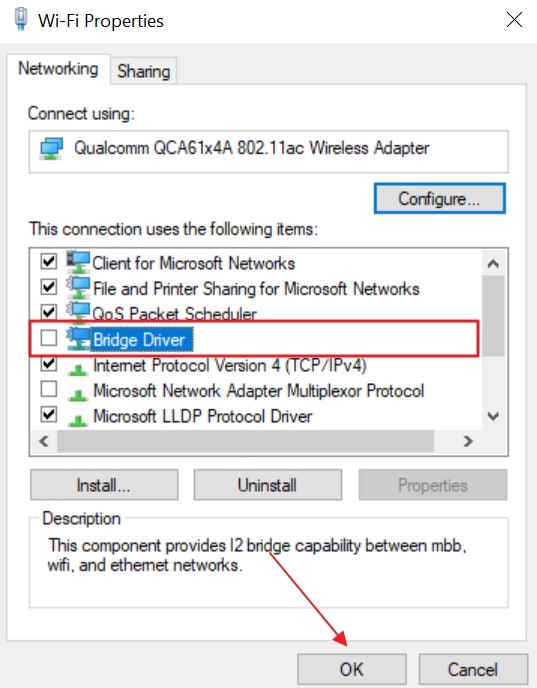
Step 3. In the “Networking” tab, uncheck the “Bridge Driver” box and select the “OK” button.
Fix 5. Update the Disney Plus App
An outdated app often causes Disney Error Code 83 to appear on your device. Disney regularly releases updates to fix bugs and improve streaming performance for users. An older version may lack the security patches required by Disney+ servers. Updating the app automatically resolves known login and playback issues. They also improve compatibility with newer devices and system updates. So, adhere to the given steps to update the Disney+ app:
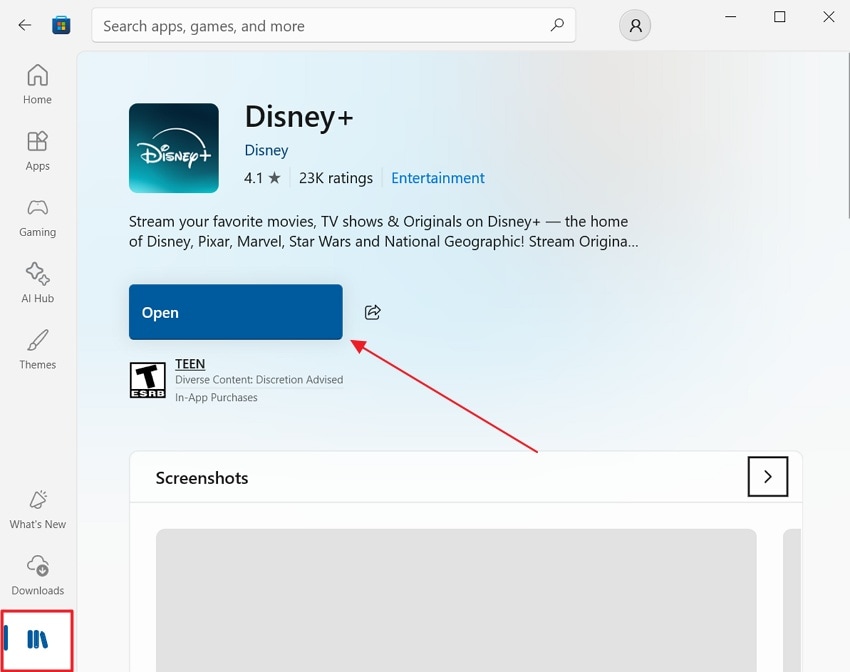
Instructions. Open “Microsoft Store” and go to “Library,” then access “Disney+.” If an update is available, go for the “Update” button.
Fix 6. Verify Device Compatibility
Device compatibility plays an important role in smooth Disney+ streaming. Sometimes, Disney+ Error Code 83 appears when a device is unsupported. For mobile devices, Disney+ needs iOS 16.5 or later and Android 8.0 or higher. Conversely, for desktop devices, make sure to have the latest browser version installed across Windows 10 or higher and macOS 11 or higher.
Fix 7. Contact Disney Plus Support
If none of the fixes above have worked, Disney+ support can help you directly. Their team has access to your account details and can check for backend issues. Support agents may identify hidden issues affecting streaming access and playback.
They also check for regional blocks, licensing problems, or account flags causing your stream to fail. Moreover, the Disney Support team can also help fix Disney+ Error 83 more effectively.
Pro Tip. Recover Third-Party Disney+ Downloads with Recoverit
Apart from dealing with Disney Error Code 83, many users also lose their downloaded Disney+ files. Although this occurs because of other reasons, tools like Recoverit can help recover those lost video files. This AI-powered tool performs a quick scan within minutes and finds all lost Disney+ video files. Furthermore, it recovers important video metadata alongside the video file restoration.
You can even preview recovered Disney+ videos before saving them to preferred locations. Moreover, Recoverit supports over 100 video formats, including MP4, AVI, and M4V. The tool never overwrites your existing data during the entire scanning or recovery process at all. Users can also choose specific Disney+ video files to recover from any connected storage device.
Key Features
Deep Scanning: It searches for deeply hidden Disney+ video files using advanced AI scan technology, covering spaces that are not normally accessible.
Extensive File Recovery: This tool handles the recovery of large Disney+ video files, with no file size limitations and no reduction in quality.
Frame Recovery: Recoverit uses frame-level technology to carefully recognize scattered video fragments and restore every single frame of your Disney+ videos.
Guide to Recover Lost Disney+ Downloaded Videos Using Recoverit
Let’s explore the given guide to get back all your deleted Disney+ downloaded videos without effort:
Step 1. Select a Drive or Folder
Open Recoverit and go to the “Hard Drive and Locations” section. Choose the location where your lost or deleted Disney video files were saved.

Step 2. Scan the Selected Location
The tool will automatically start a quick scan of the selected location and display the scanning results in real time.

Step 3. Preview the Videos and Recover
Once the scan finishes, click the “Preview” button to check your recoverable Disney+ files. Choose the “Recover” button to get back all your lost videos to your device.

Part 3. Disney+ Help Center Error Code 83 on Xbox
Some players face the Disney+ Error Code 83 on Xbox during their streaming sessions without any warning. In this part, all the Xbox-specific causes and practical troubleshooting methods for the Xbox are covered:
Why Error Code 83 Appears on Xbox
Below are several Xbox-specific factors that can trigger Disney Error Code 83 on your console:
DRM Failure: The Xbox Disney+ app depends on console DRM licenses to allow safe video streaming.
Region Mismatch: A difference between your Xbox region and Disney+ account region triggers this error.
Old Software: The outdated Xbox system software directly conflicts with the Disney+ app during streaming sessions.
NAT Problem: Network issues on Xbox, like a strict NAT type, also cause this streaming error.
DNS Conflict: Xbox has its own DNS settings that can quietly block Disney+ from working, which requires amendment.
Xbox-Specific Checks for Disney Plus Error 83
Try these checks if you see Disney+ Error Code 83 specifically on your Xbox console:
| Check | What To Do | Why It Helps |
| Update Xbox System | Install the latest Xbox system software update | Old software conflicts with the Disney+ app |
| Update Disney+ App | Open the store and update the Disney+ app | New version fixes security and playback issues |
| Restart Your Console | Fully power off the Xbox for 30 seconds and turn it back on | Clears temporary bugs and refreshes the connection |
| Change DNS Settings | Change the IPv4 DNS settings manually | Clears out any network connectivity problems affecting Disney+ |
| Check NAT Type | Make sure your NAT type is Open or Moderate | Strict NAT blocks Disney+ server connections |
| Check Region Settings | Match your Xbox region with your Disney+ region | Region mismatch triggers streaming blocks on Xbox |
When Xbox Users Should Contact Support
Xbox users should reach out to support when the Disney Error Code 83 refuses to go away after all the mentioned solutions. Persistent errors may be linked to your account rather than your console. Support teams can check your account for hidden flags that are quietly blocking your Xbox streaming. They can also look into regional issues or IP blocks that are invisible from your side.
Conclusion
To conclude, most streaming problems have a simple fix, and Disney+ Error Code 83 is no different. This guide covered every cause and solution to help you get back to streaming fast. Beyond that, users also face an issue of lost or deleted Disney video downloads on their devices. For such situations, a tool like Recoverit may be the best option to bring those missing video files back.
FAQ
-
Q1. Can Disney+ Error Code 83 appear on web browsers?
Yes, this error can appear while streaming Disney+ through web browsers in any region where it’s supported. In most cases, old browser versions may fail important checks required for smooth playback. Updating the browser often resolves compatibility issues, causing this streaming error. -
Q2. Does clearing the cache help fix Disney+ Error Code 83?
Yes, clearing the cache removes temporary files that may cause playback problems. Corrupted cache files sometimes prevent Disney+ from loading videos correctly. A clean cache allows the application to create fresh streaming data. -
Q3. Can Disney+ error code 83 happen after changing internet providers?
Changing internet providers or moving to another region can sometimes affect Disney+ streaming connections. New network settings may create temporary communication issues with Disney servers. Thus, checking connection settings often helps restore normal streaming performance quickly. -
Q4. What should I do if the downloaded Disney videos are accidentally deleted?
Corrupted Disney+ downloaded video files may stop playing after crashes or interruptions. Programs such as Recoverit can help restore lost Disney video files. Its advanced recovery technology searches storage locations and finds missing videos.


