

Sudden slowdowns can strike right during a crucial match moment. Passes feel delayed, shots misfire, and defenders react far too slowly. This frustrating lag ruins otherwise smooth and competitive online gameplay sessions. While EA continues to release updates and gameplay improvements for FC 26, slow motion and input lag can still occur for several reasons.
The good news is that most of these problems are caused by settings, drivers, or system configuration rather than the game itself. This guide explains the most effective fixes to eliminate EA Sports FC 26 slow motion, reduce input delay, and restore smooth, responsive gameplay.
Try Recoverit to Perform Data Recovery
 Security Verified. 3,591,664 people have downloaded it.
In this article
Part 1. Why Does EA Sports FC 26 Feel Laggy or Delayed on PC?
A lot of factors can trigger this laggy, delayed gameplay experience. Let's explore these causes to help learn how to fix FC 26 slow motion and input delay:
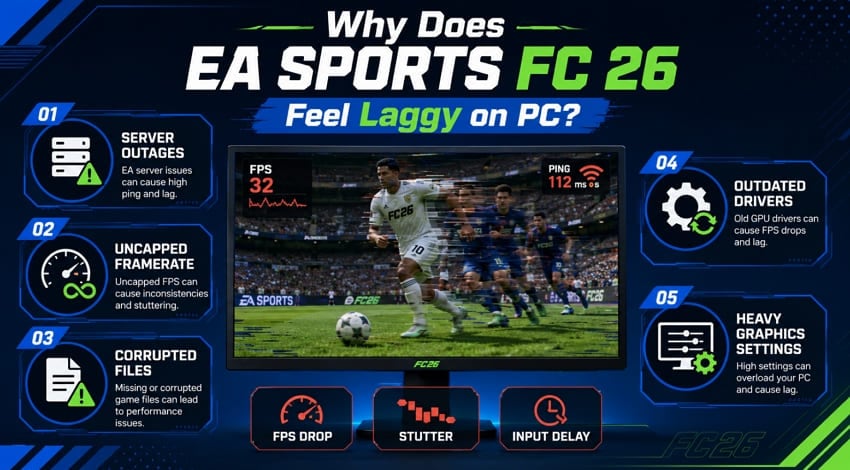
- Server Outages: EA servers sometimes crash or slow down under very heavy load. This server strain often creates real input lag during busy matches.
- Uncapped Framerate: An uncapped framerate can easily push your GPU past its limits. Such extra strain often causes stutter and sudden slow-motion moments.
- Corrupted Files: Missing or damaged game files often break smooth performance during matches. These file errors often create random freezes and motion glitches.
- Outdated Drivers: Old graphics drivers often struggle to handle new game demands well. This mismatch often causes frame drops and delayed player response times.
- Heavy Settings: High graphics settings often demand more power than your PC offers. The overload often slows down frames and creates noticeable input lag.
Signs You're Dealing with Real Input Lag, Not Just Bad Ping
Recent EA Sports FC 26 updates include gameplay adjustments and stability improvements. You can check this table below to spot true input lag versus simple network ping:
| Sign | Improved Description |
| Delayed Button Response | Your inputs register noticeably late, even when your network connection remains stable. |
| Consistent Slow Motion | Gameplay runs slower than normal in both matches and menus, not only during online play. |
| Offline Lag Too | The same slowdown appears in offline modes, such as Kick Off or Practice Arena. |
| Stable Ping, Still Laggy | Your ping remains low, but gameplay still feels sluggish or unresponsive. |
| Frame Rate Drops | Your FPS drops significantly, causing stuttering or inconsistent gameplay. |
| Controller Double Inputs | A single button press triggers multiple actions or repeated inputs unexpectedly. |
Part 2. How to Fix Slow Motion/Input Lag in EA Sports FC 26?
There are multiple methods to solve most problems with EA Sports FC 26 input delay on PC. Follow these 9 simple techniques to restore smooth gameplay:
Fix 1. Confirm EA Servers Are Up and Running
Server outages can affect many players across different regions worldwide. Players should visit the official server status page to check current outages. EA’s server status page confirms outages and connection problems. Server problems at EA's end create real lag beyond your control. So, wait a while and try reconnecting once EA resolves the outage. This simple check saves you time before trying other fixes.
Fix 2. Cap FPS Using GPU Control Panel
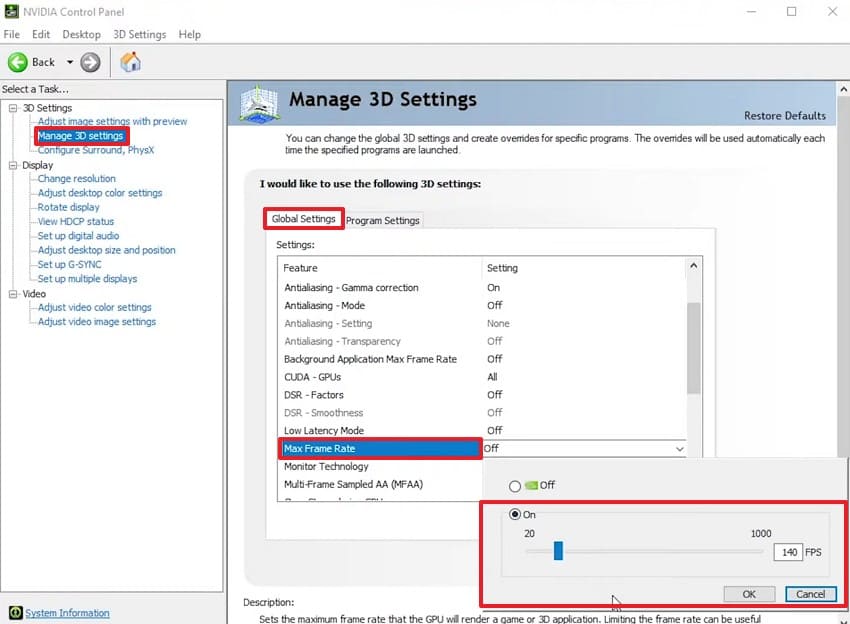
Uncapped framerates often push your GPU beyond its intended limits. This extra strain frequently causes stutter and sudden slow-motion issues. Therefore, capping your FPS keeps your GPU running within safer limits. Most modern GPUs offer built-in tools for setting frame limits. NVIDIA and AMD control panels both include simple FPS capping options. So, follow the steps to apply this FC 26 laggy gameplay fix:
Instructions. Upon running "NVIDIA Control Panel," access "Manage 3D Settings" to view "Global Settings." After that, click the drop-down next to "Max Frame Rate" to choose "On." Now, set a max frame rate that matches your monitor’s refresh and press "OK."
Fix 3. Update Your Graphics Drivers
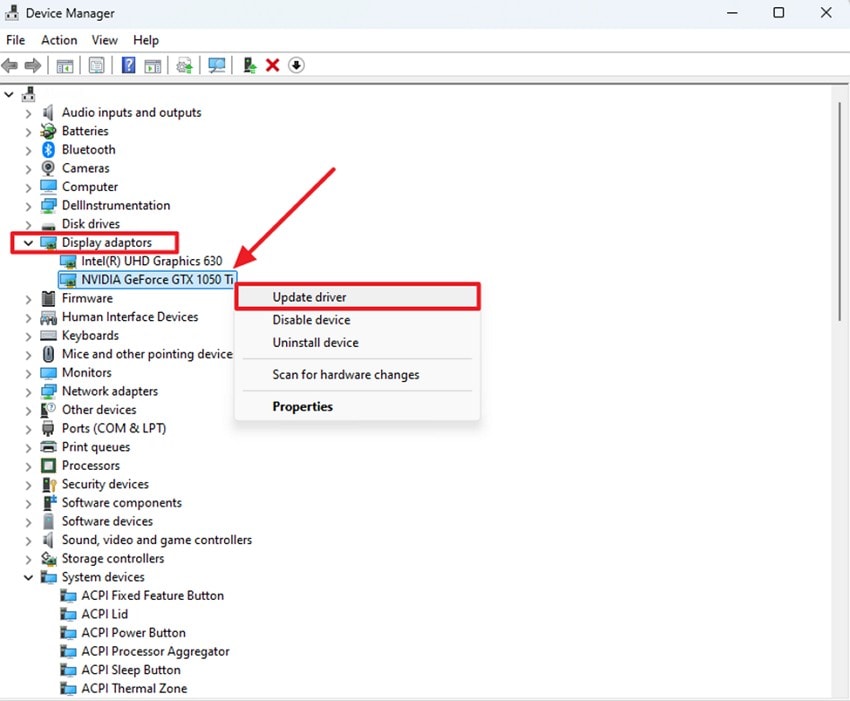
One more reason behind struggling to handle new game demands is outdated graphics drivers. EA Sports FC 26 requires updated drivers for optimal performance results. Old drivers lack important fixes for newer games and hardware. Furthermore, NVIDIA’s Game Ready Driver improves compatibility for newer releases. You can now follow these steps for the EA Sports FC 26 input lag PC solution:
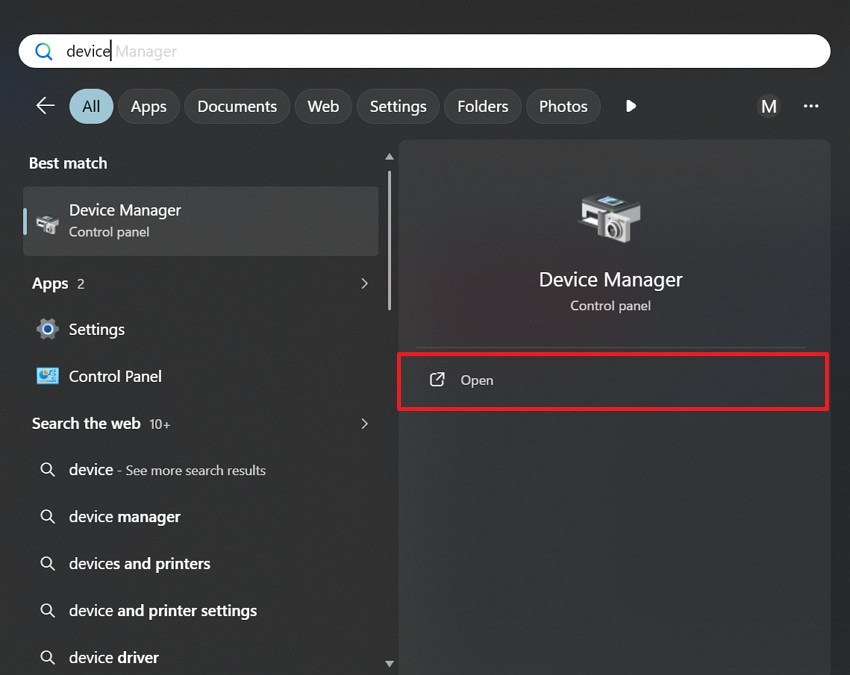
Step 1. Open the "Start" menu and select "Device Manager" by searching for it to access management settings.
Step 2. Expand the "Display Adapters" category and right-click the driver to choose "Update Driver."
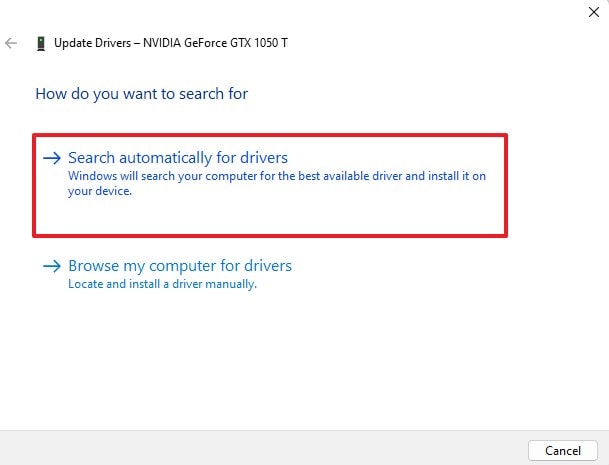
Step 3. When you select "Search Automatically for Drivers," it lets the system install the newest compatible version.
Fix 4. Verify Integrity of EA Sports FC 26 Files
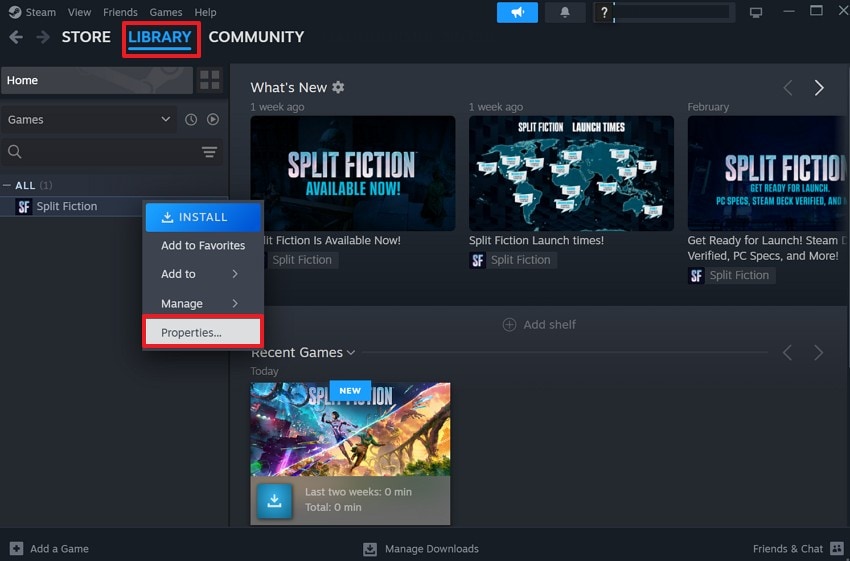
Many times, missing or damaged game files disrupt performance during matches. These file errors frequently create random freezes and slow-motion glitches. Corrupted files can happen after updates, crashes, or storage problems. That’s why you should verify game files to detect and repair these hidden issues quickly. Steam also explains how to verify files to repair damaged installations. Players can initiate this local repair process using these steps:
Step 1. Launch the game client being used, such as "Steam," and head to the "Library" section. Locate EA Sports FC 26 and right-click the game title to select "Properties."
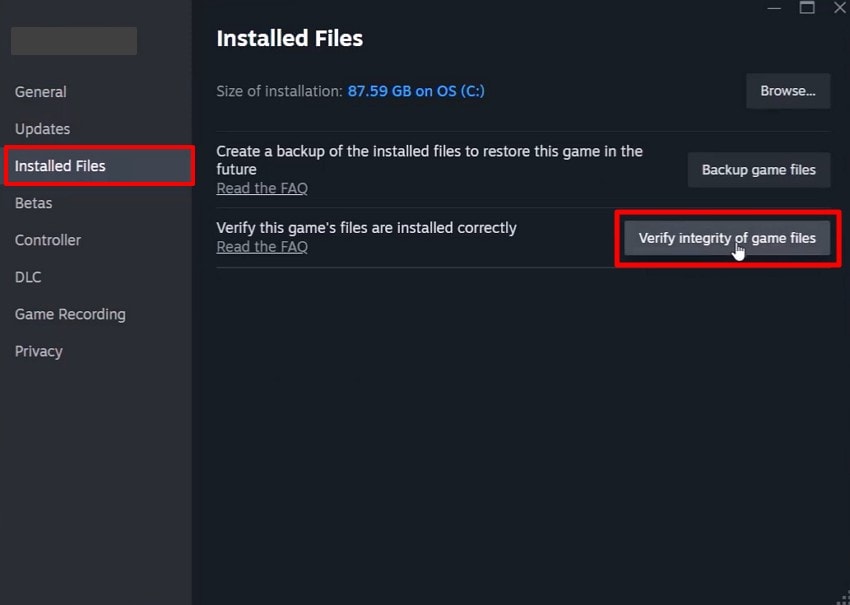
Step 2. Navigate to the "Installed Files" tab and click "Verify Integrity of Game Files." The launcher will check for missing or corrupted files and replace any problematic data.
Fix 5. Disable V-Sync and Enable G-Sync/FreeSync (If Available)
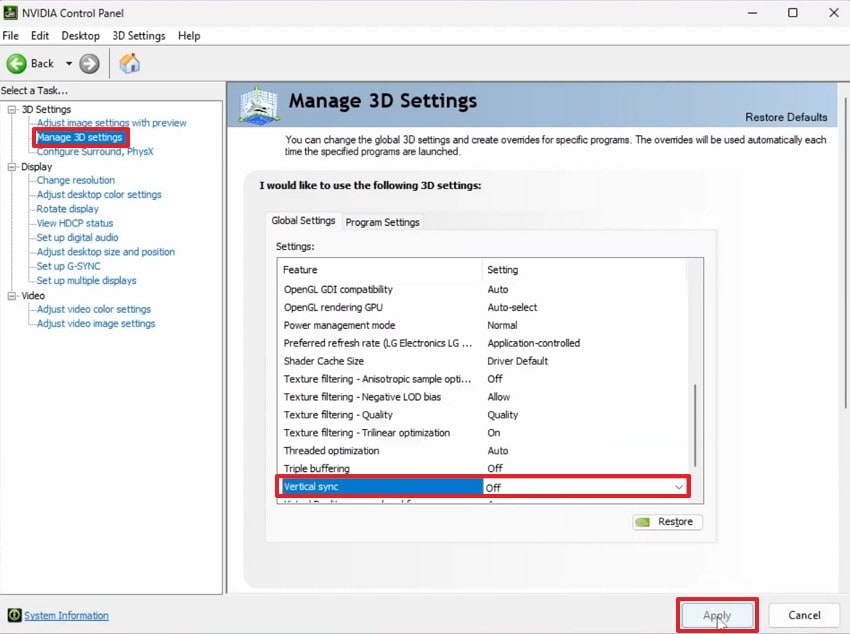
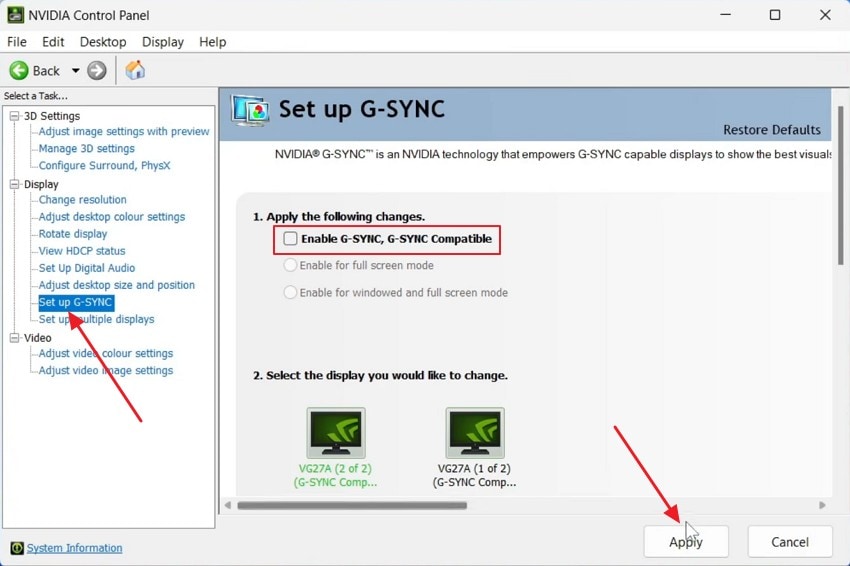
In some cases, V-Sync settings may clash badly with your monitor's refresh rate. This clash often adds a delay between your actions and the screen response. G-Sync and FreeSync sync your monitor directly with your GPU output. This syncing removes tearing without adding the delay V-Sync often causes. Many players use these given steps to cater to the EA Sports FC 26 slow motion:
Step 1. From "Manage 3D Settings" inside your GPU control panel, look for "Vertical Sync" and turn it off.
Step 2. Access the "Set Up G-Sync" section and tick "Enable G-Sync, G-Sync Compatible." After that, press "Apply" after enabling the "G-Sync" feature.
Fix 6. Lower In-Game Graphics Settings
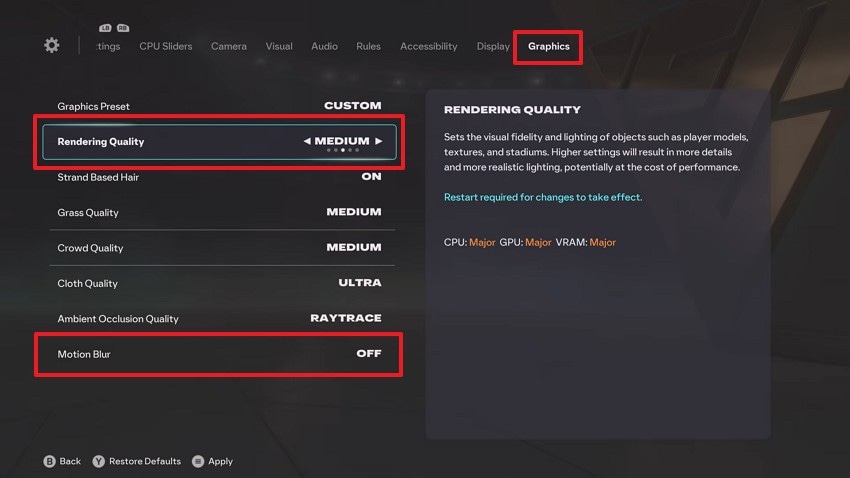
High graphics settings often demand more power than your PC offers. This overload frequently slows down frames and creates noticeable input lag. Yet, lowering these settings in EA Sports FC 26 reduces strain on your system. Shadows and crowd detail use heavy graphical processing power. Adhere to the steps to learn how to fix FC 26 slow motion and input delay:
Instructions. Players need to access the game’s settings and go to the "Graphics" section. Lower the graphic settings by choosing "Medium" for "Rendering Quality" and turn off "Motion Blur."
Fix 7. Set Game Priority to High in Task Manager
Often, other running programs also compete for your CPU's limited resources. This competition steals the power needed for smooth game performance. Still, Task Manager lets you assign a higher priority to specific running programs. Players can set their game's priority higher and give it more CPU access. It reduces stutter and improves overall frame consistency. Go through these steps below to set game priority:
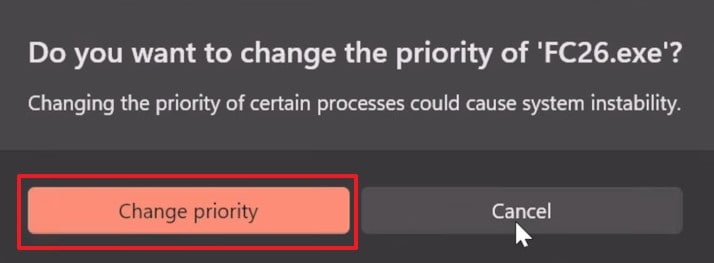
Step 1. Upon running "Task Manager" by pressing "Ctrl + Shift + Esc," access the "Details" tab. Then, right-click the "FC26.exe" file and choose "Set Priority" to "High."
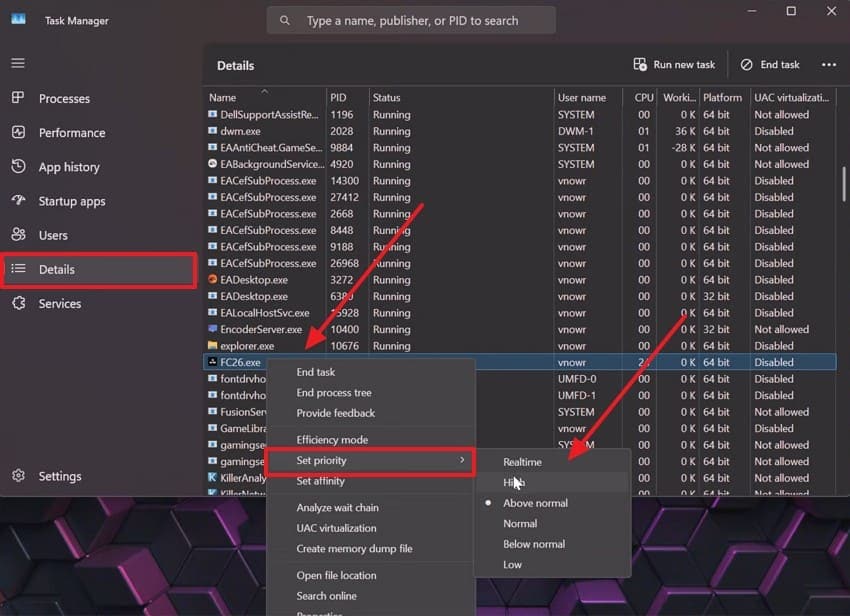
Step 2. As you see a small prompt, press "Change Priority" to complete the task.
Fix 8. Disable Background Apps and Overlays
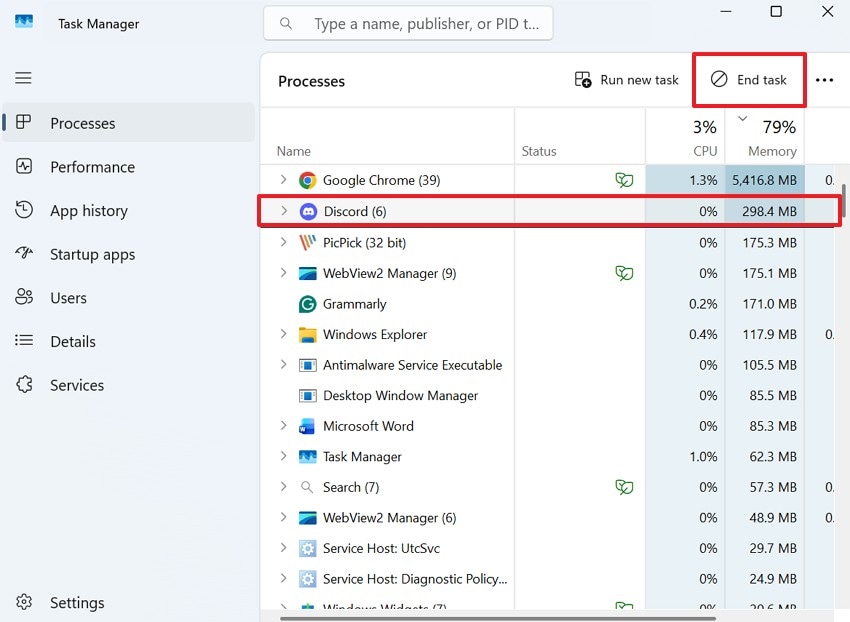
Discord, browsers, and streaming tools can also slow down game performance. These programs consume CPU and memory needed for smooth gameplay. Overlays like GeForce Experience can also add extra input delay. Therefore, closing these apps helps resolve the EA Sports FC 26 input delay on PC. Anyone can now go through the following guide to disable background apps and overlays:
Disable Background Apps
Instructions. From the "Processes" tab, choose the unnecessary app and click "End Task."
Disable Overlays
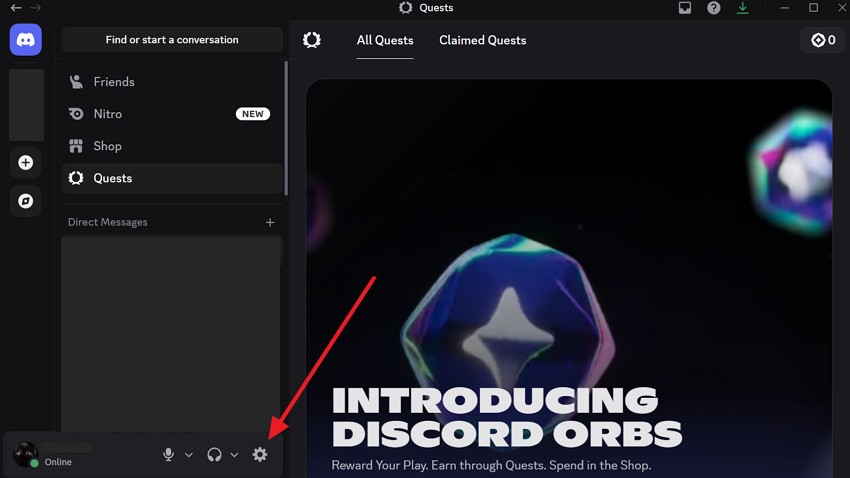
Step 1. Open a background app such as "Discord" and click the "Settings (Gear)" icon.
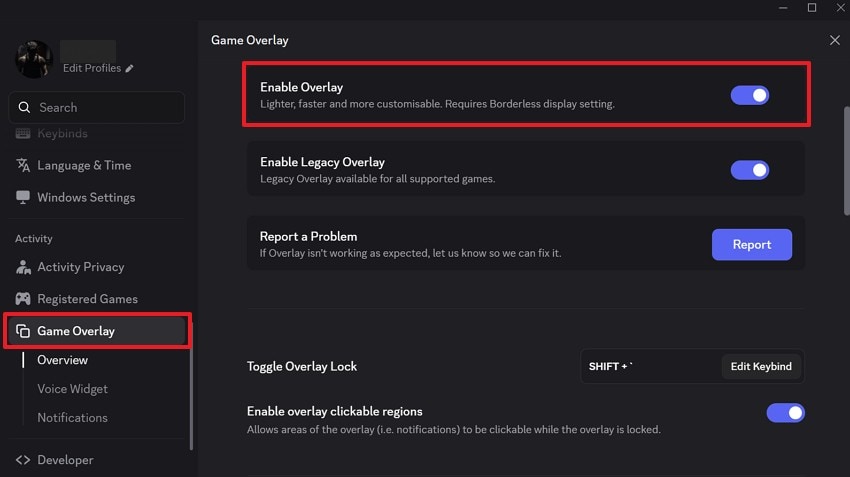
Step 2. Gamers now navigate to "Game Overlay" and disable the "Enable Overlay" toggle.
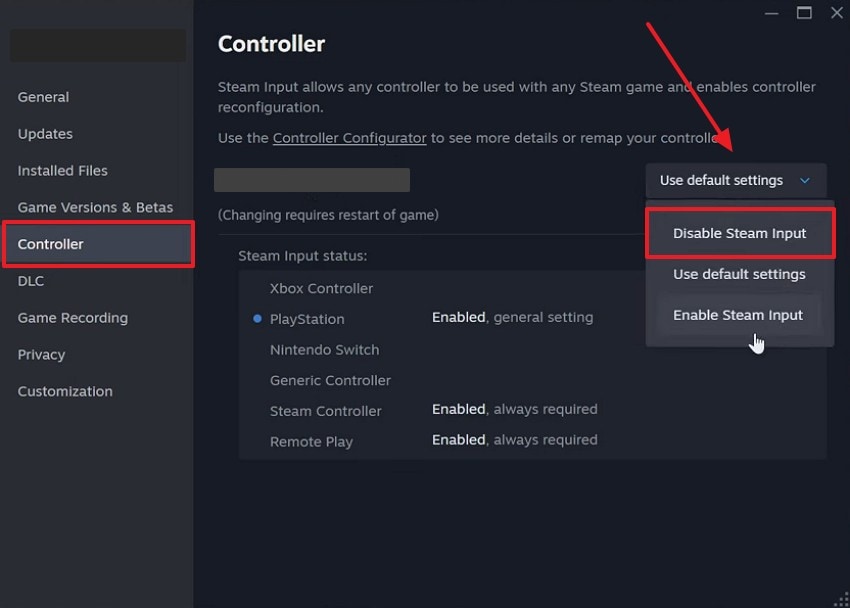
Fix 9. Tweak Steam Controller Settings for Fixing Double-Input
Game launcher's controller settings sometimes clash with your game's controls. This conflict often creates double inputs during important match moments. Furthermore, Steam Input can override your controller's native configuration without you noticing. This override sometimes causes buttons to register twice per single press. You can try to disable Steam Input, which often solves the problem. So, follow these steps below to utilize this FC 26 laggy gameplay fix:
Instructions. From the "Properties" section of your game inside "Steam," move to the "Controller" tab. Players need to click the "User Default Settings" drop-down and choose "Disable Steam Input."
Pro Tip. Lost FC 26 Saves After Troubleshooting? Use Recoverit to Get Them Back
The troubleshooting steps above sometimes lead to unexpected save file loss. Fixes like verifying files or updating drivers may accidentally wipe your saved progress. In such cases, programs such as Recoverit can work well to recover your EA Sports FC 26 saves. This professional software recovers game data lost from deletion or crashes.
In addition, it scans your storage device thoroughly to locate any missing files. The software also recovers recordings lost during crashes or launch errors. Recoverit supports recovery from formatted drives and corrupted file systems too. Moreover, this recovery tool even restores data from unfinished installations or accidental deletions.
Key Features
Game Save Recovery: Restores deleted or lost EA Sports FC 26 save files from internal drives, SSDs, HDDs, and external storage devices.
Deep Scan Technology: Performs an advanced scan to locate deleted, hidden, or inaccessible game save files after crashes or accidental deletion.
Preview Before Recovery: Lets you preview recoverable files before restoring them, helping you recover only the saves you need.
Guide to Using Recoverit to Get Lost EA Sports FC 26 Saves
Gamers have to take guidance from the following guide to help restore lost game saves using Recoverit:
Step 1. Select Lost EA Sports FC 26 Location
Access the "Hard Drives and Locations" section and choose the folder that previously stored your EA Sports FC 26 save files.

Step 2. Look for Lost EA Sports FC 26 Files
As you choose the target location, allow the tool to begin scanning automatically. Recoverit will search for lost or inaccessible EA Sports FC 26 files and show live results.

Step 3. Save Your Recovered EA Sports FC 26 Data
Upon finishing the scan, browse through the results and preview the detected EA Sports FC 26 files. Then, click "Recover" and save the restored EA Sports FC 26 files to a separate location.

Conclusion
In summary, resolving gameplay delays restores smoother matches and improves competitive gaming. Yet, players have explored solutions to effectively address EA Sports FC 26's slow motion and input delays. Regular driver updates and optimized settings also help prevent future performance problems. If save files disappear during repairs, use tools like Recoverit to restore them. This way you can protect progress while fixing performance issues.
FAQ
-
Q1. Does closing Chrome tabs actually improve in-game performance?
Multiple open tabs consume significant RAM and processing power. The resource drain can slow down your game's overall frame performance. Thus, closing unused tabs frees up memory for smoother, more responsive gameplay sessions. -
Q2. Should I disable Windows Game Bar while playing FC 26?
Yes, Windows Game Bar runs background processes that can affect performance. It may sometimes cause extra input delay during competitive online matches. When you disable it, this improves overall responsiveness and frame consistency. -
Q3. Will reinstalling EA Sports FC 26 delete my saved progress?
Reinstalling usually preserves cloud saves, but local files may get deleted. This risk increases if your saves aren't synced to EA's cloud servers. If files go missing, tools such as Recoverit may help restore your lost local data. -
Q4. Does overclocking my CPU help reduce this input lag?
Yes, it may boost processing speed and reduce frame rendering time. However, improper overclocking settings may cause instability or unexpected system crashes. Only attempt this if you understand proper cooling and safety precautions.


