
 TL;DR:
To restore a blank YouTube homepage that has stopped showing recommended videos, you must re-enable your YouTube Watch History and disable network or browser settings that block tracking scripts.
● Enable activity tracking by visiting myactivity.google.com and turning on "YouTube History," as the platform cannot generate a personalized feed without logging your viewing habits.
● Turn off "Restricted Mode" via your YouTube profile menu and disable active VPNs or proxy services, since adult-content filters and masked IP addresses directly prevent regional recommendations from loading.
● Resolve browser-level rendering interference by disabling ad blockers, clearing corrupted cache and cookies, and turning off "Use Graphics Acceleration When Available" in your browser's system settings.
Ask AI for a summary
 ChatGPT
 Perplexity
 Gemini
 Claude
 Grok
Grok
Watching favorite creators becomes less enjoyable without helpful video suggestions appearing. YouTube recommendations help you discover new content without searching for anything yourself. Many users have reported this problem appearing suddenly without any clear reason.
YouTube Shorts Feed also says that YouTube briefly experienced homepage recommendation outages affecting Shorts and recommendations in mid‑June 2026. This guide covers possible fixes to address the issue of YouTube not showing recommended videos.
Try Recoverit to Perform Data Recovery
 Security Verified. 3,591,664 people have downloaded it.
In this article
Part 1. Why Is YouTube Not Showing Recommended Videos?
YouTube recommended videos normally appear based on your viewing activity and interests. When they disappear, YouTube cannot create suggestions for your homepage feed. A "YouTube Homepage Not Showing Videos" issue often leaves the page nearly empty.
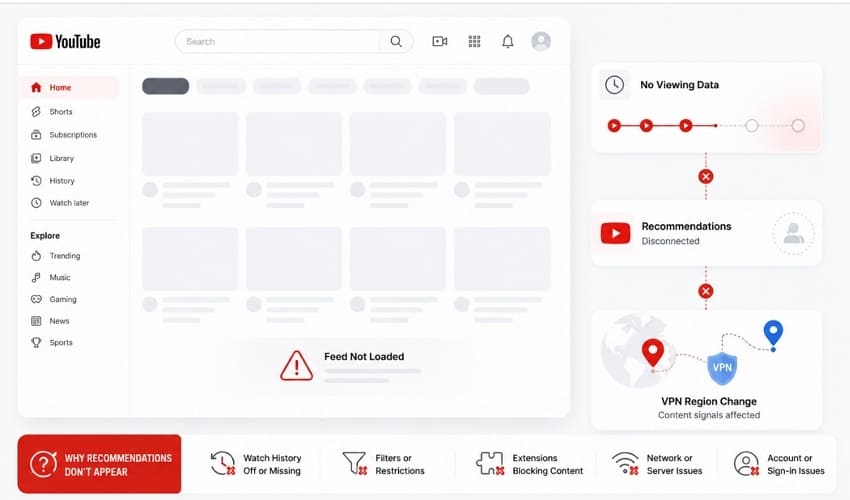
You may only see search options instead of personalized video suggestions. This usually happens when YouTube lacks enough viewing information to generate recommendations. Moreover, a VPN changes your apparent location and may affect the recommendations shown on YouTube.
Top Reasons Why YouTube is Not Showing Recommended Videos
Below are several factors that may explain why YouTube is not showing recommended videos unexpectedly:
- Watch History: YouTube checks your watch history to figure out what videos you might enjoy next. The homepage becomes empty and shows very little content when the watch history is off.
- Restricted Mode: Restricted Mode hides a large number of videos that YouTube thinks are for adults. This setting reduces your recommendations by a lot and can make the homepage look empty.
- Account Settings: Changes in your Google account can also stop YouTube from recording what you watch daily. YouTube cannot build a personal feed that matches your viewing habits without that data.
- Browser Cache: Sometimes, old or broken data gets saved inside your browser as cache. This corrupted data can stop your homepage feed and recommendations from loading up.
- Network Issues: Server problems or regional testing by YouTube can make your recommendation feed disappear. The problem can cause recommendations to disappear for a short time without any clear reason.
Part 2. How to Fix YouTube Not Showing Recommended Videos
There are several simple ways to fix YouTube recommended videos not showing on the screen. In this section, we walk you through every solution that improves recommendation performance:
Fix 1. Enable YouTube Watch History
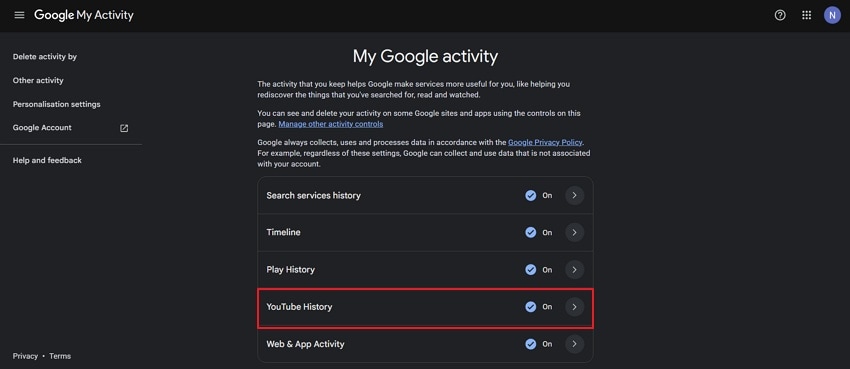
The watch history helps YouTube learn your interests and preferred viewing choices. It collects your activity and improves suggestions across all feed sections. Therefore, YouTube not showing recommended videos in 2026 often happens because the history gets disabled. Enabling it again allows YouTube's system to better understand your viewing preferences. Adhere to the steps below to turn on the Watch history:
Step 1. To initiate, go to "myactivity.google.com" and opt for "YouTube History."
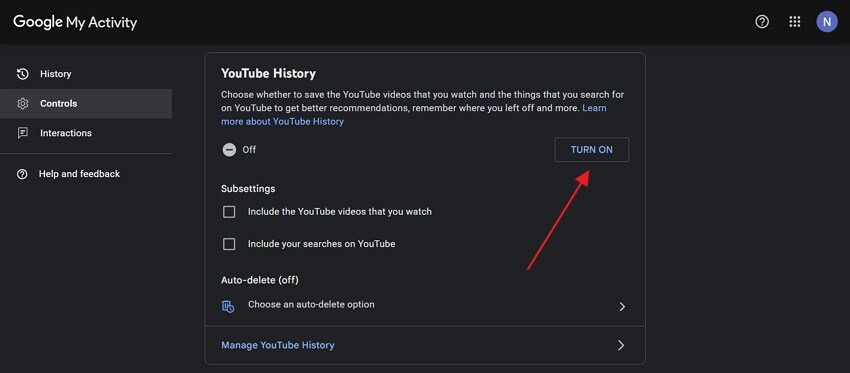
Step 2. Upon accessing it, press the "Turn On" button to enable the YouTube watch history.
Fix 2. Turn Off Restricted Mode
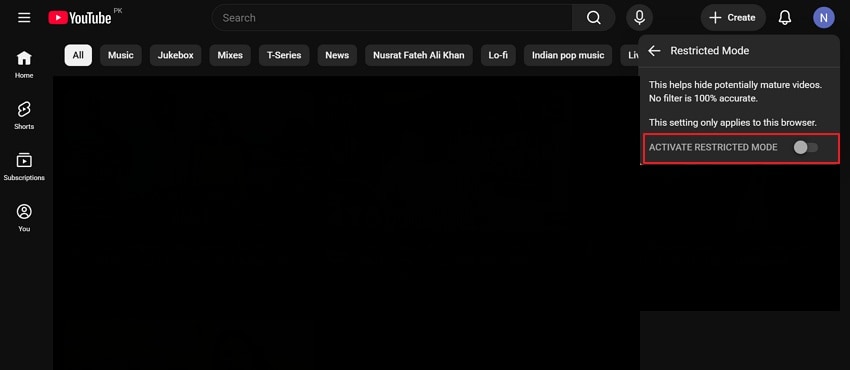
Sometimes, Restricted Mode works silently in the background and blocks your recommendations. It directly causes YouTube not to show recommended videos across your homepage and "Up Next" section. Once disabled, the algorithm regains full visibility into your watch history and preferences. Go through the given guide to disable the restricted mode in YouTube:
Step 1. Open "YouTube" and click your profile picture in the top corner, then opt for "Restricted Mode."
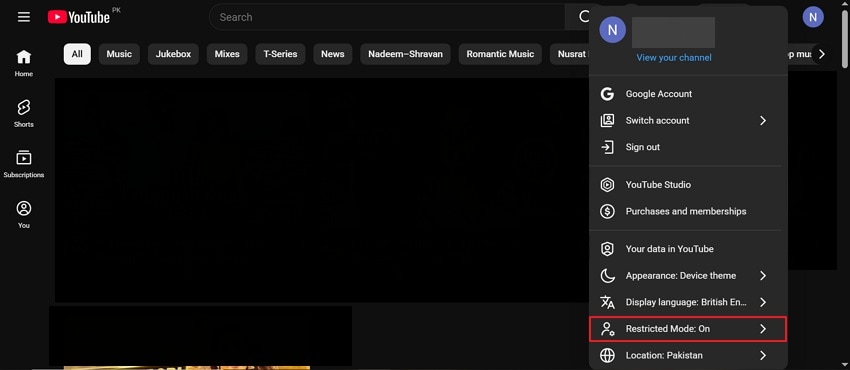
Step 2. After that, turn off "Activate Restricted Mode" from the menu.
Fix 3. Clear Cache and Cookies
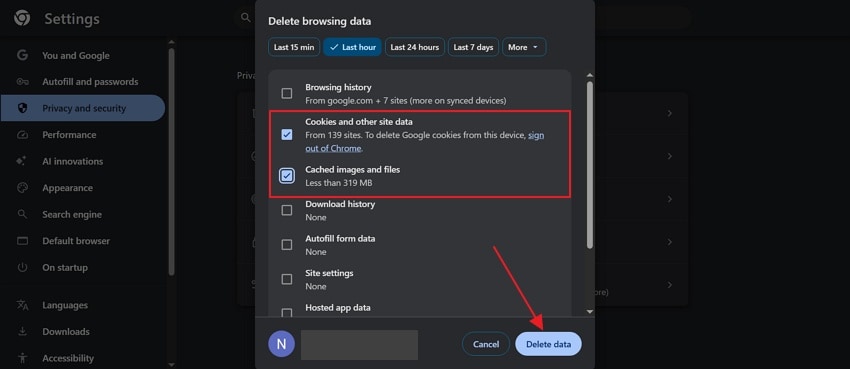
Browsers store small temporary files to help YouTube load faster every time. Over time, these saved files can become corrupted and cause the "YouTube Homepage Not Showing Videos" error. Thus, clearing them removes all old, broken files and loads new information. Explore the steps below to clear the cache and cookies of the browser:
Step 1. Open your browser, such as "Google Chrome," and click the "Three Dots," then look for "Settings."
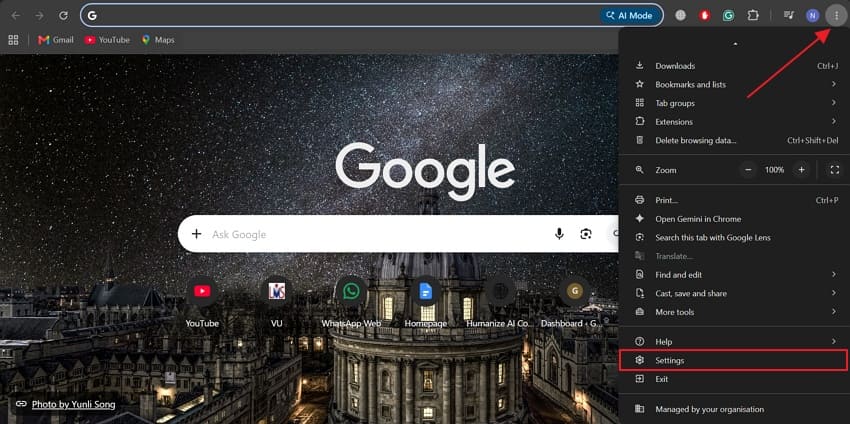
Step 2. After accessing it, navigate to "Privacy and Security" and choose "Delete Browsing Data."
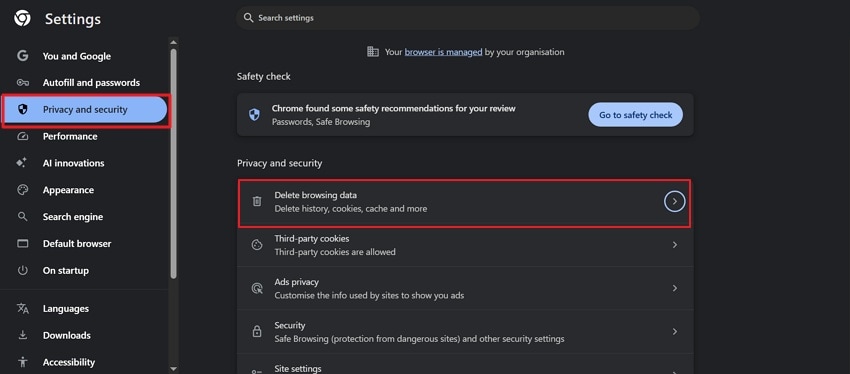
Step 3. Now, check "Cookies and Other Site Data" and "Cached Images and Files," then tap "Delete Data."
Fix 4. Disable Ad Blockers and Extensions
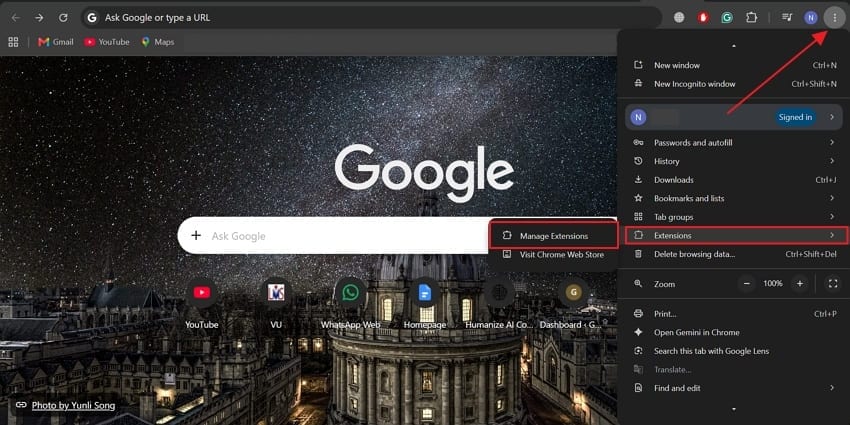
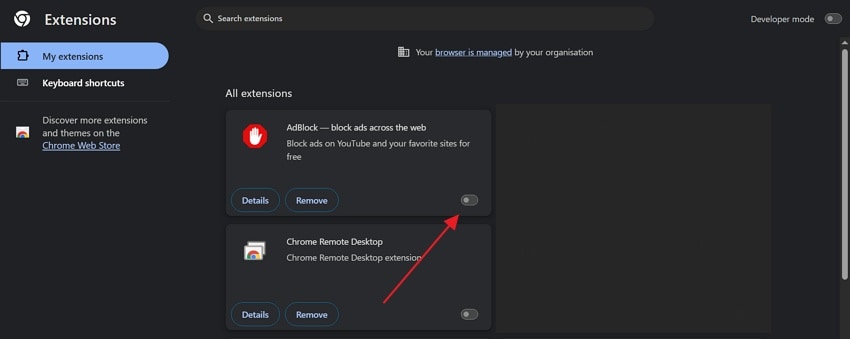
Browser extensions and ad blockers change how YouTube loads its pages daily. They block certain scripts and code pieces that build your recommendation section. This interference may also cause YouTube not to show recommended videos on desktop. Turning these tools off allows YouTube to load all its necessary code. Follow the steps below to disable ad blockers and extensions:
Step 1. Open "Google Chrome," click "Three Dots" and press "Extensions" section to select "Manage Extensions."
Step 2. Next, find your ad blocker or other browser extensions and turn off the "Toggle" button.
Fix 5. Disable VPN or Proxy Services
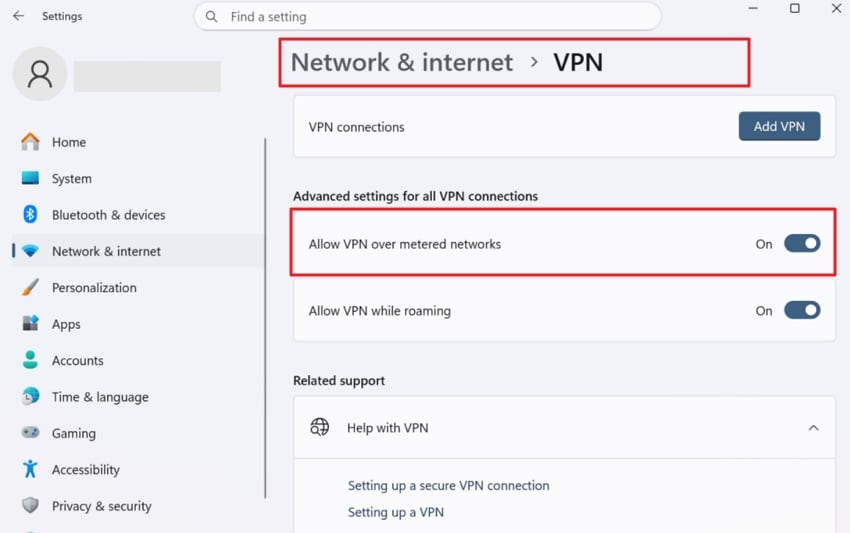
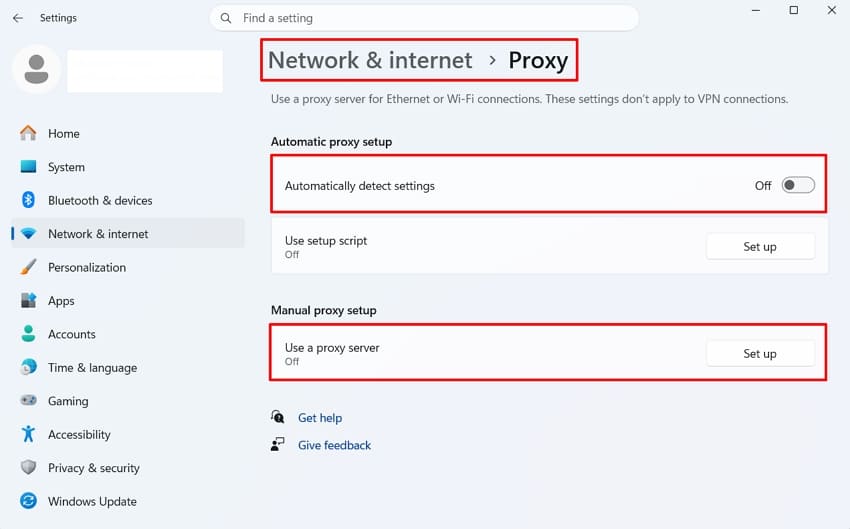
A VPN or proxy service replaces your actual IP with a different country's server address. This false location data triggers the YouTube homepage not showing videos across your entire feed. Removing the VPN and proxy restores your location and rebuilds your feed using accurate regional data. It also reduces loading errors caused by slow remote servers. Take guidance from below to disable VPN and proxy from your system:
Disable VPN
Instructions. To start, press "Windows + I" to open the "Settings" window. Next, select "Network & Internet" and access the "VPN" option to view all active VPN connections. At last, toggle off the "Allow VPN Over Metered Network" option.
Disable Proxy Services
Instructions. From the "Network & Internet" section, opt for "Proxy", then turn off the "Automatically detect settings" toggle if enabled. You can also turn off the proxy settings across the "Manual Proxy Setup" section.
Fix 6. Disable Hardware Acceleration
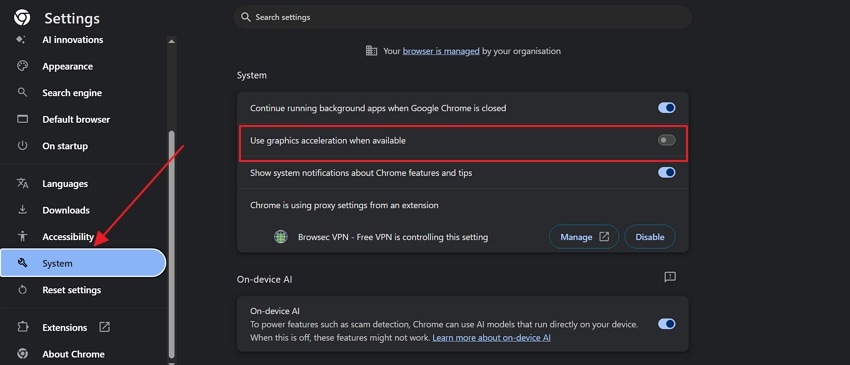
Another method to fix this issue is to disable the hardware acceleration feature in the browser settings. This option sometimes causes rendering interference that leads to YouTube-recommended videos not showing on screen. By disabling it, the browser processes pages using simpler software rendering without any GPU conflicts. Thus, go through the guidelines below to understand how to perform this task:
Instructions. From your Chrome settings, go to the "System" section and toggle off the "Use Graphics Acceleration When Available" option.
Fix 7. Update or Reinstall Browser
Running an old version of YouTube or your browser causes "YouTube not showing recommended videos." An outdated browser struggles to support YouTube's recently updated recommendation interface. Updating delivers the latest bug fixes and restores compatibility with YouTube's current system. Review the given guide to update your browser to use the latest version of YouTube:
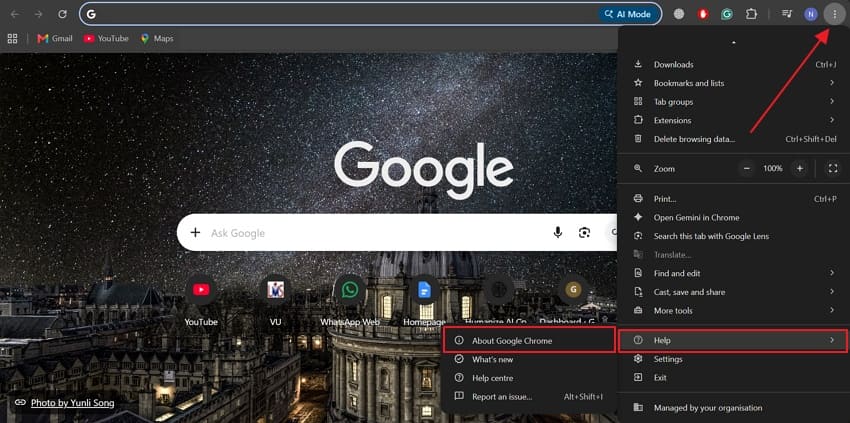
Step 1. After accessing Google Chrome, click on "Three Dots" and navigate to "Help," then select "About Google Chrome."
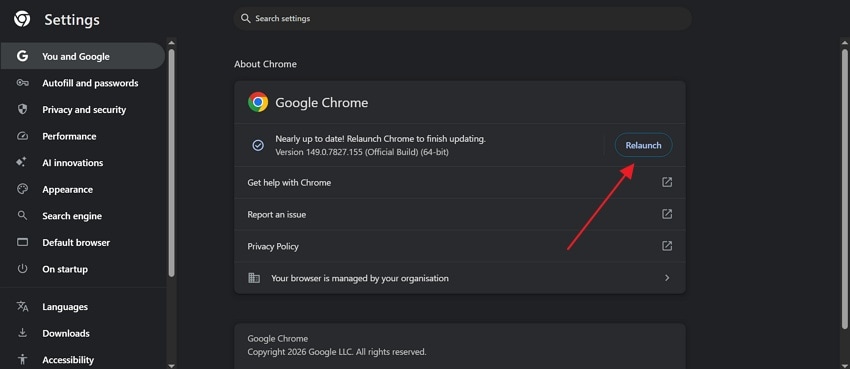
Step 2. If the update is available, Chrome will automatically update itself. Once it’s updated, go for the "Relaunch" button to apply all new changes.
Pro Tip. Recover Lost Downloaded YouTube Videos with Recoverit
At times, users accidentally delete downloaded YouTube videos saved on their devices. Others may lose important video files because of crashes or storage issues. This is where programs like Recoverit step in to recover those missing video files. The tool recovers deleted YouTube videos from over 1 million supported storage devices. It also uses dual scan modes to locate deeply hidden deleted videos.
With Recoverit, you can rebuild fragmented YouTube videos using advanced piece matching technology. Whether you have large video files, this tool recovers them without format restrictions. It performs a quick scan within minutes and achieves a 99.5% recovery rate for deleted YouTube video files. Moreover, users can instantly retrieve permanently deleted YouTube video downloads from the Recycle Bin.
Key Features
Metadata Recovery: Restores all original video details and file information without losing any important data.
Quality Restoration: Keeps your recovered YouTube video quality exactly the same as the original file.
Multi Format: Recovers deleted YouTube videos across 100+ common and advanced video file formats such as MP4 and MKV.
Quick Guide to Use Recoverit for Easier YouTube Video File Recovery
You can take guidance from the given steps and recover your videos using this tool:
Step 1. Choose the Drive Where the Data Was Lost
You need to access the "Hard Drive and Locations" tab inside Recoverit. Select the exact drive or folder where your downloaded YouTube video files were stored or deleted.

Step 2. Run a Quick Scan on the Selected Drive
Recoverit then searches for all deleted or missing downloaded YouTube video files and displays detected items during scanning.

Step 3. Preview and Recover Your YouTube Videos
Go through the list of found files and preview them to confirm accuracy. Select the specific YouTube video files you need and select the "Recover" button.

Conclusion
To sum up, YouTube not showing recommended videos is usually linked to history or loading issues. This guide walks through every cause and solution to get your feed working again. Additionally, some users may lose downloaded YouTube videos because of accidental deletion or storage problems. For this, a tool like Recoverit is the best option for recovering missing video files.
FAQ
-
Q1. Can clearing YouTube watch history remove all recommendations?
Clearing watch history removes important viewing data that YouTube uses for daily recommendations. YouTube needs this activity data to understand your interests and build your feed. Recommendations slowly return after watching videos and interacting with content on a regular basis. -
Q2. Why do recommendations disappear after creating a new YouTube account?
New accounts have very little history for creating useful video suggestions initially. YouTube needs some viewing activity before understanding your interests more properly. Watching more videos helps recommendations become better and more accurate over time. -
Q3. How can you recover deleted downloaded YouTube video files?
Video files sometimes become lost after crashes or unexpected system shutdowns. Programs such as Recoverit can recover missing videos and repair damaged video files effectively. This also helps restore important YouTube downloads and improve playback success rates. -
Q4. What is the best browser to use YouTube without recommendation problems?
Google Chrome generally provides the best compatibility with YouTube. Keep Chrome updated to the latest version for the smoothest YouTube experience. Microsoft Edge and Firefox also work well as long as extensions are kept minimal.


