
May 20, 2026 • Filed to: Windows Computer Solutions • Proven solutions
The Easiest Bypass (Hidden Admin): On the classic Windows XP welcome screen, tap Ctrl + Alt + Del twice in rapid succession. This calls up the classic login prompt. Type Administrator as the username, leave the password field completely blank, and hit Enter.
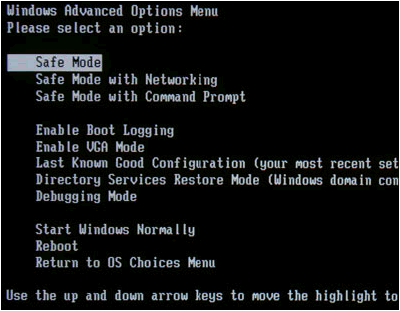
The Safe Mode Route: Restart your system and tap the F8 key continuously to enter the Advanced Boot Options. Select Safe Mode. Choose the built-in, un-passworded default Administrator profile to access the operating system and clear user passphrases via Control Panel.
The Command Prompt Reset Layer: Once logged into any administrative environment, launch the Command Prompt (cmd) and execute the direct syntax override command:
net user [account\_name] * Press Enter, type a new secure credentials string, and confirm the changes.The Local Database Modification: For locked profiles, use a Windows setup disc to trigger the installation recovery panel. Tap Shift + F10 at the setup wizard to open the command console, type nusrmgr.cpl or control userpasswords2, and clear account constraints directly.
There is a wide variety of operating systems, but Microsoft OS Covers more than 70% of the OS market. Windows XP was launched as a part of NT family computer systems. XP was launched on 24 Aug 2001, with a wide range of new features and functionality such as IPv4 support, more stability, enhanced GUI, improved imaging features such as Windows Picture and Fax preview, enhanced image and thumbnail caching in Explorer. It can run smoothly over a machine with 128 MB RAM on the other hand Windows 7 requires at least 700MB RAM for smooth functioning.
- Method 1: XP Hidden Administrator Account
- Method 2: Through Safe Mode
- Method 3: Using windows XP-bootable Disc
- Method 4: Using Regedit
- Method 5: Using Regedit again
Windows XP was released in two major editions, Home Edition and Professional Edition. Passwords act as a key that opens the door of sensitive data and user information. So many people have set passwords for their computers.
SAM, Security Accounts Manager, contains all the password of accounts in encrypted form. These files cannot be decrypted as they have one-way encryption but they can be accessed offline to reset the passwords. The net user command is used to add, remove, and make changes to the user accounts on a computer, all from the Command Prompt and we'll use this command to change the system's accounts password.
But What if we just forget the passwords? So, below are 8 ways starting from easy to moderate level to crack or reset the Windows XP administrator password.
Technical Overview: Windows XP Local Account Bypass Vectors
Before executing low-level system hacks, review the difficulty tiers, required environment items, and system access limitations for each password recovery path:
| Recovery Method | Difficulty Level | Prerequisite Items Required | Target Security Mechanism Bypassed | Success Probability |
| Hidden Admin Account | Very Low | None (Local physical system access) | Exploits default blank credentials on factory default setup builds. | High (On basic or unhardened systems) |
| F8 Safe Mode Boot | Low | Keyboard access at post-screen sequence | Intercepts initialization loops before standard user policies load. | Moderate (Depends on user privileges) |
| Bootable Windows Disc | Moderate | Windows XP ISO installation media disk | Bypasses local system run states via the Shift + F10 setup console. | 95% (Highly Effective) |
| SpecialAccounts Registry | Moderate | Command line prompt window interface | Forces the system login manager screen to display hidden admin profiles. | High (Fixes UI visibility limits) |
| Offline SAM Hive Editing | Advanced | Active recovery console or PE environment | Rewrites hexadecimal registry flags (000001F4) to unblock access. | 99% (Definitive Fix) |
Method 1: XP Hidden Administrator Account
1. Windows XP comes with a hidden Administrator account which can be accessed by following ways so that the lost password of other admin accounts can be changed from this default Administrator Account. On the Windows XP login screen panel, hit Ctrl+Alt+Del twice after that a login panel will pop up. Just enter the user name as Administrator and hit enter.
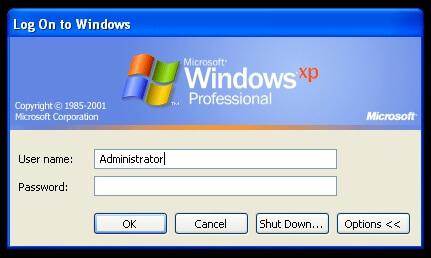
2. While you are logged in as admin and you need to change any user account passwords just go to the Run window and type cmd. Now enter net user and then hit enter. It will show all users on this machine.
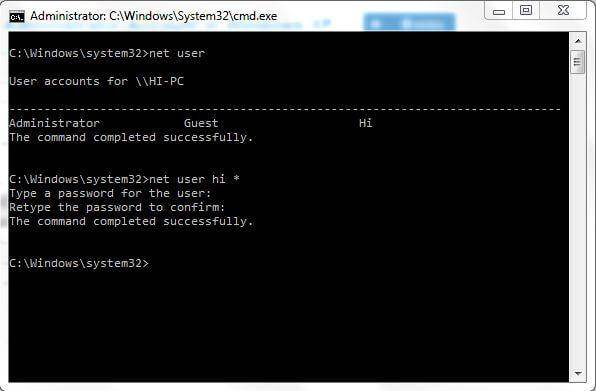
3. Now enter net user [account_name] *
Eg: net user hi *
It will ask for a new password, and then you can enter a new one as your wish. From the next login, you will have to enter this password for the respective account.
Method 2: Through Safe Mode
Restart the system press the F8 key to boot in safe mode from there log in Administrator Account without a password. This is an easy way and mostly works if the default hidden administrator is not changed.
Method 3: Using Windows XP-bootable Disc
1. Select Boot from CD option from BIOS menu and insert a bootable disc, just press any key when prompted like "Press any key to boot from CD".Follow the Setup procedures and accept the license agreement by hitting F8.
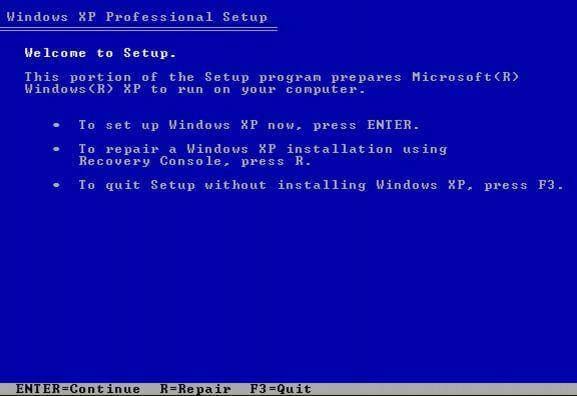
2. Use arrow keys to select XP installation (if you only have one, it should already be selected) and press R to begin the Repair process. After successful completion of repair windows will restart and again will display "Press any key to boot from CD".
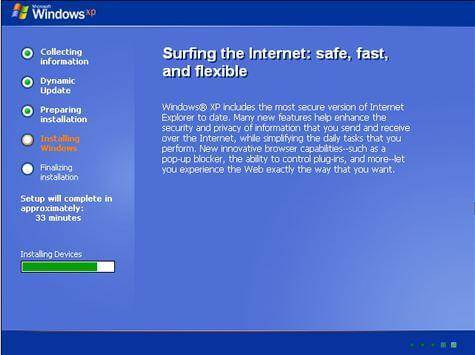
3. Just don't do anything, and it will boot automatically now when you see Installing Device Bar in the lower left bottom corner. Press Shift+F10 this will open the console now.
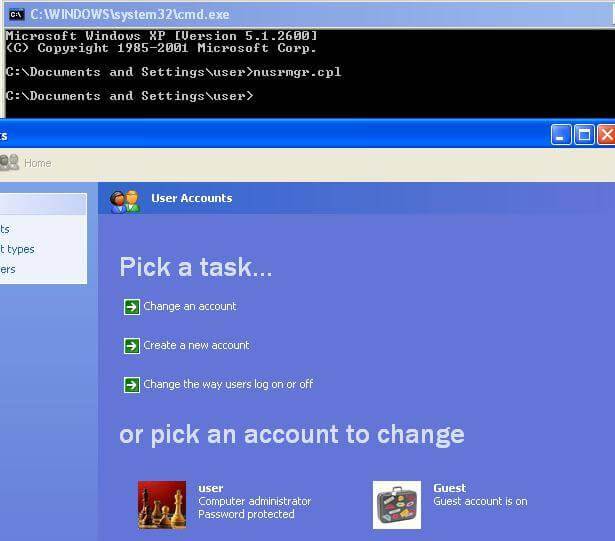
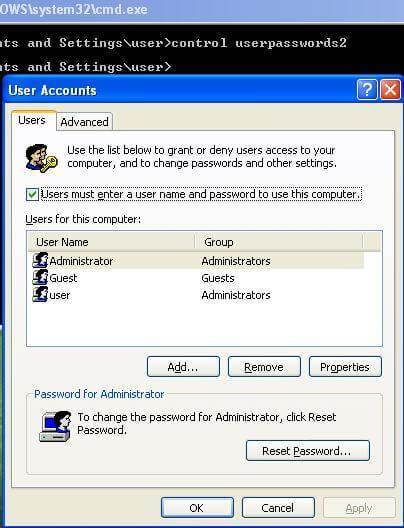
4. Write command nusrmgr.cpl. To edit passwords or remove them, you can also type Change userpasswords2 in the console to add a new user with any password. Now log in with new credentials after the repair process completes successfully.
Method 4: Using Regedit
1. Once you get the console type Regedit.
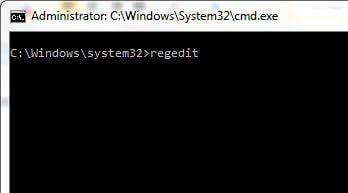
2. This will open the registry menu now navigate to HKEY_LOCAL_MACHINESOFTWAREMicrosoftWindows NTCurrentVersionWinlogonSpecialAccountsUserList in the Registry Editor.

3. Now double click Administrator option in the right panel. But if it is not there then do right-click in the right-side panel and select a new Dword and name it as Administrator and hit enter. Then do a double click on the newly created option and enter the value to 1 and press Ok.
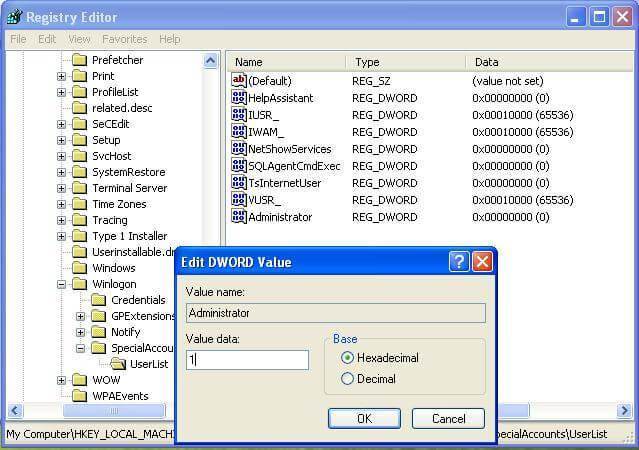
4. Now restart the window you will see a new Administrator user login without a password and make it to change the password of the lost account.

Method 5: Using Regedit again
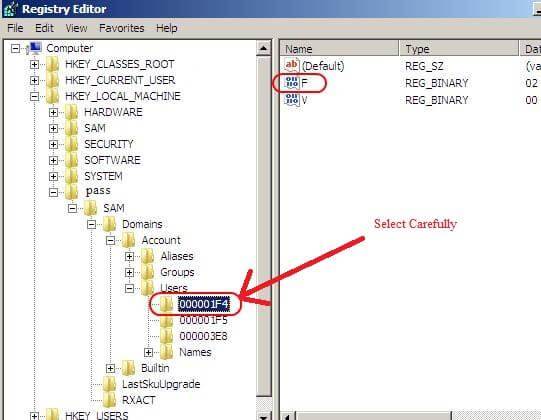
1. Once you get the console type "Regedit" (command for opening Registry) and press Enter. From now on we have to be extra careful as one mistake might degrade our operating System and make it unusable. On the left side of the Registry Editor click "HKEY_LOCAL_MACHINE" then in the File menu click "Load Hive".
2. Now Browse for the Following path: Windows Os drive[c]:windowssystem32configSAM
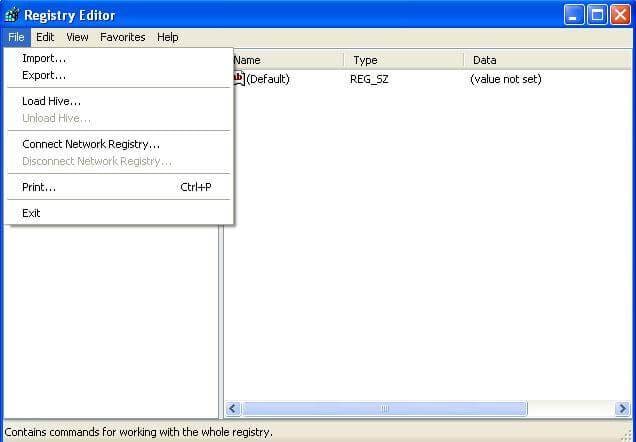
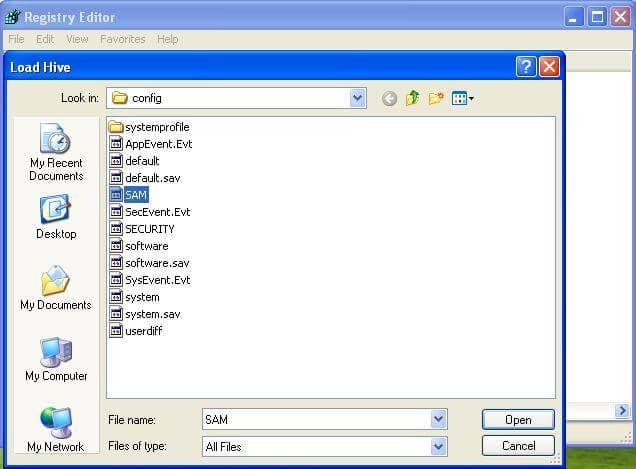
Note: This SAM file stands For the Security Accounts Manager, which is responsible for managing all credentials of system accounts so it contains encrypted information about the account names and passwords.
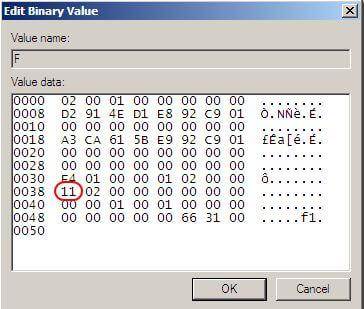
The reason modifying the value next to line 0038 from 11 to 10 works perfectly is due to how legacy Windows NT systems handle local account security parameters. The registry key 000001F4 is the hardcoded system Relative Identifier (RID) reserved specifically for the master built-in Administrator account. In older operating systems, changing bit flags within this specific binary array directly toggles account status markers. Unlike modern environments that protect these structures inside secure virtualized hardware enclaves, legacy Windows systems allow you to alter this flag offline. This enables you to switch the account state from disabled (11) to enabled (10) instantly without needing to know the previous password string.
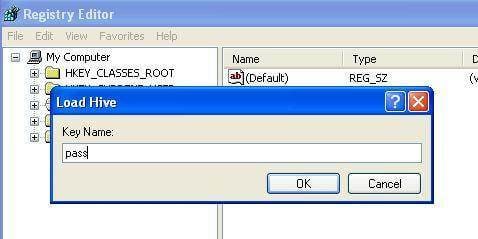
3. After loading the Hive, it will ask for a name, type anything you can remember. In my case, I will give the name "pass". So now the SAM file is loaded into the registry for editing.
4. Now go to the following directory "HKEY_LOCAL_MACHINE estSAMDomainsAccountUsers". Click on "000001F4" and from the right-side panel double-click the "F" entry.
5. A new window will open and you can edit the "F" entry. The line that starts with "0038" is what you want to edit. The value next to "0038" is "11", replace it with "10". Be careful not to change anything else. Just double click the "11" and type "10" then hit the OK button. "11" is for disabled and "10" for enabled.
6. Back in the Registry Editor, from the left side click on the name you gave to the hive you loaded earlier and click "Unload Hive" from the file menu, restart the computer, and you are done. The Administrator account is now enabled.
Data Protection Notice: Recovering Files from Corrupted Windows Volumes
Altering low-level files in the Security Accounts Manager (SAM) or making mistakes while modifying registry keys can sometimes cause a system boot loop or damage your Windows file systems. If your computer displays a blue screen error, drops into a RAW format state, or blocks access to your system drive (C:) after making these changes, do not panic.
You can protect your user profile files, photos, and system records by taking out the hard drive, connecting it to another machine via a USB controller dock, and deploying a dedicated data recovery tool like Wondershare Recoverit.
| File Corruption Symptom | System Failure Mechanism | Immediate Corrective Action | Data Recovery Success Rate |
| Drive Prompts a Formatting Error | System file index damaged during registry editing. | Do NOT format the drive. Run raw sector analysis immediately. | 98% (Excellent with Recoverit) |
| Blue Screen Loop (BSOD) | System registry configuration hives are out of sync. | Boot with a recovery disk or read data externally via another PC. | 99% (Full File Recovery) |
| Inaccessible User Folders | Account access permissions have been locked down. | Use deep scanning to bypass user account control flags. | 95% (High Recovery Rate) |
Final Technical Checklist: Verifying System Stability and Security
- Unload Registry Hives Completely: If you used Method 5, ensure you click "Unload Hive" in Regedit before restarting your system to save your changes and prevent database corruption.
- Set a New Admin Password Prompt Immediately: Once you successfully log in using the bypassed account, navigate to the Command Prompt and run the net user command to assign a secure new password.
- Verify Drive Partition Types: Confirm if your system drive uses the FAT32 or NTFS file system. NTFS drives provide stronger local file protection if multiple users share the PC.
- Back Up Critical Local Data Arrays: Use a USB flash drive or external storage drive to save your recovered documents and media files to protect them against future OS failures.
- Keep a Specialized Recovery Tool Ready: Download and test Wondershare Recoverit on a separate system so you can quickly create bootable media and salvage your files if a system crash occurs.
Windows XP Keeps Rebooting[Solved]
Fix Windows XP Black Screen Errors
How to Fix Windows XP Crashes in Minutes

Recoverit - The Best Word File Recovery Software
- Recover Word documents from all storage devices like Mac.
- Recover 1000+ types and formats of files in different situations.
- Scan and preview the files before you recover them from MacBook hard drive.
Computer Data Recovery
- Windows PE
- System problems
- Reset Windows 10
- Install Windows 10 on SSD
- Can't Enter Safe Mode
- Fix no Sound issue
- Parameter is Incorrect
- PC Errors
 ChatGPT
 Perplexity
 Google AI Mode
 Grok
Grok


David Darlington
staff Editor