How to Reset Lost Windows 7 Password
You can reset a lost Windows 7 password without reinstalling the OS by replacing system accessibility utilities (Utilman.exe or Sethc.exe) with the Command Prompt to force administrative access at the logon screen.
● To use the Utilman.exe method, boot into recovery mode via F8, open Notepad through Startup Repair to copy cmd.exe over Utilman.exe, and click the ease of access button at reboot to run the net user administrator * command.
● To use a password reset disk, create bootable media using the Microsoft Media Creation Tool, boot from it, and press SHIFT + F10 during setup to replace Sethc.exe with cmd.exe in the System32 folder.
● After replacing Sethc.exe, restart the PC and press the Shift key five consecutive times at the Windows 10 logon screen to open an administrative Command Prompt and run the net user username newpassword command.
Ask AI for a summary
If you lost your Windows 7 password and didn't have another administrator account or a password reset disk, you won't be able to get into your computer and reset the lost password. If there are no other user accounts on the computer, you cannot access your PC until you reinstall the Operating System. To avoid reinstalling the OS and thereby losing your data, follow the steps below to reset your lost Windows 7 password.
Part 1. Reset administrator password with Utilman.exe
Utilman (Utility Manager) is a Windows software from Microsoft that’s built into the Operating System. This utility gives you access to useful settings and helps users to configure accessibility options such as the On Screen keyboard, Contract themes, magnifier and narrator. Note that the utilman file is stored in the System32 folder, located within the Windows folder.
These are the steps to reset the administrator password:
- Boot your computer into recovery mode by pressing the power button then the F8 before the Windows 7 logo appears. Select the Startup repair option.
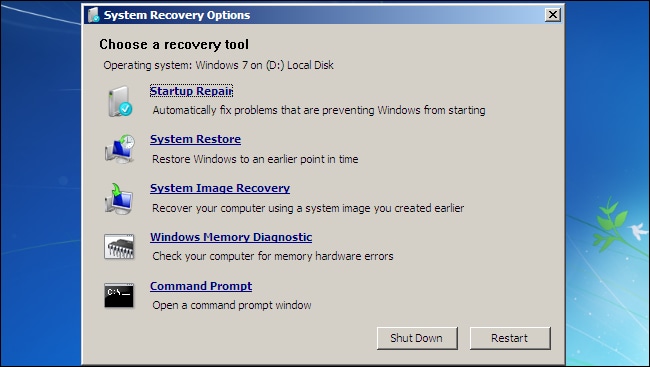
- The startup repair will attempt to repair any issues in your PC, this may take a few minutes. A window will pop up saying Startup repair cannot repair this computer automatically. Click on View problem details then select the last link to open it.
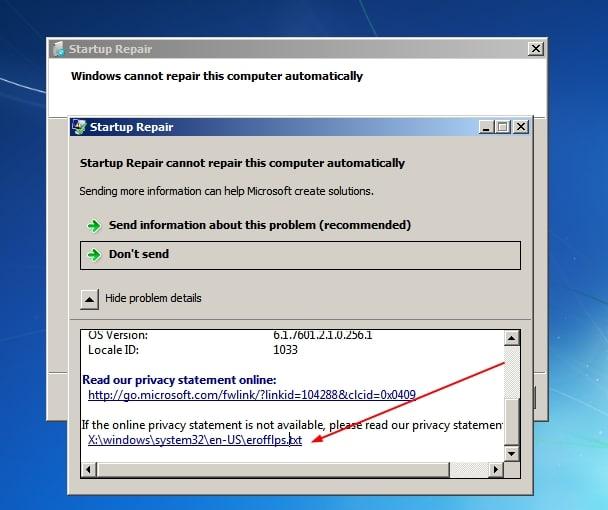
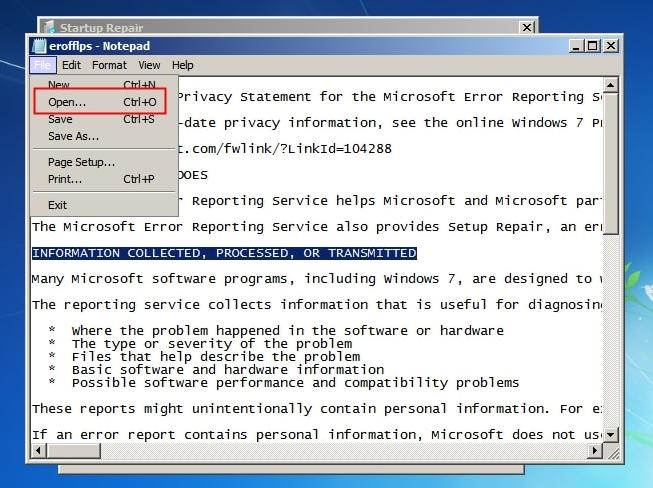
- Clicking on the link above will open the privacy information on a Notepad. Go to file then select open
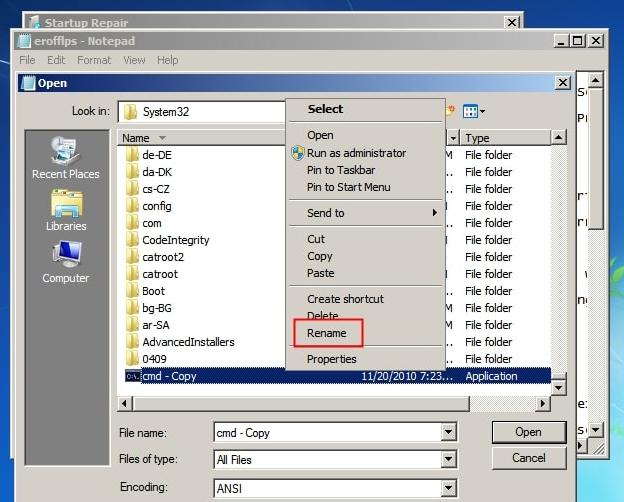
- Select and right-click on the Utilman file to make a copy within the System 32 folder. Proceed to delete the original utilman file and remain with the copy.
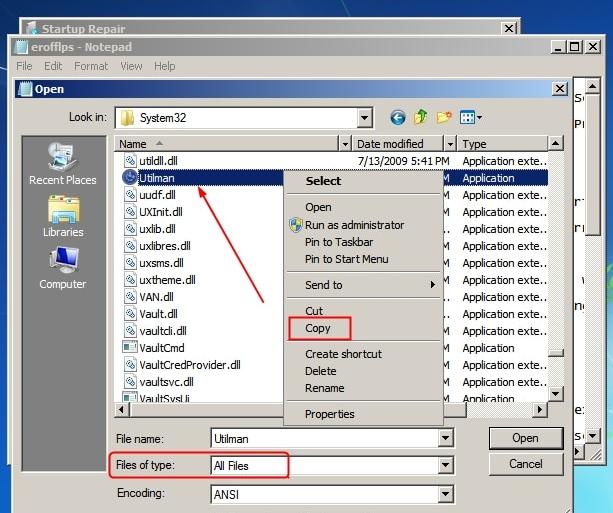
- Next, make a copy of the cmd file, paste it into the System32 folder and rename the copy to Utilman.exe. Close the windows and click on finish.
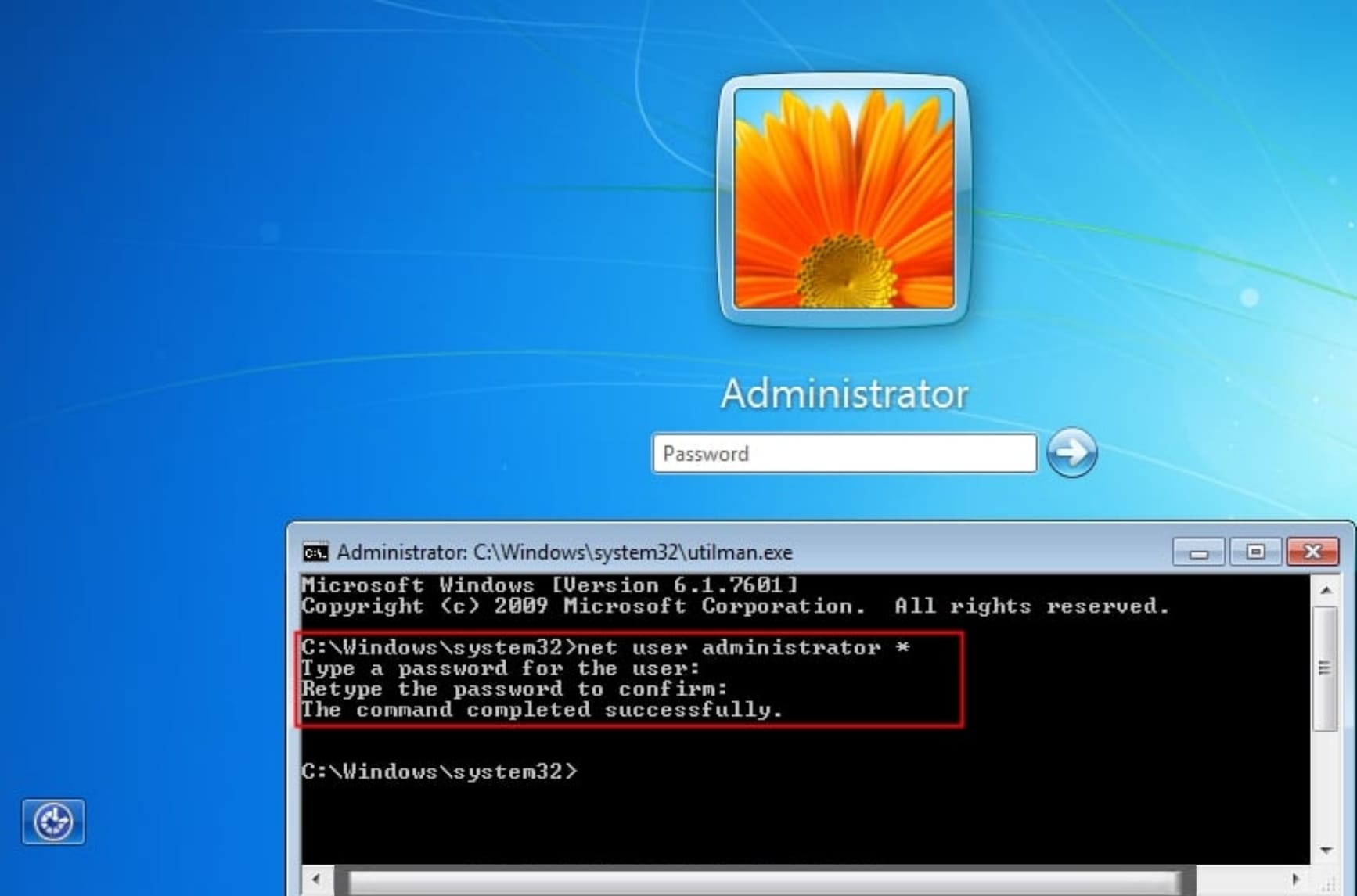
- When the system shuts down and boots up, click the ease of access button from the bottom left. This will launch the command prompt. Type the net user administrator * command then type the new administrator password. You can now log into your computer with the new password.
Part 2. Reset password with a password reset disk
Step 1. Make a Windows 7 password reset disk
To create a password reset disk, the first thing you need to do is to choose a program that can be burned into a bootable disk. Microsoft Media Creation Tool is such a kind of program, which permits you to enter the computer and reset the lost administrator password in Windows 7. You can use it in Windows 7, XP or Vista, and burn it into a CD/DVD or an external USB drive.
- Microsoft’s official tool for creating installation media and ISO images with Windows 10 is Media Creation Tool. You can download the latest version here – https://www.microsoft.com/en-us/software-download/windows10
- Select Download tool now, and select Run. You need to be an administrator to run this tool.
- If you agree to the license terms, select Accept.
- On the What do you want to do? page, select Create installation media for another PC, and then select Next.
- Select the language, edition, and architecture (64-bit or 32-bit) for Windows 10.
- Select which media you want to use:
- USB flash drive. Attach a blank USB flash drive with at least 8GB of space. Any content on the flash drive will be deleted.
- ISO file. Save an ISO file to your PC, which you can use to create a DVD. After the file is downloaded, you can go to location where the file is saved, or select Open DVD burner, and follow the instructions to burn the file to a DVD. For more info about using an ISO file, see Additional methods for using the ISO file to install Windows 10 section below.
- After the installation media is created, follow the steps below to use it.
- After completing the steps to install Windows 10, please check that you have all the necessary device drivers installed. To check for updates now, select the Start button, and then go to Settings > Update & Security > Windows Update, and select Check for updates. You may also wish to visit your device manufacturer’s support site for any additional drivers that may be needed.
Step 2. Replace Sethc.exe with Cmd.exe
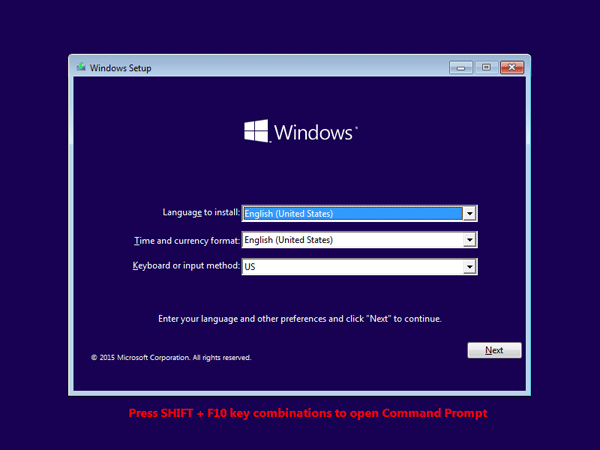
When you come to the Windows Setup screen, just press SHIFT + F10 key combinations to launch Command Prompt.
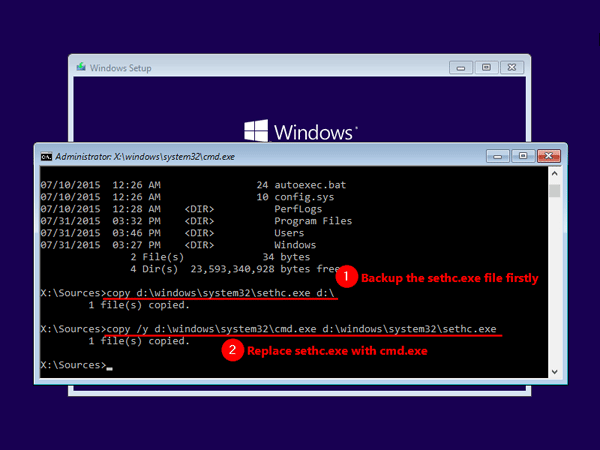
Type following commands in Command Prompt window and press Enter key each time you enter a command. Replace d:\ with the drive letter of your Windows installation.
copy d:\windows\system32\sethc.exe d:\
copy /y d:\windows\system32\cmd.exe d:\windows\system32\sethc.exe
Now you can close Command Prompt, cancel Windows Setup, restart your PC and remove Windows install disk.
Step 3. Reset Forgotten Windows 10 Password
After your PC restarts. At Windows 10 logon screen, press Shift Key 5 times consecutively and it will launch Command Prompt with administrator privileges.
Now, to change the password use the following command. Do not forget to replace 'username' with actual local account's username and 'newpassword' with the password that you want to set.
net user username newpassword
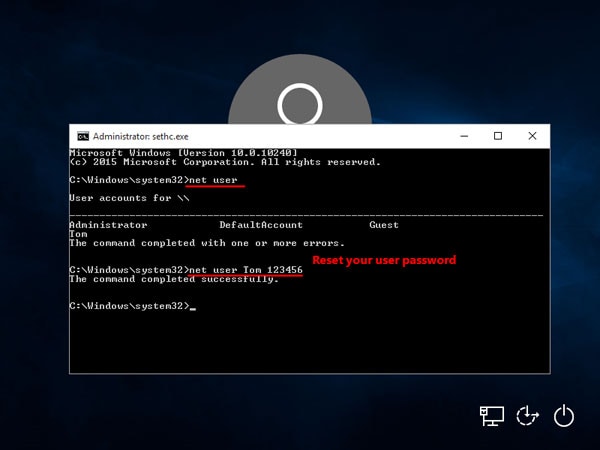
Close the Command Prompt and you can now log into Windows 10 with the new password.
Then restart the PC and get into the system, as usual, you'll find that the system doesn't ask for a password anymore, and you can enter to use the computer as before.
If you are going to set a new password on your Windows 7 computer to prevent unauthorized access, please make sure that the password you set is easy to remember so that you will not lose it again. By the way, here are 5 Windows password recovery tools that can also help you.
Computer Data Recovery
- Windows PE
- System problems
- PC Errors



 ChatGPT
 Perplexity
 Gemini
 Claude
 Grok
Grok


David Darlington
staff Editor