 TL;DR:
You cannot view a forgotten Ubuntu password, but you can safely reset it without losing unencrypted files by using Settings if still logged in, or Recovery Mode if fully locked out.
● If you cannot reach the desktop, access the GRUB menu during boot, select the Recovery Mode root shell prompt, remount the system as writable, and execute the passwd username command.
● Resetting your local user account credentials will not unlock a LUKS encrypted storage drive; you must provide the original encryption passphrase to mount and read the disk.
● Data recovery software like Recoverit cannot bypass Linux account security or reset passwords, but can be used with valid SSH credentials to salvage files before a full system reinstall.
Ask AI for a summary
 ChatGPT
 Perplexity
 Gemini
 Claude
 Grok
Grok
Forgetting your Ubuntu password can lock you out of your desktop, Terminal, software updates, and sudo commands. The safest way to regain access depends on your situation: whether you are still logged in, have another administrator account, can open Recovery Mode, or use disk encryption.
Quick answer: Ubuntu does not show or reveal a forgotten password. You usually reset the account password instead. If you are still logged in, change it from Settings or Terminal. If another administrator account exists, that admin can reset your password. If you are completely locked out, use Ubuntu Recovery Mode or a Live Ubuntu USB. If your Ubuntu disk is encrypted and you forgot the encryption passphrase, resetting the login password will not unlock the encrypted data.
Important: Use these steps only on your own Ubuntu computer or on a device you are officially authorized to manage. If the device belongs to an employer, school, or organization, contact the administrator or IT team first.
In this article
-
- Method 1. Change the Password from Settings or Terminal If You Are Still Logged In
- Method 2. Change the Password from Terminal If You Are Still Logged In
- Method 3. Reset the Password Using Another Admin Account
- Method 4. Reset the Password from Ubuntu Recovery Mode
- Method 5. Reset the Password with a Live Ubuntu USB
- What to Do After Successfully Resetting Your Ubuntu User Password
Quick Answer: Which Ubuntu Password Reset Method Should You Use?
Start here to choose the safest reset path.
| Your Situation | Best Method | Will It Delete Files? | Important Limit |
| You are still logged in | Change password from Settings or run passwd | No | Do it before the session locks |
| Another admin account exists | Ask that admin to reset your password | No | Requires administrator privileges |
| You forgot your sudo user password | Reset the user password, then test sudo | No | Sudo uses the admin user’s password |
| You cannot log in at all | Use Ubuntu Recovery Mode | Usually no | Requires local access to GRUB/recovery options |
| GRUB or Recovery Mode will not open | Use a Live Ubuntu USB | Usually no | You must identify the correct Ubuntu partition |
| You forgot the LUKS/disk encryption passphrase | Try backup/recovery key options first | Not applicable | Login password reset cannot decrypt the disk |
| You are using a virtual machine | Use VM console, snapshots, or recovery ISO | Usually no | Depends on hypervisor access |
| You are on a cloud server | Use provider rescue console or recovery tools | Varies | Avoid local desktop-only steps |
| You plan to reinstall Ubuntu | Back up or recover files first | Helps protect data | Recoverit can recover files, not reset passwords |
Ubuntu’s desktop documentation says that if you forget your password, another user with administrator privileges can change it for you. It also explains that changing another user’s password requires administrator privileges.
Part 1. Can You Recover or Reset a Forgotten Ubuntu Password?
You usually cannot recover or view the old Ubuntu password in plain text. Ubuntu account recovery normally means resetting the password so you can regain access.
Ubuntu Passwords Are Not Displayed Back to You
Ubuntu does not provide a “show my old password” option. If the password is forgotten, the practical solution is to set a new password through an authorized method.
Login Password, Sudo Password, Root Password, and Encryption Passphrase Are Different
These passwords are often confused:
| Password Type | What It Does | Can Resetting User Password Help? |
| Ubuntu login password | Opens your user session | Yes |
| Sudo password | Confirms admin actions for a sudo user | Yes, if you reset the sudo user’s login password |
| Root password | Direct root login password, usually disabled on Ubuntu | Usually not needed |
| LUKS/disk encryption passphrase | Unlocks encrypted storage before login | No, you need the passphrase or recovery key |
| SSH password | Allows remote login if password authentication is enabled | Maybe, if it is the same local account password |
Ubuntu Server documentation explains that Ubuntu disables the administrative root account by default and uses sudo so authorized users can temporarily elevate privileges with their own passwords.
Part 2. Important Safety Checks Before Resetting an Ubuntu Password
Before changing anything, complete these checks to avoid file loss, permission damage, or account lockout.
- Confirm Authorization: Only reset the password on a computer you own or are authorized to administer. For managed, school, company, or shared devices, contact the official administrator.
- Identify the Password Type: Make sure you know whether you forgot:
- Your normal Ubuntu login password
- Your sudo/admin user password
- A root password
- A disk encryption or LUKS passphrase
- An SSH password for a remote Ubuntu server
- Check Whether the Disk Is Encrypted: If Ubuntu asks for a passphrase before the login screen appears, the disk may be encrypted. Resetting the user login password will not unlock the encrypted disk. Ubuntu security documentation explains that Full Disk Encryption protects data at rest and that Ubuntu can use LUKS for block-level disk encryption. It also says the system can require a user-supplied passphrase to unlock encrypted storage.
- Confirm the Correct Username: If you reset the wrong account, you may still be locked out. If you can open a shell, check usernames with: ls /home. You can also inspect local accounts with: cut -d: -f1 /etc/passwd
- Back Up Reachable Files First: If you can still access files through another account, Live USB, backup drive, or cloud sync, copy important documents first.
- Be Careful on Dual-Boot Systems: If the computer also has Windows, avoid changing Windows partitions, EFI partitions, BitLocker volumes, or recovery partitions.
- Prepare a Live Ubuntu USB Only When Needed: Use a Live USB if Recovery Mode does not open, GRUB is unavailable, or the installed Ubuntu system cannot boot normally.
Part 3. How to Reset a Forgotten Ubuntu User Password
This section covers the safest Ubuntu user password reset methods, from easiest to more advanced.
Method 1. Change the Password from Settings or Terminal If You Are Still Logged In
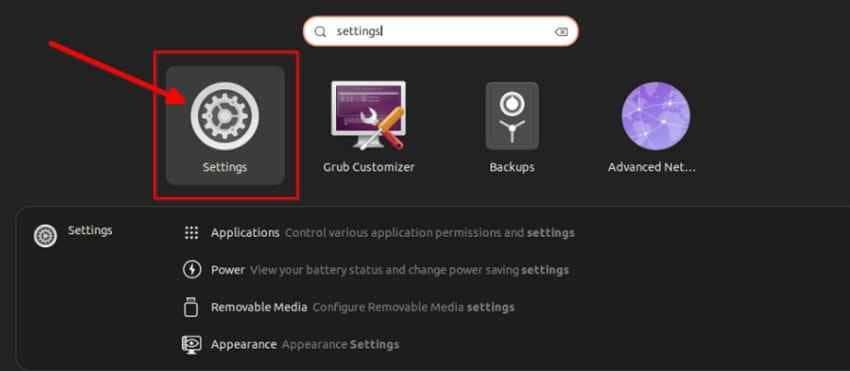
This is the simplest Ubuntu user password reset path because your session still works. Use Settings for a visual change, or Terminal when you prefer faster control. Move to the steps below to update the password before the session locks again:
Step 1. Click the app menu and search for “Settings.” Open the Settings app to access system and account options.
Step 2. Select “Users” from the left sidebar. If the settings are locked, click “Unlock” and enter your current password to allow account changes. Then select “Password,” enter your new password twice, and save the change. Finally, sign out and test the new login password.
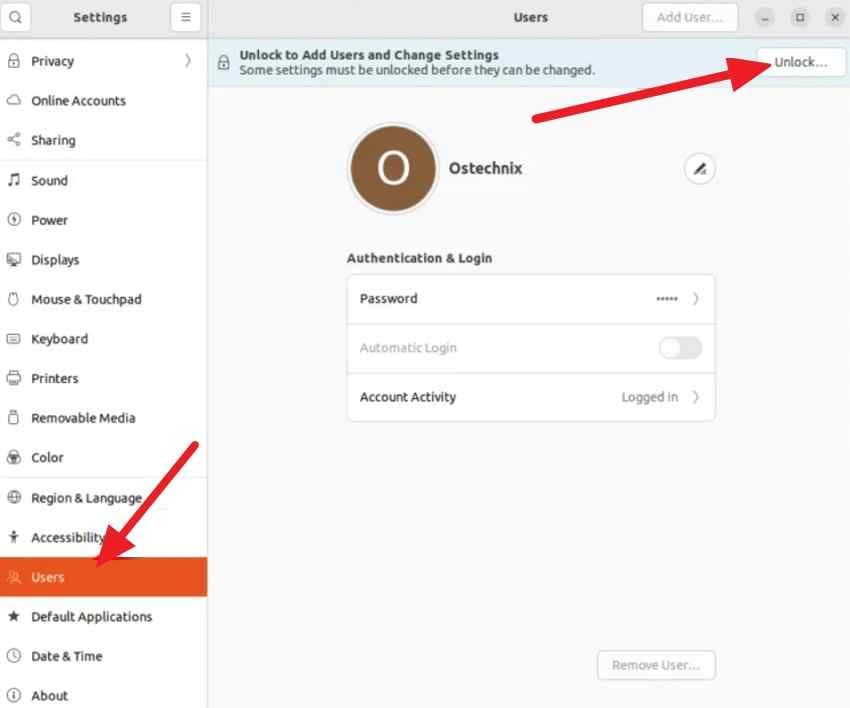
Note: The “Unlock” button appears in many Ubuntu versions, particularly GNOME-based desktops, because user settings are initially read-only. However, some Ubuntu versions and desktop environments allow password changes directly without manually clicking “Unlock.”
Method 2. Change the Password from Terminal If You Are Still Logged In
If your session is still open but you are afraid the screen will lock, open Terminal immediately and run:
passwd
Enter your current password if prompted, then enter the new password twice.
After changing it, lock the screen or sign out and test the new password.
Method 3. Reset the Password Using Another Admin Account
This method works when another administrator account can still access Ubuntu normally. Sign in with that admin account, then open “Settings > Users” and unlock the settings. After that, select the locked user account and follow the same password-change steps explained in Method 1.
Method 4. Reset the Password from Ubuntu Recovery Mode
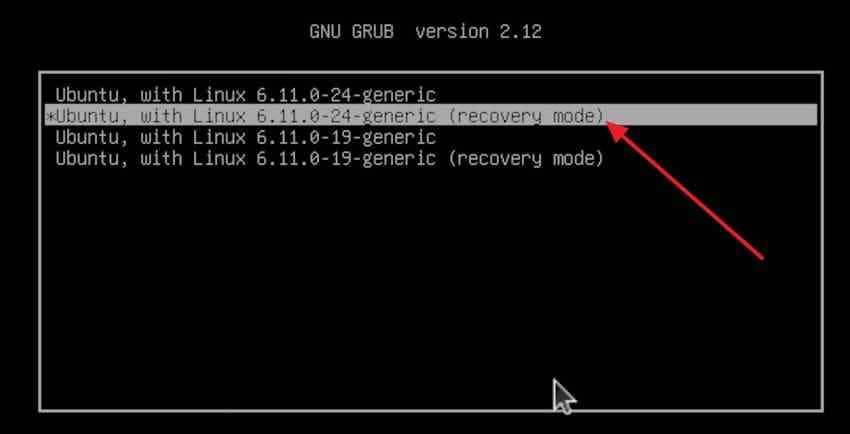
For recovering passwords in Ubuntu cases, recovery mode helps when no desktop login works. It opens maintenance access, where the correct username can receive a new password. Use the next steps carefully to remount the system and reset credentials safely:
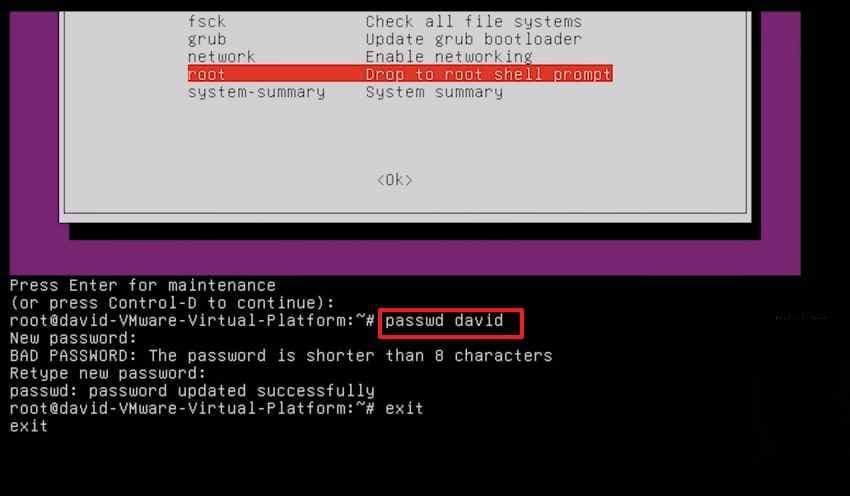
Step 1. Restart the computer and open the GRUB menu during startup. Select “Advanced Options for Ubuntu,” then choose the Ubuntu entry marked “Recovery Mode.”
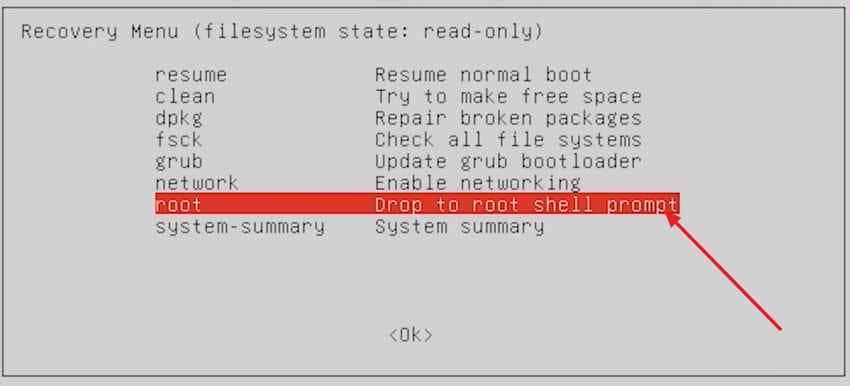
Step 2. From the Recovery Menu, select “Root – Drop to Root Shell Prompt.” Press Enter if Ubuntu prompts for maintenance mode or displays a root shell prompt.
Step 3. Type “mount -o remount,rw /” and press Enter to make the system writable. Then, run “passwd username,” replace username with your account name, enter the new password twice, and reboot Ubuntu.
Method 5. Reset the Password with a Live Ubuntu USB
A live Ubuntu USB helps when GRUB or recovery mode is unavailable. This route needs careful partition selection, especially on dual-boot or encrypted systems. Follow the steps below only after confirming the correct Ubuntu drive location:
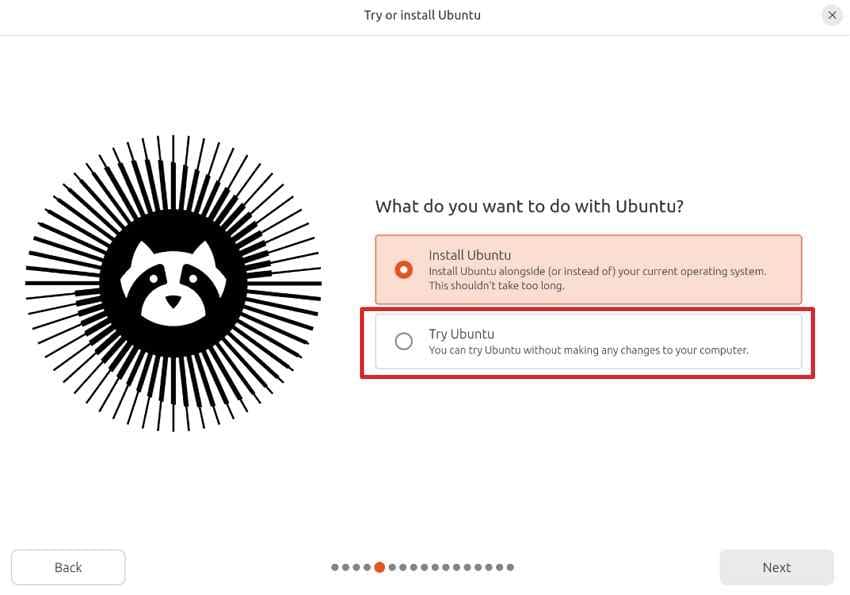
Step 1. Insert the Ubuntu USB, restart the computer, and open the boot menu. Choose the USB drive, then select “Try Ubuntu” instead of Install Ubuntu.
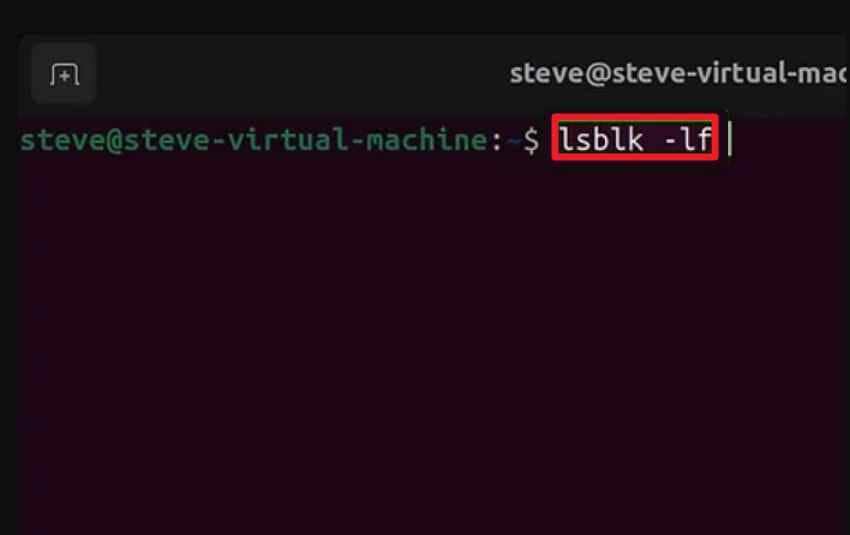
Step 2. Afterward, open Terminal and run “lsblk -f” to find the Linux root partition. Next, mount it with “sudo mount /dev/sdXY /mnt,” replace “sdXY” with the correct device, then run “sudo chroot /mnt” and use “passwd username” to reset the password.
Note: A Live USB reset works for unencrypted Ubuntu partitions, but encrypted disks still need the original LUKS passphrase before mounting or chroot access.
What to Do After Successfully Resetting Your Ubuntu User Password
After resetting your Ubuntu password, log in and test sudo access. Afterward, update the login keyring, securely save the new password, and review account recovery options before such issues return again.
Part 4. How to Reset or Handle the Root Password on Ubuntu
Once the user password issue is clear, root access needs separate handling. The section below explains when Ubuntu root password changes are necessary or avoidable:
Why Ubuntu Usually Does Not Require a Separate Root Password
Ubuntu normally keeps the root account locked to reduce risky full-system access. Instead, administrator users run privileged commands through sudo after entering their own password.
When You Actually Need to Reset the Root Password
A root password is rarely needed on normal Ubuntu desktop systems. You may need to reset the root password of Ubuntu only for specific recovery, server, or administrative requirements.
How to Use Sudo After Resetting Your Admin User Password
After resetting your admin password, verify that sudo is working correctly with the following steps:
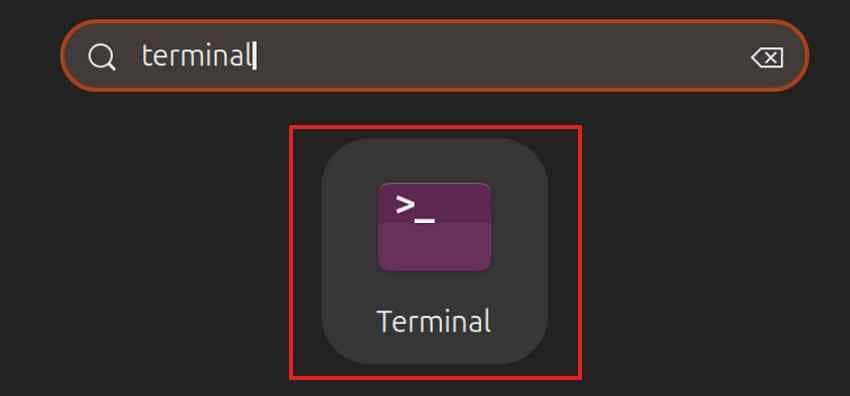
Step 1. Log in with your new admin password, then open “Terminal” from the app menu.
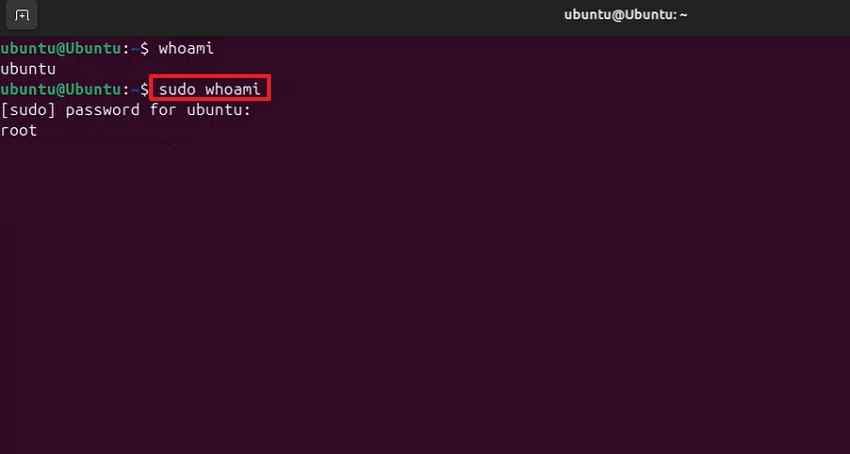
Step 2. Type “sudo whoami,” press Enter, then enter your newly reset password when prompted. If Terminal shows “root,” your sudo permission is working correctly again.
When to Avoid Enabling Direct Root Login
Direct root login increases the risk of damage if someone enters commands carelessly or gains access. For most users, sudo gives enough control while keeping daily sessions safer.
What to Do If You Cannot Perform Administrative Tasks
Check whether your account is still a member of the sudo or administrator group. If permissions look wrong, use another admin account or authorized recovery access carefully.
Part 5. What to Do If You Cannot Access Recovery Mode or GRUB
If GRUB or recovery mode will not open, do not force risky commands. Use the safer reset root password Ubuntu options below to regain authorized access carefully.
- Hidden GRUB: Hold Shift on BIOS systems, or repeatedly press Escape on UEFI, during early startup.
- Keyboard Check: Test another USB port, external keyboard, or BIOS input before assuming Ubuntu failed.
- BIOS or UEFI Settings: Confirm the Ubuntu boot entry exists, boot settings are correct, and the boot disk is detected properly.
- Live Ubuntu USB: Booting into Try Ubuntu can provide temporary access for diagnostics and repairs when recovery mode is unavailable.
- Virtual Machine Settings: Open the virtual console, review boot order, and attach a recovery ISO if needed.
- Cloud Recovery Console: Use the provider's rescue tools or a serial console instead of manually breaking the server's storage.
- Encrypted System: Without the LUKS passphrase, password resets cannot safely decrypt protected files or partitions.
- Managed Device: Request administrator support, as managed devices may enforce policies that block local recovery changes.
Part 6. Recover Important Ubuntu Files Before Reinstalling or Repartitioning
If password reset fails, Ubuntu will not boot, or you are considering reinstalling the system, protect your important files first.
Important: Recoverit does not reset Ubuntu passwords or bypass Linux account security. Recoverit is a data recovery tool. Use it when you need to recover deleted, lost, formatted, or inaccessible files before reinstalling Ubuntu, changing partitions, or trying deeper repairs.
Recoverit’s official Linux Recovery page explains that users install Recoverit on a Windows or Mac computer, choose Linux Recovery, then connect to the Linux system by entering IP, port, username, and password. Once connected, Recoverit scans for lost files and lets users recover them.
That means if you are fully locked out and cannot provide valid connection details, you may need to regain authorized account access first or use another approved backup/recovery path.
When Recoverit Can Help
Recoverit may help when:
- Important files were deleted from an Ubuntu system
- You plan to reinstall Ubuntu and want to recover files first
- Ubuntu storage was formatted or affected by partition changes
- Files were lost after crash, power failure, or improper shutdown
- You can provide valid Linux connection details
- The storage is accessible through a supported recovery workflow
When Recoverit Is Not the Right Tool
Recoverit is not the right tool when:
- You want to reveal an old Ubuntu password
- You want to bypass account security
- You forgot the LUKS encryption passphrase
- You cannot access the Linux system or provide valid credentials
- The disk is physically damaged and not detected
Wondershare’s support page also notes that Linux/NAS connection failures can happen if SSH is disabled, the account lacks administrator/root permissions, the IP or port is incorrect, or the username/password is incorrect.
Key Features
- Linux File System Support: Recoverit lists Linux file system support including EXT4, BTRFS, XFS, and BFS.
- Preview Before Recovery: Preview helps users verify files before saving recovered data.
- Recover to a Healthy Location: Save recovered files to another healthy drive, not the same affected storage.
- Useful Before Reinstalling: Recovering files first reduces the risk of losing documents, photos, videos, archives, and project files during deeper repairs.
How to Recover Lost or Deleted Files from an Ubuntu Device
To recover files from an Ubuntu system using Recoverit, follow the Linux Recovery process shown below:
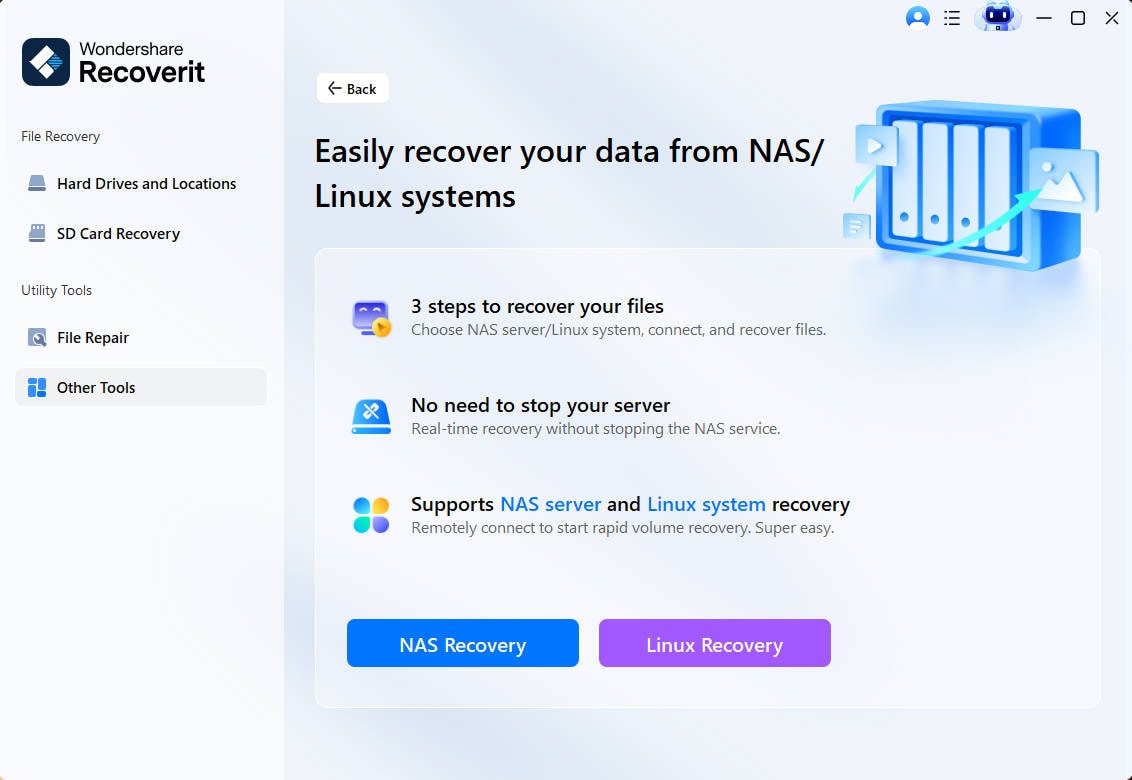
Step 1. Choose Linux Recovery in Recoverit
Open Recoverit, choose “Other Tools,” then select the “Linux Recovery” option.
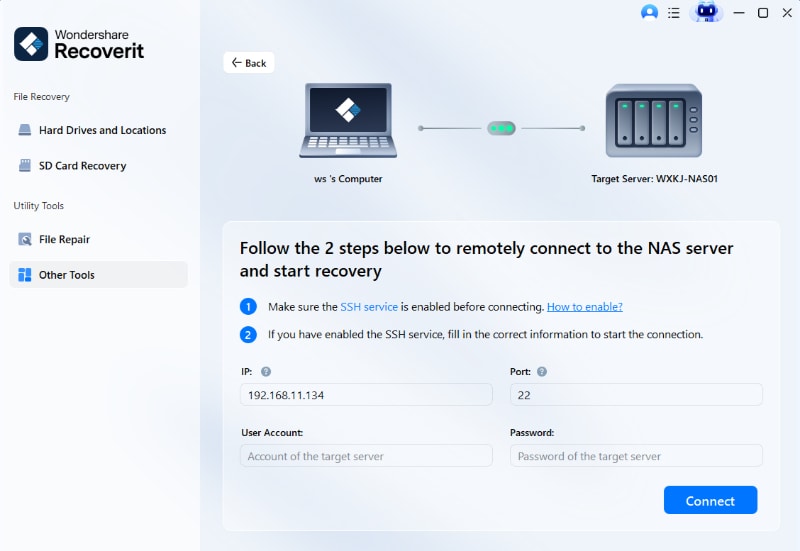
Step 2. Connect to the Ubuntu System Remotely
Make sure the SSH service is enabled on the target Ubuntu system. Enter the IP address, port, user account, and password correctly. Following this, press “Connect” to start the remote Linux recovery session.
Step 3. Preview and Recover Needed Linux Files
After the connection, let Recoverit scan the Linux storage for recoverable files. Use preview to check files, then choose “Recover,” and save them to a healthy drive.

Part 7. How to Secure Your Ubuntu Account After Recovering Access
After you recover access, strengthen your Ubuntu account so the issue is less likely to happen again.
- Create a Strong New Password: Use a long, unique password or passphrase. Avoid names, birthdays, repeated characters, and reused passwords..
- Store It in a Trusted Password Manager: A password manager is safer than saving passwords in screenshots, notes, or plain text files.
- Keep a Secondary Admin Account: Create a spare administrator account for emergencies. Protect it with a different strong password.
- Review Sudo Users: Check which users have administrator privileges: getent group sudo. Remove unfamiliar accounts only after confirming they are not needed.
- Use SSH Keys for Remote Ubuntu Servers: For remote systems, use SSH keys where appropriate. Disable SSH password login only after you confirm key-based login works from another active session.
- Keep Backups Updated: Use cloud backup, external drives, or NAS backup for important files. Password recovery becomes much safer when files are already backed up.
- Save Disk Encryption Recovery Information: If you use full disk encryption, store the passphrase or recovery key securely. Without it, data may remain inaccessible.
- Keep Ubuntu Updated: Install Ubuntu and package updates regularly to fix security issues and stability problems.
Conclusion
Forgetting your Ubuntu password does not always mean you need to reinstall the system. In most unencrypted local account situations, you can reset the password safely through Settings, another administrator account, Recovery Mode, or a Live Ubuntu USB.
The key is to choose the right method first. If you are still logged in, change the password immediately. If another admin account exists, use it. If you are locked out, try Recovery Mode carefully. If GRUB is unavailable, use a Live USB and mount only the correct Ubuntu partition.
If your disk is encrypted, remember that resetting the Ubuntu login password does not unlock LUKS-protected data. You still need the encryption passphrase or recovery key. Before reinstalling Ubuntu, repartitioning, or trying risky repairs, recover or back up important files first. Recoverit can help with Linux file recovery when the storage is accessible through a supported recovery path, but it does not reset or bypass Ubuntu passwords.
FAQs
-
1 Can I recover my old Ubuntu password?
No. Ubuntu does not show your forgotten password in plain text. You can reset the account password and regain access if you own or are authorized to manage the device. -
2 Will resetting my Ubuntu password delete personal files?
Usually, resetting a local Ubuntu user password does not delete personal files. However, encrypted disks still require the correct encryption passphrase before the files can be read. -
3 What is the difference between Ubuntu login password and encryption passphrase?
The login password opens your user session. The encryption passphrase unlocks encrypted storage before or during boot. Resetting the login password does not replace a forgotten LUKS encryption passphrase. -
4 How do I reset an Ubuntu password from Recovery Mode?
Open GRUB, choose Advanced options for Ubuntu, select a recovery mode entry, open the root shell, remount the file system as writable with mount -o remount,rw /, then run passwd your_username. -
5 What if GRUB does not appear?
Try holding Shift on BIOS systems or pressing Esc repeatedly on UEFI systems during startup. If that fails, check keyboard input, firmware boot settings, or use a Live Ubuntu USB. -
6 Can I reset an Ubuntu password with a Live USB?
Yes, for unencrypted Ubuntu partitions. Boot into Try Ubuntu, identify the correct Linux root partition with lsblk -f, mount it, chroot into it, and run passwd your_username. Be careful on dual-boot and encrypted systems. -
7 Should I enable the root account after password recovery?
Usually no. Ubuntu normally uses sudo instead of direct root login. For most users, resetting the administrator user password and using sudo is safer than enabling a separate root login. -
8 Can Recoverit reset my Ubuntu password?
No. Recoverit is a data recovery tool, not a password reset or security bypass tool. It can help recover lost files before reinstalling or repairing Ubuntu when the storage is accessible through a supported recovery path. -
9 What should I do before reinstalling Ubuntu?
Back up or recover important files first. Reinstalling, formatting, or repartitioning may make recovery harder. If files are lost or inaccessible, try an authorized data recovery method before deeper repairs. -
10 Why does Ubuntu still ask for my old keyring password after reset?
If the password was reset outside the normal user settings flow, the login keyring may still use the old password. You may need to enter the old keyring password or reset the keyring, which can remove saved app and network credentials.



