
 TL;DR:
To safely recover deleted files in Linux, immediately stop all writes to the affected partition—unmounting it or booting from a Live USB if it is the root drive—to prevent data overwriting, and then apply a targeted recovery method based on how the file was lost.
● If a deleted file is still actively open by a running process, you can rescue it before the process closes by identifying its PID with `lsof | grep deleted` and copying the data directly from `/proc/
● Files removed via `rm` or `rm -rf` bypass the desktop Trash and require command-line tools like `extundelete` or `ext4magic` specifically for ext3/ext4 file systems, or `PhotoRec`, which can carve out files from damaged directories but will not restore original file names or folder structures.
● If the drive is exhibiting physical I/O errors or has been formatted, do not run direct recovery scans; use `ddrescue` first to create a byte-by-byte disk image and perform the recovery on that cloned image.
Ask AI for a summary
 ChatGPT
 Perplexity
 Gemini
 Claude
 Grok
Grok
Losing files in Linux can feel intimidating, especially when the deletion happened through rm, rm -rf, a failed move operation, a formatted partition, or a file system error. Unlike desktop Trash, terminal deletion often gives you no simple undo button. Once Linux marks deleted file blocks as free space, new writes can overwrite the data you want to recover.
The safest rule is simple: stop using the affected partition immediately. Do not install recovery tools there. Do not save recovered files back to the same drive. If the deleted file was on the root partition, consider shutting down and booting from a Live USB before recovery.
This guide explains how to restore removed files in Linux safely. You will learn how to recover files from Trash, open processes, backups, ext3/ext4 journals, lost partitions, raw file signatures, disk images, GUI tools, and Recoverit Linux Recovery when native methods are not enough.
In this article
Part 1. Stop First: Protect the Deleted File Before Recovery
Your first actions after deletion affect whether Linux file recovery is possible. Every new write to the affected partition can overwrite deleted file data.
| What to Do | Why It Matters |
| Stop writing to the affected partition. | New data can overwrite deleted file blocks. |
| Do not install recovery tools on the same partition. | Installation writes new files and package cache data. |
| Do not save recovered files to the same partition. | Recovery output can overwrite other recoverable data. |
| Unmount the partition if possible. | This stops the system from writing more data there. |
| Use a Live USB for root partition recovery. | It prevents the installed Linux system from writing logs, cache, and updates. |
| Remount read-only if you cannot unmount. | Read-only mode reduces the risk of further writes. |
| Create a disk image if the drive is unstable. | It lets you recover from a copy instead of stressing the original drive. |
| Stop if the drive shows I/O errors or physical symptoms. | Failing drives may get worse with repeated scans. |
If the Deleted File Was on the Root Partition
If the removed file was on /, /home, or another active system partition, the running system may continue writing logs, cache, temporary files, and application data. For important files, shut down the machine and boot from a Linux Live USB. Then mount the affected partition read-only or work from a disk image.
Example read-only mount:
sudo mount -o ro /dev/sda2 /mnt/recovery
Replace /dev/sda2 with the actual partition.
If the Drive Has Errors
If the disk shows I/O errors, disconnects, clicks, overheats, or becomes unreadable, do not run repeated recovery scans directly on it. Use ddrescue to create an image first, then recover from the image.
Part 2. Quick Diagnosis: Choose the Right Linux File Recovery Method
Use this table to choose the safest method based on your situation.
| Your Situation | Best First Method | Important Limit |
| File was deleted from a desktop file manager. | Check Trash in GNOME, KDE, XFCE, or your file manager. | Does not work for files deleted with rm. |
| File was removed with rm. | Stop writing and try extundelete or ext4magic on ext3/ext4. | Works only if data and useful metadata still exist. |
| File was removed with rm -rf. | Stop writing immediately and try extundelete, ext4magic, or PhotoRec. | Folder structure and names may be lost. |
| File is still open by a running process. | Use lsof and /proc/<PID>/fd/<FD>. | Must copy the file before the process closes. |
| File was lost after formatting. | Create an image first, then use PhotoRec, TestDisk, or recovery software. | Original names and folders may not survive. |
| Partition is damaged or missing. | Use TestDisk to locate partitions or copy files out. | Do not write partition changes unless you are sure. |
| File names or folders are gone. | Use PhotoRec or QPhotoRec for file carving. | Recovered files may have generic names. |
| Drive has I/O errors. | Use ddrescue to create an image first. | ddrescue is for imaging, not direct file browsing. |
| Backup or snapshot exists. | Restore from Timeshift, Deja Dup, Btrfs, ZFS, LVM, cloud, or external backup. | Some tools may not include personal files by default. |
| Native tools are too technical. | Use a GUI recovery tool or Recoverit. | Recovery still depends on overwrite, file system, and drive condition. |
Part 3. Why rm Recovery Is Different from Trash Recovery
Linux file deletion depends on how the file was removed. A file deleted from a desktop file manager may go to Trash. A file removed with rm is handled differently.
How Linux File Deletion Works
In many Linux file systems, deletion is mainly a metadata operation. The system removes the file’s directory entry and reduces the inode link count. The data blocks may remain on the disk until new data overwrites them.
This means recovery may be possible soon after deletion. However, Linux can reuse those blocks at any time. Package installation, browser cache, logs, downloads, updates, or even normal system activity can overwrite deleted file content.
Why rm Does Not Use Trash
The rm command removes directory entries directly. It does not move files to the desktop Trash folder. This is why a file deleted with rm usually will not appear in GNOME Trash, KDE Trash, or your file manager’s deleted items.
Why Open Deleted Files Can Still Be Recovered
If a deleted file is still open by a running process, Linux may keep the file content accessible through /proc/<PID>/fd/<FD> until the process closes. This is one of the fastest recovery opportunities, especially for logs, temporary files, databases, and documents still held by an application.
Why SSDs and Discard Can Make Recovery Harder
On SSDs, discard or TRIM behavior may clear deleted blocks more quickly. If the data has already been discarded or overwritten, normal recovery tools may not be able to restore it.
Part 4. Restore Removed Files from Trash, Open Processes, or Backups
You can use native system tools to recover removed files in Linux. Review the native methods below to restore your files without installing software:
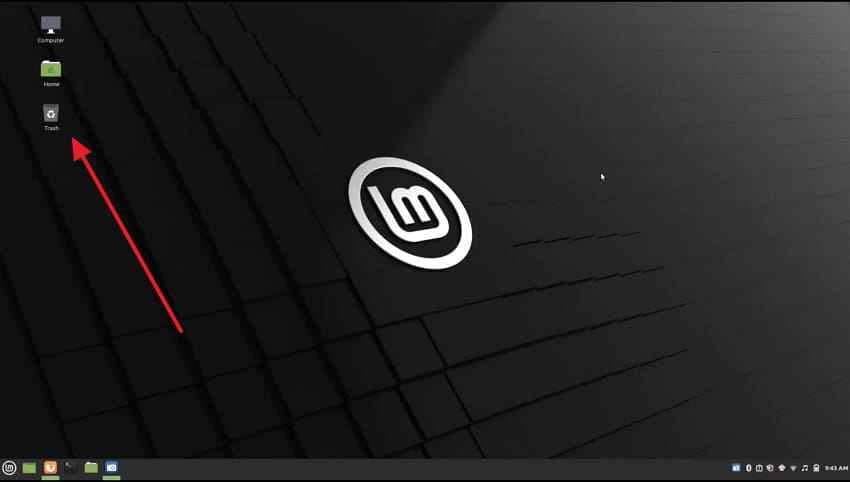
1. Check the Desktop Trash Folder First
The Trash folder is the first place to check after accidental deletion. Many Linux desktop environments move files there instead of permanent removal. Yet, it only works for files deleted through a graphical interface and not through a terminal.
2. Restore Files from GNOME, KDE, or Other File Managers
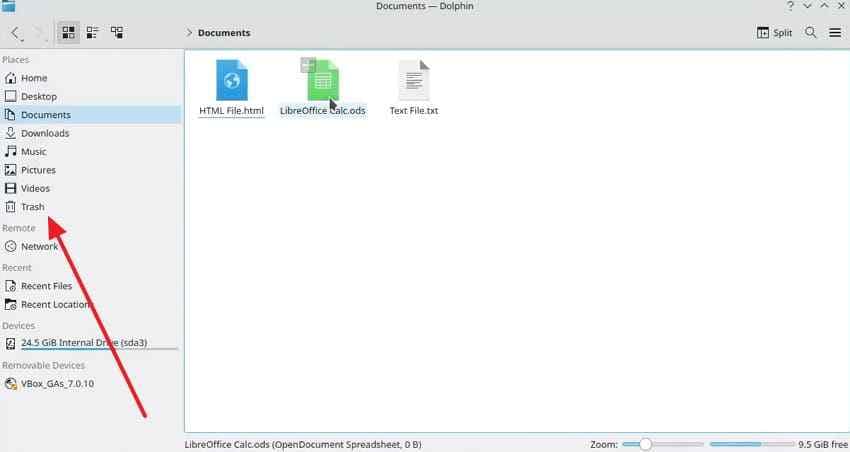
Environments like GNOME and KDE provide their own integrated data handlers. These environments usually move deleted files into a dedicated Trash folder. Go through the guide below to restore your data without commands:
- When you run the KDE file manager, head to “Trash” > Right-click the file > Choose “Restore.”
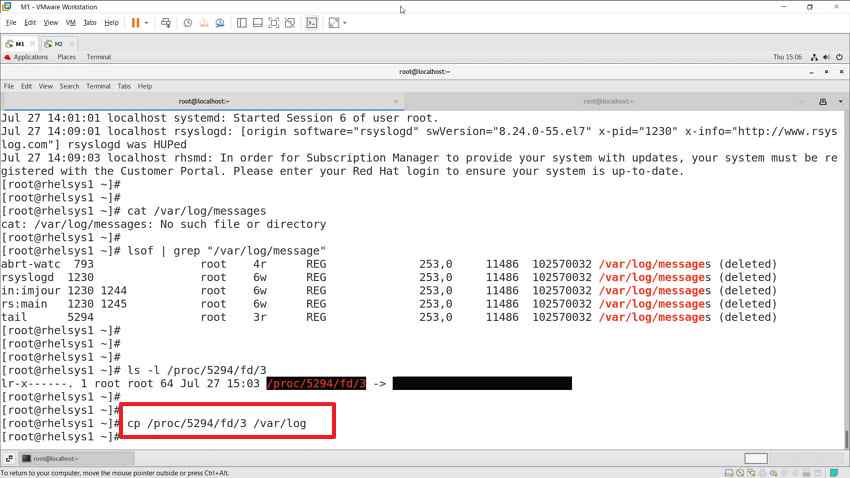
3. Recover a Deleted, But Open File with lsof and /proc
Another way to restore removed files in Linux involves recovering files still open by processes. Linux keeps the file data alive inside the proc directory until that process closes. You can follow these terminal steps to rescue your running file contents:
Step 1. Run “lsof | grep deleted” and note the file's PID and FD values.
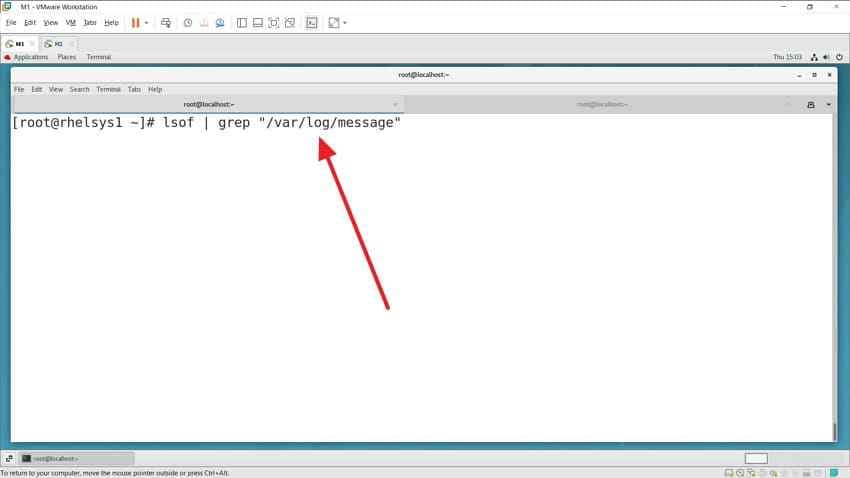
Step 2. Use “ls -la /proc/<PID>/fd/<FD>” to verify the deleted file is still accessible.
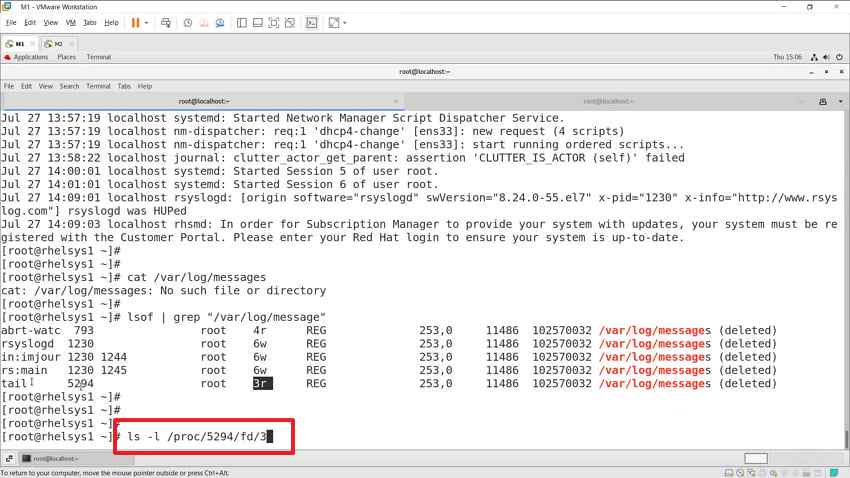
Step 3. Execute “cp /proc/<PID>/fd/<FD> ~/recovered_file.txt” to recover and save the file.
4. Restore Files from Timeshift, rsync, or Deja Dup
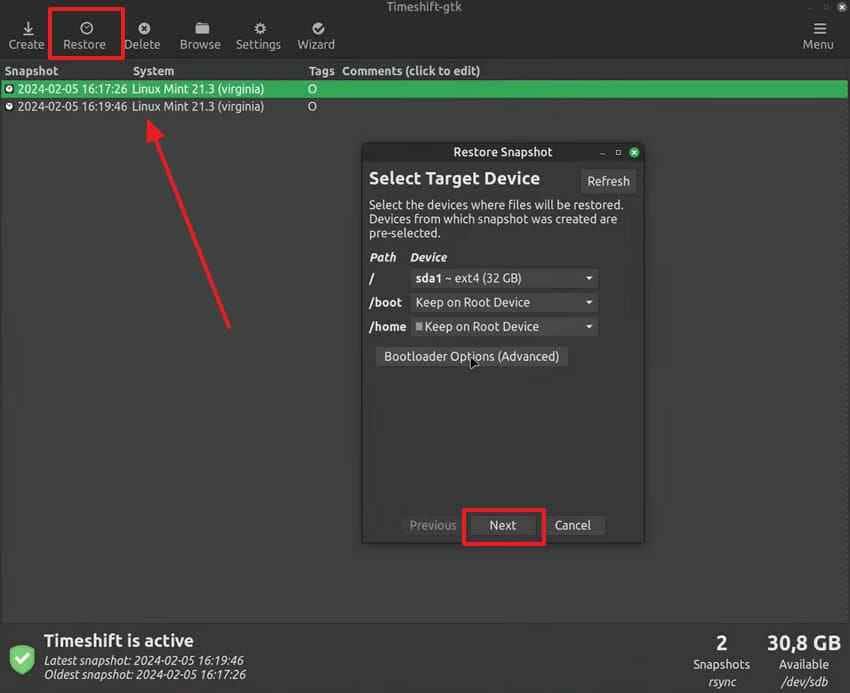
Backup tools like Timeshift or Deja Dup are among the reliable recovery options. These tools create regular snapshots or copies of your files at scheduled intervals. Thus, adhere to the steps to restore your deleted files using Timeshift on your system:
Step 1. Upon running the “Timeshift,” click the snapshot > Press “Restore” > Click “Next.”
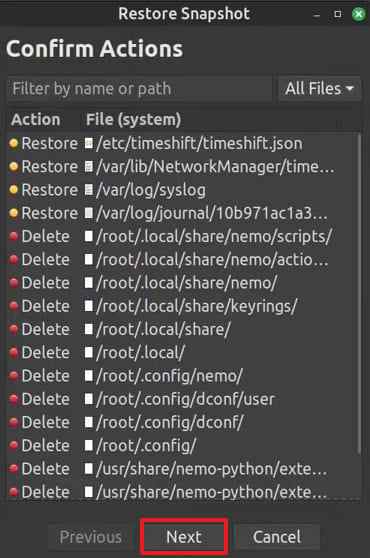
Step 2. Here, click “Next” again to confirm and let it finish.
5. Restore Files from Btrfs, ZFS, LVM, Cloud, or External Backups
Advanced backup systems offer options to recover removed files in Linux from multiple sources. These systems support native snapshots that capture your file system at specific moments. Review these steps below to restore your files from the Btrfs source:
- List available snapshots using “sudo btrfs subvolume list” > Mount the Btrfs partition with “sudo mount /dev/sda1 /mnt/btrfs-root.”
- Copy the required file using “cp /mnt/btrfs-root/.snapshots/20250601/snapshot/home/file/report.txt ~/recovered_report.txt.”
Part 5. Recover Removed Files in Linux with Command-Line Tools
Command-line tools also offer powerful recovery options when graphical methods fail. So, explore each subheading below to find the right terminal tool to restore removed files in Linux:
1. Use extundelete for ext3 or ext4 File Systems
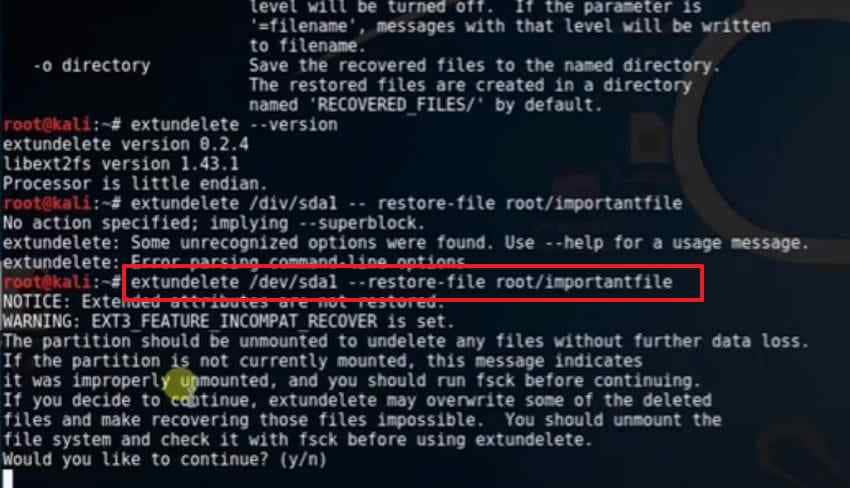
Extundelete scans the file system journal to locate and recover recently deleted file entries. This tool works best when the deleted file blocks have not yet been overwritten. Take guidance from the commands below to recover your deleted files:
- Get extundelete using “sudo apt install extundelete” > Create recovery folder “mkdir ~/recovery && cd ~/recovery” >
- Run recovery command “sudo extundelete /dev/sda2 --restore-file home/files/report.txt.”
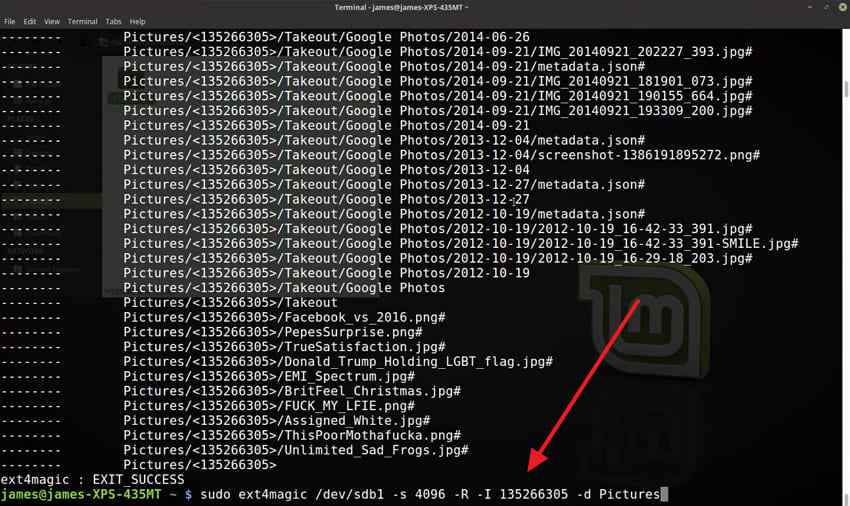
2. Use ext4magic for ext4 File Recovery
It performs deep journal analysis to locate deleted files that extundelete may miss entirely. This tool is useful when journal data still exists, and blocks remain unchanged. So, follow the given steps to recover your deleted ext4 files using ext4magic:
- Install “ext4magic” using “sudo apt install ext4magic” > Run recovery with “sudo ext4magic /dev/sda2 -r -d ~/recovery/ (replace /dev/sda2 with your actual drive).”
3. Use TestDisk for Lost Partitions and File System Structures
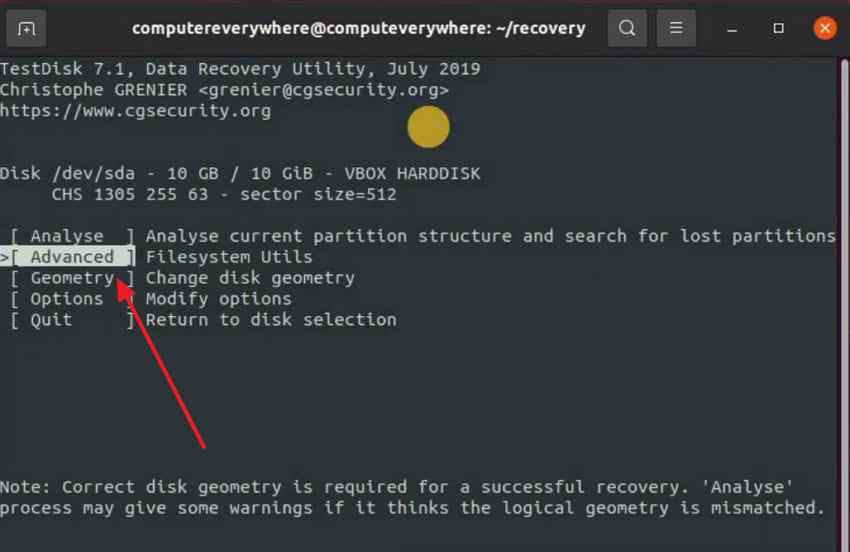
TestDisk is a tool that scans your drive and rebuilds lost or damaged partition tables. It can also restore access when files seem gone after formatting. You need to go through the steps below to fix your device partition mapping:
Step 1. Run “sudo testdisk” > Select your disk > Choose the partition table > Open “Advanced” > Select the target partition.
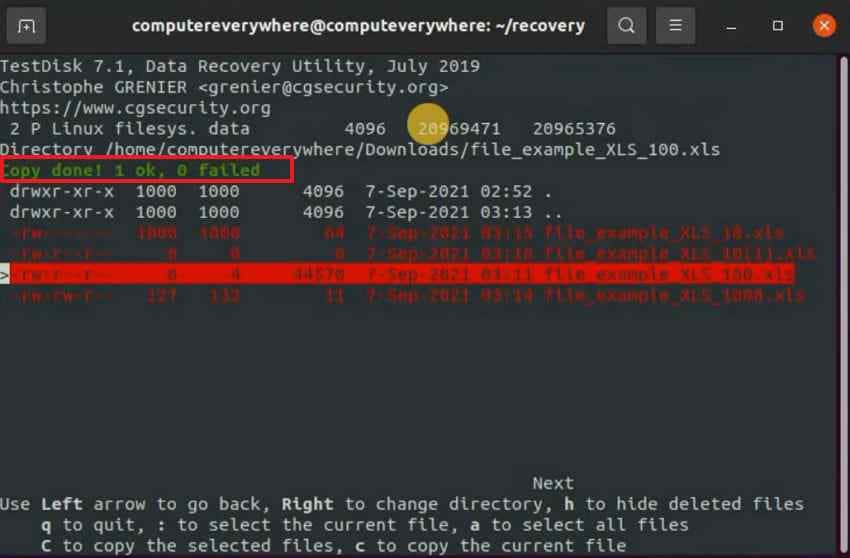
Step 2. Browse to the deleted file > Press “C” > Choose a destination folder > Press “C” again to restore the file.
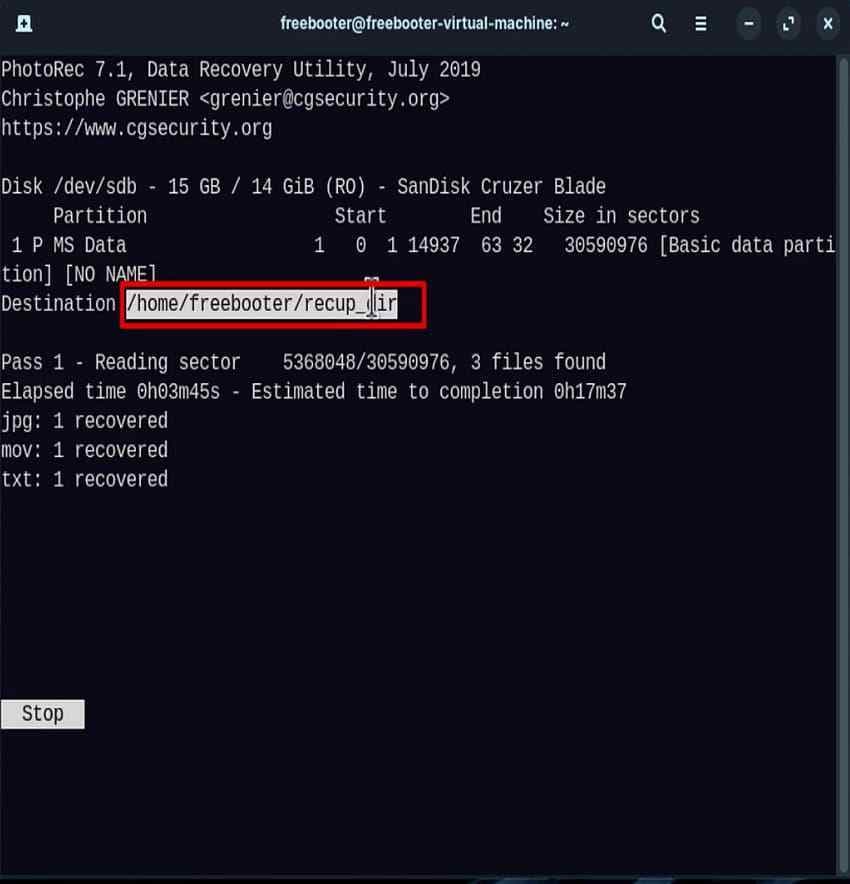
4. Use PhotoRec When File Names or Folder Structure Are Lost
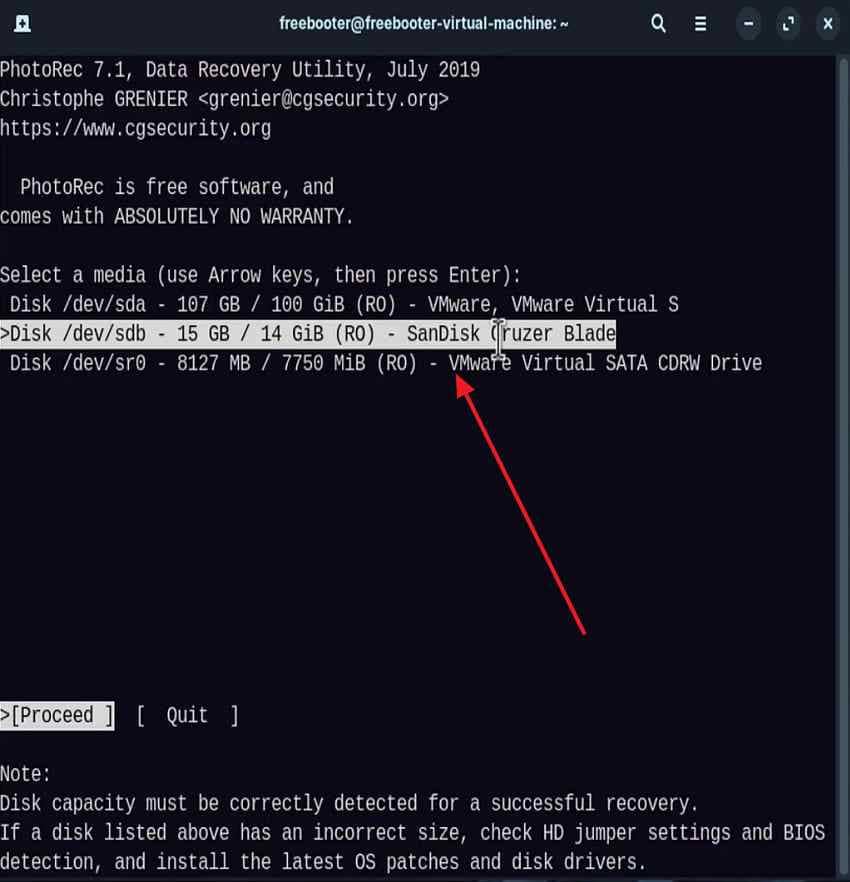
PhotoRec scans disk contents directly and ignores missing file names or folders. It works well when directory structures are damaged or completely lost. Review the specific guide below to learn this process and restore removed files in Linux:
Step 1. Launch PhotoRec using “sudo photorec” > Create log file > Select disk and partition > Choose filesystem and scan type > Start recovery scan.
Step 2. Wait for scan completion > You will see the directory of your recovered files.
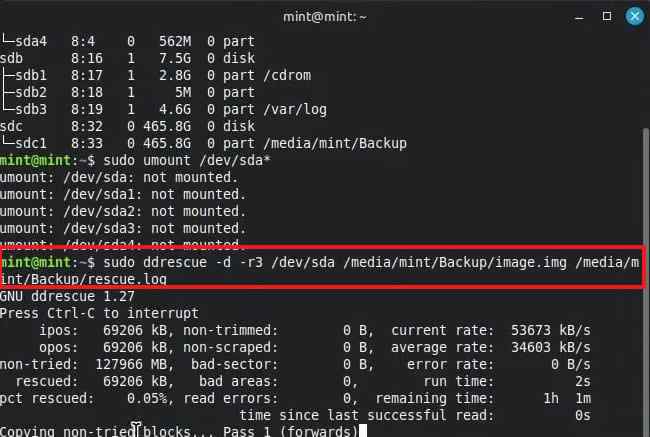
5. Use ddrescue to Create a Disk Image Before Recovery
Using ddrescue to recover removed files in Linux protects your original drive from any further damage. It creates a complete byte-by-byte copy of your drive before any actual recovery begins. Follow the terminal processing guidelines below to create your secure system image:
- Install tool using “sudo apt install gddrescue” > Identify target drive with lsblk > Create disk image using “sudo ddrescue /dev/sda /mnt/external/disk.img /mnt/external/disk.log.”
Part 6. Recover Deleted Linux Files with GUI Recovery Software
GUI tools can help users who prefer a visual workflow. They still need the same safety rules: do not install them on the affected partition and do not save recovered files back to the source drive.
1. Use R-Linux for Linux File System Recovery
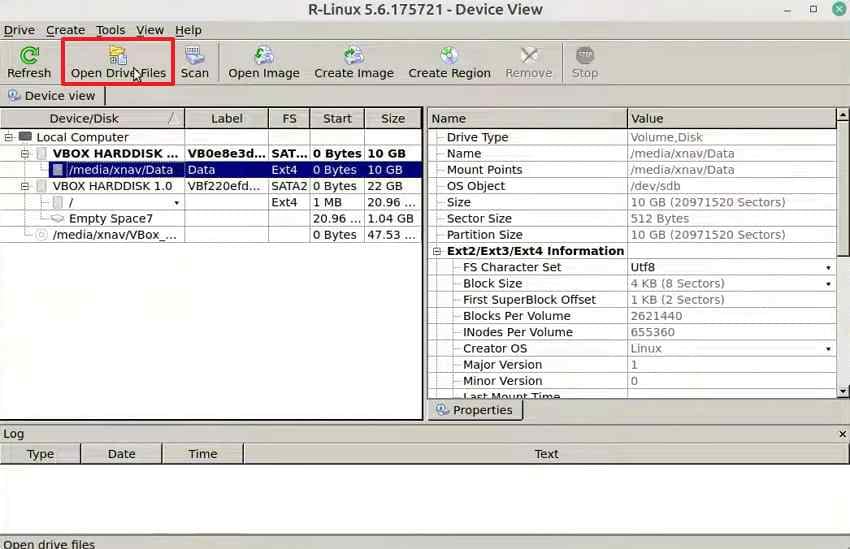
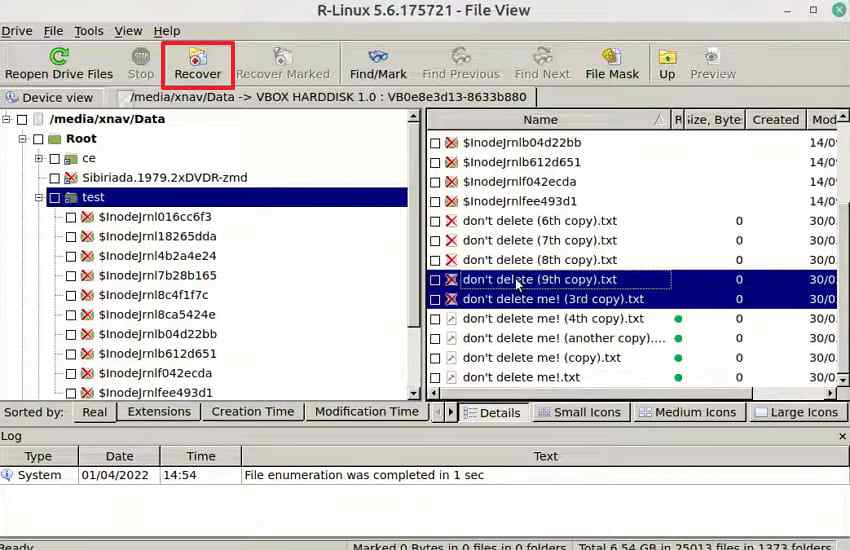
R-Linux is a free GUI tool designed specifically for file systems like ext3 and ext4. This particular tool scans your drive and shows all recoverable deleted files in an organized layout. Follow these simple steps below to recover your deleted files via this method:
Step 1. Choose drive or partition > Click “Open Drive Files.”
Step 2. Tick files or folders > Click “Recover Marked” > Press “Recover.”
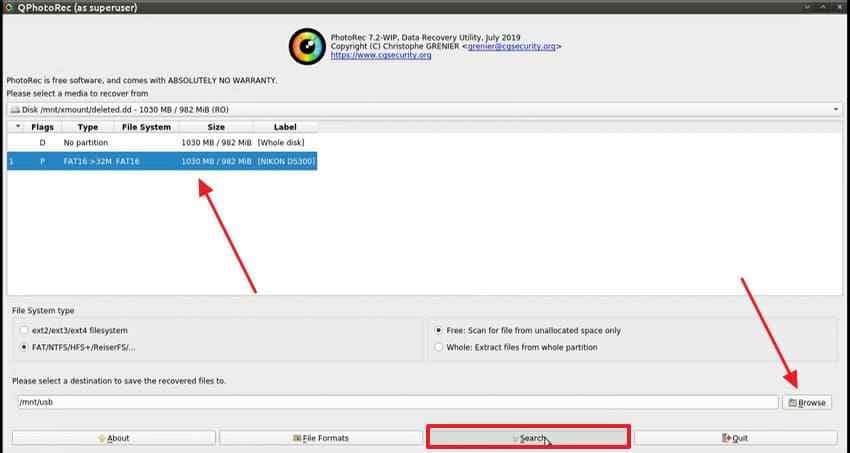
2. Use QPhotoRec for an Easier PhotoRec Workflow
It provides a simple visual interface for the powerful PhotoRec file carving engine underneath. Users can select target storage devices and output folders using simple button clicks. So, adhere to these clear workflow rules below to recover removed files in Linux:
- Opt for the disk > Choose “File System” > Browse output location > Press “Search.”
3. Use DMDE or Other GUI Tools for Complex File System Recovery
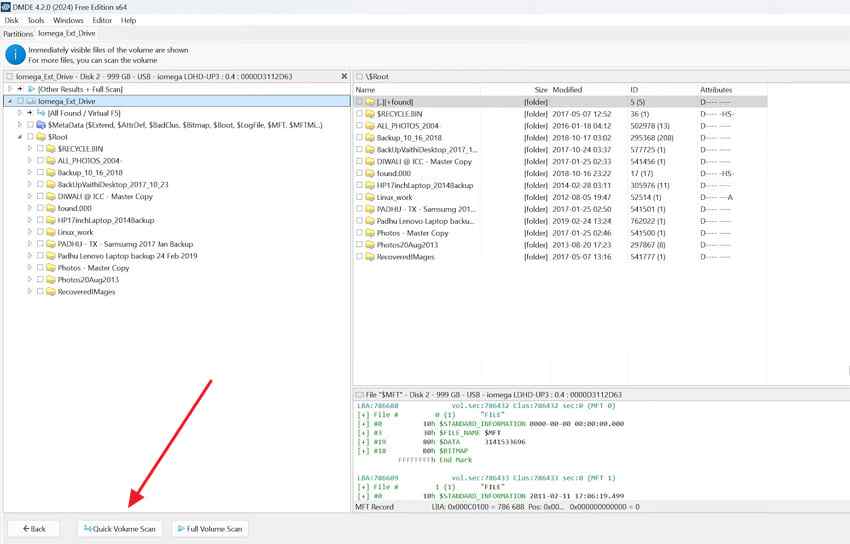
DMDE is another powerful GUI tool built for handling complex and damaged file system recovery. It supports multiple file systems, including ext4 and FAT32 storage devices. Let’s discover how you can configure your advanced drive scan to restore removed files in Linux:
Step 1. Run DMDE > Choose disk or volume > Press “Open” > Click “Quick Volume Scan” for detection.
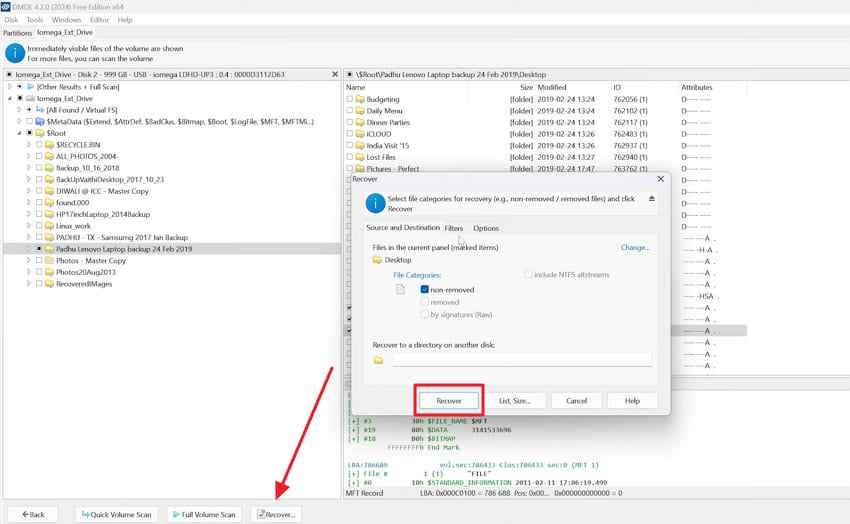
Step 2. Select desired files > Press “Recover” > Choose output destination > Click “Recover.”
Compare GUI Linux Recovery Tools
| Feature | R-Linux | QPhotoRec | DMDE |
| Main Use | Linux file system recovery. | Raw file carving with a GUI. | Complex file system and volume recovery. |
| File System Support | ext2, ext3, ext4, and others. | File-system independent carving. | ext2, ext3, ext4, FAT, exFAT, NTFS, and others. |
| Difficulty Level | Easy. | Easy to moderate. | Advanced. |
| Best For | Deleted files on Linux file systems. | Recovering files when names or folders are lost. | Damaged or partially corrupted file systems. |
| Preserves File Names | Often better when metadata exists. | Usually not reliable. | Possible when file system records exist. |
| Best User Type | General users. | Users who need a simple PhotoRec interface. | Advanced users. |
Part 7. Use Recoverit When Native Linux Tools Are Not Enough
Native Linux tools are powerful, but they can be technical. Some require unmounting partitions, using exact device paths, understanding file systems, or working through command-line recovery. When those methods are too difficult or do not find the deleted files, Recoverit can provide a more guided Linux data recovery workflow.
Use Recoverit when:
- Native Linux recovery tools are too technical.
- You need a visual recovery workflow.
- Files were lost after accidental deletion, formatting, partition changes, or system issues.
- You need to preview files before recovery.
- You want filters to find specific files from large scan results.
- You need to save recovered files to another device.
- The Linux device, partition, or remote Linux system is still accessible enough to scan or connect.
Important: Recoverit cannot guarantee recovery if deleted data has been overwritten, the drive has physical damage, the encrypted volume is locked, or the Linux device is no longer reachable.
Key Features
- Guided Linux Recovery: Helps users recover files through a visual workflow instead of only terminal commands.
- Remote Linux Connection: Connects to a Linux system for recovery when supported and accessible.
- File Preview: Lets you check recoverable files before saving them.
- File Filters: Helps locate documents, videos, photos, archives, and other file types.
- Separate Export Location: Saves recovered files to another safe drive or storage location.
- Useful for Complex Cases: Helps when native tools are too technical or fail to find data after formatting, partition changes, or system issues.
Guide to Use Recoverit for Advanced Linux Data Recovery
Follow these steps to restore deleted or removed Linux files with Recoverit.
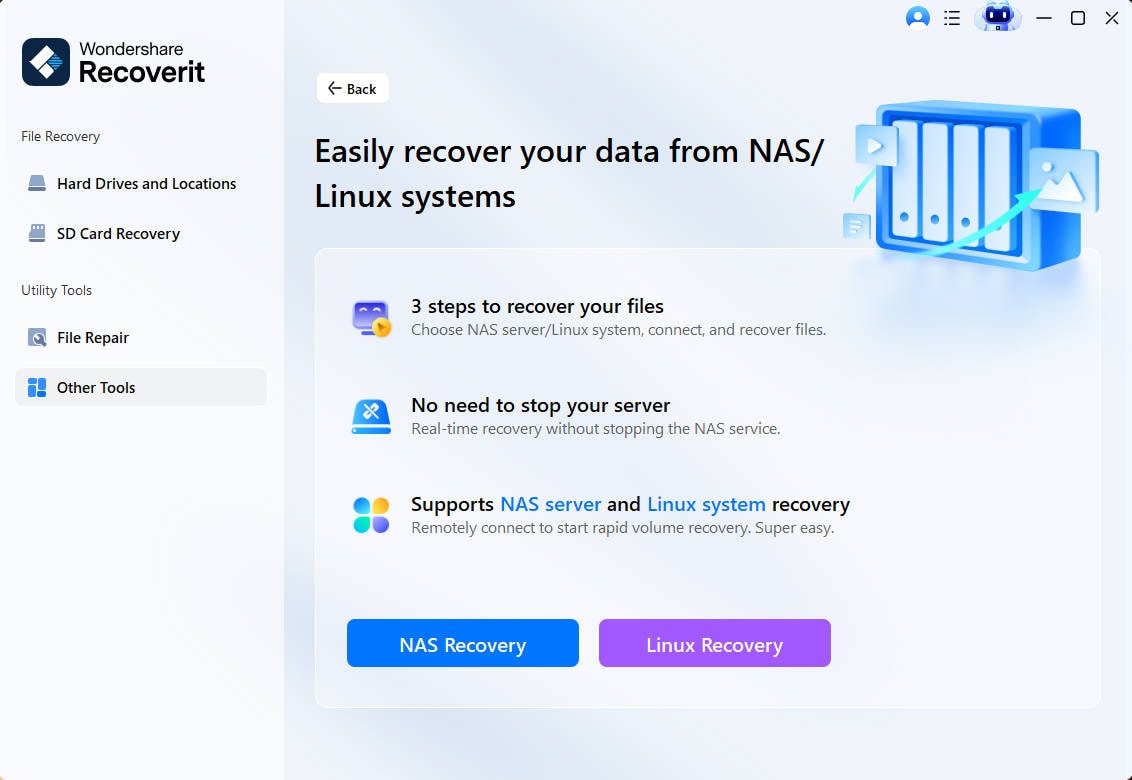
Step 1. Choose the Tool’s Linux Recovery
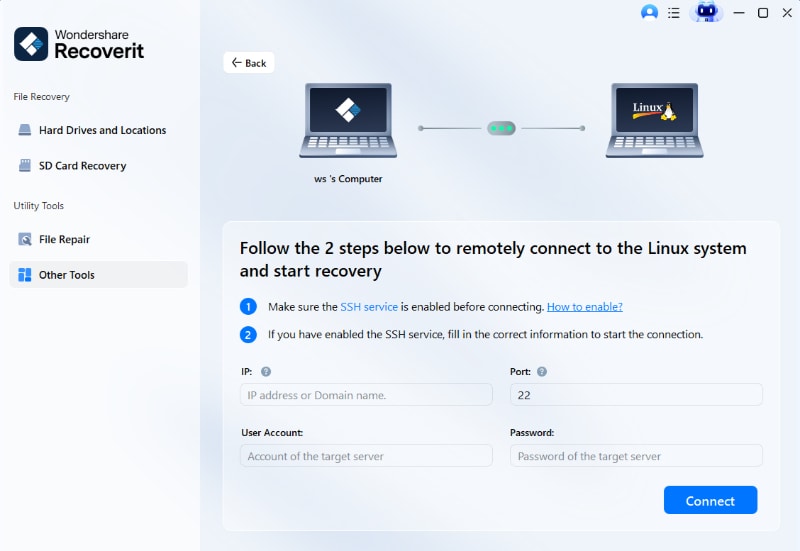
Go to the “Other Tools” tab of Recoverit and click the “Linux Recovery” button.
Step 2. Link and Scan the Linux Device
Enter the required Linux system credentials and click “Connect” to establish a remote connection. After the connection is successful, Recoverit will scan the Linux drive and search for deleted files.
Step 3. Preview and Recover Linux Files
Upon waiting for a few moments, browse the detected files and use the preview feature to verify their contents. Select the Linux files you want to restore and click “Recover” to save them.

Part 8. What to Do After Formatting, File System Changes, or Serious Drive Errors
Formatting, partition changes, and drive errors can make Linux recovery more complicated. Use a safer order:
- Stop using the affected drive or partition.
- Create a disk image first if the drive is unstable.
- Try file-system-specific tools when the file system is known and metadata may exist.
- Use TestDisk if the partition table or file system access is damaged.
- Use PhotoRec or QPhotoRec if file names and folders are gone.
- Use GUI tools or Recoverit if command-line methods are too technical.
- Contact professional recovery services if the drive shows physical damage or serious I/O errors.
Never format again or create new partitions before recovering important files.
Conclusion
Restoring removed files in Linux is possible in many cases, but the recovery path depends on how the file was deleted, which file system was used, whether the partition is still mounted, and whether deleted data has been overwritten.
Start with the safest methods first. Check Trash for desktop deletions. Use lsof and /proc if the file is still open. Restore from backups or snapshots when available. For rm deletions on ext3 or ext4, try extundelete or ext4magic after stopping writes and unmounting the partition. Use TestDisk for lost partitions, PhotoRec or QPhotoRec when file names and folders are gone, and ddrescue before scanning failing drives.
If native Linux tools are too technical or fail to locate files, Recoverit can provide a guided Linux recovery workflow with preview and filters. Always save recovered files to another drive, and never continue writing to the affected partition before recovery.
FAQs
-
Q1. Can I recover files deleted with rm in Linux?
Yes, sometimes. Recovery is possible if the deleted data blocks have not been overwritten. Stop writing to the affected partition and try extundelete or ext4magic for ext3/ext4, or PhotoRec when metadata is lost. -
Q2. Can I recover files deleted with rm -rf?
Possibly, but recovery is harder. rm -rf can remove many files and directories quickly, and folder structure may be lost. Stop all writes immediately and recover from a Live USB or disk image if needed. -
Q3. Does rm move files to Trash?
No. The rm command removes directory entries directly and does not use the desktop Trash folder. Trash usually applies to files deleted through a graphical file manager. -
Q4. How do I recover an open deleted file in Linux?
Run sudo lsof +L1 to find deleted open files. Then copy the file from /proc/<PID>/fd/<FD> to a safe location before the process closes. -
Q5. Should I unmount the partition before recovery?
Yes, when possible. Unmounting prevents new writes. If the deleted file is on the root partition, boot from a Live USB or remount the partition read-only before recovery. -
Q6. Can extundelete recover files from XFS or Btrfs?
No. extundelete is designed for ext3 and ext4 file systems. For Btrfs or ZFS, check snapshots first. For other file systems, consider PhotoRec, TestDisk, backups, or file-system-specific tools. -
Q7. Why did PhotoRec recover files without names?
PhotoRec uses file signatures instead of relying on directory entries. This helps when the file system is damaged, but recovered files may have generic names and lost folder structure. -
Q8. When should I use Recoverit for Linux recovery?
Use Recoverit when native tools are too technical, when you need preview and filters, or when files were lost after formatting, partition changes, system issues, or complex Linux recovery cases. It still cannot recover overwritten data or data from physically dead drives.



