
 TL;DR:
YouTube Error 153 is a configuration mismatch between the server and your display settings that prevents videos from loading, which can typically be resolved by clearing corrupted cache data or disabling interfering browser extensions.
● Disable aggressive ad blockers or third-party privacy tools, as they often block the essential background streaming scripts required for YouTube media playback.
● Turn off active VPNs and proxy services to eliminate IP masking conflicts, or execute a network reset to clear inaccurate DNS records that stop the player from connecting to the server.
● If local downloaded videos are accidentally deleted during system troubleshooting, use Wondershare Recoverit to locate and reconstruct fragmented HD or 4K files.
Ask AI for a summary
 ChatGPT
 Perplexity
 Gemini
 Claude
 Grok
Grok
You open YouTube to watch something, but instead you get a black screen. The screen displays “Video Player Configuration Error” with YouTube Error 153 under it. Refreshing, switching tabs, and coming back, but nothing is making a difference.
This error leaves you stuck with no clear options to restore your media playback. We will explain simple troubleshooting steps that can help restore stability and improve your viewing experience across all modern platforms.
Try Recoverit to Perform Data Recovery
 Security Verified. 3,591,664 people have downloaded it.
In this article
Part 1. What Does Video Player Configuration Error 153 Mean?
YouTube Error 153: Video Player Configuration Error indicates that the streaming platform or browser cannot load the necessary playback configuration. When this error triggers, the server fails to align the player framework with display configuration settings. Consequently, the device drops the connection request and shows a black screen instead of loading the video.
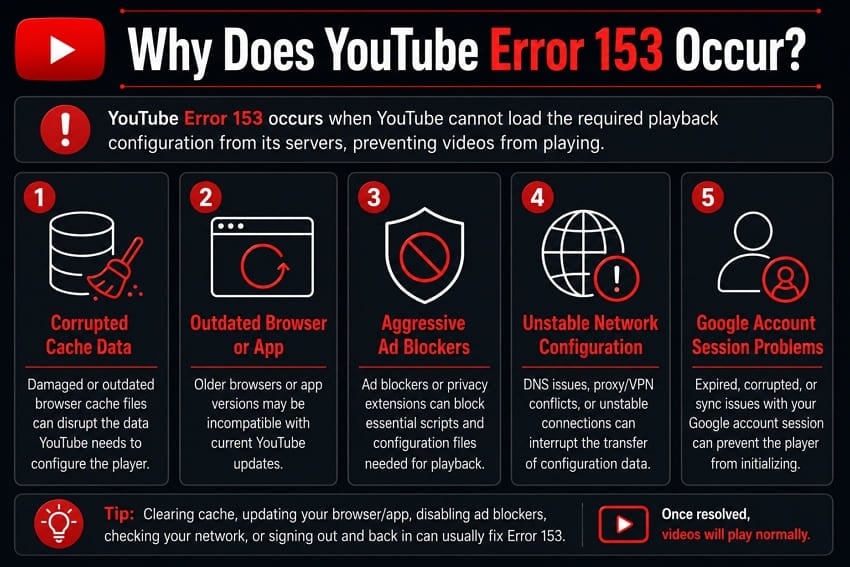
Why Does YouTube Error 153 Occur?
Many factors in your browser and system can contribute to this streaming platform failure. Below are the most common reasons behind YouTube Error 153:
- Corrupted Cache Data: Web browsers store temporary data that can become corrupted or fragmented. This data corruption stops your media from launching during streaming sessions.
- Outdated Browser or App: Running an outdated version of a browser or mobile app can cause a server error. The older version may not work with the latest changes made to the website or service.
- Aggressive Ad Blockers: Some security extensions or ad blockers may block essential website scripts while removing ads. These tools can prevent the website's media or other features from working.
- Unstable Network Configuration: Incorrect DNS settings or weak web connections can interrupt essential data transfer. The player fails to load when network connections remain unstable.
- Google Account Session Problems: Sometimes your YouTube login session simply expires or becomes corrupted. When that happens, YouTube cannot confirm your account permissions, and playback gets blocked at the source.
Part 2. How to Fix YouTube Error 153 Video Player Configuration Error
Now that you know what causes it, let's go through the top methods to fix the “YouTube Error 153: Video Player Configuration Error.” The simpler fixes usually sort it out before you reach the advanced ones.
Fix 1. Restart Your Browser or YouTube App
Glitches in temporary system processes cause the YouTube Error 153 during active sessions. Restarting your application clears these errors and reconnects to the servers. This simple process allows your system to rebuild the video player from scratch without issues. Follow the given instructions below to restart your browser or YouTube app:
Restart Your Browser
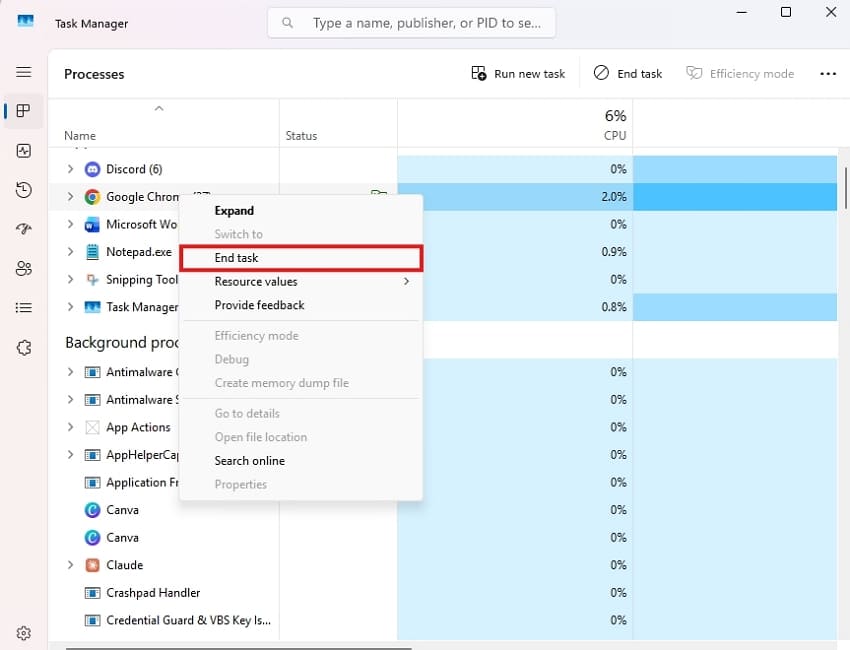
Instructions. Open “Task Manager” using “CTRL+SHIFT+ESC” and right-click on your browser to select “End Task.” After closing your browser from the Task Manager, launch it again.
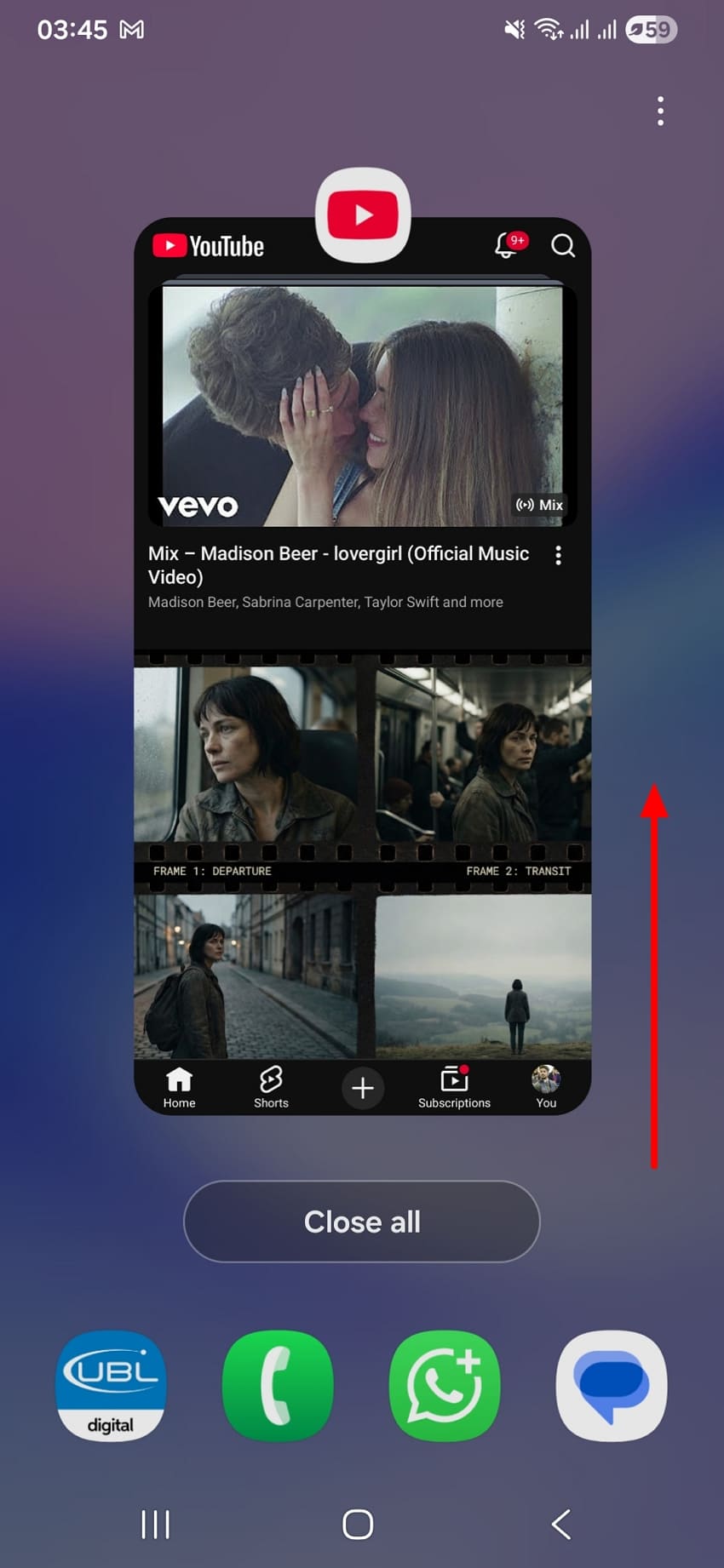
Restart Your YouTube App on Android
Instructions. Tap the “Recent Apps” button, find the “YouTube” app, and swipe it off the screen to force close. Relaunch the app by accessing the YouTube app from your home screen again.
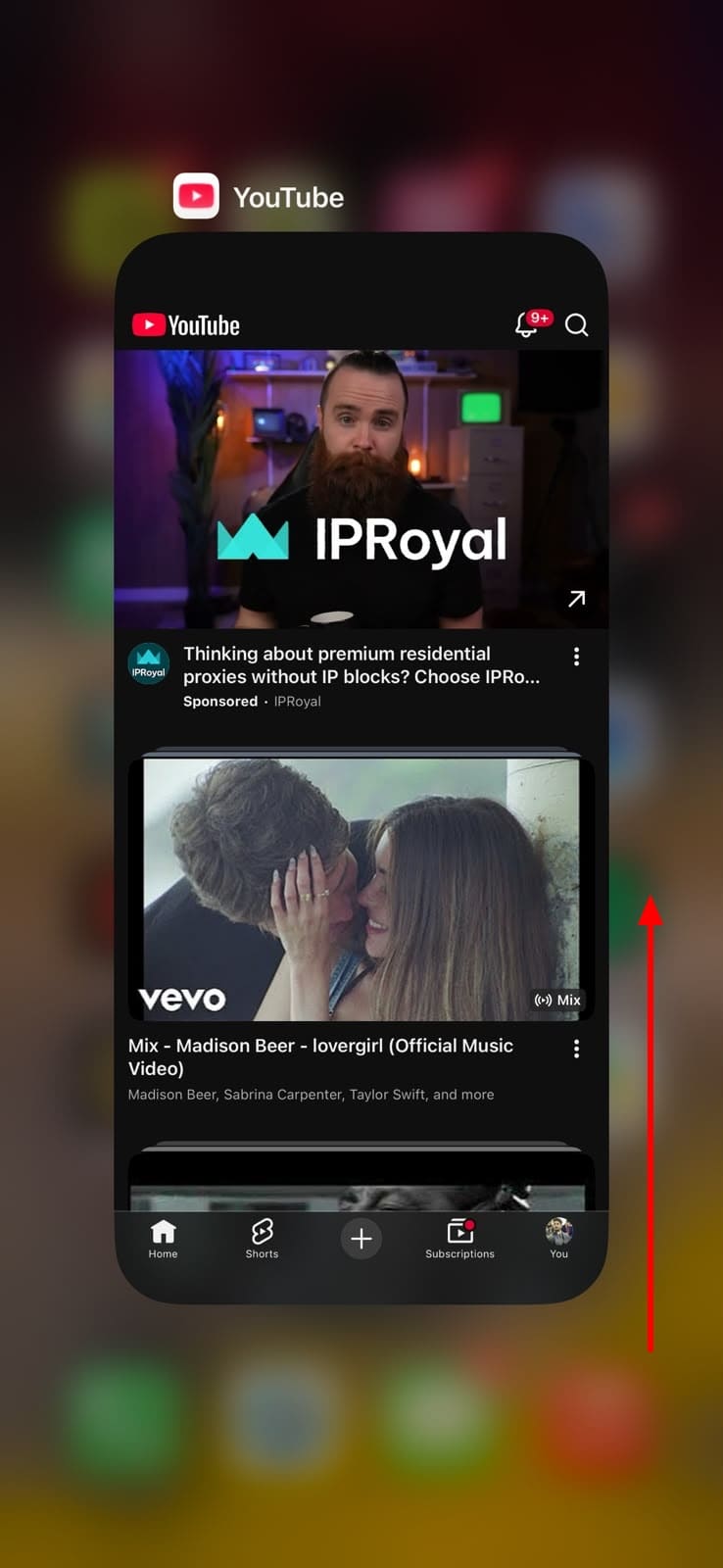
Restart Your YouTube App on iPhone
Instructions. On your iPhone, swipe up from the bottom of the screen to access the “App Switcher." Swipe up the application you want to close, and relaunch it from the home screen.
Fix 2. Clear Browser Cache and Cookies
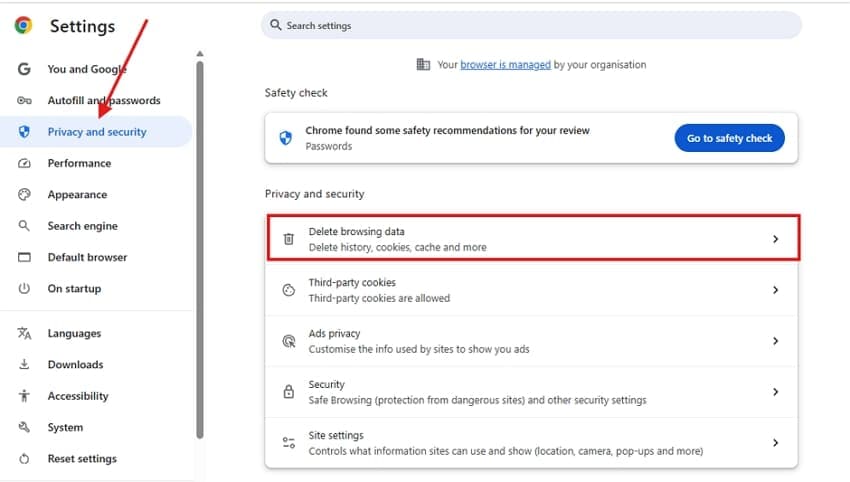
Internet browsing data can corrupt your streaming settings and cause the error. Cleaning the data cache removes older data and downloads new configuration files from the server. This fix resolves the issue of the player loading problem in your browser. To clear the browser cache and cookies, use the following steps:
Step 1. Launch your browser and navigate to “Settings” by clicking on the three dots. Select “Delete Browsing Data” after selecting “Privacy and Security” from the left panel.
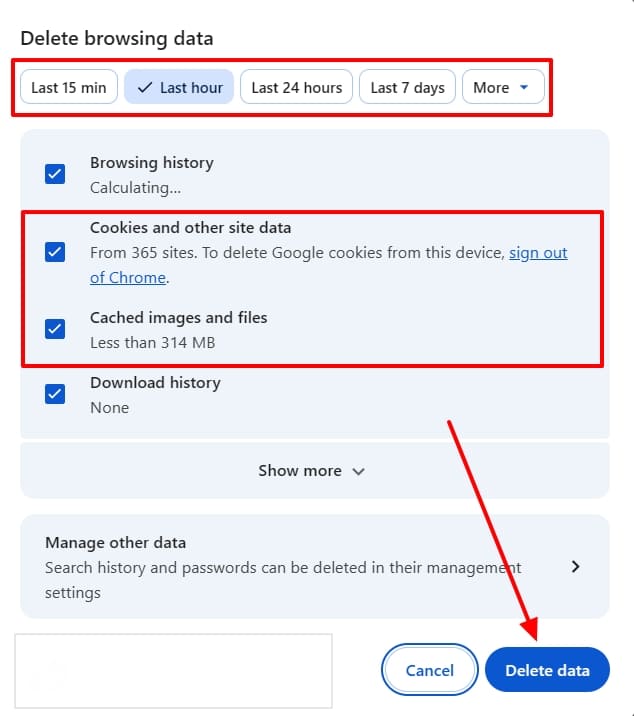
Step 2. Determine a timeframe, choose the “Cookies and other site data” and “Cached images and files" options, and then click "Delete data” to clear them successfully.
Fix 3. Update/Reinstall Your Browser/the YouTube App
An outdated version of the browser or app does not support the latest YouTube player updates. Installing the latest version provides an immediate YouTube Error 153 Fix by replacing broken files with official updates. The instructions discussed below will help you update your browser and YouTube app for smooth operations.
Updating Your Browser
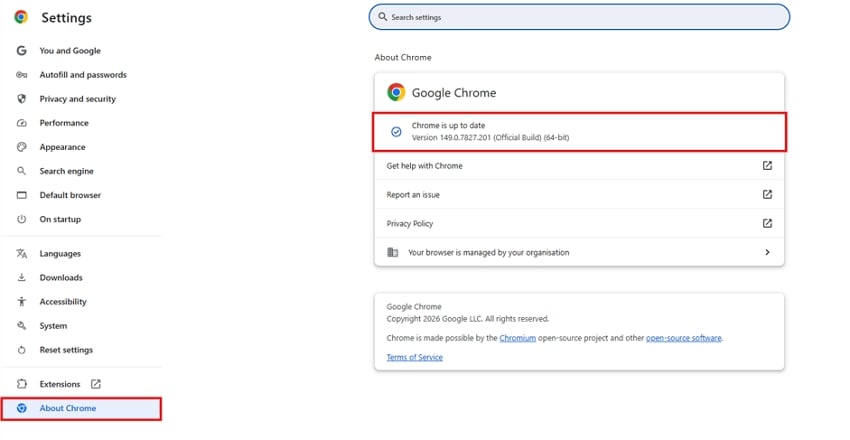
Instructions. Open “Settings” by clicking the three dots in the top right corner. Navigate to “About Chrome,” where it automatically checks for updates and begins downloading a newer version if available.
Update Your YouTube App on Android
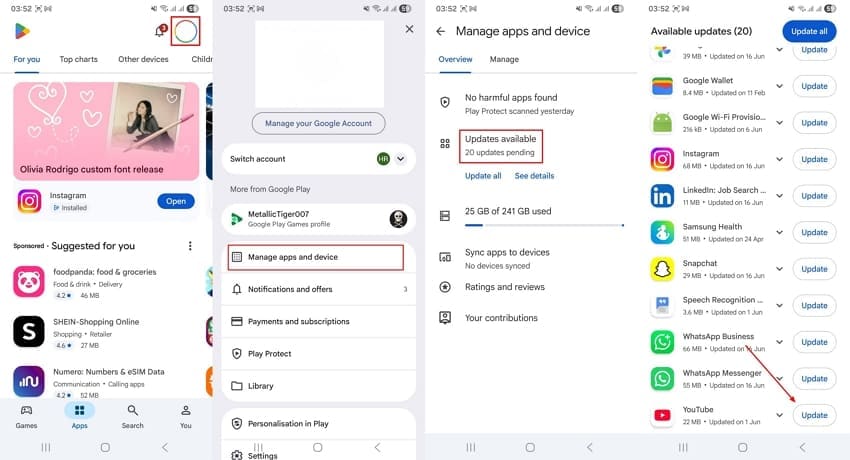
Instructions. After opening Google Play Store, tap on your “Profile” icon and choose “Manage apps and device.” Following this, go for the “Updates available” option and look for any pending updates. Upon finding one, tap the “Update” icon to successfully update the app.
Update Your YouTube App on iPhone
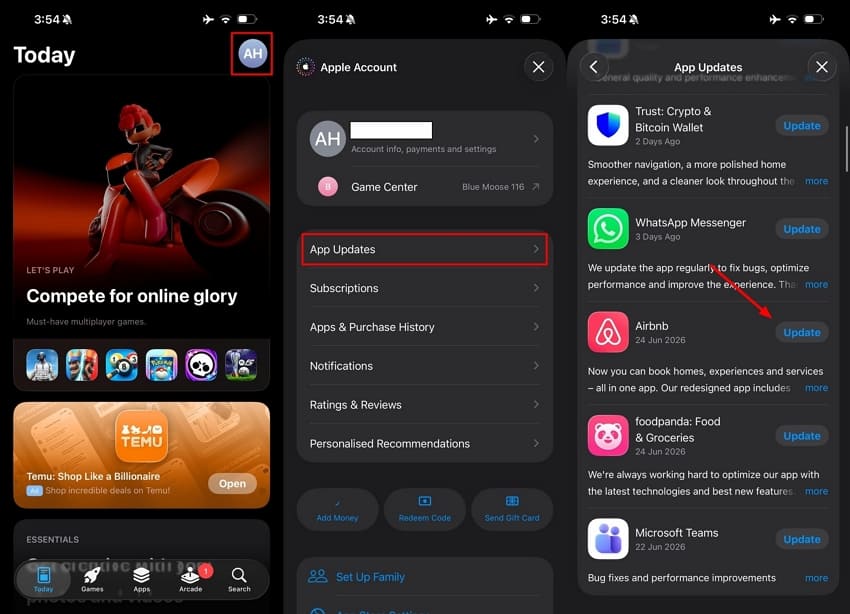
Instructions. With the App Store open, tap on your “Profile” icon and select “App Updates.” From the list, look for the YouTube app and tap “Update” adjacent to it to update it.
Fix 4. Disable Ad Blockers and Browser Extensions
Third-party privacy tools block background scripts needed to play videos. Turning off these extensions removes the YouTube configuration failure on your browser. It allows the required streaming files to load without being blocked by security software filters. Adhere to the following steps to disable ad blockers or extensions:
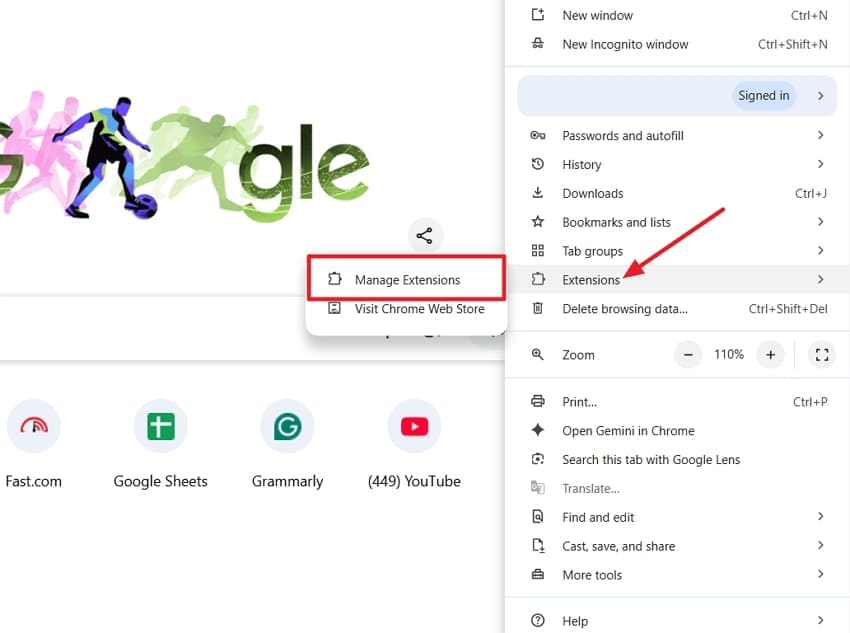
Step 1. Click the three dots to locate “Extensions” after launching your web browser. Next, choose “More Extensions” to proceed to the next window.
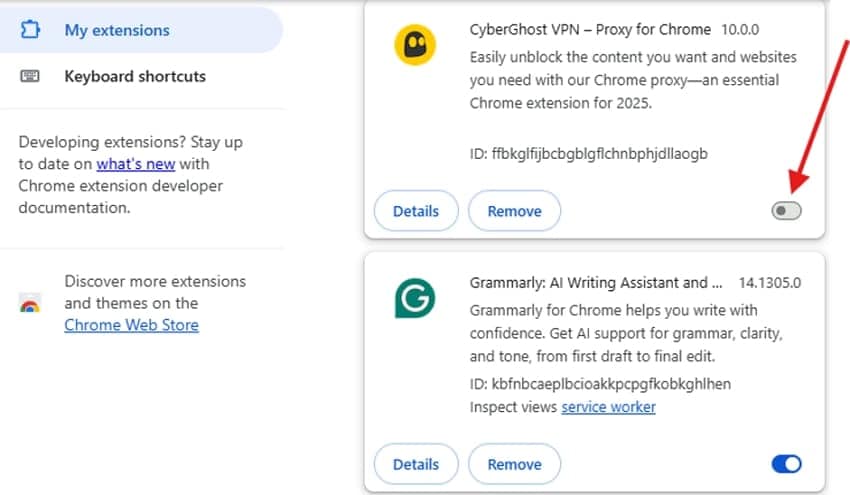
Step 2. To disable each extension, click the toggle switch next to it on the “Extensions” page. Continue doing this until all unnecessary extensions and ad blockers are disabled.
Fix 5. Disable VPN or Proxy Services
VPNs alter location settings and mask IP addresses during online data transfer. Switching them off creates a direct connection and loads videos by fixing YouTube Error Code 153. To disable the VPN services, follow the steps mentioned below:
Disable VPN on Windows
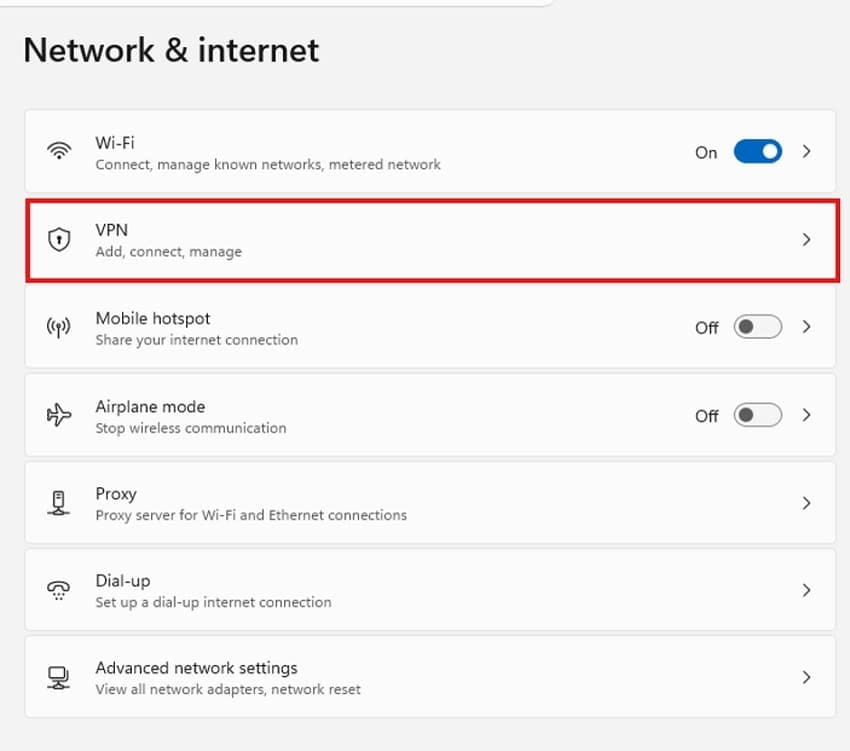
Step 1. To disable the VPN, go to the “Network & Internet” window and choose “VPN.”
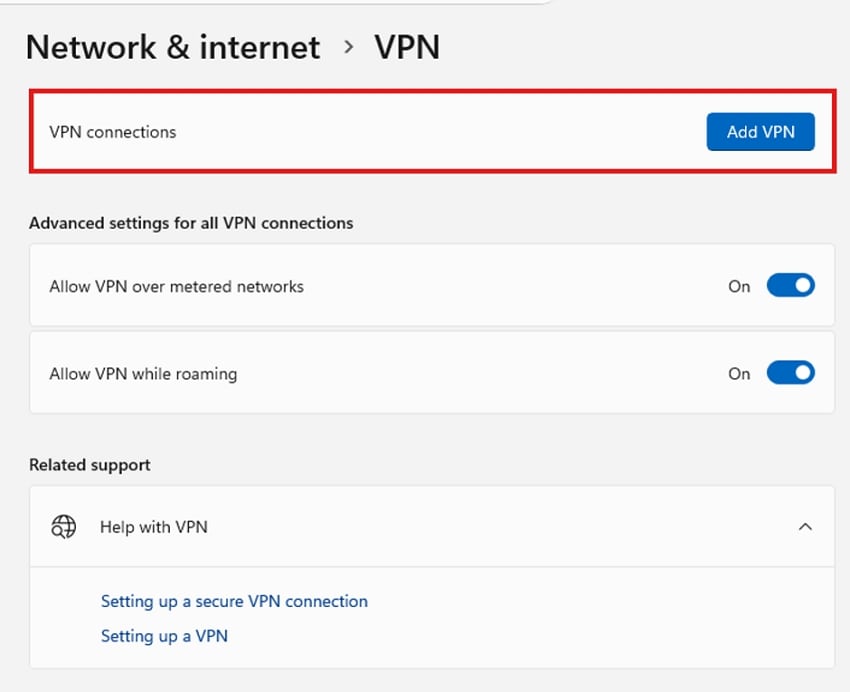
Step 2. If there are any available VPN connections, choose and remove them from the list to disable any VPN operations.
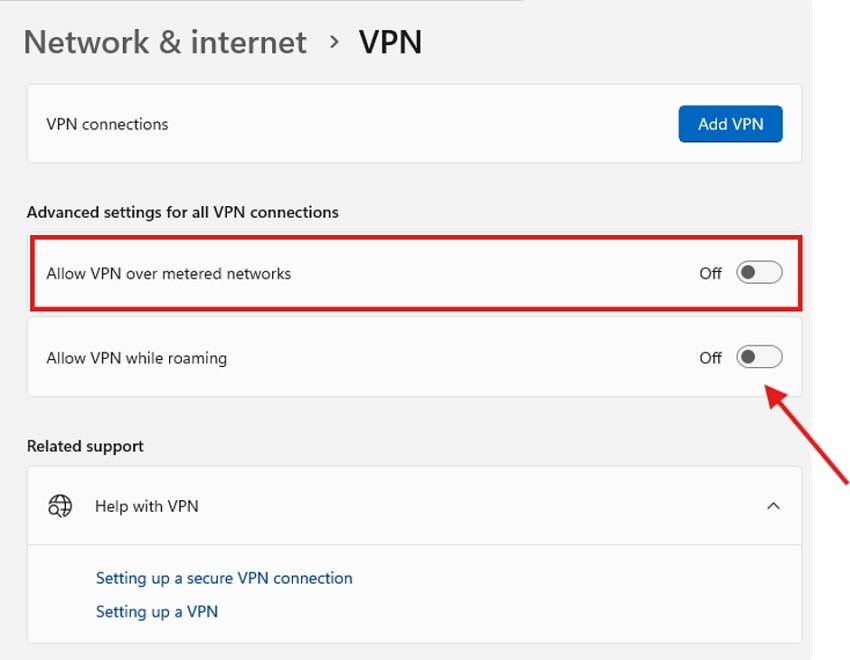
Step 3. In the same window, turn off “Allow VPN Over Metered Networks” and “Allow VPN While Roaming” options as well.
Disable VPN on Android
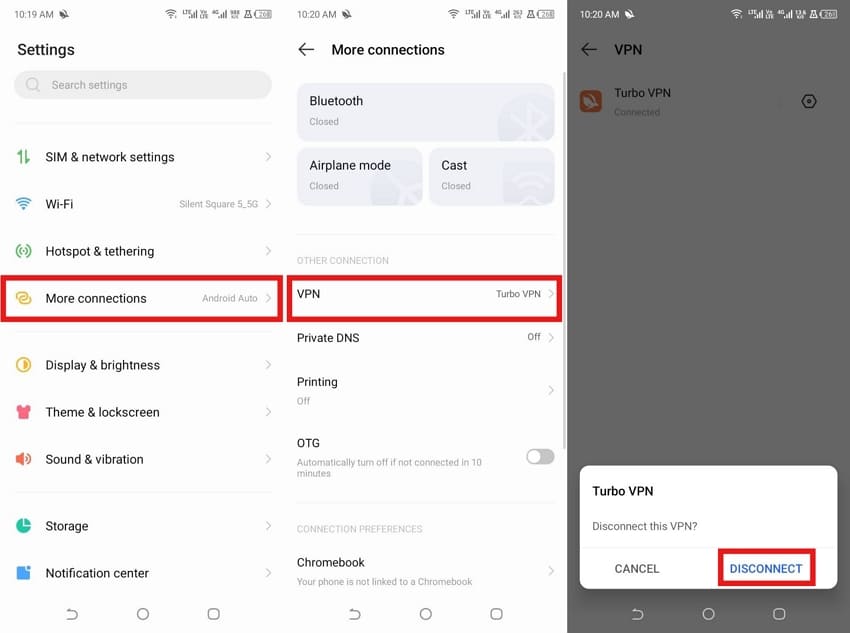
Instructions. Go to “Settings” and navigate to the “More connections” option. After that, press the “VPN” option to “Disconnect” it from your Android.
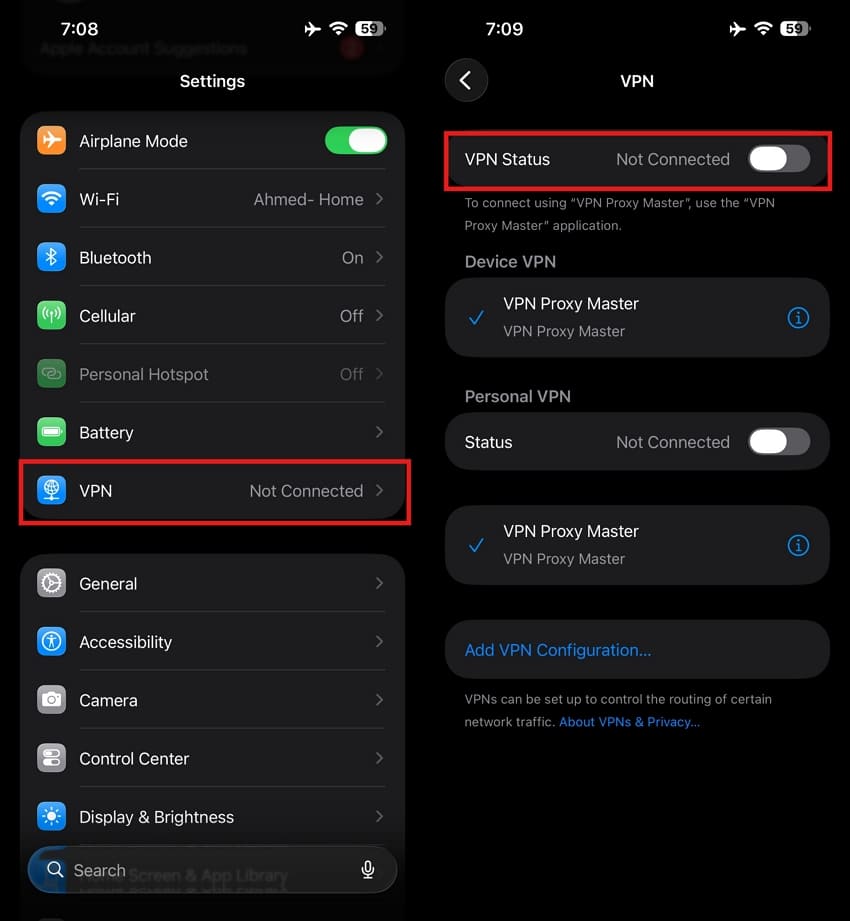
Disable VPN on iPhone
Instructions. Open the “Settings” app, go to the “VPN” option, and then switch off “VPN Status” to disconnect it on your iPhone.
Fix 6. Reset Network and DNS Settings
An inaccurate DNS record can stop the video player from connecting to the server. Cleaning out this cache creates a new connection between your device and the servers. Perform the given steps to reset your network settings on the browser:
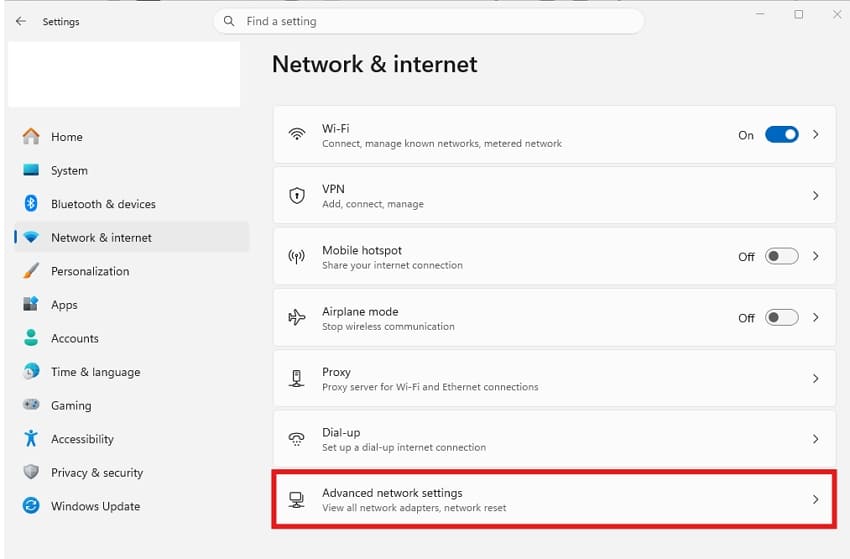
Step 1. Access the “Network & Internet” section from the “Settings” page and navigate to “Advanced Network Settings.”
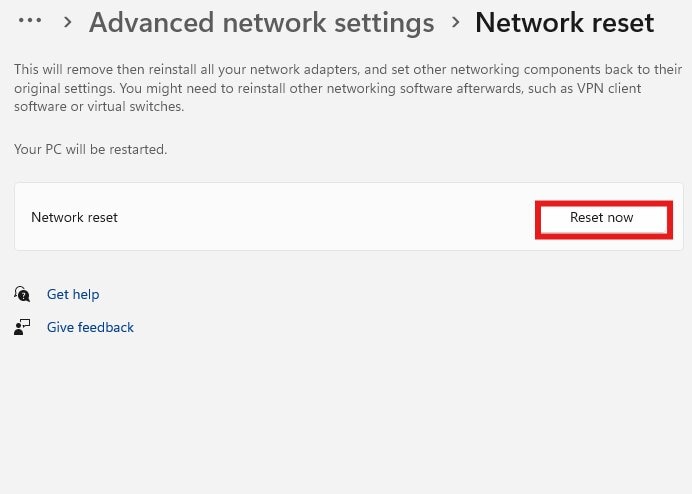
Step 2. In the following window, choose “Network Reset” and press the “Reset Now” option to remove and reinstall network adapters.
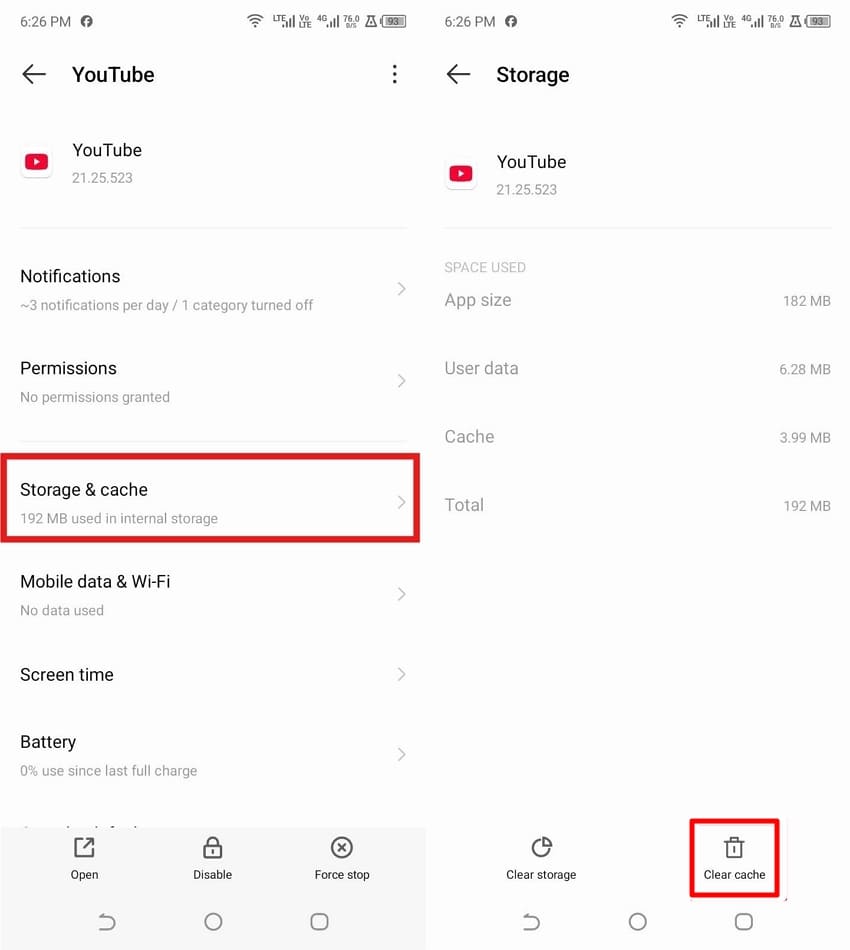
Fix 7. Clear YouTube App Cache and Data
Mobile devices store cache and app data that can block video player updates, leading to “YouTube Error 153, Video Player Configuration Error.” Erasing this data restores the app to its default setting without affecting your core Google account. To clear your YouTube app cache and data, read the following outline:
Step 1. Tap the “Apps” option after opening the “Settings” on your Android.
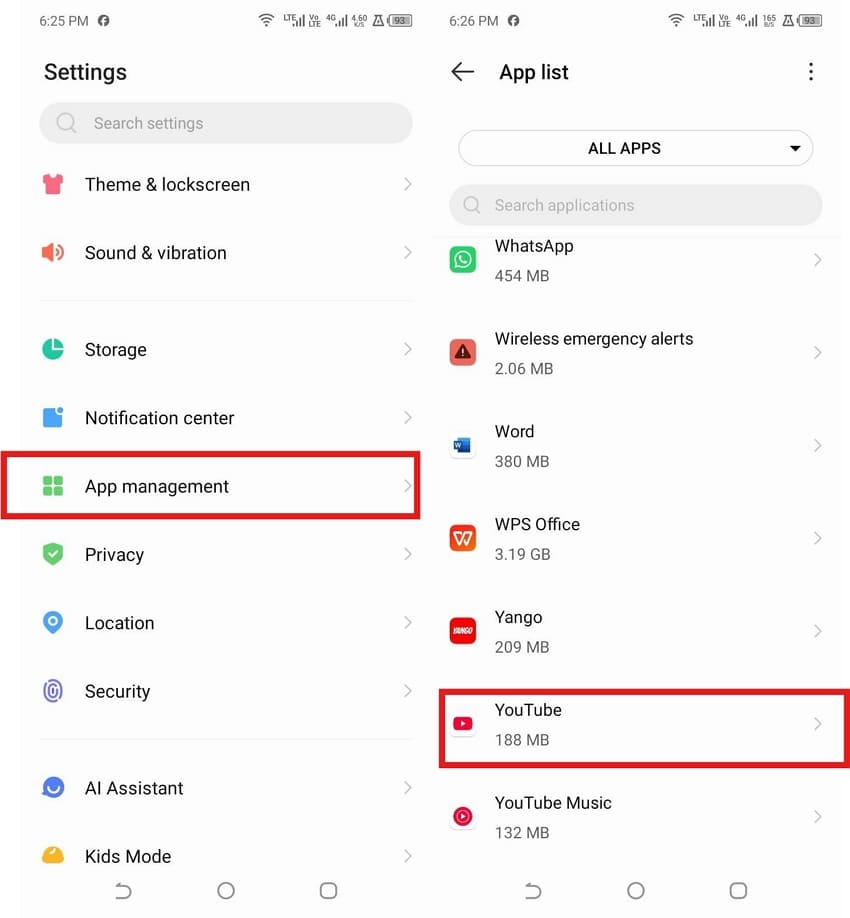
Step 2. Tap on the “Storage and Cache” option and then select “Clear Cache” to remove all the YouTube app cache and data.
Fix 8. Try Incognito or Private Browsing Mode
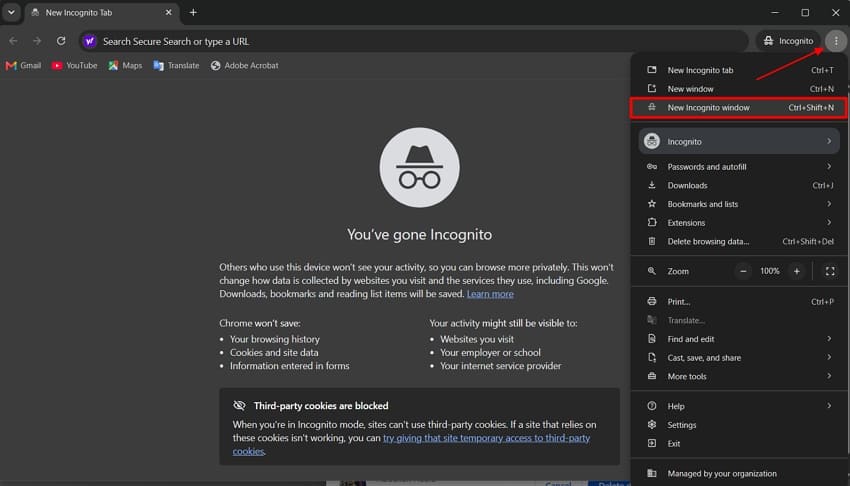
Using an Incognito window allows you to avoid changes to active accounts and cookies during web sessions. Your cookies or settings are causing the issue if the YouTube video plays in this private view. To open YouTube in private browsing mode, follow the steps below:
Instructions. Navigate to “New Incognito Window” in the drop-down menu after launching your web browser. To check whether it works, open “YouTube” in a new incognito window and play the same video.
Pro Tip: Efficiently Recover Lost Videos and Downloads with Recoverit
Sometimes, fixing or changing settings can cause an error that deletes your saved videos from the computer. If that happens, redownloading is the only option when the original files are no longer available. However, there's another way to easily retrieve such precious data in no time. Recoverit helps retrieve deleted or lost video files in under 10000+ scenarios.
It supports over 1,000 formats such as MP4, MKV, and more, and runs on internal drives, external hard drives, USB drives, SD cards, and SSDs. While supporting more than 1 million devices, Recoverit is considered the best data recovery solution.
Key Features
Deep Scans Recovery: Combine fast surface scanning with deep sector‑level analysis to locate both recently deleted items and long‑lost or fragmented videos.
Enhanced Video Recovery: Uses fragment‑matching technologies to reconstruct large HD/4K video files that were deleted, formatted, or overwritten.
AI Video Recovery Algorithms: Recoverit comes up with a unique AI recovery algorithm that helps it execute the process at 1.8 times the normal rate.
Guide on Recovering Lost Videos and Downloads Using Recoverit
As discussed above, Recoverit gets your deleted videos back in their original quality and format. Follow the steps below to recover your deleted video files using the software.
Step 1. Select a Storage Location
Once you open Recoverit, click “Hard Drives and Locations” on the left panel. Pick the drive where you want to store the video.

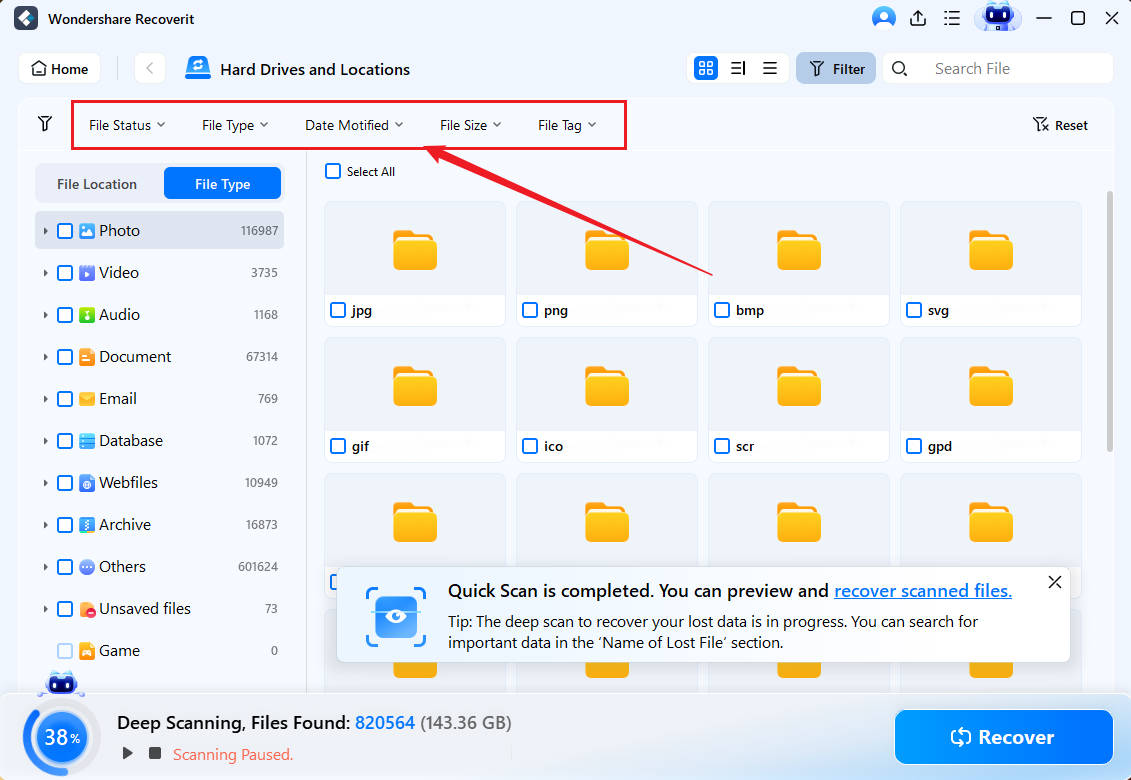
Step 2. Scan and Apply Advanced Search Filters
During the scan process, use filters such as “File Type,” “Time,” “File Size,” or “All Files” to narrow results and find your videos during the scan.
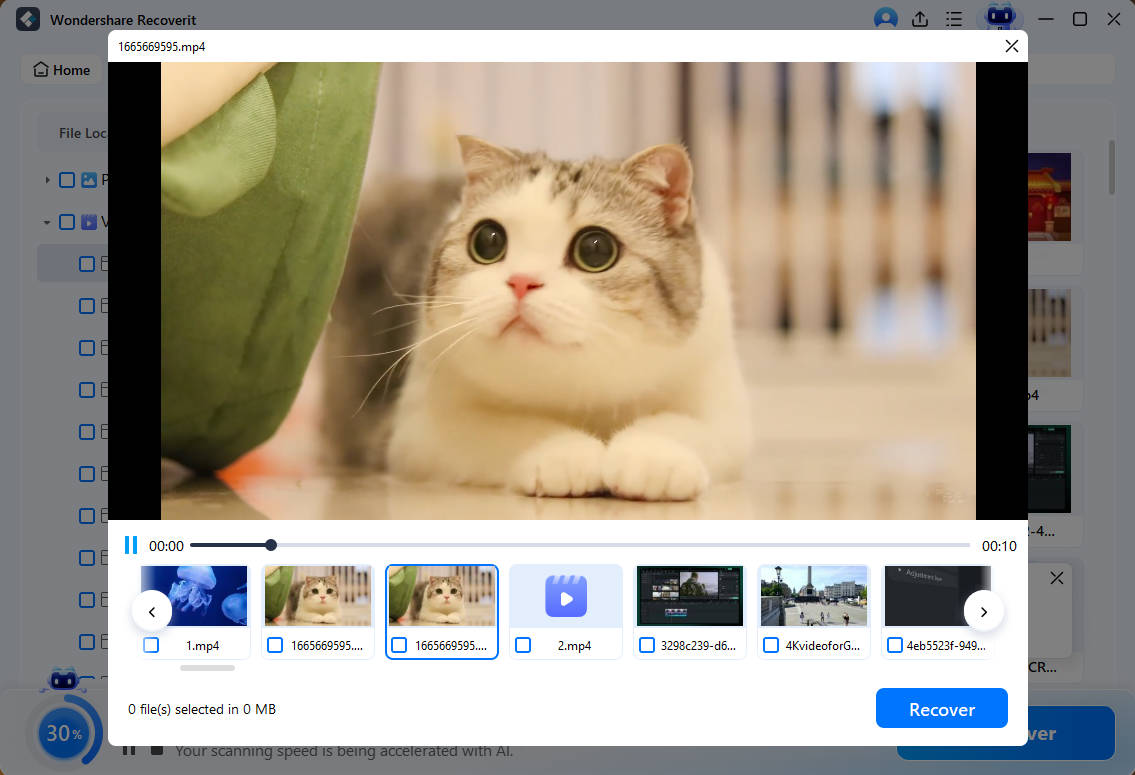
Step 3. Preview and Recover The File
Next, click on any video to preview it before saving. Once you have confirmed it is the right one, select “Recover” to download the video back to your device.
Conclusion
To wrap up, YouTube Error 153 can always be fixed on your end. The solutions help you to handle problems, ranging from browser data corruption to misconfigured domain network connections. Go over these fixes in order, and your error will vanish within a few minutes. If the system crashes and erases your video, we recommend using Recoverit due to its specialized scanning engine for lost video restoration.
FAQ
-
Does YouTube Error 153 mean my account is banned?
No, this error does not indicate any account restriction or permanent profile ban from the platform. The error points directly to an internal configuration issue between your player and the server. -
Why do short clips fail to load while long videos play fine?
Short clips rely on a different video player than regular videos. If your data becomes corrupted, these short clips may stop working or fail while standard videos remain unaffected. -
Will resetting my network settings erase personal files?
No. Resetting your network settings will not delete photo, document, or saved video files. It removes old Wi-Fi passwords and DNS settings. -
Can outdated graphics drivers cause video configuration errors?
Yes. Outdated graphics drivers can prevent your browser from playing videos. If your browser cannot use hardware acceleration, it may stop the video and show a playback error.


