
 TL;DR:
The YouTube "This content isn't available, try again later" error is typically caused by data packet authentication failures which can be resolved by disabling ad blockers, clearing corrupted browser caches, or turning off active VPN and proxy services.
● Test playback in an Incognito window first to quickly isolate if privacy-focused browser extensions or outdated cookies are interfering with YouTube's scripts.
● Change your network properties' DNS Server Assignment from Automatic (DHCP) to manual IPv4 settings to bypass local firewall delays and retrieve server resources faster.
● If system crashes or application errors delete your locally stored YouTube downloads, Wondershare Recoverit can perform sector-level deep scans to reconstruct the missing MP4 and MKV files.
Ask AI for a summary
 ChatGPT
 Perplexity
 Gemini
 Claude
 Grok
Grok
You settle down to watch videos or vertical shorts on YouTube, yet a sudden glitch stops your entertainment. A dark screen displays the message stating, YouTube: This content isn't available, try again later." This problem breaks your viewing workflow and blocks quick access to global platforms.
Playback issues frequently occur when you least expect them during daily browsing sessions. The error code leaves users stranded without obvious solutions. Fortunately, you can resolve this blockade using several system adjustments. This guide explores the direct fix to restore smooth video delivery to your daily screens.
Try Recoverit to Perform Data Recovery
 Security Verified. 3,591,664 people have downloaded it.
In this article
Part 1. What Does "This Content Isn't Available, Try Again Later" Mean on YouTube?
The “YouTube content not available” error indicates that YouTube cannot fetch the video stream data from servers. Instead of playing the video, it displays this message because the request cannot be completed successfully. In most cases, it signals that data packets are failing authentication checks or are missing. Understanding this message helps you choose the correct path for troubleshooting system options.
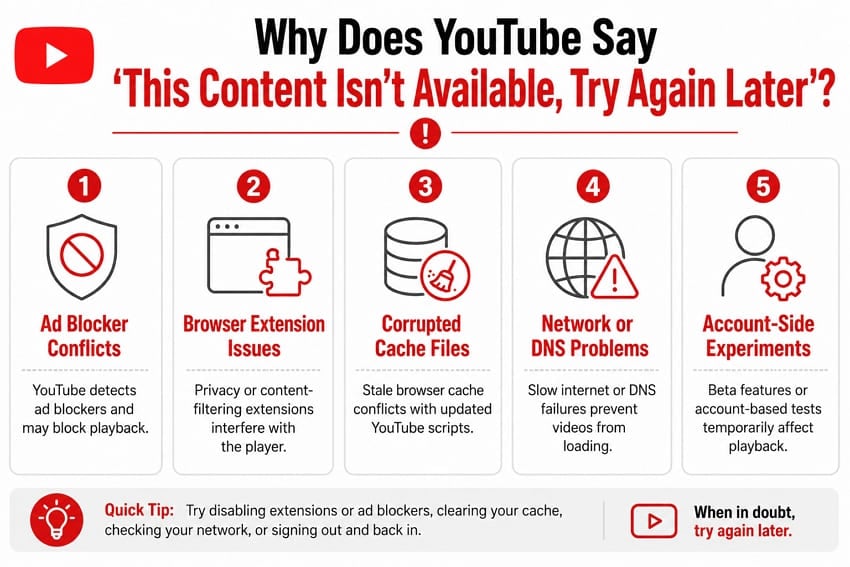
Why Does YouTube Say, "This Content Isn't Available, Try Again Later"?
System configurations or external factors can trigger a YouTube breakdown. While understanding what this error is, we'll also look at the main reasons for the “This Content Isn't Available, Try Again Later” error:
- Ad Blocker Conflicts: YouTube has become effective at detecting active ad blockers in users' browsers. Once detected, it may restrict video playback, which can cause this error to appear.
- Browser Extension Issues: The problem is not limited to ad blockers alone. Privacy-focused extensions and content filtering tools can interfere with YouTube, preventing videos from loading.
- Corrupted Cache Files: Your browser saves old website data to help pages load. But when this old cache data conflicts with YouTube's updated scripts, it leads to a playback error.
- Network or DNS Problems: A weak internet connection or a slow DNS server can stop a video request from reaching YouTube. Switching to a different network can confirm whether the issue is connectivity-related.
- Account-Specific Issues: If the account is facing temporary restrictions, authentication issues, or corrupted settings, it can occasionally trigger the error.
Part 2. How to Fix YouTube "This Content Isn't Available, Try Again Later"
Now that you understand the causes, let's go through 8 reliable ways to fix the YouTube “This Content Isn't Available, Try Again Later” error.
Fix 1. Restart/Update/Reinstall the Browser
Glitches within the browser can be a direct cause of playback errors across YouTube. A quick restart of your browser or the YouTube app can clear the issue. If it still appears after restarting, try updating the app to make sure it is compatible with the latest updates.
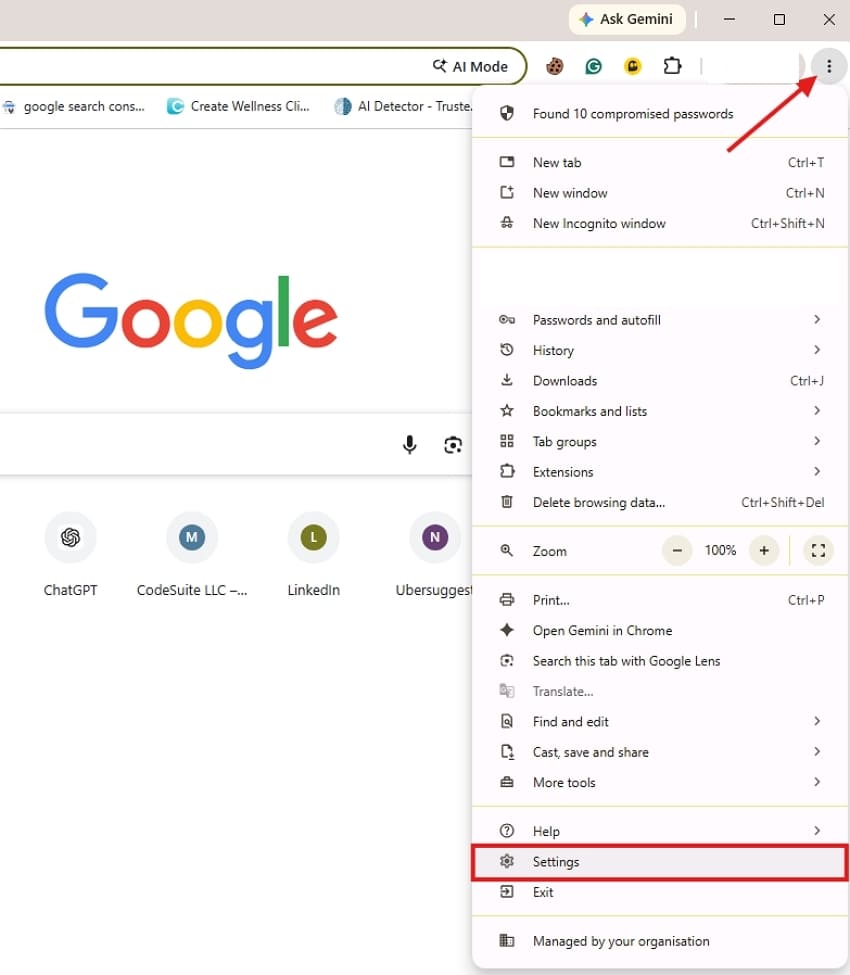
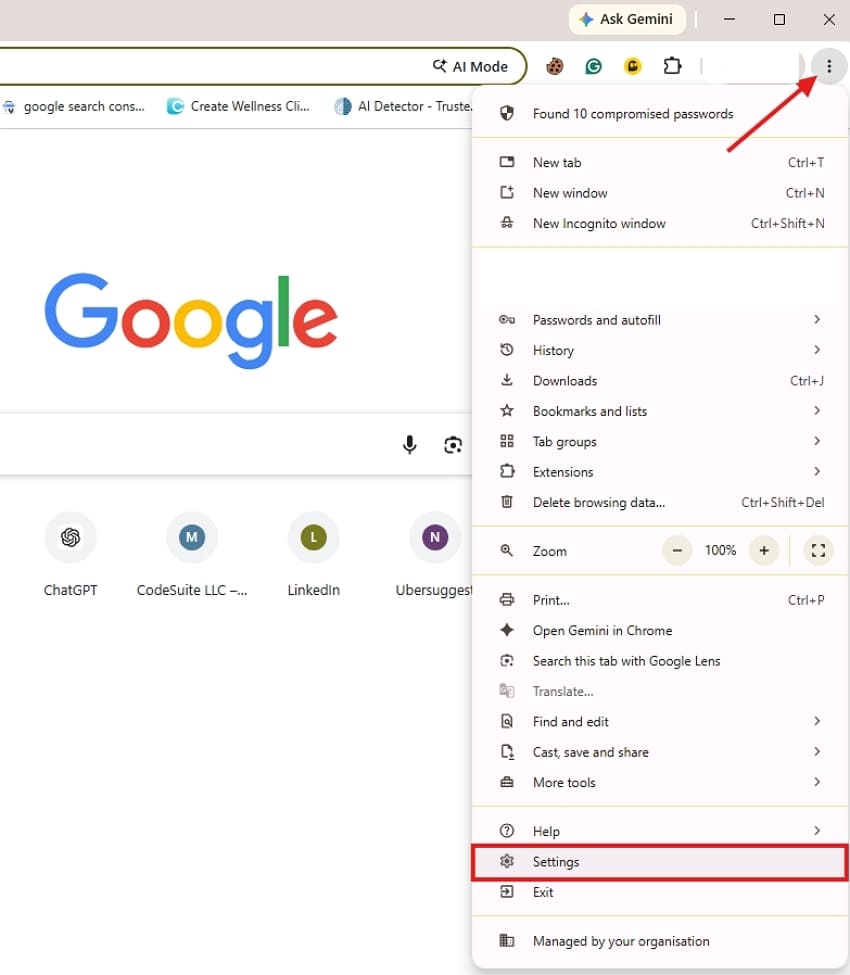
Step 1. Launch your browser and open “Settings” by clicking the three dots in the top right corner.
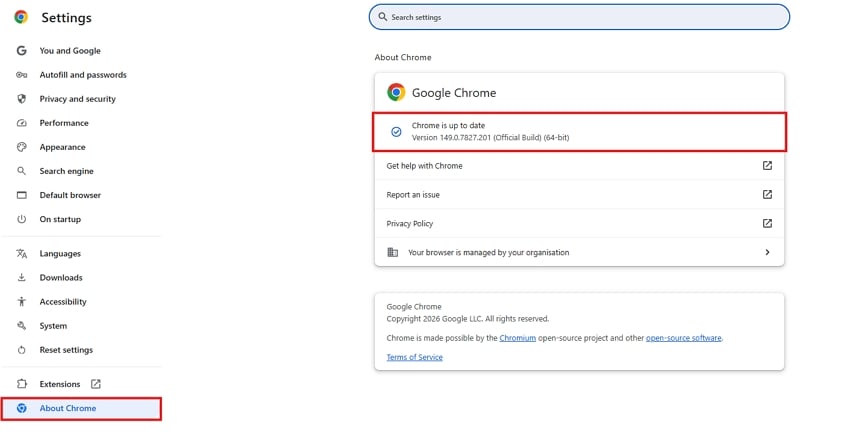
Step 2. Select "About Google Chrome,” and the page automatically checks for updates and begins downloading a newer version if one is available. If you see an “Update” button, click it to start the installation.
Fix 2. Check Your Internet Connection
Playback requires an information flow, which is disrupted by dropped network connections. Testing the hardware environment determines whether your infrastructure has enough bandwidth. If network instability is suspected, do the following tests to check if that is the problem:
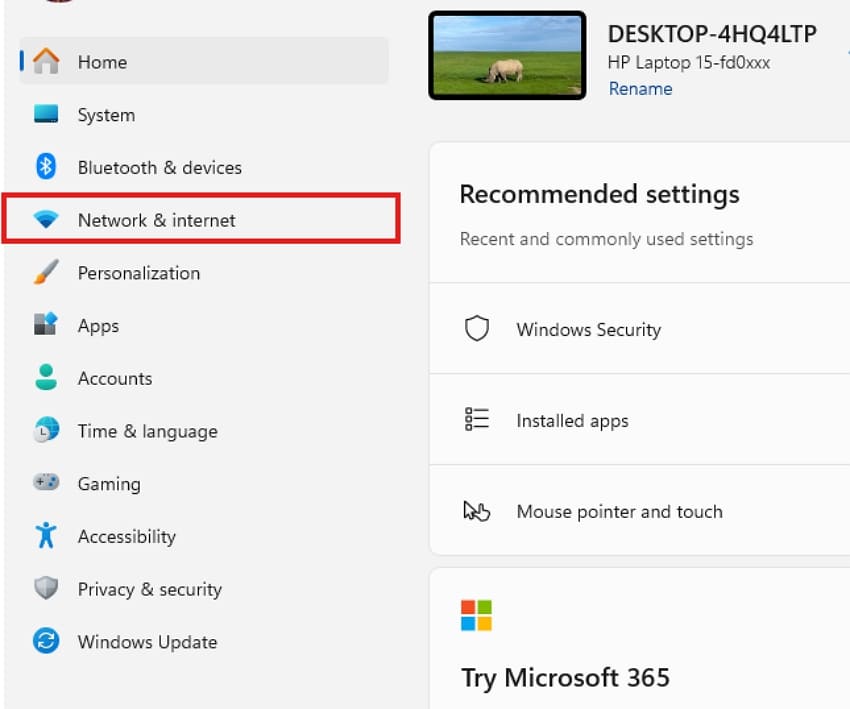
Step 1. Start with “Settings” from the start menu and then select “Network & Internet.”
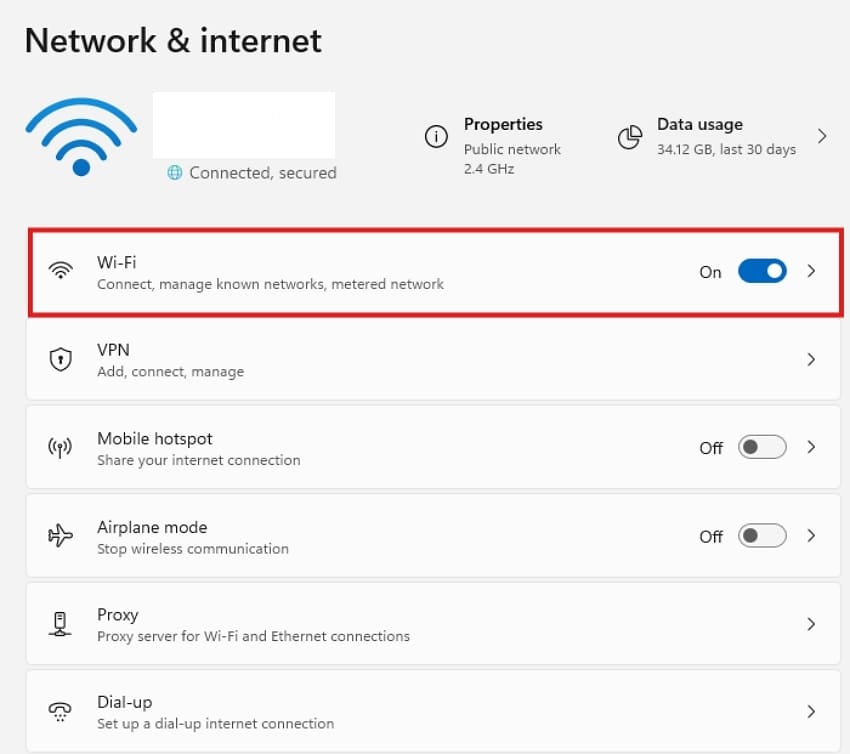
Step 2. To continue, click on “Wi-Fi” to log on to wireless or select “Ethernet” to log on to wired.
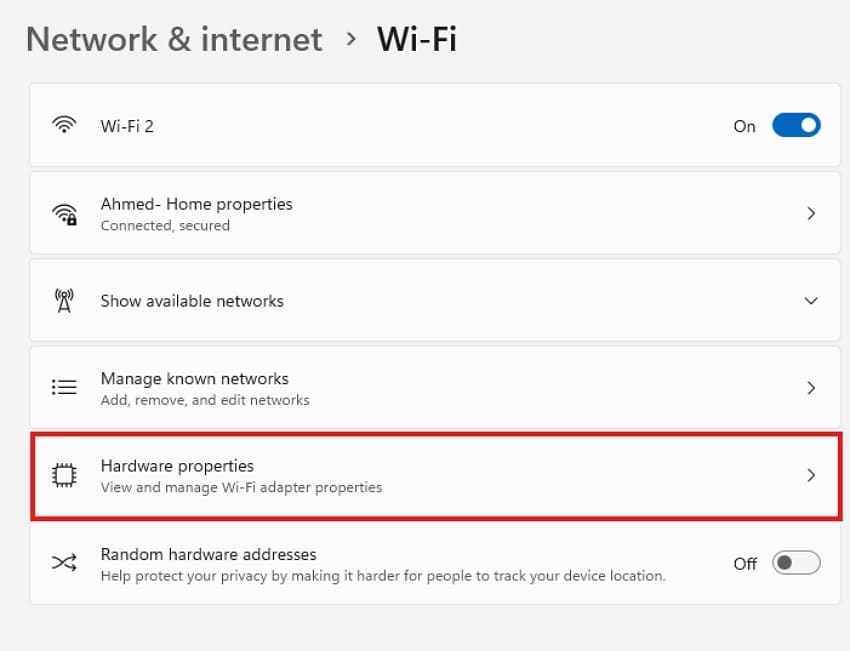
Step 3. Following this, click on your connected network name to review the connection details between your PC and router on the “Hardware Properties” page with your connected network.
Fix 3. Disable VPNs and Proxy Services
VPN and Proxy services redirect internet traffic to those that can be controlled. Sometimes, it interferes with YouTube’s ability to verify your connection. Disabling these services redirects you to a verified internet connection, which leads to a “YouTube content not available” error. Follow the guide below to learn how to disable VPNs and Proxy services:
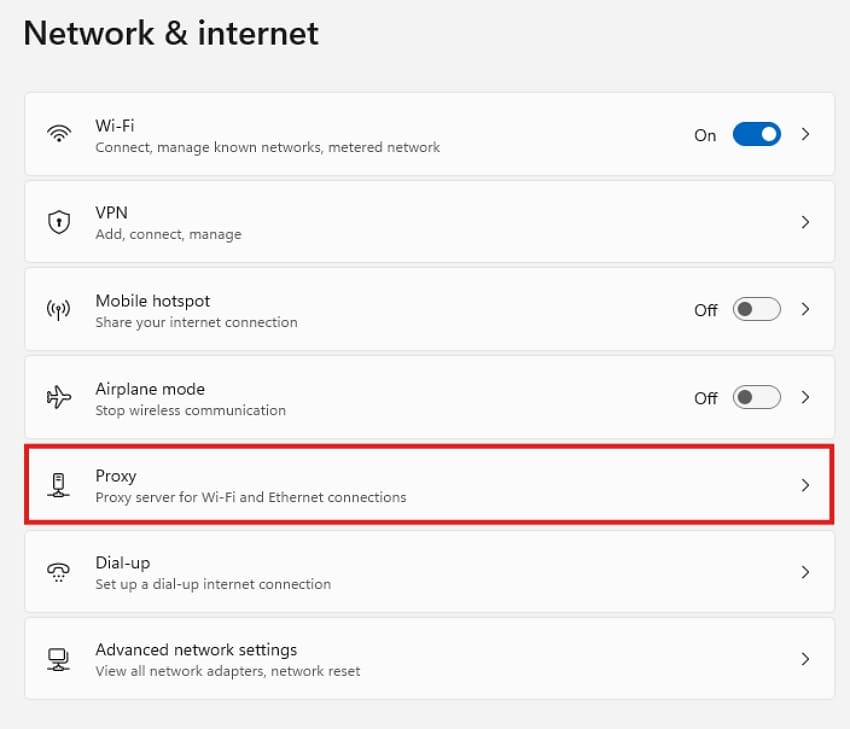
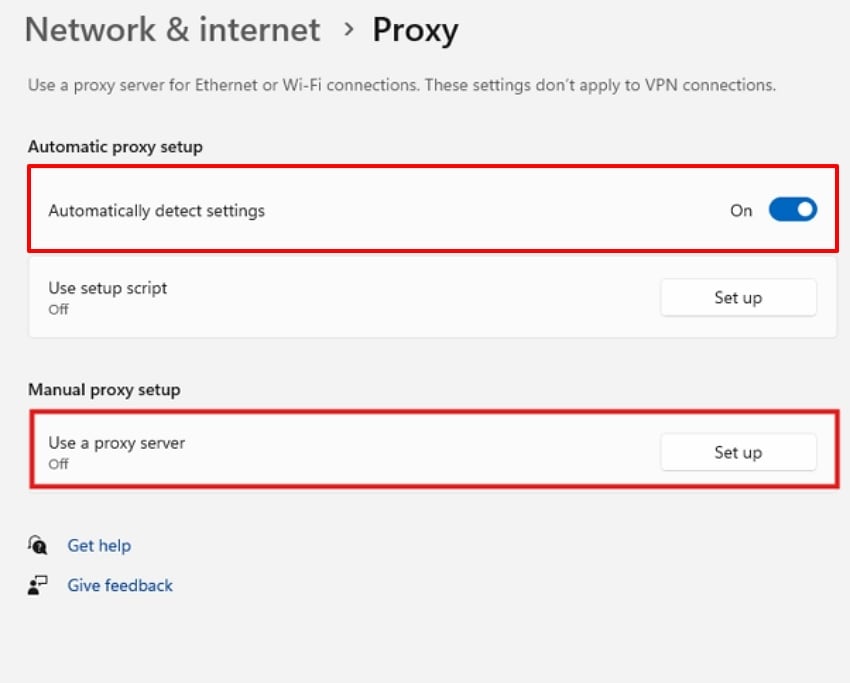
Step 1. Go to “Network & Internet” and scroll down to click “Proxy.”
Step 2. Click the “Edit” button next to “Use a Proxy Server” under “Manual Proxy Setup.” Turn the “Use a Proxy Server” off in the following window and then press “Save.” You can also turn off the toggle adjacent to the “Automatically detect settings” option.
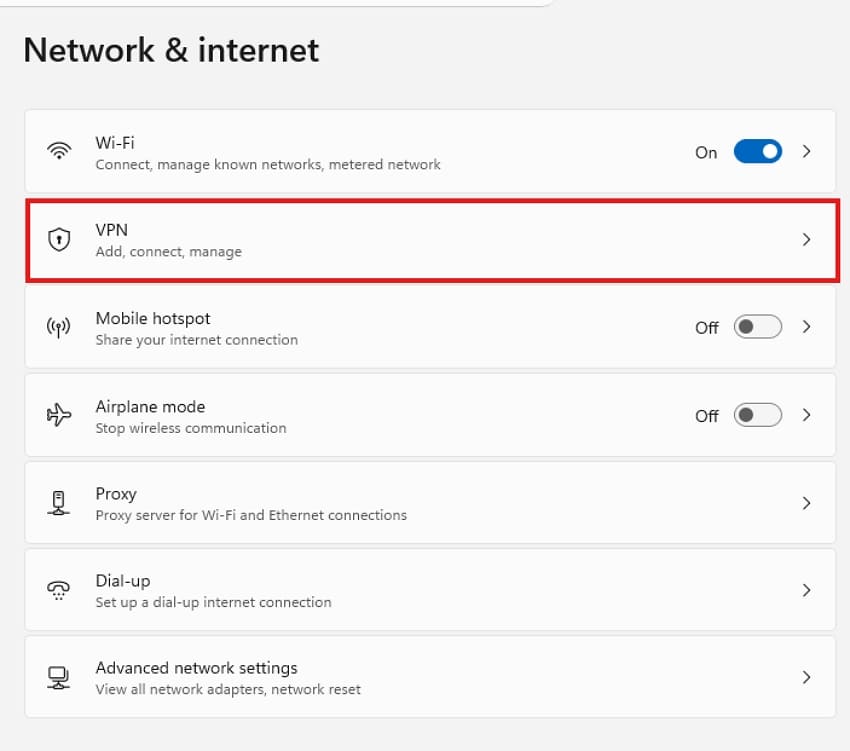
Step 3. Consequently, select “VPN” from the “Network & Internet” window to switch it off.
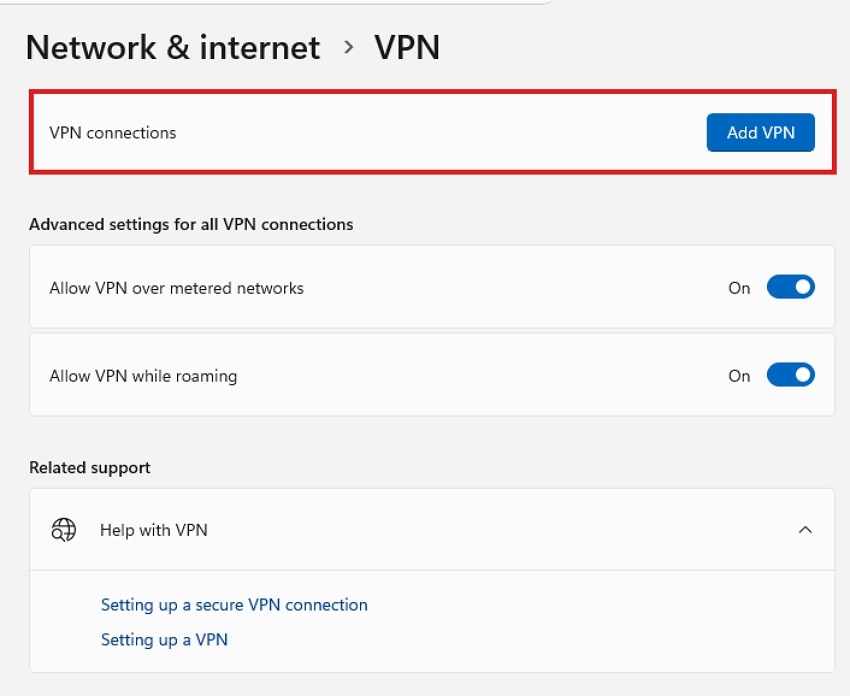
Step 4. Disable the “VPN Connections” by clicking “Disconnect” or “Remove” from available options.
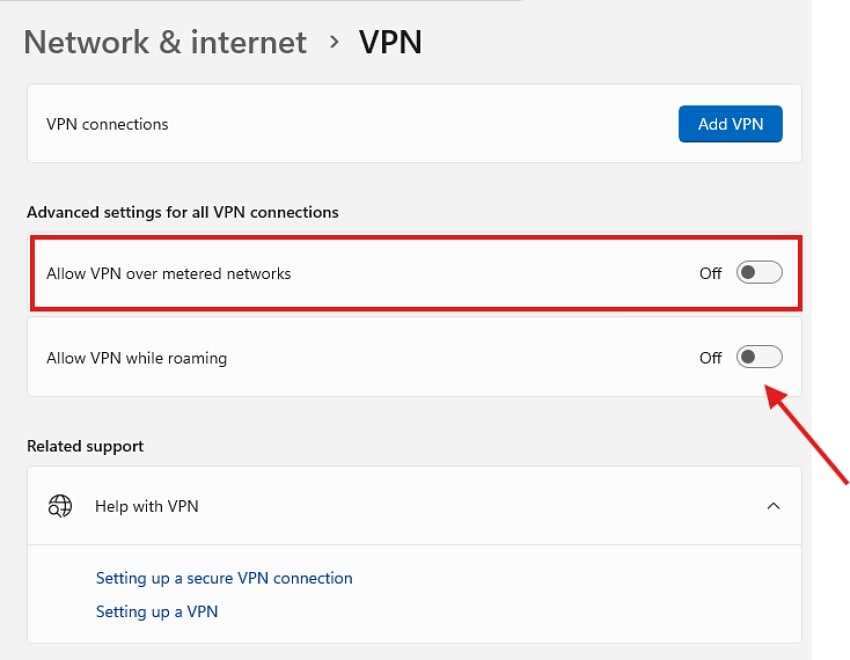
Step 5. Turn the options “Allow VPN Over Metered Networks” or “Allow VPN While Roaming” off in the current window.
Fix 4. Sign Out and Sign Back Into YouTube
Expired security sessions can cause data mismatches that prevent YouTube from validating your account. Signing out erases active configuration files, and re-entering your account credentials can restore video playback. Adhere to the given steps to refresh your account session below:
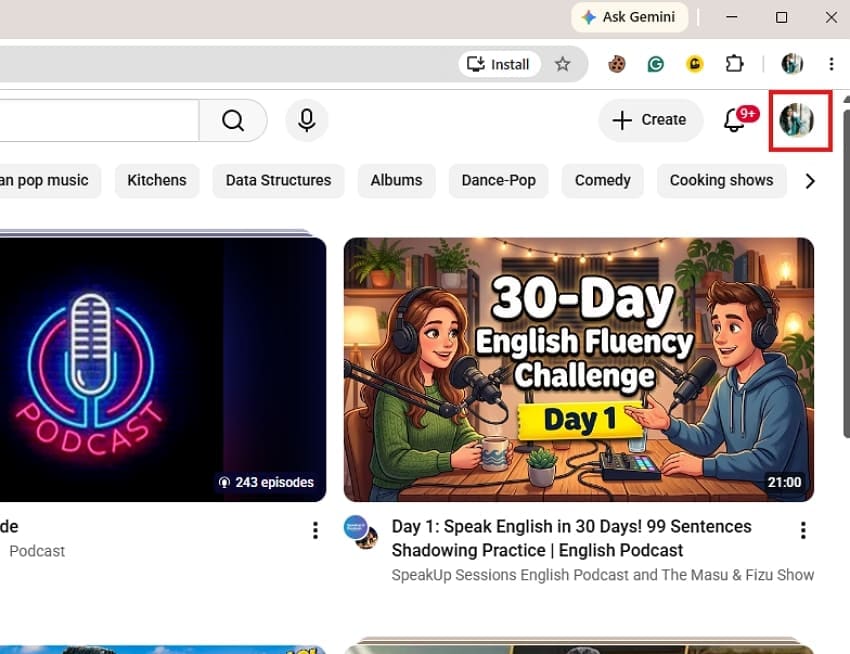
Step 1. To open the account menu, click on your “Profile Picture” (or the circle with your initial) located in the top-right corner of the “YouTube” website.
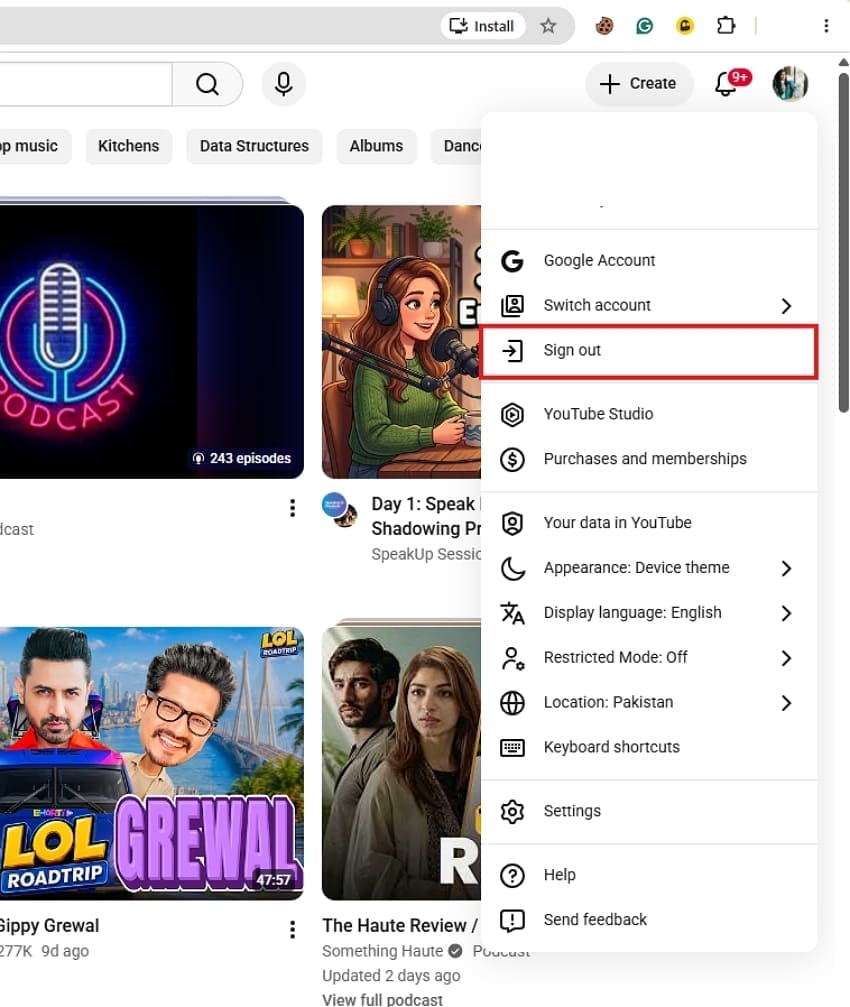
Step 2. Select “Sign Out” in the drop-down menu. When a message that you are about to pause sync or sign out of your Google account appears, click the “Continue” or “Sign Out” option to confirm.
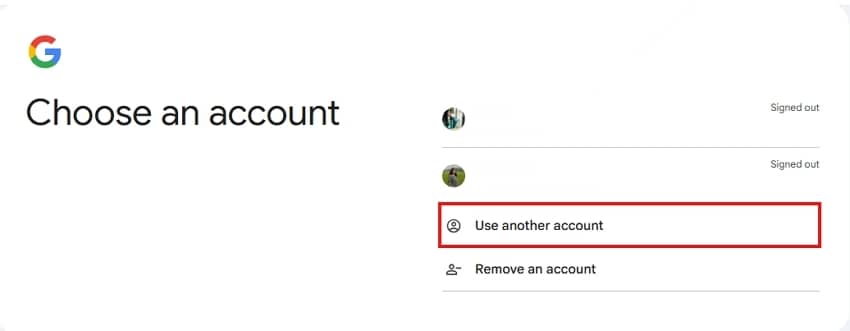
Step 3. In the top-right corner of the page, click "Sign In.” Choose your Google account or navigate “Use Another Account,” then enter a different Google e-mail address and password for logging in.
Fix 5. Clear Browser Cache and Cookies
Web browsers can store large amounts of hidden storage files for months. Cleaning this cache forces the system to fetch clean files from YouTube’s servers. This process solves hidden bugs and boosts internet speeds. To clear your browser cache, proceed with the following outline for the YouTube “This Content Isn't Available” fix:
Step 1. Open your web browser and then click on the three dots at the top right to go to “Settings.”
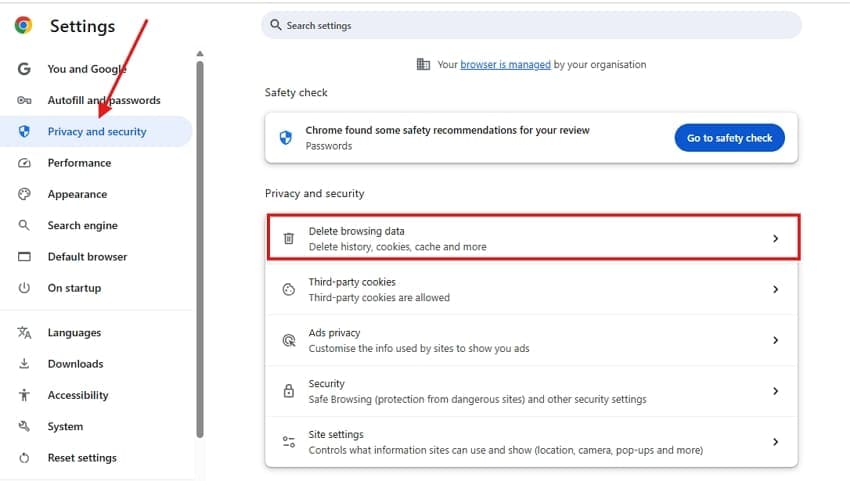
Step 2. To clear the cache, go to “Privacy and Security” on the left side and then click on “Clear Browsing Data.”
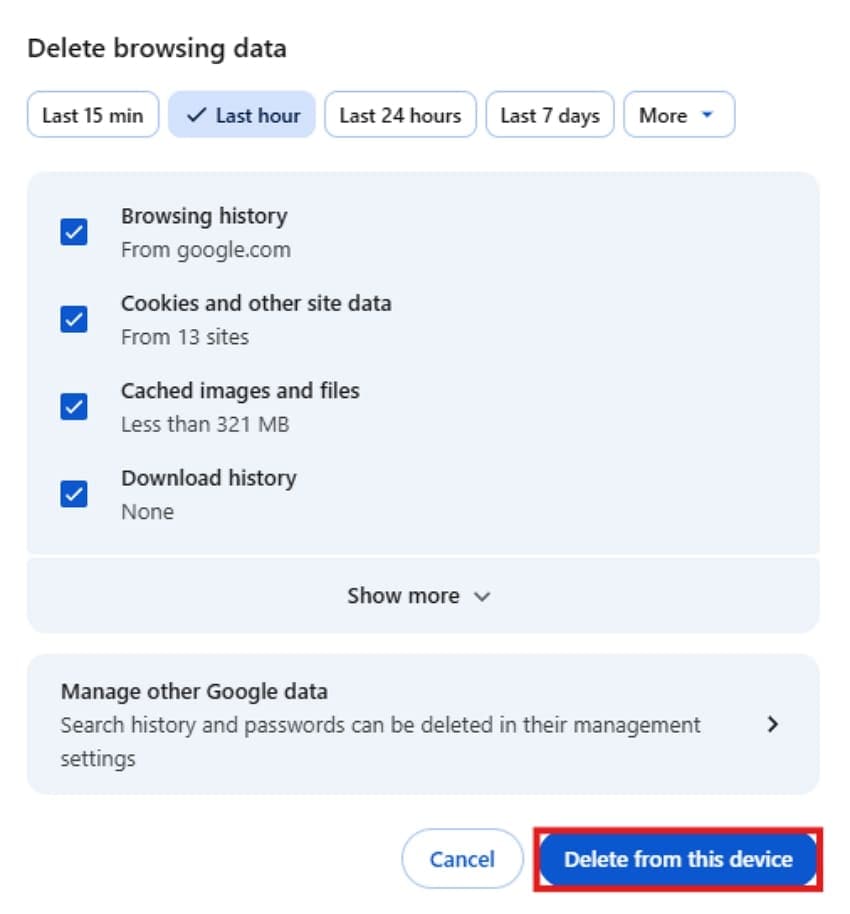
Step 3. To remove cookies and other caching information, locate and select “Cookies and Other Site Data” and “Cached Photos and Files” to clear them.
Fix 6. Change DNS Settings
An outdated DNS service delays the retrieval of server resources during YouTube connections. Switching your device to public DNS paths bypasses these local firewalls. For better understanding, follow the instructions below to change DNS settings:
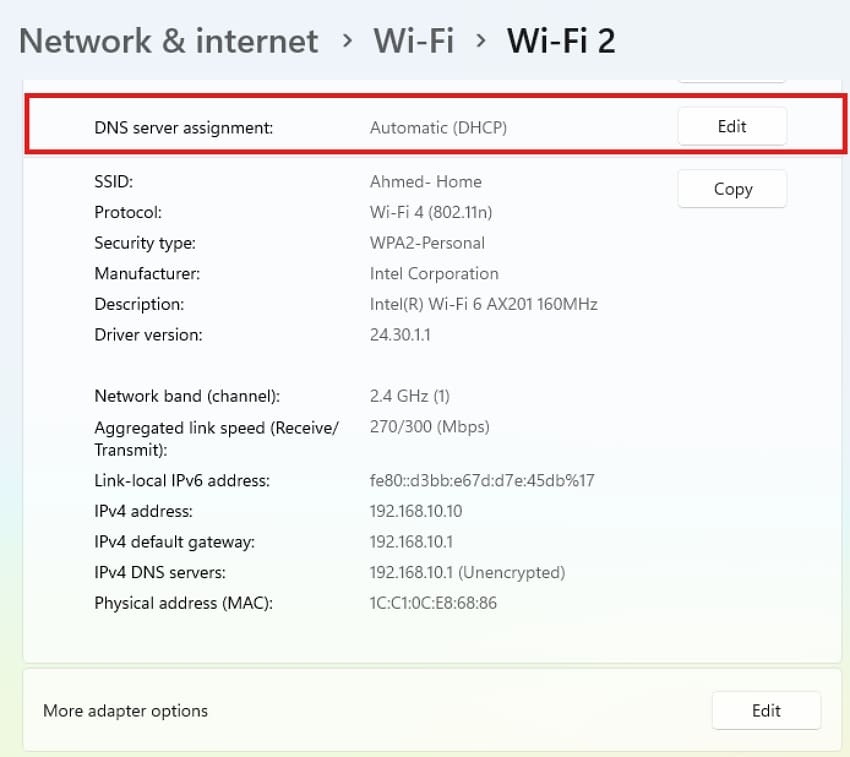
Step 1. Select “Wi-Fi” from “Network & Internet," move to the "Network Properties" page, and find "DNS Server Assignment” and click “Edit.”
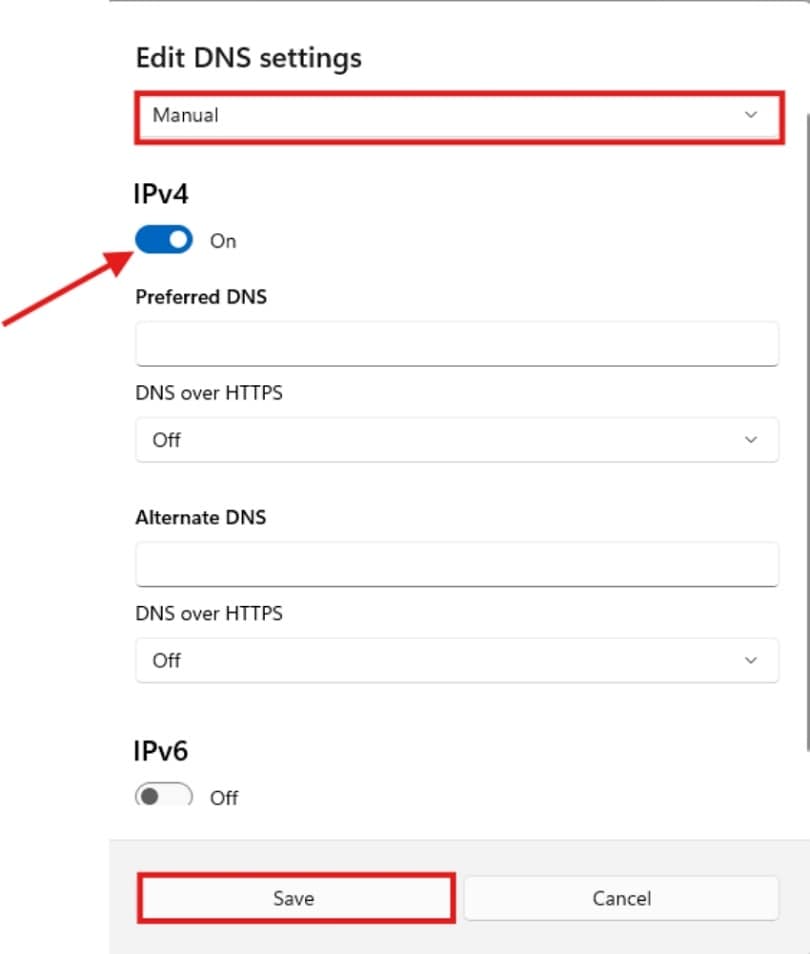
Step 2. In the following window, change the settings from “Automatic (DHCP)” to “Manual” and turn the “IPv4” toggle on and click “Save” to check if the issue is resolved.
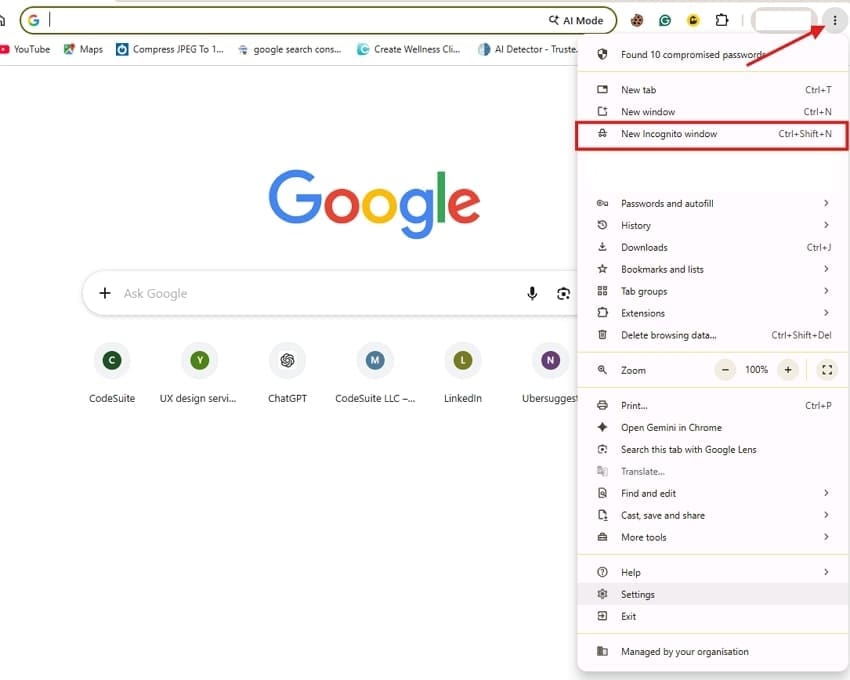
Fix 7. Try Incognito or Private Browsing Mode
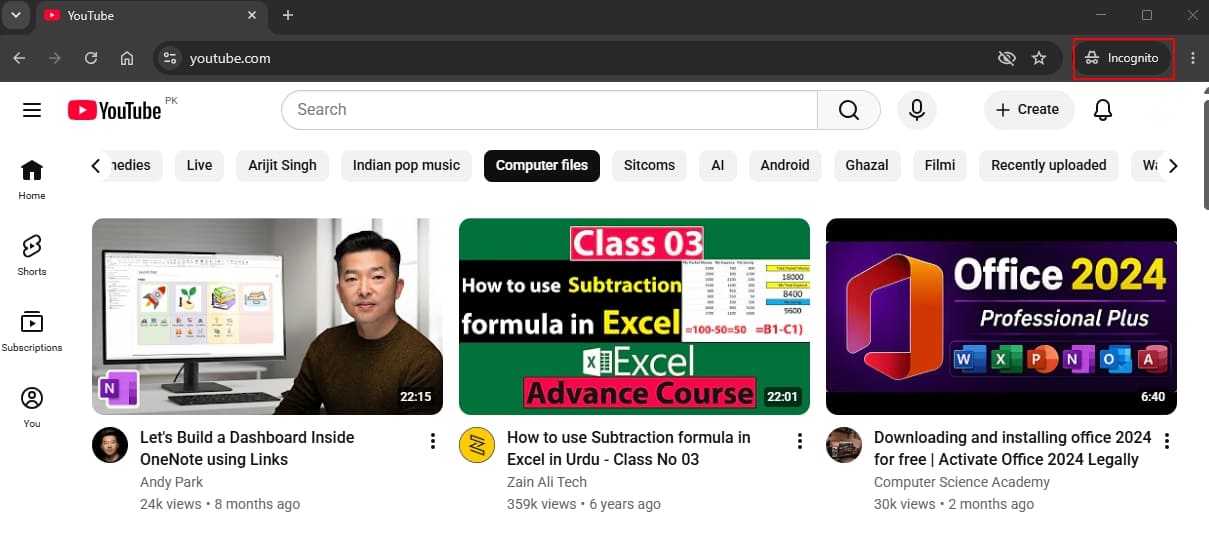
Incognito Mode disables your active profile modifications and ignores existing cached browsing data. Testing YouTube in private tabs helps isolate whether a specific browser setting or extension is helping in resolving the YouTube “This Content isn't Available, Try Again Later” error. Walk through the given guided steps to open YouTube in private browsing mode:
Step 1. Open your web browser and click the three-dot menu, and then navigate to "New Incognito Window” in the drop-down menu.
Step 2. After that, open “YouTube” in a new incognito window and play the same video that was causing you problems to see if it works as it should.
Fix 8. Disable Problematic Browser Extensions
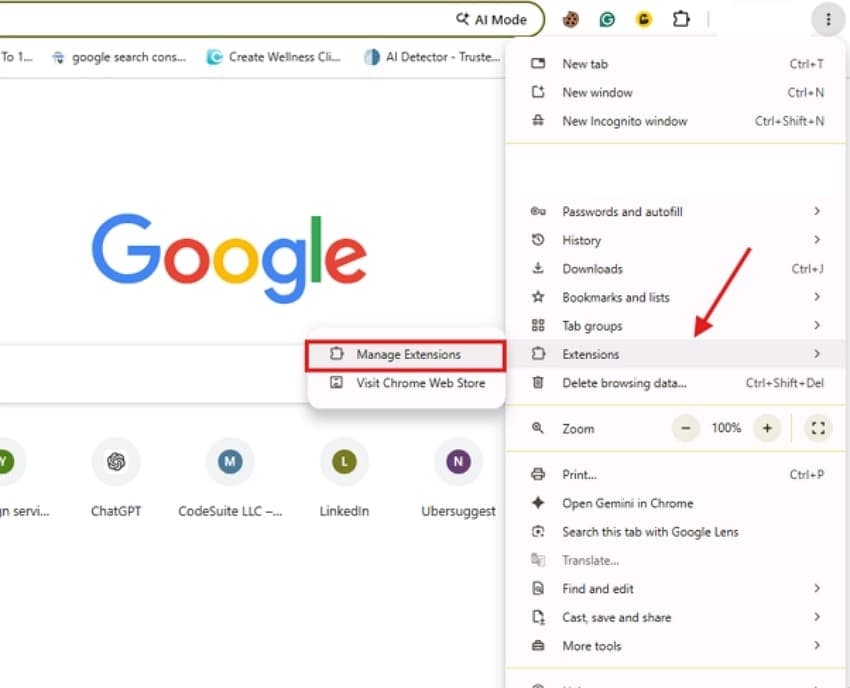
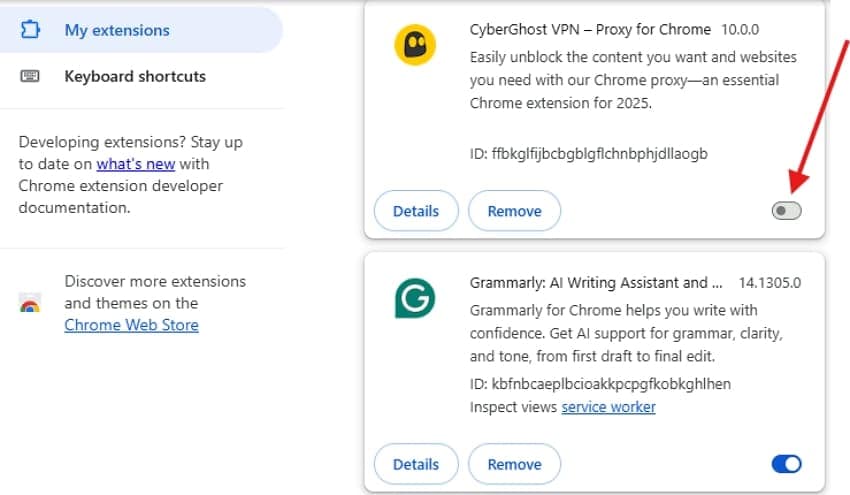
Third-party web tools modify raw web code to remove elements or alter the interface. Disabling these extensions can help detect hidden software conflicts that cause YouTube playback errors. To disable these problematic browser extensions, follow the steps described below:
Step 1. Launch your web browser and find “Extensions” by clicking on the three dots. After that, select “More Extension" to proceed to the next window.
Step 2. On the “Extensions” page, click the toggle switch beside each extension to disable it. Repeat the process until all unnecessary extensions are turned off.
Pro Tip: Quickly Recover Deleted YouTube Downloads with Recoverit
Unexpected application errors or sudden system crashes can delete your downloaded YouTube clips. This data loss is concerning because redownloading it requires time and effort. When local files disappear due to software malfunctions, you need a dependable restoration tool. To solve this problem, Recoverit offers a reliable way to recover your lost media files.
It supports recovery across more than 1,000 file formats, including MP4 and MKV. The software runs on any storage device, from internal hard drives to external SSDs and portable storage units. Additionally, your recovered files remain protected throughout the recovery process to help safeguard your YouTube downloads.
Key Features
Deep Scan Technology: Performs sector‑level deep scans to find and reconstruct video files that do not appear in normal directory listings.
Advanced Video Recovery: Find and recover videos that are lost, deleted, or deeply hidden, covering all resolutions, including Ultra HD, 4K, and 8K.
Video Fragment Reconstruction: During the recovery session, you can gather up and recover damaged or partially lost video files into a playable video.
A Detailed Guide on Recovering YouTube Downloads with Recoverit
As previously discussed, Recoverit enables users to retrieve high-quality data while maintaining formatting. Take guidance from the steps below to recover your deleted videos using it:
Step 1. Choose the Storage Location
Launch Recoverit on the device and click “Hard Drives and Locations.” Then, select the folder or drive from which your videos have been deleted.

Step 2. Scan and Recover
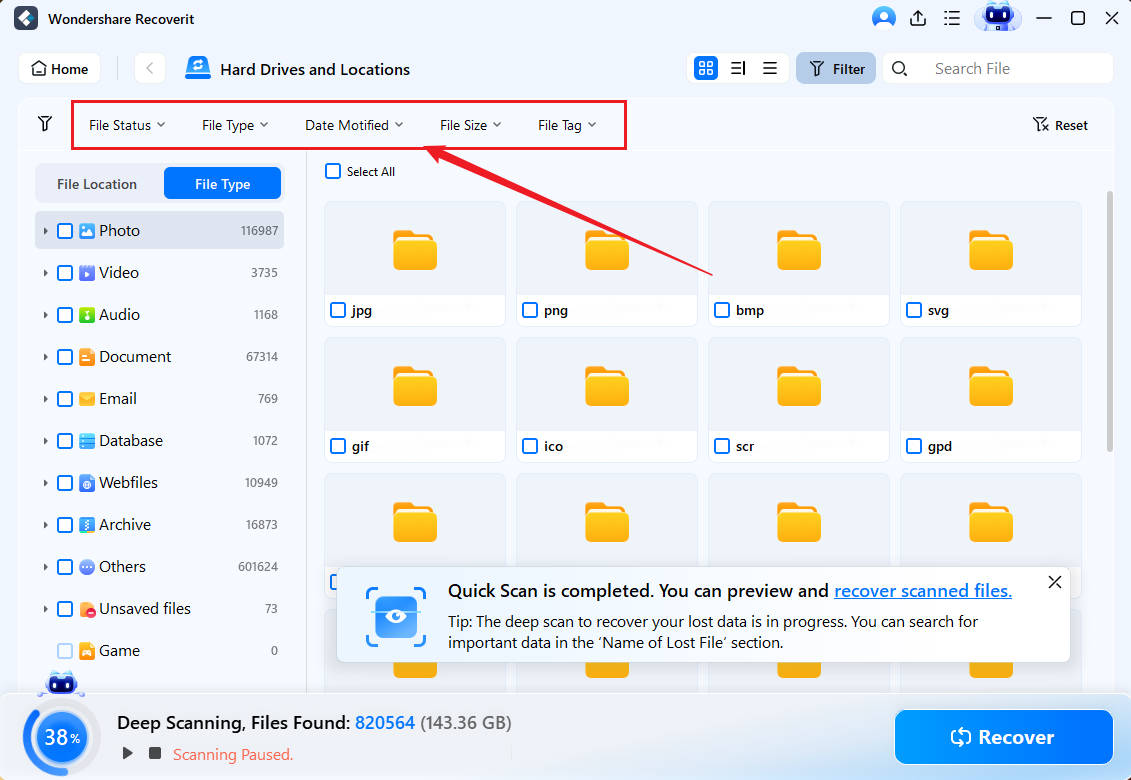
During the scan, use the filters to locate your files faster. Filter by “File Type,” “Time,” “File Size,” or “All Files,” and Recoverit will display the matching results.
Step 3. Preview and Save
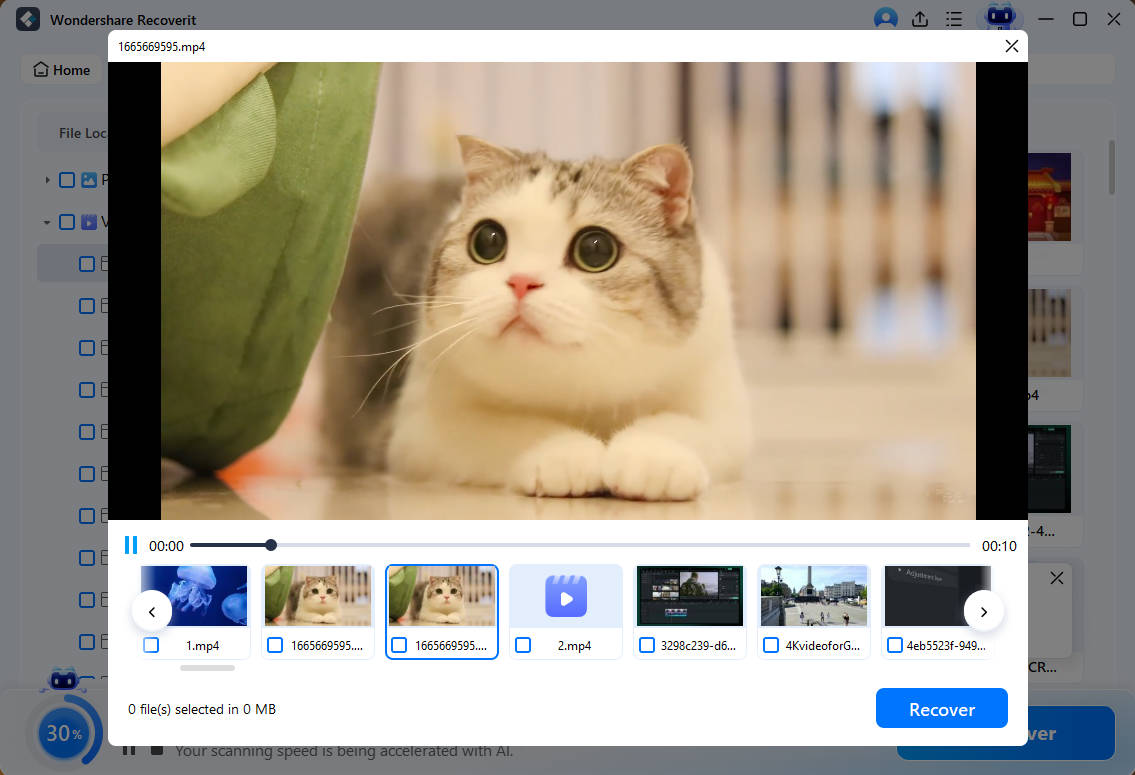
Next, preview your recovered content once the scan is finished and click on the “Recover” button to export the video files back to your device.
Conclusion
To wrap up, the “YouTube content not available” error issue can be fixed on your end. The solutions help you to handle every problem, ranging from browser conflicts to connection problems. If application errors delete your offline files, you should use Recoverit because its specialized scanning engine restores lost videos.
FAQ
-
Does this error indicate the video was deleted?
No. The error might result from VPN problems or network problems. Before concluding that the video is gone, try the above-provided solutions. -
Why does YouTube function in incognito mode but not in normal mode?
This indicates a damaged cache, stored cookies, or a browser add-on preventing YouTube's player. It should be corrected by clearing your cache or disabling extensions. -
Will deleting cookies and cache erase my YouTube history or account?
Clearing cookies and cache would log you off of YouTube and delete your surfing history. Still, your watch history, subscriptions, and YouTube account, kept in your Google account, are safe. -
Why does YouTube say "This Content Isn't Available, Try Again Later" on every video?
If you are seeing the "This Content Isn't Available, Try Again Later" message, the video file is likely not the problem. The issue is more likely caused by your internet connection or a conflicting browser add-on.


