
Millions of individuals around the world enjoy Roblox as their daily game. Sometimes the game stops and shows a “Roblox encountered an unexpected error” with a memory dump. Luckily, fixing this issue is much easier than it looks for regular players. This guide covers every simple step to get your Roblox game running again.
Try Recoverit to Perform Data Recovery
 Security Verified. 3,591,664 people have downloaded it.
In this article
Part 1. What Does "Roblox Encountered an Unexpected Error (Memory Dump)" Mean?
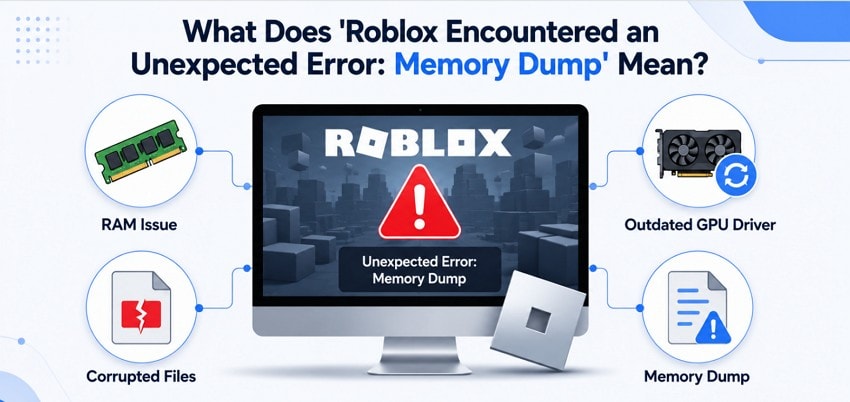
A Memory Dump error while playing Roblox is caused when the PC cannot manage its memory well. Roblox uses your computer's RAM while loading and running the game. When it crashes, Windows saves a Roblox Memory Dump error file to record what went wrong.
Why Does Roblox Encounter an Unexpected Error Memory Dump?
Below are the key reasons behind the Roblox encountering an unexpected error that disrupts your gaming experience:
Security Clash: Roblox's anti-cheat system conflicts with Windows security settings and triggers this memory dump error.
Low Memory: Your PC runs out of RAM or disk space, which causes Roblox to crash and stop working.
Broken Files: Broken or damaged Roblox files on your PC can cause this memory dump error due to the unavailability of essential elements.
Roblox Updates: Sometimes, new Roblox updates have bugs that break the game and cause unexpected memory errors.
System Conflicts: Other background programs may clash with Roblox and create unexpected crash problems.
Part 2. How to Fix Roblox Unexpected Error Memory Dump?
The Roblox Memory Dump Error can be a problem for long enough if not dealt with properly. This part brings in the top methods that can help fix the "Roblox Memory Dump" error easily:
Fix 1. Check Roblox Server Status
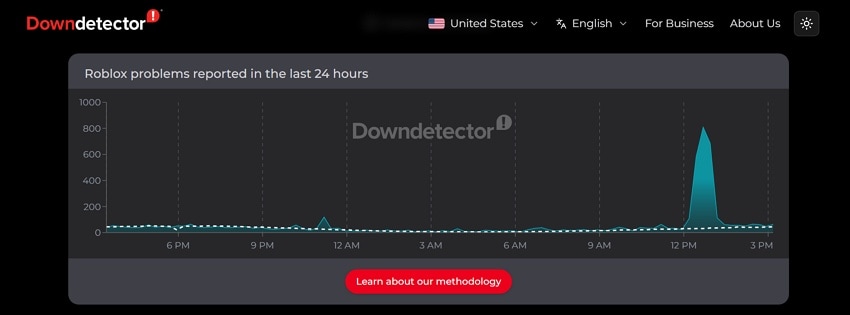
Before trying anything, always check if Roblox servers are working fine or not. Sometimes the Roblox memory dump error appears because its own servers are having problems. Roblox has an official status page at Roblox Status to watch if everything is running properly or not. Third-party services such as Downdetector also show live Roblox outage reports.
Fix 2. Run Roblox as Administrator
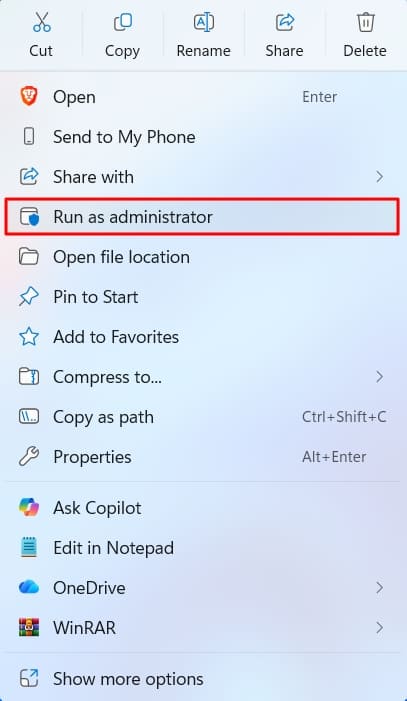
Running Roblox as an administrator gives the game full system access and permissions. It helps remove restrictions that block important files and background processes from loading. This method is useful when you want to fix the Roblox Memory Dump error during startup. Follow these guidelines to run Roblox as a system administrator:
Instructions. Right-click on the “Roblox” icon across the available space and select “Run as Administrator” from the menu.
Fix 3. Disable Antivirus and Security Software Temporarily
Antivirus services can block Roblox from operating, which eventually triggers the Roblox Memory Dump error. Their unwanted closure can flag Roblox operations as suspicious activity, which needs to be turned off. For that, learn how you can easily disable antivirus services across your device:
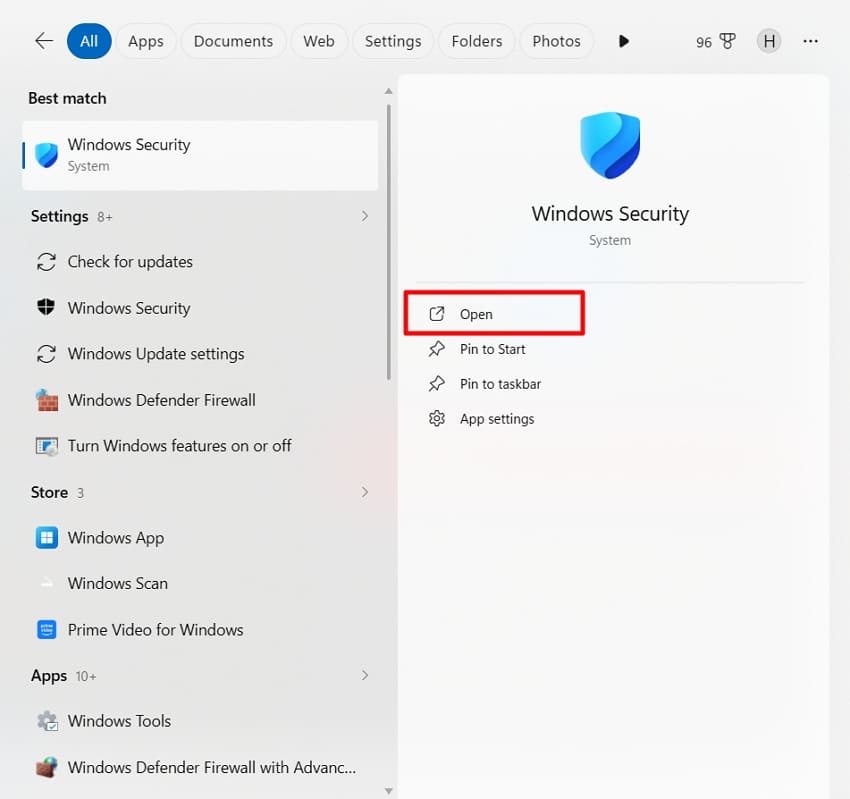
Step 1. Type “Windows Security” into the search bar and opt for “Open” from the search results.
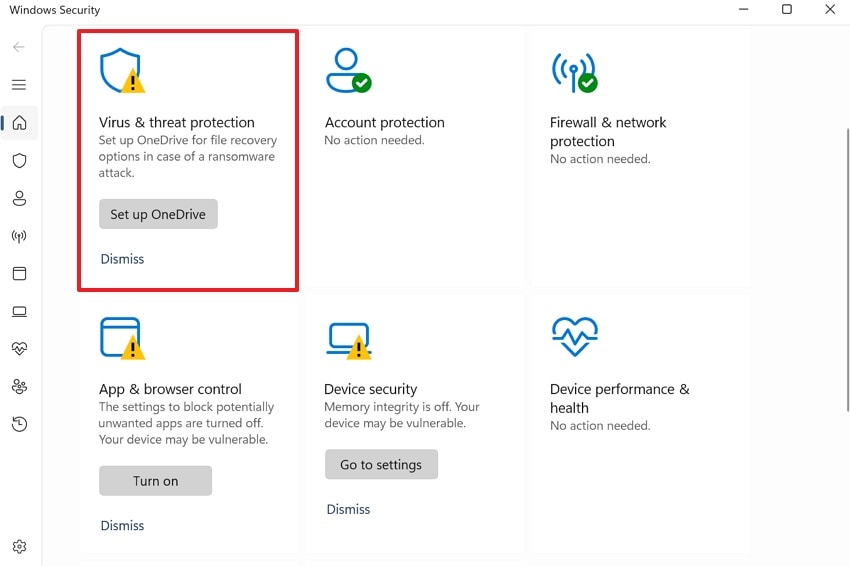
Step 2. After accessing it, head to the “Virus & Threat Protection” section.
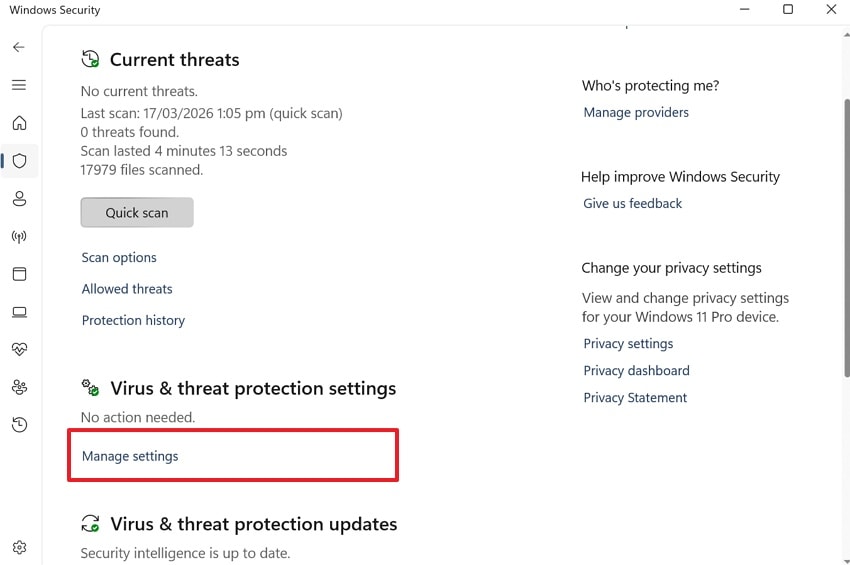
Step 3. Scroll down to the next screen and press the “Manage Settings” option to view more security options.
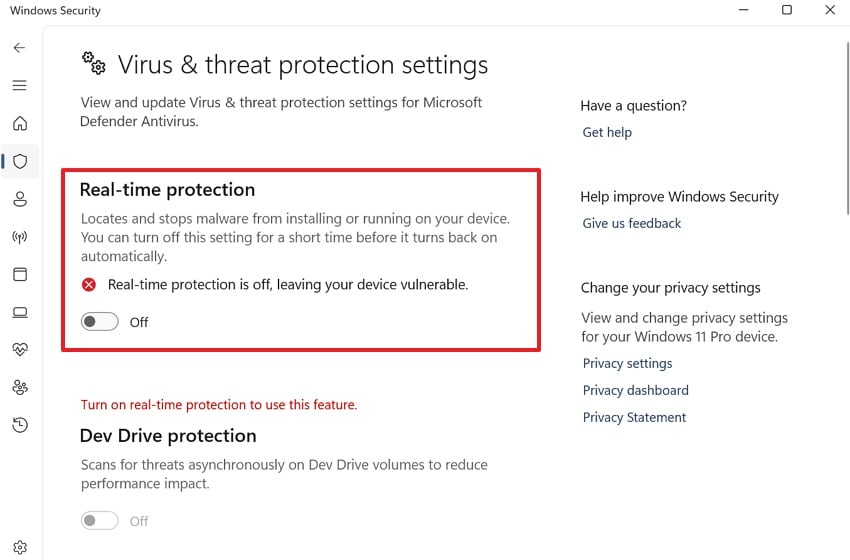
Step 4. Moving forward, find the “Real-time Protection” option and switch its toggle off.
Fix 4. Reset Graphics Settings
Roblox stores graphics-related preferences locally on your PC. Corrupted graphics preferences or incompatible graphics settings can sometimes prevent Roblox from launching. Yet, resetting these settings removes bad visual tweaks that make Roblox crash on your computer. Go through the given guide to reset the graphics settings and fix the Roblox memory dump error:
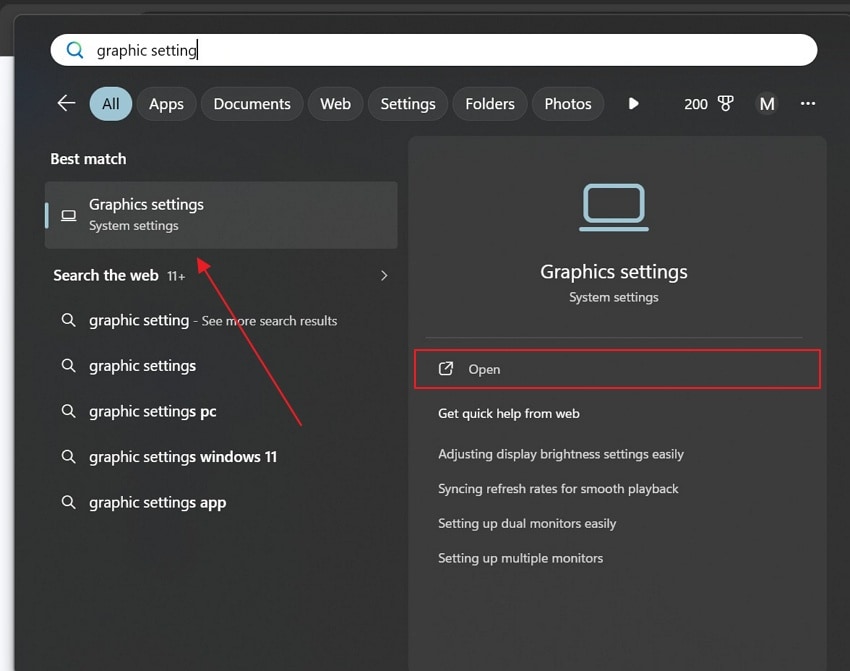
Step 1. From the “Start” menu, search for “Graphics Settings” and choose “Open.”
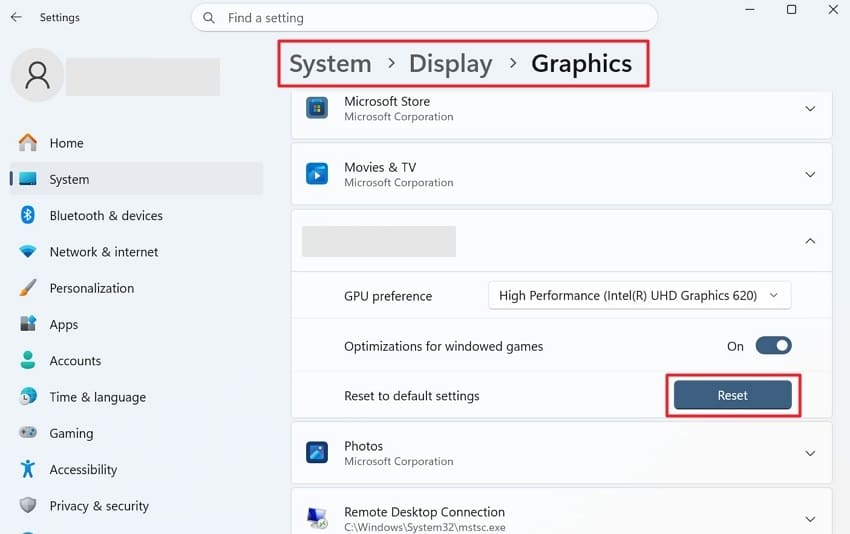
Step 2. Next, go to the "System” section and choose the “Display” option. After that, navigate to the “Graphics” section to choose “Roblox” and press “Reset.”
Fix 5. Adjust Virtual Memory and Page File Settings
Virtual memory works like extra RAM your computer uses when real memory gets full. When Roblox runs out of memory space, it crashes and shows an error message. This is when Roblox encountered an unexpected error and created a memory dump file. Thus, increasing your virtual memory gives Windows more space to handle heavy game loads. Follow these steps to adjust your virtual memory and page file settings:
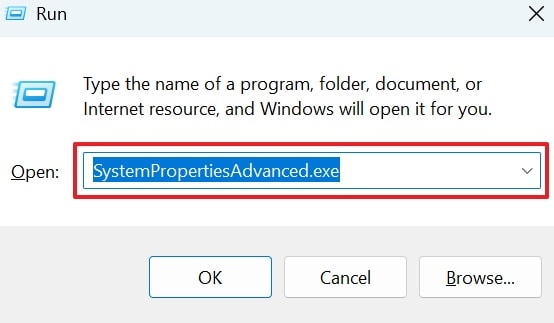
Step 1. To initiate, press “Windows + R” to open the Run dialog box and type “SystemPropertiesAdvanced.exe” then opt for “Enter”.
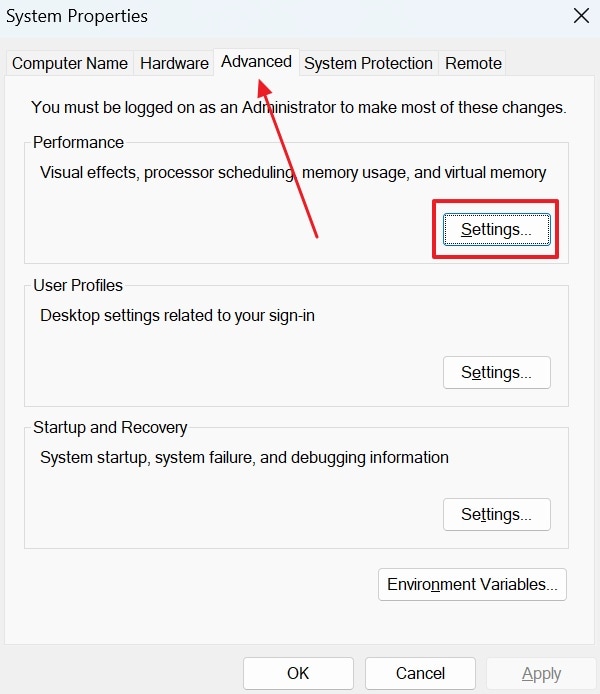
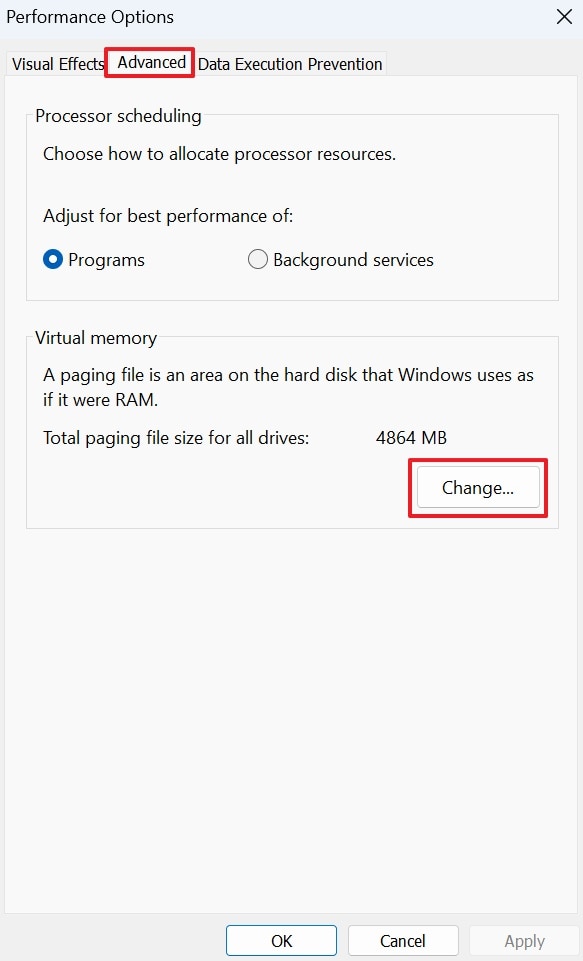
Step 2. After accessing it, go to the “Advanced” tab and select “Settings” under the “Performance” section.
Step 3. Upon accessing it, go to the “Advanced” tab and opt for the “Change” button.
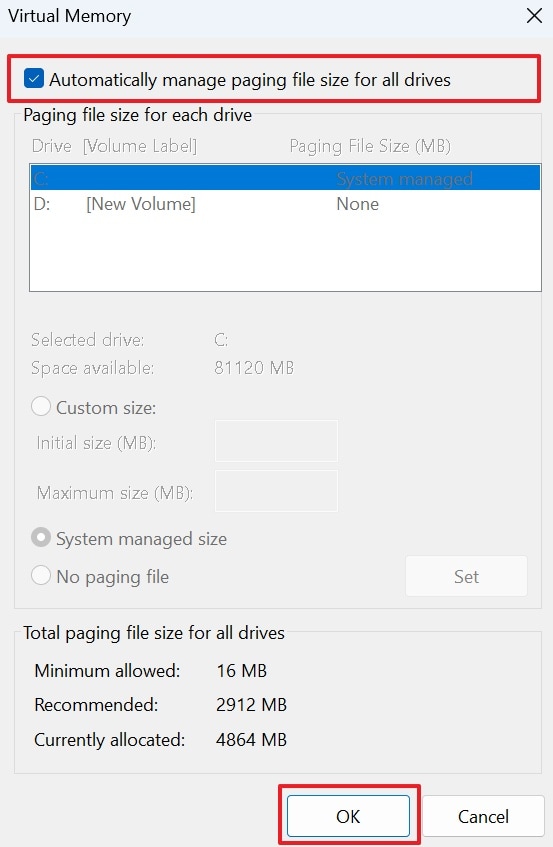
Step 4. Now, uncheck the “Automatically Manage Paging File Size for All Drives” option. Enable the “Custom Size” and enter the initial size and Maximum size (1.5–3× your RAM recommended). At last, click the “Set” button, then opt for the “OK” button to save changes.
Fix 6. Update Graphics Drivers
Updating graphics drivers improves how Roblox communicates with your computer hardware directly. It can fix display problems, crashes, and game failures caused by old, outdated drivers. This method is helpful when the Roblox memory dump error needs a stronger driver compatibility to resolve. Hence, review these simple directions to update your graphics drivers:
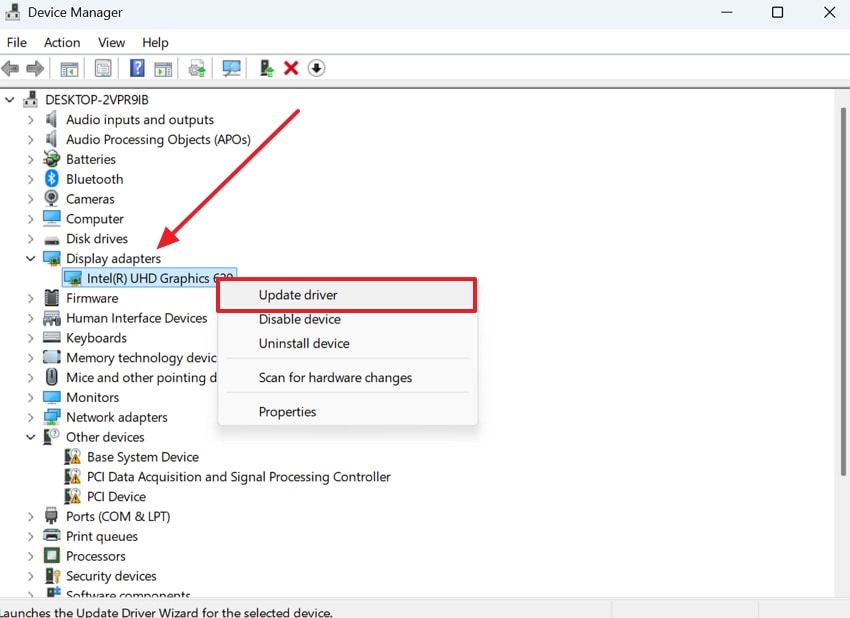
Step 1. Open “Device Manager” and expand the “Display Adapters” section from the list. Right-click your graphics driver and opt for the “Update Driver” option from the menu.
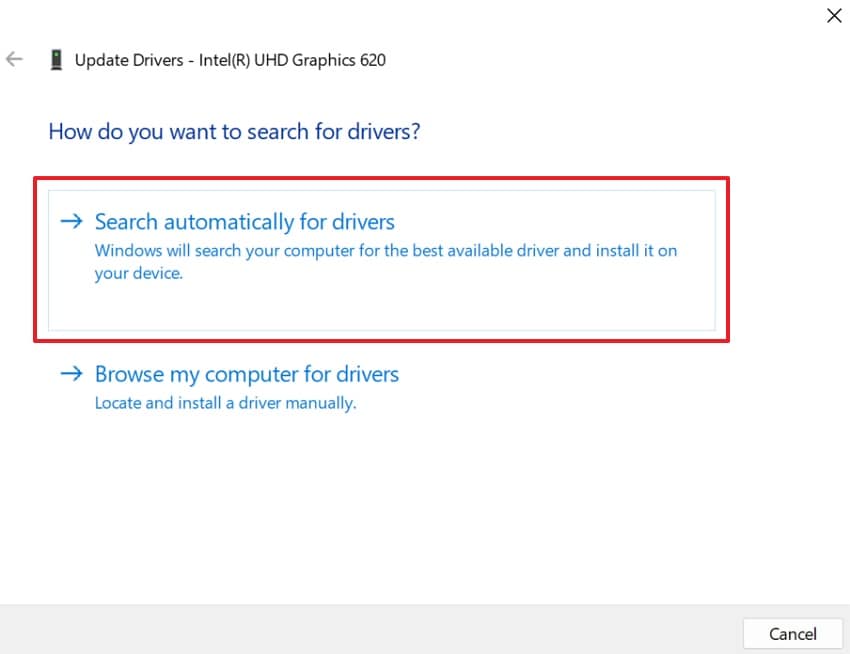
Step 2. In the new window that appears, opt for “Search Automatically For Drivers” to proceed. Start your computer again afterward and then try to open Roblox again.
Fix 7. Update or Rollback DirectX Components or Reinstall Roblox Completely
DirectX is a Windows tool that helps games use your GPU and memory. The Roblox memory dump error is also linked to broken DirectX files affecting game rendering tasks. If DirectX is outdated, its files can cause crashes and errors during heavy game loading. Hence, update your DirectX and reinstall Roblox to remove broken files and restore working copies.
Update DirectX
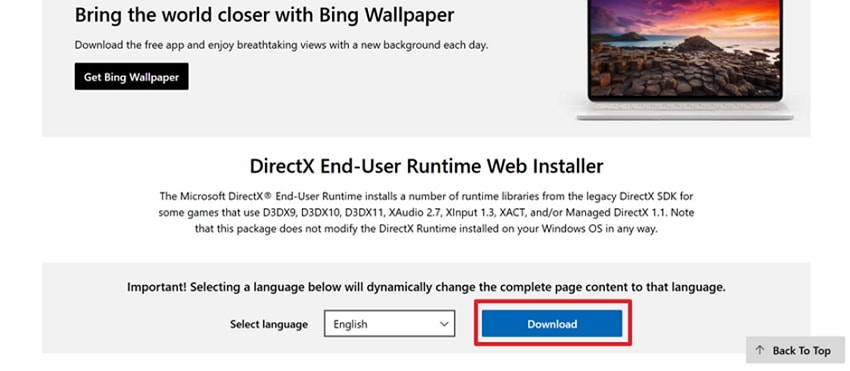
Step 1. To initiate, go to the official site of “DirectX” and opt for the “Download” button.
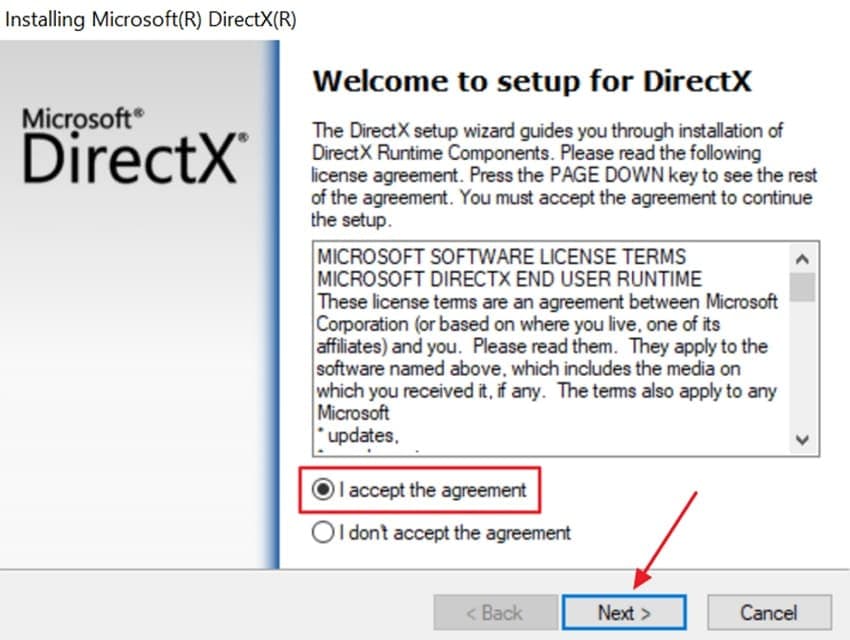
Step 2. Once it is downloaded, enable the “I Accept the Agreement” option and click the “Next” button. After that, follow the on-screen instructions, opt for the “Finished” button, and restart your computer to implement all updates.
Reinstall Roblox
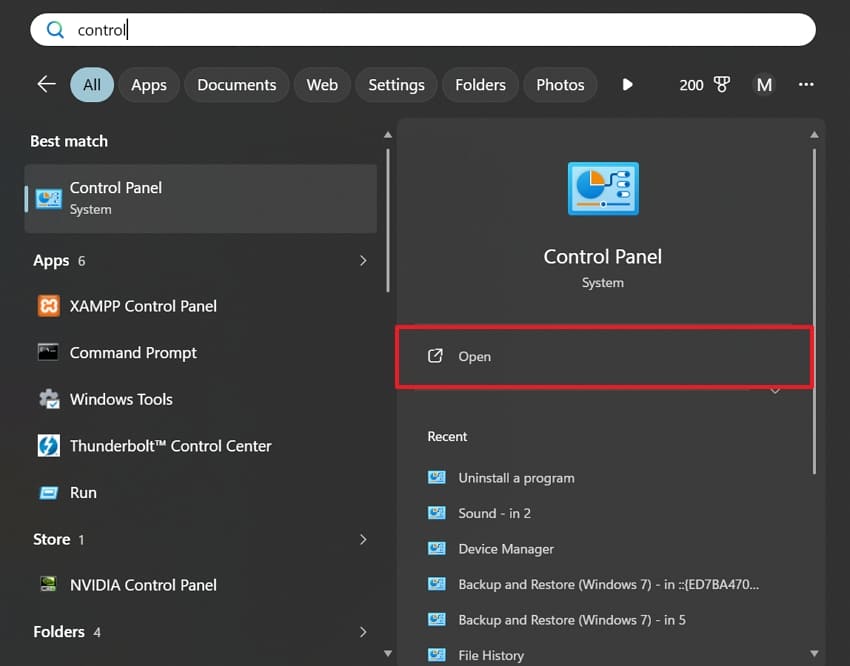
Step 1. Search for the “Control Panel” and launch it via the “Open” option.
Step 2. After accessing the “Control Panel,” access the “Programs” tab.
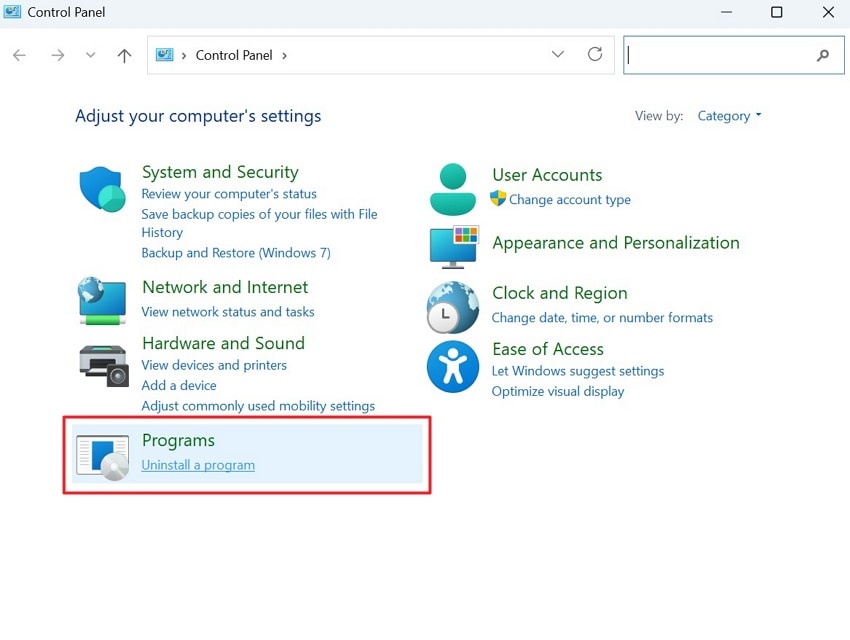
Step 3. Here, choose the Roblox game and go for the “Uninstall” option.
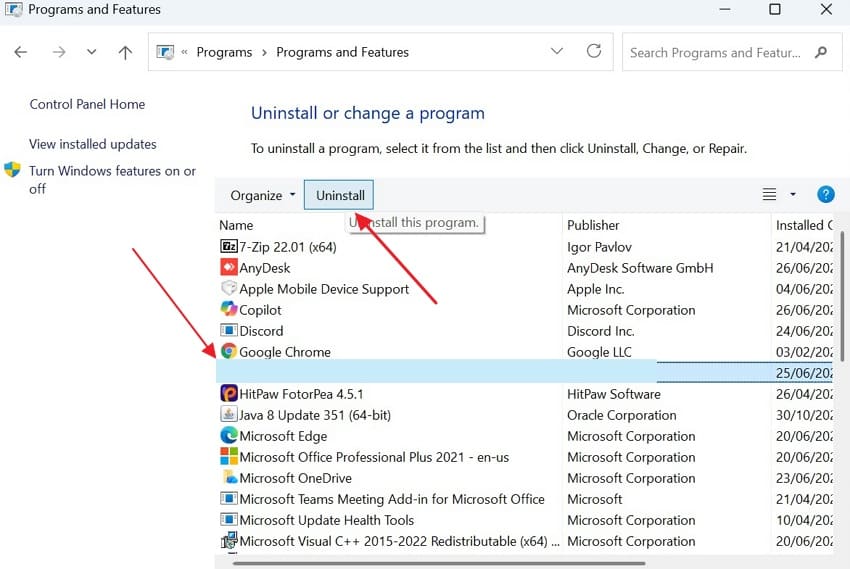
Step 4. Once it is uninstalled, redirect to the official website of “Roblox” and press “Download Windows App” to re-download it.

Fix 8. Repair Corrupted Windows System Files
Windows offers built-in tools called SFC scan and DISM to fix broken files or Windows components. Corrupted Windows system files can break the memory management features Roblox depends on. This process fixes the Roblox Memory Dump error while improving overall Windows performance. Follow the guides below to repair corrupted Windows system files:
Repair Corrupted System Files Using SFC Scan
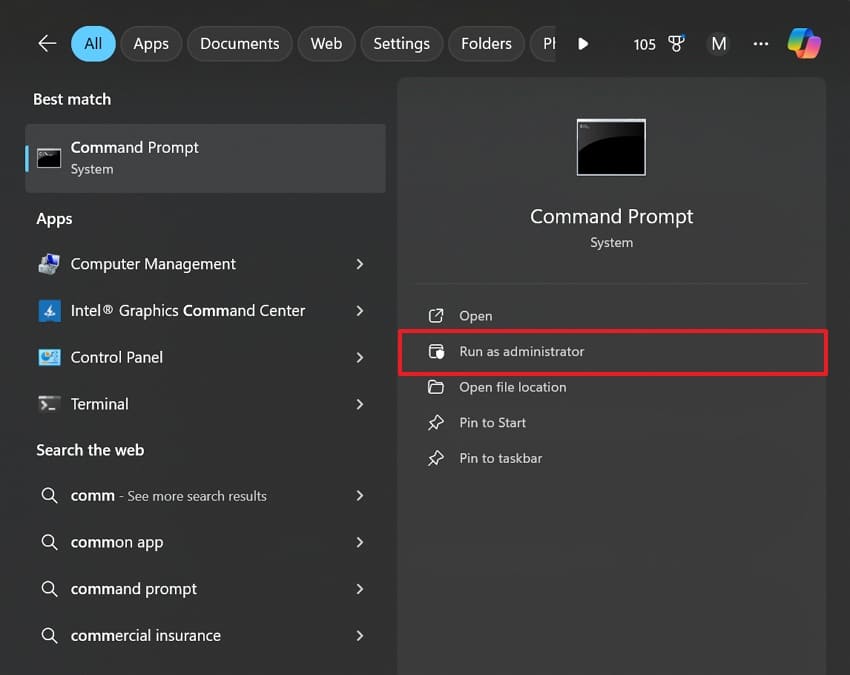
Step 1. To start, select “Run As Administrator” upon searching for “Command Prompt.”
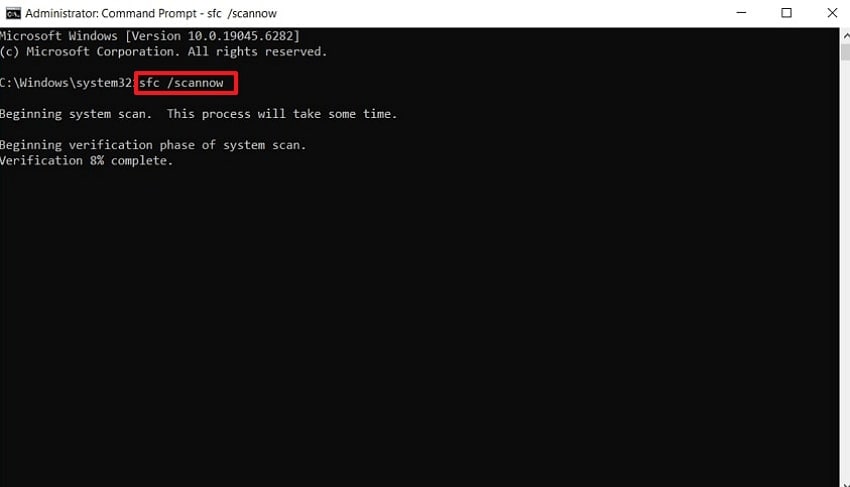
Step 2. After running the CMD, type “sfc /scannow” and press the “Enter” key. When the system scans and repairs damaged files, restart your PC to finish the task.
Restore Windows Image Health Using DISM Tool
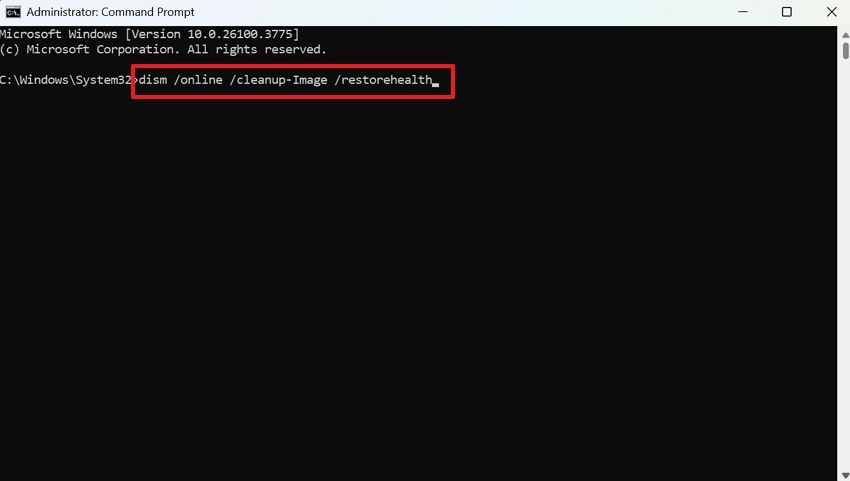
Instructions. Access the “CMD” as an administrator, type “dism /online /cleanup-Image /restorehealth.” Press “Enter” and the system begins repairing your Windows image files that may be causing the error.
Part 3. What to Do If Roblox Keeps Crashing After the Fixes
Sometimes the Roblox Memory Dump error comes back even after trying all the fixes above. This section covers extra steps to take when the crash keeps happening on your PC:
Check Crash Logs and Error Reports
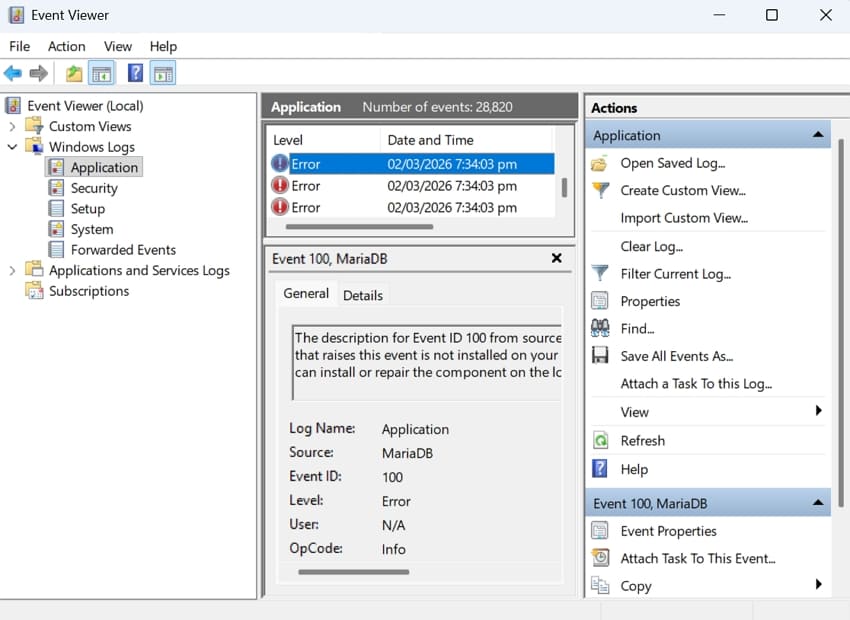
Windows keeps detailed crash log files every time an app stops unexpectedly. Your system stores all crash reports in one place, known as the Event Viewer. You can search for Roblox errors under Windows Logs to find the details associated with the Roblox encountered an unexpected error. Crash logs show the exact error code and the file that caused the crash.
Test Roblox on a Different Account
Sometimes a specific Roblox account can have server-side issues, causing local crashes. Account-related issues can sometimes corrupt local cache files tied to your user data. Roblox stores account-specific data locally that can get corrupted over time. Testing a different account tells you if this is a software or account issue. If the new account works, clearing your Roblox cache will fix the Roblox Memory Dump error.
Test Roblox in a New Windows User Profile
A corrupted Windows user profile can sometimes prevent Roblox from running properly. Creating a new Windows user account gives Roblox a completely fresh environment to run. If it works fine, then your original Windows profile has some settings causing the problem. You can then migrate your files to the new profile and use it going forward.
Contact Roblox Support
If none of the above fixes work, you should contact Roblox Support directly. Roblox Support is available to all players worldwide, where you can contact support, share your crash logs, error codes, and system specifications. They can review your support request and investigate account or service-related issues to fix the Roblox memory dump error.
Pro Tip. Lost Roblox Recordings or Game Files After a Crash? Restore Them!
A sudden Roblox crash can sometimes delete or corrupt your saved game recordings. Screen recordings, clips, and screenshots saved during gameplay can get lost in crashes. Luckily, a powerful tool called Recoverit can get those files back without effort. This advanced tool has a Deep Scan mode that searches every corner of your hard drive to find and restore lost recording files.
Original metadata of recovered Roblox recording files is automatically preserved throughout the recovery process. Instead of recovering the whole folder, you can select a specific file to recover. Along with recovery, it can repair or restore broken or unplayable Roblox video files to full working condition again.
Key Features
Quick Detection: A fast scan option locates recently deleted Roblox video files within a few minutes.
Safe Scan: All Roblox recording scans run in read-only mode, so no existing files are overwritten accidentally.
Format Support: Recoverit gets back Roblox recordings in over 100 video formats, including MP4, MKV, and AVI.
Step-by-Step Guide to Recover Lost or Damaged Roblox Videos without Effort
Go through the guidance below to restore your lost game recording using Recoverit:
Step 1. Choose the Drive Where the Videos Were Lost
Access the “Hard Drive and Locations” section within Recoverit on your computer. Select the location where your Roblox recording video files were stored or deleted.

Step 2. Run a Quick Scan on the Selected Drive
Select the target location and start the scanning process on your device. The program searches for all deleted or missing Roblox recording files and displays detected items during scanning.

Step 3. Preview and Recover Your Roblox Recording Videos
Go through the list of found files and preview them to confirm they are correct. Select the specific Roblox recording video files and opt for “Recover” to restore them.

Conclusion
In summary, “Roblox encountered an unexpected error” is annoying but fixable with the right steps. This guide has walked you through every possible fix for this frustrating Roblox crash problem. Moreover, if your game recordings were lost during the crash, you need an advanced recovery tool. In that case, programs like Recoverit can help restore all your lost game recordings.
FAQ
-
Q1. Can a poor graphics card cause Roblox memory dump errors to happen?
Yes, an old or failing graphics card can cause memory overflow and crash Roblox. Updating your GPU drivers helps fix graphics-related memory dump issues. -
Q2. Why does Roblox crash only in certain games?
Some Roblox games are heavier than others because they have larger game worlds. Older computers struggle with these games and crash during longer sessions. -
Q3. How do I recover Roblox recordings lost during a crash on Windows?
You can use a program like Recoverit to scan your drive and get back lost recording files. Its Deep Scan technology finds files even after they have been deleted or corrupted.


