
 TL;DR:
To resolve Steam Error Code 0x11c7 ("Failed to start process for this game"), bypass system security blocks and damaged file issues by running Steam as an administrator, verifying game file integrity, and repairing the Microsoft Visual C++ Redistributable.
● Temporarily disable Real-Time Protection in the Windows Security app, as strict antivirus settings often falsely flag and block safe game executables from launching.
● Revert your Steam client from Beta to the stable build via the Interface settings to eliminate underlying process management bugs that trigger the 0x11c7 error.
● Back up local game saves before reinstalling Steam to avoid permanently losing progress, or use a data retrieval tool like Wondershare Recoverit to restore deleted save folders from your storage drives.
Ask AI for a summary
 ChatGPT
 Perplexity
 Gemini
 Claude
 Grok
Grok
“I'm having a problem on Windows: several Steam game launchers can't be opened because a message appears that says "An application control policy blocked this file" with the error code 0x11C7. I already tried running the programs as administrator and checking basic security settings, but the block keeps appearing.” - r/WindowsHelp
You settle down to unwind and start a game on Steam. Instead of a loading screen, you get a stubborn error message. The message states "Failed to start process for this game" without much else. It never loads and gives you no indication of what went wrong.
Something stops the process before the game starts. A corrupt game file or a background program obstructing the starting process might be the cause. However, the good news is that a few checks and advanced solutions can help you fix the Steam Error Code 0x11c7.
Try Recoverit to Perform Data Recovery
 Security Verified. 3,591,664 people have downloaded it.
In this article
Part 1. Understanding the "Failed to Start Process for This Game" Error
Steam's "Failed to start process for this game" error sounds complicated at first. However, it only means that the primary game file did not open. When you know what is actually behind this message, troubleshooting the Steam Error Code 0x11c7 becomes far easier.
What Is Steam Error Code 0x11c7?
Error Code 0x11c7 means that the primary file for the game did not open properly. It is quite possible that the game executable file is missing, or Windows may be blocking access. Understanding what this error actually means can help you before you start fixing it.
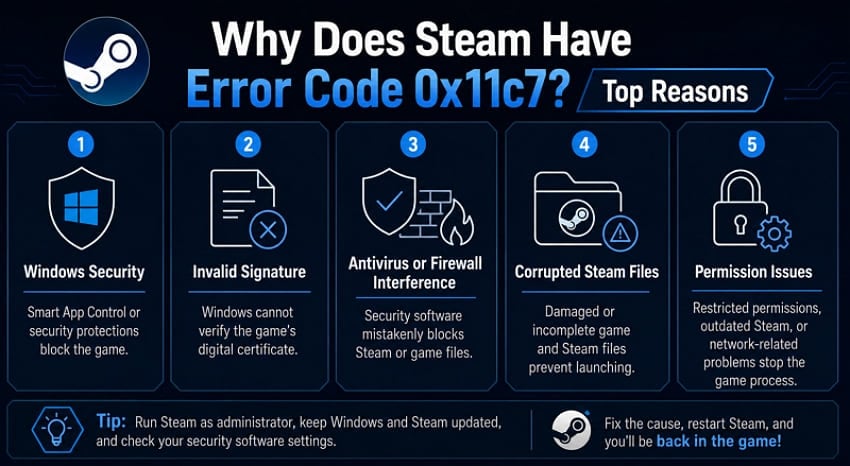
Furthermore, a combination of system-level conflicts and security restrictions can trigger a Steam error on Windows devices. While understanding what this error is, we’ll also go through the reasons behind the Steam Error Code 0x11c7:
- Windows Security: Smart App Control, Windows Defender, or Application Control in Windows OS can block the game's executable if it is untrusted. This prevents Steam from starting the game, leading to the said error code.
- Invalid Signature: It is also possible that the game’s digital signature is missing, or its certificates are corrupted or cannot be verified. This may lead Windows to block the executable and trigger the Steam error.
- Antivirus or Firewall Interference: The installed antivirus software or Windows Defender firewall can mistakenly block the game's executable or Steam from operating. As this stops the launch, it eventually leads to a game error.
- Corrupted Steam or Game Files: The Error Code 0x11c7 triggers due to missing or damaged Steam installation or game files. The absence of such essential runtime components prevents the game from starting.
- Permission Issues: Game launch can fail due to network restrictions, outdated Steam versions, or game permissions issues. These problems are then reflected in Steam, which displays the Error Code 0x11c7 when attempting to start the game process.
Part 2. Steam Error Code 0x11c7: Quick Troubleshoot Checks
Not every solution calls for a thorough dive into configuration options. Go over these quick checks first before making any big changes within your system.
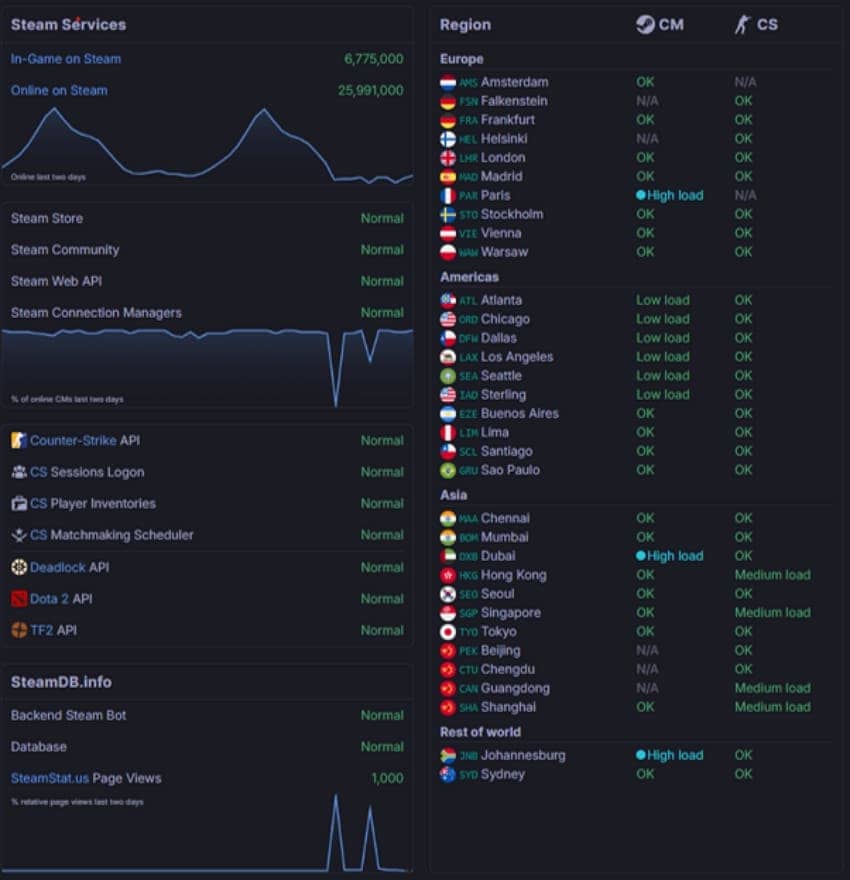
Check 1. Confirm Steam Servers Are Working
If Steam cannot reach its own background services, game launches may fail despite perfect PC settings. Before proceeding further, confirm Steam is online before changing any local settings. It can be easily checked on the online Steam server status website.
Check 2. Reboot Your PC
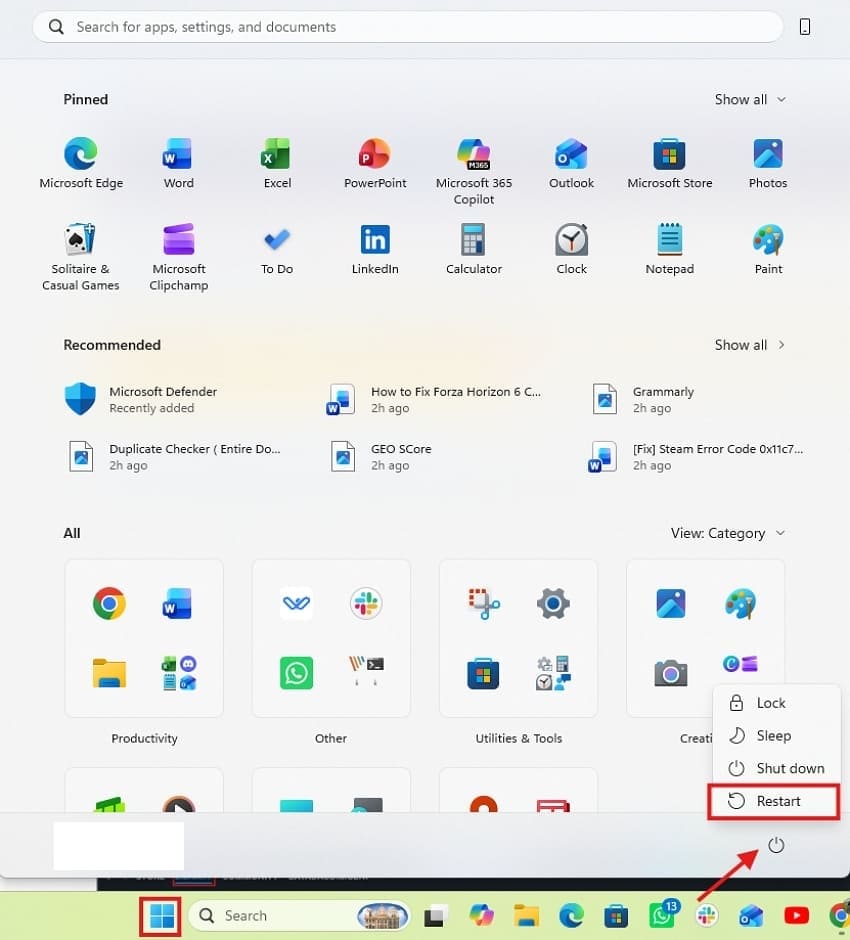
A simple restart clears stuck background processes almost instantly every time. It also refreshes system permissions that may be quietly blocking the game. The following steps can help to reboot your PC properly:
Instructions. Click “Start” on your Windows PC to open a pop-up menu. Select the “Power” button and then choose “Restart” to reboot the whole machine.
Check 3. Try Launching Another Steam Game
Launch another game from your library to test. If the game fails the same way, the issue is not related to the game specifically. This quick test is used to test whether Steam or Windows itself is causing the issue. Follow the provided instructions to launch any other installed game on your Steam.
Instructions. Open your Steam “Library” and press the “Play” button on any installed game to check if it launches.

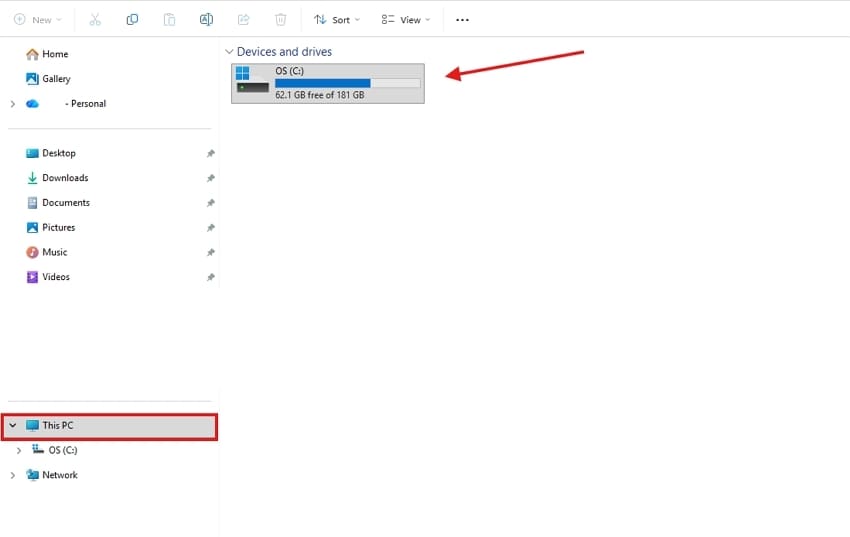
Check 4. Confirm Available Storage Space
Check your free space and clear out files you no longer need. Keep several gigabytes free at all times for extra safety. This way, updates and game data are overwritten across the storage drive without running into errors.
Part 3. Advanced Options: How to Fix Steam Error Code 0x11c7
If quick checks fail to fix Steam Error 0x11c7, try deeper repairs next. Going through these advanced fixes targets broken files and conflicting background software directly. To learn more about these fixes, go through all the provided options to understand how to manage issues with your Steam or the game:
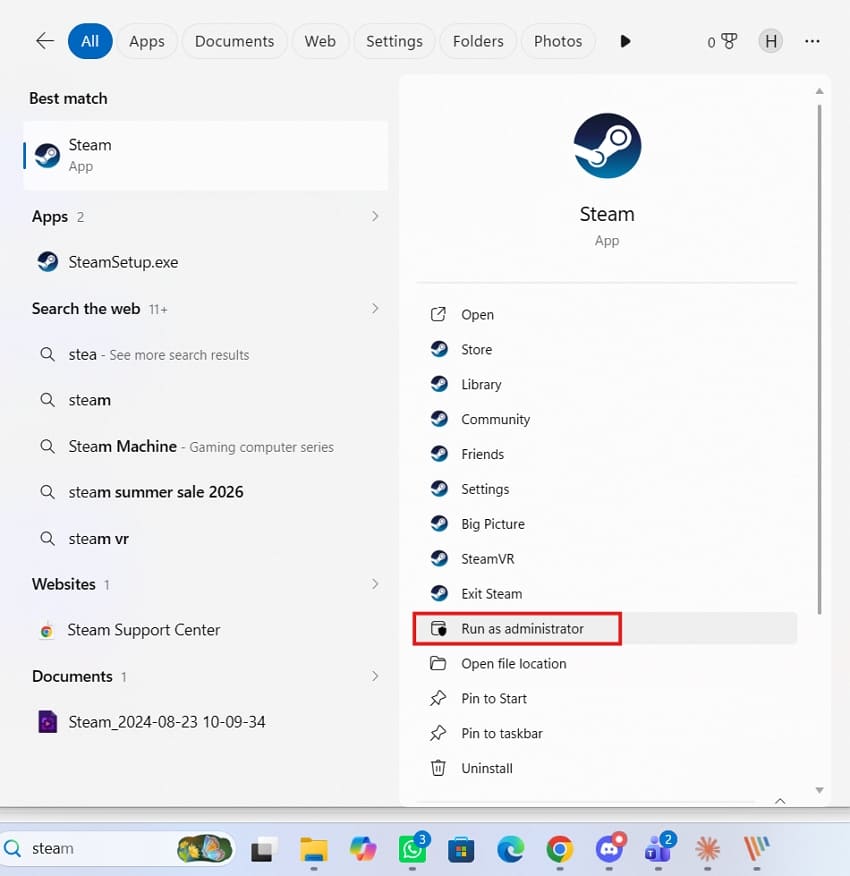
Fix 1. Run Steam as Administrator
Running Steam with administrator rights provides access to protected folders. It also removes low-level permission conflicts that might block game processes. Consequently, this single action often resolves the Steam Error 0x11c7 right away. To learn how to execute Steam as an administrator, see the simple instructions below:
Instructions. Right-click on Steam and choose “Run as administrator” from the menu to move forward. Following this, try launching the game again to check if it works.
Fix 2. Verify Integrity of Game Files
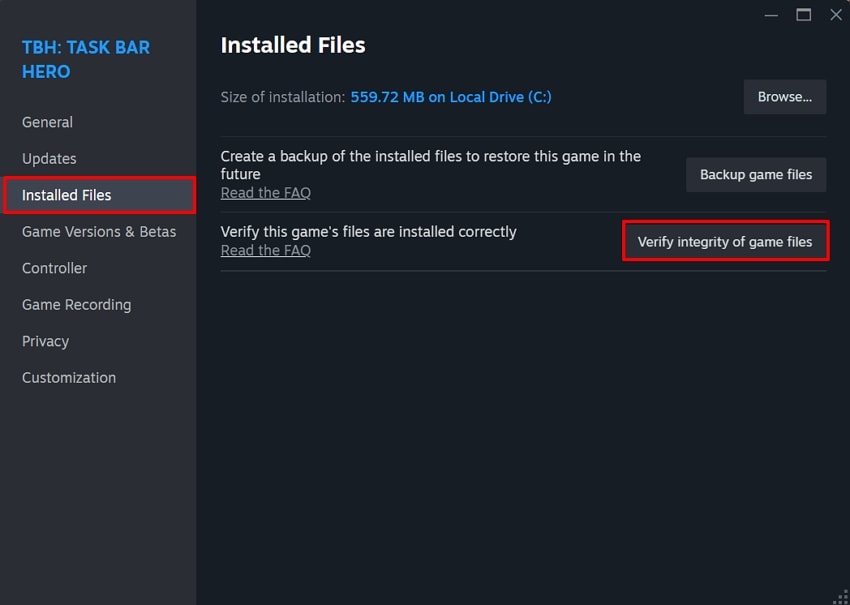
Steam's file verification function compares your installed files against official server versions. It automatically finds and redownloads anything missing or damaged from the game folder. This process often resolves the Steam Error 0x11c7 tied to a broken installation file. Use the following steps to confirm the integrity of your game files across Steam:
Step 1. Open your Steam “Library” and right-click the problematic game option. From the dropdown menu, choose “Properties” from the available options.

Step 2. Select the “Installed Files” tab inside the properties window. Click the "Verify Integrity of Game Files” button and wait for the scan. After that, restart Steam once the scan is completed to operate the game.
Fix 3. Repair Microsoft Visual C++ Redistributable
Visual C++ redistributable supports the runtime needs of many Steam titles. Missing or damaged components here can stop a game from starting properly. To repair the Visual C++ redistributable file completely, follow the steps outlined below:
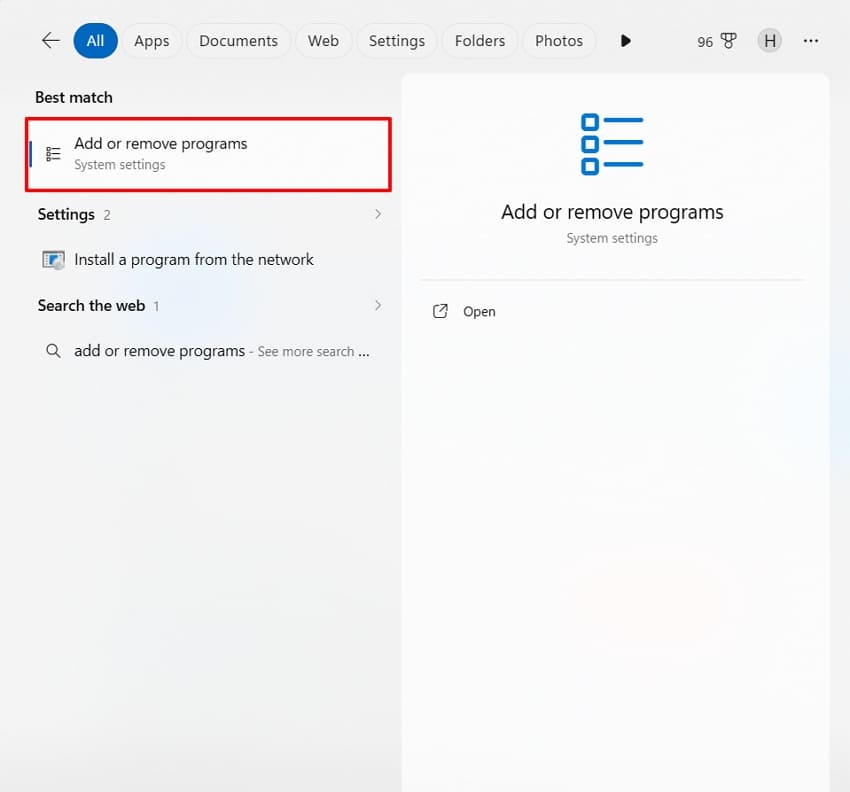
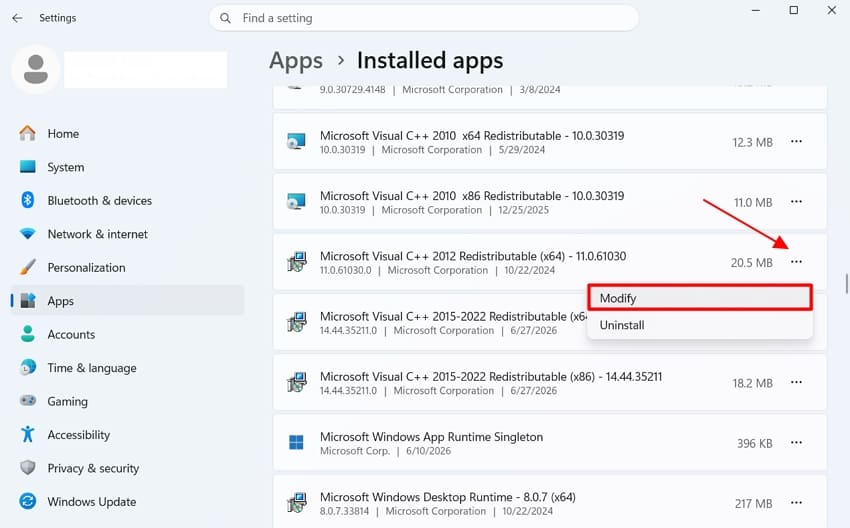
Step 1. Press the "Windows" key and type “Add or remove programs.” Next, press “Enter” to open the full list of installed programs.
Step 2. Locate the “Microsoft Visual C++ Redistributable” entry in that list. Click on the three dots and select “Modify” from the options.
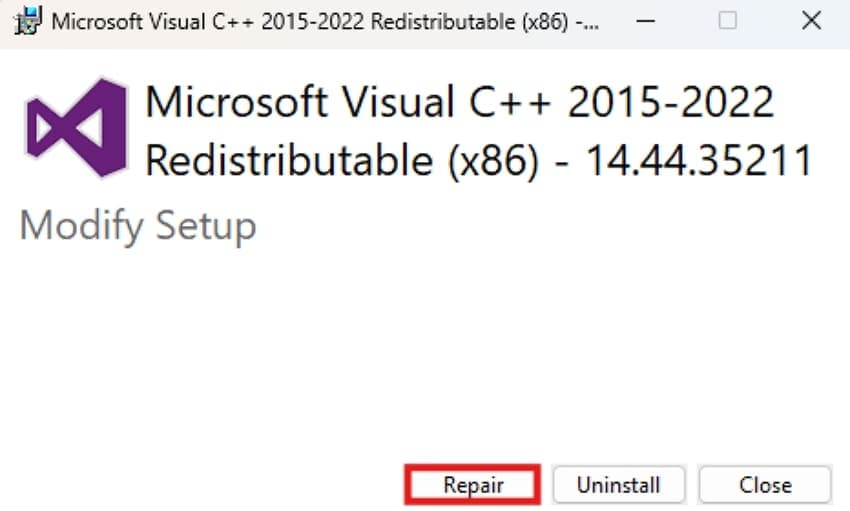
Step 3. Once the new window opens, select "Repair" to begin the process. Let it finish fully and then reboot your PC before testing again.
Fix 4. Disable Antivirus or Firewall Temporarily
Strict antivirus software accidentally categorizes Steam processes and game executables as threats. This false flag can stop a launch before it even begins fully. Follow the focused steps below to rule out false Antivirus blocks on Steam:
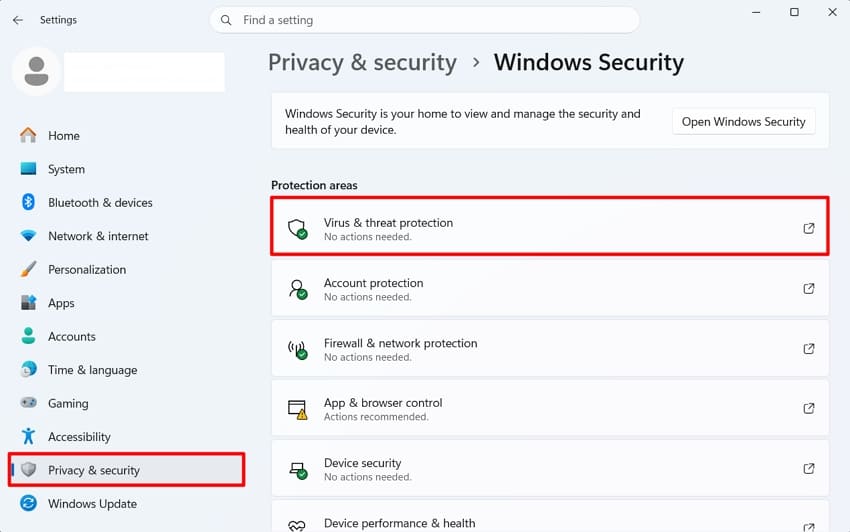
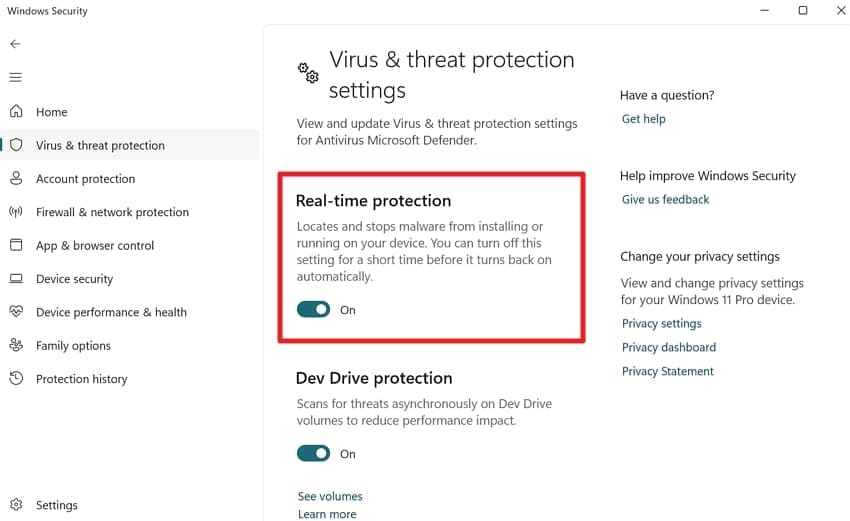
Step 1. Go to “Start” and open the “Windows Security” app directly. Select the “Virus & Threat Protection” section from the main menu.
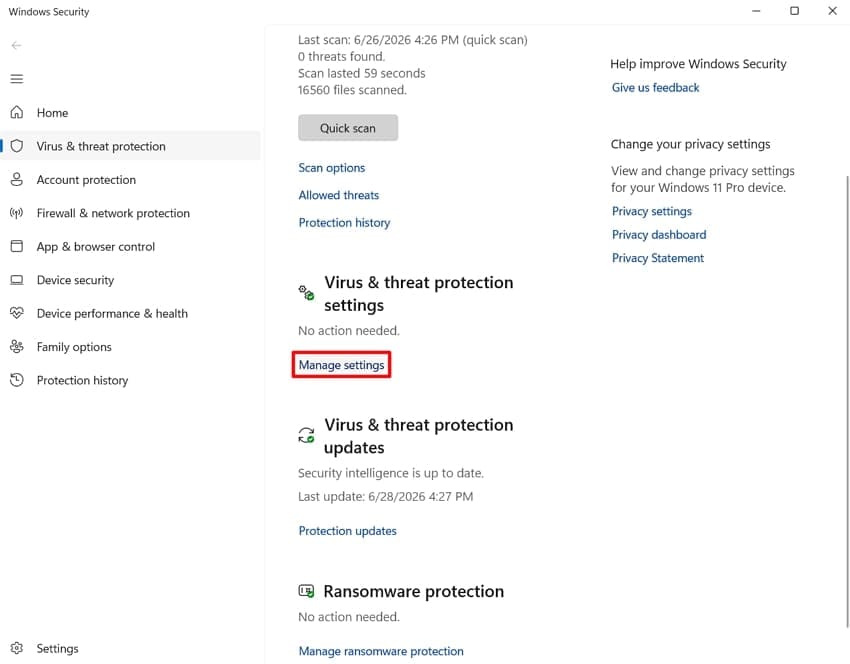
Step 2. Find “Virus & Threat Protection Settings” inside that same section. Click the “Manage Settings” button to reveal the toggle options listed underneath.
Step 3. Switch the “Real-Time Protection” toggle off to disable the antivirus temporarily.
Fix 5. Switch Steam Client Branch (Beta to Stable)
Steam's beta client sometimes introduces fresh bugs around process management and launching. These bugs can trigger Steam error 0x11c7 without warning at any time. Adhere to the steps below to switch off beta bugs and return Steam to stable:
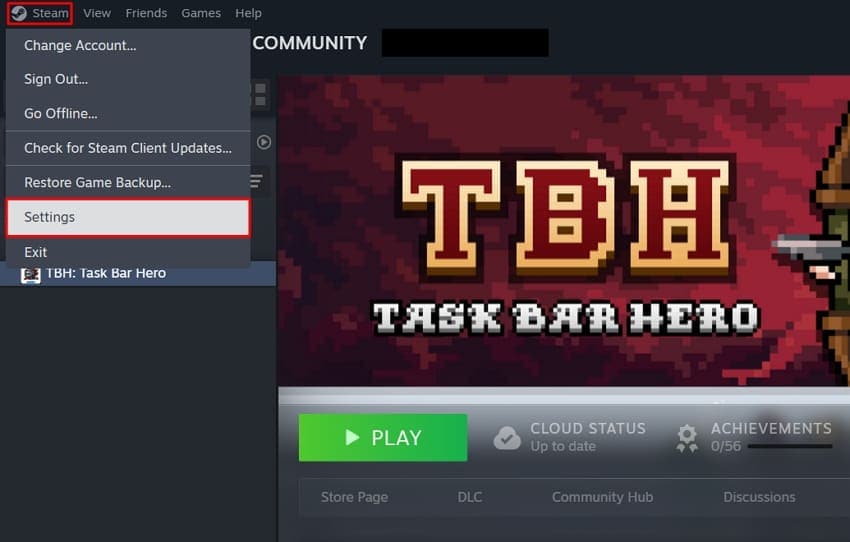
Step 1. With Steam open, click the “Steam” icon in the upper left corner. Then, select “Settings” from the dropdown.
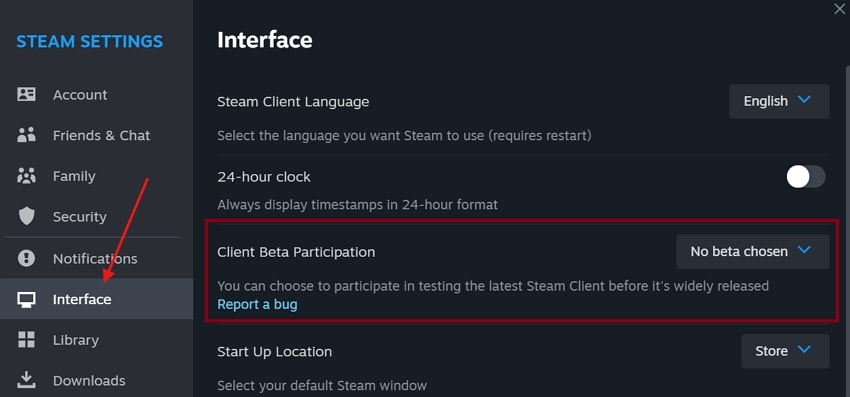
Step 2. Access the “Interface” tab and find the “Client Beta Participation” option. Select the dropdown menu to view the available options there.
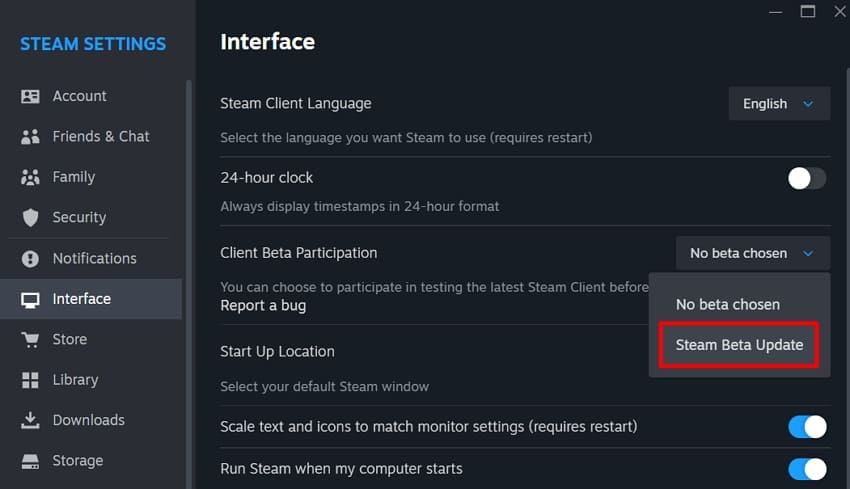
Step 3. From the dropdown, click “Steam Beta Update." This immediately returns your Steam client to the stable build.
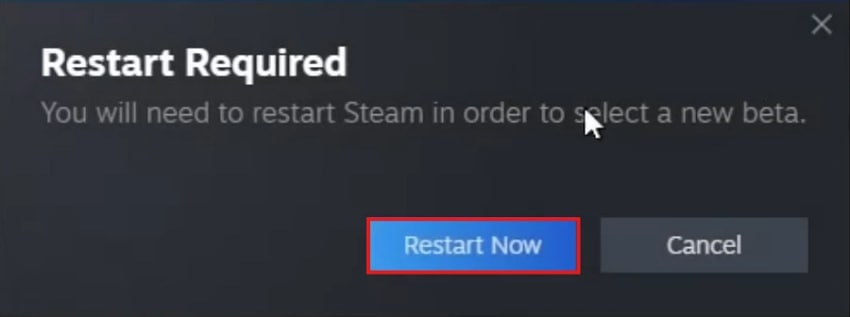
Step 4. Steam will prompt a restart once the change saves correctly. Select "Restart Now" to apply the switch and finish the process.
Fix 6. Check Windows Event Viewer and Steam Logs
A persistent error often leaves clues that quick fixes simply cannot catch. Windows Event Viewer can reveal patterns hidden from normal view. Remember that even healthy systems show occasional errors in these logs. Walk through the troubleshooting steps below to fix this issue:
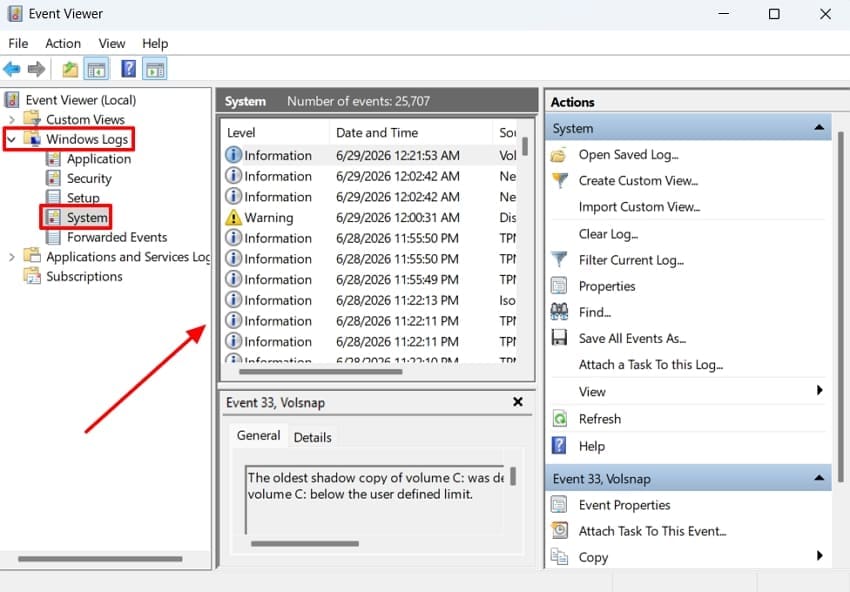
Step 1. Start “Event Viewer” and look for the “Windows Logs” option. Upon expanding, click the “System” option for viewing the entries.
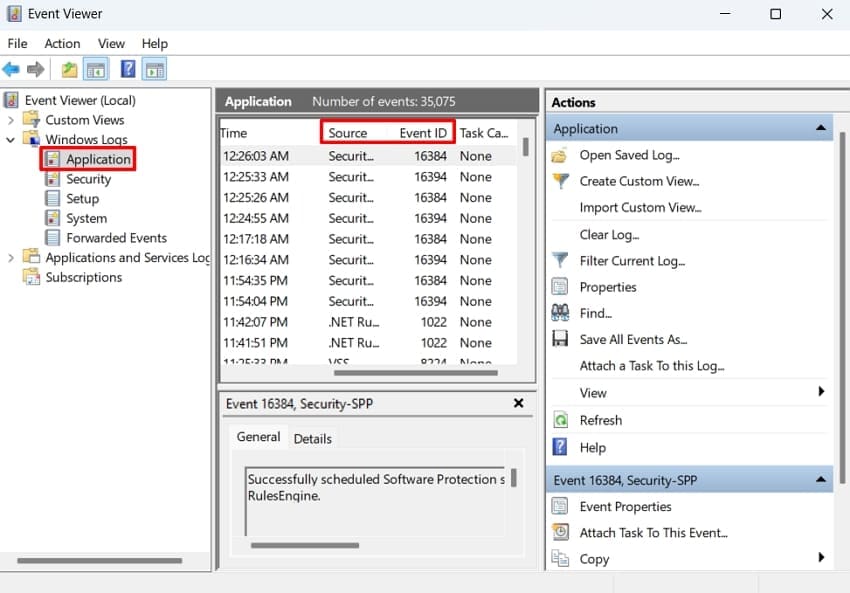
Step 2. Click “Application” next and repeat the same careful check again. Note the source and Event ID of any repeating entries found.
Pro Tip: Recover Lost Steam Local Save Files with Recoverit
Reinstalling Steam can sometimes delete valuable local save files unexpectedly. This hurts even more if you never backed up those files. Those saves often represent hours of real game progress and effort. A reliable recovery tool can rescue lost save folders before they vanish completely.
In that case, Recoverit offers a dependable option for restoring files lost during this process. The software supports recovery across more than 1000 different formats. It works on nearly every storage device, including internal drives and SSDs. While offering recovery services across more than 1 million devices, Recoverit stands as a perfect data recovery solution.
Key Features
- Deep Sector Analysis: Built-in deep-scan mode searches disk sectors thoroughly. It reconstructs missing files and unreadable save data with precision.
- AI Recovery Assistance: Recoverit comes with a dedicated AI-powered, precise identification system, allowing you to cover numerous devices and scenarios easily.
- System-Crashed Recovery: You can easily restore data from system-crashed computers with Recoverit, as it creates a bootable USB drive.
Step-by-Step Guide to Recovering Lost Steam Local Save Files
Upon learning more about Recoverit’s impressive file recovery feature, let’s go through the easy guide explaining how to recover these lost Steam files:
Step 1. Launch the Tool and Select a Location
After launching Recoverit, choose the “Hard Drives and Locations” tab from the left panel of the main window. Choose the drive where your Steam saves are present.

Step 2. Scan the Location
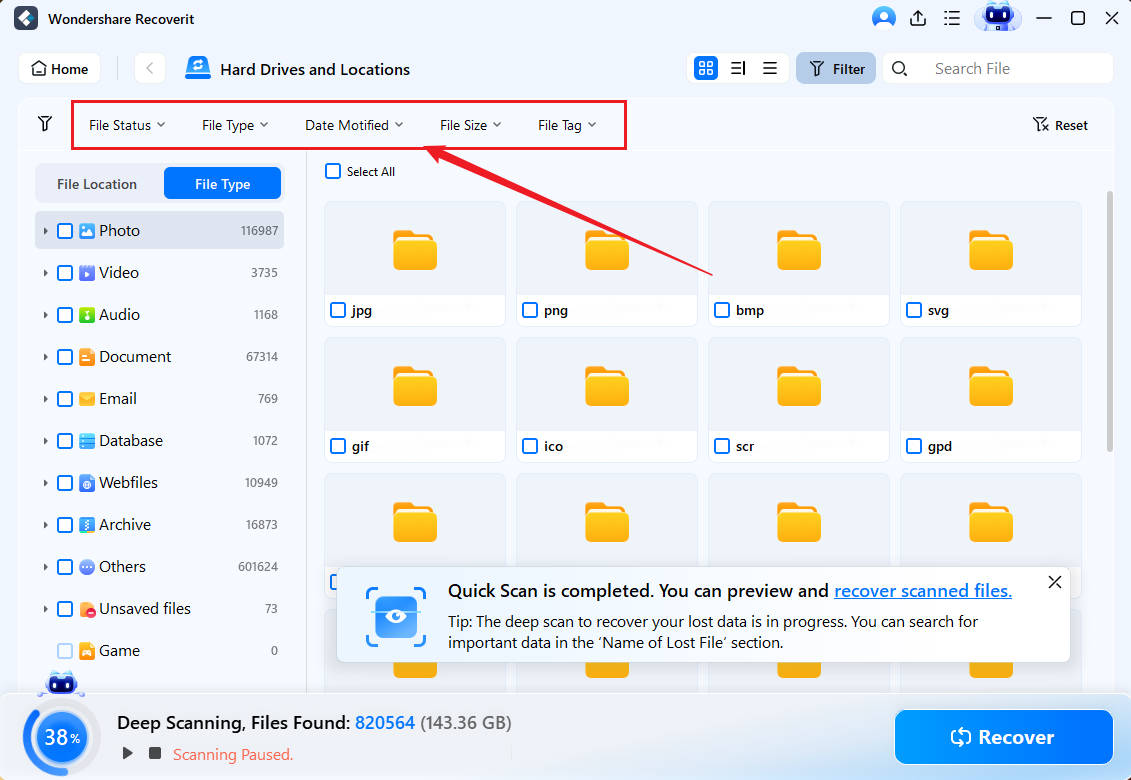
Wait patiently until Recoverit scans the entire selected drive. Once the scan completes, click the Steam files you want to recover. Press the "Recover" button shown in the following window to continue.
Step 3. Preview and Recover the Steam Files
Click "Preview" to verify their contents once scanning finishes. After that, select "Recover" and choose a safe destination folder for your Steam save files.

Conclusion
In short, the Steam Error Code 0x11c7 often points to a problem with the game’s process. Begin with basic inspections before moving on to more complex repairs to eliminate any challenges to game starting. If you need to reinstall anything along the way, using Recoverit helps protect your valuable game saves, so you don’t sacrifice progress.
Frequently Asked Questions
-
Q1. Does reinstalling the game always fix the Steam error 0x11c7?
Reinstalling can help when files are badly corrupted beyond repair. Try file verification and permission fixes first instead of reinstalling to fix Steam Error 0x11c7. Security adjustments are also worth testing before a full reinstall. -
Q2. Can unstable hardware cause the "Failed to start process" error?
Yes. Unstable hardware, failing drives, and overclocked components are common hidden culprits here. If you suspect faulty hardware, test your drive carefully first. Also, revert any overclocking settings before retrying the game launch. -
Q3. Is it safe to keep Steam running as an administrator all the time?
Running Steam as an administrator improves access to protected game folders. It also grants the program much broader system privileges overall. This setup is generally safe on a secure, trusted PC. Just be sure you fully trust every installed game first. -
Q4. Why do some games fail while others work fine in the same library?
Different games rely entirely on different runtime files and settings. A problem with one file might only affect a single title. A broken executable or missing redistributable often causes this gap. Checking which games fail helps you narrow the root cause faster.


