

 TL;DR:
If Windows 7 hangs at the welcome screen, prioritize booting into Safe Mode to isolate software conflicts and extract your files before running destructive repairs like CHKDSK or reinstalling the OS.
● If the system successfully accesses Safe Mode, the freeze is typically caused by a third-party driver, startup item, or corrupted user profile, which can be bypassed by using msconfig to disable non-Microsoft login services.
● Do not run CHKDSK /f /r, bootrec commands, or partition repairs without backing up your data first, as these actions modify file system records and risk permanent data loss on failing older drives.
● When both normal startup and Safe Mode fail, use a Windows 7 installation disc to execute Startup Repair or SFC /scannow, or create a bootable Recoverit USB on a working PC to extract trapped files from the inaccessible drive.
Ask AI for a summary
 ChatGPT
 Perplexity
 Gemini
 Claude
 Grok
Grok
When Windows 7 hangs at the welcome screen, the computer may look frozen right before the desktop appears. You may see the spinning circle, a stuck Welcome message, a freeze after entering the password, or a screen that never moves forward. This can be frustrating, especially when important documents, photos, projects, or old local files are still stored on the PC.
The good news is that this problem does not always mean your files are lost. Windows 7 can hang at the welcome screen because of startup conflicts, recent updates, faulty drivers, damaged system files, a corrupted user profile, malware, disk errors, or aging hardware. The safest approach is to protect your files first, then try non-destructive startup fixes before reinstalling Windows or formatting the drive.
Important note: Windows 7 is no longer supported by Microsoft, which means it no longer receives regular security updates. Use the steps below to recover files and stabilize the computer, then consider moving important data to a supported Windows version for better security and compatibility.
In this article
-
- Fix 1. Boot Into Safe Mode to Isolate the Root Cause
- Fix 2. Disable Startup Programs and Login Services
- Fix 3. Uninstall Recent Updates, Drivers, or Software
- Fix 4. Scan for Malware and Viruses in Safe Mode
- Fix 5. Create or Switch to a New User Profile
- Fix 6. Restore Windows 7 to an Earlier Point
- Fix 7. Run Startup Repair from a Windows 7 Installation Disc
- Fix 8. Repair Corrupted System Files Using the SFC Command
- Fix 9. Check the Hard Drive for Errors Using CHKDSK
- Fix 10. Repair Boot Configuration Data as an Advanced Fix
Quick Answer: What Should You Do First?
If Windows 7 hangs at the welcome screen, start with safe checks. Wait a few minutes, disconnect unnecessary USB devices, restart instead of resuming from hibernation, and try Safe Mode. If Safe Mode works, the cause is likely a third-party driver, startup item, service, update, or software conflict.
If the hard drive clicks, grinds, freezes repeatedly, or the computer contains important files without backup, recover files first before running CHKDSK, reinstalling Windows, restoring partitions, or resetting the system. After your files are safe, try Safe Mode fixes, System Restore, Startup Repair, SFC, CHKDSK, or bootrec in order from lower risk to higher risk.
Part 1. Why Does Windows 7 Hang at the Welcome Screen?
Windows 7 may freeze at the welcome screen for several reasons. Understanding the likely cause helps you choose a safer fix.
| Cause Type | What It Means | Common Signs |
| Startup conflict | Too many programs or services load during login. | Safe Mode works, but normal startup freezes. |
| Recent update or driver issue | A new update, driver, or software changed startup behavior. | Problem starts after installation or update. |
| User profile problem | The account settings or profile data are corrupted. | One account freezes, but another account works. |
| System file corruption | Windows components needed for startup are damaged. | Freezes before desktop, repair tools may report errors. |
| Disk or file system error | Bad sectors or file system damage slow or block startup reads. | Long delays, repeated freezes, drive errors. |
| Malware infection | Malware changes startup services or login behavior. | Slow login, unusual processes, security warnings. |
| Registry fault | Incorrect startup paths or registry entries block login. | Freeze after password or after recent system change. |
| Hardware failure | RAM, storage, overheating, or other hardware interrupts startup. | Random freezes, restarts, clicking drive, overheating. |
Because Windows 7 systems are often older, storage failure is especially important to consider. If the drive makes unusual noises or repeatedly freezes, stop repeated boot attempts and recover files first.
Part 2. Quick Diagnosis: Match the Symptom to the Safest Fix
If Windows 7 hangs at the welcome screen, use your exact symptom to choose the best first step.
| Symptom | Likely Cause | Safest First Fix |
| Welcome screen loads very slowly | Heavy startup load, disk strain, or slow services. | Wait several minutes, disconnect peripherals, then try Safe Mode. |
| Complete freeze with no cursor movement | Driver failure, hardware lockup, or disk issue. | Try Safe Mode and check hardware response. |
| Endless spinner at Welcome | Windows is waiting for stuck services or startup processes. | Disable startup items and non-Microsoft services. |
| Freezes after entering password | Corrupt profile, login service issue, or account startup item. | Create a new administrator account in Safe Mode. |
| Safe Mode works but normal mode freezes | Third-party driver, service, antivirus, or startup conflict. | Use msconfig and uninstall recent changes. |
| Problem started after an update or driver | Recent software, driver, or update conflict. | Uninstall recent changes or use System Restore. |
| Only one account is affected | Corrupted user profile. | Create a new account and copy user files later. |
| Freeze happened after power loss | File system or system file damage. | Recover files if needed, then run Startup Repair or SFC. |
| Drive clicks, grinds, or repeatedly disappears | Possible hard drive failure. | Stop using the drive and recover files first. |
Part 3. Safe Basic Checks Before Repairing Windows 7
Before fixing Windows 7 stuck at the welcome screen, review the following checks first. They help prevent unsafe repairs and reduce the risk of file damage.
1. Wait Several Minutes
A slow hard drive, pending update, or busy login service may delay startup. Wait a few minutes to confirm whether Windows is truly frozen or just slow.
If the screen eventually changes, the issue may be heavy startup load rather than a complete failure.
2. Disconnect USB Devices and Peripherals
Unplug unnecessary devices before restarting:
- USB drives
- Printers
- Cameras
- Memory cards
- External hard drives
- USB hubs
- Extra controllers
- Unneeded accessories
Sometimes Windows hangs while detecting hardware or loading related drivers.
3. Check Keyboard and Mouse Response
Press Caps Lock or Num Lock and watch whether the keyboard light changes. If the lights do not respond, the system may be deeply frozen. If the lights respond, Windows may still be running but blocked during login.
4. Restart Instead of Resuming from Hibernate
Hibernate reloads the previous saved session. If that session is corrupted, Windows may hang again. Choose a full restart so Windows loads a fresh startup session.
5. Try Last Known Good Configuration
Windows 7 includes “Last Known Good Configuration,” which can load earlier working driver and registry settings.
Steps:
- Restart the computer.
- Press F8 repeatedly before the Windows logo appears.
- Choose “Last Known Good Configuration.”
- Press Enter.
This is most useful when the problem started after a driver or system change.
6. Confirm Whether the Issue Happens Every Time
Notice whether Windows 7 hangs at the welcome screen every time or only sometimes. Repeated freezes often point to a fixed software, profile, disk, or driver issue. Random freezes may suggest unstable hardware, overheating, RAM errors, or a failing drive.
Part 4. Recover Important Files Before Risky Windows 7 Repairs
When Windows 7 cannot reach the desktop, do not rush into reinstalling Windows, formatting the drive, factory reset, partition repair, or CHKDSK /f /r. These actions may change disk data. If your files are important, recover or back them up first.
When You Should Recover Files First
Recover files before advanced repairs if:
- Windows 7 freezes every time.
- Safe Mode does not open.
- The hard drive makes clicking or grinding sounds.
- The computer contains important files with no backup.
- You plan to run CHKDSK with repair options.
- You plan to reinstall Windows.
- The drive shows disk errors or bad sectors.
- You need documents, photos, videos, or project files urgently.
Use Recoverit When Windows 7 Cannot Reach the Desktop
Recoverit Data Recovery for Windows is a data recovery tool, not a Windows startup repair tool. Use it when Windows 7 remains inaccessible and you need to recover files before risky repairs.
Recoverit’s crashed computer recovery feature can create bootable media on another working PC. You can boot the Windows 7 computer from that media, scan the readable drive, and save recovered files to another storage device.
Key Features
- Office Document Recovery: Recover Word, Excel, PDF, and project files from readable Windows 7 drives.
- Photo and Video Recovery: Retrieve photos, videos, audio files, and downloaded media.
- Archive and Email Data Recovery: Recover ZIP archives, Outlook data files, folders, and other recoverable content.
- Bootable Recovery: Create bootable media when the Windows 7 system cannot start normally.
- Safe Export: Save recovered files to another storage device before system repair.
How to Recover Files When Windows 7 Cannot Start Normally
Follow these steps if Windows 7 cannot reach the desktop and files need to be protected first.
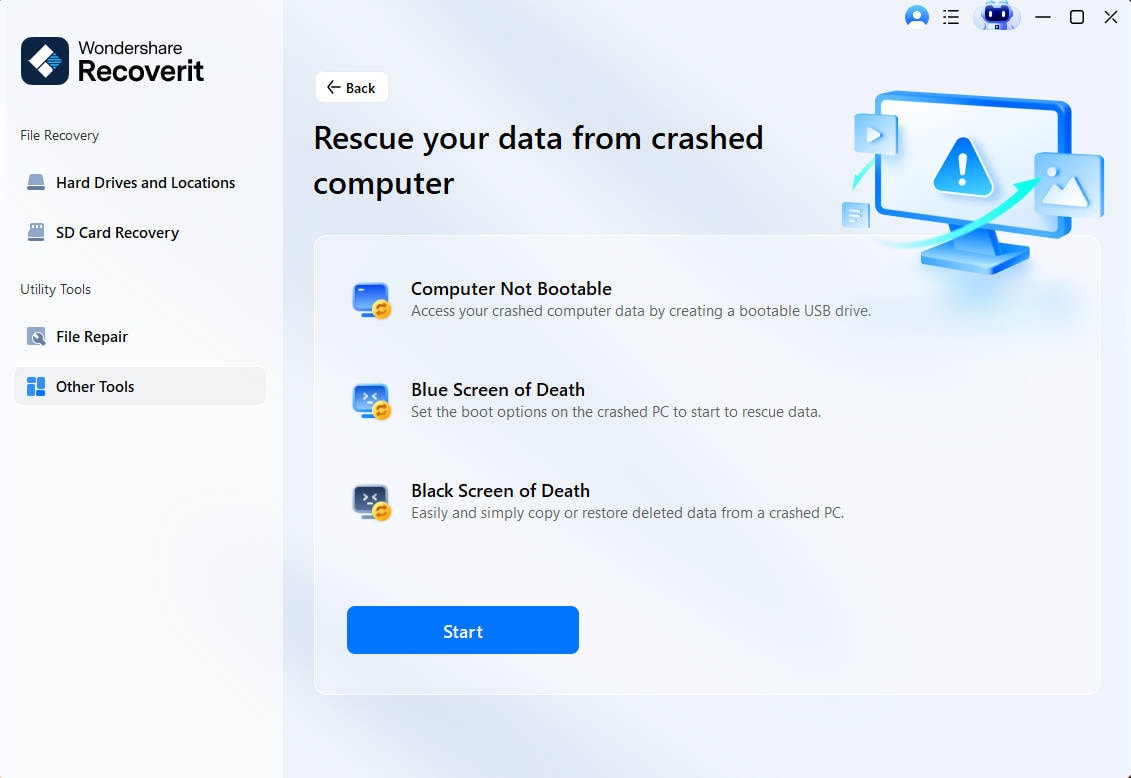
Step 1. Make a Bootable Recovery USB
Install Recoverit on a working computer and connect an empty USB drive. Open “Other Tools,” choose “System Crashed Computer,” and click “Start” to begin.
Step 2. Set Up the USB for Recovery
Select the connected USB drive and click “Create” to build the bootable media. Once finished, insert the USB into the Windows 7 computer that cannot start.

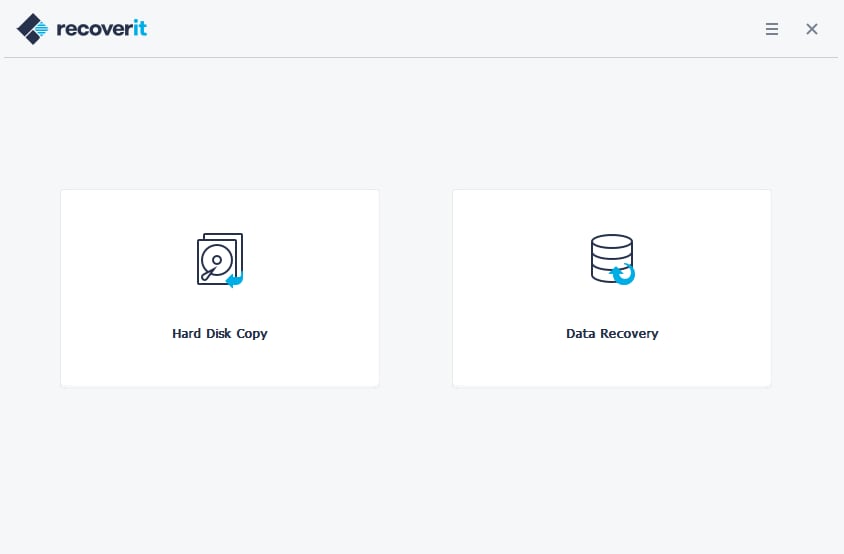
Step 3. Scan and Save Your Important Files
Boot the computer from the USB and enter Recoverit’s recovery environment. Choose “Data Recovery” or “Hard Disk Copy," scan the drive, review files, and save them to another storage device.
Part 5. How to Fix Windows 7 Stuck at the Welcome Screen
Safe Mode loads Windows with limited drivers and services. If Safe Mode works, the normal startup problem is likely caused by third-party software, drivers, services, or startup items.
Fix 1. Boot Into Safe Mode to Isolate the Root Cause
Safe Mode loads Windows with limited drivers, services, and background programs. When Windows 7 hangs at the welcome screen, this test separates Windows from added software. Below are the instructions to try this fix safely on Windows:
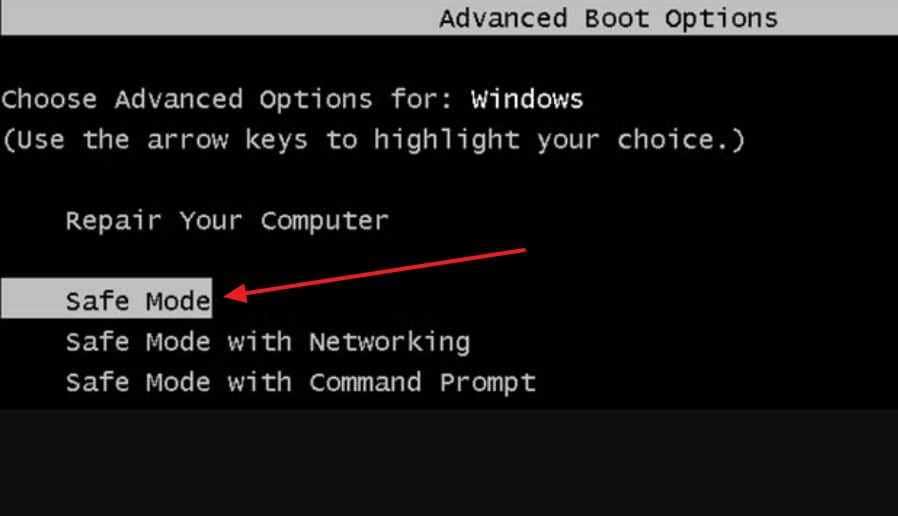
- Restart the computer and press “F8” repeatedly before the Windows logo appears.
- Select “Safe Mode” from “Advanced Boot Options,” then press “Enter.”
If Safe Mode also freezes, consider system file corruption, disk problems, or hardware failure.
Fix 2. Disable Startup Programs and Login Services
Unneeded startup items often increase login pressure before the desktop becomes available. Removing them helps Windows focus on essential services during the next boot. Use the steps below to disable startup items without removing files:
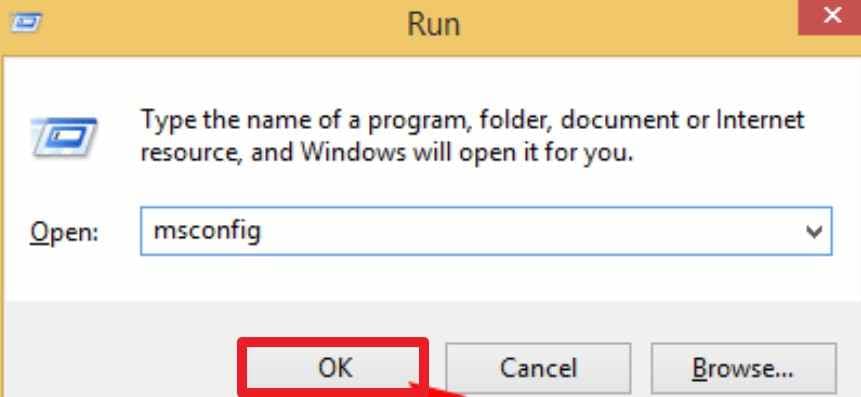
Step 1. In Safe Mode, press “Windows + R,” type “msconfig,” and click “OK.”
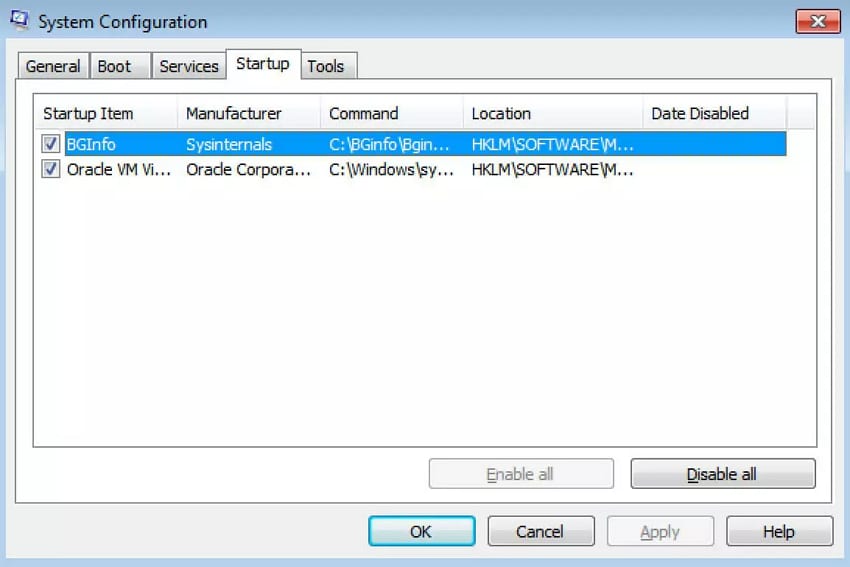
Step 2. Next, in “System Configuration > Startup or Services” tab, users can disable startup programs and non-Microsoft services.
Fix 3. Uninstall Recent Updates, Drivers, or Software
A recent system change can disturb startup files, drivers, or login behavior. This matters when Windows 7 gets stuck at the welcome screen after installation. Follow these steps carefully to remove recent changes in Safe Mode:
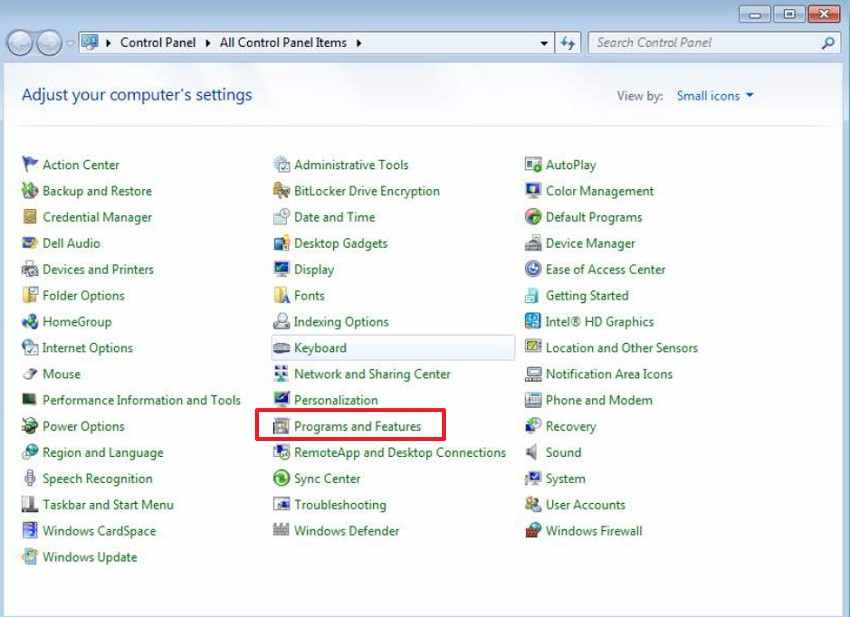
Step 1. Open “Control Panel > Programs > Programs and Features” in Safe Mode.
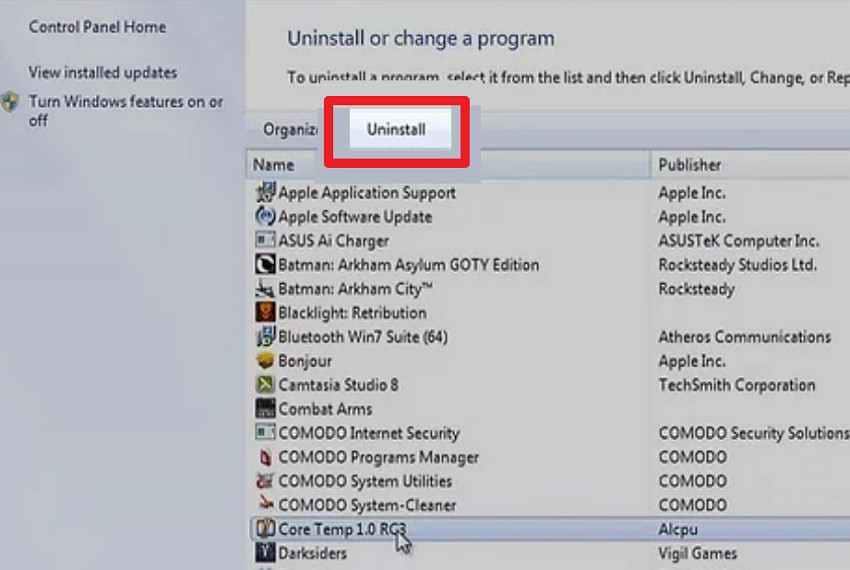
Step 2. Afterward, “Uninstall” the recent update, driver, or software, then restart Windows.
Fix 4. Scan for Malware and Viruses in Safe Mode
Malware can delay login, damage startup entries, or interfere with services. Because Windows 7 no longer receives regular security updates, malware scanning is especially important.
- Restart the PC, press F8, and choose “Safe Mode with Networking.”
- Open your antivirus, update it if needed, then run a full scan.
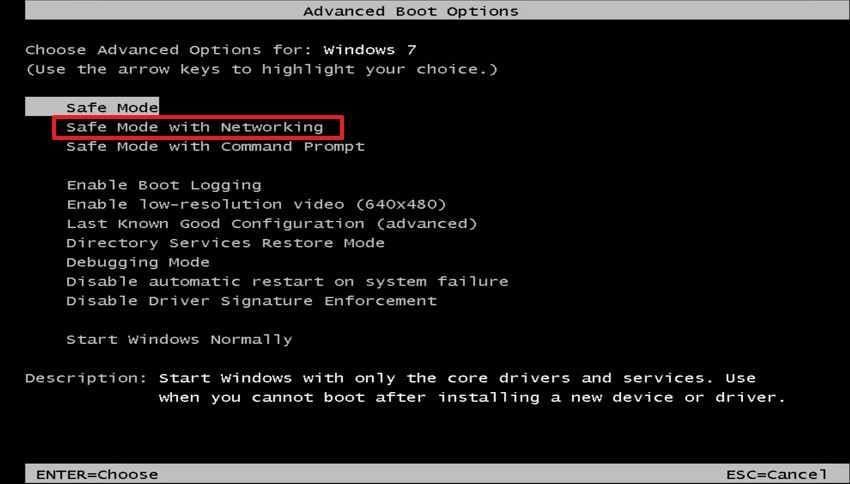
If networking is unstable, use an offline rescue scanner from a trusted vendor.
Fix 5. Create or Switch to a New User Profile
A damaged profile can stop personal settings from loading after password entry. This explains why Windows 7 hangs at the welcome screen for one account only. Use these steps to test another profile before deeper repairs:
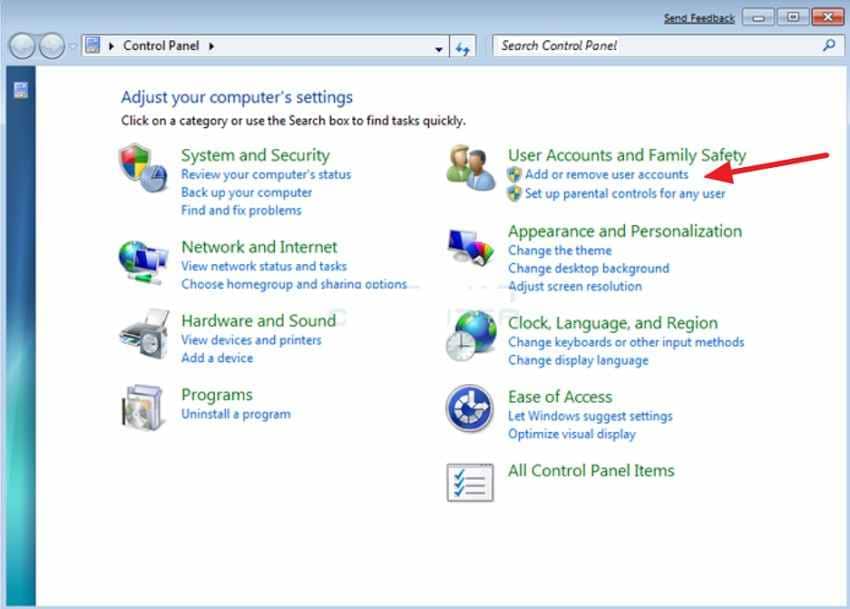
Step 1. In Safe Mode, access the “Control Panel > User Accounts and Family Safety,” then choose “Add or Remove User Accounts.”
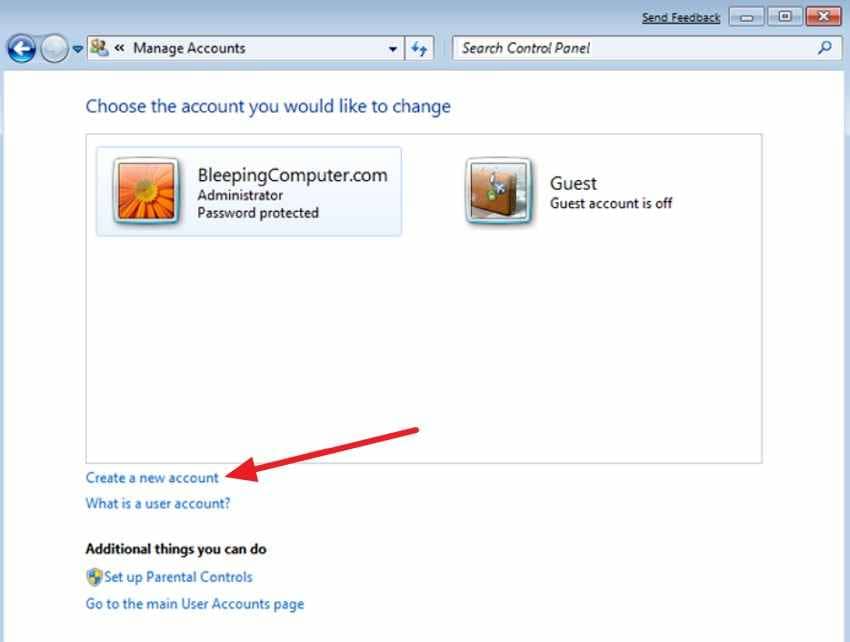
Step 2. Then, select “Create a New Account,” make it an administrator, then restart and sign in.
Fix 6. Restore Windows 7 to an Earlier Point
System Restore can reverse selected system changes, such as driver updates, software installations, or registry changes. It usually does not delete personal documents, but you should still back up important files first.
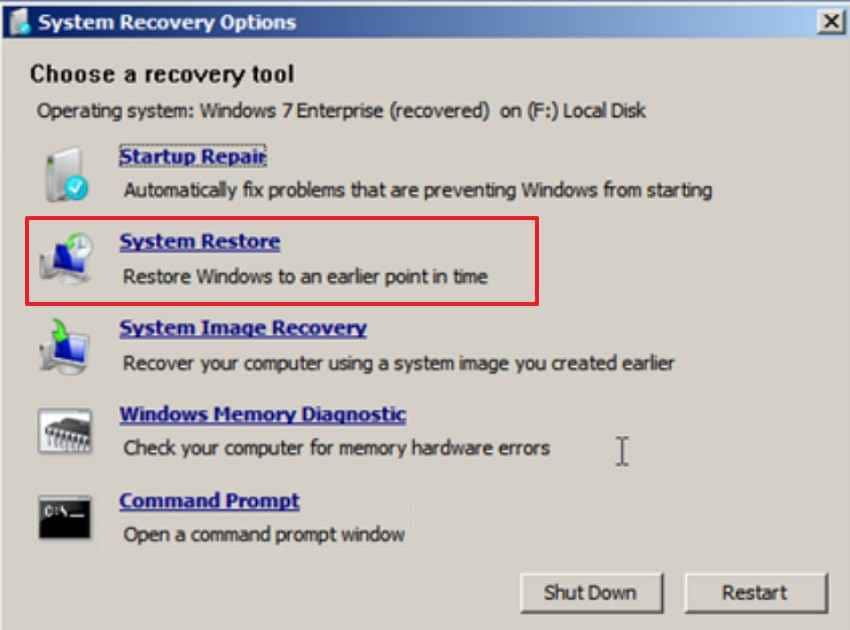
- Access “System Restore” from Safe Mode or Windows recovery environment options.
- Choose an earlier restore point and follow the on-screen instructions.
Fix 7. Run Startup Repair from a Windows 7 Installation Disc
Startup Repair checks boot files, startup settings, and missing system links. Use it when Windows 7 is stuck at the welcome screen even after the basic fixes. Below are the steps to launch Startup Repair from recovery media:
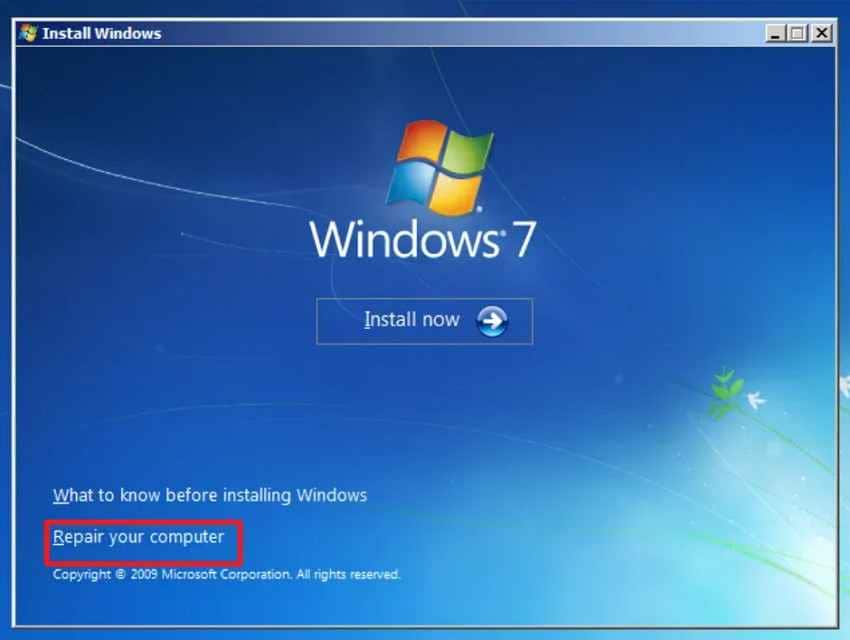
Step 1. Boot from the Windows 7 installation disc, then click “Repair Your Computer.”
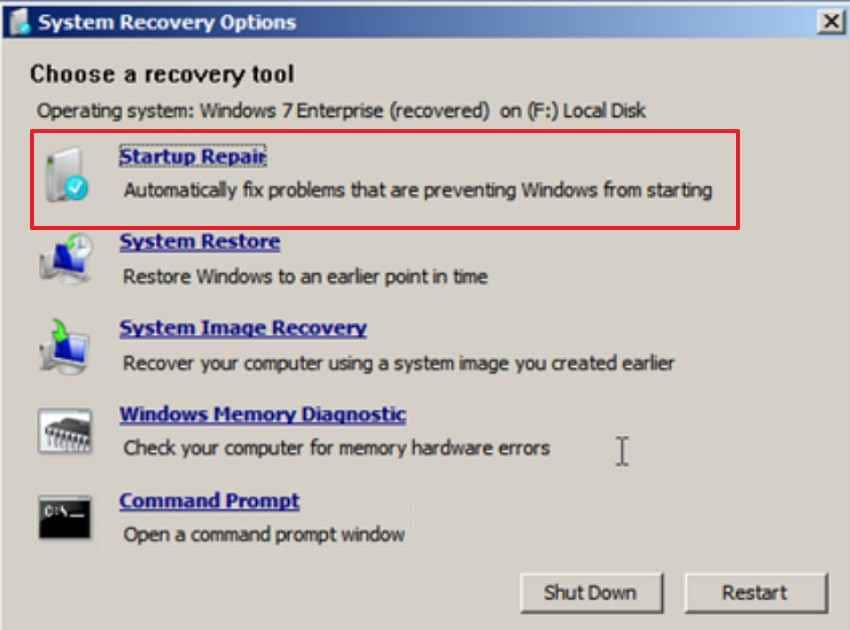
Step 2. In “System Recovery Options,” choose “Startup Repair” to scan and fix Windows startup problems.
Fix 8. Repair Corrupted System Files Using the SFC Command
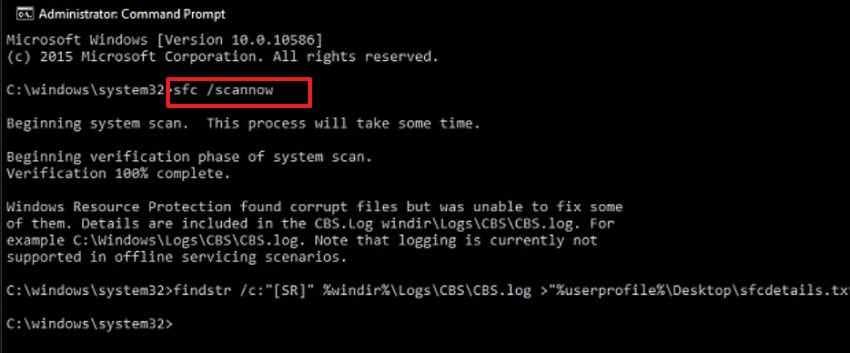
The SFC command checks protected Windows files and replaces damaged versions. It is useful when corruption blocks normal loading before desktop access. Use the instructions below to run SFC from recovery options:
- Open “Command Prompt” from Windows Recovery options.
- Then, type “sfc /scannow,” press “Enter,” and wait for completion.
Fix 9. Check the Hard Drive for Errors Using CHKDSK
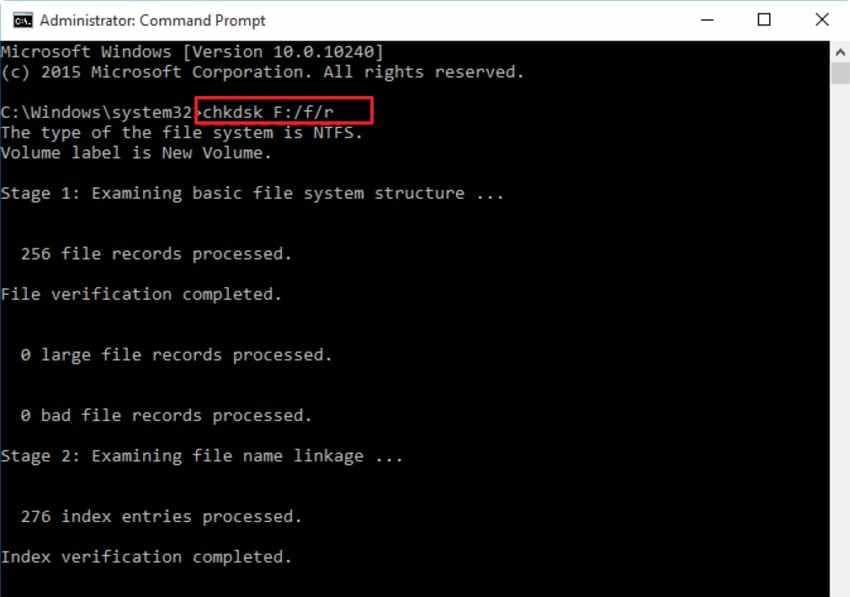
CHKDSK can check file system errors and bad sectors. However, CHKDSK with repair options can modify file system records. If the drive contains important files and you do not have a backup, recover files first.
Use CHKDSK after files are safe, especially if the drive is old, noisy, or repeatedly freezing.
- From Windows Recovery Environment, open “Command Prompt” and then enter the command “chkdsk C: /f /r.”
Fix 10. Repair Boot Configuration Data as an Advanced Fix
Boot configuration issues can prevent Windows from starting correctly. Use bootrec only after safer fixes and file backup.
- Open Command Prompt from the Windows 7 recovery media.
- Run “bootrec /fixmbr,” “bootrec /fixboot,” “bootrec /scanos,” and then “bootrec /rebuildbcd,” pressing “Enter” after each command.
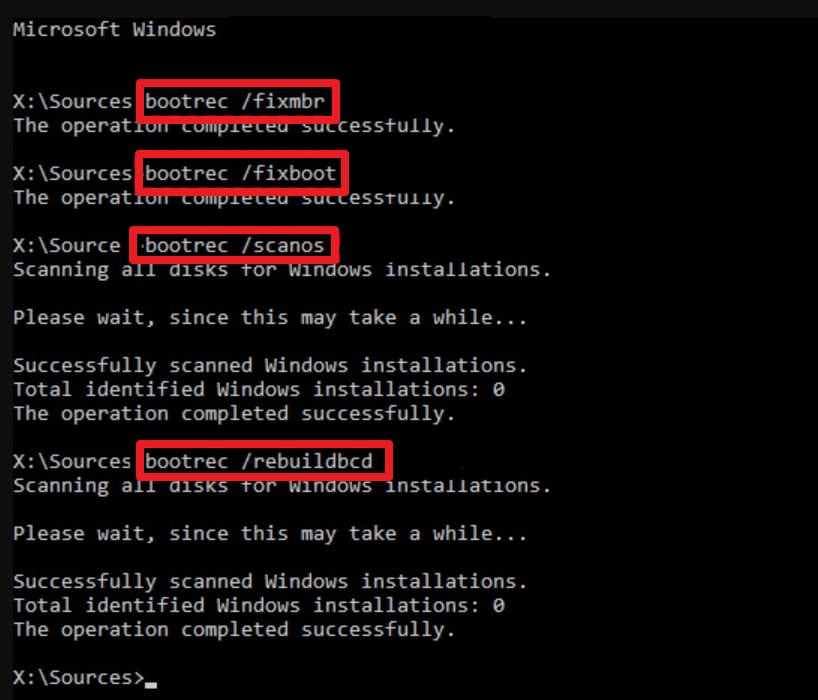
This fix is more relevant when boot records or startup paths are damaged. It may not help if the freeze is caused by a user profile, malware, startup service, or failing hard drive.
Part 6. What If Windows 7 Still Hangs at the Welcome Screen?
If Windows 7 still hangs after multiple fixes, focus on file safety and hardware checks.
- Recover or Back Up Files First: Before reinstalling Windows, replacing partitions, or resetting the system, make sure important files are copied elsewhere. Use Recoverit or another safe recovery method if Windows remains inaccessible.
- Drive Health: Manufacturer tools can reveal SMART warnings, bad sectors, or signs of failing storage hardware.
- RAM Test: Memory errors can cause random freezes, restarts, and startup failures. Run Windows Memory Diagnostic or another memory testing tool.
- Check Overheating and Hardware Stability: Older Windows 7 computers may freeze because of dust, failing fans, overheating, weak power supply, or aging components. Clean dust carefully and check whether the computer overheats during startup.
- Reinstall Windows Only After Backup: Reinstalling Windows should be a last resort. Confirm that important files are backed up or recovered first. Also save drivers, license keys, and application installers if possible.
- Plan an Upgrade to a Supported Windows Version: Because Windows 7 is no longer supported, continuing to use it online can increase security risks. After recovering files, consider moving data to a supported Windows version or a newer computer.
Part 7. How to Prevent Windows 7 Welcome Screen Freezes in the Future
To prevent Windows 7 from hanging at the welcome screen again, routine system care matters. The tips below reduce startup conflicts, file damage, and avoidable hardware stress:
- Startup Limits: Keep only essential apps at login, so Windows loads fewer services during startup.
- Driver Updates: Update hardware drivers and security tools when trusted vendors still provide compatible Windows 7 versions.
- Antivirus Scans: Regular scans catch hidden threats before they damage startup files or slow login services.
- Proper Shutdowns: Always close Windows normally, since forced power cuts leave system files unfinished during startup.
- Regular Backups: Save copies of key documents on external drives or cloud storage before problems start.
- Drive Monitoring: Check drive health occasionally to spot bad sectors, warnings, or unusual performance drops.
- Early Drive Replacement: Replace noisy or failing storage before boot files become unreadable and recovery becomes harder.
- Upgrade Planning: Moving from Windows 7 improves security support, software compatibility, and long-term system stability.
Conclusion
When Windows 7 hangs at the welcome screen, do not rush into reinstalling, formatting, or running repair commands. Start with safe checks: wait a few minutes, disconnect peripherals, restart cleanly, and try Safe Mode. If Safe Mode works, investigate startup items, third-party services, recent drivers, updates, software, malware, or user profile damage.
If Windows 7 remains inaccessible or the hard drive seems unstable, recover important files first. Recoverit can help create bootable media and recover documents, photos, videos, archives, and other files before risky repairs.
After files are safe, try System Restore, Startup Repair, SFC, CHKDSK, and bootrec in a careful order. If the problem continues, check drive health, test RAM, and consider reinstalling only after backup. Since Windows 7 is no longer supported, move important data to a supported Windows version when possible.
Frequently Asked Questions
-
Q1. Why does Windows 7 freeze at the welcome screen?
Windows 7 can freeze because of startup programs, faulty drivers, failed updates, corrupt user profiles, malware, disk errors, system file corruption, or hardware failure. -
Q2. Can I fix Windows 7 stuck at the welcome screen without losing files?
Yes, many fixes are non-destructive. However, recover or back up files before CHKDSK with repair options, reinstalling Windows, formatting, factory reset, or partition repair. -
Q3. What does it mean if Safe Mode works?
If Safe Mode works, the issue is likely caused by a third-party driver, service, startup program, antivirus tool, or recently installed software. -
Q4. What if Windows 7 freezes after I enter the password?
A corrupted user profile, login service problem, or account startup item may be responsible. Try creating a new administrator account in Safe Mode. -
Q5. Should I run CHKDSK first?
Not if the drive is noisy, old, unstable, or contains important files without backup. Recover files first, then run CHKDSK after data is safe. -
Q6. Can Startup Repair fix the welcome screen freeze?
It may help if the issue is related to boot files, startup settings, or system startup problems. It may not help with user profile corruption, malware, or failing hardware. -
Q7. When should I use Recoverit?
Use Recoverit when Windows 7 cannot reach the desktop and you need to recover documents, photos, videos, archives, or other files before risky repairs. -
Q8. Should I keep using Windows 7 after fixing it?
Because Windows 7 is no longer supported, it is safer to recover your files and move important data to a supported Windows version when possible.


