

 TL;DR:
You cannot directly retrieve an existing Discord password, meaning your only safe options are to reset it using your verified email address or to look up the credentials in a trusted browser or device password manager.
● The official password reset requires active access to your linked email inbox; if you lose email access, you must recover the email account first or contact Discord Support.
● If autofill was previously enabled, you can view and copy your exact saved Discord password directly inside Google Chrome Password Manager, Microsoft Edge Passwords, Apple Passwords, iCloud Keychain, or Android settings.
● Data recovery software like Recoverit cannot reveal or bypass your Discord account password, though it can scan your local storage drives to restore downloaded Discord media files lost to accidental deletion or system crashes.
Ask AI for a summary
 ChatGPT
 Perplexity
 Gemini
 Claude
 Grok
Grok
Forgetting your Discord password can feel stressful, especially when your account holds important chats, communities, saved media, server access, or work-related conversations. Many users search for a Discord recover password method when they suddenly cannot log in, but the safest answer is also the most important one: Discord does not let you view or recover your old password directly.
You can regain access in two safe ways. First, reset your Discord password through the email linked to your account. Second, if you previously saved your login details on a browser, phone, or password manager, you may be able to view the saved password there. This guide explains both options, what to do if your reset email does not arrive, and how to protect your account after recovery.
Try Recoverit to Perform Data Recovery
 Security Verified. 3,591,664 people have downloaded it.
In this article
-
- 1. Check Saved Discord Passwords in Google Chrome Password Manager
- 2. Check Saved Discord Passwords in Microsoft Edge Password Manager
- 3. Check Saved Discord Passwords in Apple Passwords or iCloud Keychain
- 4. Check Saved Passwords on Android Password Manager
- Safety Notes Before Viewing or Exporting Saved Passwords
Part 1. Can You Recover a Discord Password or Only Reset It?
Discord does not allow users to view or retrieve existing passwords. For security, the platform only supports resetting passwords through verified email. Many users search for how to recover their Discord passwords, but resetting remains the only option.
When Saved Passwords Can Help
Your saved passwords can help you avoid a full account reset process. Browsers like Chrome or Edge store login credentials if you enable autofill features. Individuals can also check password managers to view saved credentials securely anytime. This method works only if you have previously allowed the browser to save passwords.
When You Need an Official Discord Account Recovery
Official recovery becomes necessary when you cannot access saved passwords or email. In case the login fails, you must use “Forgot your password?” via registered email. It ensures only verified individuals get access and keeps accounts protected. Follow Discord instructions to avoid delays during account access restoration. Besides, contact support if recovery fails or if you suspect account compromise issues.
What You Should Not Try for Security Reasons
You should avoid these methods that can compromise your Discord account security:
- Fake Tools: Password reveal tools often contain malware and steal sensitive account information.
- Shared Codes: Never share verification codes because attackers can access accounts.
- Unofficial Services: Avoid clicking suspicious links that may redirect you to harmful websites.
- Phishing Links: Do not enter credentials on fake pages designed to mimic Discord login screens.
Part 2. Quick Diagnosis: Choose the Right Discord Password Recovery Path
Identifying your exact situation helps you recover the password to your Discord. So, you can use this table to find your scenario and jump to the right solution:
| Your Situation | What You Should Do |
| You know the email linked to your account | Go to Discord login and click “Forgot Password” immediately. |
| You are still logged in on one device | Change your password from account settings before logging out. |
| You might have forgotten the email you used | Try all possible emails on the Discord login page. |
| You cannot access your email inbox | Recover your email account first before resetting your Discord password. |
| You never received the Discord password reset email | Review spam and promotions folders. |
| You may have stored the Discord password in a browser or keychain | Log on to your browser or device password manager to get it. |
| Your account may be compromised | Contact Discord Support and secure your email account. |
Part 3. How to Reset a Forgotten Discord Password Officially
The official Discord password reset process is the safest way to regain access when you know the email linked to your account. You can do this from a desktop browser, desktop app, mobile browser, or the Discord mobile app.
1. Reset Discord Password on Desktop or Browser
The effortless way to reset your account's password is on a desktop browser. Yet, you will require access to your account's email address for resetting. Additionally, the approach is applicable to any browser, such as Chrome and Safari. Therefore, adhere to the following steps to complete the reset process on the desktop:
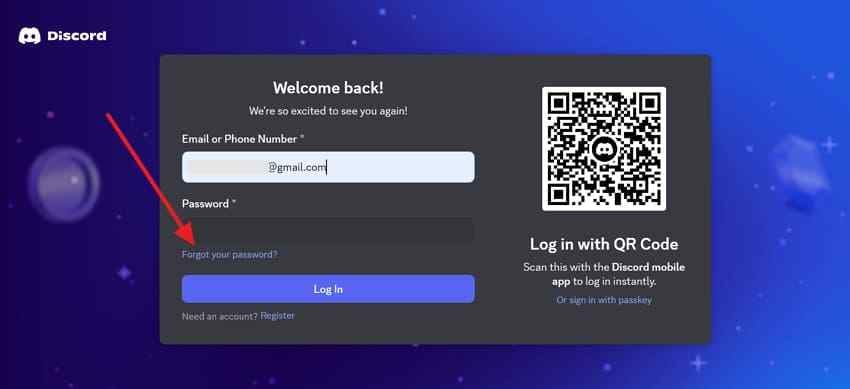
Step 1. On your browser, go to the “Discord” login page and provide your account's email. Next, you will be required to click on the “Forgot your password?” option.
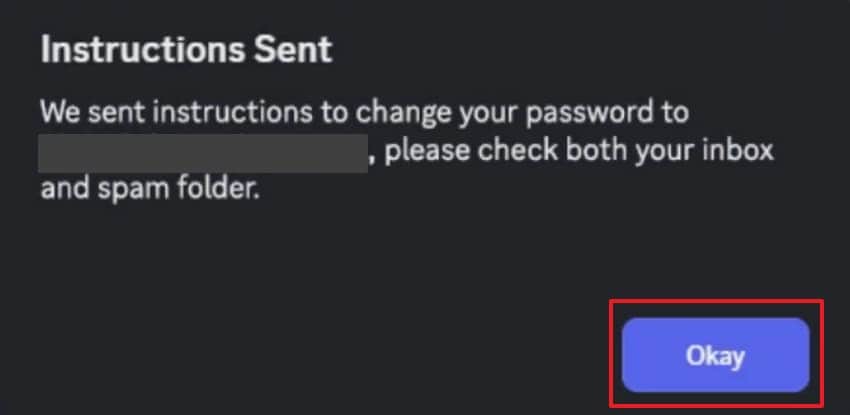
Step 2. Upon seeing a small prompt, press “OK” to receive a reset link from Discord.
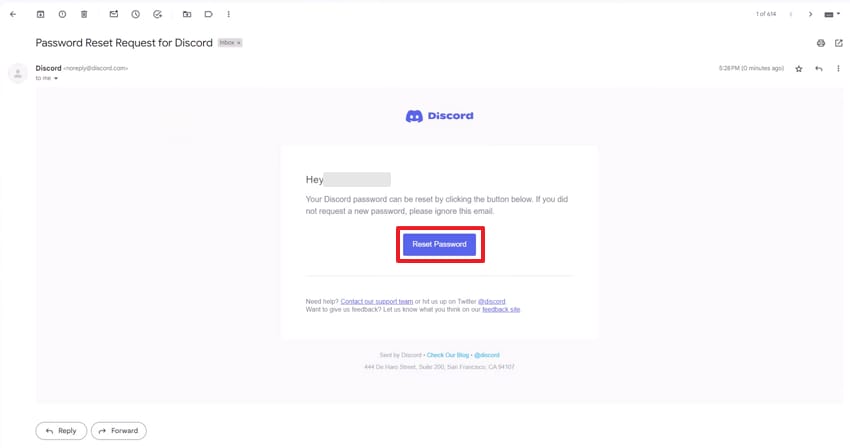
Step 3. When you open the received email, click the “Reset Password” button.
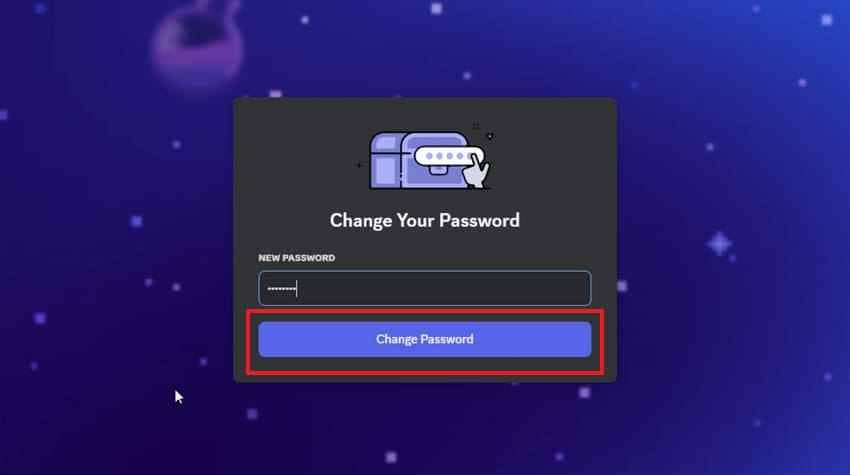
Step 4. Enter the new password and press the “Change Password” button.
2. Reset Discord Password on the Mobile App
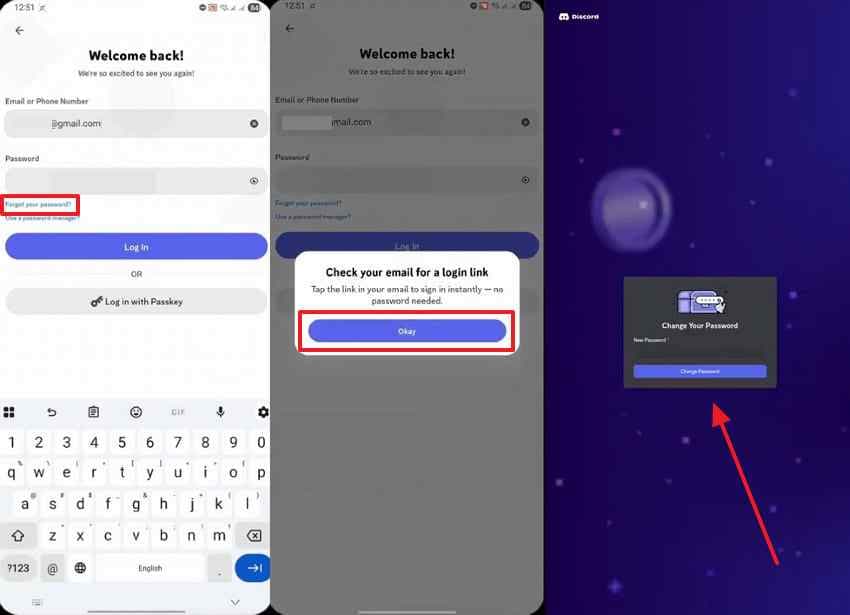
You can also reset your credentials through the official mobile application. It provides an efficient way to recover a Discord password. To do that, use the sequence “Discord App > Enter Email > Tap Forgot Your Password > Press Okay.” A reset link will be sent to you to proceed with the password reset. Use the email instructions to create a new, strong password.
3. Reset Discord Password from a Mobile Browser
Individuals can also complete the password reset process using their phone's browser. Plus, the process works the same across browsers, like Chrome and Safari.
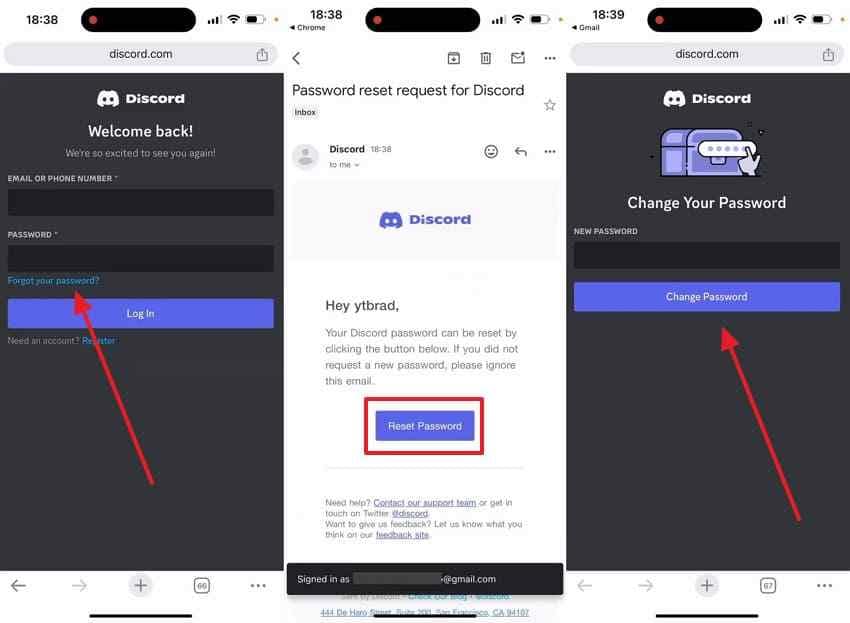
- Navigate to the “Discord login page > Add your email address > select Forgot Your Password > tap Okay.”
- An automated verification notification will arrive in your mailbox. Thus, open that message on your phone to update your credentials securely.
4. What to Do After Clicking the Reset Email Link
After you click the reset link, Discord will take you to a password creation page. Enter a new password that is long, unique, and not used on any other account.
A strong Discord password should be:
- At least 8 characters, though longer is better
- Unique to Discord
- Not based on your username, birthday, server name, or common words
- Stored in a trusted password manager
- Updated immediately if you suspect account compromise
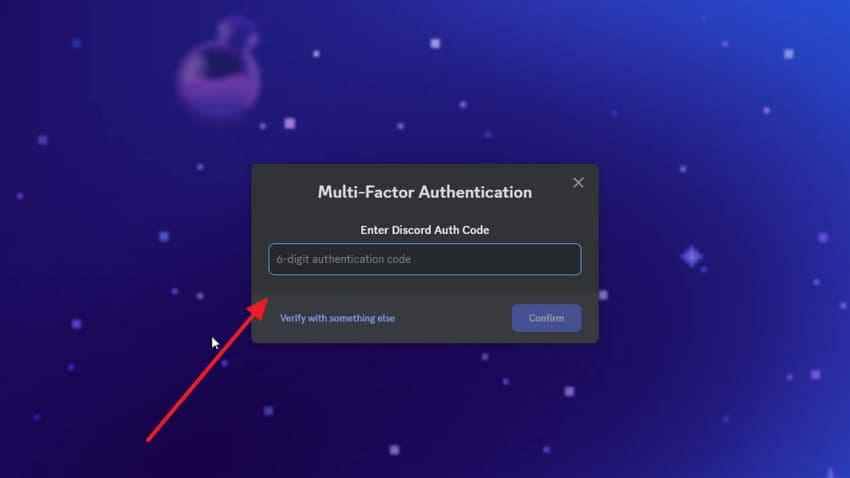
If MFA is enabled, you may need to enter your security code after the password change.
Part 4. What to Do If You Cannot Access Email or the Reset Email Never Arrives
Access and use of email can sometimes be difficult to recover from. Many users searching for how to reset discord password without email face similar challenges. Review the following solutions to identify and resolve the specific issue:
- Email Search: Attempt all the email addresses used to sign up for your accounts. One matching address may help restart the password recovery process.
- Mail Search: Find all connected inboxes for any past emails sent by Discord. You can input "Discord" in the search bar to surface any previously received Discord emails.
- Email Allowlist: Add Discord email addresses to your approved sender list. It prevents future password recovery emails from being filtered automatically.
- Email Refresh: Refresh your mailbox to check for newly delivered messages. Sometimes, emails delay updates and require manual synchronization.
- Support Contact: Reach out to Discord support when all recovery methods fail. For that, you need to provide accurate account details to receive appropriate assistance.
Part 5. How to Find a Discord Password Saved in Your Browser or Device
It's smart to check the password manager of your device to recover the Discord password. Let us review the precise guide for finding your saved credentials on each system:
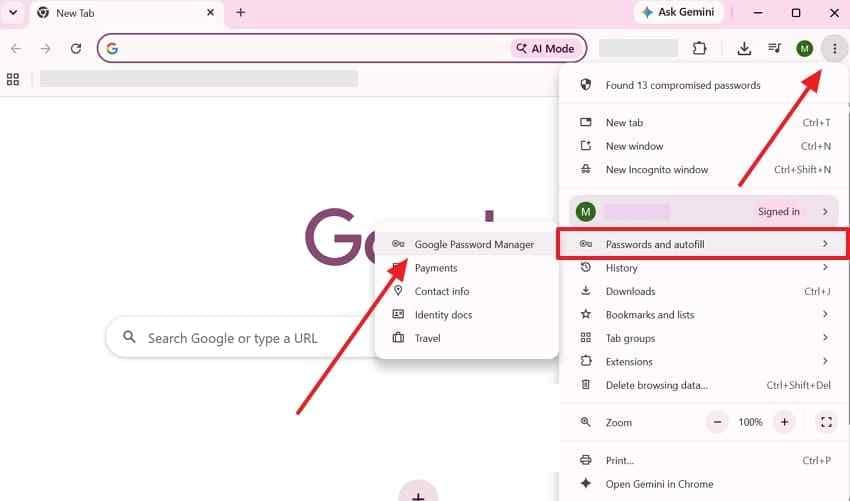
1. Check Saved Discord Passwords in Google Chrome Password Manager
Your saved credentials are stored inside Chrome's native password manager tool. You can access this manager even without remembering your actual password at all. Alongside that, it allows you to copy or reveal the saved password. So, follow these simple steps below to learn how to recover your Discord password:
Step 1. Click the “Three Dots” icon, select “Passwords and Autofill,” then open “Google Password Manager.”
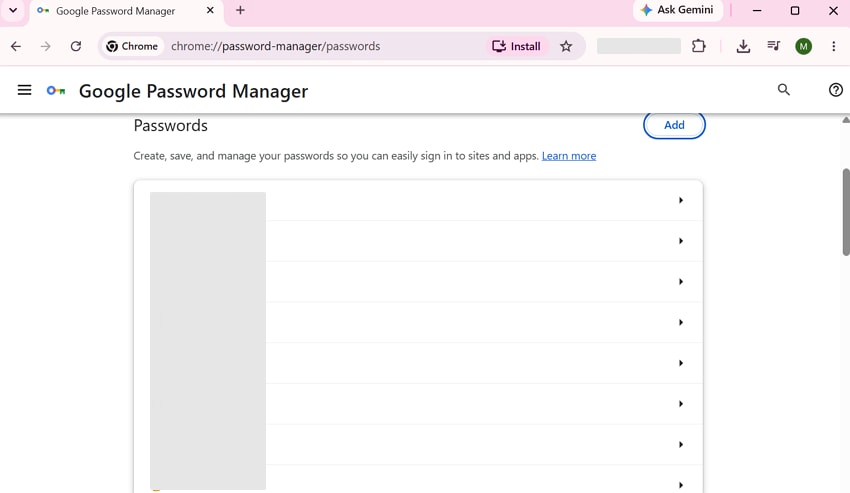
Step 2. Scroll down to find “Discord” and click on it to view the saved password.
2. Check Saved Discord Passwords in Microsoft Edge Password Manager
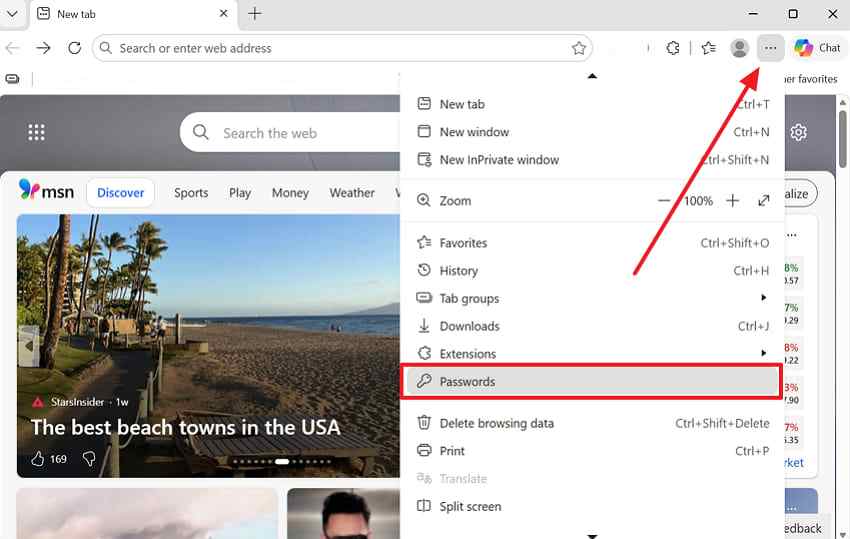
It also offers a built-in password manager that can help recover passwords for Discord. Edge saves your login credentials if allowed whenever you sign into Discord through the browser. You can view, copy, or reveal your saved Discord password in just seconds. Adhere to the following simple steps to find your saved password:
Step 1. From the browser’s main screen, you need to press the “Three Dots” icon. When the menu appears, go to the “Passwords” category.
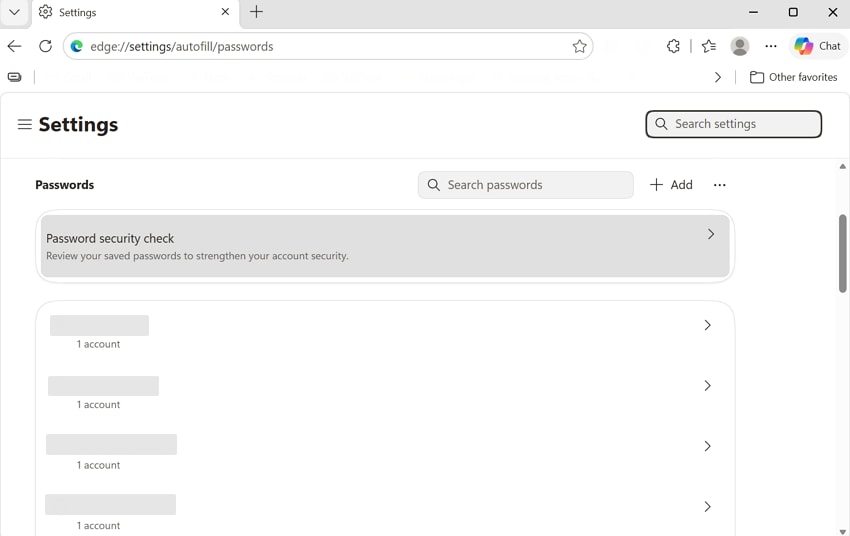
Step 2. Select the “Discord" app, and you will see the saved password.
3. Check Saved Discord Passwords in Apple Passwords or iCloud Keychain
Apple devices can store Discord credentials using Passwords or iCloud Keychain. This feature helps users access saved passwords across connected devices. Many people searching for how to reset a Discord password without an email should check here first. Recovery becomes much easier if credentials were previously saved. Follow these steps for guidance to view your account information:
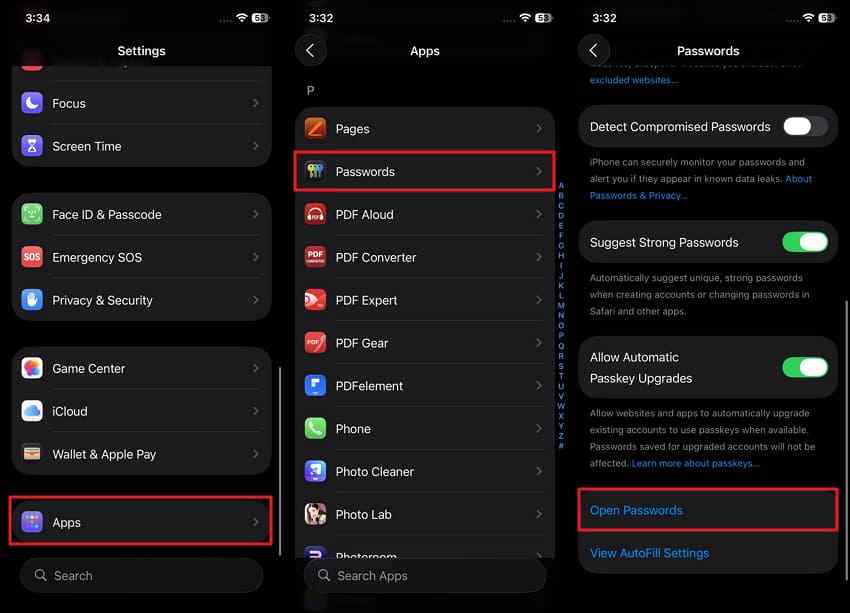
Step 1. Users need to swipe up in the “Settings” app to select “Apps.” Then, head to the “Passwords” app and opt for “Open Passwords.”
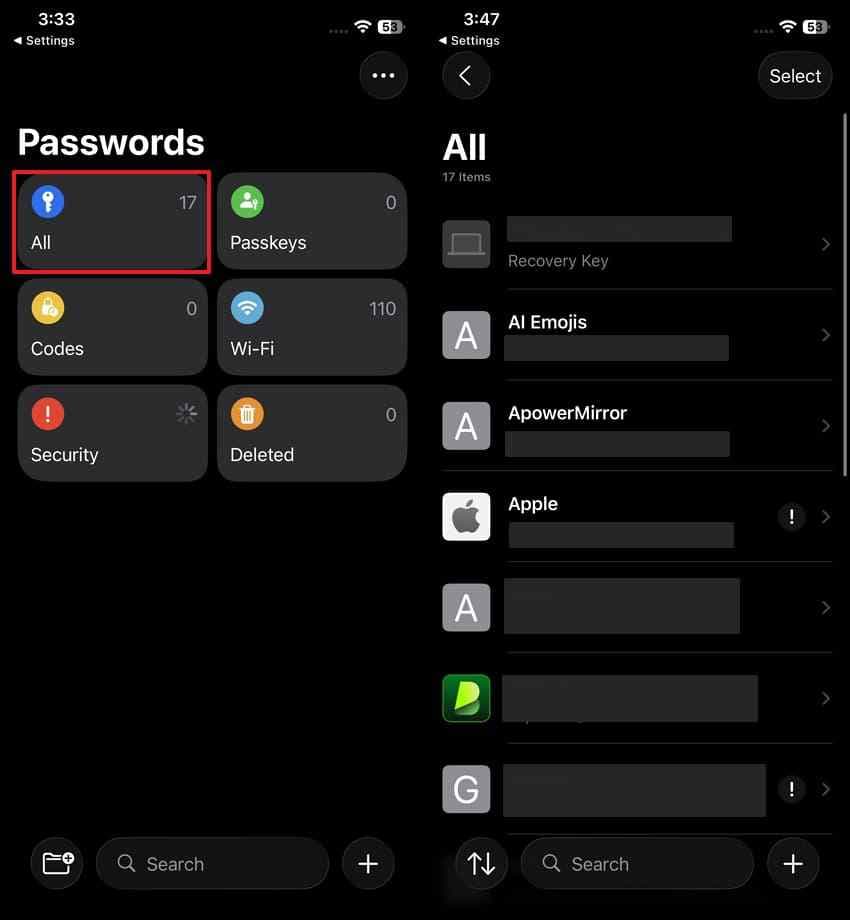
Step 2. Moving forward, verify your identity and access the “All” section. Next, find the “Discord” app to see the saved password.
4. Check Saved Passwords on Android Password Manager
Android devices also store saved login details inside built-in password managers. This is one way to recover a Discord password if the browser is not available. Most Android phones save credentials automatically when autofill is enabled during login. You can retrieve Discord details from system settings or Google account sync. Go through the direct sequential steps below to find your login details:
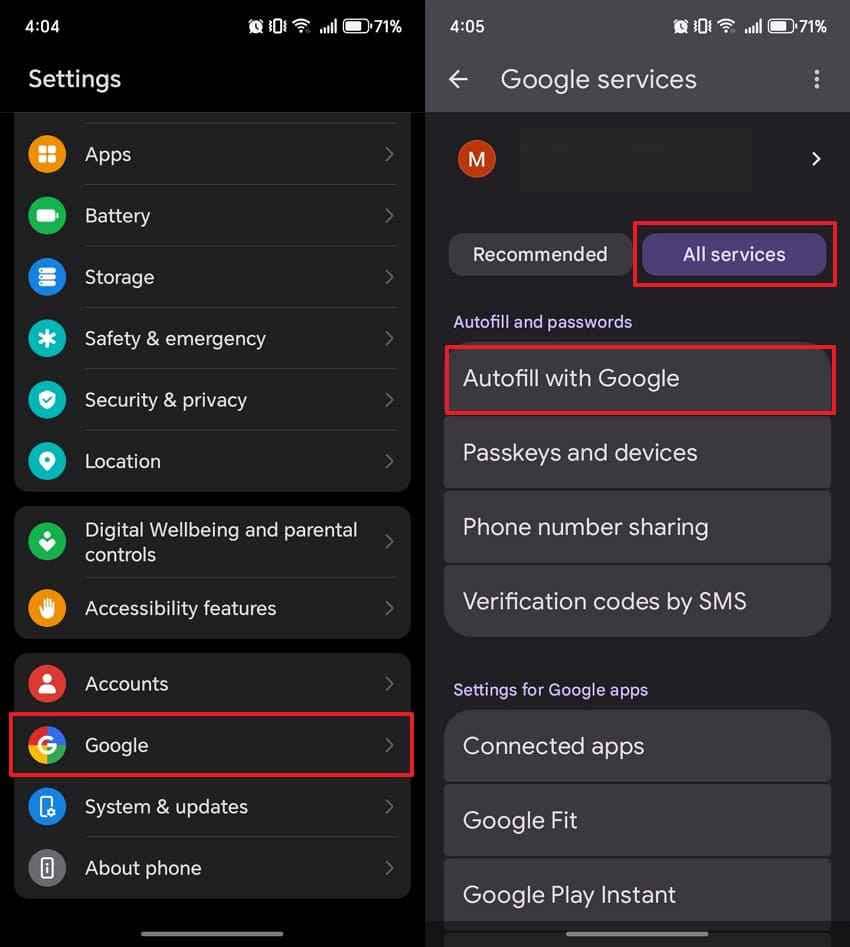
Step 1. You need to go to the “Google” option in the “Settings” app. After that, access the “All Services” tab and tap the “Autofill with Google” option.
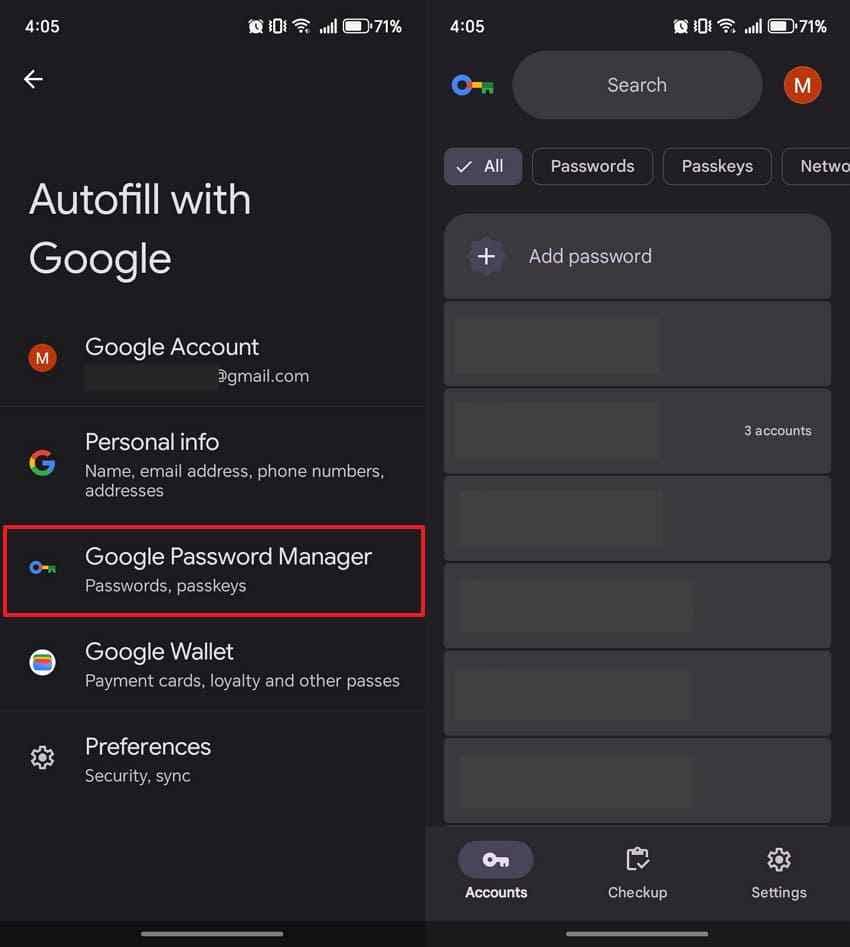
Step 2. Following that, head to the “Google Password Manager” section to view the Discord app.
Try Recoverit to Perform Data Recovery
Security Verified. 3,591,664 people have downloaded it.
Safety Notes Before Viewing or Exporting Saved Passwords
Keep these safety rules in mind before accessing any saved passwords on your device:
- Secure Device: Your password manager should be used on your personal device.
- Screen Lock: Make sure your screen lock is enabled before opening any password manager.
- No Snapshots: Do not take screenshots of revealed passwords, as they can be stolen.
- Secure Export: Only export passwords to encrypted files stored in a safe location.
- Sign Out: Always sign out of password managers after finishing on any shared device.
Part 6. How to Secure Your Discord Account After Password Recovery
Securing your profile helps prevent future hacking attempts after completing the reset. So, review the structured table below to maximize your platform security settings:
| Security Step | What You Should Do |
| Create a Strong Password | Use a mix of letters, numbers, and symbols that is at least 12 characters long. |
| Enable Multi-Factor Authentication or Passkeys | Turn on MFA from Discord settings to add an extra layer of protection. |
| Review Active Sessions | Go to Discord settings and log out of any unrecognized or old devices. |
| Remove Suspicious Connections | Remove untrusted bots, apps, or connected services from your account. |
| Look for Phishing Links and Fake Login Pages | Never click unverified links claiming to be from Discord sent via messages. |
Pro Tip. Recover Discord Media Files and Other Local Documents from Your Computer
Recovering your Discord account only restores access to the app. It does not bring back files that were downloaded to your computer and later deleted, formatted, or lost after a system crash.
For example, local Discord files may go missing when:
- You deleted downloaded Discord images, videos, audio files, or documents by mistake.
- You emptied the Recycle Bin after removing Discord downloads.
- A system crash or Windows reinstall removed saved files.
- A formatted drive erased folders where Discord files were stored.
- A corrupted storage device made downloaded media unreadable.
- A virus or malware attack deleted local files.
In these cases, Recoverit can help scan your computer or external storage device for lost local files. It can recover common file types such as photos, videos, audio files, documents, compressed files, and more from drives, memory cards, USB drives, and other storage devices.
Important note: Recoverit cannot recover, reveal, reset, or bypass your Discord account password. It only helps recover files that were saved locally on your computer or storage device.
Key Features
- Deleted File Recovery: Recover local Discord files deleted from folders or the Recycle Bin.
- Formatted Drive Recovery: Scan formatted drives where Discord downloads or media folders were stored.
- Video and Photo Recovery: Recover downloaded Discord videos, images, GIFs, and other media files.
- External Device Recovery: Scan USB drives, SD cards, external hard drives, and other storage devices.
- Preview Before Recovery: Preview recoverable files before saving them to a safe location.
Guide to Recover Discord Media Files and Other Local Documents via Recoverit
Review the given guide to find out how you can recover deleted Discord media files:
Step 1. Locate the Location for Recovery
Select the drive or folder where the missing Discord files were stored from the “Hard Drive and Locations” section.

Step 2. Run a Scan for Lost Discord Files
After choosing the target location, initiate the scan process to get lost Discord files. The tool will search for lost data while displaying detected Discord files.

Step 3. Recover Your Retrieved Discord Files
You can then browse the scan results and preview recoverable Discord items. Once you find the Discord media or other files you need, click “Recover” and export them.

Note: Recoverit can only restore lost offline media files, but cannot bypass your Discord account password.
Try Recoverit to Perform Data Recovery
Security Verified. 3,591,664 people have downloaded it.
Conclusion
To conclude, you have now discovered every method to recover a Discord password. Always start with saved passwords before attempting any official reset process on Discord. Moreover, enable 2FA after recovering your account to prevent access by someone else. Yet, if local Discord files went missing during the process, tools like Recoverit may recover them.
FAQs
-
Q1. Can I recover my old Discord password?
No. Discord does not let you view or recover your old password. You can reset your password through the email linked to your account. If you saved the password in a browser or password manager, you may be able to view it there. -
Q2. How do I reset my Discord password without email?
Usually, you need access to the email linked to your Discord account. If you cannot access that inbox, recover your email account first. If your email was changed without permission or your account may be compromised, contact Discord Support. -
Q3. Where can I find my saved Discord password?
You can check Chrome Password Manager, Microsoft Edge Passwords, Apple Passwords, iCloud Keychain, Android Password Manager, or another trusted password manager you use. Only reveal saved passwords on your own secure device. -
Q4. Why am I not receiving the Discord password reset email?
Check that you entered the correct email address. Then check Spam, Junk, Promotions, Updates, blocked senders, email filters, and all inboxes you may have used for Discord. You can also search your inbox for Discord to find previous account emails. -
Q5. Can Recoverit recover my Discord password?
No. Recoverit cannot recover, reveal, reset, or bypass a Discord password. It is a data recovery tool that can help recover lost local files, such as downloaded Discord photos, videos, audio files, or documents saved on your computer. -
Q6. Can I recover deleted Discord messages or attachments?
If a Discord message was deleted from the platform, local data recovery software cannot restore the message from Discord servers. However, if an attachment was downloaded and saved on your computer before being deleted locally, Recoverit may help recover that saved file from your storage device.


