

 TL;DR:
The "Location is not available" error in Windows 11/10 typically occurs due to a broken file path, a disconnected storage device, a changed drive letter, or permission conflicts rather than permanent data deletion.
● Check Disk Management to ensure the external drive letter still matches your shortcuts, and use the folder's Security properties to manually take ownership and grant Full Control permissions to your user account.
● Fix logical disk corruption by running the `chkdsk C: /f /r /x` command as an administrator, or restore the default location path if the error targets user-profile folders like Desktop or Downloads.
● Extract data using file recovery software like Recoverit before running intensive repair operations or CHKDSK on a failing drive to prevent overwriting or permanently losing unstable files.
Ask AI for a summary
 ChatGPT
 Perplexity
 Gemini
 Claude
 Grok
Grok
The "Location is not available" error usually appears when Windows can no longer open the folder, drive, or path you clicked. In many cases, your files are not immediately gone. The real problem is often that the folder was moved, the drive is disconnected, the path changed, or your account no longer has permission to access it.
This error can affect Documents, Downloads, Desktop, external hard drives, USB drives, SD cards, OneDrive folders, and even mapped network locations. So before assuming the files were permanently deleted, it is better to identify whether the problem comes from a broken path, a device issue, or a permissions conflict.
In this article
-
- Fix 1. Restart Windows Explorer
- Fix 2. Check Whether the Folder Was Moved or Deleted
- Fix 3. Reconnect the External Drive or Network Location
- Fix 4. Check Whether the Drive Letter Has Changed
- Fix 5. Boot Into Safe Mode
- Fix 6. Take Ownership of the Folder
- Fix 7. Grant Full Control Permissions
- Fix 8. Run CHKDSK
- Fix 9. Restore the Default Folder Path or Use System Restore
- Fix 10. Restart Related Services Such as RPC
Part 1. What "Location Is Not Available" Usually Means
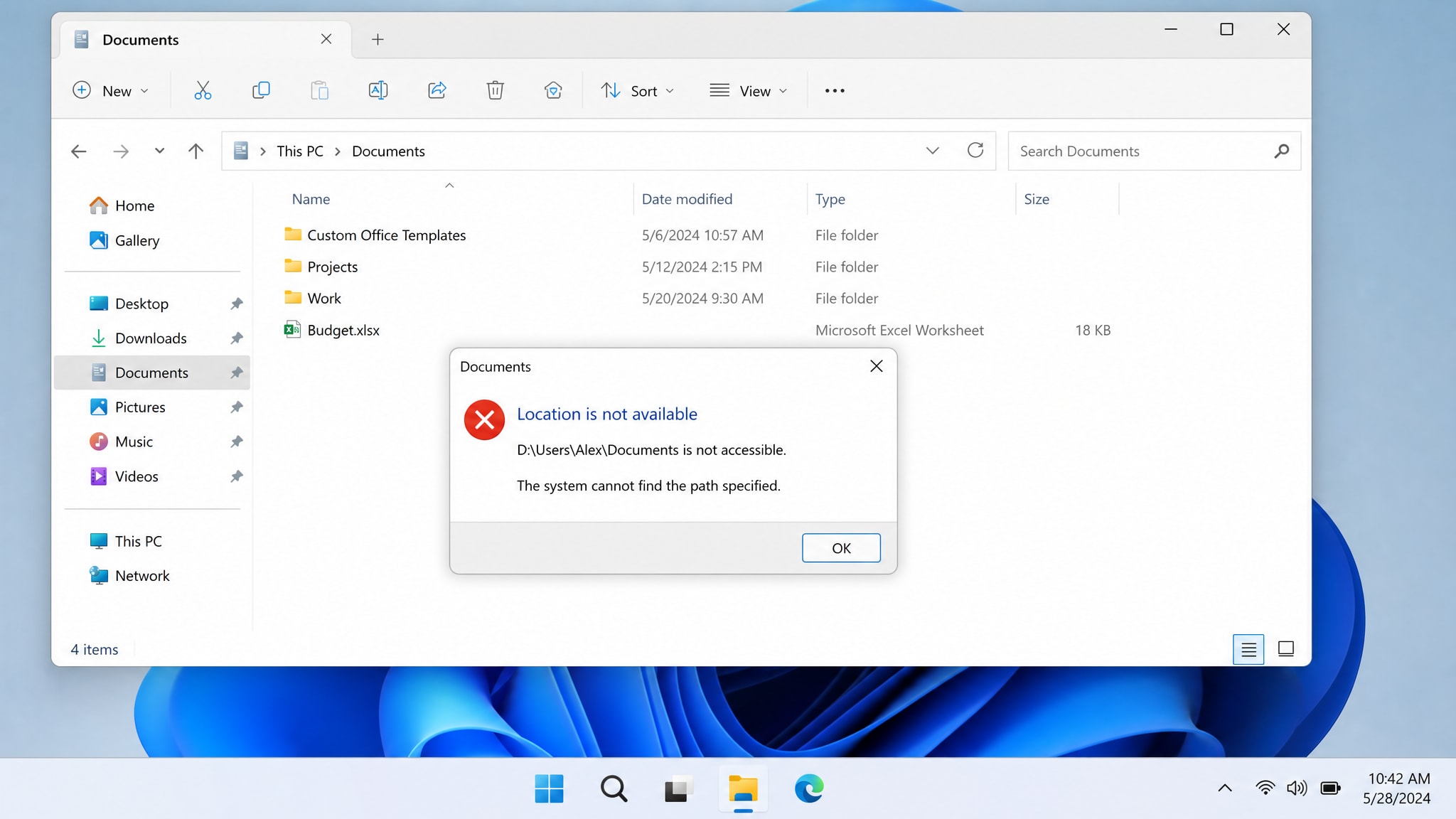
When Windows shows this error, it usually means the system can no longer reach the original file path. The folder may still exist, but Windows cannot open it because the path has changed, the storage device is offline, the folder permissions are broken, or the file system is damaged. That is why this error often looks serious even when the data has not been permanently erased.
In practice, users often see this error after unplugging an external drive, moving a user folder, changing a drive letter, syncing with OneDrive, or dealing with a damaged partition. So the safest approach is not to panic, but to first identify what type of location Windows is failing to access.
Part 2. Common Reasons Behind the Error
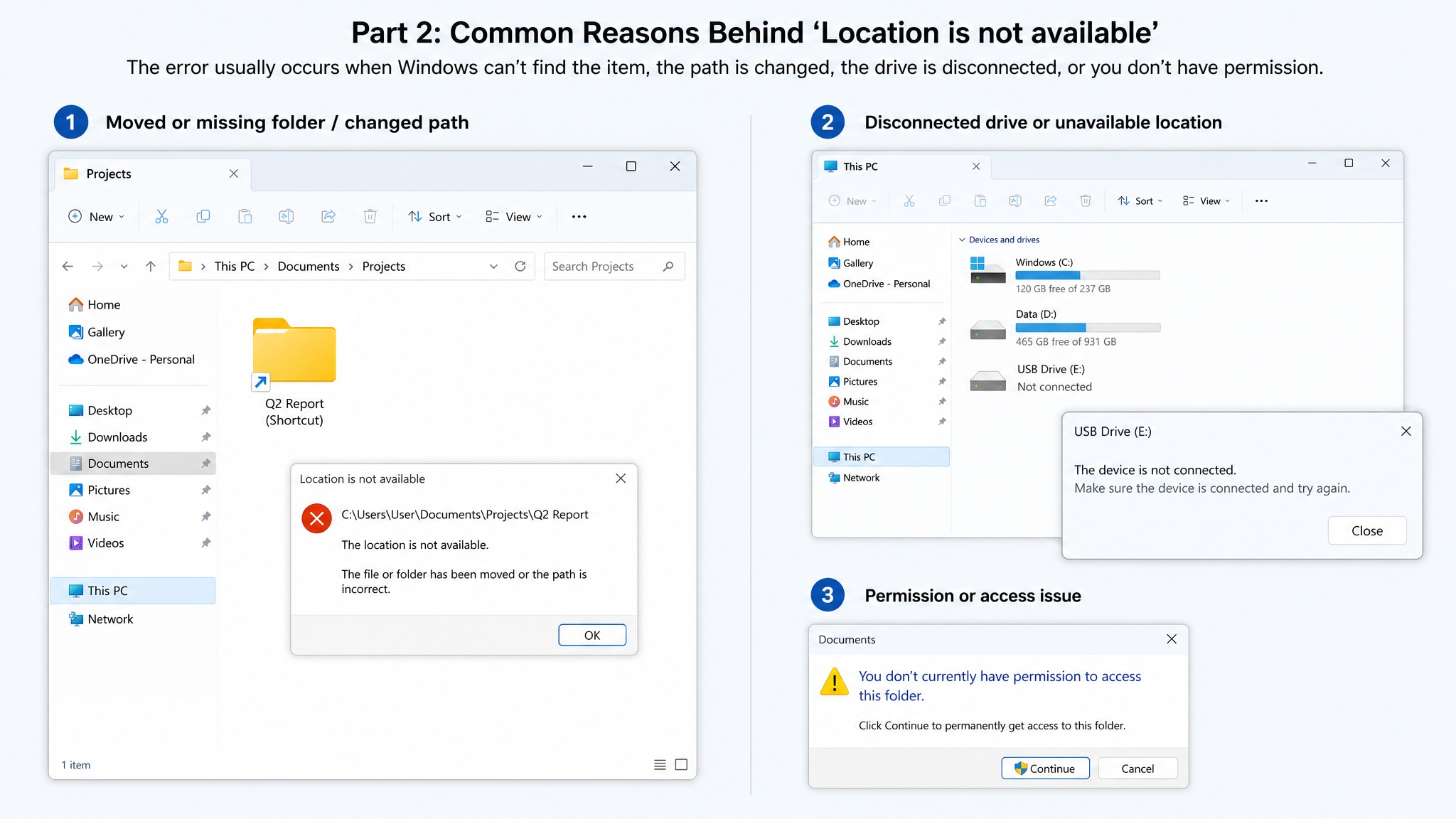
In Windows 11 and Windows 10, this error is usually caused by one of these problems:
- The folder was moved or deleted. This is common when you open a shortcut, Quick Access item, or Recent Files entry.
- The external drive is disconnected or unreadable. USB drives, HDDs, SSDs, and SD cards can all trigger this error if Windows cannot mount them correctly.
- The drive letter has changed. An old shortcut may still point to D: even though the same drive is now mounted as E:.
- The folder permissions are broken. Windows may still see the folder, but your account may no longer have the rights to open it.
- The file system is corrupted. Sudden shutdowns, unsafe removal, malware, and disk errors can all damage the location.
- The path depends on a cloud or network location. OneDrive folders, mapped drives, and shared paths may become unavailable if sync or network access fails.
Part 3. Quick Checks Before Trying Advanced Fixes
Before you use Command Prompt, CHKDSK, or System Restore, take a few minutes to check the basics. These simple checks can help you avoid unnecessary changes and may reveal the real cause right away.
Check Whether the Folder Still Exists
If you are opening a shortcut, pinned folder, or recent file, go to the original parent path manually and see whether the folder is still there. If not, use Windows Search to look for the folder name.
Reconnect the Storage Device or Network Location
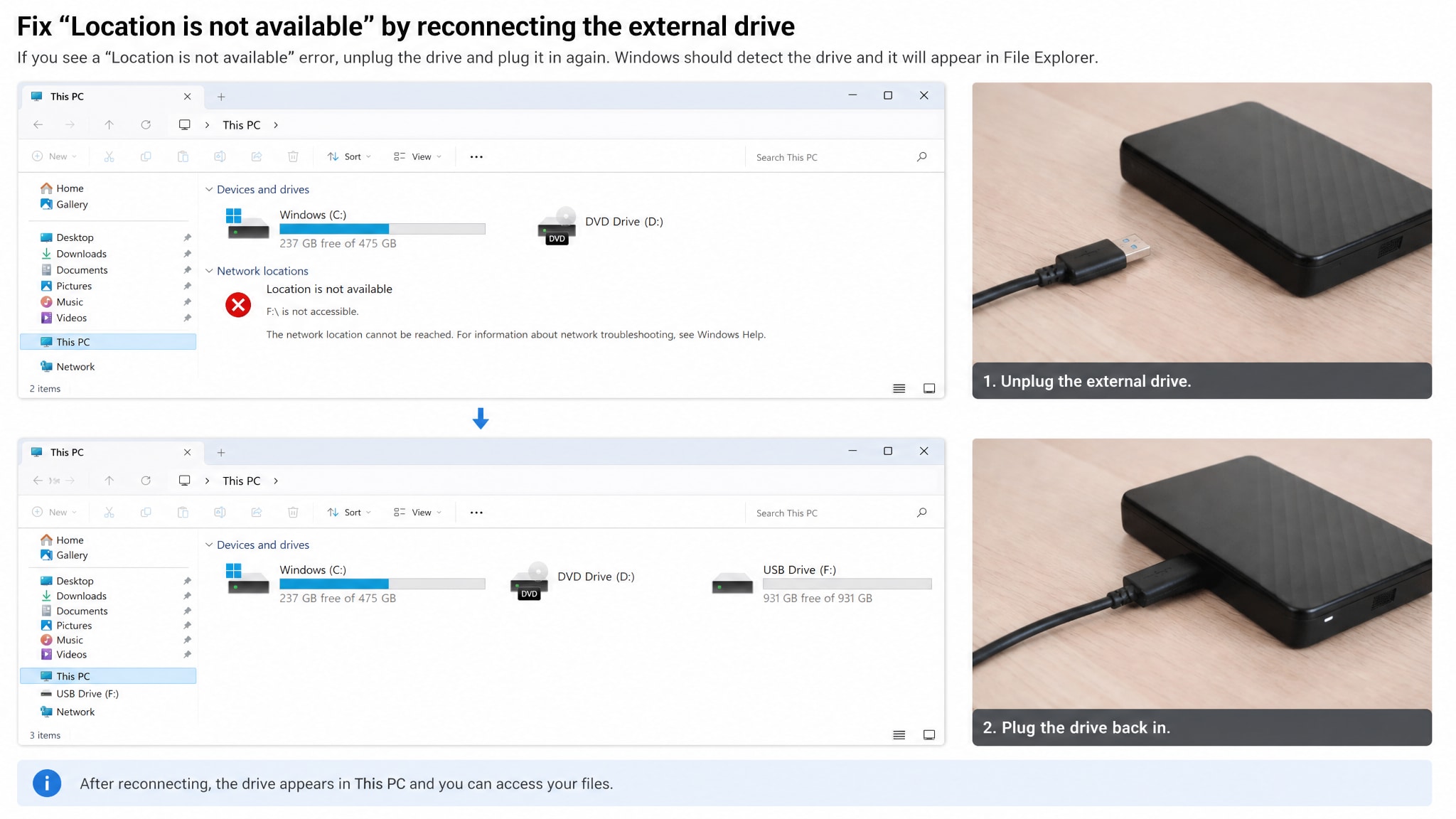
If the missing location is on an external drive, disconnect and reconnect the device carefully. Try another USB port if needed. If the location is on a network share or cloud folder, confirm that the connection and account sync are still active.
Check Recycle Bin, Search, and Recent Paths
If the folder was accidentally removed, it may still be in Recycle Bin. Also remember that Quick Access and Recent Files can still show an old entry even after the original path becomes invalid.
Quick Answer: If "Location is not available" appears in Windows 11 or 10, first check whether the folder was moved, the drive was disconnected, or the path changed. Then restart Windows Explorer, verify permissions, run CHKDSK if needed, and use file recovery software before making risky repairs on a failing drive.
Part 4. How to Fix "Location Is Not Available" in Windows 11/10
Fix 1. Restart Windows Explorer
If File Explorer is temporarily stuck or not refreshing paths correctly, restarting it can restore normal folder access.
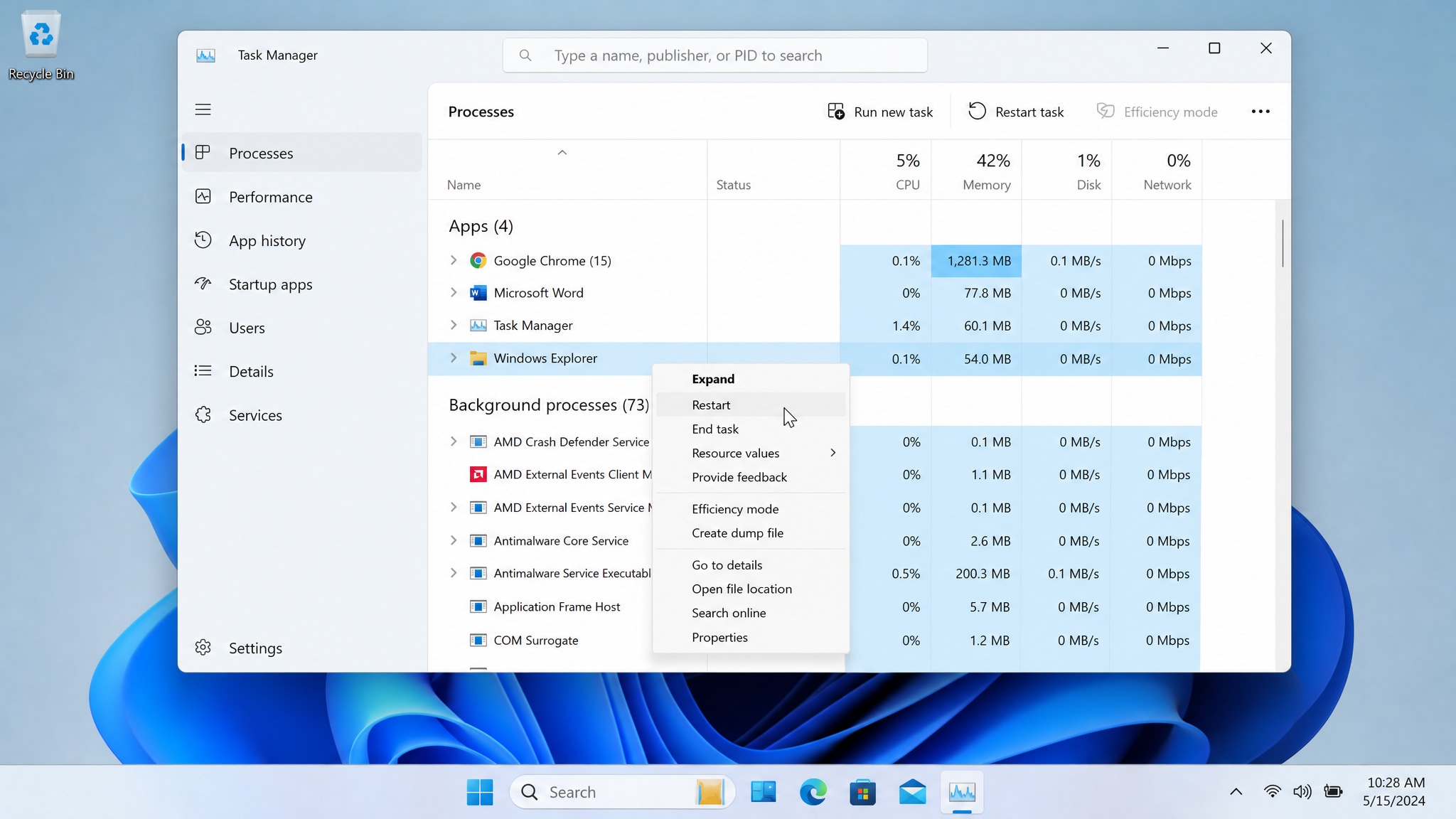
- Step 1. Press Ctrl + Shift + Esc to open Task Manager.
- Step 2. Find Windows Explorer under Processes.
- Step 3. Right-click it and choose Restart.
- Step 4. Reopen the affected folder and check whether the error is gone.
Fix 2. Check Whether the Folder Was Moved or Deleted
If the error appears when you click a shortcut, a pinned folder, or a recent item, the original path may no longer exist. In that case, go to the parent location manually, search for the folder name, and check Recycle Bin. If you find the folder in another location, create a new shortcut instead of continuing with deeper repairs.
Fix 3. Reconnect the External Drive or Network Location
When the location is stored on an external device or remote path, Windows cannot open it until that source becomes available again.
- Step 1. Disconnect the external drive and reconnect it firmly.
- Step 2. Try another USB port, preferably a direct port on the PC.
- Step 3. If the location is on a network path, make sure the network or NAS device is online.
- Step 4. Test the device or path again after reconnecting.
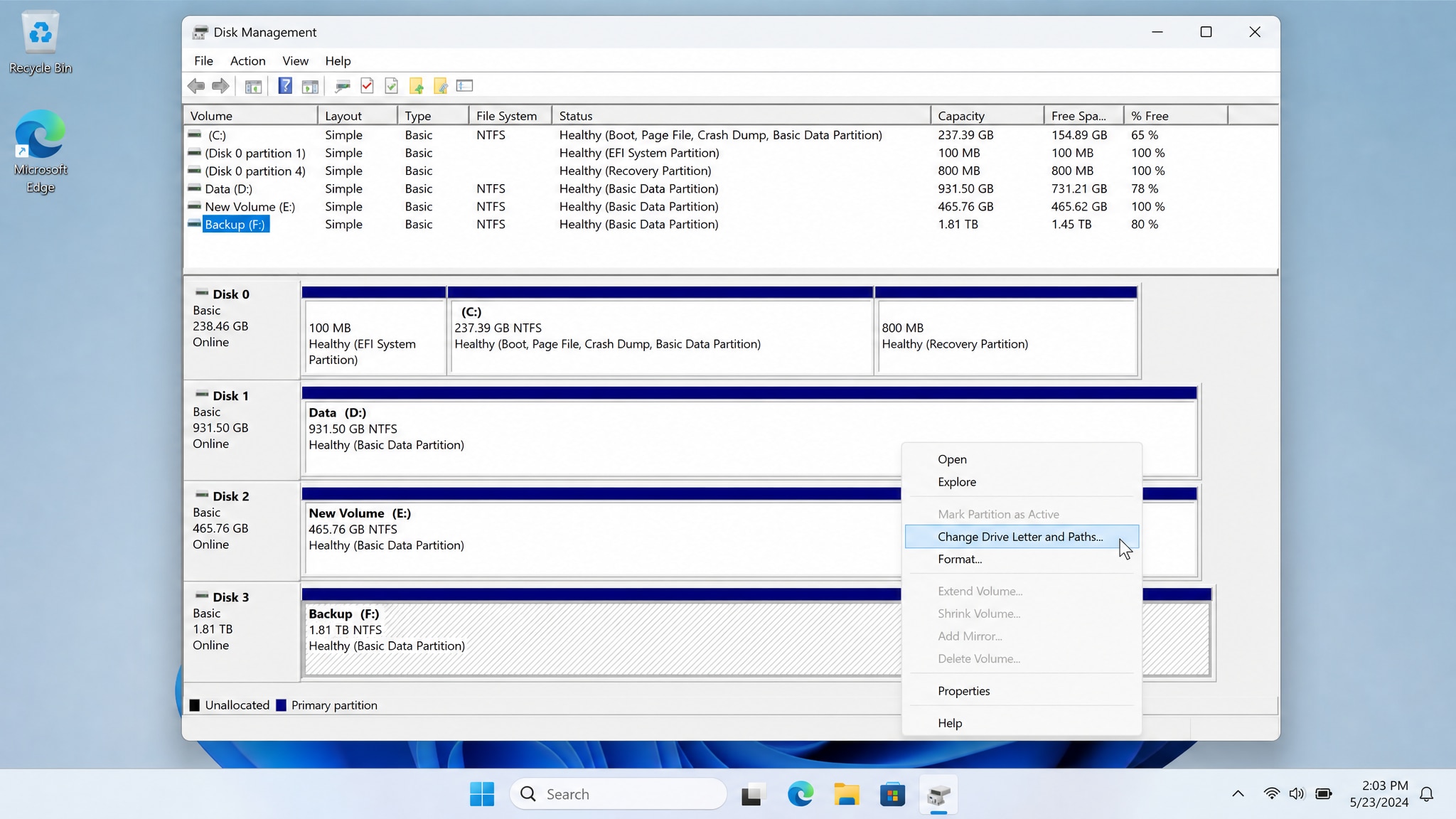
Fix 4. Check Whether the Drive Letter Has Changed
If Windows assigned a new drive letter, old shortcuts and saved folder paths will no longer work even though the files are still present.
- Step 1. Right-click Start and open Disk Management.
- Step 2. Find the affected drive and check its current letter.
- Step 3. Compare it with the old path that Windows is trying to open.
- Step 4. Update the shortcut or change the drive letter back if needed.
Fix 5. Boot Into Safe Mode
If the folder opens in Safe Mode, the error may be caused by startup software, sync tools, antivirus interference, or another background process. This is a good way to isolate whether the problem comes from Windows itself or from third-party software.
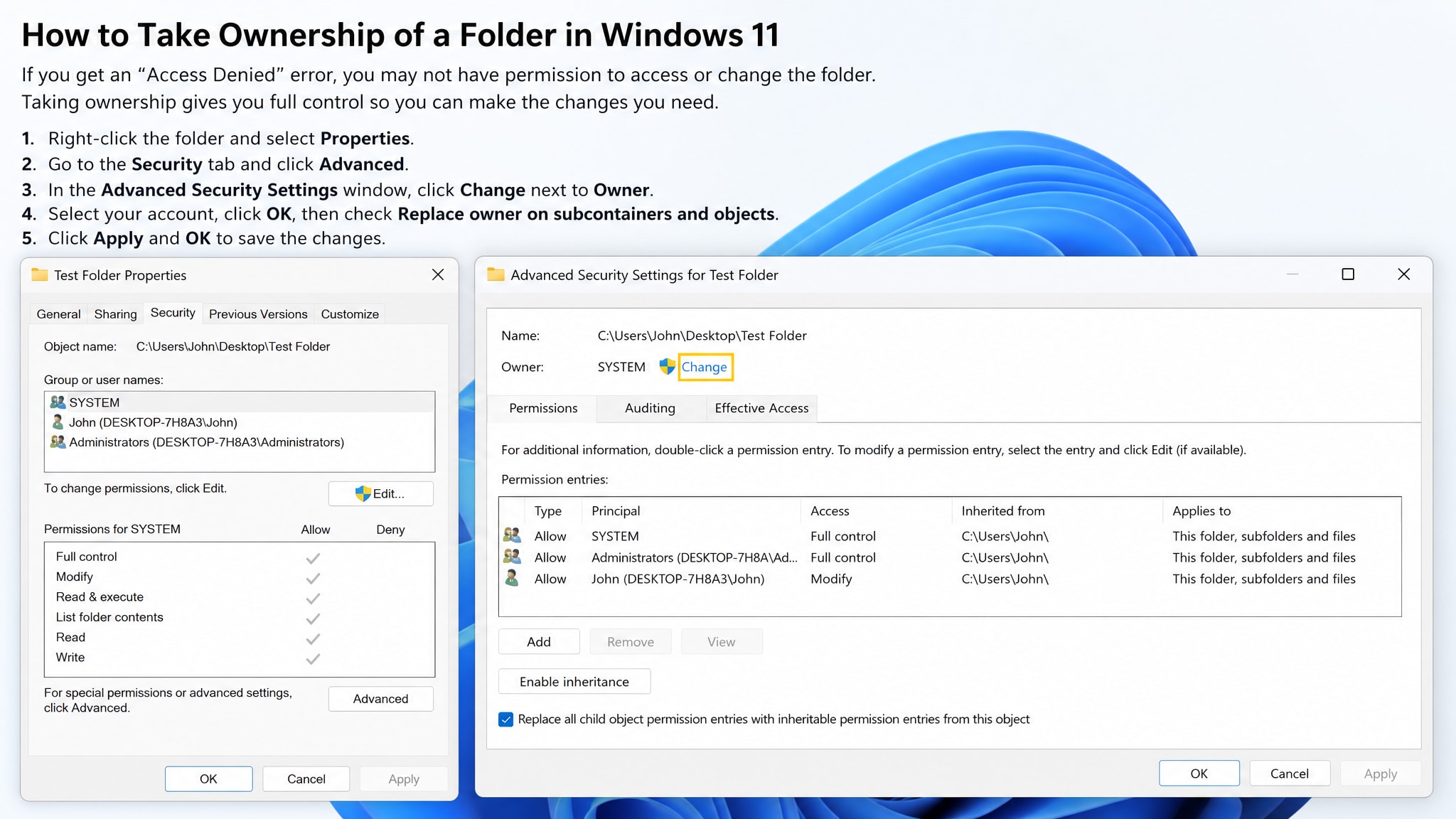
Fix 6. Take Ownership of the Folder
If Windows sees the folder but will not let your account open it, ownership may be assigned to another user or broken after a system change.
- Step 1. Right-click the affected folder and choose Properties.
- Step 2. Go to Security > Advanced.
- Step 3. Check the current owner and click Change if needed.
- Step 4. Set your Windows account as the owner and apply the changes.
Fix 7. Grant Full Control Permissions
Sometimes ownership alone is not enough. Your account may still lack the permissions required to open or modify the folder.
- Step 1. Open Properties > Security for the affected folder.
- Step 2. Click Edit and select your user account.
- Step 3. Enable Full Control if it is not already allowed.
- Step 4. Apply the settings and try opening the folder again.
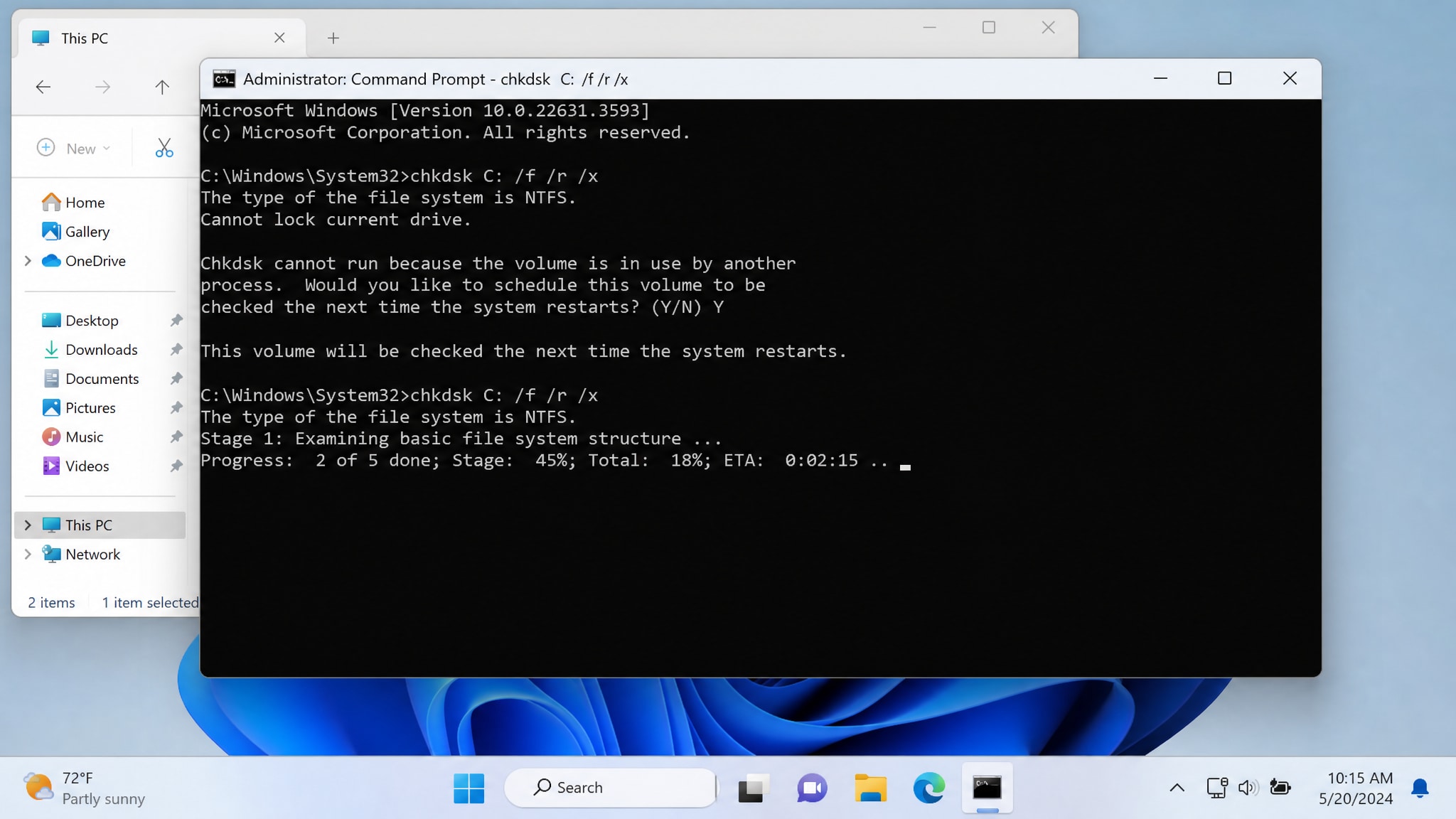
Fix 8. Run CHKDSK
If the error is related to drive corruption, unreadable sectors, or file system damage, CHKDSK can help repair logical disk problems.
- Step 1. Open Command Prompt as administrator.
- Step 2. Run the command: chkdsk C: /f /r /x
- Step 3. Replace C: with the correct drive letter if the problem affects another drive.
- Step 4. Wait for the scan to finish, then restart your PC if prompted.
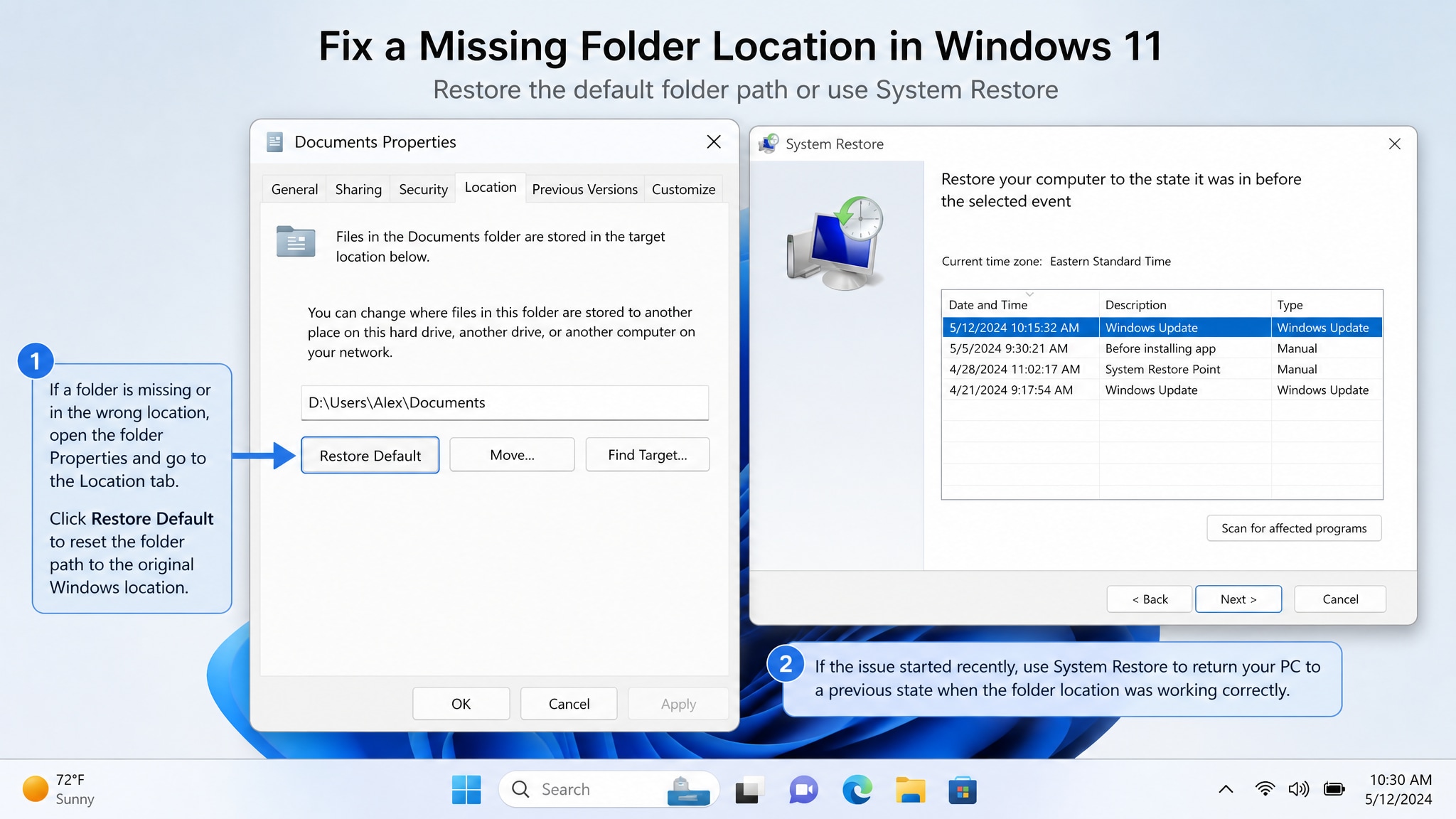
Fix 9. Restore the Default Folder Path or Use System Restore
If the error affects Desktop, Documents, Downloads, or another user-profile folder, the default path may have been changed incorrectly. In that case, restoring the folder location can help. If the problem started recently after an update or system change, System Restore may be the faster fix.
- Step 1. Right-click the affected folder and open Properties.
- Step 2. Go to the Location tab if available.
- Step 3. Click Restore Default and apply the change.
- Step 4. If that does not help, open Recovery and launch System Restore to roll Windows back to an earlier point.
Fix 10. Restart Related Services Such as RPC
In more stubborn cases, Windows services related to file access, user profiles, or remote path handling may not be functioning correctly. Restarting services such as Remote Procedure Call (RPC) can sometimes help restore normal system behavior, especially after other folder and disk checks have already failed.
Pro Tip. Recover Files From an Inaccessible Folder or Drive
If the inaccessible location contains valuable files and you suspect the drive may be damaged, data recovery should come before repeated repair attempts. This is especially important for external hard drives, USB drives, SD cards, and partitions showing signs of corruption. Writing new data or running too many repair operations on a failing device may reduce recovery chances.
How Recoverit Helps
Recoverit can scan inaccessible drives, missing folders, deleted paths, and damaged storage devices to find recoverable files before they are overwritten. This is useful when Windows still shows the location error even after basic path, permission, and connection checks.
Simple Steps to Recover Files With Recoverit
- Step 1. Choose the affected disk or storage location and click the Start button to begin scanning.

- Step 2. Recoverit will automatically perform a comprehensive scan and display recoverable files in real time.

- Step 3. Preview the scan results, select the required files, and click Recover to save them to a secure location.
Conclusion
The "Location is not available" error in Windows 11 and Windows 10 does not always mean your files are gone. In many cases, the real cause is a broken path, a disconnected drive, changed permissions, a different drive letter, or file system corruption. If you work through the fixes in the right order, you can often restore access without losing data.
However, if the folder still cannot be opened and the files are important, do not keep guessing or writing new data to the same drive. Recovering the files first is often the safer move, especially when the storage device may be damaged or unstable.
Frequently Asked Questions
-
1. Why does Windows say "Location is not available"?
This usually means Windows can no longer reach the original folder or drive path. The folder may have been moved, the storage device may be disconnected, the drive letter may have changed, or your account may no longer have permission to access it. -
2. Does this error mean my files were deleted?
Not always. In many cases, the files are still on the drive, but Windows cannot open the original path because of connection issues, permissions problems, or path changes. -
3. How do I fix "Location is not available" on an external hard drive?
Reconnect the drive, try another USB port, check whether the drive letter changed, and run CHKDSK if the drive appears corrupted. If the data is important, recover the files before attempting risky repairs. -
4. Why does this happen to Documents, Desktop, or Downloads folders?
These folders can show the error if their default path was changed, the profile settings were damaged, OneDrive sync redirected them incorrectly, or Windows permissions broke after an update or account change.


