

 TL;DR:
The ideal free data recovery software for Windows 11 depends on your technical comfort, as user-friendly GUI tools restrict free data limits, while completely free options require command-line navigation.
● For guided, visually intuitive recovery, tools like Recoverit, EaseUS Data Recovery Wizard, and Disk Drill are the best fit for beginners, but their free versions strictly limit the total amount of data you can restore.
● If you need completely free, unlimited file recovery, use Microsoft's official Windows File Recovery or the open-source TestDisk and PhotoRec, though these lack graphical interfaces, file previews, and require technical command-line usage.
● To prevent permanent data loss, you must immediately stop using the affected drive, install the software on a different disk, and never save recovered files back to the original location, keeping in mind that active TRIM on SSDs significantly reduces the chances of successful recovery.
Ask AI for a summary
 ChatGPT
 Perplexity
 Gemini
 Claude
 Grok
Grok
Losing files on Windows 11 can feel overwhelming, especially when the missing folder contains family photos, work documents, videos, project files, or years of personal data. The first question many users ask is simple: is there any free data recovery software for Windows 11 that can actually help?
The answer depends on what happened. A simple deleted file, a formatted USB drive, a lost partition, an emptied Recycle Bin, and a failing storage device all need different recovery approaches. Some tools are completely free but technical. Some are beginner-friendly but limit how much data you can recover for free. Others are professional demos built for advanced cases.
This guide compares 7 free and trial data recovery tools for Windows 11, including Recoverit, Disk Drill, Windows File Recovery, TestDisk and PhotoRec, Recuva, EaseUS Data Recovery Wizard, and R-Studio. You will also learn what to do before scanning, which tool fits each situation, and how to avoid overwriting recoverable files.
In this article
-
- 1. Recoverit: Best for Guided Windows 11 File Recovery
- 2. Disk Drill Data Recovery: Best for a Polished Interface and Recovery Chance Indicators
- 3. Windows File Recovery: Best Official Microsoft Free Option
- 4. Recuva: Best Lightweight Tool for Simple Deleted Files
- 5. R-Studio: Best Professional Demo for Complex Recovery
- 6. EaseUS Data Recovery Wizard: Best Wizard-Style Recovery Tool
- 7. TestDisk and PhotoRec: Best Free Open-Source Option for Advanced Users
Quick Answer: Best Free Data Recovery Software for Windows 11
The best free data recovery software for Windows 11 depends on your data loss scenario. If you want an easy guided tool for deleted files, formatted drives, external disks, USB drives, and SD cards, Recoverit is a strong option. If you want a Microsoft official free option, Windows File Recovery is available, but it uses command-line instructions. If you need a fully free open-source option, TestDisk and PhotoRec are powerful but technical. For simple deleted file recovery, Recuva is lightweight and easy to try.
Here is the quick recommendation:
| If You Need To... | Try This Tool |
| Recover deleted photos, videos, documents, and common files with a guided interface | Recoverit |
| Use Microsoft’s official free recovery tool | Windows File Recovery |
| Recover lost partitions or repair partition structures | TestDisk |
| Recover files with a free open-source file carving tool | PhotoRec |
| Restore simple deleted files with a lightweight program | Recuva |
| Use a polished interface with recovery chance indicators | Disk Drill |
| Test advanced professional recovery for complex cases | R-Studio |
| Use a wizard-style recovery tool with free recovery limits | EaseUS Data Recovery Wizard |
Before installing any tool, stop using the drive where your files were lost. Do not install recovery software on that same drive, and do not save recovered files back to it.
Part 1. Safe Recovery Rules for Windows 11
Data recovery works best when the lost file data has not been overwritten. On Windows 11, deleted files may still exist on the drive for a while, but new downloads, installations, updates, temporary files, and app activity can replace them.
Follow these safety rules first:
| Do | Don’t |
| Stop using the affected drive as soon as possible. | Do not keep downloading, installing, or copying files to that drive. |
| Install recovery software on a different drive or external disk. | Do not install the tool on the drive you want to recover. |
| Save recovered files to another storage location. | Do not save recovered files back to the same drive. |
| Use a stable USB port or card reader for external devices. | Do not scan through damaged adapters or unstable connections. |
| Create a disk image first if the drive is failing. | Do not repeatedly scan a clicking, overheating, or unstable drive. |
| Check backups and Recycle Bin before deep scanning. | Do not assume software recovery is the only option. |
SSD and TRIM Warning
Many Windows 11 computers use SSDs. If TRIM is enabled, deleted data may be cleared more quickly than on traditional hard drives. This means recovery from SSDs can be harder, especially if the files were deleted some time ago or the computer continued to run after deletion.
When to Stop and Contact a Professional
If your drive is making clicking sounds, disconnecting repeatedly, overheating, showing serious hardware errors, or not detected at all, avoid repeated scans. Software recovery is best for logical data loss, such as deletion, formatting, or partition issues. Physically damaged drives may need a professional data recovery service.
Part 2. How We Chose These Windows 11 Data Recovery Tools
Not every free data recovery software for Windows 11 is truly free in the same way. Some tools offer free recovery limits, some allow free scanning but require payment to restore files, and some are fully free but technical.
We compared the tools based on these factors:
| Evaluation Factor | Why It Matters |
| Free or trial recovery limit | Users need to know what can be recovered before paying. |
| Ease of use | Beginners need a clear interface, preview, and simple workflow. |
| Windows 11 compatibility | The tool should work properly on modern Windows systems. |
| File system support | NTFS, exFAT, FAT32, and other file systems affect recovery range. |
| Supported devices | HDDs, SSDs, USB drives, SD cards, external drives, and memory cards matter. |
| Preview function | Preview helps confirm whether files are intact before recovery. |
| Best use case | Deleted files, formatted drives, partition loss, or professional recovery need different tools. |
| Main limitation | Every tool has trade-offs, such as free limits, technical interface, or demo restrictions. |
Part 3. Comparison Table: 7 Free and Trial Data Recovery Tools for Windows 11
| Tool | Free or Trial Limit | Ease of Use | Best For | Preview | Windows 11 Fit | Key Limitation |
| Recoverit | Free scanning and limited free recovery depending on current plan | Very Easy | Guided recovery for deleted files, formatted drives, external devices, and common file types | Yes | Strong | Free recovery amount may be limited |
| Disk Drill | Free/trial recovery limits vary by version and region | Easy | Polished interface, recovery chance indicators, and general file recovery | Yes | Strong | Free recovery limit can be restrictive |
| Windows File Recovery | Free Microsoft tool | Difficult | Official Microsoft command-line recovery | No visual preview | Strong | Command-line interface is not beginner-friendly |
| Recuva | Free version available | Easy | Simple deleted file recovery and lightweight scans | Yes | Works on many Windows systems | Less suitable for complex or modern recovery cases |
| R-Studio | Demo mode with file size restriction | Complex | Professional evaluation for advanced recovery, RAID, and complex cases | Yes | Strong | Demo recovery is heavily limited |
| EaseUS Data Recovery Wizard | Free recovery limit may vary by current plan or promotion | Very Easy | Wizard-style recovery for everyday users | Yes | Strong | Free recovery amount is limited |
| TestDisk and PhotoRec | Free and open source | Difficult | Lost partitions, damaged file systems, and open-source file recovery | Limited | Strong | Technical interface and limited original file names in some cases |
1. Recoverit: Best for Guided Windows 11 File Recovery
Recoverit is a beginner-friendly data recovery software for Windows 11 designed for common data loss scenarios, including accidental deletion, formatted drives, lost partitions, system crashes, virus-affected files, and external storage recovery. It supports recovery from internal drives, external hard drives, USB drives, SD cards, memory cards, and other storage devices.
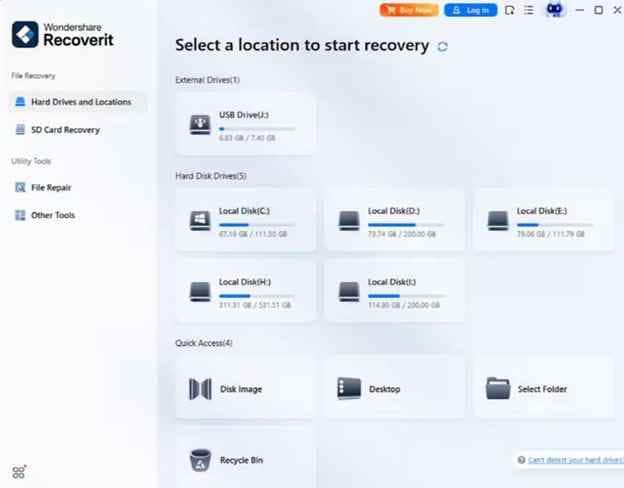
Recoverit is especially useful for users who want a clear interface, scan filters, file preview, and a guided recovery workflow instead of command-line steps. It supports many common file types, including photos, videos, documents, audio files, archives, and more.
Key Features
- Guided 3-step recovery workflow for beginners.
- Quick scan and deep scan for different data loss situations.
- File preview before recovery.
- Support for HDDs, SSDs, USB drives, SD cards, memory cards, and external drives.
- Filters by file type, size, date, or name.
- Useful for deleted files, formatted drives, lost partitions, system crashes, and external device recovery.
- Advanced options for more complex storage scenarios in higher plans.
Pros
- Easy for non-technical Windows 11 users.
- Supports a wide range of file types and storage devices.
- Preview helps confirm files before recovery.
- Clear workflow for deleted, formatted, and external drive recovery.
Con
- Free recovery amount may be limited depending on the current plan.
- Advanced features may require a paid version.
Losing files on Windows 11 can feel overwhelming, especially when the missing folder contains family photos, work documents, videos, project files, or years of personal data. The first question many users ask is simple: is there any free data recovery software for Windows 11 that can actually help?
The answer depends on what happened. A simple deleted file, a formatted USB drive, a lost partition, an emptied Recycle Bin, and a failing storage device all need different recovery approaches. Some tools are completely free but technical. Some are beginner-friendly but limit how much data you can recover for free. Others are professional demos built for advanced cases.
This guide compares 7 free and trial data recovery tools for Windows 11, including Recoverit, Disk Drill, Windows File Recovery, TestDisk and PhotoRec, Recuva, EaseUS Data Recovery Wizard, and R-Studio. You will also learn what to do before scanning, which tool fits each situation, and how to avoid overwriting recoverable files.
2. Disk Drill Data Recovery: Best for a Polished Interface and Recovery Chance Indicators
Disk Drill is a user-friendly recovery tool for Windows users who want a clean interface, organized scan results, and recovery chance indicators. It can scan internal drives, external drives, USB storage, and memory cards for deleted or lost files.
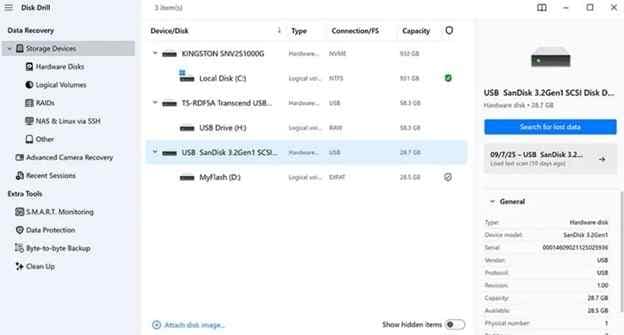
Disk Drill is useful for users who want a more visual recovery experience. It also includes features such as scan session management and file filtering.
Key Features
- Visual recovery interface.
- Recovery chance indicators.
- Quick and deep scan options.
- File filters by type, date, and size.
- Support for many common storage devices.
- Scan session pause and resume options.
Pros
- Easy to navigate for beginners.
- Recovery chance indicators help users prioritize files.
- Good interface for browsing large scan results.
Cons
- Free recovery limit may be restrictive.
- Some advanced features require a paid version.
3. Windows File Recovery: Best Official Microsoft Free Option
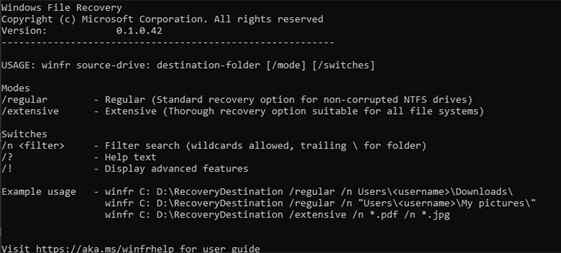
Windows File Recovery is Microsoft’s official free recovery tool. It can recover photos, documents, videos, and other files from local drives, USB drives, memory cards, and similar storage devices.
The main drawback is that Windows File Recovery uses a command-line interface. This makes it less friendly for beginners, but it is still an important option because it comes from Microsoft and is free to use.
Key Features
- Official Microsoft recovery tool.
- Supports local storage, USB drives, and memory cards.
- Can recover common file types such as photos, documents, and videos.
- Useful when files cannot be restored from Recycle Bin.
- Free to download from Microsoft Store.
Pros
- Free and official.
- Good option for users comfortable with commands.
- Works with common local storage recovery cases.
Cons
- No graphical recovery interface.
- Not ideal for non-technical users.
- Requires careful command usage.
4. Recuva: Best Lightweight Tool for Simple Deleted Files
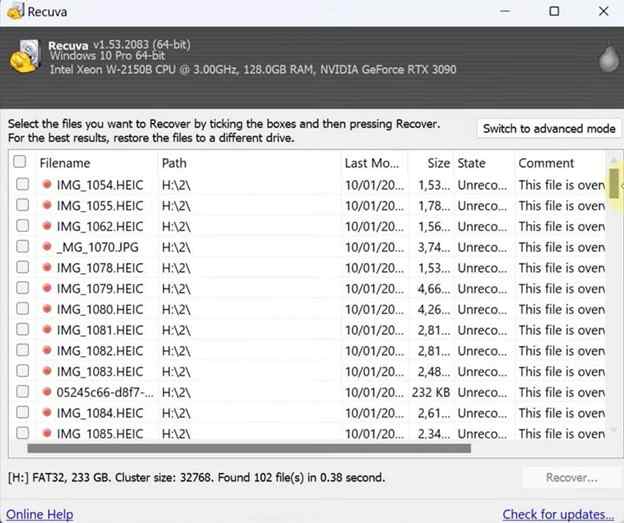
Recuva is a lightweight Windows recovery tool that can help restore deleted files from local drives, USB drives, memory cards, and other storage devices. It is often used for simple deleted file recovery rather than complex partition or damaged drive cases.
Recuva is a practical choice if you want a small, simple tool for recently deleted files. It is less ideal for heavily corrupted drives, lost partitions, or advanced recovery scenarios.
Key Features
- Lightweight recovery tool.
- Free version available.
- Deep scan mode for harder-to-find files.
- Supports local drives, USB drives, and memory cards.
- File preview and recovery status indicators.
- Secure overwrite feature for permanent deletion.
Pros
- Simple and lightweight.
- Good for basic deleted file recovery.
- Free version can be enough for simple cases.
Cons
- Less suitable for complex data loss.
- Advanced features are limited compared with professional tools.
- Windows 11 compatibility should be checked with the current version.
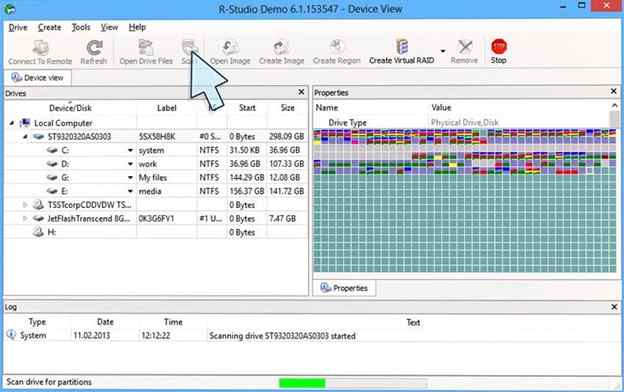
5. R-Studio: Best Professional Demo for Complex Recovery
R-Studio is a professional data recovery tool designed for advanced users, technicians, and complex recovery cases. It supports many file systems and advanced scenarios, including RAID recovery, network recovery, damaged partitions, and disk imaging.
R-Studio is not the easiest option for beginners. Its demo mode is useful for evaluating recovery results, but recovery is restricted by file size limits until the software is licensed.
Key Features
- Professional recovery environment.
- Supports many file systems, including Windows and Linux file systems.
- Advanced scan and file reconstruction options.
- Disk imaging support.
- RAID and network recovery options.
- Useful for damaged partitions and complex storage cases.
Pros
- Powerful for advanced and professional recovery.
- Supports complex storage configurations.
- Good evaluation option before paid recovery.
Cons
- Complex interface.
- Not beginner-friendly.
- Demo recovery is heavily limited.
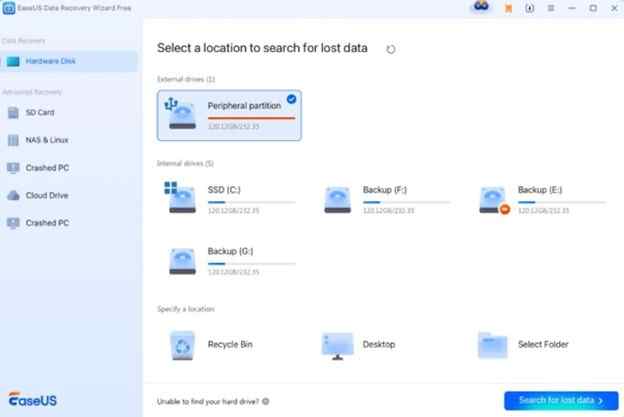
6. EaseUS Data Recovery Wizard: Best Wizard-Style Recovery Tool
EaseUS Data Recovery Wizard is a popular Windows recovery tool with a simple step-by-step interface. It can scan internal drives, external devices, formatted partitions, and common file locations.
It is designed for everyday users who want a visual recovery process, file filters, and preview before recovery. Its free recovery amount may vary depending on the current version, account, or promotion, so users should check the latest official terms before relying on the free limit.
Key Features
- Wizard-style interface.
- Quick and deep scan modes.
- File filters for faster searching.
- Preview before recovery.
- Supports common file types and storage devices.
- Useful for deleted files, formatted partitions, and external drives.
Pros
- Easy for beginners.
- Clear scan and preview process.
- Good for common Windows 11 recovery cases.
Cons
- Free recovery amount is limited.
- Some repair or advanced recovery functions require paid versions.
- Only one recovery task may be available at a time depending on the version.
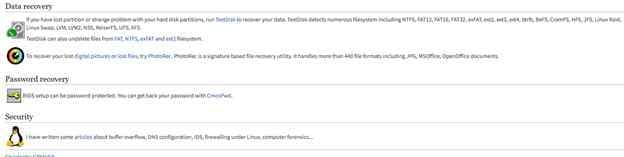
7. TestDisk and PhotoRec: Best Free Open-Source Option for Advanced Users
TestDisk and PhotoRec are free open-source recovery tools from CGSecurity. TestDisk is mainly known for recovering lost partitions and repairing partition structures, while PhotoRec is designed to recover lost files by searching for file signatures.
These tools are powerful but technical. They are better suited to users who are comfortable reading documentation, selecting disks manually, and working with a text-based interface.
Key Features
- Free and open source.
- TestDisk can recover lost partitions and repair partition tables.
- PhotoRec can recover files from damaged or formatted storage.
- Supports many file systems and file signatures.
- Works well for advanced troubleshooting.
Pros
- Completely free.
- Strong option for technical users.
- Useful for lost partitions and file system problems.
- Works even when some graphical tools fail.
Cons
- Not beginner-friendly.
- PhotoRec may recover files without original names or folders.
- No polished visual preview like commercial tools.
Part 4. How to Recover Lost Files on Windows 11 with Recoverit
If you want a guided recovery process, Recoverit gives Windows 11 users a simple way to scan a drive, preview files, and recover selected data to a safe location.
Before starting, install Recoverit on a different drive from the one you want to recover. For example, if you lost files from Drive D, do not install the software on Drive D. Also, save recovered files to a different drive.
Step 1. Go to the Drive or Location to Scan
From the "Hard Drive and Locations” tab, choose the drive or folder. The selected location must be where your lost Windows 11 files were originally stored.

Step 2. Launch Deep Scanning for Lost Files
As you opt for the target location, start the scanning process. Users will see a deep search across the drive, and Recoverit will display all deleted and recoverable files during the scan.

Step 3. Look for Recoverable Files to Save Them
After a few minutes, scroll through the detected results and preview files to confirm they are intact. Going ahead, press “Recover” as you select the files you want to restore and export them to a safe location.

Losing files on Windows 11 can feel overwhelming, especially when the missing folder contains family photos, work documents, videos, project files, or years of personal data. The first question many users ask is simple: is there any free data recovery software for Windows 11 that can actually help?
The answer depends on what happened. A simple deleted file, a formatted USB drive, a lost partition, an emptied Recycle Bin, and a failing storage device all need different recovery approaches. Some tools are completely free but technical. Some are beginner-friendly but limit how much data you can recover for free. Others are professional demos built for advanced cases.
This guide compares 7 free and trial data recovery tools for Windows 11, including Recoverit, Disk Drill, Windows File Recovery, TestDisk and PhotoRec, Recuva, EaseUS Data Recovery Wizard, and R-Studio. You will also learn what to do before scanning, which tool fits each situation, and how to avoid overwriting recoverable files.
Part 5. Extra Tips to Improve Recovery Chances on Windows 11
- Check Recycle Bin First: If you deleted files normally, open Recycle Bin before using recovery software. Right-click the files and choose “Restore” if they are still there.
- Check File History or OneDrive: Windows 11 users may have File History, OneDrive sync, or cloud backups enabled. Check those locations before deep scanning.
- Avoid Writing New Data: Do not copy new files, install apps, download updates, or save recovered files to the affected drive. New data can overwrite deleted files.
- Use Deep Scan for Formatted Drives: If quick scan does not find the files, use deep scan. This can take longer but may find files from formatted or corrupted storage.
- Create a Disk Image for Failing Drives: If a drive shows signs of failure, create a disk image before scanning if your tool supports it. This helps reduce stress on the original drive.
- Be Realistic About SSD Recovery: On SSDs, deleted files may be removed more quickly because of TRIM. Recovery is still worth trying, but success is not guaranteed.
Conclusion
Choosing the best data recovery software for Windows 11 depends on your situation. Recoverit is a strong choice for users who want a guided recovery workflow, file preview, broad device support, and an easier interface. Windows File Recovery is Microsoft’s official free option, but it is command-line based. TestDisk and PhotoRec are powerful open-source tools for advanced users. Recuva is lightweight for simple deleted file recovery. Disk Drill and EaseUS offer polished interfaces with free or trial limits. R-Studio is best for professional recovery evaluation and complex cases.
No recovery tool can guarantee success in every situation. The most important step is to stop using the affected drive, avoid overwriting deleted data, and save recovered files to a different location. For physically damaged drives, repeated software scans may make the problem worse, so professional recovery may be safer.
FAQs
-
Q1. What is the best free data recovery software for Windows 11?
It depends on your case. Recoverit is easier for guided recovery, Windows File Recovery is Microsoft’s free command-line tool, TestDisk and PhotoRec are free and open source, and Recuva is lightweight for simple deleted files. -
Q2. Is Windows File Recovery available for Windows 11?
Yes. Windows File Recovery is available from Microsoft and can recover photos, documents, videos, and more from computers, USB drives, memory cards, and other local storage devices. However, it uses command-line instructions. -
Q3. Is it safe to install recovery software on the same drive I am recovering?
No. Installing recovery software on the same drive may overwrite the deleted data you want to recover. Install the software on another drive or external storage device instead. -
Q4. Can free data recovery software recover files from a formatted drive?
Sometimes. Formatting often removes file references, but the actual data may remain until overwritten. A deep scan may help recover files from a formatted drive, but results are not guaranteed. -
Q5. Can data recovery software recover files from SSDs?
Sometimes, but SSD recovery can be harder because TRIM may clear deleted data more quickly. Stop using the SSD immediately and scan as soon as possible. -
Q6. Can I recover files after emptying the Recycle Bin in Windows 11?
Possibly. If the deleted data has not been overwritten, recovery software may find it. Stop using the drive and scan it as soon as possible. -
Q7. Which tool is best for lost partitions?
TestDisk is a strong free option for technical users who need lost partition recovery. Recoverit, DiskGenius, and R-Studio may also help depending on the case and user skill level. -
Q8. Should I save recovered files back to the same drive?
No. Always save recovered files to a different drive, external disk, USB drive, or safe location. Saving files back to the same drive can overwrite other recoverable data.


