
 TL;DR:
Deleted hard drive files remain recoverable until new data overwrites their storage space, meaning you must stop using the affected drive immediately to prevent permanent data loss.
● Restore missing files using native tools like Windows File History or Mac Time Machine, which is only possible if these features were actively running before the data disappeared.
● Run recovery software like Recoverit for formatted drives or emptied bins, provided the system still detects the hard drive, and always save the restored files to a completely different storage device.
● Send the disk to a professional recovery lab if it exhibits physical damage like clicking noises, overheating, or detection failure, because running software scans on failing hardware will worsen the internal damage.
Ask AI for a summary
 ChatGPT
 Perplexity
 Gemini
 Claude
 Grok
Grok
TL;DR
- Cause Check: Identify whether deletion, formatting, malware, partition loss, or damage caused the issue.
- Quick Checks: Look through the Recycle Bin, Trash, recent folders, backups, and connected storage.
- Backup Options: Use File History, Previous Versions, Time Machine, or cloud copies when available.
- Software Recovery: Try Recoverit when manual checks fail, but the hard drive still appears.
- Expert Help: Choose lab recovery for clicking, overheating, water damage, or detection failure.
- Future Protection: Keep backups, protect drives, scan transfers, and replace weak disks early.
Quick Answer: Deleted hard drive files often remain recoverable until new data overwrites their space. Always check simple locations, backups, and cloud copies before trying deeper recovery software. To recover information from a hard drive, stop saving files and choose safely.
Hard drive data loss can happen during deletion, formatting, system crashes, or sudden drive errors. Many users panic because important documents, photos, videos, and work files suddenly disappear. However, deleted data may still remain recoverable until new files overwrite the storage space. Knowing how to recover information from a hard drive helps users act safely first.
The right recovery method depends on how the files disappeared from storage originally. Simple checks can help with recent deletion, while backups restore earlier saved copies. Moreover, advanced software or expert recovery services become useful when manual options fail completely.
In this article
-
- Way 1. Check the Recycle Bin / Trash
- Way 2. Search for Missing Files with File Explorer or Finder
- Way 3. Restore Files from Backup Drives
- Way 4. Recover Information Using File History on Windows
- Way 5. Use the Previous Versions Feature
- Way 6. Recover Files Using Time Machine on Mac
- Way 7. Recover Deleted Files from Cloud Sync or Online Backup
- Way 8. Recover Hard Drive Data Using Recovery Software
- Way 9. Use a Professional Hard Drive Recovery Service
Part 1. 9 Common Reasons You Lose Information from a Hard Drive
Users need to understand the following reasons why hard drive information gets lost before they decide on any recovery method for hard disk information recovery:
- Accidental Deletion: Cleaning old folders sometimes leads users to remove important files by mistake. The loss becomes obvious when the required documents no longer appear anywhere later.
- Drive Formatting: Formatting a drive clears file indexes and hides previous folders from view. Mistakes happen during Windows setup, partition changes, or when selecting the wrong drive.
- System Crash: A sudden crash interrupts active saving before the disk records changes fully. After the restart, recent edits disappear because the writing process unexpectedly stopped midway.
- File System Corruption: Corrupted file structures break the links between folders, names, and stored locations. Files then appear blank, renamed, duplicated, or unreadable without clear warning signs.
- Malware Attack: Malware often changes file names, hides folders, or locks stored content silently. Infected drives show shortcuts, missing folders, strange extensions, or locked documents that are suddenly missing.
- Bad Sectors: Worn areas on the disk prevent the hard drive from reading stored information correctly. Documents saved there open slowly, freeze repeatedly, or show damaged content later.
- Failed File Transfer: Interrupted transfers leave incomplete files when copying stops before the process finishes. The destination folder receives fragments, while the source copy disappears afterward, unexpectedly.
- Partition Loss: Partition table errors hide entire sections that previously held organized file folders. Users see unallocated space instead of familiar drive letters and folder names.
- Physical Drive Damage: Drops, heat, moisture, and power surges quickly damage delicate internal drive components. Clicking noises, freezing screens, and detection failure usually follow mechanical damage inside.
Part 2. Can Deleted Hard Drive Files Be Recovered?
When files are deleted, the system usually marks their space as reusable. So, below are the methods for how to recover information from a hard drive before overwriting happens:
Way 1. Check the Recycle Bin / Trash
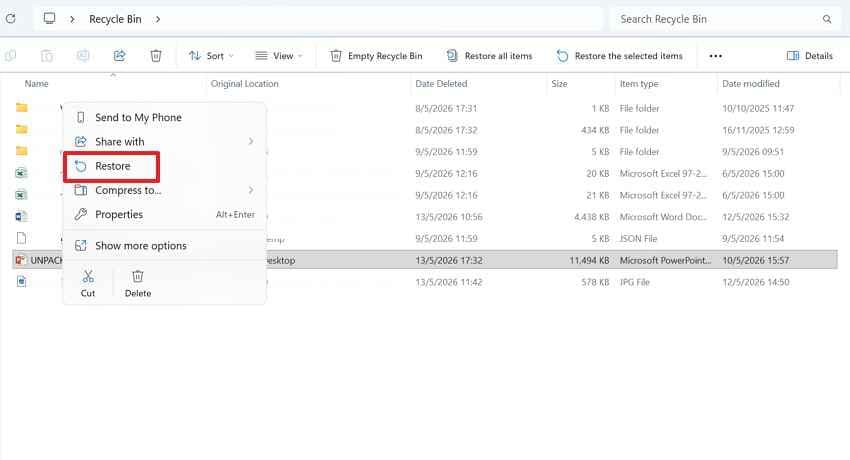
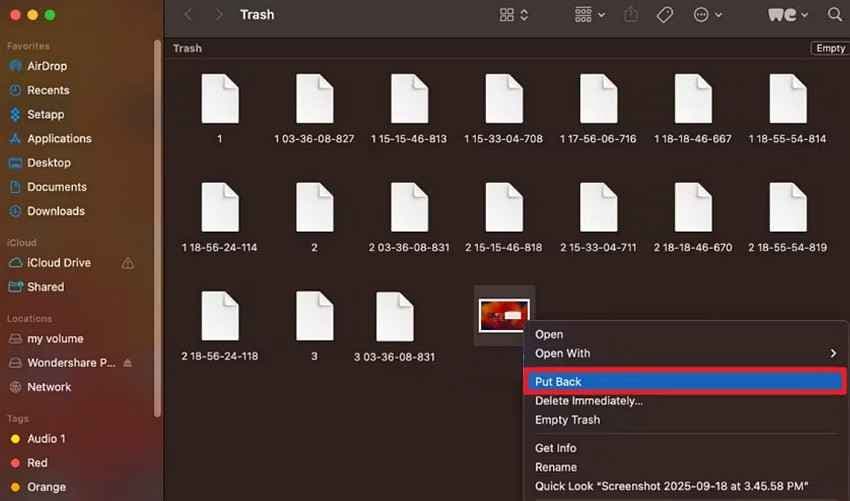
Recycle Bin on Windows and Trash on Mac should be checked first after deletion. Normal deletion usually sends files there before permanent removal, so users may restore them without extra tools. However, this method only helps when the bin has not been emptied. It is the simplest way to recover information from a hard drive safely. Follow these steps to check whether the deleted hard drive file still exists in the Recycle Bin or Trash:
For the Recycle Bin
- Select the Start menu and search for "Recycle Bin" or click on it from the desktop.
- Search for the deleted hard drive file using its name, date, size, or original file folder location.
- If it is located, right-click on it and select "Restore" to move it back.
For Trash
- Click the "Trash" icon from the Mac Dock and review the removed items inside.
- Use the search bar if the folder contains many deleted files.
- After finding the needed file, Control-click it and select "Put Back" to move it to its original location.
Way 2. Search for Missing Files with File Explorer or Finder
A missing file is not always deleted from the hard drive. It might be inside another folder, user profile, library, download path, or synced location after saving. File Explorer and Finder searches by name, extension, date, type, and location help confirm whether the item still exists somewhere accessible or visible on the disk. Thus, use the instructions below to search Windows or Mac for files saved in the wrong location:
Search for Lost Files on Windows
Step 1. Locate "File Explorer" and choose "This PC" or the hard drive where the file was last saved. Type the file name, extension, or related keyword into the search bar.
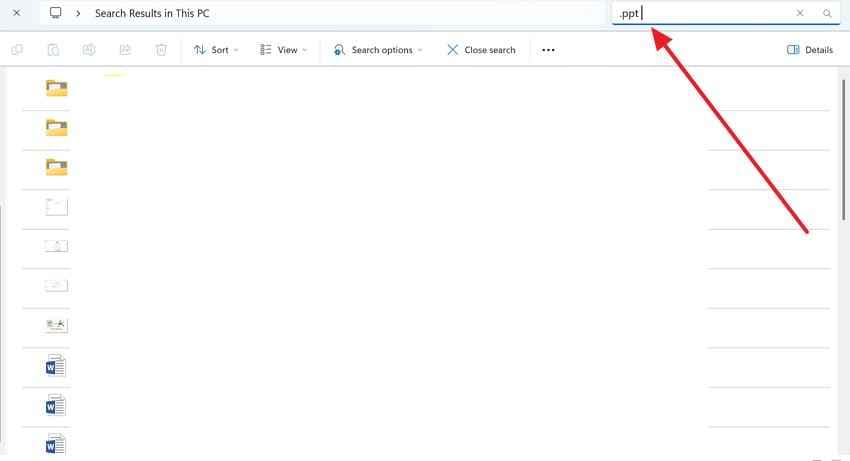
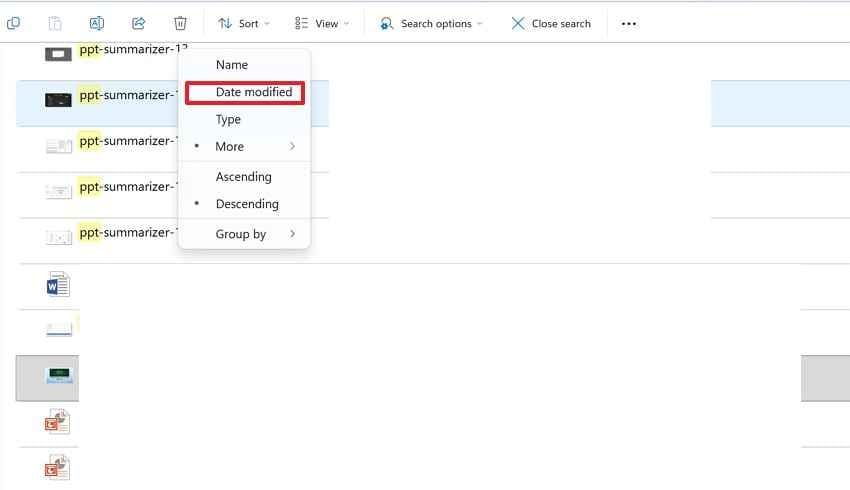
Step 2. Next, use filters like "Date Modified" to narrow the results. When the file appears, open its location and copy it to a safe folder.
Search for Missing Files on Mac
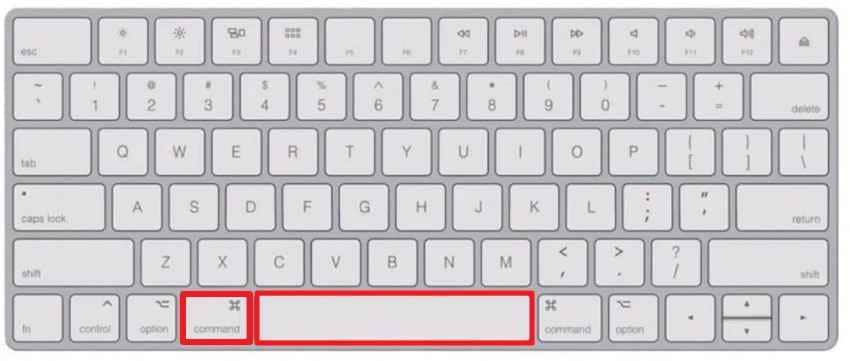
- Type in the file name, extension, or keyword of the file you are looking for, for example, PDF, DOCX, JPG, invoice, or project title, by pressing "Command + Space" to launch "Spotlight Search."
- Take a close look at the results and hold "Command" on a highlighted file to view the path of the file's folder.
Way 3. Restore Files from Backup Drives
Backup drives are useful when users have previously copied important folders to external storage. They may contain older document versions, project folders, photos, or exported files that disappeared from the main disk. Moreover, checking backups first avoids unnecessary scanning and helps recover information from the hard drive when the original copy was deleted without changing the source storage. Adhere to the instructions given below to restore files from backup drives:
- Attach the external hard drive, USB, or SSD containing earlier file copies.
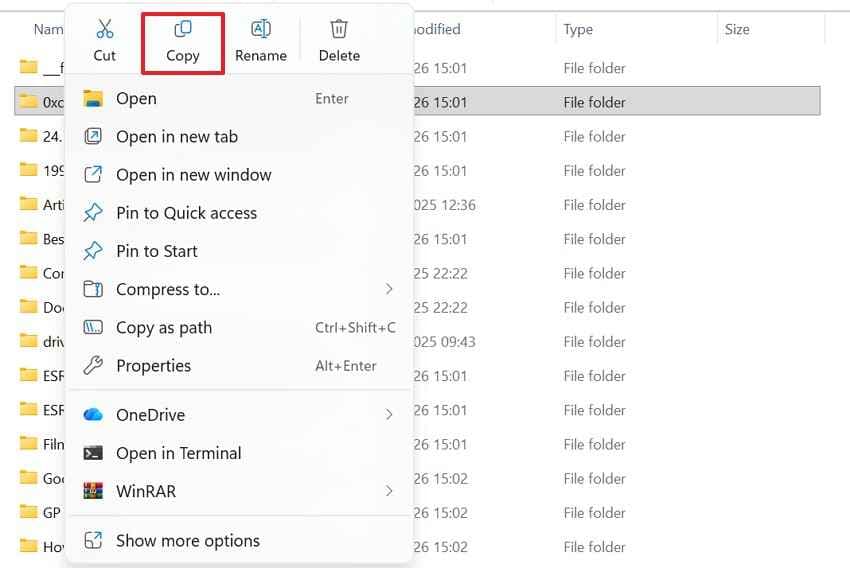
- Browse the saved folders by date, project name, or file type, then copy the needed file back to the computer or another safe location.
Way 4. Recover Information Using File History on Windows
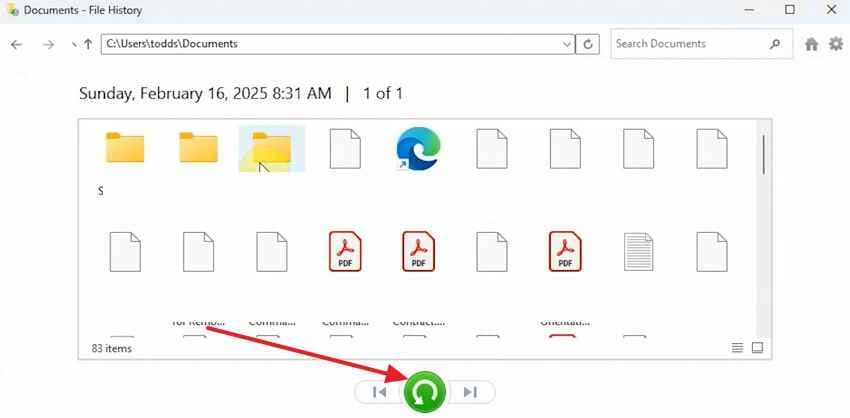
For Windows users, File History acts like a dated record of selected folders. It restores earlier copies from protected locations such as Documents, Pictures, Desktop, Music, or Videos. The feature is helpful only when it was enabled before deletion, because Windows cannot show versions that were never backed up on that computer through File History. Try these steps to open File History and restore available saved copies:
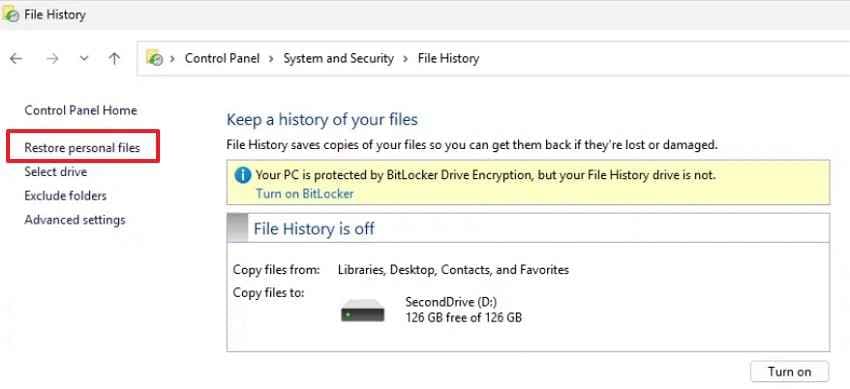
Step 1. Access "Control Panel" and go to "System and Security > File History." From the left sidebar, select "Restore Personal Files" to view the saved backup timeline.
Step 2. Browse the available folders and dates until the missing hard drive file appears. Select the correct version, then press the "Restore" button to return it.
Way 5. Use the Previous Versions Feature
Previous versions help when a folder once contained the file but now appears changed, empty, or incomplete. Since Windows shows earlier folder states created through backups, restore points, or system protection. For hard disk information recovery, this option works only if the missing file existed before the latest folder change on Windows. Follow the steps below to use the previous version feature:
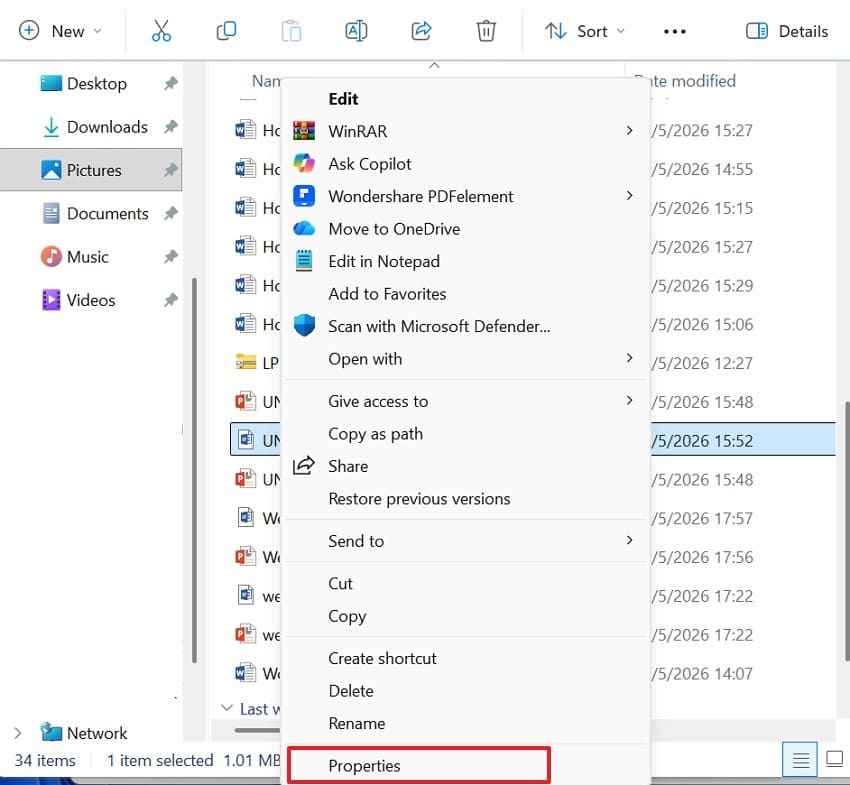
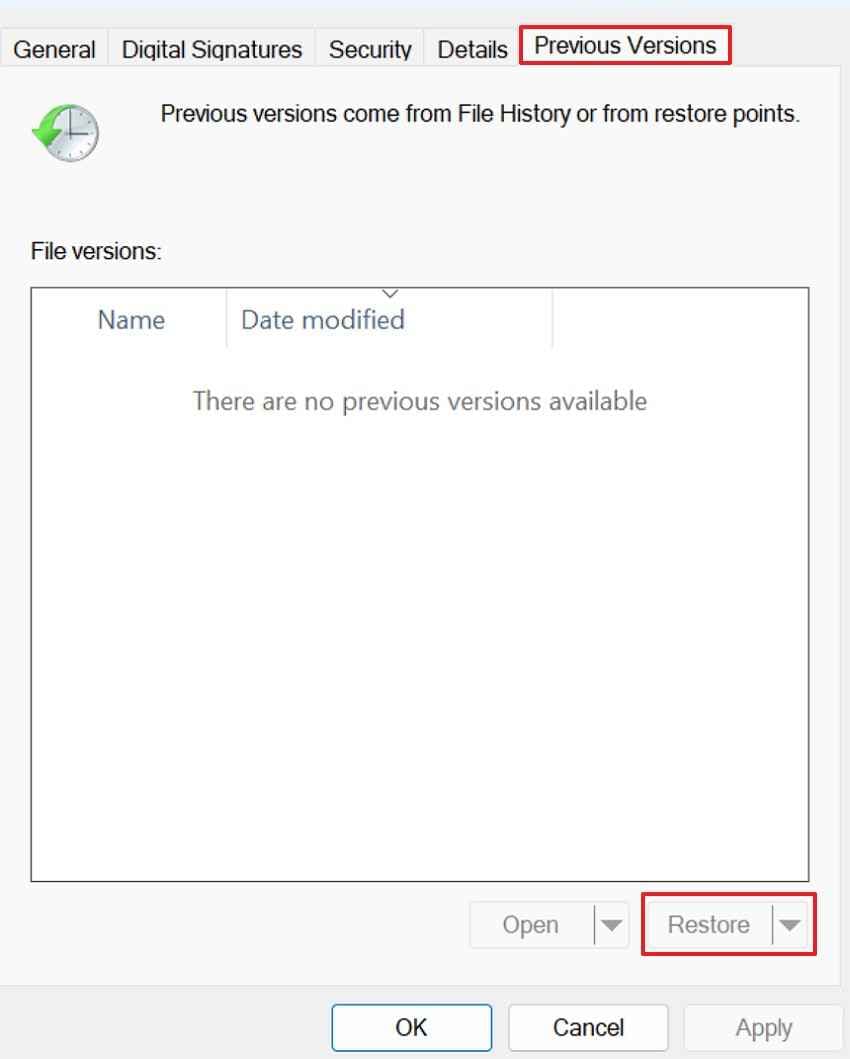
Step 1. Navigate to the folder where the file is missing, and then right-click it. Click "Properties" and find the "Previous Versions" tab to see saved versions.
Step 2. Afterward, select an older version from the list and press "Open" to review it first. If the file appears inside, choose "Restore" or copy it to another safe location.
Way 6. Recover Files Using Time Machine on Mac
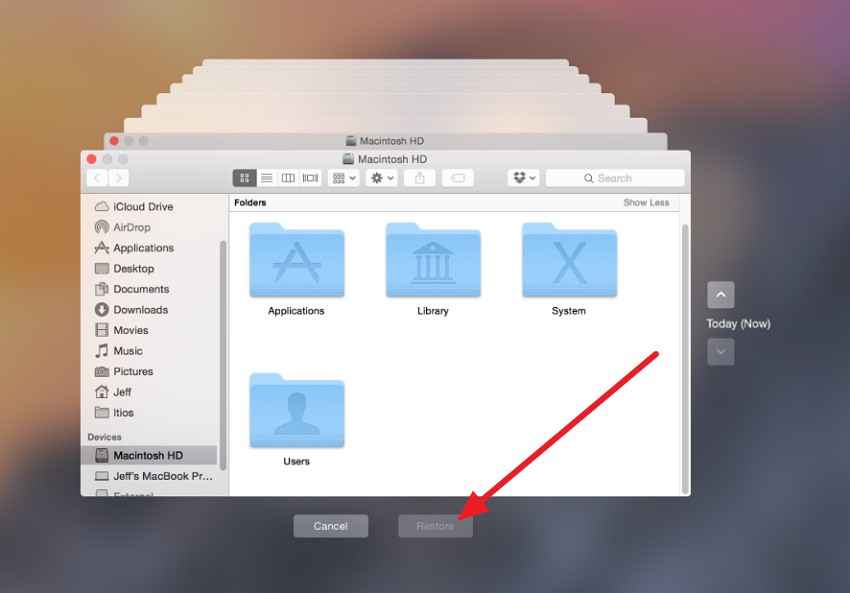
Time Machine gives Mac users a timeline view of earlier folder versions. Instead of checking random folders, users return to the original location and move backward through dated backups. Deleted documents appear only when the backup disk captured them before removal from the Mac hard drive during scheduled backup runs, not afterward. Next, follow the instructions below to recover files using Time Machine:
- First, connect the Time Machine backup drive to the Mac.
- Then, open the folder where the deleted file was saved before, and enter "Time Machine."
- Browse older backup dates, select the needed file, and click "Restore" to return it to the same folder.
Way 7. Recover Deleted Files from Cloud Sync or Online Backup
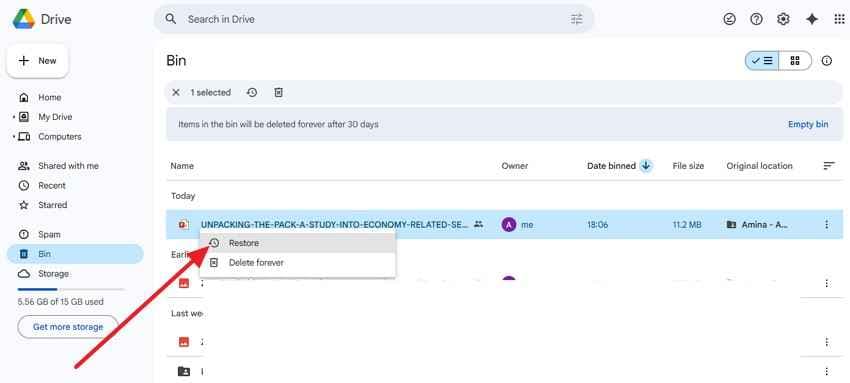
Cloud backup helps when important hard drive folders are synced with OneDrive, iCloud Drive, Google Drive, or Dropbox before deletion. Even if the local file disappears, the online account may still keep a copy, deleted item, or older version. This method supports hard drive data recovery when cloud syncing was active earlier. Use these steps to check whether the deleted hard drive file still exists in the cloud backup:
- Upon accessing a cloud account like Google Drive, and checking the Bin from the left sidebar.
- If you have found the lost file, right-click and choose "Restore." Google Drive returns the file to its original cloud location, where users can open it or download it again if needed.
Way 8. Recover Hard Drive Data Using Recovery Software
Manual checks help when deleted files remain in the Recycle Bin, backups, or cloud storage. The situation changes when the drive is formatted, the bin is emptied, or no saved copy exists. At this stage, users need recovery software to scan the hard drive deeply and recover information from the hard drive before new data overwrites remaining stored file traces on the disk.
Recoverit Hard Drive Recovery fits this point because it focuses on lost, deleted, formatted, or inaccessible files from internal hard drives, external disks, USB devices, and other storage media. Moreover, its preview option helps users check recoverable documents, photos, videos, or work files before saving them. This makes it suitable when manual methods fail, but the drive still detects properly.
Key Features
- Filtered File Search: Filters scan results by file type, date, size, and path to make hard drive selection easier.
- Disk Image Access: Allows recovery from disk images, helping users avoid repeated scans on unstable hard drives safely.
- Bootable Drive Recovery: Creates a bootable USB drive to access files when Windows cannot start normally after a crash.
How to Recover Information from a Hard Drive Using Recoverit
At this stage, a deeper scan can help locate files that normal folders no longer show. Below are the steps to recover hard drive data using Recoverit:
Step 1. Start by accessing the "Hard Drives and Locations" tab from the left panel. Then, select the hard drive, partition, external disk, or specific folder where the lost files were stored.

Step 2. Once the scan starts, all the recoverable files will appear under the "File Location" tab in the "Name of Lost Files" folder.

Step 3. Lastly, select the files you want to restore and press "Recover." Next, save them to another drive or safe folder, not the same hard drive, to avoid overwriting remaining data.

Why Recovery Software Works Better Than Manual Recovery
Recovery software works better when manual methods cannot locate deleted, formatted, or hidden files. Instead of checking visible folders only, it scans deeper storage areas for remaining file traces. It also helps preview recoverable items before saving them, which reduces guesswork and improves selection during hard drive data recovery.
Way 9. Use a Professional Hard Drive Recovery Service
Professional recovery services become necessary when a hard drive shows physical failure signs. Moreover, clicking noises, overheating, water exposure, or fire damage need trained specialists. These services also suit drivers who stop spinning or freeze computers repeatedly. When drivers vanish from Disk Management or Finder, avoid repeated scanning. Such attempts may worsen internal damage before lab experts inspect devices.
Pros and Cons of Professional Recovery Services
With the basics in mind, users should compare the benefits and drawbacks carefully. Below are the main pros and cons of professional hard drive recovery services:
Pros
- Handles damaged drives with specialist tools and controlled lab environments.
- Reduces further data loss when DIY attempts seem too risky.
- Offers clearer diagnostics before users approve expensive recovery work first.
Cons
- Usually, it costs more than software recovery for personal hard drives.
- Turnaround time increases when drives require advanced lab handling work.
How Much Does Professional Hard Drive Recovery Cost
Professional hard drive recovery often costs between $100 and $2,000, depending on damage. Simple deletion or logical errors usually cost less than mechanical repairs. However, cleanroom cases involving donor parts, head swaps, or platter damage cost more. Urgent service, large-capacity drives, and severe damage also increase pricing. Users should request a diagnosis, a final quote, and a no-data policy before approval.
Part 3. 8 Best Practices to Improve Hard Drive Recovery Success
Successful recovery depends on what users do immediately after files disappear from storage. These best practices explain how to recover information from a hard drive with fewer risks:
- Stop Using the Drive: Stop using the affected drive immediately after noticing that important files are missing suddenly. New activity writes data that could permanently replace deleted file records.
- Choose Another Save Location: Save restored files to another storage device, never the affected hard drive. As saving them in the same location risks overwriting data still waiting inside recoverable sectors.
- Check Simple Places First: Check the desktop, downloads, recent folders, and connected external storage first. Sometimes files move accidentally rather than disappear from the hard drive.
- Avoid Formatting the Drive: Avoid formatting the drive after deletion, even when system prompts appear. Since formatting changes storage records, making it harder to trace deleted files afterward.
- Use Reliable Recovery Tools: Choose trusted recovery software that previews files before saving final results. Unreliable tools may create incomplete results, duplicates, or confusing file names.
- Scan the Correct Location: Select the original folder, partition, or drive where files disappeared first. Scanning unrelated locations wastes time and misses the most relevant records.
- Handle Physical Damage Carefully: Stop repeated attempts when drives click, overheat, disconnect, or freeze often. Continued use may worsen internal damage and reduce the chances of successful recovery.
- Keep Recovered Files Organized: Sort recovered files by type, date, name, and original folder path. Clear organization helps users identify the correct versions without restoring extra duplicates.
Part 4. How to Prevent Hard Drive Data Loss in the Future
After learning how to recover information from a hard drive, prevention becomes a safer long-term habit. The following tips help users protect important files before deletion, damage, or failure happens:
- Keep Regular Backup: Sort important files on external drives, storage, and separate devices regularly. A second copy protects work when the main hard drive fails unexpectedly.
- Enable Automatic Backup Tools: Turn on File History, Time Machine, or backup software before problems begin. Scheduled backups reduce panic because recent versions remain available elsewhere when needed.
- Handle Drives Carefully: Keep portable hard drives away from heat, moisture, drops, and unstable surfaces. Small shocks damage internal parts, especially when disks are spinning.
- Use Security Protection: Use trusted antivirus tools before malware encrypts, hides, or deletes files silently. Scan external drives first, since infections often spread through file transfers.
- Replace Weak Drives Early: Watch for slow loading, clicking sounds, freezing, or repeated disconnection problems. Early replacement prevents sudden failure from permanently damaging important stored information.
Conclusion
To conclude, hard drive data loss becomes less stressful when users understand the causes, recovery options, and safe handling steps. Simple checks, backups, cloud copies, recovery software, and professional services each suit different situations. To recover information from a hard drive, act quickly, avoid overwriting data, and choose the right method. For deeper scanning after manual options fail, consider Recoverit.
Frequently Asked Questions
-
Can deleted hard drive files be recovered?
Yes, deleted files remain recoverable until new data overwrites their storage space. Users should stop using the drive immediately to protect remaining file traces. -
What should I try first after losing hard drive data?
Start with the Recycle Bin, Trash, recent folders, backups, and connected storage locations. These checks often locate files before deeper scanning or expert help becomes necessary. -
When should I use hard drive recovery software?
Use recovery software when files are deleted, formatted, hidden, or no backup exists. It scans deeper storage areas and previews recoverable files before final saving. -
When is a professional recovery service needed?
Choose professional service when drives click, overheat, freeze, or stop detecting properly. Physical damage needs expert handling because repeated DIY attempts may worsen the failure.


