

 TL;DR:
For storage setups like NAS or RAID, Conventional Magnetic Recording (CMR) drives provide the necessary write stability, whereas Shingled Magnetic Recording (SMR) drives are better suited strictly for low-cost, unchanging cold backups.
● CMR drives write data on independent tracks, making them the preferred choice for heavy workloads like RAID arrays, NAS environments, gaming, and video editing that require sustained rewrite speeds.
● SMR drives overlap data tracks to lower costs and increase storage capacity, but this design severely slows down rewrite performance and makes them highly unsuitable for intensive RAID rebuilds or systems using ZFS.
● Manufacturers do not always explicitly disclose recording types for models like the WD120EMAZ and WD120EMFZ, requiring users to verify the drive technology using official specification sheets, software like CrystalDiskInfo, or trusted NAS community forums before building an array.
Ask AI for a summary
 ChatGPT
 Perplexity
 Gemini
 Claude
 Grok
Grok
Hard drives remain useful because they offer spacious storage at lower costs. Still, performance can change greatly depending on how the data is written. The SMR vs CMR HDD 2026 review highlights why these recording methods matter most. As a result, buyers should carefully compare speed, stability, and workload demands.
For example, one drive may suit backups, while another handles editing better. Meanwhile, daily tasks, gaming, and archives each place different pressures today. Thus, understanding the trade-offs helps avoid slowdowns, stress, and wasted money. This guide makes the choice clearer before you invest in storage.
Try Recoverit to Perform Data Recovery
 Security Verified. 3,591,664 people have downloaded it.
In this article
Part 1. What is SMR (Shingled Magnetic Recording)?
SMR, or Shingled Magnetic Recording, is a hard drive recording method that places data tracks so they slightly overlap, much like roof shingles. This design allows manufacturers to fit more data onto the same platter surface, which increases storage density without making the drive larger. Therefore, SMR drives are often used for high-capacity storage at lower cost, making them a practical choice for backups, archives, and less-demanding workloads.
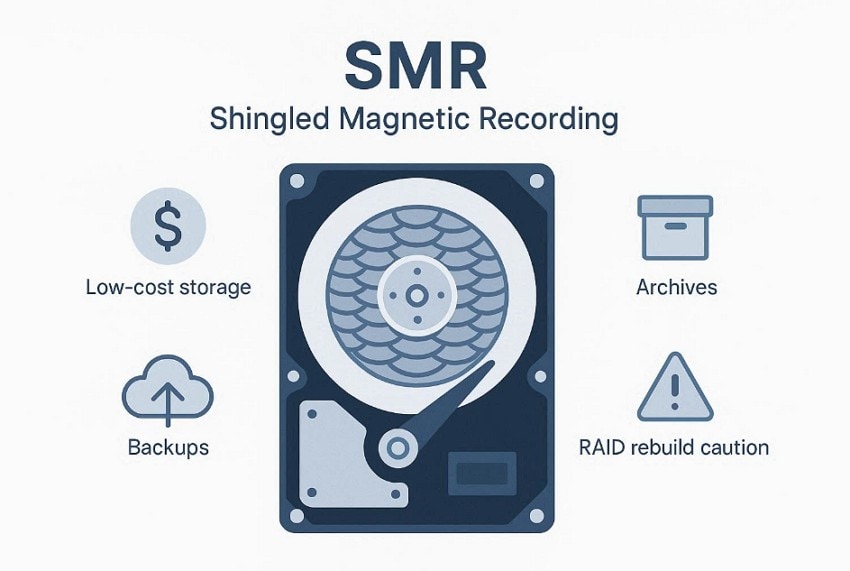
SMR works by writing data tracks so they overlap each other slightly. This design saves space and increases capacity, but rewriting one area can affect nearby tracks and require extra rearranging. That is why many users ask, “is SMR HDD bad for RAID rebuild 2026,” when comparing storage options. In most cases, SMR is better for backups and archives than RAID rebuilds, where steady write performance matters more.
Part 2. What is CMR (Conventional Magnetic Recording)?
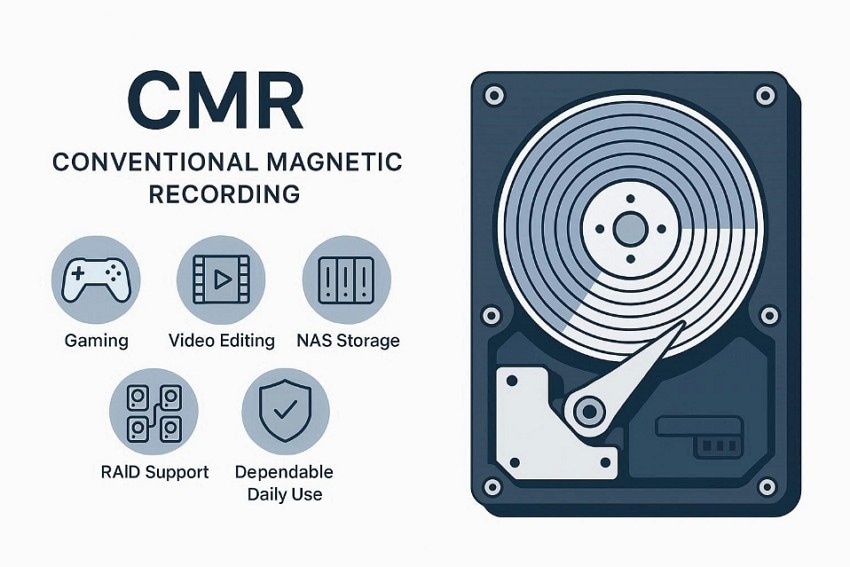
CMR stands for Conventional Magnetic Recording, which is the traditional method used in hard drives. It stores data on separate tracks without overlap, which keeps each section easier to manage. This design supports stable performance, dependable operation, and smoother handling of frequent write tasks. CMR drives are often preferred for gaming, editing, NAS setups, and everyday storage needs.
Moreover, CMR works by writing each data track in its own space. This makes updates and rewrites more direct, since nearby tracks stay unaffected. For that reason, users searching for the best CMR hard drive 2026 often choose CMR for RAID, creative workloads, and other tasks that need steady write performance.
Part 3. Key Differences Between SMR and CMR HDDs
Choosing between SMR and CMR becomes easier once their core differences are clear. The points below compare how both technologies perform in real storage situations:
Write Method (Overlapped vs Independent Tracks)
The biggest difference begins with how each drive writes data physically. That writing method shapes capacity, rewrite speed, and overall performance.
| Aspect | Overlapped Tracks (SMR) | Independent Tracks (CMR) |
|---|---|---|
| Track Layout | Tracks partly overlap like roof shingles | Each track is written separately |
| Space Efficiency | Uses platter space more efficiently | Uses more space between tracks |
| Storage Capacity | Higher capacity on the same platter size | Lower capacity than SMR |
| Rewrite Process | Rewriting one area may affect nearby tracks | Rewriting is limited to one track |
| Write Performance | Slower for frequent updates and rewrites | Faster and more stable for rewrites |
| Read Performance | Usually fine for general reading tasks | Also strong, especially under mixed workloads |
| Workload Strength | Better for archives and backup storage | Better for gaming, RAID, NAS, and editing |
| Reliability Under Heavy Writes | Less ideal for constant write-heavy tasks | More dependable for demanding use |
| Cost Value | Often cheaper for large-capacity storage | Often costs more for the same capacity |
Speed Performance Differences
SMR and CMR can feel very different once file activity becomes heavier. SMR usually handles light reading and simple storage tasks well, but write speeds may drop during updates, file transfers, or repeated changes. In contrast, CMR offers more stable performance because each track is written separately. That makes it better for gaming, editing, RAID, and other tasks that need faster and more consistent write speeds.
Data Rewriting Behavior
The difference becomes clearer when old data needs rewriting. On an SMR drive, changing one section can disturb nearby tracks, so the drive often reorganizes data before finishing the task. That extra step may slow repeated updates or changes to larger files. A CMR drive avoids that problem by writing each track separately. As a result, rewrites feel steadier, faster, and more reliable during heavier everyday workloads for most active users.
Suitability For Workloads
When comparing SMR vs. CMR HDD 2026, workload type matters more than capacity alone. SMR works better for backups, archives, and storage that rarely change, where lower cost and larger space feel more useful. While CMR is a stronger fit for gaming, editing, RAID, and NAS tasks because it handles frequent writing more smoothly. For active daily use, CMR usually delivers steadier performance and fewer slowdowns over time.
Part 4. SMR HDD: Advantages and Limitations
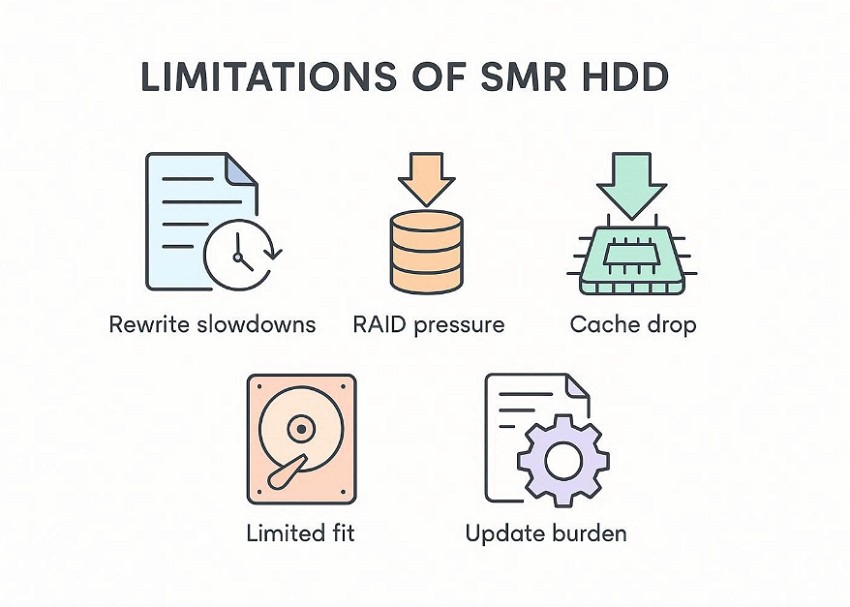
SMR can be a smart storage option, but trade-offs still matter. The points below show where it helps and where it struggles:
Advantages
Part 5. CMR HDD: Advantages and Limitations
Now the focus shifts from capacity trade-offs to steadier everyday drive performance. The following points explain where CMR excels and where it costs more:
Advantages
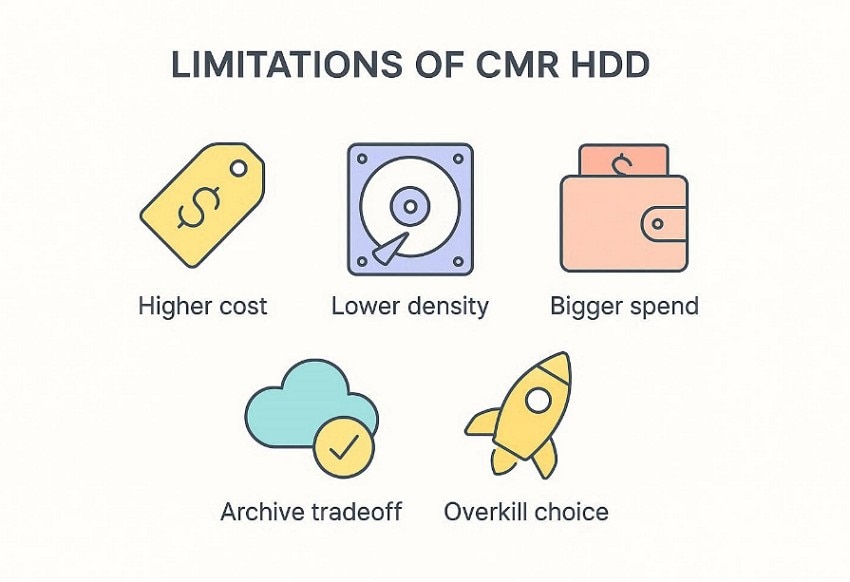
Part 6. SMR vs. CMR Performance Comparison (2026 View)
Looking at capacity alone can be misleading when performance matters daily. The comparison below shows how both drive types handle speed, rewriting, and workload pressure in 2026:
| Performance Area | SMR HDD | CMR HDD |
|---|---|---|
| Write Speed | Can slow down during repeated writes and large updates | Stays steadier during frequent writing tasks |
| Read Speed | Usually fine for reading stored files | Strong, with better consistency overall |
| Rewrite Behavior | May need extra reorganization before finishing writes | Rewrites stay direct and more predictable |
| Large File Transfers | Performance may drop once the cache fills | Handles long transfers more smoothly |
| Gaming Use | Works for storage, but not ideal for active installs | Better for game installs, updates, and loading tasks |
| Editing Workloads | Less suited for repeated file changes | Better for video, design, and project editing |
| RAID Rebuilds | Can struggle under sustained rebuild pressure | More reliable for RAID and NAS environments |
| Backup Storage | Strong fit for backups and cold archives | Works well, though often costs more |
| Daily Mixed Use | Better for lighter workloads | Better for regular and demanding workloads |
| Overall Stability | Good for simpler storage needs | Stronger for performance-focused everyday use |
Part 7. How to Tell if Your Drive is SMR or CMR (2026)
Before choosing a drive for RAID, NAS, backups, or editing, it helps to confirm the recording type first. Many buyers search for how to tell if an HDD is SMR or CMR because similar capacities can behave very differently in real use. So, review the checks below to confirm whether your drive uses SMR or CMR:

- Model Check: Start by finding the exact model number printed on the drive label. That number gives the clearest path to accurate recording-type verification later online.
- Official Specs: Next, search the manufacturer page where full specifications are usually listed clearly. Official datasheets often reveal whether the drive uses shingled or conventional recording.
- Drive Tools: If the drive is installed, use the software to read its model first. Tools like CrystalDiskInfo can display hardware details without opening the case physically.
- Support Lists: Some brands hide recording methods, so community lists become useful backup sources. Trusted NAS forums often track models that official pages leave unclear publicly.
- Retail Caution: Retail listings can sometimes miss key details, especially on marketplace product pages. Treat seller descriptions as hints, then verify everything through stronger sources yourself.
- Capacity Myth: A six-terabyte label alone cannot confirm how data tracks are written inside. Drives sharing one size may still use very different recording designs internally.
- Pro Tip: Bring Back Lost HDD Data with Wondershare Recoverit Tool
Storage decisions involve more than speed, capacity, and workload matching alone. Problems can still appear when important files vanish after deletion, corruption, failed transfers, or sudden interruptions. In those moments, recovery becomes just as important as carefully choosing between recording methods. A dependable tool can reduce stress, save time, and make it easier to retrieve lost HDD data safely.
Therefore, Recoverit meets this need by providing users with a practical recovery option for everyday storage problems. In an SMR vs CMR HDD 2026 guide, that matters because file loss can affect either setup unexpectedly. Instead of feeling stuck after something goes wrong, users get a clearer path toward restoring important data with more confidence during stressful moments.
Key Features
- Deep Scan: Scans damaged HDD sectors deeply to recover files lost after formatting, corruption, failed transfers, or accidental deletion.
- Partition Recovery: Restores missing partitions after cloning errors, file-system damage, failed migrations, or sudden drive structure changes.
- NAS Recovery: Supports NAS and Linux recovery, useful when higher-capacity drives store backups, archives, or shared household data.
Guide to Bring Back Lost HDD Data with Recoverit
Lost HDD data can feel stressful, but recovery becomes easier with the right process. Follow the steps below to bring back files with Wondershare Recoverit:
- Choose the Place Where the Files Were Lost
To begin, open Recoverit and head to the “Hard Drives and Locations” section. From there, select the exact location where the missing HDD data was last stored.

- Let the Scan Run and Narrow the Results
After that, allow the program to scan the selected location for lost files. Meanwhile, use options like “File Location,” “File Type,” or “Filter” to sort the results.

- Check the Files and Recover Them Safely
Once the target files appear, open the preview window to make sure they are correct. Finally, click “Recover” and save the restored data to another location.

Conclusion
To conclude, choosing between SMR and CMR depends on how your storage will actually be used. If you still wonder, is SMR HDD bad for RAID rebuild 2026? The answer often depends on writing intensity and workload demands. CMR suits heavier use, while SMR is better suited for archives. For unexpected file loss during drive issues, Wondershare Recoverit is a practical recovery solution.
FAQ
-
1. What is the main difference between SMR and CMR HDDs?
SMR overlaps tracks to increase capacity, while CMR keeps tracks fully separate inside. That design choice affects rewrite speed, workload stability, and long-term storage suitability greatly. -
2. Is SMR good for everyday storage and backups?
For backups and archives, SMR works well because files change less often there. It feels less ideal when constant updates, editing, or rebuilds happen regularly. -
3. Why do RAID users usually prefer CMR drives?
RAID rebuilds need steady writing, and CMR handles repeated updates more smoothly. That makes arrays more predictable during failures, replacements, and heavier daily workloads. -
4. Can Recoverit restore data from a failed HDD?
Recoverit can restore lost HDD files after deletion, corruption, formatting, or transfer errors. It helps when important storage data disappears unexpectedly during crashes, failures, or migrations.


