

 TL;DR:
A 28TB HDD is essential for video editors needing massive bulk storage for raw footage, proxies, and archives, but it must be paired with a faster SSD for active, real-time timeline editing and rendering to avoid performance bottlenecks.
● For shared editing and NAS environments, the Seagate IronWolf Pro 24TB or WD Red Pro 24TB offer stable daily multi-user access, while the Thunderbolt 3-equipped LaCie 2big Dock 28TB or SanDisk Professional G-RAID Shuttle 4 24TB are better suited for hardware RAID setups and transporting projects between locations.
● High-capacity HDDs demand strict workflow organization, requiring editors to separate active projects from archives to prevent unnecessary drive strain and to implement reliable backup routines alongside surge protection to mitigate data corruption.
● Because large single-drive arrays cannot prevent file deletion or transfer failures, professional post-production workflows require a tool like Wondershare Recoverit to perform fragment recovery and repair corrupted video clips across multiple formats when unexpected data loss occurs.
Ask AI for a summary
 ChatGPT
 Perplexity
 Gemini
 Claude
 Grok
Grok
Video editing quickly fills storage with raw clips, proxies, exports, and backups. Larger drives help creators keep projects organized without constant file shuffling daily. The best 28TB HDD for video editing matters when workloads keep expanding. Since capacity alone is not enough for smooth editing and dependable storage needs.
Moreover, cache behavior shapes transfers, previews, and large media handling during long sessions. Reliability also matters when client footage must stay safe over longer periods. This guide explores useful options for editors needing room and consistency daily. With the right drive, busy workflows feel cleaner, safer, and easier overall.
Try Recoverit to Perform Data Recovery
 Security Verified. 3,591,664 people have downloaded it.
In this article
Part 1. What to Look for in a 28TB Video Editing HDD
Many buyers ask, “is 28 TB HDD worth it for video editors?” today. That depends on features that support fast, work-safe storage and long use. Thus, review the points below to see what to look for in a 28TB video editing HDD:
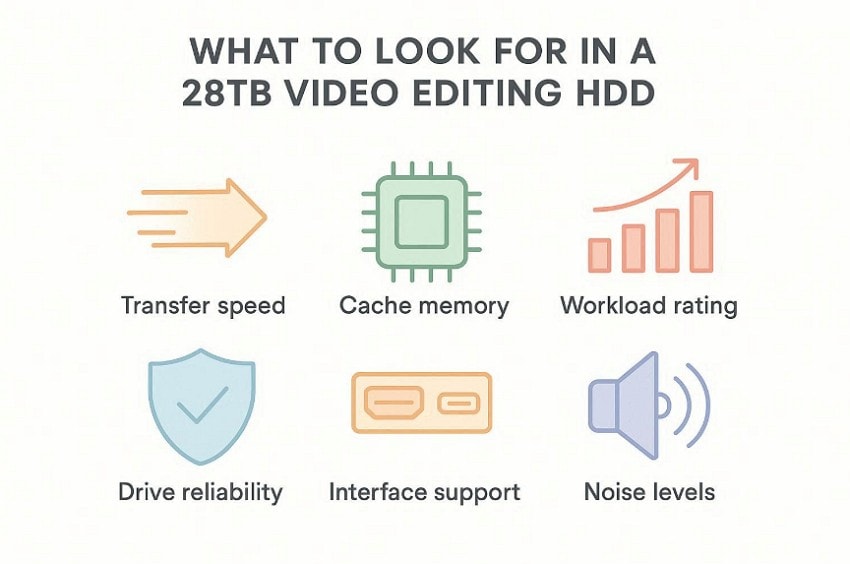
- Transfer Speed: Higher transfer speeds move raw footage faster between timelines, previews, and exports. This helps editors review large files smoothly without wasting production time daily.
- Cache Memory: A bigger cache supports steadier performance when projects pull many files together quickly. It reduces slowdowns during scrubbing, rendering, and opening heavy media libraries daily.
- Workload Rating: Strong workload ratings show the drive can handle frequent editing demands well. Higher endurance matters when you save, revise, and move footage every day.
- Drive Reliability: Reliable hardware lowers failure risks and protects ongoing projects from sudden loss. This is most concerning when deadlines depend on stable access to stored material.
- Interface Support: A matching interface ensures data flows properly between the drive and the editing system. Good compatibility prevents bottlenecks and avoids setup issues across demanding projects.
- Noise Levels: Lower noise helps editors focus better during long sessions and audio checks. A quieter drive also suits shared studios, where constant humming can be distracting.
Part 2. Top 28TB HDD Options for Video Editing (Quick Overview)
These top picks make it easier to find the best 28TB HDD for video editing. Each option offers a different balance of storage speed, reliability, and daily workflow support.
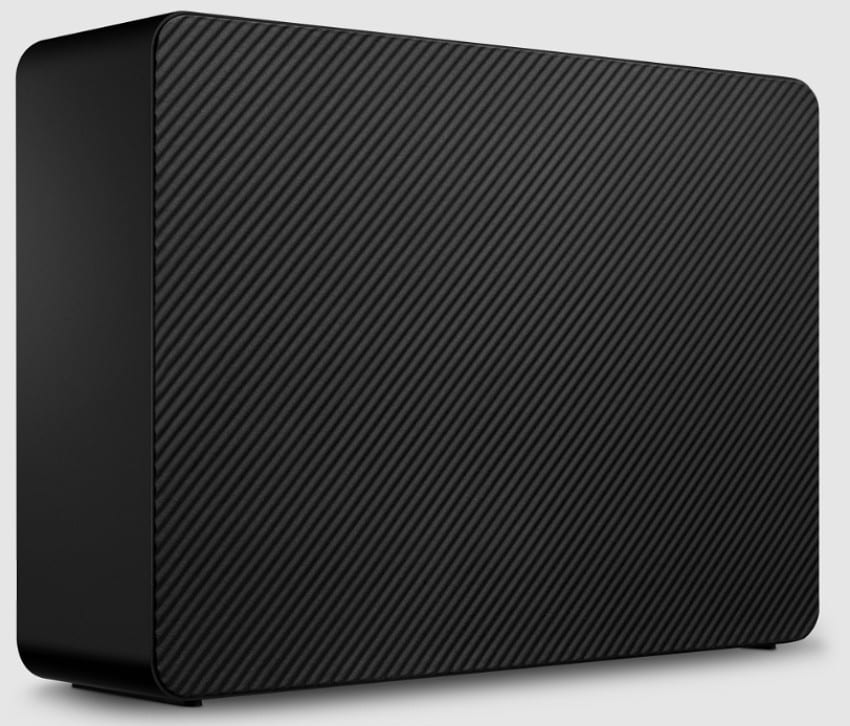
1: Seagate Expansion External Desktop Drive
Best For: Editors needing simple desktop backup space for archives and finished exports.
Seagate Expansion gives editors simple desktop storage for archives and backups. For 28 TB HDD vs SSD for video editing, storage choices matter. Furthermore, this drive keeps setup easy on both Windows and Mac. So it fits users who want capacity first and fuss second. That makes early studio upgrades cheaper without changing editing habits yet.
Key Specs
| Drive | Capacity to Use | Interface / Connection | Speed / Performance | Warranty |
|---|---|---|---|---|
| Seagate Expansion External Desktop Drive | 28TB | USB 3.0 | Desktop external drive for added storage | 1 year |
Price: $689.99
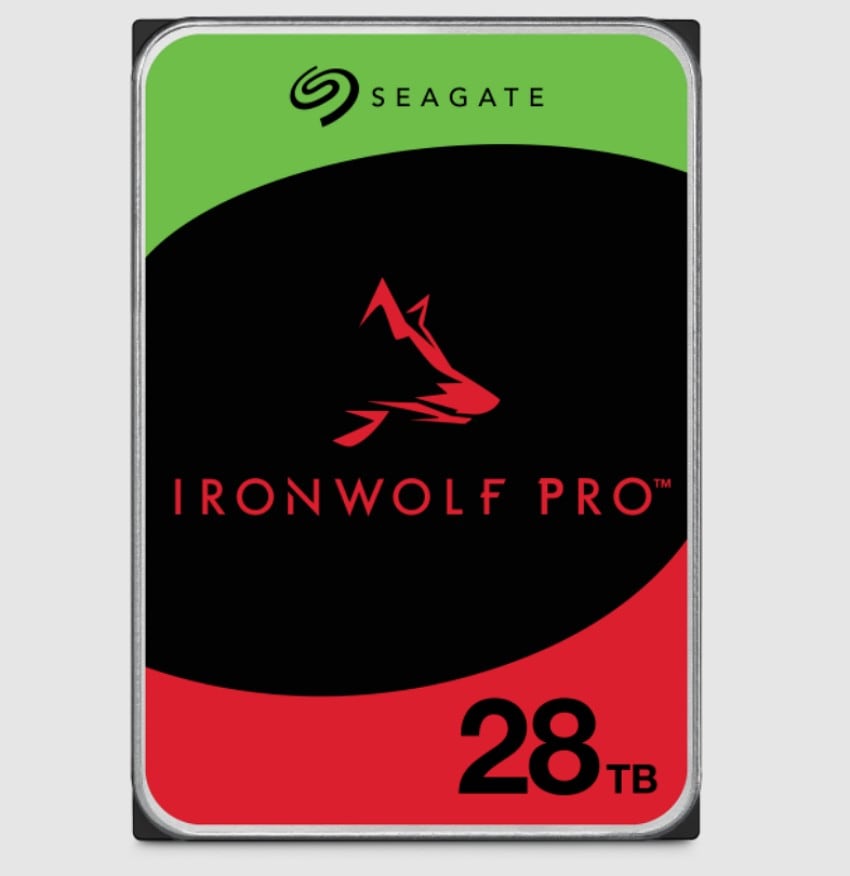
2: Seagate IronWolf Pro 24TB HDD
Best For: Studios building NAS arrays for shared editing storage and long retention.
If your workflow depends on NAS storage, this drive makes more sense. It is built for multi-bay use and steady daily access. That helps answer, is a 28 TB HDD worth it for video editors when endurance matters more? It handles larger teams better than consumer desktop drives usually can. So editors get stable bays for proxy projects, backups, and delivery.
Key Specs
| Drive | Capacity to Use | Interface / Connection | Speed / Performance | Warranty |
|---|---|---|---|---|
| Seagate IronWolf Pro HDD | 28TB | SATA 6 Gb/s | 7200RPM CMR NAS drive | 5 years |
Price: $789.99
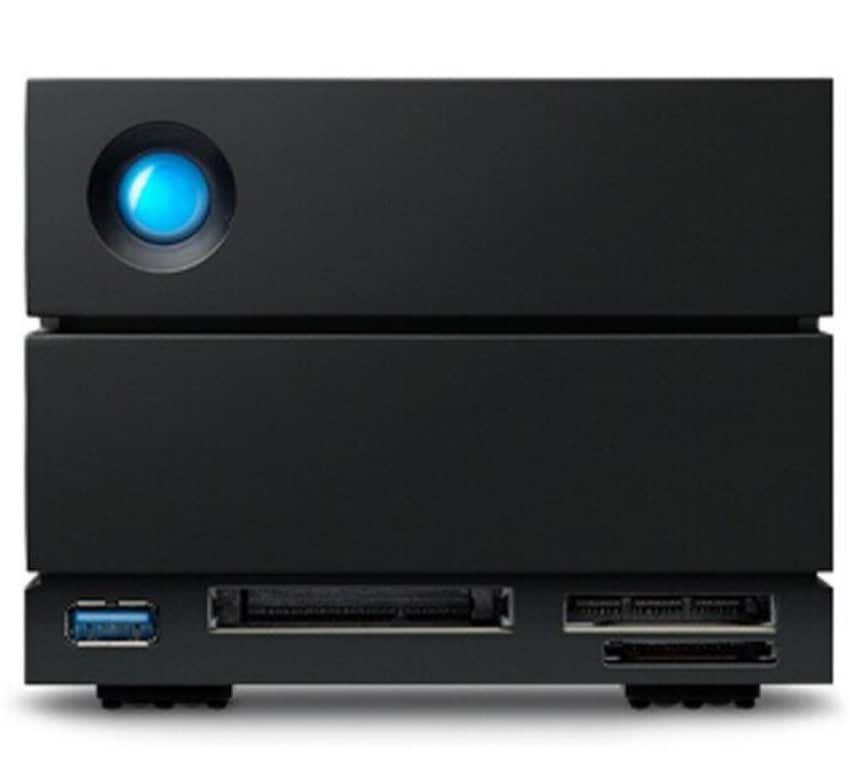
3: LaCie 2big Dock Thunderbolt 3
Best For: Mac-based editors needing dock functions, card slots, and RAID workflow.
More than a storage device, this option also functions as a desktop dock. It supports media ingest, display output, and daisy-chaining through a single unit. That is why it often appears in recommendations for thebest28TBHDDforvideoediting. For many editors, workflow convenience matters as much as capacity.
Key Specs
| Drive | Capacity to Use | Interface / Connection | Speed / Performance | Warranty |
|---|---|---|---|---|
| LaCie 2big Dock Thunderbolt 3 | 28TB | Thunderbolt 3 | Up to 550MB/s dual-disk hardware RAID | 5 years |
Price: £1,647.18
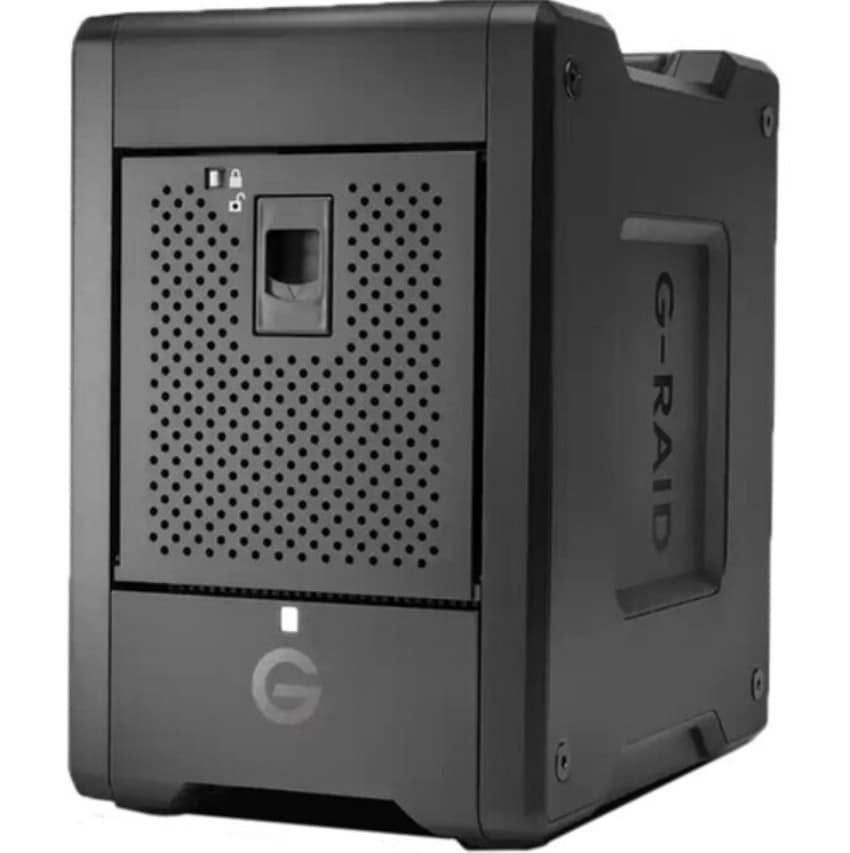
4: SanDisk Professional G-RAID Shuttle 4
Best For: Teams moving large projects between sets, edit bays, and backup locations.
G-RAID Shuttle 4 fits crews moving projects between locations and the studio. For 28 TB HDD vs SSD for video editing, storage scale matters. Moreover, its transportable chassis suits editors who need bigger RAID systems. So one box can carry footage backups and active working files. That approach helps teams avoid loose drives during faster turnaround jobs.
Key Specs
| Drive | Capacity to Use | Interface / Connection | Speed / Performance | Warranty |
|---|---|---|---|---|
| SanDisk Professional G-RAID Shuttle 4 | 24TB | Thunderbolt 3 and USB-C | Built-in hardware RAID with up to 700MB/s read and 850MB/s write on supported models | 5 years |
Price: $3,599.99 retailer prize
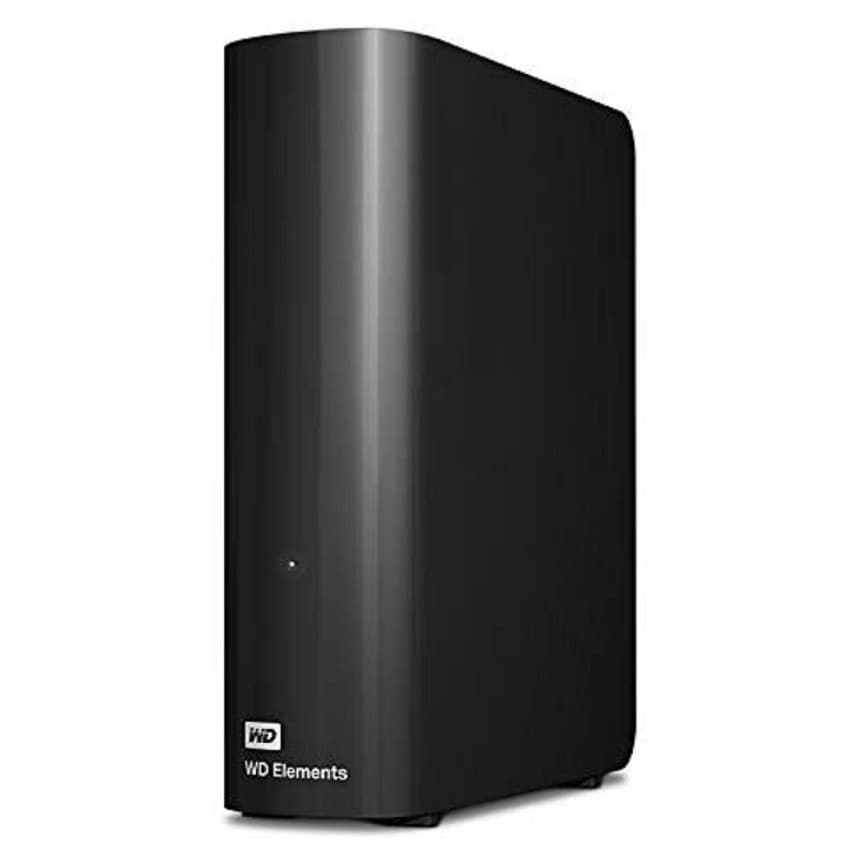
5: WD Elements Desktop
Best For: Freelancers needing affordable desktop storage for backup libraries and archived footage.
For budget-focused editors, simple desktop storage still does useful work. This model keeps setup light and archive space high. Whether a 28 TB HDD is worth it for video editors often depends on the workflow stage. It fits backups and finished projects better than live edit drives.
Key Specs
| Drive | Capacity to Use | Interface / Connection | Speed / Performance | Warranty |
|---|---|---|---|---|
| WD Elements Desktop | 26TB | USB 3.2 Gen 1 / USB 3.0 | Desktop HDD storage for backup and archive use | nill |
Price: ~$500–$550
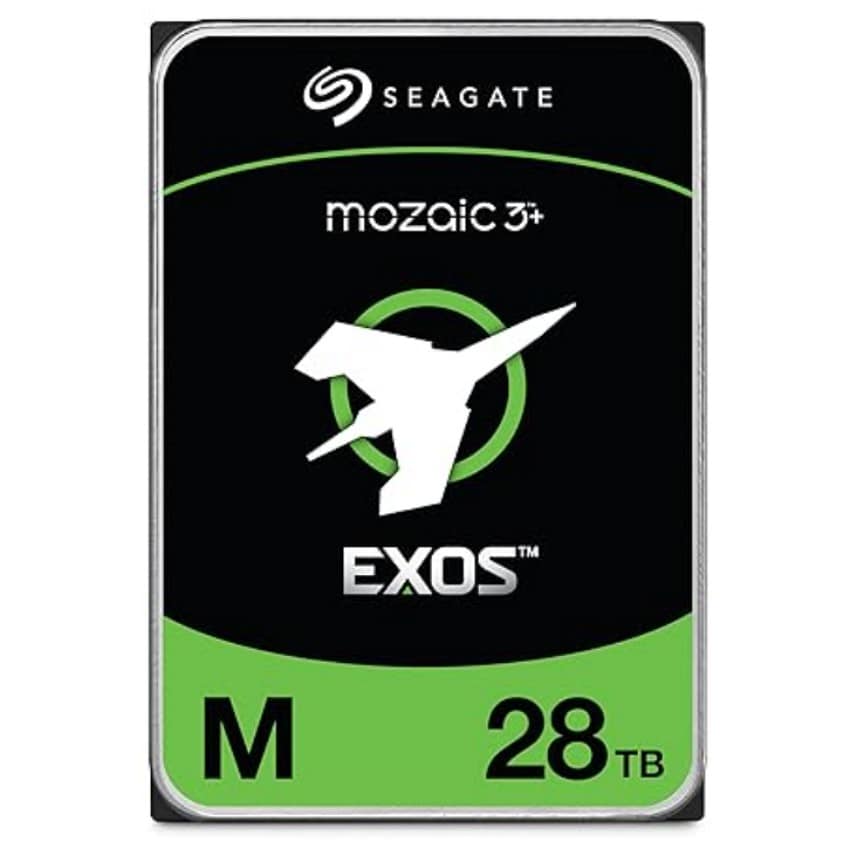
6: Seagate Exos M 30TB HDD
Best For: Facilities needing enterprise bulk storage inside array servers or backup clusters.
Seagate Exos M serves editors managing enterprise-scale footage and retention. The best 28 TB HDD for video editing often depends on enterprise uptime. In addition, this model favors rack arrays and round-the-clock workloads. Thus, it makes more sense for facilities than single desk setups. That focus brings durability and density where nonstop storage access matters.
Key Specs
| Drive | Capacity to Use | Interface / Connection | Speed / Performance | Warranty |
|---|---|---|---|---|
| Seagate Exos M HDD | 28TB | SATA 6 Gb/s | Enterprise 7200RPM CMR drive | 5 years |
Price: $599.99 at Amazon
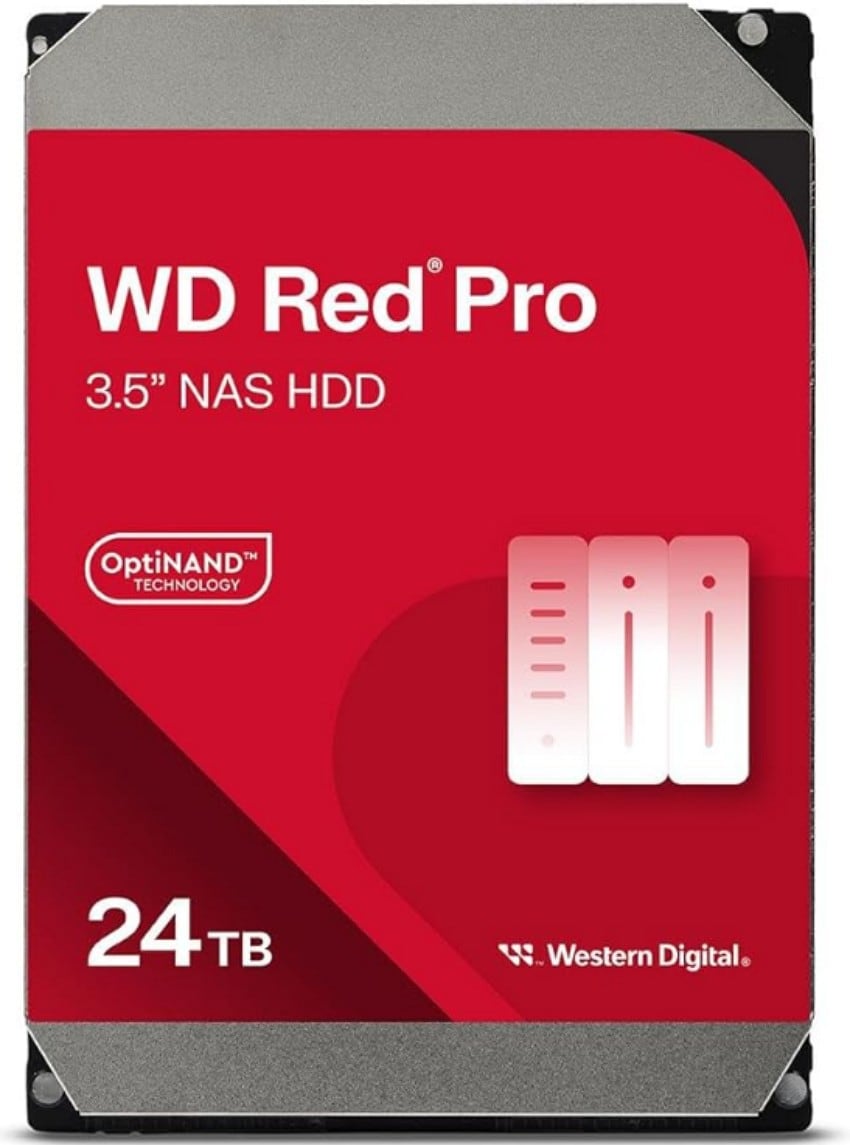
7: WD Red Pro 22TB HDD
Best For: Editors running reliable NAS pools for shared projects, proxies, and backups.
When shared storage needs stable NAS behavior, this drive deserves attention. It is designed for high-intensity multi-user workloads each day. In the 28 TB HDD vs SSD for video editing storage decision, reliability carries real weight here. So editors can protect projects while keeping larger libraries online longer. That balance works well for studios serving multiple users every day.
Key Specs
| Drive | Capacity to Use | Interface / Connection | Speed / Performance | Warranty |
|---|---|---|---|---|
| WD Red Pro 24TB HDD | 24TB | SATA | Up to 287MB/s 7200RPM CMR 550TB/year workload 512MB cache | 5 years |
Price: $420–$640.
Part 3. 6 Best Use Cases for 28TB HDD in Editing Workflows
The best 28 TB HDD for video editing can do far more than store finished video projects. The following examples show how high capacity improves protection, organization, and workflow access:
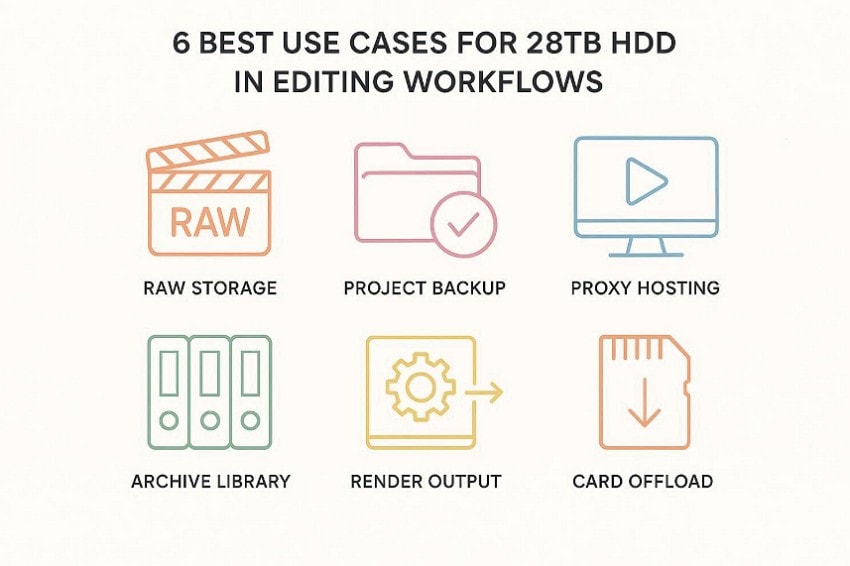
- Raw Storage: Store camera originals from long shoots without splitting projects across multiple drives. This keeps source material together and makes relinking media much easier later.
- Project Backup: Maintain full project backups before edits, revisions, exports, and final delivery stages. A single large drive simplifies version safety during demanding client review cycles.
- Proxy Hosting: Hold proxy files beside originals so editing remains organized through longer productions. Editors can swap between light media and masters without searching separate volumes.
- Archive Library: Preserve completed campaigns, documentaries, and weddings in one searchable location for reference. This helps teams retrieve older assets quickly when clients request later changes.
- Render Output: Collect exports review files and delivery versions without crowding primary editing disks. That leaves faster drives available for active timelines, effects, work, and previews.
- Card Offload: Use the space for immediate card dumps during travel shoots or events. Large capacity reduces the risk of deleting footage before secondary backups exist.
Part 4. HDD vs SSD for Video Editing (28TB Reality Check)
When comparing a 28 TB HDD vs. an SSD for video editing storage, the real difference is purpose. A 28TB HDD gives you far more room for footage backups and archives. An SSD gives you much faster access during editing, rendering, and preview work. That is why capacity and speed should be judged by workflow role.
HDD for Bulk Storage and Archiving
A 28TB HDD works best when you need to store large amounts of media in one place. It is a practical option for raw footage, completed projects, backup copies, and long-term content libraries. Editors who handle large video files often need storage that can hold months or even years of work without constant drive changes. In that role, a high-capacity HDD delivers strong value.
SSD for Active Editing and Rendering
An SSD is the better choice for active editing tasks that depend on speed. It helps with smoother timeline response, faster file access, quicker cache handling, and better software performance during heavy sessions. When you are cutting current projects, building previews, or rendering large edits, SSD storage reduces delays and keeps work moving more efficiently. That makes it a stronger drive for performance-focused editing tasks.
Why a Hybrid Workflow Works Best
For most editors, the best setup combines both storage types. The SSD handles active projects, editing software cache, and tasks that need quick read and write performance. The 28TB HDD stores source footage, completed exports, backups, and older projects that still need to stay available. This hybrid approach gives better speed where it matters and better storage value where capacity matters.
Is a 28TB HDD Enough for Real-Time Editing?
A 28TB HDD is useful in an editing workflow, but it should not be the only drive for real-time work. It can support lighter tasks and general media access, yet it is not the ideal choice for demanding timeline playback, layered edits, or heavy rendering jobs on its own.
Editors who rely only on a large HDD may notice slower response during active production. For that reason, a 28TB HDD is best treated as a storage drive first, not a full editing-performance drive.
Part 5. 6 Best Practices for Using 28TB HDDs in Editing
Using a large storage well matters as much as choosing the drive itself. These tips show whether a 28 TB HDD is worth it for video editors, depending on daily workflow habits.
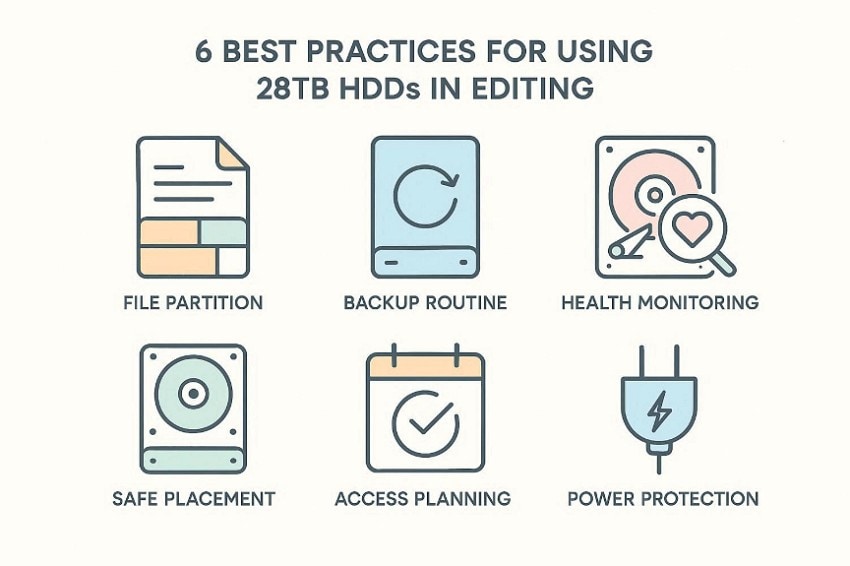
- File Partition: Separate raw footage, proxies, exports, and backups into clearly labeled folders daily. Organized storage saves time and reduces mistakes during demanding team project handoffs.
- Backup Routine: Keep one working copy and at least one separate backup always ready. Regular duplication protects edits from deletion, hardware failure, and unexpected transfer errors.
- Health Monitoring: Check drive health reports often to catch warnings before serious failure appears. Early monitoring helps you replace aging storage before important projects become vulnerable.
- Safe Placement: Place the drive on a stable surface with clear airflow nearby always. Heat vibration and dust can shorten the lifespan and disrupt stable performance quickly.
- Access Planning: Store active projects separately from archives to avoid unnecessary drive strain daily. Smart access planning keeps frequent reads from slowing larger storage tasks down.
- Power Protection: Use surge protection to guard the drive against sudden electrical damage events. Unexpected shutdowns can corrupt files and interrupt transfers during critical sessions midstream.
Pro Tip: Don’t Lose Video Footage—Recover It with Wondershare Recoverit
Editors need more than storage when valuable footage disappears during active projects. Even the best 28 TB HDD for video editing cannot prevent sudden loss. Deleted clips, damaged files, and failed transfers can interrupt important work. That is why recovery software matters in serious post-production workflows. So, Recoverit gives editors a practical way to restore missing footage.
Moreover, the tool works when videos vanish through deletion, formatting corruption, crashes, or accidents. It helps recover media from desktops, external drives, card cameras, and more. This makes it useful for editors handling large projects across devices. Its recovery process also supports previewing files before saving them safely. That added control helps reduce mistakes during stressful recovery situations.
Key Features
- Fragment Recovery: Advanced scanning rebuilds scattered video fragments from damaged storage so editors recover more complete footage files.
- Format Coverage: Restores nearly 100 video formats across cameras, drones, cards, and drives used throughout modern production workflows.
- Video Repair: Repairs corrupted clips and uses sample files to rebuild severely damaged footage with better playback results.
Guide to Recover Lost Video Footage with Recoverit
When footage goes missing, a clear recovery process saves time and reduces stress. The steps below show how to restore lost video footage with Recoverit:
- Select the Drive or Folder Where the Video Was Lost
First, open Recoverit and go to “Hard Drives and Locations” from the left panel. Then choose the USB drive or specific folder where the missing video was stored before deletion or loss.

- Scan the Location and Narrow the Results
After selecting the location, Recoverit automatically starts scanning the files. Next, use the “File Location,” “File Type Filter,” or the “Search File” bar to find the lost video.

- Preview the Found File and Recover It Safely
Once the target file appears, open the preview window to check it carefully. After confirming the correct file, press the Recover button to complete recovery.

Conclusion: Is a 28TB HDD Worth It for Editors?
To conclude, choosing the best 28 TB HDD for video editing depends on workflow needs, budget, and storage priorities. Large drives work well for backups, archives, proxies, and high-volume media management. They offer strong value when paired with faster SSD storage for active editing tasks. To stay protected from accidental loss, keep Wondershare Recoverit ready for fast, reliable footage recovery when needed most.
FAQ
-
1. Is a 28TB HDD enough for professional video editing?
A 28TB HDD works well for storing footage, backups, archives, and completed projects safely. Pair it with an SSD when timelines, previews, and renders demand faster access. -
2. Should editors choose HDD or SSD for daily video work?
SSDs handle active editing tasks better because they load media and caches faster. HDDs remain more practical for bulk storage, long-term archiving, and lower-cost capacity needs. -
3. What should I check before buying a 28TB HDD?
Look closely at interface speed, workload rating, cache size, warranty, and reliability details. Those factors affect the transfer's lifespan, noise levels, and overall editing workflow stability daily. -
4. Can a 28TB HDD protect footage from accidental loss?
Large drives store more files, but cannot prevent deletion, corruption, or hardware failure alone. Recovery tools like Wondershare Recoverit help restore important videos when unexpected losses happen.


