
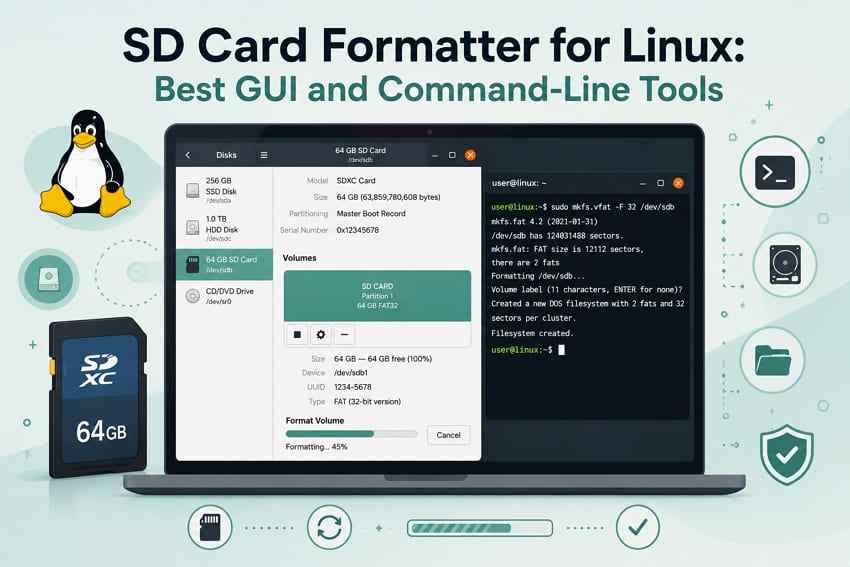

The best SD card formatter Linux users should choose depends on what they need to fix. For a simple reusable card, GNOME Disks or the official SD Memory Card Formatter is usually enough. For a damaged partition layout, GParted or KDE Partition Manager is safer. For advanced control, terminal tools such as lsblk, umount, fdisk, parted, and mkfs give precise results.
Before formatting, recover or back up anything important. A quick format may leave recoverable data until new files overwrite it, while repartitioning or overwrite formatting makes recovery harder. If the card contains lost Linux files or SD card data you still need, Recoverit Linux Data Recovery may help recover files before you format or rebuild the card.
Try Wondershare Recoverit to Perform Data Recovery
 Security Verified. Over 7,302,189 people have downloaded it.
In this article
Part 1. Can You Format an SD Card on Linux?
Yes. Linux can format SD cards with built-in GUI utilities, desktop partition managers, and terminal commands. The best method depends on whether the card is healthy, whether you need FAT32 or exFAT, and whether you only need a file-system format or a full partition-table rebuild.
Built-In Linux SD Card Formatting Tools
Most Linux distributions include at least one storage utility. GNOME-based systems often include Disks, KDE systems often use KDE Partition Manager, and nearly every distribution includes core command-line tools through packages such as util-linux. If your desktop does not show a format option, you can usually install a GUI formatter from the software center or use the terminal.
What Happens When You Format an SD Card
Formatting creates a new file system on the selected partition. It removes normal access to existing files, but it does not always erase every old data block immediately. That is why lost files may still be recoverable after a quick format if you stop using the card at once.
Quick Format vs. Overwrite Format
A quick format recreates file-system structures and finishes quickly. An overwrite or zero-fill format writes across the card and takes much longer. Use overwrite formatting only when you intentionally want old data to be unrecoverable, because it greatly reduces recovery chances.
Formatting vs. Repartitioning an SD Card
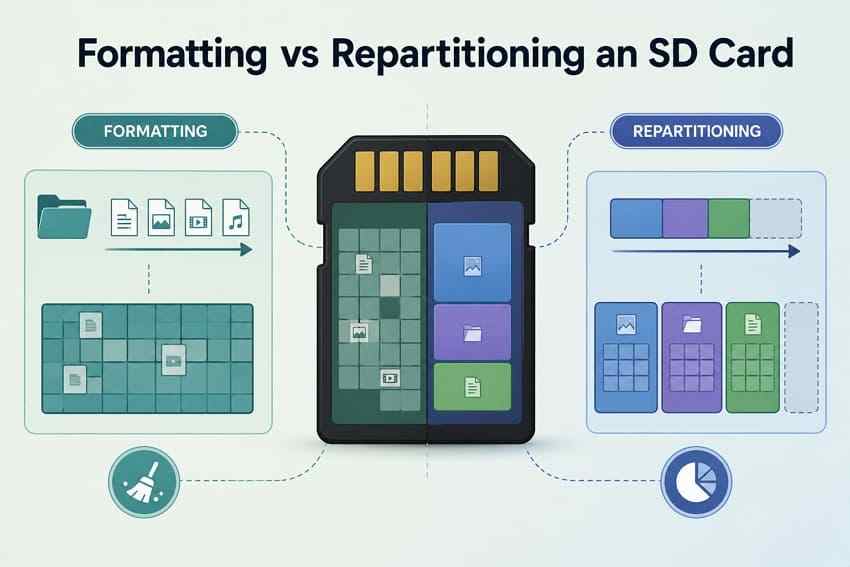
Formatting changes the file system inside a partition. Repartitioning changes the card's partition layout first, then creates or formats partitions. Repartitioning is useful when a card has corrupted, missing, or device-specific partitions, but it is riskier because it changes more metadata.
SD, SDHC, SDXC, and SDUC Compatibility
According to the SD Association, card capacity determines the SD memory card standard. For broad compatibility, match the file system to the card standard and to the device that will use the card.
| Standard | Capacity | Default file system | Best practical use |
| SD (SDSC) | Up to 2GB | FAT12 or FAT16 | Legacy cameras and devices |
| SDHC | Over 2GB to 32GB | FAT32 | Older cameras, handhelds, and FAT32-only devices |
| SDXC | Over 32GB to 2TB | exFAT | Modern cameras, drones, phones, and 4K recording |
| SDUC | Over 2TB to 128TB | exFAT | Future high-capacity storage devices |
Part 2. What to Do Before Formatting an SD Card on Linux
Before using any Linux SD card formatter, complete a few checks. The most serious mistake is formatting the wrong disk, especially when Linux device names such as /dev/sdb and /dev/sdb1 look similar.
| Check | Why it matters | What to do |
| Back up accessible files | Formatting removes normal file access. | Copy important files to another drive first. |
| Recover missing files | Recovery works best before formatting or repartitioning. | Scan the card before making new writes. |
| Identify the card | Linux commands can format the wrong device if the name is wrong. | Run lsblk and verify size, model, and mount point. |
| Check mount status | Formatting mounted partitions can fail or cause write conflicts. | Unmount the partition before formatting. |
| Confirm disk vs. partition name | /dev/sdb is the disk; /dev/sdb1 is usually a partition. |
Use disk names for partition-table tools and partition names for mkfs. |
| Check the lock switch | A locked adapter can make the card appear read-only. | Slide the lock switch to the unlocked position. |
| Stop on I/O errors | Repeated errors can indicate failing media. | Recover data first, then replace the card. |
For extra safety, run lsblk -o NAME,SIZE,FSTYPE,MOUNTPOINTS,MODEL before and after inserting the SD card. The newly appearing device is the card.
Part 3. Best SD Card Formatter Tools for Linux
The SD card formatter Linux users choose should match the job. A GUI tool is better for occasional formatting, while terminal tools are better when you need exact control or scripting.
Tool 1. SD Memory Card Formatter by the SD Association
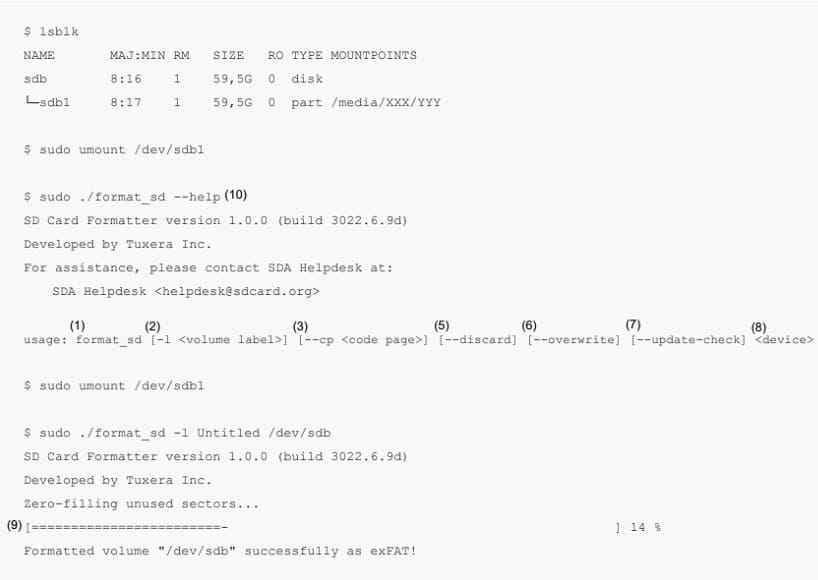
The SD Memory Card Formatter for Linux is the official SD Association formatting tool created with Tuxera. It is useful when you want SD specification-friendly formatting for SD, SDHC, SDXC, or SDUC media. The Linux release is command-line based, so it is not the same experience as the Windows or macOS GUI formatter.
Best for: resetting an SD card to a specification-friendly layout before using it in cameras, Steam Deck, drones, or other devices.
Tool 2. GNOME Disks
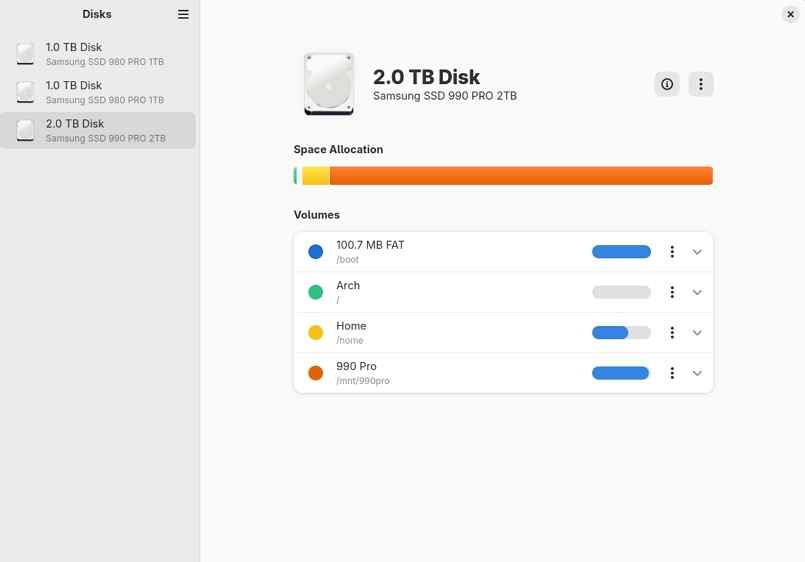
GNOME Disks is a beginner-friendly graphical storage utility. It can format disks, create partitions, name volumes, and choose common file systems. Its interface is easier than terminal commands, but you still need to select the correct card.
Best for: simple FAT32, exFAT, ext4, or NTFS formatting on Ubuntu, Fedora Workstation, Debian GNOME, and similar desktops.
Tool 3. GParted
GParted is a graphical partition editor for creating, deleting, moving, and formatting partitions. It is better than a simple format dialog when the SD card has old partitions, an unknown partition table, or leftover layouts from another device.
Best for: fixing partition layouts, replacing old partitions, and formatting cards from a live USB environment.
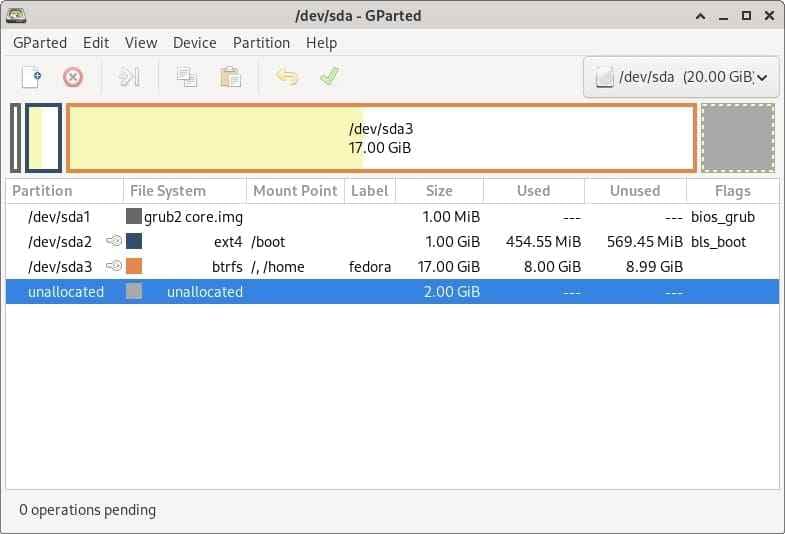
Tool 4. KDE Partition Manager
KDE Partition Manager offers similar partitioning features for KDE Plasma desktops. It supports common partition and file-system operations through a familiar KDE interface.
Best for: Plasma users who want GUI partition control without switching to GParted.
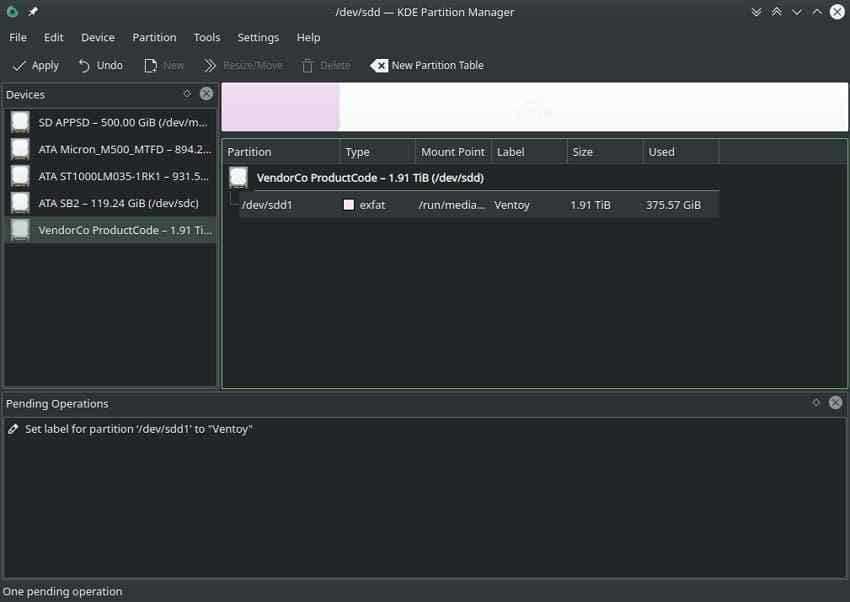
Tool 5. File-System-Specific mkfs Commands
mkfs commands create file systems directly on a selected partition. Examples include mkfs.vfat for FAT32, mkfs.exfat for exFAT, mkfs.ext4 for ext4, and mkfs.ntfs for NTFS.
Best for: experienced users who already know the correct partition name and only need to create a new file system.
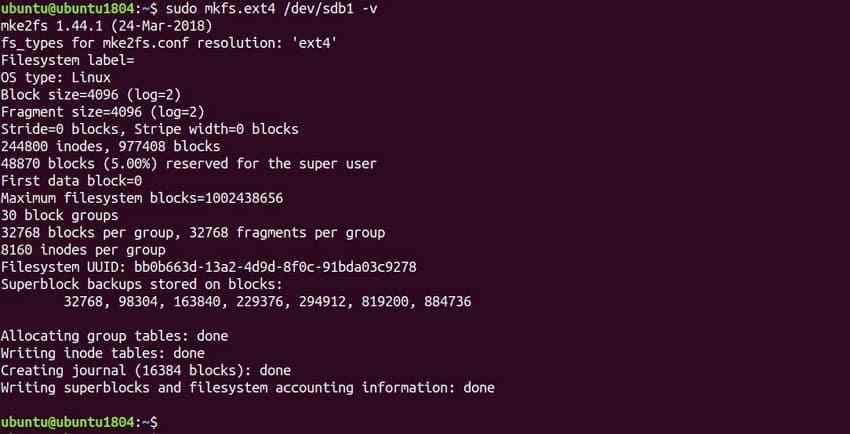
Tool 6. fdisk With mkfs
fdisk creates or edits an MBR or GPT partition table, while mkfs formats the new partition. Pairing the two is useful when an SD card has a broken, missing, or device-specific partition layout.
Best for: rebuilding a card from scratch when the partition table is the real problem.
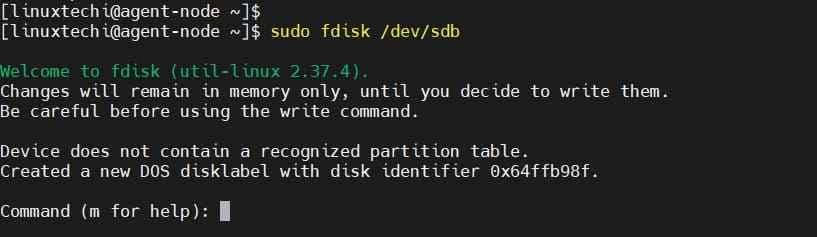
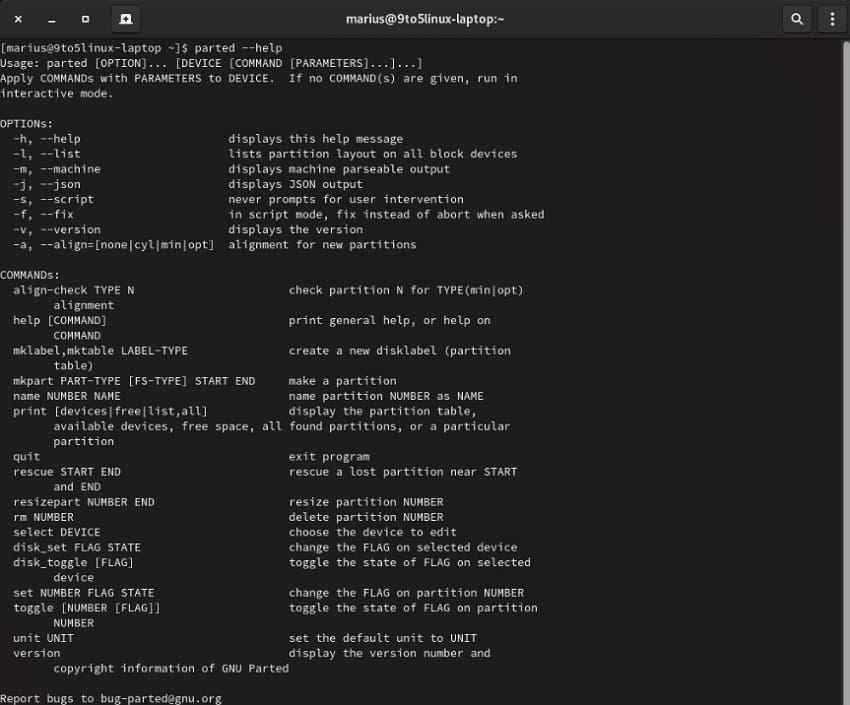
Tool 7. GNU Parted With mkfs
GNU Parted can create partition tables and partitions from an interactive shell or scripts. It is powerful for repeatable storage setup, but the syntax is less forgiving than a GUI.
Best for: advanced Linux users who need scriptable partitioning before formatting with mkfs.
Part 4. Compare the Best Linux SD Card Formatting Tools
Use this comparison to choose the safest formatter for your exact SD card problem.
| Tool | Interface and skill | File systems | Partition control | Best use case | Main limitation |
| SD Memory Card Formatter | Terminal, intermediate | Chosen by SD specification | Limited | Official SD reset | No custom file-system workflow |
| GNOME Disks | GUI, beginner | FAT32, exFAT, ext4, NTFS depending on installed support | Basic create/delete | Daily formatting | Limited advanced partition tools |
| GParted | GUI, intermediate | FAT32, exFAT, ext4, NTFS depending on installed support | Full GUI control | Repairing partition layouts | Requires care before applying operations |
| KDE Partition Manager | GUI, intermediate | FAT32, exFAT, ext4, NTFS depending on installed support | Full GUI control | KDE Plasma systems | Less common outside KDE desktops |
| mkfs commands | Terminal, intermediate | One file system per command | None | Fast formatting of an existing partition | Does not create a new partition table |
| fdisk with mkfs | Terminal, advanced | Any file system available through mkfs | Full MBR/GPT workflow | Rebuilding partitions | Two-step process and wrong-device risk |
| GNU Parted with mkfs | Terminal, advanced | Any file system available through mkfs | Full and scriptable | Batch or scripted partitioning | Unforgiving syntax |
Part 5. Which File System Should You Choose?
A correctly formatted card is only useful if the target device can read it. For cameras, handheld consoles, drones, and phones, FAT32 or exFAT is usually safer than Linux-only file systems.
| File system | Suits | Max file size | Notes |
| FAT12 or FAT16 | SD cards up to 2GB | Often up to 2GB | Legacy devices only |
| FAT32 | SDHC cards up to 32GB and FAT32-only devices | 4GB per file | Best for older cameras, retro handhelds, and some Steam Deck or console workflows that request FAT32 |
| exFAT | SDXC and SDUC cards | Effectively much larger than SD card video files | Best for 64GB+ cards, 4K video, and modern cross-platform use |
| ext4 | Linux-only storage | Very large files | Keeps Linux permissions but is not camera-friendly |
| NTFS | Shared Windows and Linux storage | Very large files | Useful for some PCs, but cameras and drones rarely prefer it |
For a 32GB or smaller card that must be FAT32, use FAT32. For a 64GB or larger SDXC card, exFAT is usually the correct choice unless your target device specifically requires FAT32.
Part 6. How to Format an SD Card on Linux With a GUI Tool
GUI tools are the safest starting point if you do not format storage often. Still, confirm the device name and back up or recover files first.
Format With GNOME Disks
GNOME Disks is the easiest option for many Ubuntu, Fedora, and Debian users.
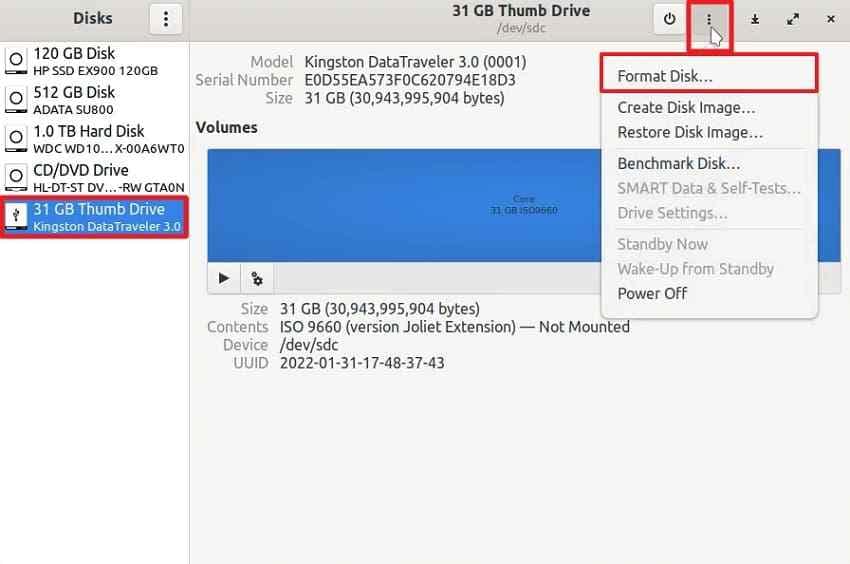
Step 1. Open Disks, select the SD card in the left panel, click the Three-Dots menu, and choose Format Disk.
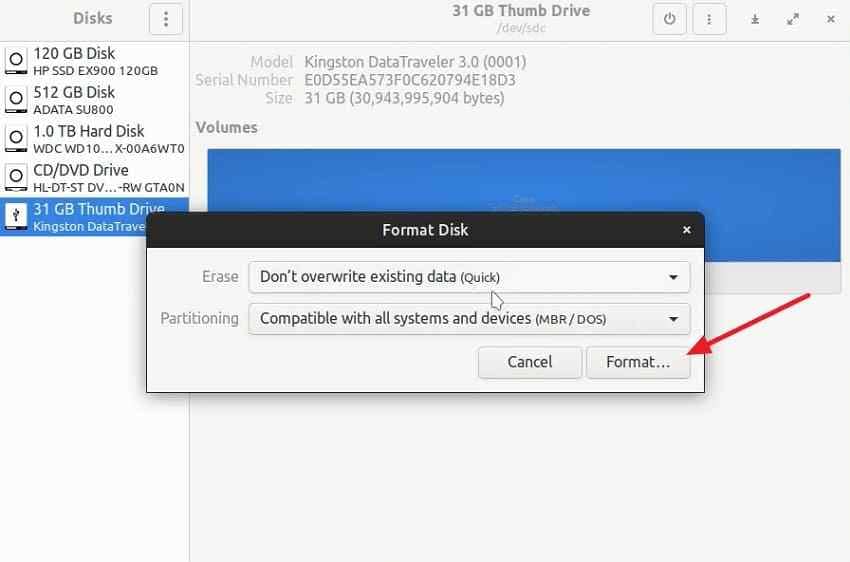
Step 2. Choose whether to overwrite existing data, select the partitioning option your device needs, and click Format. For recoverable mistakes, avoid overwrite formatting.
Format With GParted
Use GParted when the card has old partitions, wrong capacity, or an unknown partition table.
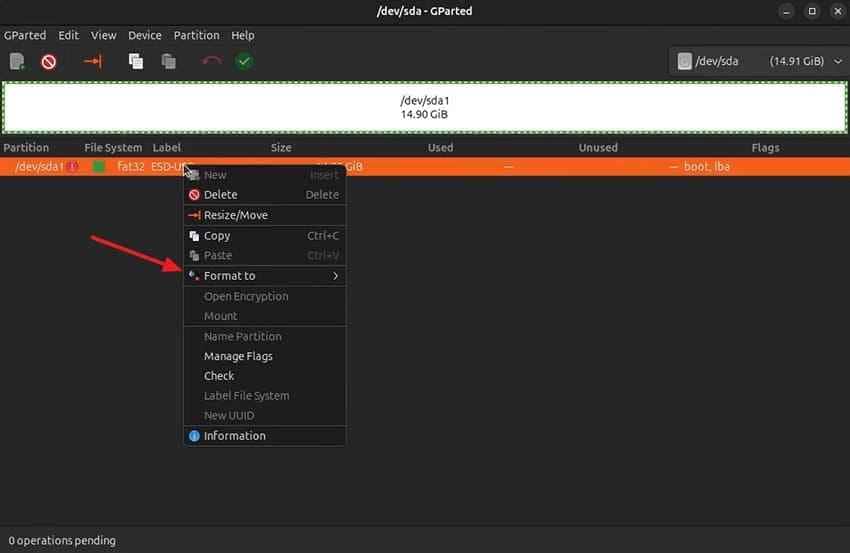
Step 1. Open GParted, choose the SD card from the device menu, right-click the mounted partition, and select Unmount.
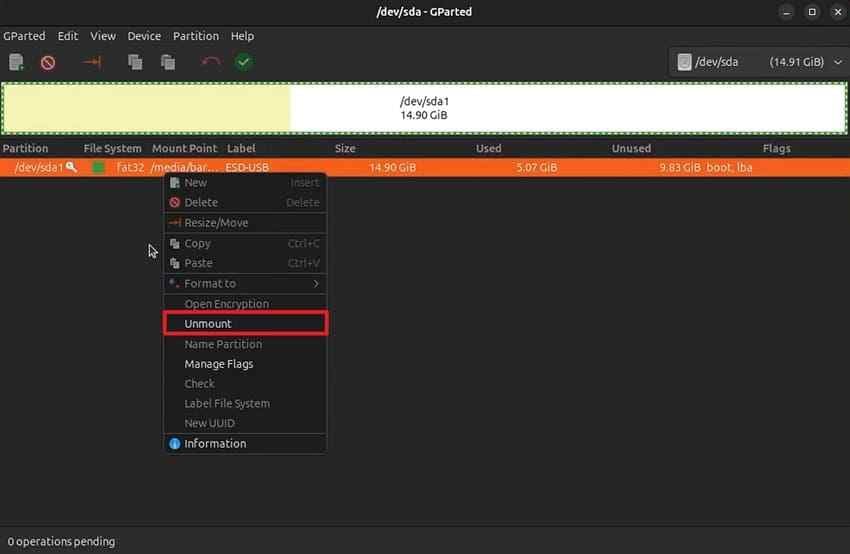
Step 2. Right-click the partition again, select Format to, choose FAT32, exFAT, ext4, or another needed file system, then click the green apply button to commit the operation.
Format With KDE Partition Manager
KDE Partition Manager is the natural GUI choice on Plasma desktops.
Step 1. Open KDE Partition Manager, choose the card, right-click the partition, and select Unmount.
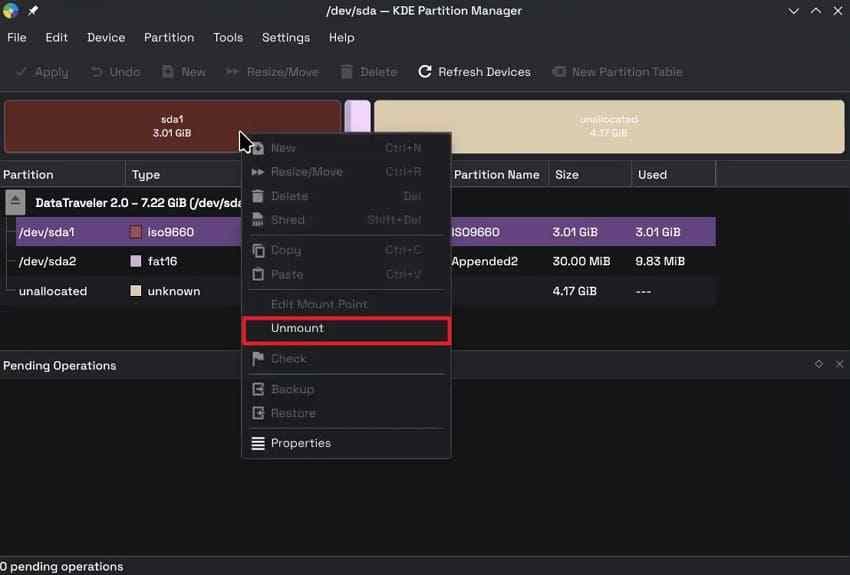
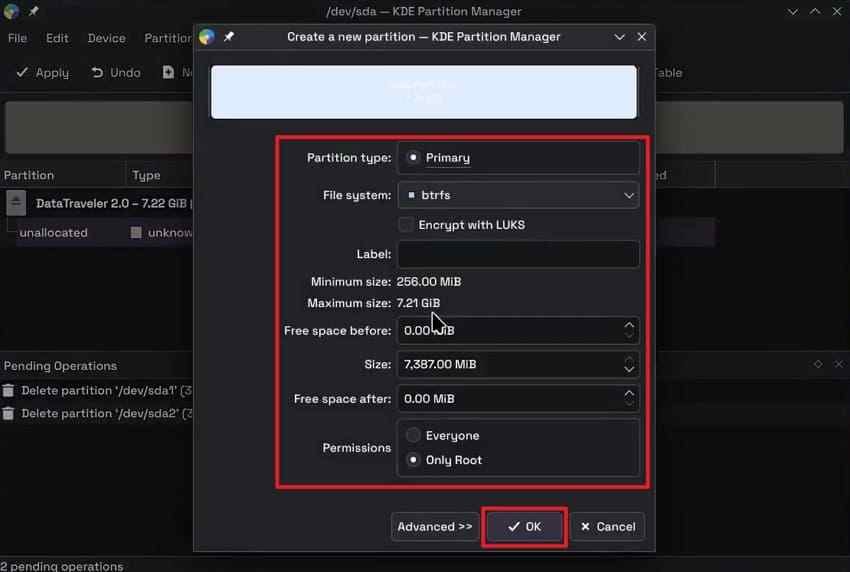
Step 2. Delete the old partition if needed, click New, create a new partition with the preferred file system, then apply pending operations.
Safely Eject the SD Card After Formatting
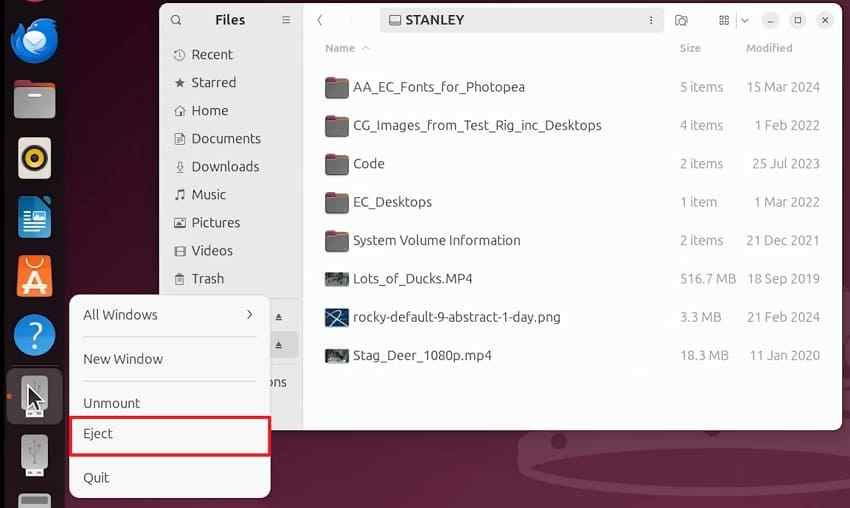
Linux can cache writes, so a card may appear finished while data is still queued. Use the file manager's Eject option or run sync before removing the card reader.
Part 7. How to Format an SD Card on Linux With Terminal Commands
Terminal formatting is powerful and risky. The examples below use /dev/sdb for the card and /dev/sdb1 for its first partition. Replace them with your real device names.
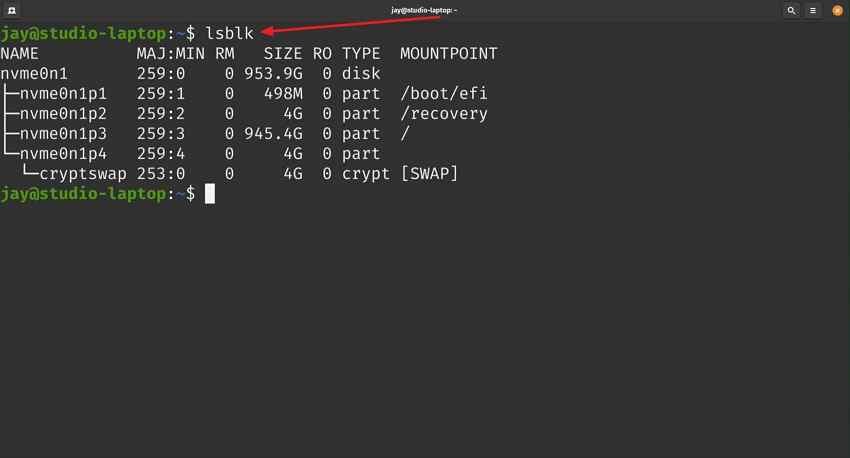
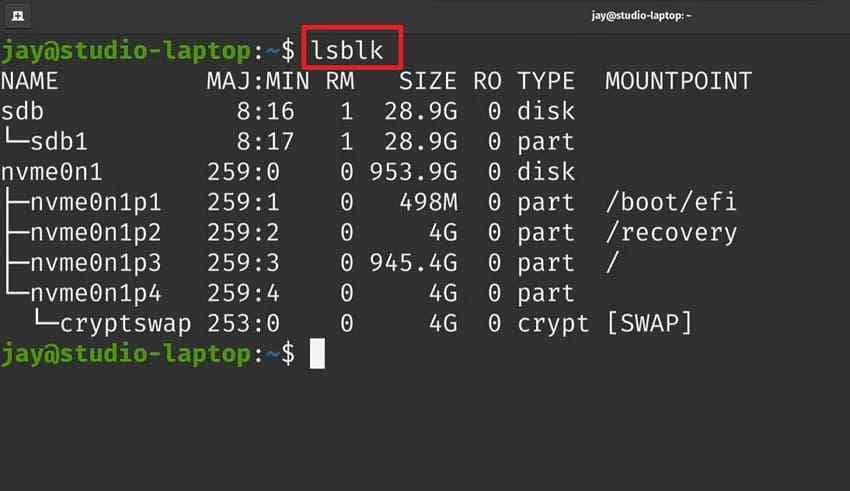
Step 1. Open Terminal, run lsblk -o NAME,SIZE,FSTYPE,MOUNTPOINTS,MODEL, and identify the SD card by size and model.
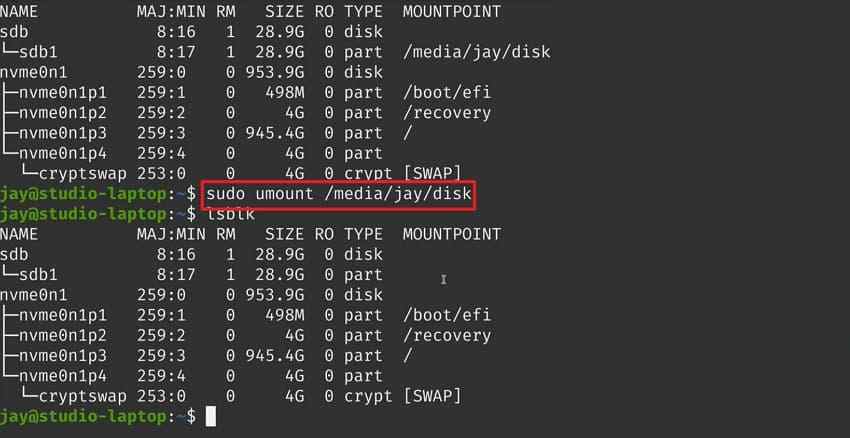
Step 2. If the partition is mounted, unmount it with sudo umount /dev/sdb1. Replace sdb1 with your actual partition name.
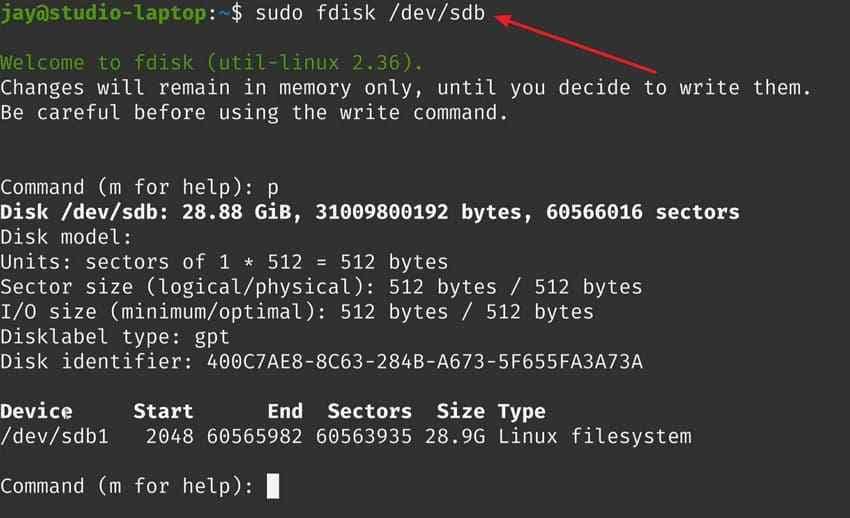
Step 3. If the partition table is broken or you want to rebuild the card, run sudo fdisk /dev/sdb. Use the disk name, not the partition name.
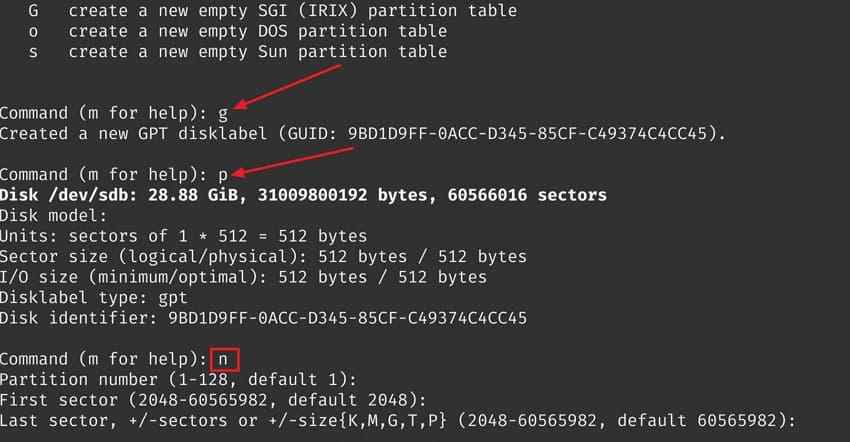
Step 4. Inside fdisk, press o to create a new MBR partition table, press n to create a new partition, accept the defaults if you want one full-card partition, then press w to write changes.
Step 5. Format the new partition with the matching command. For FAT32, run sudo mkfs.vfat -F 32 -n SDCARD /dev/sdb1. For exFAT, run sudo mkfs.exfat -n SDCARD /dev/sdb1. For ext4, run sudo mkfs.ext4 -L SDCARD /dev/sdb1.
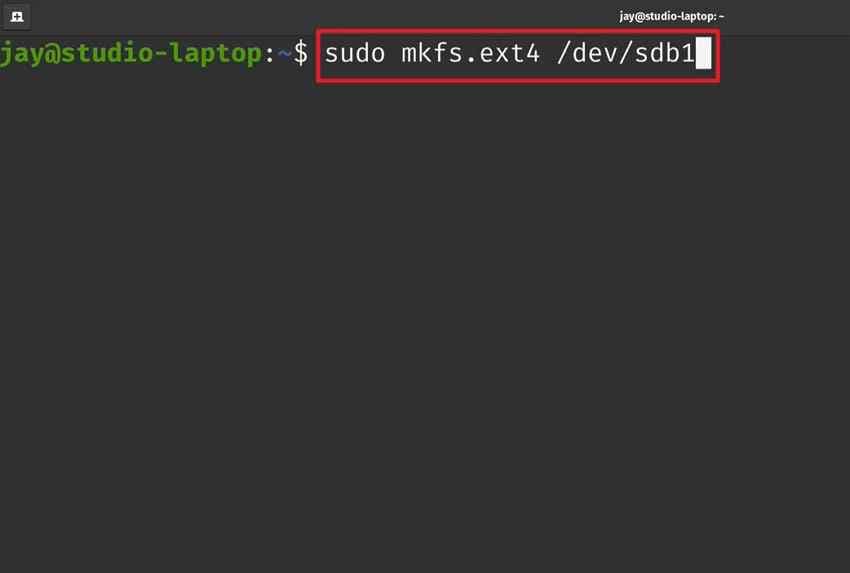
Step 6. Run lsblk -f again, verify the new file system, then run sync before removing the card.
Note: exFAT formatting usually requires the exfatprogs package on modern distributions. Install it with commands such as sudo apt install exfatprogs, sudo dnf install exfatprogs, or sudo pacman -S exfatprogs. The Ubuntu man page explains that mkfs.exfat creates an exFAT file system, while mkfs -t exfat can invoke the same utility.
Part 8. Recover Data Before Formatting an SD Card
If the SD card has missing files, read-only errors, wrong capacity, or a damaged file system, do not format first. Formatting may make the card reusable, but it can also overwrite metadata that recovery tools need.
Recover Files on Linux With PhotoRec or TestDisk
On Linux, TestDisk and PhotoRec are common open-source recovery tools. TestDisk focuses on lost partitions, while PhotoRec recovers files by signatures. A typical PhotoRec command is sudo photorec /dev/sdb. Expect terminal workflow and less preserved folder structure compared with beginner-focused recovery software.
Recover SD Card Files With Recoverit on a Supported Windows or Mac
Recoverit does not install directly on Linux, and it is not an SD card formatter. It can help recover files when you move the SD card to a supported Windows or macOS computer and scan the readable card through a card reader. For Linux system data, Recoverit's Linux recovery workflow can connect to supported Linux storage scenarios; for ordinary FAT32 or exFAT SD cards, scan the card directly from Windows or Mac.
- Linux file system support: may help recover data from Linux storage scenarios such as ext4, BTRFS, XFS, and BFS when supported by the product workflow.
- SD card file recovery: scans readable SD, SDHC, and SDXC cards connected through a card reader.
- Preview before recovery: helps identify photos, videos, documents, and other files before saving them elsewhere.
Important note: save recovered files to another drive, not back to the same SD card. Recovery depends on card condition, overwriting, encryption, and detectability.
How to Recover SD Card Files With Recoverit
Follow these steps before formatting or rebuilding the SD card.
Step 1. Select your SD card and start a scan. Connect the SD card through a reader, open Recoverit, choose SD Card Recovery, select the card, and click Start Scan.

Step 2. Scan your SD card. Let Recoverit scan the card. Use file type, file path, and date filters to locate missing files while the scan continues.

Step 3. Preview and save files. Preview recoverable files, click Recover, and save them to a different disk or folder.

Try Wondershare Recoverit to Perform Data Recovery
Security Verified. Over 7,302,189 people have downloaded it.
When Professional Data Recovery Is Required
Software cannot recover an SD card that every reader fails to detect, or a card that is cracked, burnt, water-damaged, or electrically damaged. Stop retrying and contact a professional recovery lab if the files are critical.
Part 9. Common SD Card Formatting Problems on Linux
After your files are protected, use the table below to diagnose common Linux SD card formatting errors.
| Problem | Likely cause | What to do |
Card missing from lsblk |
Reader, USB port, adapter, or card hardware issue | Try another reader, check dmesg, and stop if the card is physically damaged. |
| Device is busy | The partition is mounted or a process is using it. | Run findmnt /dev/sdb1, close open file windows, then unmount. |
| Permission denied | The command needs root privileges. | Use sudo with the correct formatting command. |
| Card is read-only | Lock switch, adapter issue, kernel flag, or failing card | Unlock the switch, test another adapter, and replace the card if errors repeat. |
| Format utility missing | The required package is not installed. | Install packages such as dosfstools, exfatprogs, or ntfs-3g as needed. |
| Unknown partition table | Corrupted or unsupported partition layout | Recover files first, then recreate the partition table with GParted, fdisk, or parted. |
| Input/output errors | Failing flash memory or unstable reader | Stop formatting attempts, recover data if possible, and replace the card. |
| Wrong capacity shown | Bad partition layout or counterfeit card | Recreate the partition table and verify the card with tools such as f3probe. |
Part 10. Best Practices for Formatting SD Cards on Linux
Whichever SD card formatter Linux method you use, these habits prevent most repeat problems.
- Use the official formatter when appropriate: the Official Formatter is best when SD specification compatibility matters more than custom file-system choice.
- Format in the intended device: cameras, drones, recorders, and handheld devices may create folders or settings Linux does not know about.
- Choose the correct file system: use FAT32 for small or legacy-device cards and exFAT for most 64GB+ SDXC cards.
- Confirm the device name every time: run
lsblkbefore formatting, especially when other USB drives are connected. - Avoid interruptions: do not remove the SD card or card reader during formatting.
- Eject safely: run
syncor use the desktop eject option before removal. - Back up important files: never treat an SD card as the only copy of important photos, videos, or documents.
- Replace aging cards: repeated corruption, wrong capacity, slow writes, and I/O errors usually mean the card is unreliable.
Conclusion
The best SD card formatter Linux users can choose depends on the card's condition and the target device. Use the SD Association formatter for SD specification-friendly formatting, GNOME Disks for simple GUI formatting, GParted or KDE Partition Manager for partition layout repairs, and terminal tools when you need precision. Most importantly, recover or back up important files before formatting because every formatting method removes normal access to existing data.
FAQ
-
Is there an official SD card formatter for Linux?
Yes. The SD Association provides a Linux version of SD Memory Card Formatter. It is a command-line tool, while the Windows and macOS formatter has a graphical interface. -
Why is the format option greyed out in GParted?
GParted disables formatting when a partition is mounted or when pending operations must be applied first. Right-click the partition, choose Unmount, confirm the correct card, then try again. -
How do I format an SD card to exFAT on Linux?
Install exFAT support, unmount the partition, then run a command such assudo mkfs.exfat -n SDCARD /dev/sdb1. Replace/dev/sdb1with your real partition name. -
How do I format an SD card to FAT32 on Linux?
Unmount the partition, then runsudo mkfs.vfat -F 32 -n SDCARD /dev/sdb1. FAT32 is best for SDHC cards and devices that specifically require FAT32. -
Can Recoverit run on Linux to recover an SD card?
No. Recoverit installs on Windows or macOS. To recover an SD card, connect the card to a supported computer with a card reader and scan it before formatting or writing new files.


