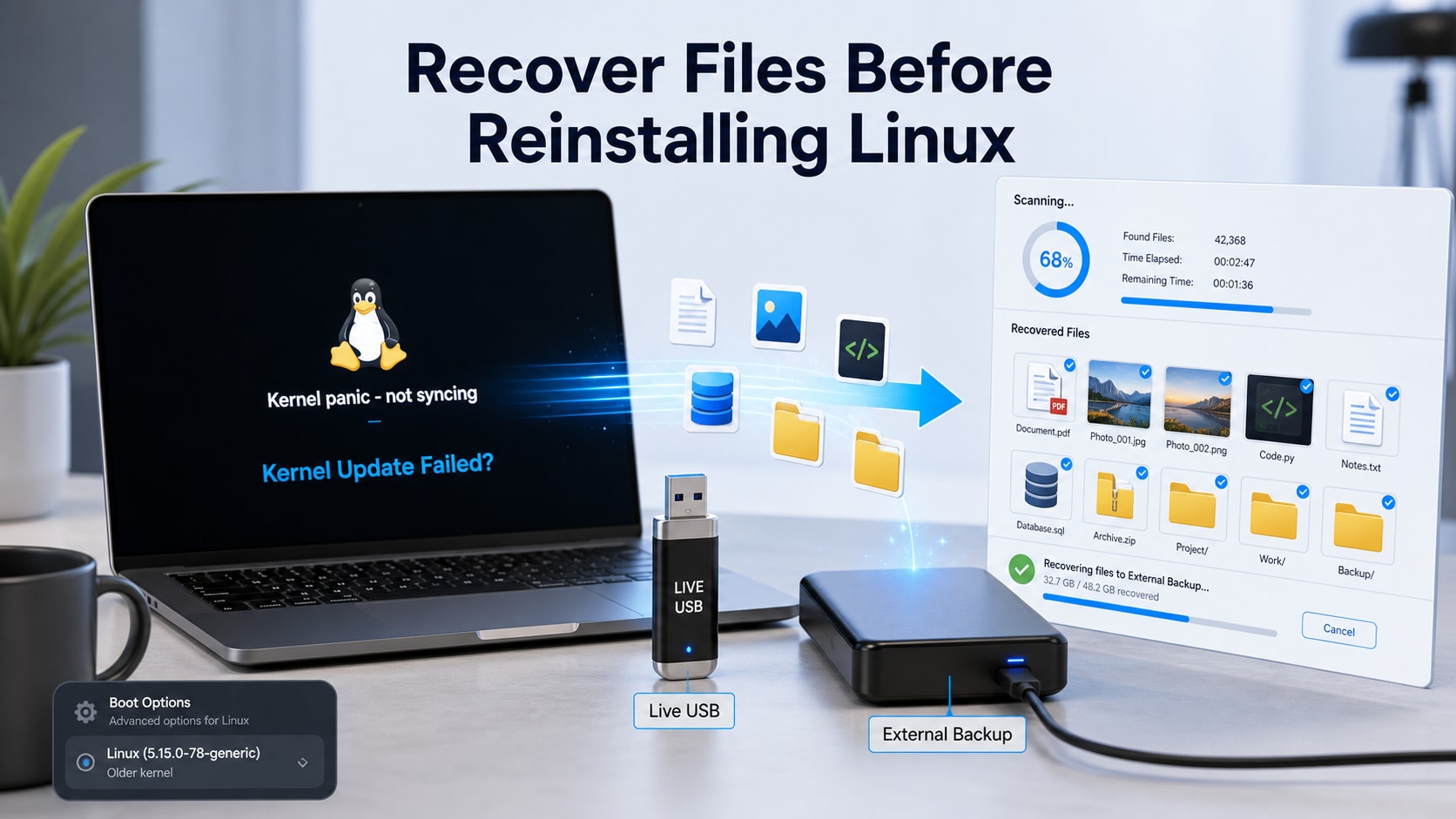

 TL;DR:
If a Linux system fails to boot after applying updates like the August 2026 kernel patches for Ubuntu 24.04 LTS or 22.04 LTS, prioritize extracting your data via an older GRUB kernel or a Live USB session before attempting any reinstallation.
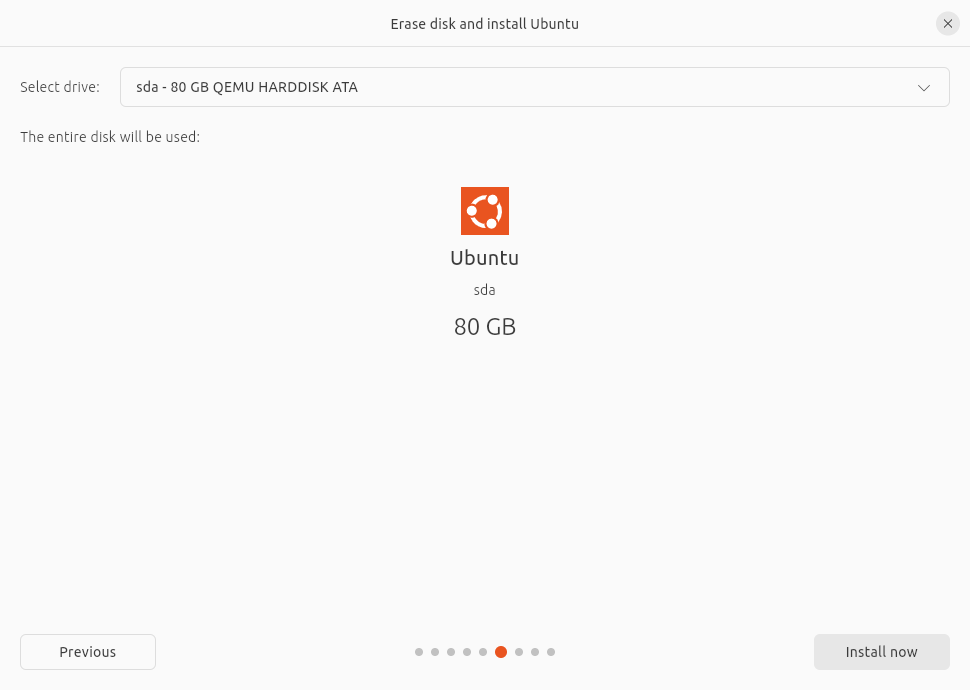
● Boot a Live USB and select "Try Ubuntu" to copy critical directories—such as `/home`, `/etc`, `/var`, and SSH keys—to an external drive, explicitly avoiding the "Erase disk and install Ubuntu" option which irreversibly overwrites the selected disk.
● Wondershare Recoverit can salvage missing files from damaged partitions if the Linux drive is attached to a working computer, but the software cannot fix broken bootloaders or bypass LUKS, BitLocker, or ZFS encryption without the legitimate passphrases.
● Do not execute repair utilities like `fsck` on unstable storage or reflash Raspberry Pi microSD cards (such as those affected by USN-8665-1) until all files are verified on separate media, because these actions alter file-system structures and increase data loss risks.
Ask AI for a summary
 ChatGPT
 Perplexity
 Gemini
 Claude
 Grok
Grok
Quick answer: If Ubuntu or another Linux system will not boot after a kernel update, do not reinstall, erase, repartition, or format the disk yet. First try a safer boot path, such as an older kernel from GRUB or a Live USB session, and copy important files to an external drive. If files are missing, partitions are damaged, or the Linux storage is still readable from another computer, Linux data recovery software such as Recoverit may help recover local files before you reinstall the operating system.
Kernel updates are necessary, but they are also one of the few Linux maintenance tasks that can turn a normal reboot into a boot emergency. A server may stop at a kernel panic, a desktop may land on a black screen after an NVIDIA driver mismatch, a Raspberry Pi may fail to load the updated kernel, or a dual-boot computer may show a changed GRUB menu. When that happens, many users jump straight to reinstalling Ubuntu or wiping the Linux partition.
That is the wrong first move if the disk still contains work files, photos, code repositories, databases, SSH keys, virtual machines, or server configs. A reinstall can overwrite /home, destroy partition tables, or make recovery much harder. The safer sequence is: protect the disk, recover or back up files, then repair or reinstall Linux.
This topic is timely because Ubuntu published multiple official Linux kernel security notices between 2026-08-18 and 2026-08-20, including USN-8629-3 for the HWE kernel on Ubuntu 24.04 LTS, USN-8656-1 for the HWE kernel on Ubuntu 22.04 LTS, USN-8663-1 for Linux kernel NVIDIA packages, and USN-8665-1 for Raspberry Pi kernel packages. Ubuntu notices commonly state that a reboot is needed after a standard system update. That reboot is when hidden boot, driver, GRUB, encryption, and storage problems become visible.
Try Wondershare Recoverit to Perform Data Recovery
 Security Verified. Over 7,302,189 people have downloaded it.
In this article
Part 1. Should You Reinstall Linux After a Kernel Update Failure?
Reinstalling Linux should be the last step, not the first step. In many post-update failures, the data partition is still intact even when the system cannot boot normally. You may only need to boot an older kernel, rebuild initramfs, fix GRUB, reinstall a display driver, or copy files from a Live USB session.
Use this table to decide the next move:
| What happened after the kernel update | What it may mean | Safest first action |
| Ubuntu reaches GRUB but not the login screen | The new kernel, display driver, or boot parameters may be failing. | Try an older kernel from Advanced options before reinstalling. |
| Black screen after installing an NVIDIA-related update | The kernel module or graphics stack may not match the updated kernel. | Recover files first if the machine is needed urgently; then troubleshoot drivers. |
| Kernel panic or initramfs prompt | The system may not mount the root file system, or initramfs may be incomplete. | Boot from Live USB and back up /home before repair attempts. |
| Dual-boot PC no longer reaches Ubuntu or Windows | GRUB, EFI boot order, BitLocker, or partition selection may be involved. | Do not reinstall over the disk. Confirm partitions and back up files first. |
| Raspberry Pi running Ubuntu no longer boots from microSD | The updated Raspberry Pi kernel or the microSD card may be the failure point. | Image or copy the card before flashing a new system image. |
| The disk makes noises, disconnects, or shows many I/O errors | The problem may be storage failure, not the kernel update itself. | Stop repeated boot attempts and consider imaging or professional recovery. |
Part 2. Why Kernel Updates Can Lead to Boot Failure
Linux kernel updates change the component that talks directly to CPU, storage, graphics, networking, file systems, and hardware drivers. Ubuntu's August 2026 notices show why the blast radius can be wide: recent notices affected generic kernels, HWE kernels, cloud kernels, NVIDIA kernels, and Raspberry Pi kernels across multiple Ubuntu releases.
Several Ubuntu kernel security notices also include a note about ABI changes. In practical terms, a new kernel version can require third-party kernel modules to be rebuilt. If a desktop depends on a proprietary graphics module, a server depends on a storage or virtualization module, or a device uses a specialized kernel flavor, the reboot after the update is when incompatibilities may surface.
Common failure points include:
- Third-party kernel modules: NVIDIA, VirtualBox, ZFS, VPN, security, or storage modules may need to rebuild for the new kernel.
- GRUB configuration: the boot menu may point to a new kernel that fails while older kernels still work.
- Initramfs issues: the boot image may miss a storage, encryption, or file-system component needed to mount root.
- Encrypted disks: a missing passphrase, damaged header, or boot-stage issue can block access before login.
- Dual-boot complications: Windows BitLocker, EFI order, or shared boot partitions can make the failure look worse than it is.
- Storage wear: an update writes many files; a weak SSD, HDD, or microSD card can fail during or after the write.
Part 3. What to Do First Before Touching the Disk
Before you repair the bootloader, reinstall Ubuntu, or run disk checks, protect the data path. Data recovery depends on disk condition, encryption, file-system damage, and whether new data has overwritten old files.
- Stop reinstall attempts: do not select Erase disk and install Ubuntu while files are still unbacked up.
- Write down symptoms: note the exact error, kernel version if visible, and whether GRUB appears.
- Do not format partitions: formatting
/,/home, EFI, or a data partition can make recovery harder. - Do not run repair tools blindly: fsck can be useful, but on an unstable disk it changes file-system structures before files are safe.
- Keep encryption keys ready: if the system uses LUKS, ZFS encryption, or hardware-backed encryption, you need the legitimate passphrase or recovery key.
- Prepare external storage: use a drive with enough free space for
/home, project folders, virtual machines, databases, and config archives.
Ubuntu's own desktop installation guide tells users to back up data before installing Ubuntu, and warns that creating installation media erases the USB stick. The same logic applies after a failed kernel update: protect data before you rebuild the system.
Part 4. Recover Files If Ubuntu Still Boots With an Older Kernel
If GRUB appears, press the key needed on your machine to show the menu, then open Advanced options for Ubuntu and try the previous kernel. If the old kernel boots, use that session to back up files immediately. Do not assume the next reboot will behave the same way.
Prioritize these folders and files:
| Data type | Common locations | Why it matters |
| Personal files | /home/username/Desktop, Documents, Downloads, Pictures, Videos |
These are the files most users expect to recover before reinstalling Linux. |
| Developer work | Git folders, IDE projects, Docker compose files, local scripts, .env files |
Repositories may be remote, but local branches, secrets, notebooks, and generated assets may not be. |
| SSH and credentials | ~/.ssh, password manager exports, VPN profiles |
Losing keys can block server access even after reinstalling. |
| Server configs | /etc, web server configs, cron jobs, systemd units |
Config files are often harder to recreate than the operating system. |
| Databases and app data | /var/lib/mysql, /var/lib/postgresql, /var/www, containers, VM images |
Stop services before copying if possible and preserve permissions when needed. |
| Dual-boot files | Windows partitions, shared NTFS data drives, EFI backups | Do not overwrite another OS while trying to repair Linux. |
Copy files to an external drive and verify random samples. For important Linux folders, preserve ownership and permissions where possible. For casual personal files, a regular file copy is better than waiting until after a risky repair.
Part 5. Recover Files With an Ubuntu Live USB Before Reinstalling
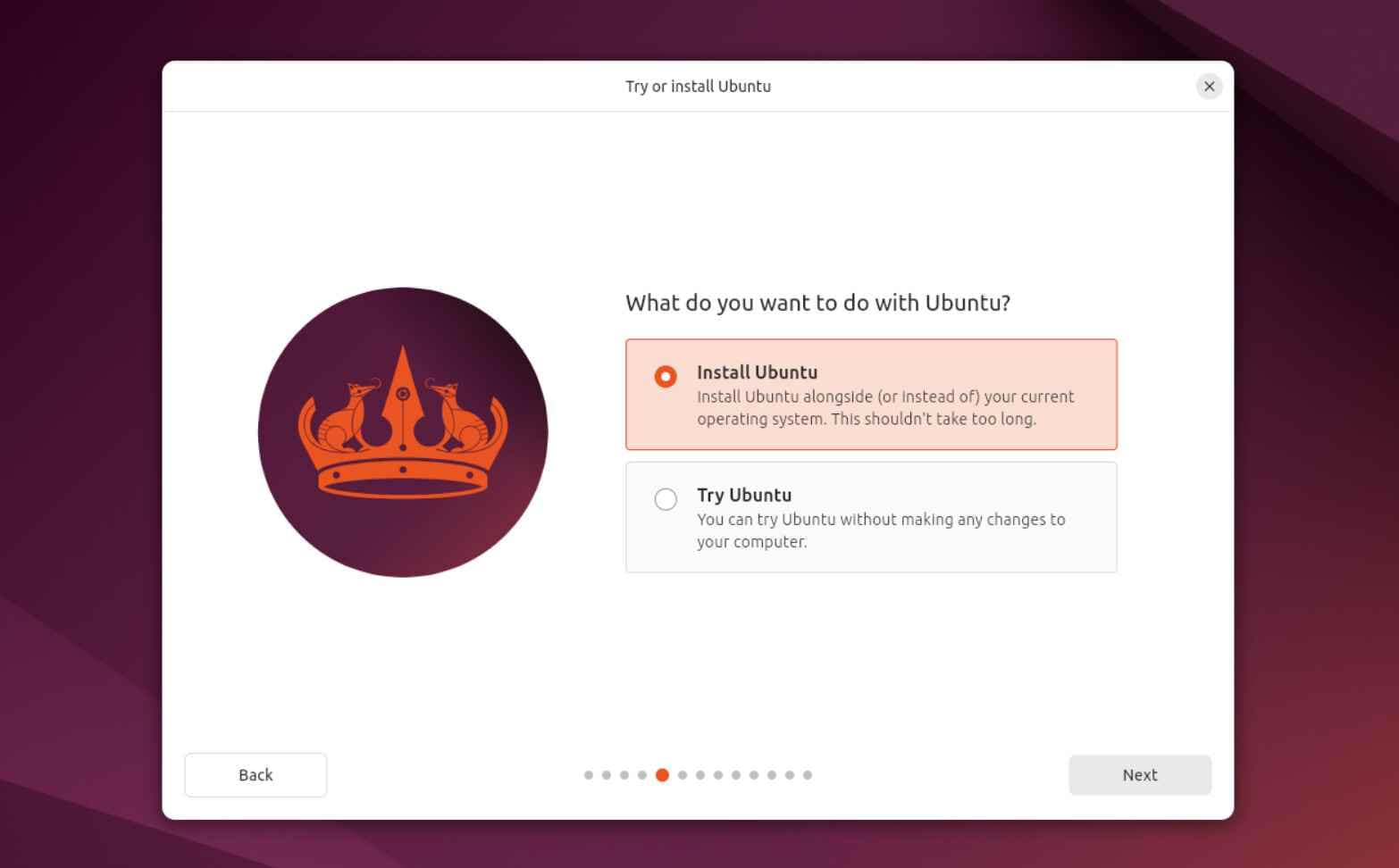
If the system does not boot into any installed kernel, use an Ubuntu Live USB. Ubuntu's installer offers a Try Ubuntu option that previews Ubuntu without changing the PC. That makes it useful for file rescue before reinstalling.
Step 1. Start a Try Ubuntu session
Create Ubuntu installation media on a spare USB drive. Be careful: writing the ISO to a USB drive erases that USB drive. Boot the affected computer from the USB device and choose Try Ubuntu, not Install Ubuntu. The goal is to access files, not to install over the disk.
Step 2. Identify the Linux partitions
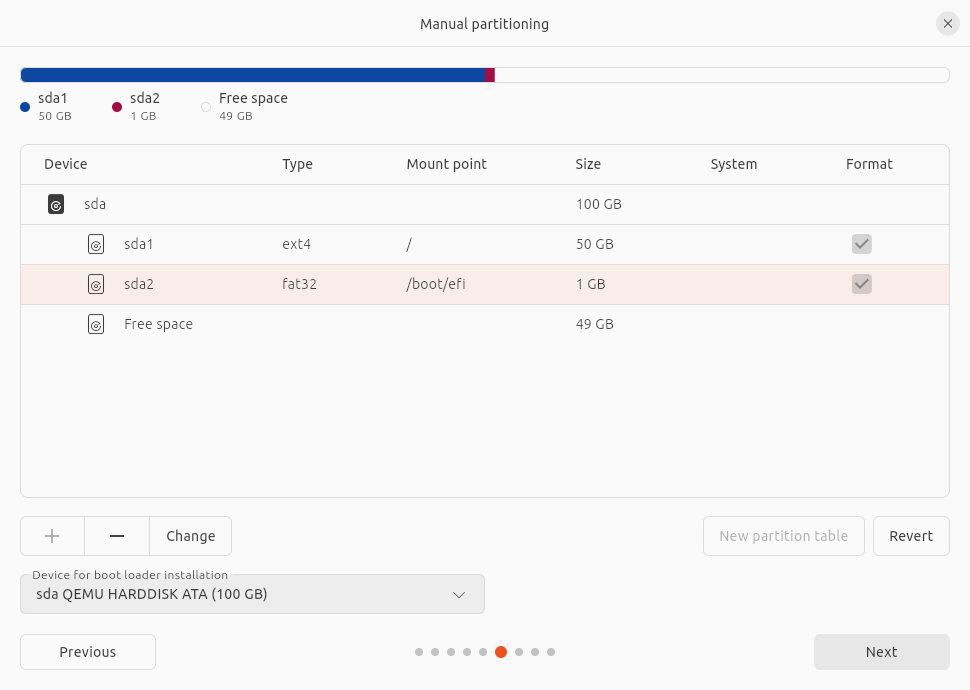
Open the file manager or the Disks app. Look for the internal drive and its partitions. Typical Ubuntu systems may include an EFI partition, a root partition, a separate /home partition, swap, LVM volumes, or encrypted LUKS containers.
If you are not sure which partition contains data, do not format or repartition anything. Mount only the partition you need for copying files. If the drive shows signs of physical failure, avoid repeated mounting and consider a disk image or professional recovery path.
Step 3. Copy user files to external storage
Connect a healthy external drive with enough free space. Copy important files from /home first. If permissions block access, use the file manager with administrator privileges only when you understand what you are opening. For encrypted Linux systems, enter the legitimate passphrase when prompted.
For dual-boot systems, check that you are copying from the Linux data partition and not overwriting Windows or shared data. Ubuntu documentation notes that the installer can install alongside another OS, but the Erase disk and install Ubuntu option uses the disk space for Ubuntu. That is why file recovery comes first.
Step 4. Save server and developer files
Desktop users often stop at /home, but servers and developer machines may keep critical data elsewhere. Before reinstalling, check:
/etcfor system, network, web server, cron, and service configuration./var/wwwfor web roots and deployed files./var/libfor databases, containers, virtual machines, and application data./optand/srvfor custom apps and service data./home/*/.ssh,.gnupg,.config, and project folders for credentials and workflow state.
Step 5. Verify the backup before reinstalling
Open a few copied files from the external drive. Check file counts and folder sizes. For databases and VMs, verify that all related files were copied, not just visible documents. Only after the backup is verified should you start boot repair, package rollback, or reinstall options.
Part 6. Use Recoverit When Files Are Missing or the Linux Disk Is Damaged
Manual copying works when the file system mounts cleanly and your files are visible. It does not solve every post-kernel-update case. Use a recovery tool when folders disappeared, the partition shows as RAW or unknown, files were deleted during troubleshooting, or the disk is readable but the directory tree is damaged.
Wondershare Recoverit includes data recovery workflows for Windows and Mac hosts, and its Recoverit 11 update introduced Linux and NAS data recovery scenarios. For Linux recovery, the fit depends on the state of the machine:
| Linux recovery situation | Recoverit fit | Important limit |
| Linux machine still boots or is reachable over the network | Recoverit Linux recovery may help scan the Linux target through a remote connection when SSH and proper credentials are available. | It needs legitimate access. It cannot bypass passwords, encryption, or server authentication. |
| Linux disk is removed and attached to a working computer | Recoverit may help scan readable storage for lost documents, photos, videos, archives, and other files. | Do not save recovered files back to the same Linux disk. |
| Partition is damaged or files are missing after repair attempts | A deep scan may find recoverable files that normal browsing cannot show. | Recovery depends on overwriting, disk health, encryption, and file-system damage. |
| Disk has mechanical failure, repeated I/O errors, or disconnects | Software recovery is risky as the first move. | Stop repeated scans and consider a professional lab or sector-by-sector imaging. |
| Kernel, GRUB, NVIDIA driver, or bootloader is broken | Recoverit can be used as a data-protection step before repair. | Recoverit cannot fix Linux boot, GRUB, kernels, drivers, BIOS, firmware, or hardware. |
For broader Linux recovery concepts, see Recoverit's Linux data recovery page. If the system drive is unreadable or you are dealing with accidental formatting during reinstall, Recoverit's file recovery and formatted data recovery resources can support the next step.
Try Wondershare Recoverit to Perform Data Recovery
Security Verified. Over 7,302,189 people have downloaded it.
Part 7. When Reinstalling Linux Is Safe and When It Is Not
Reinstalling Linux is reasonable after your important files are copied, recovered, or confirmed safe. It is risky when you are using the installer as a rescue tool without knowing what will be overwritten.
| Reinstall option | Data risk | Use only after |
| Boot repair, old kernel cleanup, or driver reinstall | Lower than full reinstall, but still can alter boot files and packages. | Critical files are backed up or recoverable. |
Manual reinstall while preserving a separate /home |
Medium. One wrong partition choice can overwrite user data. | You have verified the partition layout and backed up /home. |
| Install Ubuntu alongside another OS | Medium. It is designed to preserve files, but partition decisions still matter. | Windows, Linux, and shared partitions are backed up. |
| Erase disk and install Ubuntu | High. Ubuntu uses the selected disk for the new installation. | All needed files are copied to another drive or recovered. |
| Reflash Raspberry Pi microSD | High. Flashing writes a new image over the card. | The card image or needed files have been copied to separate storage. |
If encryption is involved, do not reinstall until you have backed up the decrypted files or confirmed you have the correct passphrase and recovery material. Ubuntu's installer documentation warns that losing an encryption passphrase can block data recovery. Recoverit cannot decrypt LUKS, BitLocker, FileVault, or hardware-backed encryption without legitimate keys.
Part 8. Prevention Checklist for Future Kernel Updates
Kernel security updates should still be applied. The goal is not to avoid updates, but to make the reboot safe and recoverable.
- Back up before kernel updates: copy
/home, server configs, databases, and project files before a planned reboot. - Keep at least one older kernel: do not immediately remove working kernels after a successful update.
- Check disk health: if an SSD, HDD, or microSD card already shows I/O errors, recover data before running large updates.
- Document encryption keys: store LUKS, BitLocker, and recovery keys away from the affected machine.
- Snapshot where possible: use VM snapshots, Btrfs/ZFS snapshots, cloud snapshots, or disk images before updating production systems.
- For NVIDIA systems: schedule updates when you have time to handle display-driver rebuilds or rollbacks.
- For Raspberry Pi systems: image the microSD card before major kernel or firmware-related maintenance.
- For dual-boot PCs: confirm Windows BitLocker state and EFI boot order before changing Linux partitions.
- Test the backup: a backup that has never been opened is only an assumption.
Useful Recoverit resources:
Part 9. Final Verdict
The safest answer to a failed Linux kernel update is not "reinstall now." It is "recover files first." Ubuntu's August 2026 kernel, HWE, NVIDIA, and Raspberry Pi security notices are a useful reminder that kernel fixes often require a reboot, and that reboot can expose bootloader, driver, module, encryption, or storage problems.
If you can boot an older kernel, use it to back up immediately. If the installed system will not boot, use a Live USB session to copy files before installing anything. If files are missing or the Linux disk is readable but damaged, use a recovery workflow such as Recoverit before formatting or reinstalling. Once the files are safe, you can repair GRUB, roll back a driver, rebuild packages, or reinstall Linux with a much lower data-loss risk.
Try Wondershare Recoverit to Perform Data Recovery
Security Verified. Over 7,302,189 people have downloaded it.
FAQ
-
Can I recover files before reinstalling Linux after a kernel update?
Yes. If the disk is still readable, you can often recover files by booting an older kernel, using an Ubuntu Live USB session, copying files to external storage, or scanning readable Linux storage with a recovery tool before reinstalling. -
Will reinstalling Ubuntu delete my files?
It can. The Erase disk and install Ubuntu option uses the selected disk for the new installation, and manual partitioning can overwrite data if the wrong partition is selected. Back up or recover files before reinstalling. -
What should I back up before reinstalling Ubuntu?
Back up your home folder, project files, SSH keys, browser data, database folders, web server files, virtual machines, Docker data, and important configuration from /etc, /var, /srv, and /opt when applicable. -
Can Recoverit fix a Linux kernel panic or GRUB boot failure?
No. Recoverit is a data recovery tool. It can help recover files from readable storage before risky repair or reinstall steps, but it cannot repair Linux kernels, GRUB, NVIDIA drivers, BIOS, firmware, or hardware faults. -
Can I recover data from an encrypted Linux disk?
Only if you have the legitimate encryption passphrase or recovery key. Data recovery software cannot bypass LUKS, BitLocker, FileVault, ZFS encryption, or hardware-backed encryption without the correct key. -
Should I run fsck before recovering files?
Not as the first step if the disk may be failing or the data is not backed up. fsck can modify file-system structures. Copy or recover important files first, then run repair tools when you can accept the risk.


