

 TL;DR:
Fix an unresponsive YouTube Mini Player on PC by eliminating browser-level interferences like corrupted cache data, outdated software versions, or conflicting privacy extensions.
● Test a different video to rule out inherent playback restrictions, as YouTube completely disables the Mini Player on "Made for Kids" content.
● Turn off "Use Graphics Acceleration When Available" in your browser's system settings and restart to resolve hardware conflicts preventing the player from shrinking.
● Open YouTube in Incognito Mode to quickly diagnose the issue; if the player works, an active ad-blocker or script-blocking extension in your main browser is the root cause.
Ask AI for a summary
 ChatGPT
 Perplexity
 Gemini
 Claude
 Grok
Grok
“I don't know why, but videos no longer minimize when I exit out of the app to go to other browsers. Part of me thinks they hid it behind Premium.” fallenfire360
You click the Mini Player button on YouTube, expecting the video to shrink in a small window, but it doesn’t. Instead, the feature may stop working, disappear, or simply refuse to respond to commands. At this point, anyone could easily get annoyed when they want to keep watching a video while searching for other content.
Once the YouTube Mini Player not working keeps happening, remember it’s caused by simple issues like browser settings. To get sorted, all you need is a thorough review of this guide for simple checks and quick fixes.
Try Recoverit to Perform Data Recovery
 Security Verified. 3,591,664 people have downloaded it.
In this article
Part 1. What's Behind the YouTube Mini Player Not Working
Browser issues, outdated settings, or extension conflicts could cause your YouTube Mini Player to stop working at any time. To fix the Mini Player not working on YouTube, it's worth knowing what’s actually behind this issue:
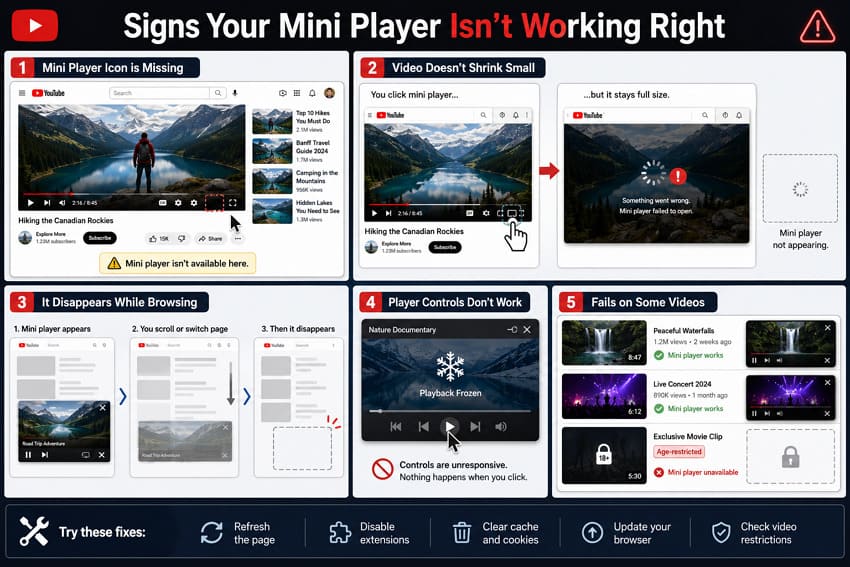
Signs Your Mini Player Isn't Working Right
- Mini Player Icon is Missing: You don’t see the Mini Player icon below the video, or clicking it has no effect.
- Video Doesn't Shrink: When you activate Mini Player, the video stays full size or closes instead.
- It Disappears While Browsing: The Mini Player appears briefly, then disappears while you browse YouTube.
- Player Controls Don't Work: Play, pause, or close buttons on the Mini Player don't respond when clicked.
- Unavailable on Certain Videos: The Mini Player works on some videos but isn't available on others due to playback restrictions, such as Made for Kids content.
Why Does YouTube Mini Player Don't Load?
All the common reasons for YouTube Mini Player not working on Chrome are covered precisely in the table below:
| Causes | Description |
| Browser Not Updated | An older browser version can break YouTube features. |
| Broken Cache or Cookies | Corrupted cached data or cookies can prevent the Mini Player from loading. |
| Problematic Extensions or Ad-Blockers | Browser add-ons may hide or interfere with the Mini Player. |
| Network or Temporary YouTube Bug | Internet issues or temporary YouTube problems can prevent the Mini Player from appearing. |
| Playback Restrictions | Some videos have playback restrictions that prevent the Mini Player from being available. |
Part 2. Quick Checks to Fix YouTube Mini Player Issues Instantly
It's convenient to start with a few quick checks that can sometimes fix the Mini Player not working on YouTube in seconds:
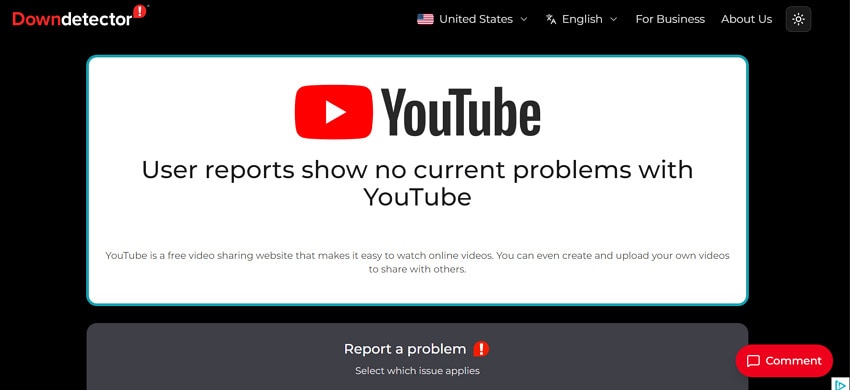
Check 1. Confirm YouTube Isn't Down for Everyone
Before any major change, make sure the problem isn’t on YouTube's side. You can quickly search for Downdetector or use Google YouTube Community Help to see if others are reporting issues. For instance, if YouTube is genuinely having an outage or fault, the Mini Player may fail for everyone.
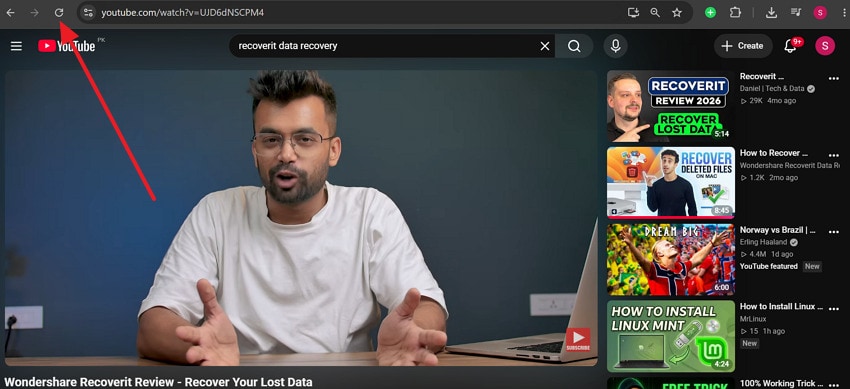
Check 2. Refresh the Page or Restart Your Browser
In some situations, the Mini Player fails to load because the page didn’t load correctly. A quick Refresh clears minor faults and reloads all scripts or interface elements, often bringing the Mini Player back. First, attempt a normal refresh, and if that doesn’t help, close all YouTube tabs and restart.
Check 3. Test the Mini Player on a Different Video
The YouTube Mini Player not working on PC issue may be specific to one video, not the whole site. Try to open another regular video on YouTube and click the Mini Player icon there. Doing so, if the Mini Player works on other videos, the problem is probably linked to that video's playback restrictions instead of the Mini Player itself.
Check 4. Check If You're Using a Supported Browser
YouTube’s Mini Player works best in modern browsers like the current versions of Chrome, Edge, or Firefox. An older browser version or a less common browser in use might not load the Mini Player properly. Check your browser’s version and update it to the latest release, then test the Mini Player again.
Part 3. How to Fix YouTube Mini Player Not Working on PC: Advanced Fixes
Once done with basic checks, fix the Mini Player not working on YouTube by trying the following solutions one by one:
Fix 1. Clear Your Browser's Cache and Cookies
Your browser stores cache files and cookies to help websites load faster, but they can become outdated or corrupted. Whenever this happens, YouTube features like Mini Player may immediately stop working as they're supposed to. To learn how to fix YouTube Mini Player, simply clear the cache or cookies to remove old data, as guided:
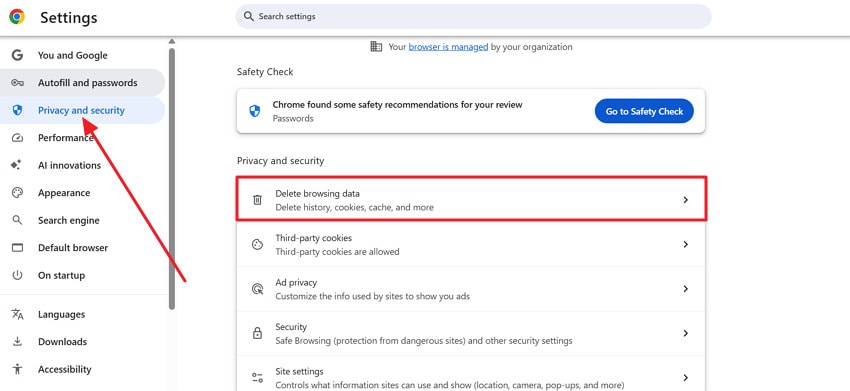
Step 1. Go to the “Three Dots” menu in your browser, then choose the “Settings” option from the drop-down menu. Access the “Privacy and Security” option from the left panel and click the “Delete Browsing Data” option.
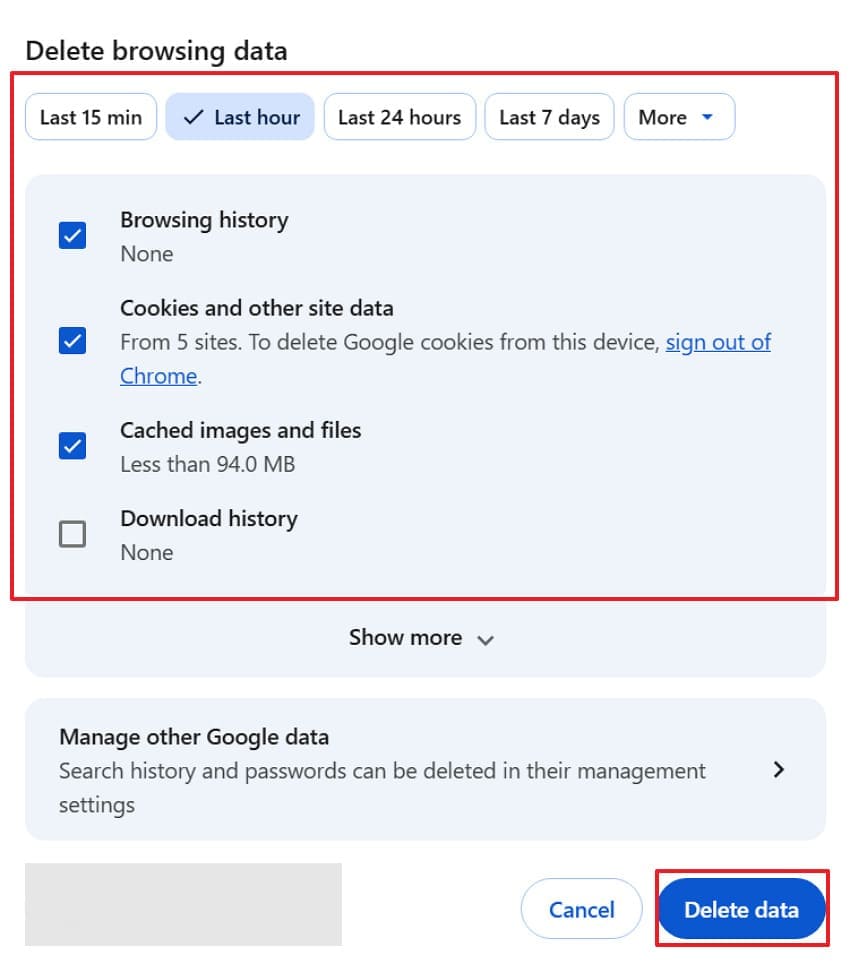
Step 2. Now, choose cache and cookies from the list and select a specific time range from the options. Once done, click the “Delete Data” option, then reopen YouTube and test the Mini Player.
Fix 2. Disable Browser Extensions That Might Interfere
Browser extensions can add extra features, but some of them interfere with YouTube’s core functionality. Extensions like ad blockers, privacy tools, or video-related add-ons can even block the scripts the Mini Player needs to work. For such interruptions, learn how to disable these extensions and identify if one of them is causing the problem:
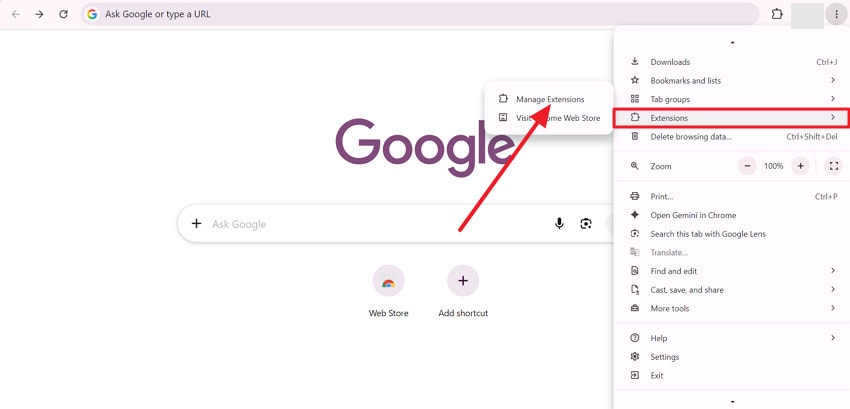
Step 1. In Chrome, access the “Three Dots” menu and expand the “Extensions” option to reveal a sub-menu. Next, press the “Manage Extensions” option to disable or toggle off unwanted extensions.
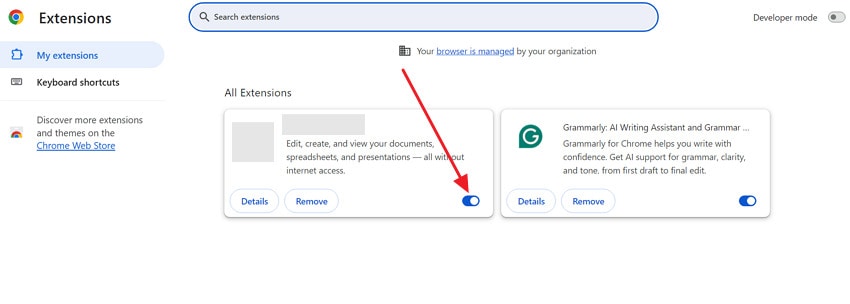
Step 2. After this, review and turn off ad blockers, script blockers, or any extensions that change YouTube’s layout. Close all YouTube tabs, then open a new YouTube tab to try Mini Player again on a normal video.
Fix 3. Update Your Browser to the Latest Version
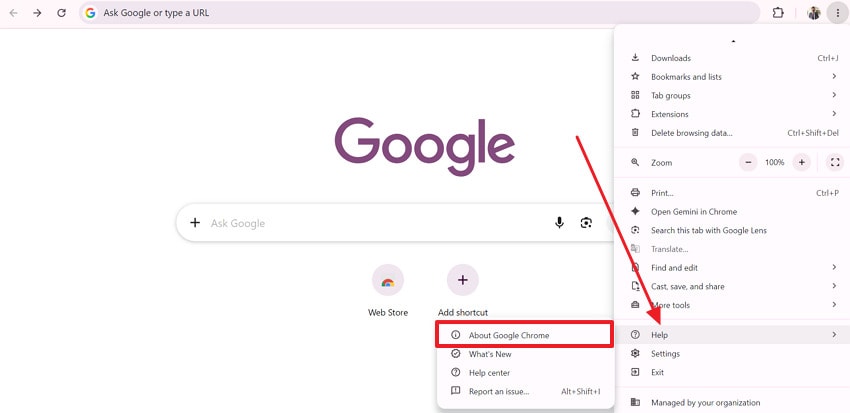
Try to update your browser because it includes bug fixes, security improvements, and better support for video playback on YouTube. It further confirms that your YouTube runs smoothly with all features and helps fix compatibility issues, if any. Overcome YouTube Mini Player not working in Chrome through the guidelines provided below to install your browser’s latest version:
Instructions. From the “Three Dots” menu in your Chrome, scroll down to the “Help” option. Once located, press the “About Google Chrome” option and wait for the new window to appear. In doing so, the browser will check for updates and install the latest automatically.
Fix 4. Turn Off Hardware Acceleration in Browser Settings
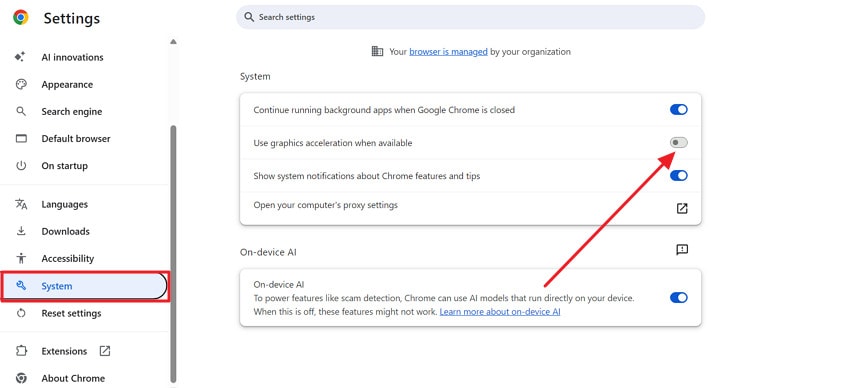
Hardware Acceleration allows your browser to use your computer’s graphics hardware and improve video or page performance. However, it does sometimes create a conflict with video features and cause issues like the YouTube Mini Player not working. At any such condition, turn off this option as guided to test whether graphics acceleration is causing playback or Mini Player compatibility issues:
Instructions. Within your Chrome Settings, locate the “System” option in the left-side panel. After this, turn off the “Use Graphics Acceleration When Available” option and restart your browser to apply changes. Finally, browse YouTube and check if the Mini Player now appears or behaves correctly.
Fix 5. Sign Out and Sign Back into Your Google Account
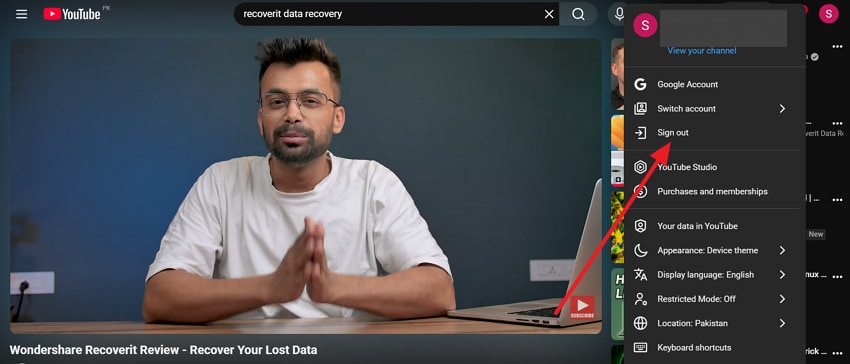
A simple sign-in and sign-out might address a temporary account hindrance or syncing issues that stop your Mini Player from working. Once you sign back in to your Google account, it deliberately refreshes your connection with YouTube and reloads account settings. To remove minor errors or restore the unresponsive feature, learn how to fix YouTube Mini Player:
Step 1. Enter YouTube on your browser like Firefox or Chrome, and press the “Profile” icon in the top right corner. From the drop-down menu, choose the “Sign Out” option to log out of your Google account.
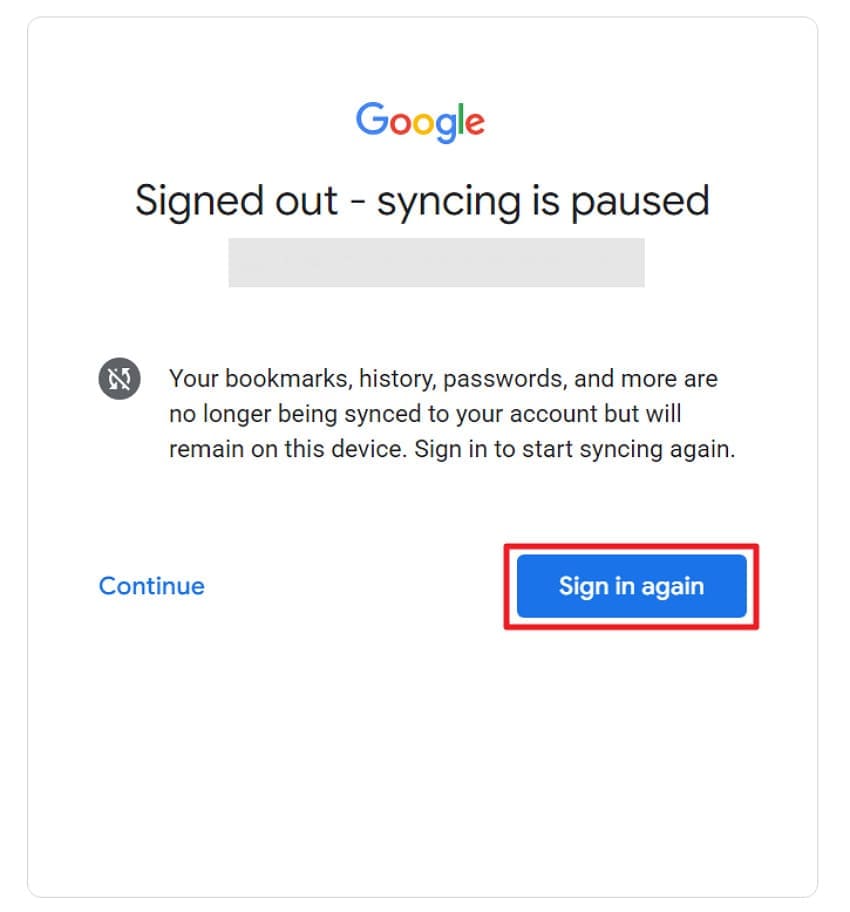
Step 2. Once signed out, click the “Sign In Again" button, re-enter your account details, and return to the same video. Now, try the Mini Player again with more refreshed account-level settings.
Fix 6. Reset Your Browser Settings to Default
A complete reset of your browser settings returns them to their original state and removes changes that may be causing Mini Player issues. For the YouTube Mini Player not working in Chrome, this fix improves browser performance with properly working features. Learn how to reset your browser settings to the default according to Google Chrome Settings guidelines:
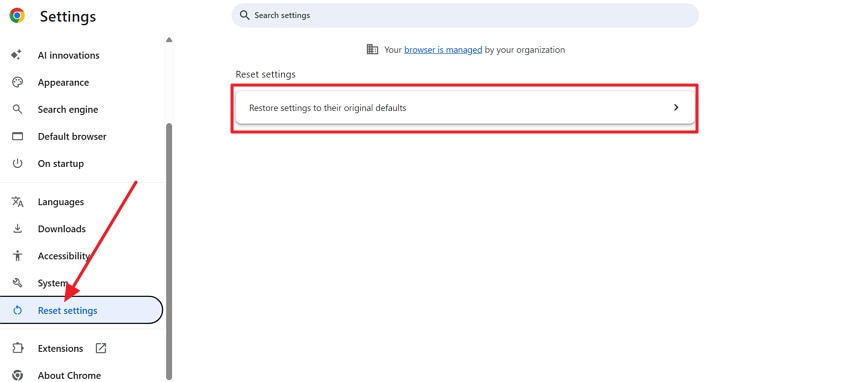
Step 1. In Google Chrome Settings, scroll down and click the “Reset Settings” option in the left panel. After this, under Reset Settings, press the “Reset Settings to Their Original Default” option and proceed.
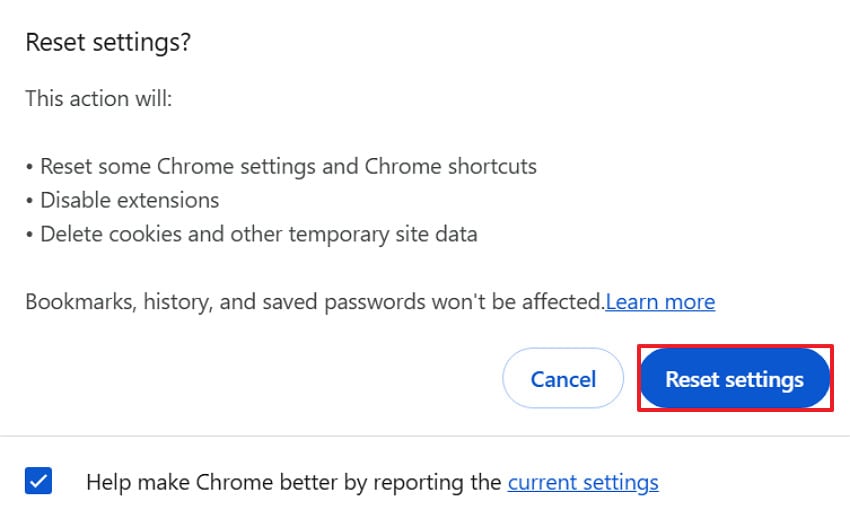
Step 2. Now, read the prompt and press the “Reset Settings” option, then wait for the browser to restart.
Pro Tip. Recover Lost YouTube Download Files with Recoverit
Besides fixing the YouTube Mini Player not working, it's also worth knowing how to recover accidentally deleted video files with Recoverit. At this point, it provides a reliable way to restore accidentally deleted local video or audio files. It supports recovery from internal hard drives, external drives, USB flash drives, and memory cards.
This also works if you saved videos to a portable drive or memory card and later lost them due to deletion or formatting. Recoverit supports common video formats such as MP4, AVI, and MKV, allowing most locally saved videos and screen recordings to be scanned and recovered.
Key Features
- Advanced Video Recovery: It collects videos that are stored in many fragments to rebuild and recover a complete YouTube video.
- Repairs Broken Downloads: When the recovered YouTube files are damaged or corrupted, Recoverit can repair them with complete accessibility.
- Offers Two-Mode Repair: The program offers quick repair for simple video damage and advanced repair for severely corrupted files.
Guide to Recover Deleted YouTube Downloads Using Recoverit
Follow the guidelines as directed to find and recover your deleted YouTube downloads from the PC:
Step 1. Select the Location of Your YouTube Downloads
For a successful data recovery, choose the target location on your PC, then click “Start” to begin the scan.

Step 2. Initiate the Scan on Your Selected Location
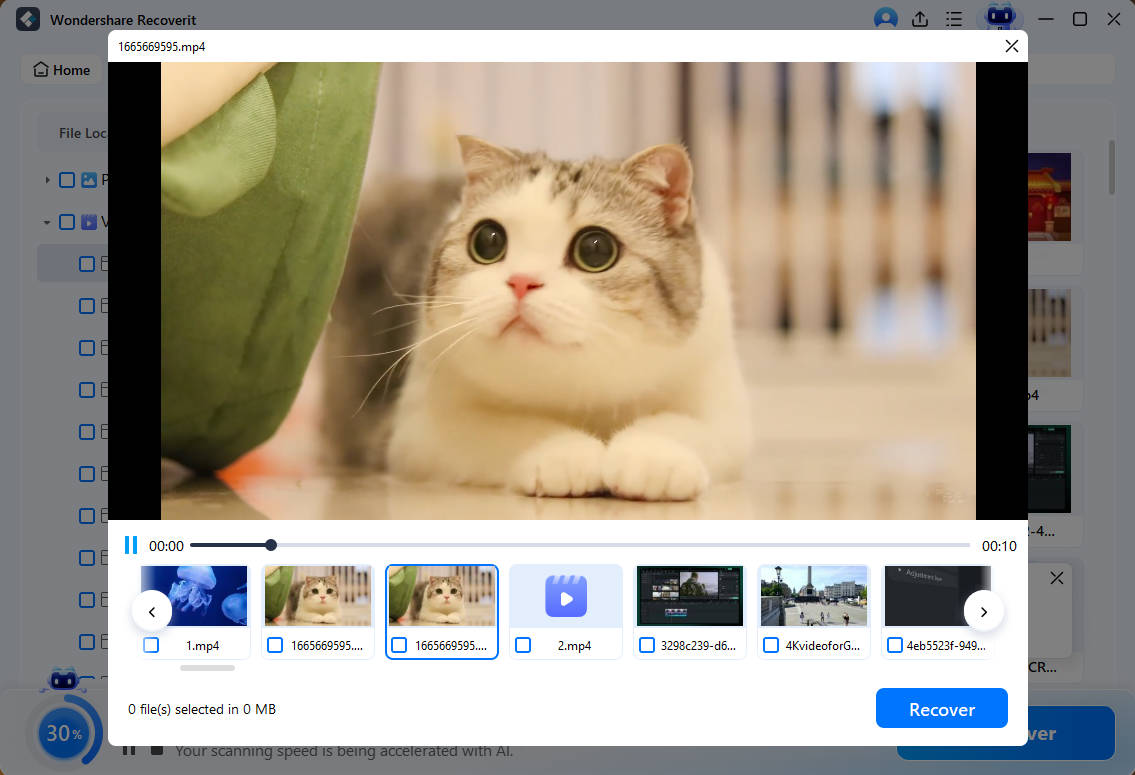
Following this, Recoverit will automatically start an all-around scan, displaying real-time scanning results like deleted or lost YouTube videos.

Step 3. Examine and Recover YouTube Videos
After recovery, locate and then select the YouTube video to save it on your device for later use.
Conclusion
In the end, YouTube Mini Player not working is usually easy to fix with simple checks like refreshing the YouTube page. With all the common causes, signs, and right solutions, you can enjoy a better YouTube viewing experience via Mini Player. If you lose locally stored YouTube videos or other files while troubleshooting browser or system issues, Recoverit can help recover them quickly.
FAQ
-
Does being logged out affect the Mini Player on PC?
Usually not. Being logged out does not normally affect the Mini Player on PC. If the issue occurs, sign in, turn off Restricted Mode if enabled, and check for browser-related issues such as extensions or outdated settings. -
Why does the Mini Player work in one browser but not another on my PC?
Different browsers handle extensions, hardware accelerations, and experimental flags in different manners. For example, if it works in one browser, your PC is fine, and the issue is likely due to browser-specific settings. However, when the YouTube Mini Player is not working after an update occurs, a browser update may have introduced a compatibility issue. -
Does ad-block affect the YouTube Mini Player on PC?
Indeed, it can, because some ad blockers or privacy extensions block the scripts the Mini Player needs to work. If your Mini Player stopped working after installing or updating an ad-blocker, try pausing it on YouTube or reloading the page. -
Does Incognito Mode fix Mini Player?
Yes, sometimes. Incognito Mode disables most extensions and uses a fresh browsing session. If the Mini Player works there, an extension, cached data, or a browser setting is likely causing the issue.


