 TL;DR:
To successfully recover Blackmagic URSA Cine 12K LF footage running Camera 10.3, immediately halt all camera writes to prevent the new up-to-10-minute pre-record function from overwriting deleted data, and target the original BRAW masters rather than relying on H.264 proxies or SMPTE-2110 IP outputs.
● If the production utilized dual-CFexpress recording, you must independently scan and recover both physical cards to reunite the paired .BRAW and .BRAW2 files, as a separated half will only play at half the intended frame rate in DaVinci Resolve.
● Standard recovery software can directly scan a CFexpress Type B card via a compatible reader, but it cannot perform sector-level undeletion on a Blackmagic Media Module accessed through a network share, SMB, or Media Dock.
● Always save the recovered files to a completely separate healthy drive, validating the clip's full duration, embedded four-channel audio, and Generation 6 Color Science metadata before formatting the original acquisition media.
Ask AI for a summary
 ChatGPT
 Perplexity
 Gemini
 Claude
 Grok
Grok
Blackmagic Camera 10.3 arrived on September 14, 2026. Blackmagic Design's official release notes add Generation 6 Color Science, pre-record, SMPTE-2110 video, a DaVinci Resolve-based color corrector, Blackmagic RAW 4.6K crop, dual LUT functionality, four-channel audio recording, SDI camera control on SDI B, and several live-production improvements to the URSA Cine 12K LF. The update expands what the camera can do, but it also makes one production reality more important: the footage, proxy, audio, metadata, and offload path need to be protected as a system, not as isolated video files. See the official Blackmagic Camera 10.3 release notes.
If URSA Cine footage disappears, the safest first move is not to format media, run repair utilities, or keep recording tests. Identify which storage last held the intact camera original, stop new writes to that source, check verified copies, and recover to a different healthy destination when no complete backup remains.
In This Article
Part 1. What Blackmagic Camera 10.3 Changes for Footage Protection
Camera 10.3 is more than a color-science update. It extends the URSA Cine 12K LF from a high-end cinema acquisition camera into more live and pre-record workflows. That means a data-protection plan now has to account for continuous capture behavior, camera originals, proxy media, embedded audio, network output, and multiple post-production routes.
1.1 Pre-Record Changes the First Response to Data Loss
Blackmagic Design says the new pre-record function can capture up to 10 minutes of action before the record button is pressed. The practical implication for recovery is simple: if footage has just been deleted or a recording problem is discovered, stop creating new camera writes as soon as production safely allows. Leaving the camera actively recording or continuing to capture test takes can overwrite storage space that may still contain deleted data. Blackmagic's official Camera 10.3 announcement documents the up-to-10-minute pre-record addition.
This does not mean pre-record causes data loss. It means the camera is designed to keep recent action ready to be committed as a recording, so the usual recovery rule - stop new writes to affected storage - matters even more when the loss is discovered during active production.
1.2 Generation 6, Dual LUTs, and Four-Channel Audio Change What Complete Means
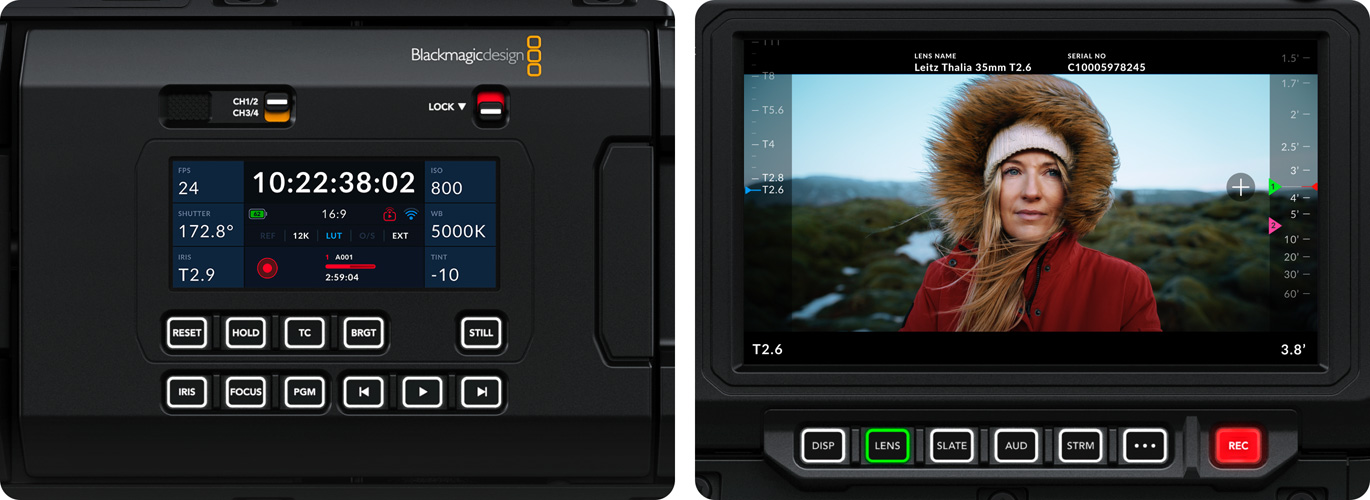
With Camera 10.3, a recovered clip may carry more than picture. Blackmagic RAW can contain camera and lens metadata, color information, time-related production context, and embedded audio. The update adds four-channel audio recording and Generation 6 Color Science to the 12K LF, while dual LUT functionality supports different monitoring or output looks.
For recovery, the goal is therefore not merely a .braw file that opens. A production-ready recovery should preserve the expected resolution and frame rate, the full clip duration, all recorded audio channels, the metadata needed by the edit or grade, and any sidecar or associated files that the production actually relies on.
1.3 SMPTE-2110 Output Is Not Automatically a Camera-Original Backup
Camera 10.3 adds SMPTE-2110 video to the standard URSA Cine 12K LF. Blackmagic's current URSA Cine product documentation describes live SMPTE-2110 output over 10G Ethernet up to 2160p60 on the 12K LF, while the camera can continue to serve cinema and post-production workflows.
A live IP output, a proxy arriving in DaVinci Resolve, and an original BRAW clip are different assets. If the camera original disappears, the presence of a live feed or proxy does not prove that the full-resolution BRAW master has been backed up.
Part 2. Know Where URSA Cine 12K LF Originals Actually Live
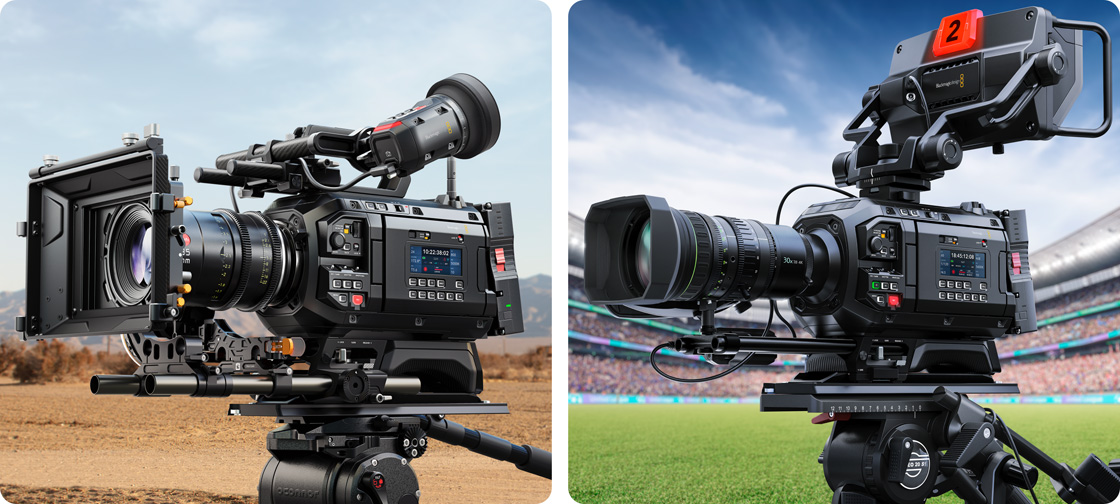
Before scanning, identify the acquisition medium used on the specific camera package. URSA Cine 12K LF can be configured around Blackmagic's removable Media Module storage or a CFexpress module, and the recovery path differs significantly between them.
2.1 Media Module 8TB and Media Module CF Are Different Recovery Sources
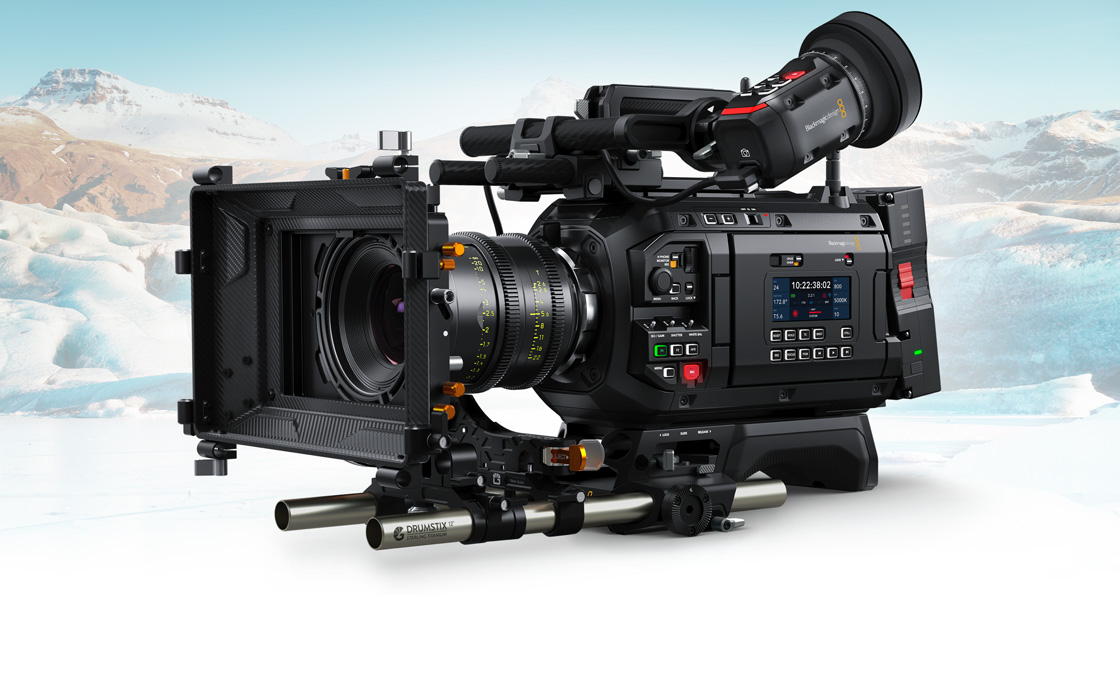
Blackmagic's current URSA Cine technical specifications state that the full URSA Cine 12K LF package includes Blackmagic Media Module 8TB. The 12K LF Body configuration includes Blackmagic Media Module CF with two CFexpress Type B slots and can also use optional 8TB or 16TB media modules.
This distinction matters for recovery. A CFexpress Type B card can normally be removed and attached to a computer through a compatible reader. The Media Module is designed for the URSA Cine ecosystem and Blackmagic Media Dock, so do not assume that a module accessed through a camera or network share behaves like an ordinary USB disk that recovery software can scan at the sector level.

2.2 BRAW Originals, H.264 Proxies, and Metadata Are Not Interchangeable
URSA Cine records Blackmagic RAW camera originals and can record an HD H.264 proxy alongside them. Blackmagic also documents extensive BRAW metadata: lens information, iris, ISO, color space, slate information, and other camera data can be embedded in the file, while sidecar metadata can provide non-destructive overrides. See Blackmagic's Blackmagic RAW metadata documentation.
If the proxy survives but the BRAW master is missing, keep the proxy as a reference or emergency fallback, but do not label it as a recovered original. The proxy's lower resolution and different encoding make it a different production asset.
2.3 Dual-CFexpress Recording Can Split One Clip Across .BRAW and .BRAW2
The most important URSA Cine-specific recovery detail is dual-card BRAW recording. Blackmagic's current URSA Cine manual describes a two-card recording mode that stripes high-data-rate Blackmagic RAW across two CFexpress cards. One side uses .BRAW while the paired data uses .BRAW2.
For editorial, both halves belong together. When the paired .BRAW and .BRAW2 files are copied into the same folder, DaVinci Resolve can treat them as a single merged clip. If the pair is separated, each half represents only part of the recorded frame sequence and may play independently at half the intended frame rate.
Recovery consequence: if a production used two-card recording, do not recover one CFexpress card and declare the clip complete. Protect both cards, keep their identities clear, and recover both sources independently before pairing the matching files.
Part 3. Protect 12K Footage Before Reusing a Card or Media Module
Professional cinema recovery is expensive in time even when no lab work is required. The safer workflow defines when a source can be released for reuse before the shoot starts.
3.1 Preserve the Camera-Original Package Before Organizing It
Copy the complete camera-created package first. Keep BRAW, paired BRAW2 files when used, proxy folders, sidecars, and production metadata together until the offload has been verified. Organize by adding an outer production folder rather than flattening or renaming camera-created content during the first copy.
For dual-card jobs, label the physical cards as a pair in the media log. A filename from card A without its matching card B file can look valid while still representing an incomplete high-frame-rate recording.
3.2 Verify the Offload Instead of Trusting a Copy Progress Bar
A completed copy dialog proves that the copy application stopped, not that every destination is a trustworthy backup. Use checksum-verified offloads when the production workflow supports them, retain the verification report, and check each destination that will count as an independent copy. ARRI's production data-transfer guidance similarly recommends checksum-verified copies for camera media.
For critical takes, verification should also include content checks: expected roll and clip count, representative full-resolution BRAW playback, paired BRAW/BRAW2 presence where applicable, expected audio tracks, and a check that the destination contains camera originals rather than only proxies.
3.3 Build the Backup Plan Around Real Data Rates
Blackmagic's current technical specifications show why offload planning matters. At 24 fps, the published 12K storage rate is 1,194 MB/s for BRAW 3:1 and 448 MB/s for BRAW 8:1. That is roughly 71.6 GB per minute and 26.9 GB per minute respectively using simple decimal arithmetic. Constant-quality modes vary with scene content.
| 12K BRAW Setting at 24 fps | Blackmagic-Published Storage Rate | Approximate Data per Minute |
| 3:1 | 1,194 MB/s | 71.6 GB/min |
| 8:1 | 448 MB/s | 26.9 GB/min |
| 12:1 | 299 MB/s | 17.9 GB/min |
| 18:1 | 199 MB/s | 11.9 GB/min |
Do not size a production backup only from the camera's maximum module capacity. Budget for at least the required independent copies, verification time, proxies, sound, project files, and working headroom. If offload verification is still incomplete, storage pressure is not a safe reason to format the camera source.
Part 4. Diagnose the Loss Before Choosing a Recovery Method
"Missing footage" can mean a broken media link, an incomplete copy, deletion from a CFexpress card, deletion from an offload SSD, a missing half of a dual-card clip, or a physically unstable storage device. Start by identifying the last storage that definitely held the complete original.
| What You See | What to Establish | Safest First Action |
| Clip is offline in DaVinci Resolve | Whether the BRAW file still exists under another path, mount, or drive name | Locate and relink the intact file before running undelete recovery. |
| Proxy is available but BRAW is missing | Where the camera original and its backup were stored | Keep the proxy, then search the original-media destinations separately. |
| Only .BRAW or .BRAW2 from a dual-card take remains | Which paired CFexpress card is missing | Protect both cards and recover the missing pair before judging the clip. |
| Offload stopped partway through | Whether the camera source is still intact | Make a new verified offload from the intact source. |
| CFexpress files were deleted or the card was formatted | Whether the card remains stable and detectable | Stop writes and scan the original card through a compatible Type B reader. |
| Files were deleted from an offload SSD or HDD | Whether that drive is the last intact-storage location | Stop writes to that drive and assess recovery from the drive itself. |
| Storage disconnects, overheats, or reports the wrong capacity | Whether continued reads are safe | Stop repeated scans and use professional assessment for irreplaceable footage. |
4.1 Separate Offline Media From Deleted Media
If a file moved, a Media Dock mount changed, or an editor references an old path, the media may be offline without being deleted. Confirm the file system and backup inventory first. If the complete BRAW still exists, relink or re-offload it rather than scanning healthy storage for deleted data.
Likewise, a missing remote proxy or interrupted cloud upload is not proof that the camera original is lost. Check the acquisition media and independent backup destinations before turning a collaboration or sync problem into a recovery problem.
4.2 Treat Unstable Storage as a Hardware-Risk Case
Recovery software is appropriate when the source is stable enough for the operating system or recovery environment to read. Repeated disconnects, severe physical damage, abnormal heat, controller failure, or a device that never appears with the expected capacity calls for a different response. Do not repeatedly deep-scan unstable media just to see whether it improves.
Also avoid CHKDSK, Disk Utility First Aid, initialization, or reformatting before the important footage is protected. These operations can modify file-system structures and are not substitutes for recovering deleted camera originals.
Part 5. Recover Deleted URSA Cine BRAW Footage With Recoverit
When no verified camera-original copy remains and the affected storage is stable and computer-detectable, Wondershare Recoverit can be used for logical recovery. The most straightforward URSA Cine cases are a CFexpress Type B card mounted through a compatible reader or an offload drive that the computer can access locally.
5.1 When Recoverit Fits an URSA Cine Recovery Case
Recoverit's current Video Recovery workflow includes BRAW among supported video recovery formats and covers readable camera cards, external drives, computer drives, and other accessible storage. It is relevant to accidental deletion, formatting, interrupted transfers, and other logical-loss cases when useful file data remains.
For this camera, that does not mean every 12K clip is guaranteed recoverable. Overwritten blocks cannot be recreated, a dead storage controller cannot be repaired by a file scanner, and a preview does not prove that a long BRAW take is complete. Recover first, then validate the result against the production records.
If the incident is specifically on removable cinema media, use the dedicated CFexpress Type B recovery guide for reader, detection, and card-safety details. Recoverit's BRAW recovery guide documents BRAW-focused filtering and recovery steps.
5.2 Scan the Correct CFexpress Card or Offload Drive
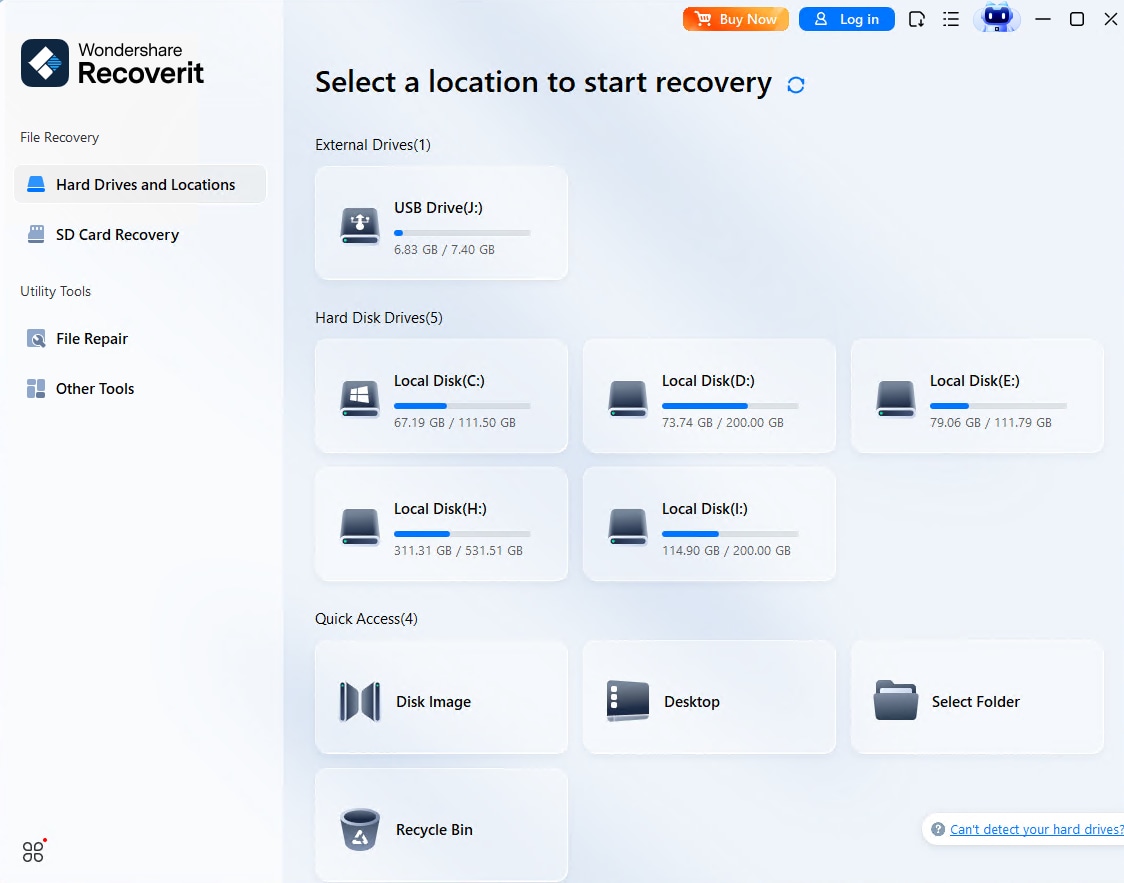
Step 1. Select the Storage That Actually Held the Missing BRAW
Connect the CFexpress Type B card through a compatible reader, or connect the affected offload drive. Open Recoverit and select the source by its capacity and device identity. Do not scan an unrelated system disk just because the editing project lives there.
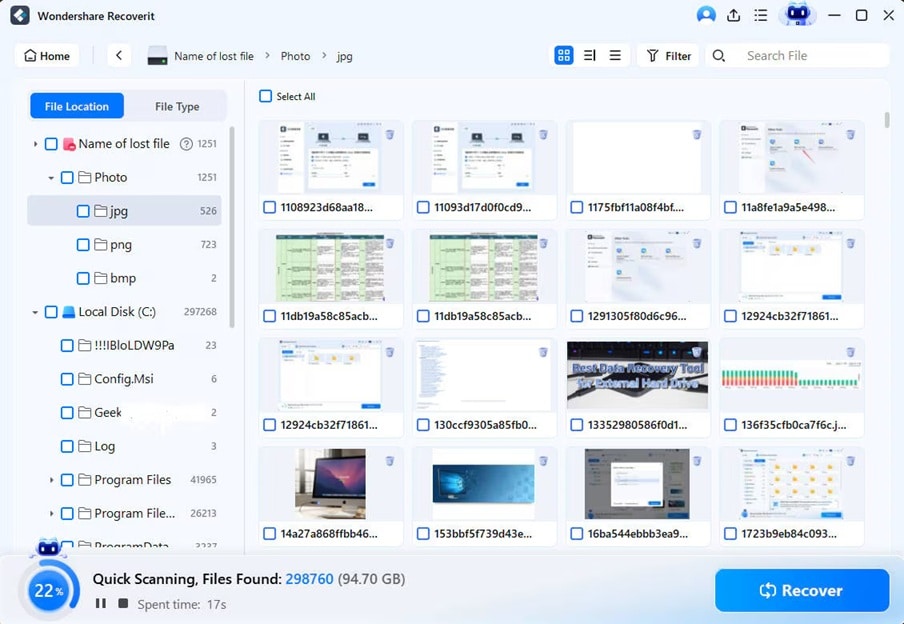
Step 2. Scan and Narrow the Results
Run the scan and keep the source connected. Use available file-type, name, date, size, and path filters to narrow large result sets. Include BRAW and any relevant associated files rather than searching only for H.264 proxies. If the job used an offload drive, preserve the surrounding production folder context whenever the recovery result retains it.
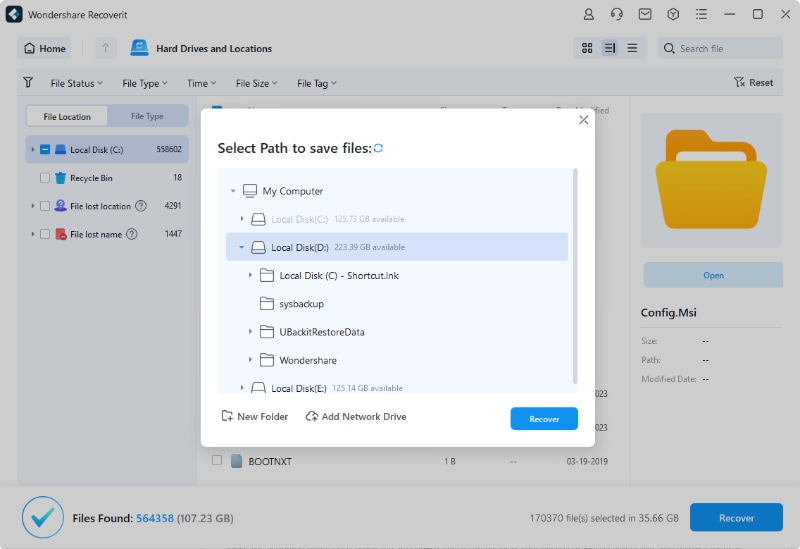
Step 3. Recover to a Different Healthy Destination
Select the required candidates and save them to a separate healthy drive with enough capacity for the full recovery set. Do not recover files back onto the CFexpress card or drive being scanned. Writing to the source can overwrite other deleted content that has not yet been restored.
Step 4. Preserve the First Recovery Set Before Testing It
Keep the recovered output unchanged. Make a working copy for renaming, transcoding, relinking, or repair. For long cinema takes, test the full clip rather than relying on the first playable seconds.

5.3 Recover Both Halves of a Dual-Card Recording
If the production recorded RAW across two CFexpress cards, scan each affected card as a separate source and preserve its recovery output separately at first. Match the corresponding .BRAW and .BRAW2 files by production context, then place the correct pair together for DaVinci Resolve to interpret as the intended clip.
Do not rename unrelated files into a pair merely because one half is missing. The goal is to reconstruct the original relationship, not create a file combination that only appears to import successfully.
Part 6. Recover Footage Lost During Offload or From External Storage
An offload failure shifts the recovery decision away from the camera model and toward the storage that last held the complete data. Map the source, working copy, backup copy, proxy location, and edit location before choosing what to scan.
6.1 Re-Offload an Intact Source Before Trying Recovery
If the original Media Module or CFexpress card still contains the complete BRAW, make a fresh verified copy. That is preferable to attempting undelete recovery from an incomplete destination. Compare expected folders, paired dual-card files, clip counts, and representative playback before releasing the source.
6.2 Scan the Last Storage That Held the Missing Copy
If the camera source has already been reused but the intended copy existed on an external HDD or SSD before it was deleted, protect that destination drive. Check Trash or Recycle Bin and approved backups first. If no intact copy exists and the drive is stable, the Recoverit hard-drive recovery workflow is the narrower path for that storage scenario.
SSD deletion is especially conditional because overwrite and storage-controller behavior can make old data unavailable. Do not create new cache files, proxies, renders, or downloads on the affected SSD while deciding whether to scan it.
6.3 Do Not Assume a Network Share Exposes the Media Module for Sector Recovery
URSA Cine can expose media workflows through 10G Ethernet, SMB, Web Media Manager, Blackmagic Cloud, and Media Dock. These are excellent production-access paths, but a file share is not automatically raw block-device access. If deleted footage exists only on a Blackmagic Media Module and the module is available only through the camera, dock, or network workflow, do not assume ordinary desktop recovery software can perform a sector-level undelete scan.
Preserve the module, stop delete or format operations, document how it was mounted, and escalate through Blackmagic support or an experienced professional recovery provider when raw storage access cannot be established safely.
Part 7. Validate Recovered BRAW Before Returning It to Editorial
A populated recovery folder is not the final milestone. A recovered URSA Cine take has to be usable as the intended production original.
7.1 Check More Than the Filename and First Frames
| Validation Check | What to Confirm | Failure to Flag |
| Dual-card completeness | Expected .BRAW and .BRAW2 pairs are present when two-card recording was used | Only one half of a striped take is available. |
| Clip identity | Reel, scene, take, timecode, filename context, and expected duration | A similarly named clip or partial recovery is mistaken for the intended take. |
| Resolution and frame rate | The recovered clip matches the production's 12K, 9K, 8K, 4.6K crop, or 4K setting and expected frame rate | A proxy or different recording mode is mistaken for the original. |
| Picture integrity | Critical takes play through their full duration or pass appropriate technical QC | Late-clip freezes, missing frames, decode errors, or a truncated ending. |
| Audio | All expected embedded channels are present and synchronized | A four-channel recording returns with missing or silent channels. |
| Color and metadata | Expected BRAW metadata and production color-management context are available | A proxy, transcode, or stripped file is mistaken for the camera master. |
| Editorial relink | A duplicate DaVinci Resolve project relinks to the correct recovered media | The timeline links to the wrong take or only to proxy media. |
If a trusted pre-loss checksum exists for the exact original, compare the recovered file with it. A match provides strong evidence that the file agrees byte-for-byte with that recorded baseline. When no old checksum exists, create a new checksum only after validation and label it as a post-recovery baseline, not proof of original identity.
7.2 Recovery and Video Repair Are Separate Jobs
Recovery searches storage for missing data. Repair works on a file that has already been recovered or copied but does not play correctly. Keep these stages separate: first protect the source and recover the best available file, then duplicate the recovered output before attempting any repair, remux, transcode, or metadata change.
No repair process can recreate camera frames that were overwritten or never recorded. If a recovered file ends early because the later blocks were replaced, a repair tool may make the surviving portion playable but cannot manufacture the lost picture.
Part 8. Build a Resilient URSA Cine 12K LF Media Workflow
A resilient workflow treats each source as a production asset with a clear release condition. Before a CFexpress pair or Media Module is formatted for reuse, the production should be able to answer where the camera original lives, whether the copies were verified, and who approved the release.
- Track source identity: record camera, reel, Media Module or CFexpress identifiers, recording mode, and whether a take used one-card or two-card BRAW.
- Keep dual-card pairs together conceptually: even when the two CFexpress cards are copied into separate ingest folders, the media log should show which .BRAW and .BRAW2 sources belong to the same acquisition set.
- Do not count a proxy as the master: H.264 proxy media is valuable for editorial continuity, but it is not the 12-bit BRAW camera original.
- Verify independent copies: use checksums where practical and preserve reports for each destination that counts as a backup.
- Separate working storage from backup storage: two folders on one SSD are not protection against failure of that SSD.
- Control card and module release: format or reuse acquisition media only after the required verified copies and content checks are complete.
- Protect after an incident: when loss is discovered, stop new recording or copying to the affected source and avoid file-system repair until recovery is complete.
- Test the restore path: before a major shoot, restore a representative BRAW take from backup, open it in the intended post-production workflow, and verify picture, audio, metadata, and relinking.
The best recovery plan starts before footage is lost. With Camera 10.3 adding more live, pre-record, color, and audio capability, the safest production habit is to make the storage map and backup acceptance criteria just as deliberate as the camera settings.
Conclusion
Blackmagic Camera 10.3 makes the URSA Cine 12K LF more capable across cinema and live production, but high-resolution acquisition still depends on disciplined media handling. Protect the actual camera-original source, distinguish BRAW masters from proxies and live outputs, keep .BRAW and .BRAW2 pairs together when dual-card recording is used, and verify independent copies before reusing media.
When footage is genuinely deleted and no complete backup survives, recover from the storage that last held the original. A stable CFexpress card or locally accessible offload drive is a logical software-recovery candidate; an unstable card or proprietary module that cannot be safely exposed as storage requires a different path. Save recovered files elsewhere and validate them as production assets before returning them to editorial.
FAQ
-
Can deleted Blackmagic RAW footage be recovered from an URSA Cine 12K LF CFexpress card?
Potentially, if the CFexpress Type B card remains detectable and the deleted data has not been overwritten. Stop recording immediately, connect the card through a compatible reader, recover to another drive, and validate the BRAW in the production workflow. Recovery software cannot restore overwritten blocks or repair a failed card controller. -
What happens if only one CFexpress card from a two-card BRAW recording survives?
Two-card Blackmagic RAW recording can stripe frames across .BRAW and .BRAW2 files. The URSA Cine manual explains that separated halves can play independently at half the intended frame rate. Preserve the surviving card, recover the missing card if possible, and pair the matching files before accepting the take as complete. -
Is the H.264 proxy a backup of the original BRAW footage?
No. The proxy is a lower-resolution editorial asset recorded alongside the camera original. It can preserve timing and creative reference, but it is not equivalent to the full-resolution, metadata-rich BRAW master. -
Can Recoverit scan a Blackmagic Media Module 8TB directly?
Do not assume so. Recoverit needs storage that the operating system or supported recovery environment can access for scanning. A Blackmagic Media Module may be accessed through the camera, Media Dock, SMB, or other network workflows that do not necessarily expose raw block storage. If the module is the only copy and deleted footage is critical, preserve it and confirm a safe recovery route before attempting changes. -
What should I do if a recovered BRAW file will not play in DaVinci Resolve?
Keep the recovered file unchanged, confirm that any required .BRAW2 pair is present, and test a duplicate in current Blackmagic software. If the file is incomplete or structurally damaged, treat repair as a separate stage after recovery. Do not modify the original card or the only recovery output while troubleshooting playback.


