
 TL;DR:
To fix a capture card recording video without sound, verify your software's audio input settings, update your system's audio drivers via Device Manager, and ensure no background applications are hijacking the audio channels.
● Open Task Manager using Ctrl + Shift + Esc to force-close conflicting background apps like audio mixers, voice tools, or antivirus software that may block the capture tool.
● Unplug and inspect all HDMI and USB cables for damage, as weak USB ports or bent HDMI pins often pass video signals while dropping the audio feed.
● If your final recorded file is completely silent despite correct hardware setups, use the Corrupted Video Repair feature in Wondershare Recoverit to detect and rebuild the missing audio track without re-recording.
Ask AI for a summary
 ChatGPT
 Perplexity
 Gemini
 Claude
 Grok
Grok
A capture card helps you bring sound and video from one device into another. Many people use a capture card for gaming, streaming, and recording videos. Some use it with game consoles. Others connect cameras or laptops to create content. It is an important tool for creators, learners, trainers, and anyone who works with digital media. When it works well, you get clean video and clear sound.
But a time may come when the capture card audio not working without warning. It may happen during a live stream. It may happen while recording. It may appear after an update. You may see the video, but the audio stays silent. This problem leads many users to look for ways on how to repair capture card audio not working. Sound issues are common, but they can be fixed with simple steps.
Try Recoverit to Recover & Repair Video/Photo etc.
 Security Verified. Over 7,302,189 people have downloaded it.
Table of Contents:
Why Capture Card Audio Is Not Working?
Issues with audio can come from many places. Some problems are small and easy to fix. Others may come from system settings. A few may come from hardware or cables. Many users who face capture card audio not working problems find out later that the cause was simple.
The same happens to those who find their device showing capture card no sound or capture card sound not working. In many cases, the problem comes from just one part of the setup. The same applies to users facing HDMI capture card audio not working or HDMI video capture audio not working. Once you know what causes the problem, you can fix it faster.
Common Causes
- Loose or faulty HDMI cables If the HDMI cable is damaged, bent, or loose, it may block audio signals. Video may pass through while sound fails. Cheap cables also fail under pressure.
- Wrong audio input settings in the software If your capture software is set to the wrong input, sound will never pass through. Many recording tools change inputs after updates.
- Muted audio inside the capture software Some apps set the volume to zero without users noticing. If you mute the track by mistake, the issue shows up as capture card no sound.
- Outdated or damaged audio drivers Drivers help the system handle audio. If they are old or damaged, you may hear nothing. This leads to the capture card sound not working and even the HDMI capture card audio not working.
- Faulty USB ports or low power supply Weak USB ports fail under load. They may cut the sound while keeping the video. This is common on old laptops or cheap hubs.
- Conflicts with background apps Apps like mixers, voice tools, or sound enhancers may take control of your audio. This creates HDMI video capture audio not working issues.
- Capture card internal problems Some cards may develop hardware faults. These faults block audio even when the cables are fine. This problem can affect both USB and HDMI devices.
- Source device audio problems The device you record may have its sound turned off. It may have the wrong audio output settings. If the device does not send audio, the capture card gets nothing.
This can look like an HDMI video capture card audio not working.

How to Fix "Capture Card Audio Not Working"?
Users often search for how to repair capture card audio not working because sound problems reduce recording quality. Many also look for fixes for capture card audio not working, capture card no sound, or capture card sound not working. HDMI devices also cause issues, which leads users to search for HDMI capture card audio not working and HDMI video capture card audio not working. The methods below help fix these issues. Each method has an intro, the benefits, and two clear steps.
Method 1: Use Recoverit File Repair Feature
Some users find their recorded file silent. Even after fixing cables or settings, the audio remains missing. This means the recorded file itself is damaged. A file repair tool like Recoverit can help in such cases. It scans the corrupted file. It rebuilds the broken audio part. This method saves you from re-recording long clips.
Steps
- Open Recoverit and load the faulty file. Navigate to the File Repair section and choose “Corrupted Video Repair”.
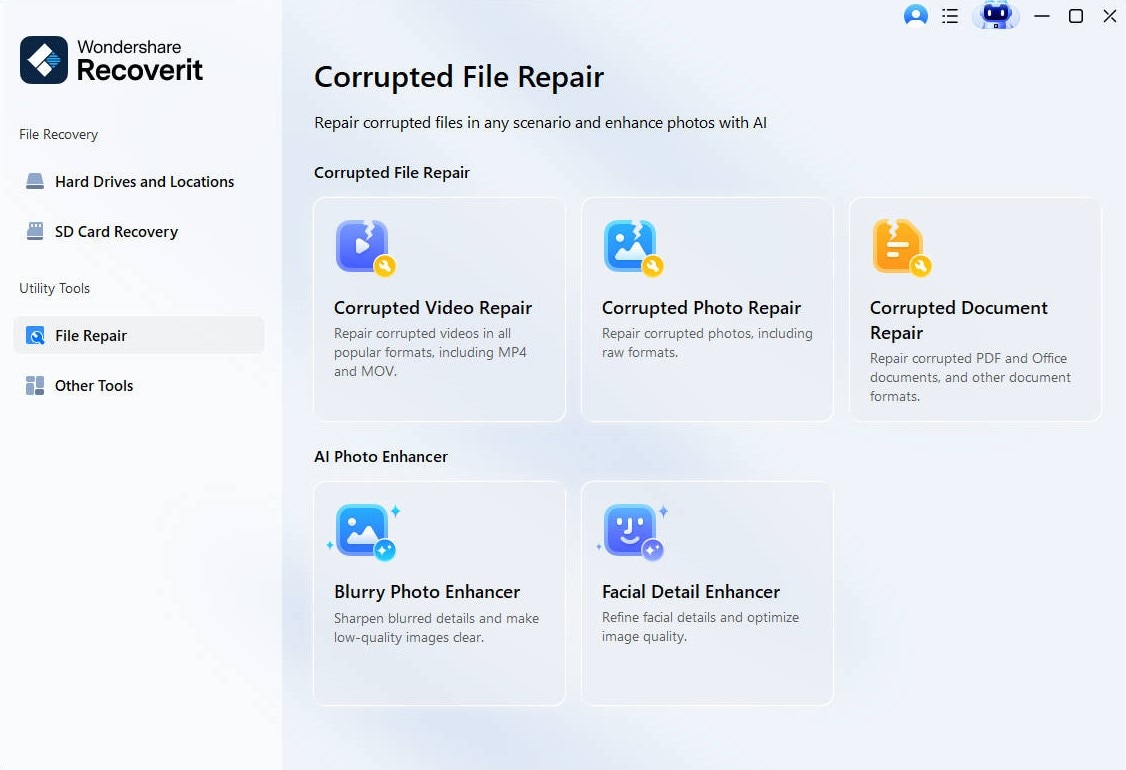
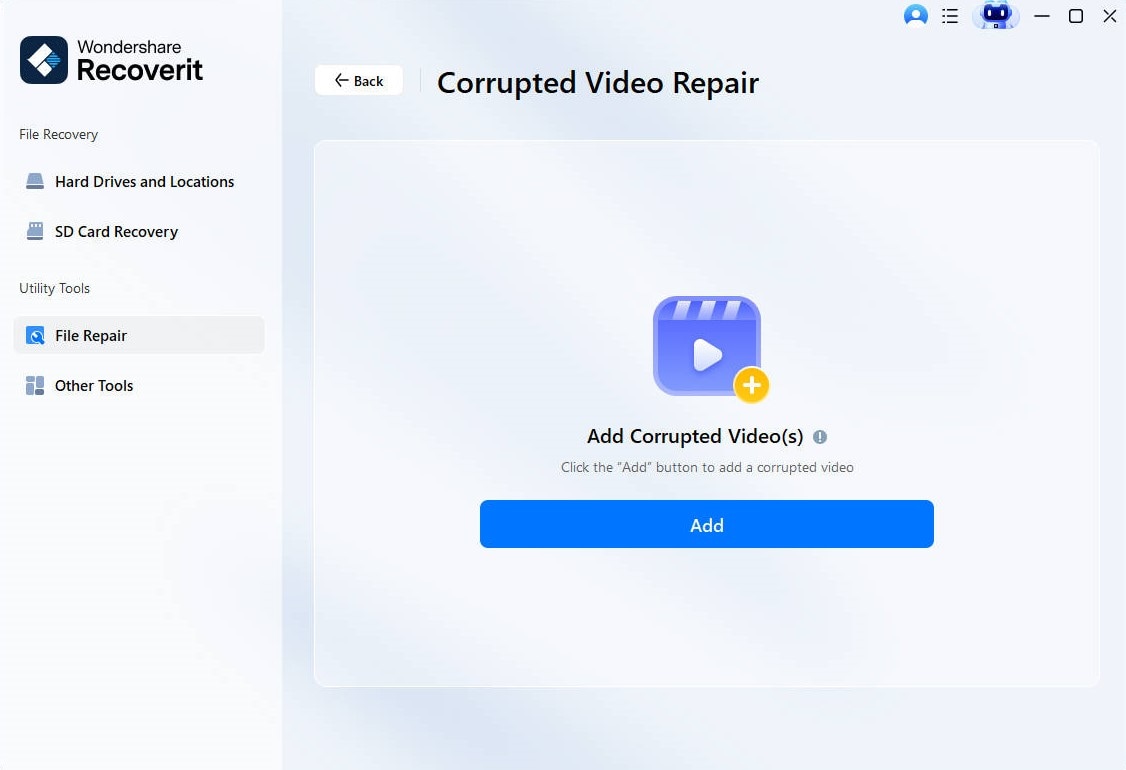
- Click “Add” to import the damaged files. You can add multiple files at once if needed.
- Click Repair. Recoverit uses intelligent algorithms to detect issues like distortion, missing segments, or playback errors.
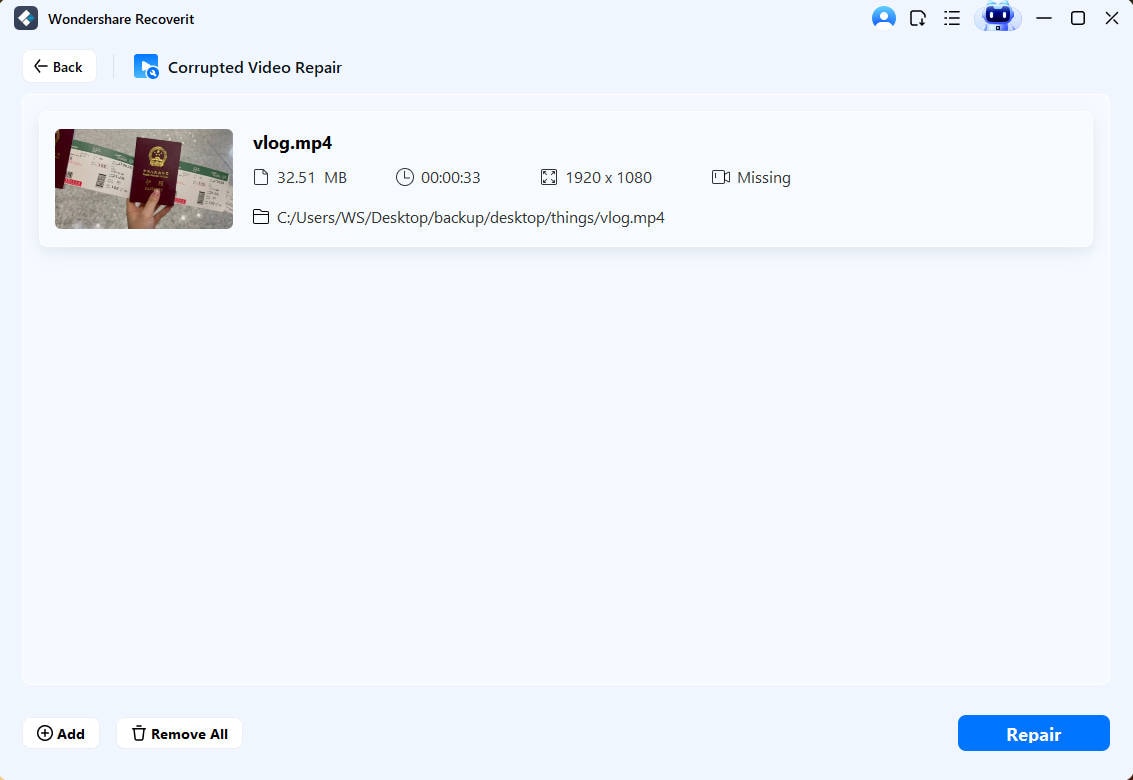
- Once the repair process completes, you’ll see a preview option to listen to the restored audio. If the quality is satisfactory, click “Save” to export the repaired files to your device.
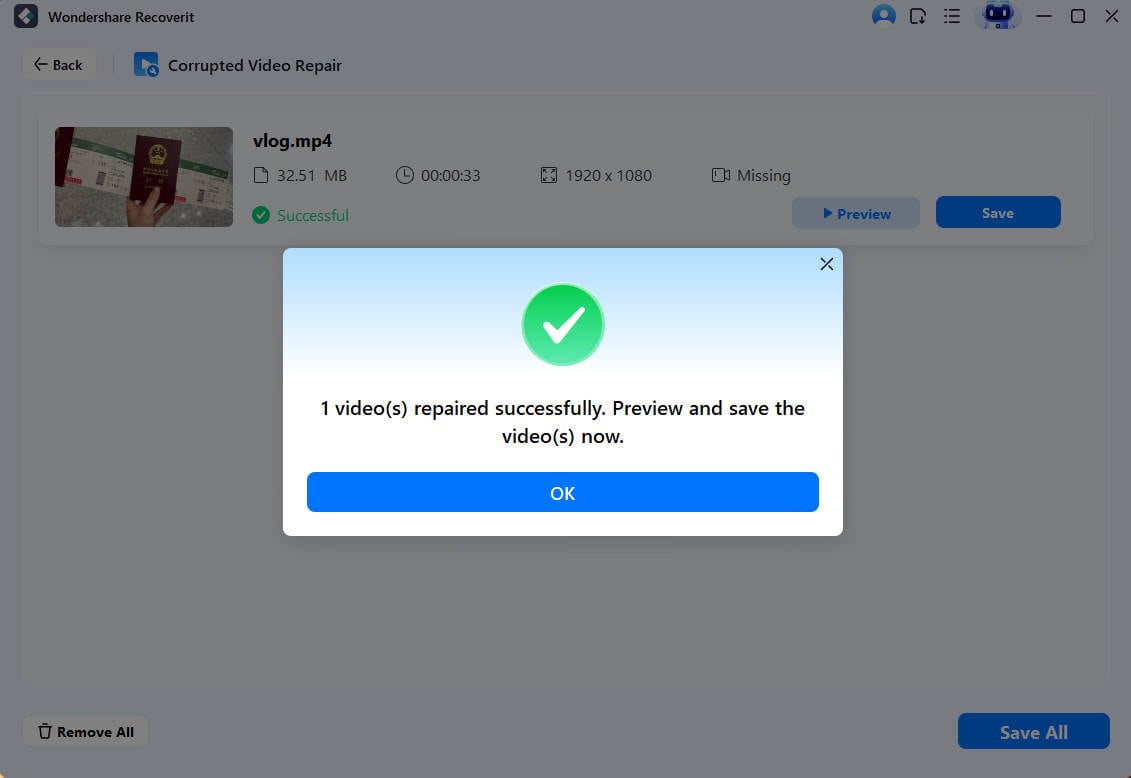
This fix is helpful when the clip is corrupt due to capture card audio not working issues.
Method 2: Update or reinstall audio drivers
Your system depends on audio drivers to run sound. If drivers are old or broken, sound problems appear. These issues also happen during HDMI video capture audio not working errors.
How to Update or reinstall audio drivers:
- Open Device Manager and find your audio drivers.
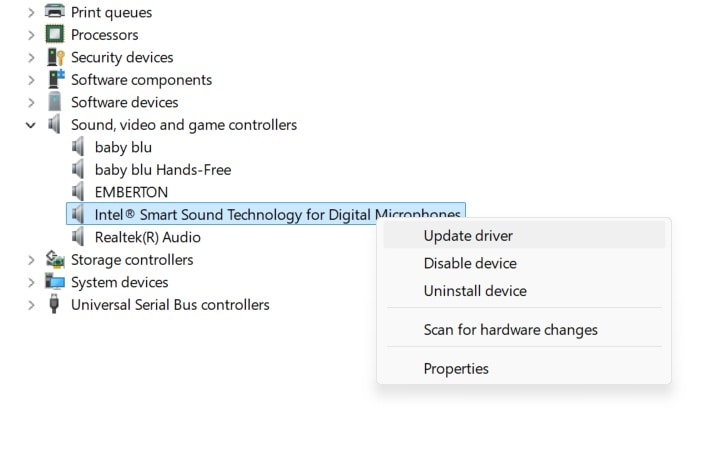
- Update or reinstall them, then restart the PC.
Method 3: Ensure HDMI or USB cables are properly connected
Bad cables cause many capture card no sound problems. A cable may seem fine, but fail under movement. A quick check may solve the issue.
How to Ensure HDMI or USB cables are properly connected:
- Unplug both HDMI and USB cables.
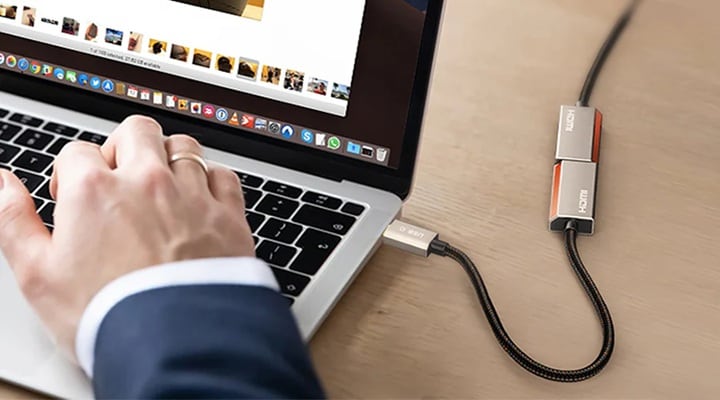
- Plug them back in, then test the sound.
Method 4: Test the capture card on a different device or port
Your PC may be the problem. Your capture card may work fine on another device. Testing helps you find the real cause.
How to Test the capture card on a different device or port:
- Try the capture card on another PC or console.
- Test sound in your capture tool.
Method 5: Disable conflicting background applications
Some apps take over your audio channels. When this happens, you get capture card sound not working or HDMI capture card audio not working. Closing such apps may fix everything.
How to Disable conflicting background applications:
- Press Ctrl + Shift + Esc to open Task Manager. Go to the Processes tab. Look for apps that may interfere with your task (e.g., screen recorders, audio mixers, antivirus software). Check CPU, memory, and disk usage to spot resource-heavy or suspicious apps.
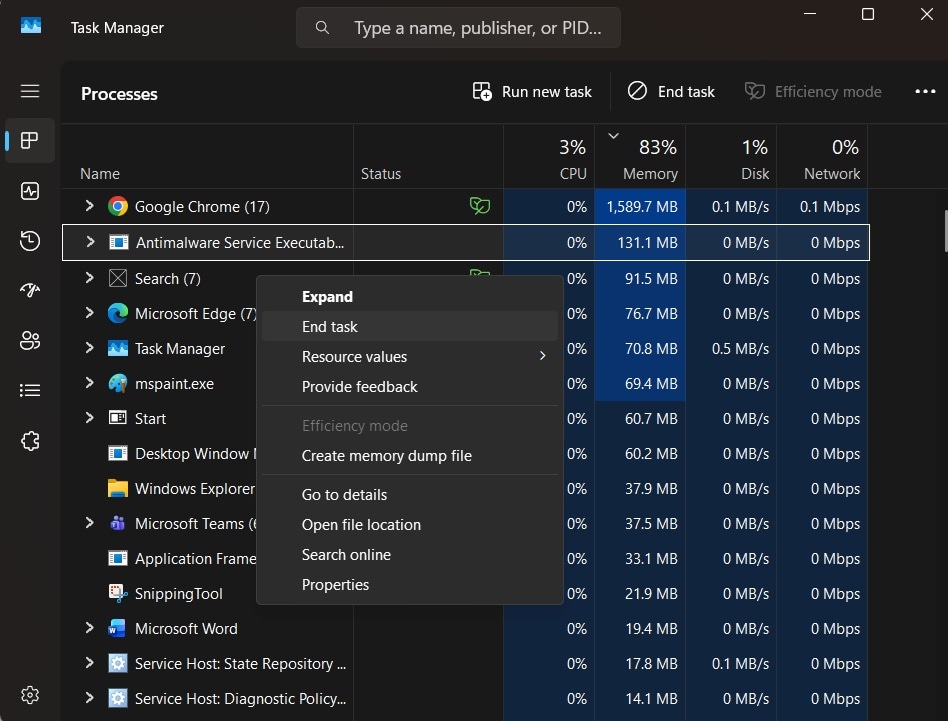
- Select the conflicting app from the list. Click “End Task” at the bottom-right corner. This will immediately stop the app from running in the background.
Method 6: Reinstall or reset the capture software configuration
Software can store wrong settings. These settings may block audio. Resetting the app clears the problem.
How to Reinstall or reset the capture software configuration:
- Uninstall or reset the capture software.
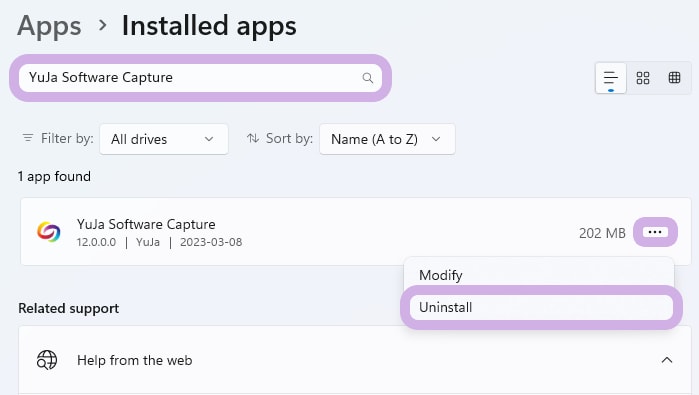
- Reinstall it, then test again.
Part 3: Lost Important Audio Files From PC? Use Recoverit
Sometimes sound issues lead to lost files. A system crash may delete clips. A recording freeze may save an empty file. A wrong setting may overwrite your old footage. When this happens, a recovery tool like Recoverit becomes helpful. It scans your drive. It finds lost files. It restores your audio without stress.
Such tools are useful for creators, editors, and streamers. They help save hours of work. They also help when errors like HDMI video capture card audio not working lead to corrupted recordings. Many people recover old audio tracks, voice notes, and streaming clips with tools like this.
Recovery tools work on many storage types. They work on PC drives, SD cards, and external devices. They also help with damaged or formatted drives. With simple steps, you can bring back your missing audio.

Three basic recovery steps
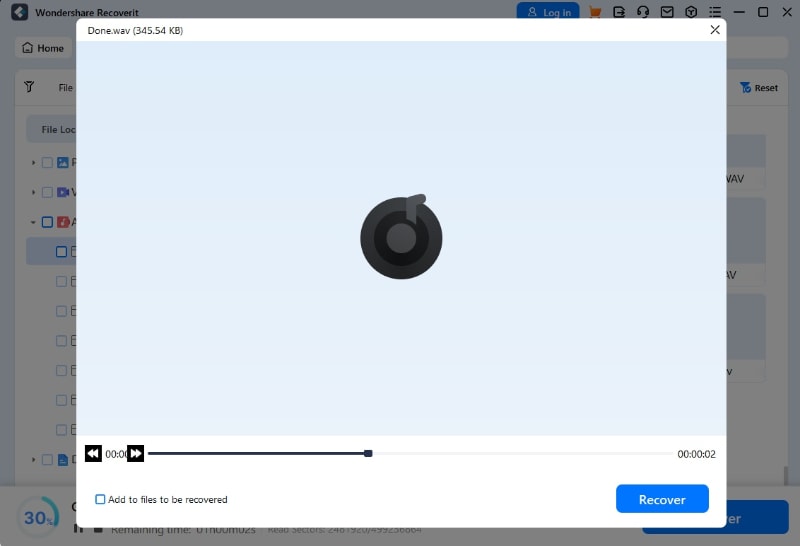
Step 1. Open the Recoverit data recovery tool and choose the drive.

Step 2. Scan for lost audio files.

Step 3. Preview and recover the ones you need.
Conclusion
You now know how to repair capture card audio not working problems using simple steps. Most problems come from cables, drivers, or software settings. Many can be fixed in minutes. You can try each method slowly and check the results. Do not rush through the process. Each method solves a different part of the problem.
If your recorded file has no sound, a repair or recovery tool helps fix it. It prevents data loss and saves time. With the tips shared above, you can also avoid future audio problems. Whether the issue is capture card audio not working, capture card no sound, capture card sound not working, HDMI capture card audio not working, HDMI video capture audio not working, or HDMI video capture card audio not working, you now have clear steps to fix everything.
Try Recoverit to Recover Lost Data
Security Verified. Over 7,302,189 people have downloaded it.
FAQs
-
1. Why do I hear no sound from my capture card?
The input may be wrong. The cable may be loose. The audio may be muted. Drivers may also be old. Testing these areas usually fixes the problem. -
2. Why does HDMI send video but not sound?
The source device may send audio to another output. The HDMI cable may be damaged. The capture tool may listen to the wrong input. -
3. Why is my recording quiet or silent?
The recorded file may be damaged. The audio track may be missing. A repair tool can fix such files and restore sound.


