
 TL;DR:
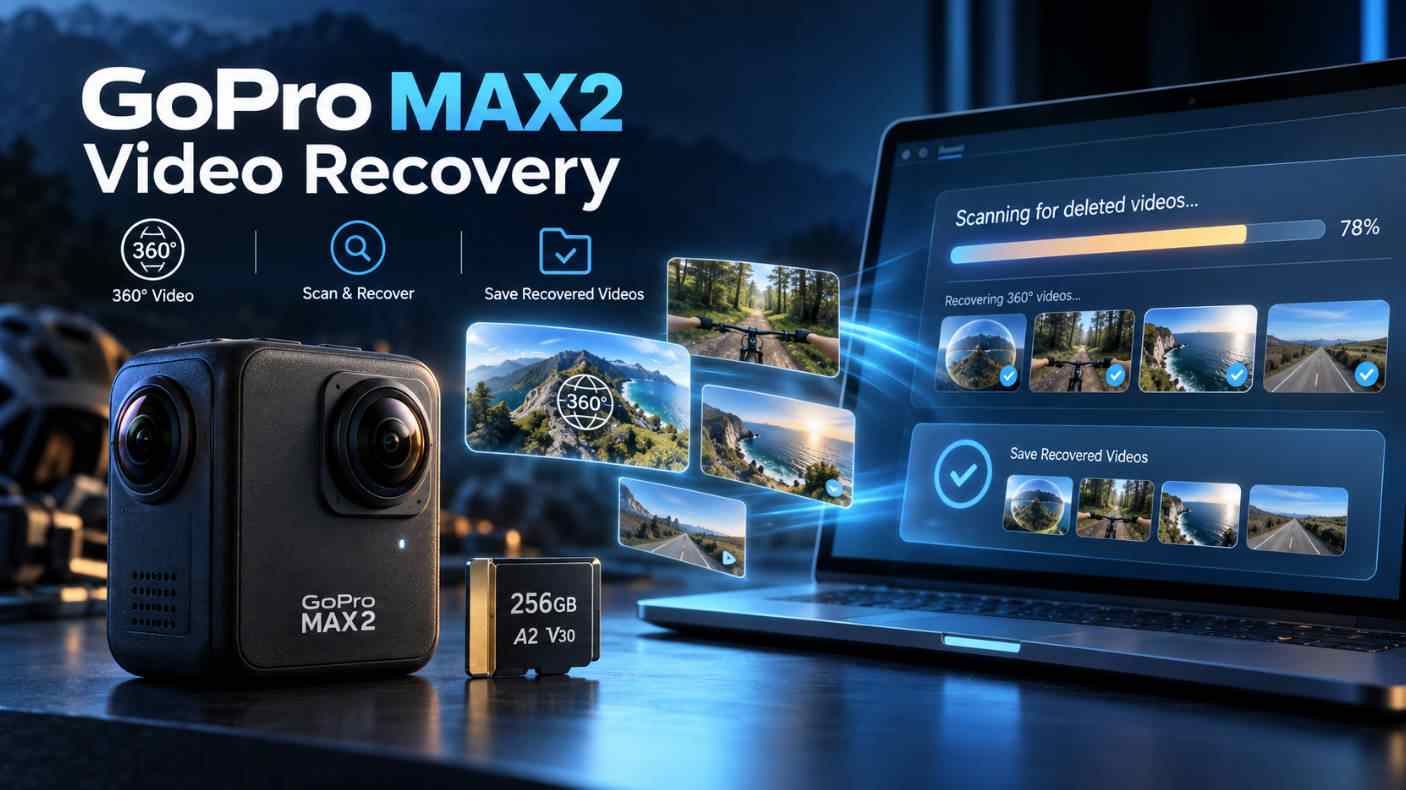
To recover missing 360 videos from a GoPro MAX2, immediately stop recording to prevent overwriting the source files and scan the stable microSD card using Recoverit Camera Recovery through a direct computer connection.
● Successful recovery requires the card to be readable by the operating system without hardware disconnection warnings; because 360 videos occupy substantial space, even a short new test recording can permanently overwrite the missing data blocks.
● When connecting the media via a card reader, cancel any operating system prompts to format, initialize, or repair RAW volumes, and strictly save the scanned results to a completely different computer drive or external SSD.
● If a recovered video refuses to play due to an incomplete transfer or damaged header, test any video repair processes exclusively on a duplicate file, and ensure future recordings use V30 or UHS-3-rated microSD cards.
Ask AI for a summary
 ChatGPT
 Perplexity
 Gemini
 Claude
 Grok
Grok
Recover Deleted 360 Videos From GoPro MAX2
This week's free GoPro MAX2 update puts more professional control into the camera's 360 video workflow. Depending on the installed firmware, GoPro Labs settings, Quik version, and recording mode, MAX2 creators may work with high-resolution 360 footage, expanded color controls, higher-bitrate options, reframing tools, tracking, keyframes, Horizon Lock, and other production features.
Those new tools make the original camera files more valuable, but an update does not create a backup of footage already stored on the microSD card. A clip can appear to be missing because it was deleted, left on the card after an interrupted import, indexed incorrectly in Quik, damaged during transfer, or made inaccessible by file-system corruption.
If you are looking for GoPro video recovery or 360 footage recovery, protect the original card first. Do not format it, record another clip, or retry a failed import until you know where the source file is and whether the card is still readable. When the card is detected with a stable capacity, Recoverit Camera Recovery can scan it for deleted or inaccessible files and save the results to another drive.
In This Article
Part 1. What The MAX2 Update Means For 360 Creators
The current MAX2 update is the article's news hook: it gives creators more professional tools to use during the capture-to-edit workflow. The practical benefit is not only recording a 360 view. It is also being able to preserve more creative options for color, reframing, tracking, stabilization, and final delivery.
GoPro's official MAX2 product information describes the camera's published recording and creation features. The exact modes available to you can depend on firmware, Quik, GoPro Labs settings, operating system, recording resolution, frame rate, and the workflow used after capture. Check the official support information before applying or repeating an update.
| Workflow Layer | What It Can Affect | What It Does Not Guarantee |
| MAX2 Camera Firmware | Camera behavior, supported recording modes, and compatibility with the current feature set. | It does not create a backup of videos already stored on the card. |
| GoPro Quik | Importing, previewing, reframing, editing, and exporting 360 footage. | It does not restore a deleted source file from the microSD card. |
| GoPro Labs Settings | Advanced options that may affect capture settings and bitrate. | Advanced settings do not protect footage from deletion, interruption, or card failure. |
| Media Transfer | How original files move from the camera card to a phone, computer, or backup. | A transfer is not complete until the destination copy has been checked. |
Why The Update Is Not Automatically The Cause Of File Loss
If a clip disappeared after the free update, the update may simply be when you noticed an earlier problem. The file may have been deleted before the update, left on the card after an incomplete import, moved to another folder, overwritten by a later recording, or made inaccessible by file-system corruption.
Reinstalling Quik or repeating the camera update will not recover a deleted source file. First check the original card, the computer import folder, the phone or tablet storage, and any cloud copy. If the original exists on the card, copy it to another drive before rebuilding the app library.
Part 2. Where Your GoPro MAX2 Videos May Still Be Stored
A MAX2 360 workflow can create several copies of one recording. A missing Quik thumbnail does not prove that the original video has been deleted. Check each possible storage location before you change the card.
| Storage Location | What You May Find | What To Check |
| MAX2 MicroSD Card | Original camera files and the source 360 footage. | Check whether the card is detected, whether folders open, and whether the file count looks complete. |
| Phone Or Tablet | Imported clips, cached previews, reframed edits, and exports. | Check Quik, Photos or Gallery, Downloads, Files, and available storage. |
| Computer Or External SSD | Camera originals, project media, proxies, exports, or backups. | Check the import folder, editing project, Desktop, external volumes, and recently deleted locations. |
| Cloud Or Online Backup | Uploaded or synchronized media when the relevant feature was enabled. | Confirm that the upload completed and that the original-quality file can be downloaded. |
An exported MP4 may be easier to share but may not preserve the original 360 view, camera metadata, or the same editing flexibility. Treat the original camera file as the most valuable copy and keep it unchanged while you verify other copies.
Part 3. What To Do Before Recovering Deleted 360 Footage
When a video is deleted, the file entry may disappear while parts of the recording remain on the card. New recording, importing, formatting, or repair activity can reuse the same storage blocks. Protect the source before attempting GoPro MAX2 video recovery.
- Stop Recording: Turn off the MAX2 after recording has stopped and remove the card only when it is safe to do so.
- Cancel Destructive Prompts: Do not choose Format, Initialize, Repair, or New Volume when the camera or computer displays such an option.
- Do Not Copy New Data: Do not record a test video, copy an export, rename files, or use the card as temporary storage.
- Use One Reliable Reader: Connect the card through a compatible reader directly to the computer when possible.
- Prepare A Different Destination: Save recovered files to the computer's internal drive or another healthy external drive.
- Keep The Original Unchanged: Do not repeatedly reinstall Quik or retry an import while the card contains the only copy.
GoPro's current support information should be the source for firmware update instructions. If an update is still running, follow GoPro's instructions and do not interrupt power or remove the card. If the update has already finished or failed and footage is missing, stop changing the card and begin recovery from the original storage location.
Why New Recording Can Reduce Recovery Results
Deleted data may remain in storage until new data uses the same blocks. A large 360 video can occupy a substantial amount of space, so even a short test recording can overwrite part of the file. Once the original data has been overwritten, recovery software cannot recreate those missing blocks.
Do not format the card simply because the camera or Windows says it needs to be formatted. Formatting may remove file-system information that helps locate the original clips.
If the card is visible to the operating system but does not mount normally, treat it as a recovery case. Do not run a repair command on the only copy before you secure the footage.
Part 5. How To Recover Deleted 360 Videos With Recoverit
When your MAX2 card is detected and remains stable, Recoverit Camera Recovery can scan readable camera media for deleted, formatted, or inaccessible files. It can help with common GoPro video recovery situations, but it is not a camera firmware repair tool or a hardware repair service.

Recoverit cannot repair a broken controller, bypass encryption, restore data that has already been overwritten, or guarantee that every recovered video will play. Stop the scan if the card becomes hot, repeatedly disconnects, shows an unstable capacity, or produces hardware warnings.
Step 1. Connect The MAX2 Card Through A Reader
Power off the MAX2 after recording has stopped, remove the microSD card, and insert it into a reliable reader. Connect the reader directly to your computer. Avoid a loose adapter, an unreliable hub, or repeated reconnection attempts.
If the card is detected only intermittently, test one known-good reader and cable before starting a long scan. Use the connection that keeps the card stable.

Step 2. Select The Camera Card In Recoverit
Open Recoverit and select the MAX2 card under the external or removable storage locations. Choose the device that matches the card's capacity, not a destination folder that contains an incomplete import.

Step 3. Scan For Deleted Or Lost Videos
Start the scan and let it continue while the card remains stable. A normal scan may retain original folders and filenames. A deeper scan may take longer and may list files by type when the directory structure is damaged.
Filter the results for the media created by your MAX2 workflow. You may see camera originals, exported MP4 files, JPEG photos, or other supported media depending on the capture mode and transfer path. Do not rename a camera-created file just to make it look like an exported MP4.
Step 4. Preview The Recovery Results
Preview files whenever the format is supported. For 360 footage, check the filename, file size, duration, thumbnail, and playback in a compatible GoPro or editing application.
A file can still be incomplete even when it has the correct extension. An interrupted recording or transfer may leave a damaged header, a missing index, or only part of the original data.

Step 5. Save Recovered Videos To Another Drive
Save selected files to a different internal drive, external SSD, or verified production volume. Never use the source microSD card as the recovery destination. After the copy finishes, verify several clips by checking duration, file size, playback, audio, metadata, and folder structure.
If the first scan does not find the clips you need, keep the card unchanged. Do not record more footage, format the card, or save partial recovery results back to it.
For broader removable-media recovery guidance, visit Recoverit's memory card recovery hub. If you are recovering a separate export rather than the camera original, use the storage location that contains that export.
Recover Deleted 360 Videos With Recoverit
 Security Verified. Over 7,302,189 people have downloaded it.
Part 6. How To Recover Formatted Or Corrupted MAX2 Footage
If you formatted the microSD card while troubleshooting the MAX2 update, stop using it immediately. A quick format may remove directory information while leaving some underlying data available for recovery. Recording new footage can overwrite that data.
Use Recoverit's formatted SD card recovery guide when the card was formatted. If Windows reports the card as RAW, follow the RAW card recovery guide before selecting any format option.
| Card Condition | What May Remain | What To Avoid |
| Formatted Once And Not Reused | Some deleted clips may remain recoverable. | Do not record a test video or copy new data. |
| Formatted And Used Again | Some clips may remain while others may be overwritten. | Stop recording and stop copying files. |
| RAW Card | Files may remain even though the file system cannot be read normally. | Do not format the card to make it mount. |
| Unallocated Card | Partition or volume information may be damaged. | Do not create a new volume before recovery. |
| Card Disconnects During Scanning | A controller, thermal, power, or physical fault may be involved. | Do not keep forcing repeated scans. |
Recovery is more likely when the card is detected, has not been reused, and remains stable during the scan. You cannot restore data that has already been overwritten, and you cannot reliably scan a card that the computer cannot address.
Part 7. What To Do When A Recovered 360 Video Will Not Play
A video that will not play after recovery may have a damaged structure, an incomplete transfer, an unsupported workflow, or only part of the original data. Do not delete the recovered file or overwrite it with a converted copy.
Check Whether The Recovered File Is Complete
- Compare the recovered file size with similar MAX2 clips recorded with the same settings.
- Check whether the duration is plausible or shows as zero.
- Confirm that the file extension matches the original recording or export path.
- Try the current GoPro workflow or editing application with a duplicate of the recovered file.
- Check whether related audio, metadata, proxy, or sidecar files were stored on the card.
Do not change the file extension and expect missing video data to return. Renaming a file does not rebuild a damaged header or restore blocks that were never copied.
Separate File Recovery From Video Repair
File recovery locates and reconstructs data from storage. Video repair attempts to rebuild a playable structure when the file has damaged metadata or an incomplete header. Repair cannot restore data that was overwritten or never written to the card.
Keep the first recovered file unchanged and test any repair process on a duplicate. For additional media recovery guidance, visit Recoverit Video Recovery.
Part 8. How To Protect Future GoPro MAX2 Footage
Keep Camera Originals Separate From Exports
Store original 360 files separately from reframed, cropped, and compressed exports. A vertical or widescreen export may not preserve the original 360 view, camera metadata, or the same editing flexibility.
Verify The First Offload Before Formatting
After copying footage, open several files from the destination and check duration, file size, playback, and metadata. Compare the expected file count with the source card. Do not format the card only because the import list appears complete.
Keep Two Verified Copies
For important action, travel, or commercial footage, keep two independent copies before reusing the card. A computer import is not a backup until you check the files and store them on reliable media.
Update Before Your Production Day
Install camera and app updates before a shoot whenever possible. Review the current instructions on GoPro's official support center, keep the camera powered as required, and avoid removing the card while an update is running.
Use A Suitable MicroSD Card
GoPro's published card guidance should be checked before buying replacement media. The current guidance for MAX2 workflows identifies V30 or UHS-3-rated microSD media as the relevant performance class. Verify the latest compatibility information on the official GoPro microSD card guidance.
Replace A Card That Has Already Failed
Even if formatting makes a problematic card usable for a short time, that does not make it reliable for another production. Recover and verify the current footage, then replace media that repeatedly disconnects, produces corrupted clips, or requires frequent reformatting.
Conclusion
This week's free MAX2 update makes the camera's professional 360 workflow more useful for creators, but new editing and capture tools do not protect the original footage from deletion, corruption, interrupted transfers, or accidental formatting.
If a video disappeared after the update, check the original card and every import location first. If the card is readable, stop writing to it, scan it with Recoverit Camera Recovery, preview the results, and save recovered files to another drive. If the card was formatted or appears as RAW, recover your data before changing its file system.
If the card is not visible in any compatible reader or disconnects repeatedly, stop testing it. The problem may involve the card hardware, so professional recovery may be safer for irreplaceable footage. The safest order is to preserve the MAX2 card, recover the original 360 videos, verify them on another drive, and then return to the updated GoPro workflow.
FAQ
-
Can You Recover Deleted 360 Videos From GoPro MAX2?
You may be able to recover them when the MAX2 microSD card is still readable and new footage has not overwritten the deleted files. Stop using the card and scan it as soon as possible. -
Can The MAX2 Update Delete Existing Videos?
An update is not a backup or recovery process. When videos are missing afterward, check the original card, computer folders, phone storage, and cloud copies before assuming that the update deleted them. -
What Should You Do If The MAX2 Card Asks You To Format It?
Cancel the prompt when your footage matters. Do not format or record new data. Check whether the card is visible to your computer and recover the files before changing the file system. -
Can Recoverit Recover GoPro MAX2 Videos From A Formatted Card?
Recoverit can scan readable storage for deleted or inaccessible files, including a card that was formatted. The result depends on overwriting and card stability. Save recovered files to another drive. -
What Should You Do When The GoPro MAX2 Card Is Not Detected?
Try one compatible reader, cable, port, and computer. When the card appears in a storage utility, recover it before formatting. When it is absent everywhere, the issue may involve the reader, controller, or physical card hardware. -
Why Will A Recovered 360 Video Not Play?
The file may be incomplete or have damaged recording metadata. Keep the recovered original unchanged, test a duplicate in a compatible GoPro or editing workflow, and consider video repair only after recovery is complete. -
What MicroSD Card Does The GoPro MAX2 Require?
GoPro's current published guidance should be checked for compatibility. The relevant MAX2 guidance identifies V30 or UHS-3-rated microSD media for supported recording workflows. Confirm the latest details on GoPro's official card guidance. -
Should You Save Recovered Videos Back To The GoPro Card?
No. Save the files to a different internal drive, external SSD, or verified production volume. Writing to the source card can overwrite other footage that may still be recoverable.