
 TL;DR:
Because the Canon EOS R8 Mark II writes to a single SD card slot with no in-camera backup, immediately stop shooting and remove the card if files are deleted or formatted to prevent permanent data overwrite.
● Before attempting data recovery for missing media after a computer transfer, verify that your import process did not skip the XFVC folder where MP4 videos are stored or filter out .CR3 RAW files from the standard DCIM directory.
● Scan the stable SD card using recovery software and save the retrieved CR3, JPEG, HEIF, or MP4 files to a separate computer drive, as writing data back to the original card will overwrite remaining retrievable sectors.
● Manually validate recovered 4K60p and high-frame-rate video files through full-duration playback, because a short preview does not guarantee that fragmented XF-HEVC S or XF-AVC S clips are completely intact.
Ask AI for a summary
 ChatGPT
 Perplexity
 Gemini
 Claude
 Grok
Grok
Canon announced the EOS R8 Mark II on September 15, 2026, with U.S. retail availability expected in late October. That timing matters: this guide is based on Canon's published EOS R8 Mark II specifications and established SD-card recovery behavior, not on invented field reports from owners who could not yet have bought the camera at retail.
The recovery stakes are straightforward. The EOS R8 Mark II records to one UHS-II-compatible SD/SDHC/SDXC card slot. It can store Canon RAW and C-RAW files as .CR3, JPEG and HEIF stills, plus MP4 video using XF-HEVC S or XF-AVC S. If that one card contains the only copy and photos or videos are deleted, formatted, or lost during transfer, protecting the original storage is more important than immediately trying random repairs.
In This Article
Part 1. Know What the EOS R8 Mark II Stores Before You Recover It
The EOS R8 Mark II is not just a higher-speed stills camera. Canon's September 15 launch announcement confirms a 24.2MP full-frame CMOS sensor, 5-axis IBIS, up to 40 fps with the electronic shutter, uncropped 6K-oversampled 4K60p, and Full HD up to 180p. Those capabilities create several different recovery targets, and treating every missing file as a JPEG can hide the file you actually need.
1.1 One SD Card Slot Changes the Recovery Risk
Canon's current EOS R8 Mark II technical specifications list one SDXC/SDHC/SD slot with UHS-II compatibility. The same specification page lists no in-camera image copy to another card, no proxy movie recording, and no main/sub recording mode.
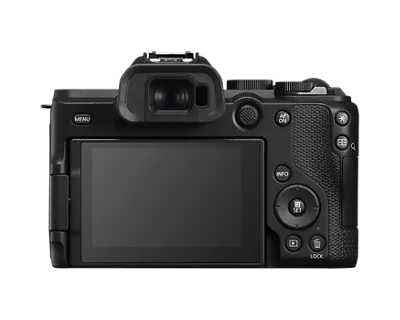
That means the camera does not provide a second in-camera card copy that you can automatically fall back to. If a shoot exists only on the card, that card is the acquisition master until another complete copy has been created and checked. This is particularly important when shooting bursts at 40 fps or recording high-bitrate video, because a user may fill and reuse cards quickly.
Recovery rule: when you notice missing media, remove the card from the write cycle first. Do not shoot test frames, record another clip, format the card again, or copy new data onto it while deciding what happened.
1.2 Match the Missing File to the Right Canon Format and Folder
The EOS R8 Mark II organizes stills and movies differently. Canon specifies RAW and C-RAW as .CR3, along with JPEG and HEIF for still images. Movies use XF-HEVC S or XF-AVC S and are stored as MP4 files. The camera creates DCIM, XFVC, and MISC folders; still-image folders default to names such as xxx_R8M2, while movie files are organized under the XFVC structure with REEL_xxxx.
| EOS R8 Mark II Media | Canon-Published Format or Location | What to Look For During Recovery |
| RAW stills | Canon RAW / C-RAW (.CR3) | Recover the CR3 original if you need the camera RAW file; a JPEG preview is not an equivalent substitute. |
| Processed stills | JPEG / HEIF | Check both formats if the shoot used HDR PQ, RAW+JPEG, or other still-image combinations. |
| 4K and Full HD movies | MP4 container using XF-HEVC S or XF-AVC S | Search the video results for MP4 and validate the actual codec, duration, frame rate, audio, and complete playback after recovery. |
| Still-image folder | DCIM, default subfolder xxx_R8M2 | If files went missing after a computer transfer, confirm that the full camera folder was copied rather than only selected JPEGs. |
| Movie folder | XFVC / REEL_xxxx | Do not search only inside DCIM when a movie appears missing; check the XFVC structure and the transfer destination. |
This distinction is useful for a common real-world symptom: "my JPEGs transferred, but the RAW files or videos are missing." Before treating that as deletion, verify whether the import workflow filtered by file type or copied only part of the card structure.
For broader Canon-specific recovery guidance outside this model, see Recoverit's Canon camera photo recovery guide. For a deeper explanation of camera RAW loss, the RAW photo recovery guide covers additional formats and scenarios.
1.3 High-Bitrate Video Makes Card Choice and Verification More Important
Canon lists 4K UHD at up to 59.94 fps, oversampled from 6K at all supported 4K frame rates, and Full HD up to 179.8 fps. Card requirements change with recording format. For example, Canon specifies U3 for multiple 4K60p modes, while 4K60p XF-AVC S YCC 4:2:2 10-bit at approximately 250 Mbps requires V60.
This matters to recovery because the user may be dealing with large video files rather than isolated photos. If a long clip is deleted or a transfer stops midway, a short playable section or a thumbnail does not prove the full file survived. Recovery and post-recovery verification need to account for the complete clip.
Part 2. Diagnose Where the Missing Photos or Videos Actually Went
Before scanning anything, identify the last known good copy. A missing clip in an editor, an accidentally deleted CR3 on the card, and a file that vanished after import are three different problems. The safest first action depends on where the data last existed.
| What Happened | Most Important Location to Check | First Safe Action |
| Deleted a photo or video in camera | Original SD card | Stop shooting and remove the card. Do not format or reuse it. |
| Accidentally formatted the card | Original SD card plus any existing backup | Stop all writes. Confirm whether a backup exists, then assess the format type and recovery path. |
| Video missing after transfer | SD card, destination folder, editing library, Recycle Bin or Trash | If the original remains on the card, make a fresh copy before attempting recovery. |
| JPEG is present but CR3 is missing | DCIM folder and transfer/import settings | Check whether the import filtered out RAW files before assuming deletion. |
| Movie is missing but photos transferred | XFVC folder and destination | Check whether the transfer copied the movie folder, not only DCIM. |
| File exists but will not open or plays only partly | Existing copy plus original card if still intact | Preserve both. Recover the best available original first; repair only a duplicate afterward if needed. |
| Card disconnects, overheats, is cracked, or reports the wrong capacity | Physical card | Stop repeated software scans and consider professional recovery for irreplaceable work. |
2.1 Deleted in Camera Is Different From Missing After Transfer
If you deleted media in the camera and then kept shooting, every new write can reduce what remains recoverable. Stop immediately. If, however, you only notice the problem after a transfer, do not assume the SD card is the damaged source. First check whether the computer copy was moved, renamed, imported into another library, or deleted from the destination.
A failed copy can also create a misleading situation in which the destination contains a few playable files while the original card still holds the complete shoot. In that case, the correct action is a new transfer from the intact card, not a recovery scan of the incomplete destination.
2.2 Stop If the Card Is Unstable or Physically Damaged
Software recovery is most appropriate for logical loss on storage that remains stable enough to read. If an SD card repeatedly disconnects, becomes unusually hot, has visible cracks or contact damage, reports an obviously wrong capacity, or is not reliably detected by any reader, repeated scans can be the wrong next step.
Do not run CHKDSK, Disk Utility First Aid, formatting, initialization, or another write-based repair before protecting the footage. For a readable camera card, Recoverit's memory card recovery page explains the logical-recovery use case. For physically failing media or irreplaceable client work, professional assessment may be safer than repeated DIY reads.
Part 3. Recover Files After an Accidental SD Card Format
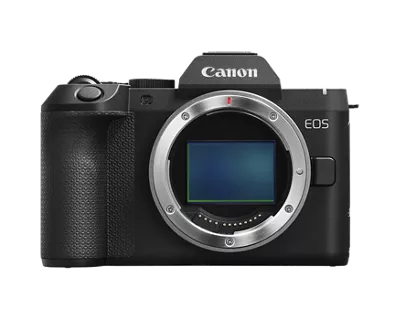
"Formatted" is not a single technical condition. What matters is how the card was formatted and whether anything was written afterward. Do not promise recovery simply because a card looks empty, and do not assume the opposite simply because formatting occurred.
3.1 Quick Format and Overwrite Format Are Not the Same
The SD Association's formatter FAQ distinguishes two operations. Its Quick format initializes file-system parameters and removes file/directory entries without deleting the file data itself. Its Overwrite format also initializes those entries but then overwrites the user-data area.
That distinction explains why a recently quick-formatted card can sometimes still contain recoverable file content, while an overwrite operation is fundamentally different. In either case, continued shooting or copying after the format can replace old sectors and reduce what can be recovered.
For a dedicated walkthrough that goes deeper into format types and card recovery, use Recoverit's formatted SD card photo recovery guide instead of expanding this model-specific article into a generic formatting manual.
3.2 Do Not Guess What Canon's In-Camera Format Did
The SD Association definitions above describe its formatter, not every camera manufacturer's menu behavior. If the EOS R8 Mark II card was formatted in camera, do not automatically label that operation "Quick" or "Overwrite" unless Canon's released manual for the exact firmware and menu option confirms it.
The safe response is the same: stop using the card, preserve any independent backup, and scan only if the card is stable and readable. If the card has already been heavily reused after formatting, expectations should be lower because new CR3, JPEG, HEIF, and MP4 data may have overwritten the old content.
Part 4. Recover Deleted EOS R8 Mark II Photos and Videos With Recoverit
When the only useful copy was deleted or formatted, no intact backup is available, and the SD card remains stable and detectable by Windows or macOS, Wondershare Recoverit can be used to scan the card for recoverable media. The goal is to recover from the original storage without writing the restored files back to it.

4.1 When Recoverit Fits This Camera Recovery Scenario
Recoverit is relevant when the loss is logical: accidental deletion, formatting, a missing card directory, or media that disappeared during a transfer while the underlying card or destination drive is still readable. Recoverit's current photo recovery page documents scanning readable camera cards and other storage, while its video recovery workflow covers MP4 and other video containers when recoverable data remains.
For the EOS R8 Mark II, search broadly enough to include the actual camera outputs: CR3, JPEG, HEIF, and MP4. Do not interpret a supported extension as a guarantee that every file or every recording mode can be reconstructed. Large video files may be fragmented, and overwritten bytes cannot be recreated by recovery software.
4.2 Scan the Actual SD Card and Save Results Elsewhere
Step 1. Connect and Select the EOS R8 Mark II SD Card
Power the camera down after writing has finished, remove the SD card, and connect it to the computer with a reliable card reader. Open Recoverit and choose the detected card under the SD card recovery workflow. Confirm the card by capacity and device information so you do not scan an unrelated internal disk.

Step 2. Scan the Card and Narrow the Results
Start the scan and keep the card connected. Review both photo and video results. Use file-type, extension, date, name, or size filters where available, but do not filter only for JPEG if the shoot also contained CR3 or HEIF. For movies, look for MP4 results and compare them with the shoot date, expected duration, and known reel or clip information.

Step 3. Preview Candidates Without Treating Preview as Final Proof
Preview supported files to identify the images or clips you need. A preview is useful for prioritizing results, but it does not prove a long 4K60 or high-frame-rate clip is complete from first frame to last. For CR3 files, the absence of a preview also does not by itself prove that the file is unrecoverable; verify the saved file in compatible software afterward.
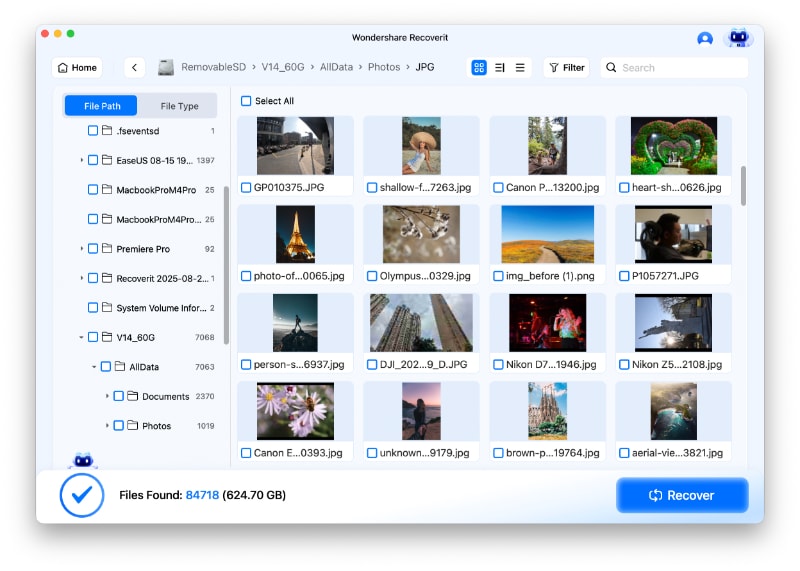
Step 4. Recover to a Different Healthy Drive
Select the required files and choose a computer drive or separate external drive as the destination. Never save the recovered CR3, JPEG, HEIF, or MP4 files back onto the EOS R8 Mark II card you are scanning. Writing recovered data to the same card can overwrite other recoverable content.

Important: no software can guarantee recovery after overwrite. If the card is physically damaged, repeatedly disconnects, or cannot be read reliably, stop repeated scans. Recovery software is not a hardware repair tool.
Part 5. Recover Media Missing After Transfer to a Computer or Drive
"Video missing after transfer" deserves its own path because the recovery source may no longer be the SD card. The correct source is whichever storage last held the missing file intact.
5.1 If the Original Is Still on the Card, Copy It Again
Start with the card's actual folder structure. Check DCIM for stills and XFVC for movies. If the original CR3 or MP4 still opens from the card, create a fresh copy to a healthy destination and verify it before doing anything destructive to the card.
If you use Canon EOS Utility, Canon's current EOS Utility transfer manual shows the standard Download images to computer workflow. The interface below is a current EOS Utility screen, not an EOS R8 Mark II camera menu.
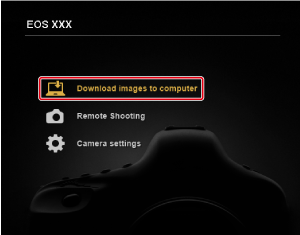
This is safer and more complete than running recovery software against an intact original. A selective import can miss RAW files, HEIF files, or the movie folder even while JPEGs appear correctly on the computer. When using selective transfer, review the full viewer instead of assuming that a completed JPEG import includes every camera original.
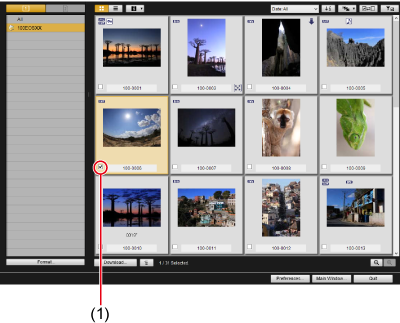
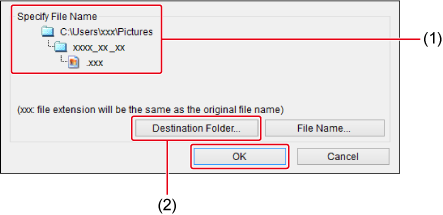
Before starting the transfer, confirm the destination folder and make sure it has enough free space for the complete shoot. After transfer, open representative CR3 files and critical videos from the destination before formatting or reusing the camera card.
5.2 If the Computer Copy Was Deleted, Scan the Computer or External Drive
Suppose you copied a shoot to an external SSD, checked it briefly, formatted the SD card for another job, and later discovered the SSD folder was deleted. At that point, scanning the reused camera card may be the wrong priority. The external SSD is the last storage that held the intended copy, so evaluate that drive instead.
First check the Recycle Bin or Trash and any backup or version-history system. If no intact copy exists and the destination drive is still readable, stop writing to that drive and scan it. Do not install the recovery software onto the same affected disk if that would create new writes over deleted data.
For missing movies, scan the affected destination drive for video results; for stills, review the photo results as well. The storage source, not the camera model name, determines what device should be scanned.
Part 6. Verify That Recovered Canon Files Are the Originals You Need
A successful scan is not the end of the job. The recovered folder can contain thumbnails, lower-quality companion files, partial video clips, or files whose extension is correct but whose content is incomplete. Validate the media before erasing the source or returning the card to production.
6.1 Check CR3, JPEG, and HEIF Separately
For a RAW workflow, verify that the recovered file is actually .CR3 and opens in software that supports EOS R8 Mark II files. Do not count a recovered JPEG as the RAW original merely because it shows the same frame. RAW and JPEG/HEIF have different editing latitude and are different deliverables.
Compare the recovered set with your shoot notes, image sequence, timestamps, expected burst count, and any existing contact sheet. Canon's specifications allow RAW/C-RAW, JPEG, and HEIF, so a mixed-format job can legitimately contain more than one representation of a scene.
6.2 Validate 4K60 and High-Frame-Rate Video Beyond a Short Preview
The EOS R8 Mark II can record MP4 files using several XF-HEVC S and XF-AVC S combinations, including 4K up to 59.94 fps and Full HD up to 179.8 fps. A recovered file opening for five seconds does not prove that a long take is intact.
| Validation Check | What to Confirm | Why It Matters |
| File identity | Shoot date, reel/clip context, duration, expected frame | Signature recovery can lose original names or folder structure. |
| Container and codec | MP4 plus the expected XF-HEVC S or XF-AVC S characteristics | A file with an .mp4 extension is not automatically the intended camera original. |
| Complete playback | Beginning, middle, end, and preferably full-duration playback for critical takes | Fragment loss may appear only later in the clip. |
| Video properties | Expected resolution, frame rate, bit depth or chroma information where your tool exposes it | Confirms that a proxy, transcode, or different take was not mistaken for the original. |
| Audio | Expected tracks, continuity, and synchronization | Picture-only recovery is incomplete when production audio was recorded in the camera file. |
| Editing test | Import or relink a duplicate project to the recovered copy | Checks whether the restored media is usable in the actual post-production workflow. |
If a recovered file exists but is damaged, preserve it and work on a duplicate. Recovery finds retrievable data; file repair addresses an already recovered file that will not open or play correctly. Neither process can recreate bytes that have already been overwritten or frames that were never recorded.
Part 7. Build a Safer EOS R8 Mark II Card Workflow
The EOS R8 Mark II's single-card design makes the offload decision especially important. Treat the card as the camera original until you have verified at least one independent copy, and use a second independent backup for work you cannot reshoot.
- Preserve the complete camera structure: copy the relevant DCIM, XFVC, and companion folders rather than cherry-picking visible JPEGs from a file browser.
- Verify RAW and video separately: confirm CR3 files as well as JPEG/HEIF, and check movie folders rather than assuming a still-photo import captured everything.
- Match the card to the recording mode: Canon lists different minimum card performance requirements for different video formats; some 4K60p modes require U3 while the 250 Mbps XF-AVC S 4:2:2 10-bit mode requires V60.
- Do not release the card after a progress bar alone: check file counts, representative RAW files, critical clips, and the destination before formatting the card for reuse.
- Keep recovered files off the source: when recovery is necessary, save results to a different healthy drive and keep the original card unchanged until the recovered set has been accepted.
These habits are more useful than relying on any recovery tool after the fact. Recovery is the contingency plan; a verified copy is the primary protection.
Conclusion
Canon's EOS R8 Mark II combines fast 40 fps still shooting, CR3 RAW capture, HEIF/JPEG, and high-bitrate 4K60p or Full HD high-frame-rate video on a single UHS-II-compatible SD card. That makes the first response to data loss simple: stop writing to the card and identify the last intact copy before trying to fix anything.
If photos or videos were deleted or the card was formatted and no good backup remains, a stable, computer-detected card can be scanned with Recoverit. Search for the formats the camera actually creates, save results to another drive, and verify recovered media as production-ready originals rather than relying on filenames or short previews. Use the model-specific recovery path above for the immediate incident, and keep generic formatted-card or Canon-camera guidance separate rather than repeating the same recovery links here.
FAQ
-
Can I recover deleted CR3 RAW files from a Canon EOS R8 Mark II SD card?
Potentially, if the card is still readable and the deleted CR3 data has not been overwritten. Stop shooting immediately, remove the card, scan the original card from a computer, and save any recovered files to another drive. A JPEG of the same frame is not a replacement for the CR3 original. -
Can photos and videos be recovered after formatting the EOS R8 Mark II SD card?
It depends on the format operation and what happened afterward. The SD Association notes that its Quick format removes file-system entries without deleting file data, while its Overwrite format overwrites the user-data area. Do not assume Canon's in-camera format uses either behavior without the exact Canon manual; stop using the card and assess it before recording new media. -
Does the Canon EOS R8 Mark II have two SD card slots for backup recording?
No. Canon's current specifications list one UHS-II-compatible SDXC/SDHC/SD card slot. They also list no in-camera image copy to another card, no proxy movie recording, and no main/sub recording. Create and verify independent copies after the shoot before reusing the card. -
Why are my EOS R8 Mark II videos missing after transfer while the photos are present?
Check whether the transfer copied only the DCIM still-image folder. Canon lists movie files under the XFVC structure, while stills use DCIM. Also check import filters, the destination folder, Recycle Bin or Trash, and the original card before starting recovery. -
Can Recoverit recover EOS R8 Mark II 4K60 video?
Recoverit can scan readable camera cards and other storage for recoverable MP4 video, including deleted or formatted-file scenarios. That is not a guarantee for every EOS R8 Mark II recording mode or damaged clip. Large videos may be fragmented, overwritten data cannot be restored, and every recovered clip should be validated through its full duration before use.


