

 TL;DR:
If your Leica M10 displays black photo previews or fails to connect to Leica FOTOS after installing firmware 4.26.36.10, immediately check the SD card directly on a computer because the actual DNG and JPEG files likely still exist intact.
● The official firmware 4.26.36.10 release only adds a Summicron-M 66 f/2 lens profile, meaning missing photos are typically the result of accidental SD card formatting during update preparation rather than a confirmed firmware bug.
● Stop taking new test exposures to prevent data overwriting, and use a stable card reader to confirm the original DNG and JPEG files open properly on a computer instead of relying solely on visible thumbnails.
● Limit data recovery software strictly to scenarios where files are genuinely missing from the storage media, and never save the retrieved copies back to the original Leica SD card being scanned.
Ask AI for a summary
 ChatGPT
 Perplexity
 Gemini
 Claude
 Grok
Grok
Leica's current download center lists firmware 4.26.36.10 for the Leica M10. The important new development this week, however, is not a new firmware launch. Beginning September 21, users started reporting slow or black photo previews, Leica FOTOS connection failures, menu behavior problems, and occasional shutter lag after installing this version.
Those reports need careful interpretation. A black rear display or a failed FOTOS connection can make photos look unavailable while the DNG and JPEG files are still intact on the SD card. Leica has not published a public known-issue notice that groups these reported symptoms into a confirmed firmware failure. The safest first question is therefore not "How do I recover my photos?" but "Do the photos still exist on the card, and is only the camera or app failing to show them?"
In This Article
Part 1. What Users Are Actually Reporting After Firmware 4.26.36.10
The current discussion began with a September 21 Leica community report about M10 firmware 4.26.36.10. The thread author described four symptoms after updating: photo review taking several seconds or showing a black screen, Favorites-menu customization behaving incorrectly, Leica FOTOS disconnecting immediately, and intermittent shutter lag. Another commenter in the same discussion also reported losing normal FOTOS access.
The thread author says Leica acknowledged the Favorites-menu behavior after their submission. That is still different from a public Leica support bulletin confirming all four behaviors as known issues. As of this fact check, Leica's public download and release-note pages do not provide a consolidated known-issue notice for slow preview, black review screens, FOTOS connection failure, menu problems, and shutter lag on firmware 4.26.36.10.
1.1 User Reports Are Not the Same as a Leica Confirmed Known Issue
User reports are valuable because they reveal symptoms that may not yet appear in formal support documentation, but they do not establish prevalence or causation on their own. A useful troubleshooting article should preserve that boundary. It is reasonable to say that some users report these behaviors after updating. It is not reasonable to say that firmware 4.26.36.10 has been officially confirmed to corrupt photos or damage SD cards.
This distinction is especially important for recovery. None of the reported preview, menu, FOTOS, or shutter symptoms by themselves proves that the underlying photo files have been deleted. Recovery software should not be the first action until you verify the card separately from the camera interface.
1.2 Four Reported Symptoms Do Not All Mean Photo Loss
| Symptom | What It Can Mean | Does It Prove Photo Loss? | First Safe Check |
| Photo preview is slow or turns black | Playback/UI behavior may be failing even though files remain on the card | No | Remove the card and open recent DNG/JPEG files on a computer |
| Leica FOTOS connects and then drops | WLAN/app pairing or firmware interaction may be affected | No | Use a card reader to verify the SD card independently of FOTOS |
| Favorites-menu customization behaves incorrectly | Camera menu behavior is affected | No | Protect photos first, then handle the menu issue as camera support |
| Intermittent shutter lag | Capture behavior may be delayed | No | If data loss is suspected, stop taking test photos and inspect the existing card |
| Computer detects the card but expected DNG/JPEG files are missing | Actual deletion, formatting, directory damage, or transfer loss is possible | Potentially | Stop writes and identify the last intact copy before recovery |
| Card repeatedly disconnects or is not detected by known-good readers | Storage hardware or controller failure may be involved | Potentially | Stop repeated scans if detection is unstable and protect irreplaceable work |
Part 2. Prove Whether the Photos Still Exist on the SD Card
The most useful test bypasses both the rear monitor and Leica FOTOS. The Leica M10 stores its actual photographs on removable SD-family media, so a card reader lets you ask whether the files exist independently of the camera's playback and wireless layers.
2.1 Stop Shooting Before You Diagnose a Possible Data-Loss Case
If you are unsure whether photos are really missing, stop taking new pictures. A new exposure writes additional data to the card and can overwrite space previously occupied by deleted files. That matters only if real deletion has occurred, but there is little benefit in creating new writes while you are still determining the cause.
Power the camera down after any card activity has finished, remove the SD card, and use a stable SD/SDHC/SDXC reader. Do not format the card merely because the camera, phone, or computer has trouble displaying the photographs.
2.2 Read the M10 Card Directly on a Computer
The official Leica M10 instructions state that picture data on the memory card can be transferred to a computer with an SD/SDHC/SDXC card reader. The manual also describes folders such as 100LEICA, 101LEICA, and subsequent numbered folders, each holding up to 9,999 pictures.
Use that documented structure as a diagnostic shortcut:
- If the expected folders and files are present: copy the important photos to another healthy drive now. You do not need photo recovery simply because the camera preview or FOTOS gallery is failing.
- If only some shoot folders are present: compare dates, file counts, and any earlier offload destination before assuming the missing set was deleted from the card.
- If the card asks to be formatted: cancel. A format prompt means the current file system is not being read normally; it is not permission to erase the source before recovery.
- If the card is not detected stably: do not repeatedly reconnect and scan valuable media. Hardware-level failure needs a different response from logical file loss.
2.3 Verify DNG and JPEG Files, Not Only Thumbnails
Leica's M10 technical data specifies two still-image formats: losslessly compressed DNG RAW and JPEG. The camera supports SD, SDHC, and SDXC media, including SDXC capacities up to 2 TB. If your original workflow used DNG+JPEG, the presence of a JPEG does not prove the DNG original is still present, and the presence of a thumbnail does not prove the full RAW file is intact.
Open representative files in software that supports Leica DNG, compare expected capture dates and sequence numbers, and check file sizes against other photos from the same session. Recoverit's DNG file guide explains the distinction between the RAW file and a preview or converted derivative. If both DNG and JPEG originals open from the card, the problem is not photo recovery.
Part 3. Understand What Firmware 4.26.36.10 Officially Changes
The official record is narrower than the community discussion. Leica's current firmware document identifies M10 version 4.26.36.10 and lists one new item: a lens profile for the Summicron-M 66 f/2. The release note does not say that the firmware is intended to fix photo recovery, SD card corruption, FOTOS disconnection, or preview black screens.
3.1 The Public Release Note Lists a Lens Profile, Not a Data-Loss Fix
Leica's official M-family firmware release note identifies the M10 build as 4.26.36.10 and lists the new Summicron-M 66 f/2 lens profile. That makes it especially important not to invent a broader official changelog around the new community complaints.
The same document warns that interrupting a firmware update can cause serious equipment damage. During an update, Leica tells users not to switch off the camera, remove the memory card, remove the battery, or detach the lens. Those are update-safety instructions, not evidence that the completed update deletes existing photos.
3.2 The Firmware Preparation Step Can Erase a Card If You Format Without a Backup
This is the most important data-loss detail in Leica's own update instructions. Before the update, Leica recommends saving any images on the memory card and reformatting the card. The release note places an explicit warning next to that instruction: formatting causes loss of the data stored on the memory card.
That creates a real post-update recovery scenario that should not be mislabeled as a firmware bug. If someone formatted a production SD card to prepare it for the firmware file before making a verified copy, the missing photos are the result of the formatting event. The correct response is to stop using the card immediately and assess recovery before recording new photos or formatting it again.
For that specific situation, Recoverit's formatted SD card photo recovery guide covers the broader formatting workflow. Whether individual files remain recoverable depends on what the format changed and whether their underlying data has since been overwritten.
3.3 A Factory-Settings Reset Is Different From Formatting the SD Card
Leica also recommends reverting to factory settings after the firmware update, and notes that date, time, and language need to be set again afterward. In the same firmware document, memory-card formatting is described separately and carries its own explicit data-loss warning. Keep those actions conceptually separate when diagnosing what happened.
If your photos are still readable from the card, copy them before experimenting with resets or further firmware troubleshooting. If the files are already missing, stop changing the storage until you know which copy is the recovery source.
Part 4. If Preview or Leica FOTOS Fails but Card Files Are Intact
If a card reader shows the complete DNG/JPEG set, you have already answered the most important recovery question: the photographs still exist. From that point, treat the camera preview and wireless app symptoms as camera-software or connectivity problems rather than data-loss problems.
4.1 Treat a Black or Slow Camera Preview as a Display Problem First
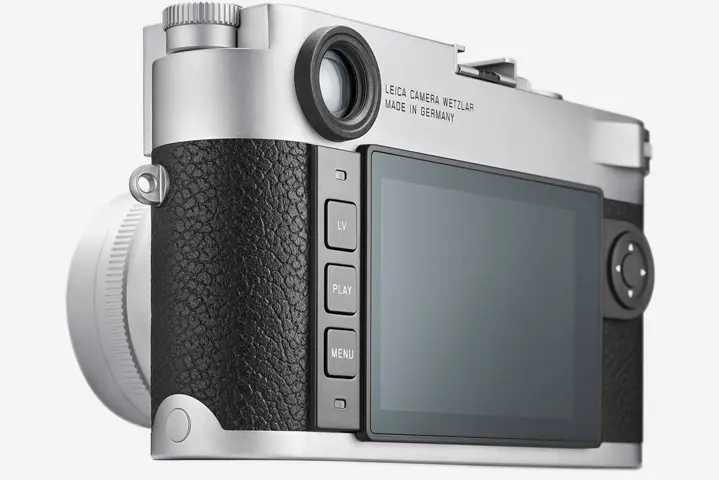
The M10's rear controls include dedicated PLAY, Live View, and MENU buttons. A user report that pressing PLAY leads to a delayed or black display is therefore a problem in the review path unless a separate storage check also shows that the underlying file is absent or unreadable.
Do not delete a photo, format the card, or take a burst of new test images merely to see whether the display improves. First use the card reader test above. If the latest DNG and JPEG files open normally on a computer, make a verified backup and then pursue the playback issue through Leica support or a later firmware advisory.
4.2 Treat Leica FOTOS Failure as a Connection Problem Until the Card Says Otherwise
Leica's official M10 product documentation describes WLAN connectivity and Leica FOTOS as a way to transfer images and remotely control the camera. The current M10 product details confirm that wireless communication is a separate feature layered on top of the camera's stored images.
If FOTOS cannot load the gallery but the same card's DNG/JPEG files open in a computer, there is no reason to run data recovery. Preserve the card copy first. You can then troubleshoot pairing or reconnect the camera and mobile device according to Leica's instructions without risking the only copy of the photographs.
4.3 Menu Problems and Shutter Lag Are Not Recovery Problems
A Favorites-menu control moving the wrong setting or a shutter release occasionally responding late can be serious usability problems, but neither symptom is evidence that existing files are gone. If an important shoot is already on the card, protect it before repeatedly testing the camera.
If you need to continue using the M10 while the reports are being investigated, the conservative data strategy is simple: offload and verify existing images before additional testing, use a card with no irreplaceable photos for firmware-related experiments, and monitor Leica's official download/support pages for any published change.
Part 5. When the Problem Is Actually SD Card or File Loss
Recovery becomes relevant only after the storage check shows that the files themselves are missing or inaccessible. Use the state of the SD card, not the appearance of the camera screen, to decide.
| Card or File State | What to Do | Recovery Software? |
| DNG/JPEG files open normally through a card reader | Copy them to another healthy drive and troubleshoot the camera/app separately | No |
| Photos exist on the card but not in Leica FOTOS | Use the card reader copy as the safe path; troubleshoot FOTOS later | No |
| Card was formatted during firmware preparation and has not been reused | Stop all writes and scan the original card before using it again | Potentially |
| Card mounts, but expected DNG/JPEG files or LEICA folders are missing | Check the last offload/backup, then scan the storage that actually lost the files | Potentially |
| Computer sees the card but asks to format it | Cancel the prompt and recover before repair or format | Potentially |
| Card repeatedly disconnects, overheats, is cracked, or is undetected everywhere | Stop repeated DIY scans and consider professional recovery for irreplaceable images | Not the first choice |
For broader Leica models and older loss scenarios, Recoverit's Leica camera photo recovery guide covers generic Leica recovery. This page stays focused on the firmware-4.26.36.10 diagnostic question so that a temporary playback or FOTOS symptom is not confused with actual media loss.
Part 6. Recover Missing Leica M10 DNG and JPEG Files With Recoverit
If the M10 card is stable, the computer detects it, the expected DNG/JPEG files are genuinely missing, and no intact backup exists, Wondershare Recoverit can be used to scan the original camera card for logically lost files. The appropriate product path is Recoverit's camera photo recovery workflow.

6.1 When Recoverit Fits This Leica M10 Scenario
Use recovery software for a storage problem, not merely for a black screen. Appropriate cases include accidental deletion, a card formatted during firmware preparation, missing files after a failed offload, or an SD card whose file system is readable enough for the computer to detect but whose photos are inaccessible.
Do not expect software to fix the camera's PLAY screen, repair a FOTOS connection, correct a menu bug, or remove shutter lag. Those are different layers. Also do not repeatedly scan a card with unstable hardware detection, unusual heat, visible damage, or a failing controller.
6.2 Scan the Card Without Writing Recovered Files Back to It
Step 1. Stop Using the M10 Card and Connect It Through a Reader
Remove the affected SD card from the camera and connect it to Windows or macOS with a stable card reader. Do not take new photos, add firmware files, format the card, or run file-system repair first.
Step 2. Select the Leica SD Card as the Recovery Source
Open Recoverit, go to the SD Card Recovery workflow, and select the physical card by its capacity and device identity. Make sure you are scanning the M10 card rather than an unrelated internal drive or backup disk.
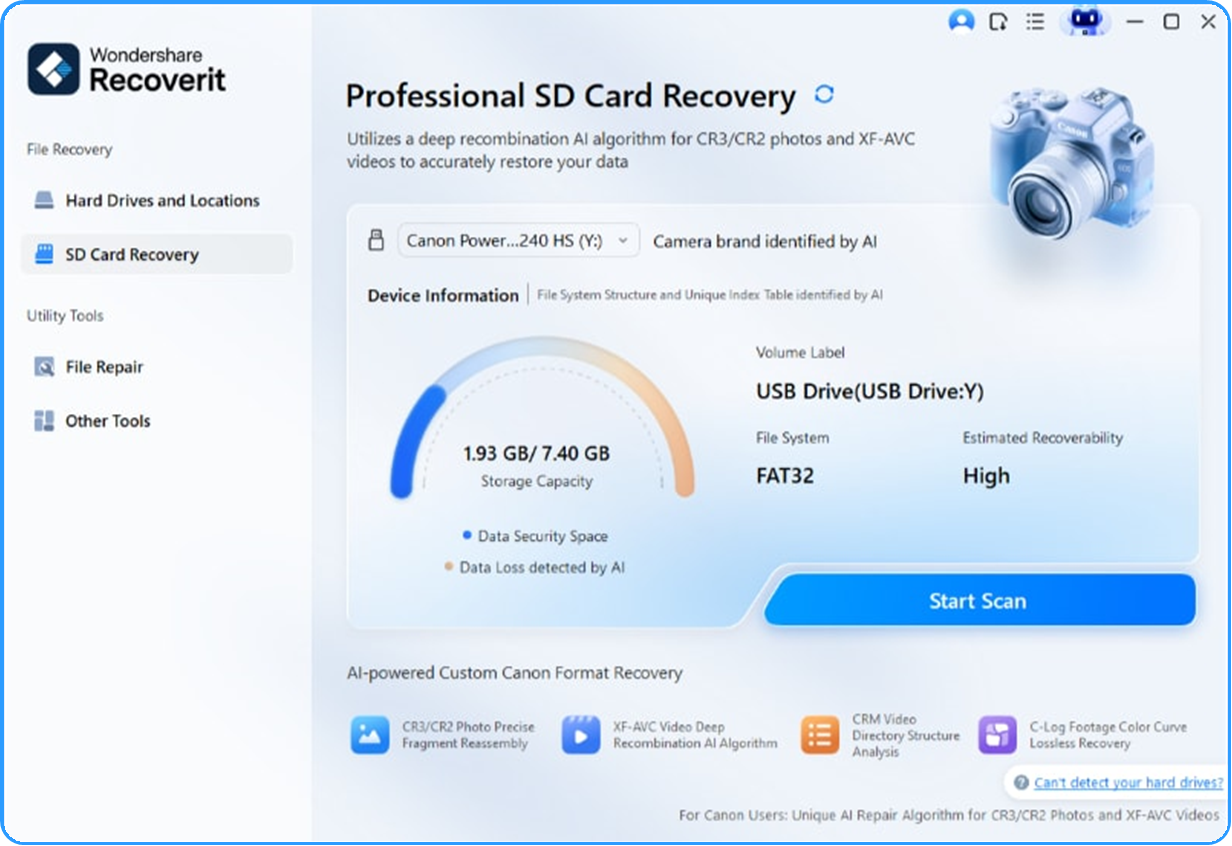
Step 3. Scan for DNG and JPEG Files
Start the scan and keep the reader connected. Use file type, path, date, size, and other available filters to narrow the results. Look for both DNG and JPEG if the camera was configured to create both. If the original folder structure is damaged, some recovered files may not retain their original names or folders.
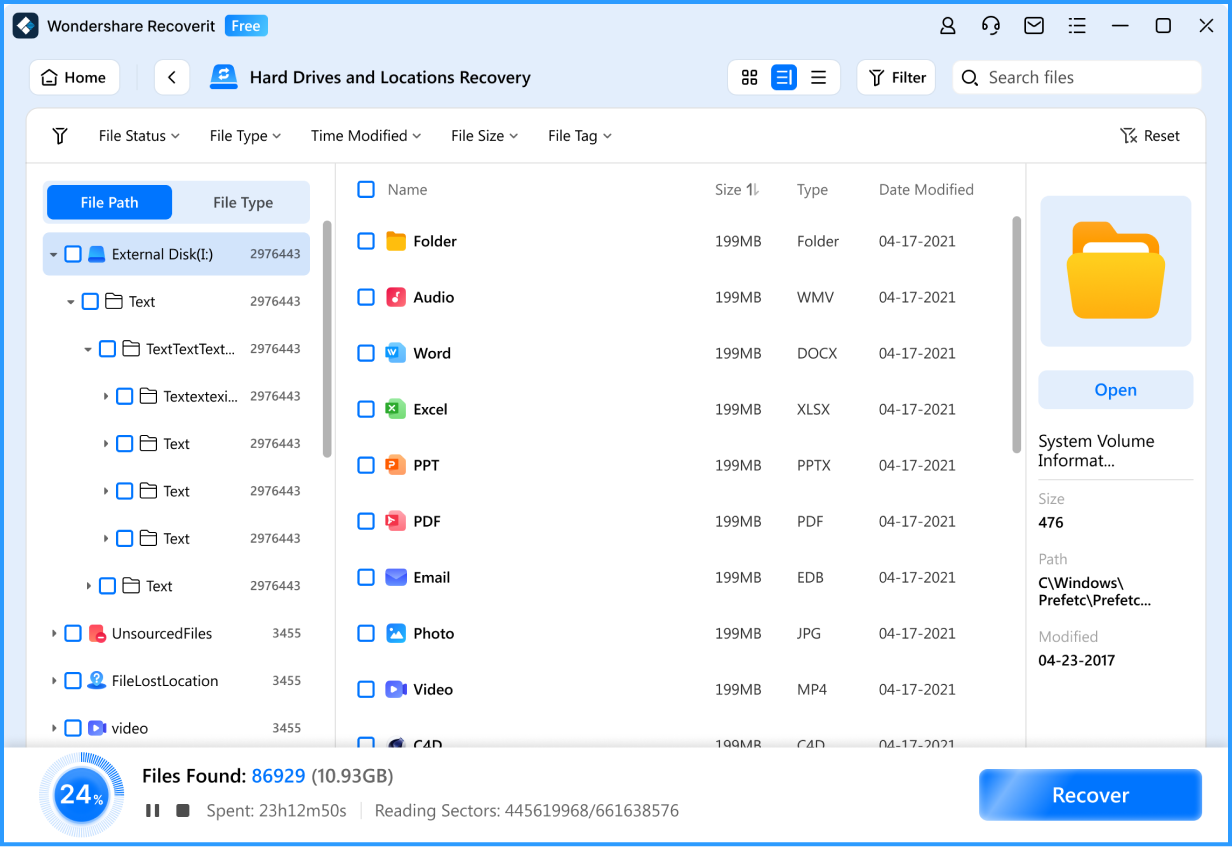
Step 4. Preview Candidates and Recover Them to Another Drive
Preview supported files to identify the photographs you need, then save the recovered copies to the computer or a separate external drive. Never recover them back to the Leica SD card you are scanning. Writing to the source can overwrite additional recoverable data.

After recovery, open representative DNG and JPEG files in compatible software and compare them with the expected shoot sequence. A preview thumbnail is useful for identification, but it is not a guarantee that every RAW data block survived. No recovery application can recreate bytes that have already been overwritten.
Recover Missing Leica M10 DNG and JPEG Files With Recoverit
 Security Verified. Over 7,302,189 people have downloaded it.
Part 7. Prepare More Safely for the Next Leica M10 Firmware Update
The firmware instructions themselves provide the foundation for a safer workflow. The key is to separate the photo archive from the card you are about to reformat and use for an update.
- Make a verified copy before formatting: copy all DNG and JPEG files off the SD card, open representative images, and confirm that the destination really contains the shoot before you reformat anything.
- Use a card with no irreplaceable originals: if you need to reformat a card for firmware preparation, make sure the camera card is no longer the only copy of any photograph.
- Keep the update powered: fully charge the battery and do not switch the M10 off or remove the card, battery, or lens while the firmware update is running.
- Separate firmware troubleshooting from storage recovery: a black preview or FOTOS failure should first be tested against the files on the card. Do not erase a readable card to troubleshoot an interface symptom.
- After the update, verify existing photos before reuse: if the production card contains images you still need, confirm them through a card reader before taking new photos or formatting the card again.
- Keep at least two independent copies for important shoots: a successful phone transfer or a preview on the camera is not the same as a verified independent backup.
That workflow protects you whether the current community reports ultimately prove to be firmware-specific bugs, device-specific interactions, or isolated configurations. The photos remain protected independently of the camera's display and app behavior.
Conclusion
Leica currently offers M10 firmware 4.26.36.10, while users beginning September 21 have reported slow or black photo review, Leica FOTOS connection failures, menu problems, and occasional shutter lag. Those are important reports, but Leica has not publicly documented them as one confirmed known issue, and none of them alone proves that the SD card photos were deleted.
The safest diagnosis is to bypass the camera interface: stop shooting, read the SD card directly on a computer, verify the M10's DNG/JPEG files, and make a separate copy if they are intact. Recovery becomes appropriate only when the files themselves are genuinely deleted, formatted, or inaccessible on stable, detectable storage. If the card was formatted during firmware preparation, treat that format as the data-loss event rather than claiming the firmware erased the photos.
FAQ
-
Does a black Leica M10 photo preview after firmware 4.26.36.10 mean my photos are deleted?
No. A black or delayed playback screen does not by itself prove file loss. Remove the SD card, read it with a computer, and check whether the expected DNG/JPEG files open normally. If they do, copy them and troubleshoot the camera display separately. -
Has Leica officially confirmed firmware 4.26.36.10 is faulty?
Leica currently provides firmware 4.26.36.10 for the M10, but no public Leica page reviewed for this article lists the reported preview, FOTOS, menu, and shutter-lag symptoms together as an official known issue. The current reports are user reports and should be described that way. -
What if Leica FOTOS cannot show my photos but the SD card works on a computer?
That points to the wireless/app access layer rather than photo loss. Copy the photos from the card to a healthy drive first. You do not need recovery software for files that remain intact and readable on the SD card. -
What if I formatted the M10 card while preparing the firmware update?
Stop using the card immediately. Leica's firmware instructions explicitly warn that formatting erases the data stored on the memory card. If no verified backup exists and the card has not been heavily reused, logical recovery may still be worth assessing before any new recording or format operation. -
Can Recoverit recover missing Leica M10 DNG and JPEG photos?
Recoverit can scan a stable, computer-detected camera card for logically deleted, formatted, or inaccessible photo data, including camera RAW workflows. Recovery is not guaranteed after overwrite. Save recovered files to another healthy drive and verify the final DNG/JPEG files before reusing the source card. -
What should I do if the Leica M10 SD card is not detected by any reader?
Test one known-good reader, port, and computer. If the card remains undetected, repeatedly disconnects, overheats, or is physically damaged, stop repeated software scans. Irreplaceable photos may require professional hardware-level recovery rather than a normal logical scan.


