

 TL;DR:
If your Nikon Z5IIC experiences data loss on its single UHS-II SD card slot, immediately stop shooting to prevent overwrites and recover the remaining 14-bit NEF or 12-bit N-RAW files to a completely separate drive before attempting any operating-system repairs or in-camera formatting.
● DIY recovery software is only viable for logically corrupted or deleted files on stably detectable media; repeatedly scanning an overheating, intermittently disconnecting, or physically unrecognized SD card adds risk and requires a professional lab.
● Recovering N-RAW video requires confirming the .NEV container and validating full-duration playback in compatible software, as signature-based scans can easily confuse a smaller proxy file or embedded thumbnail with the complete camera original.
● Because the Z5IIC lacks a secondary backup slot, any new writes after an accidental format or deletion—including casual JPEG bursts, HEIF files, or MP4 clips—will permanently overwrite the freed storage space containing your missing media.
Ask AI for a summary
 ChatGPT
 Perplexity
 Gemini
 Claude
 Grok
Grok
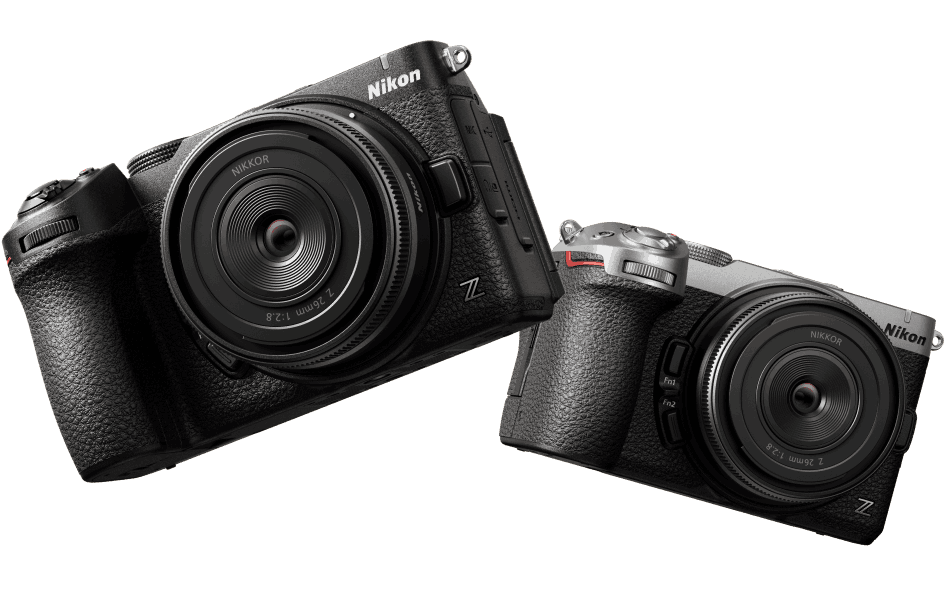
Nikon officially announced the full-frame Z5IIC on September 24, 2026. The camera introduces an unusually important storage detail for recovery: it uses a single UHS-II-compatible SD/SDHC/SDXC card slot and can record not only NEF RAW, JPEG, and HEIF photos, but also H.265/H.264 video and 12-bit N-RAW directly to an SD card. Nikon recommends a V90 SD card for N-RAW recording. That makes the card both the capture medium and, until you create another verified copy, the only original for the shoot.
This is a launch-period recovery guide based on Nikon's published Z5IIC specifications, not on invented owner failure reports. Nikon's U.S. announcement says retail availability is expected in mid-October 2026, so claims such as "Z5IIC cards commonly corrupt" or "N-RAW recovery is a known Z5IIC problem" would be premature. The useful question is narrower: if the SD card is deleted, formatted, logically corrupted, or loses files during transfer, what should you preserve first and which storage should you actually scan?
In This Article
Part 1. Know What the Nikon Z5IIC Stores on Its SD Card
Nikon's September 24 launch announcement confirms the Z5IIC as a 24.5MP full-frame camera with 4K UHD up to 60p, Full HD up to 120p, H.265 10-bit, N-Log, and in-camera N-RAW recording. Those are not interchangeable recovery targets: still photos, compressed video, and raw video use different file types and can fail in different ways.
1.1 One SD Card Slot Makes the Offload Copy More Important
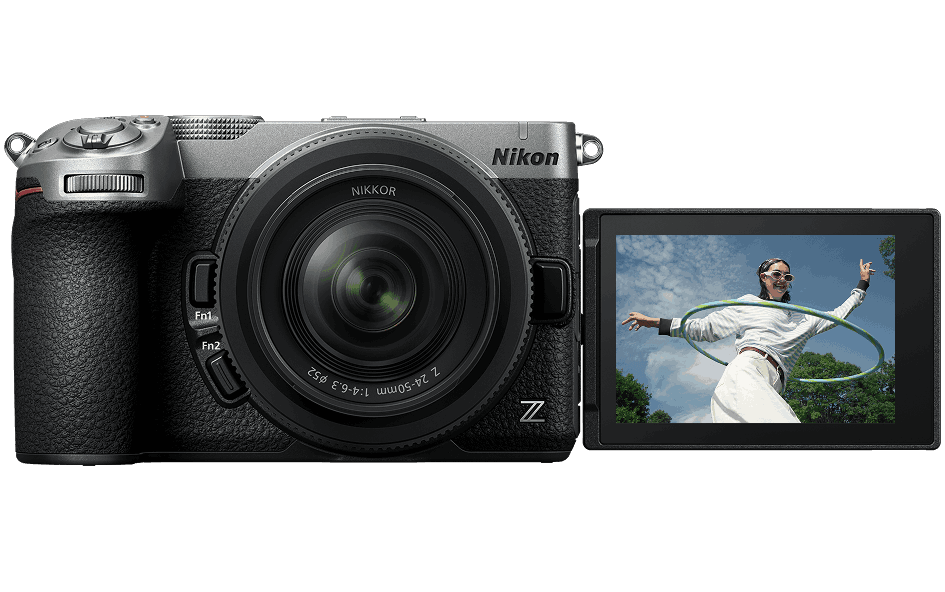
Nikon's current Z5IIC technical specifications list one Secure Digital card slot and support for SD, SDHC, and SDXC media compliant with UHS-II. Unlike a two-card workflow, there is no second in-camera card that automatically gives you another full copy of the same take.
That does not make the Z5IIC unsafe. It changes the point at which your media becomes protected. Until you copy and verify the card, the SD card remains the acquisition master. If files disappear, the first objective is therefore not to "fix" the card; it is to stop new writes and identify whether another intact copy already exists.
Immediate rule: once you notice missing photos or video, stop shooting. Do not record a test clip, take another burst, format the card again, or accept an operating-system prompt to repair it before you have protected the data you still need.
1.2 Separate NEF RAW Photos From N-RAW Video
The Z5IIC records 14-bit NEF RAW stills, JPEG, and HEIF. For video, Nikon lists NEV, MOV, and MP4 containers with N-RAW 12-bit, H.265/HEVC, and H.264/AVC compression. This matters because "RAW" can refer to two very different things on this camera:
| Media Type | Nikon Format | Recovery Check |
| RAW photo | NEF, 14-bit | Confirm that the recovered file is the NEF original, not only an embedded preview or JPEG companion. |
| Processed still | JPEG or HEIF | Check whether the shoot used RAW+JPEG or RAW+HEIF so you do not mistake a companion image for the missing original. |
| N-RAW video | NEV, N-RAW 12-bit | Validate the complete recovered file in software that can read the camera's N-RAW output; extension alone is not proof of an intact take. |
| Compressed video | MOV or MP4 using H.265/HEVC or H.264/AVC | Check expected codec, duration, frame rate, audio, and full playback after recovery. |
For broader Nikon still-image recovery, Recoverit's Nikon NEF RAW recovery guide covers NEF-specific checks. Keep this Z5IIC page focused on the model's SD-card decision path rather than duplicating a generic RAW-format tutorial.
1.3 N-RAW Changes the Size and Verification Problem
The Z5IIC is notable because Nikon explicitly supports recording N-RAW directly to SD memory card and recommends a Video Speed Class 90 (V90) card for that workflow. Nikon's global Z5IIC specifications list N-RAW at 4032 x 2268 in FX or 3984 x 2240 in DX at 30p, 25p, or 24p. That is separate from the camera's 4K UHD 60p mode, which Nikon states uses a DX crop.
This distinction prevents a common specification mistake: the Z5IIC supports both 4K60 and N-RAW, but Nikon does not list 4K60 as an N-RAW mode. Recovery guidance should therefore not promise "4K60 N-RAW recovery" as if it were one camera setting.

Raw video also changes the validation standard. A file can have the expected .NEV extension yet still be incomplete, truncated, or missing part of its recorded data. For long or irreplaceable takes, full-duration validation matters more than a thumbnail or the first few seconds playing correctly.
Part 2. Diagnose the Card Before You Try Recovery
Before you scan anything, identify the last place where the missing media definitely existed. A photo deleted in camera, a card that suddenly asks to be formatted, and a video missing after offload are different problems even if the end result is the same empty folder.
2.1 Deleted, Transfer-Missing, and Corrupted Are Different Cases
| What You See | Likely Recovery Source | First Safe Action |
| You deleted NEF/JPEG/HEIF or video in camera | The original Z5IIC SD card | Stop shooting and remove the card from the write cycle. |
| The transfer folder is incomplete but the card still contains the shoot | The SD card still holds an intact original | Make a fresh verified copy. Do not run undelete software on an intact source just because the first transfer failed. |
| The card was formatted before the transfer was checked | The formatted card and any existing backup | Stop all new recording. Determine whether another complete copy exists, then assess recovery. |
| The computer sees the card but asks to format it | The readable physical SD device | Cancel the format prompt. Recover accessible data before repair or reformatting. |
| The card mounts but folders or clips are missing | The card or the last verified offload destination | Protect any accessible files first, then scan the storage that actually lost the missing data. |
| The card is absent from every reader and computer | Possibly a hardware/controller problem | Stop repeated software scans and consider professional recovery for valuable work. |
Files missing after transfer deserve special care. If a 100 GB N-RAW shoot is still complete on the card but only 70 GB arrived on the computer, the correct recovery method is another verified offload from the card. Scanning the incomplete destination is unnecessary while the camera original is still intact.
2.2 A Detected Card and an Undetected Card Need Different Responses
Software recovery depends on the computer being able to read the storage at some level. If the Z5IIC card appears in Disk Management, Disk Utility, or a recovery application but the file system is unreadable, logical recovery may still be possible. If the card repeatedly disconnects, overheats, has visible physical damage, or is not detected through known-good readers and ports, the situation is different.
For a stable card that is readable enough to scan, Recoverit's corrupted SD card recovery guide explains the logical-recovery path. For a physically unstable or consistently undetected card, repeated DIY scans can add risk without solving the hardware problem.

Part 3. Recover After an Accidental Format Without Making It Worse
An accidentally formatted card is one of the most urgent Z5IIC recovery scenarios because the camera has only one SD slot. The recovery outcome depends on what the format operation changed and how much new data was written afterward.
3.1 Quick Format and Overwrite Format Are Not the Same
The SD Association's formatter documentation distinguishes Quick and Overwrite formats. Its Quick format resets file-system entries without overwriting the file data area, while Overwrite format also writes across the user-data area. That difference is why a card that looks empty after some formatting operations can still contain recoverable content, while a full overwrite is a very different case.
Continued use is the other major variable. Microsoft's deleted-file guidance notes that once storage space is marked free, new writes can reuse that space. On a camera card, that means every new NEF image, JPEG burst, HEIF file, MOV/MP4 clip, or N-RAW recording can replace data you are trying to recover.
For a deeper generic formatted-card workflow, use Recoverit's formatted SD card recovery guide. This Z5IIC article keeps the focus on the new camera's specific formats and single-card workflow.
3.2 Do Not Assume How the Z5IIC In-Camera Format Works
The SD Association definitions above describe its own formatter. They do not prove that Nikon's Z5IIC in-camera format behaves identically. At the time of this fact check, Nikon has published product and launch specifications, but the exact Z5IIC online reference-manual page for the format command was not surfaced in the reviewed official sources.
Therefore, do not label a Z5IIC in-camera format "quick" or "overwrite" unless Nikon documents that behavior for the exact camera and firmware. The safe response does not require that guess: stop using the card, preserve another backup if one exists, and scan the stable card before recording or formatting again.
Part 4. Recover Nikon Z5IIC SD Card Files With Recoverit
If no intact backup exists and the Z5IIC card is stable and detectable by the computer, Wondershare Recoverit can be used for logical SD card recovery. Its relevant role here is scanning the original memory card for deleted, formatted, hidden, or inaccessible media and saving recoverable files to another location.
4.1 When Recoverit Fits the Z5IIC Recovery Scenario

Recoverit's memory card recovery workflow is the most direct product path for this model because the Z5IIC records to SD media. Use it when the card remains computer-detectable and the problem is logical loss rather than physical failure.
For this camera, the scan should account for the media you actually recorded: NEF, JPEG, HEIF, NEV, MOV, and MP4. A supported storage workflow is not the same as a guarantee that every file type, N-RAW take, fragmented video, or overwritten sector will be reconstructed intact. Treat scan results as candidates that still need validation.
If the missing content is primarily large video, Recoverit's video recovery workflow explains its fragment-focused recovery options. Use video-specific recovery only after confirming that the card, rather than an intact offload or another drive, is the actual source of the loss.
4.2 Scan the Original SD Card and Recover Elsewhere
Step 1. Remove and Select the Z5IIC SD Card
Stop recording, power the camera down after card activity has finished, remove the SD card, and connect it to the computer through a stable reader. In Recoverit, select the SD card as the source. Confirm its capacity and device identity so you do not scan the computer's internal drive by mistake.

Step 2. Scan and Filter for the Formats You Actually Recorded
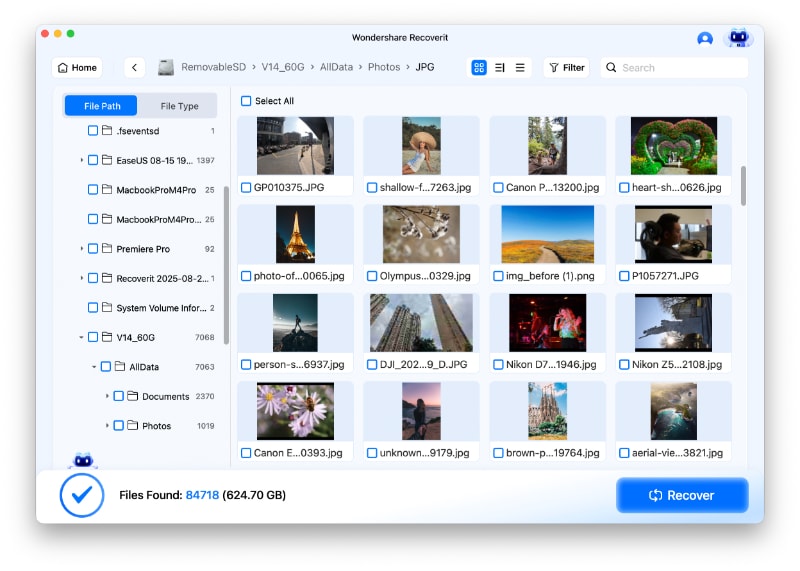
Run the scan and keep the reader connected. Filter by photo or video, date, size, or extension where available. For stills, look for NEF, JPEG, and HEIF. For video, check NEV, MOV, and MP4 results. If NEV is not exposed as a separate filter, use date, size, file path, and video grouping to inspect likely N-RAW candidates rather than assuming the file is absent.

Step 3. Preview What Can Be Previewed, but Do Not Overtrust the Preview
Use the preview function for supported photos and videos to identify likely matches. A visible JPEG or embedded RAW thumbnail does not prove the entire NEF is intact. Likewise, a short video preview does not prove that a long N-RAW or H.265 take is complete from start to finish.
Step 4. Recover to a Different Healthy Drive
Select the files you need and save them to a computer drive or another external disk, never back to the Z5IIC SD card being scanned. Writing recovered data to the source can overwrite other recoverable files and permanently change the evidence on the card.

After saving, keep the original card unchanged until the recovered files have been checked. If a recovered file is damaged, repair a copy after recovery rather than running repair operations against the source card.
Recover Nikon Z5IIC SD Card Files With Recoverit
 Security Verified. Over 7,302,189 people have downloaded it.
Part 5. Recover and Validate N-RAW Video Carefully
N-RAW is the part of the Z5IIC launch that makes this recovery topic different from a generic entry-level Nikon article. Nikon lists 12-bit N-RAW in an NEV container, direct-to-SD recording, and proxy-video recording for RAW video. That combination creates two recovery traps: confusing the proxy with the original, and accepting a partially recovered .NEV file because the filename looks correct.
5.1 Do Not Confuse a Proxy With the N-RAW Original
A proxy is useful for editing, review, or relinking, but it is not the 12-bit N-RAW camera original. If the N-RAW original is missing while a smaller proxy remains, preserve the proxy as a fallback but continue looking for the NEV source file on the SD card and any offload destinations.
When file names have been lost during signature-based recovery, compare date, size, duration, and scene content rather than relying only on the original clip name. Large RAW files are especially likely to stand out by size, but size alone is not proof that the file is complete.
5.2 Validate the Recovered NEV File Beyond Its Extension
For each recovered N-RAW candidate, check:
- File identity: confirm the take, shoot date, expected duration, and scene content.
- Container and codec: verify that the file is recognized as NEV/N-RAW by compatible software, not merely renamed with an .NEV extension.
- Full-duration playback or decode: check beyond the first and last few seconds for missing frames, freezes, decode errors, or an unexpected ending.
- Audio: confirm that expected audio tracks are present and synchronized.
- Production metadata: retain timecode and other usable metadata where your workflow depends on it.
- Proxy relationship: make sure the recovered file is the high-quality original rather than a proxy or transcode with the same content.
If the file is recovered but will not decode, preserve the recovered copy before attempting repair or conversion. Recovery and repair are separate stages: recovery retrieves what remains on storage; repair works on a file that already exists.
Part 6. Handle a Corrupted or Unreadable Z5IIC Card Safely
"Corrupted SD card" can describe anything from damaged directory metadata to a failing controller. The safest response depends on whether the card remains stable and detectable.
6.1 Recover Before You Repair or Reformat
If the computer detects the card but the file system cannot be mounted, the card shows as RAW, or the operating system asks to format it, cancel the write-based repair first. Recover accessible or recoverable files to another drive before CHKDSK, Disk Utility First Aid, repartitioning, initialization, or reformatting.
This order matters because repair tools are designed to make a file system usable, not to preserve every deleted or orphaned file for forensic recovery. A successful repair can still change metadata that a recovery scan would otherwise use.
6.2 Stop DIY Recovery When the Card Is Physically Unstable
Stop repeated scans if the card is cracked, bent, burned, water-damaged, unusually hot, intermittently detected, or consistently absent through known-good readers and ports. Recoverit and other software tools need stable access to the storage. Irreplaceable commercial work is a stronger reason to seek a professional lab before repeated DIY attempts.
If the card is simply slow or reports file-system errors but remains stably readable, preserve the most important accessible files first and then work from a disk image where practical. The source card should remain unchanged until you accept the recovery result.
Part 7. Build a Safer Z5IIC SD Card Workflow
The Z5IIC's single-slot design makes card release discipline more valuable than relying on recovery after a failure. A practical workflow should separate acquisition, offload, verification, and reuse.
- Use media appropriate for the recording mode: Nikon recommends V90 SD media for N-RAW. A card that is adequate for still photography is not automatically the right choice for every high-data-rate video mode.
- Keep the card untouched until the offload is verified: do not format or reuse the acquisition card because a copy progress bar reached 100%.
- Verify more than file count: open representative NEF files, check critical videos, and compare expected folder sizes or checksums where your workflow supports them.
- Keep N-RAW originals and proxies clearly separated: a proxy can protect the edit from interruption, but it does not replace the original NEV file for finishing.
- Create an independent second copy for work you cannot reshoot: two folders on one SSD are not two independent backups.
- Do not reuse a suspect card for critical work: after recovery is complete, test the card thoroughly or replace it if corruption, instability, or write errors recur.
Recovery is the contingency plan. The safer workflow is to ensure that the original card is no longer the only copy before it returns to the camera.
Conclusion
Nikon's Z5IIC creates a distinctive recovery scenario because a single UHS-II SD card can hold 14-bit NEF RAW stills, JPEG/HEIF images, compressed MOV/MP4 video, and 12-bit N-RAW in NEV files. Nikon also recommends V90 SD media for N-RAW, reinforcing that this card may carry large, production-relevant files rather than only casual JPEGs.
If the card is deleted, formatted, or logically corrupted, stop writing to it first. Confirm whether an intact copy still exists, scan the actual storage that lost the data, recover results to another drive, and validate NEF and N-RAW originals beyond thumbnails or filenames. If the card is physically unstable or undetected everywhere, software recovery is no longer the right first step.
FAQ
-
Can I recover deleted NEF RAW photos from a Nikon Z5IIC SD card?
Potentially, if the SD card remains readable and the deleted data has not been overwritten. Stop shooting immediately, remove the card, scan the original card from a computer, save recovered files elsewhere, and confirm that the recovered file is the full NEF original rather than only a JPEG or embedded preview. -
Can Nikon Z5IIC N-RAW video be recorded directly to an SD card?
Yes. Nikon officially states that the Z5IIC supports direct N-RAW recording to SD memory card and recommends a V90 card for that workflow. Nikon lists N-RAW as 12-bit NEV video at up to 30p, while the camera's separate 4K UHD mode reaches 60p with a DX crop. -
Can I recover files after formatting a Nikon Z5IIC SD card?
Recovery can be possible when old data has not been overwritten, but the result depends on what the format operation changed and what happened afterward. Do not assume the exact in-camera format method without Nikon documentation for the Z5IIC. Stop using the card and assess recovery before recording or formatting again. -
What should I do if the Z5IIC SD card asks to be formatted on my computer?
Cancel the format prompt if the card contains files you need. If the card is stable and detectable, recover or copy the data to another healthy drive first. Only after the important files are safe should you repair, reformat, or return the card to service. -
Can Recoverit recover Nikon Z5IIC N-RAW files?
Recoverit can scan stable, detectable SD cards for recoverable camera media, including Nikon card-recovery workflows. N-RAW recovery should not be treated as guaranteed for every NEV file or recording condition. Recover the candidate to another drive and verify the complete file in software that supports Nikon N-RAW before accepting it as restored. -
What if the Z5IIC SD card is not detected by any reader or computer?
That is no longer a normal logical-recovery case. Test a known-good reader, port, and computer once, but stop repeated scans if the card remains undetected, overheats, disconnects, or shows physical damage. Important footage may require professional hardware-level recovery.


