 TL;DR:
To fix the YouTube error requiring Google Play services, you must either update and enable the service on certified Android devices or use the mobile browser version (m.youtube.com) if your phone lacks licensed Google Mobile Services (GMS).
● On Play Protect certified devices, check your system app settings to enable and update Google Play services, noting that the current official YouTube app specifically requires Android 9.0 or later to install.
● Avoid clearing Google Play services storage during troubleshooting unless it is a last resort, because doing so will permanently delete locally saved passwords, virtual payment cards, COVID cards, and transit passes.
● For uncertified devices or phones running Android 8.x and older, rely on the mobile website instead of sideloading unofficial APK packages, which cannot independently bypass missing manufacturer licensing.
Ask AI for a summary
 ChatGPT
 Perplexity
 Gemini
 Claude
 Grok
If YouTube says it won't run without Google Play services, first check whether your Android device normally supports Google's apps. On a supported device, Play services may be disabled, outdated, or unable to finish an update. A phone that shipped without licensed Google Mobile Services (GMS) is a different case: installing random APKs is not a reliable way to make it certified. Try YouTube in your browser, check Play Protect certification, and make only the changes your device actually needs.
Start with reversible checks. Update Google Play services and YouTube when they are supported, then clear only the YouTube app's cache. Clearing Google Play services storage is a last resort because it may remove locally stored payment or transit-card information.
In This Article
-
- Choose the Lowest-Risk Fix Before Clearing Any Storage
- Fix 1. Enable Google Play Services If It Is Disabled
- Fix 2. Update Google Play Services Through Official Settings
- Fix 3. Update YouTube and Check Android Compatibility
- Fix 4. Clear the YouTube App Cache, Not Its Storage
- Fix 5. Reinstall YouTube or Remove Its Updates
- Fix 6. Resolve Google Play Store Update Problems
- Fix 7. Clear Google Play Services Cache; Clear Storage Only as a Last Resort
- Alternative: Use YouTube in a Browser on Devices Without GMS
Part 1. Why Does YouTube Require Google Play Services on Android?
Google Play services is part of Google's app infrastructure on supported Android devices. It provides services such as Google sign-in and helps applications interact with Google components; it is not the Google Play Store itself. The YouTube Android app may show a Play services error if that integration is unavailable. But a missing service, an outdated app, a device certification problem, and an unsupported Android version do not have the same fix.
Check Whether Your Android Device Is Play Protect Certified
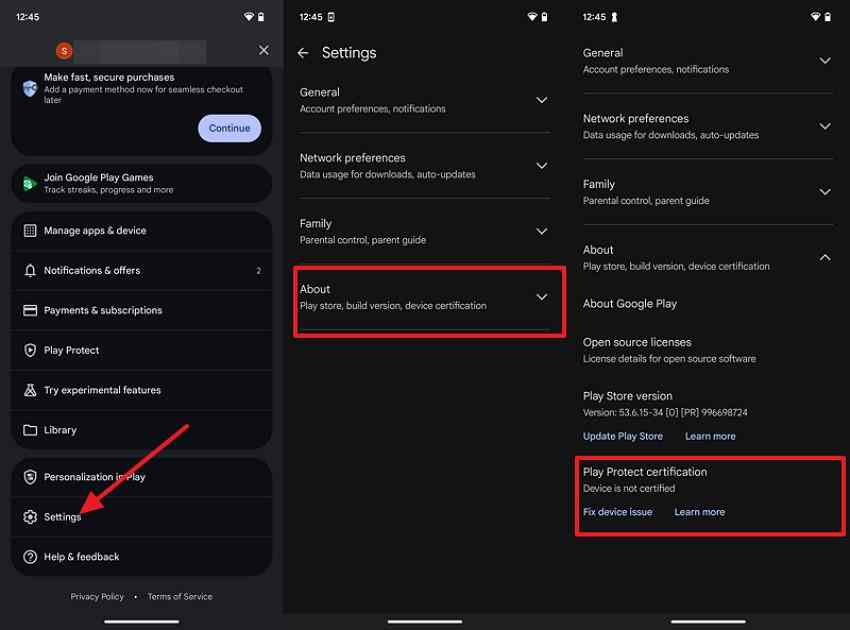
Open the Google Play Store, tap your profile picture, and select Settings > About. Find Play Protect certification. Google explains that certified devices pass Android compatibility testing and are eligible to include licensed Google apps. Certification is different from the Play Protect malware scanner; switching off Play Protect does not resolve a certification error. See Google's certification instructions.
| What you see | What it tells you | Safer next step |
| Device is certified | Google has a record of compatible, licensed device software | Try the supported app and service checks in Part 2 |
| Not certified, but the model is on Google's certified list | Software modification or a device verification issue may be involved | Use Fix device issue if offered or ask the manufacturer about its official firmware |
| Model is not on the certified list | The model has no verified Play Protect certification | Try m.youtube.com in a browser rather than sideloading system packages |
| Play Store is missing | It may be disabled or the device may not ship with licensed Google apps | Check Settings > Apps and the official certified-device list |
A device may be uncertified after rooting, an unlocked bootloader, or a custom ROM. Do not relock or flash firmware just to watch YouTube: those operations can erase data or make a modified phone unusable. If the phone originally came with Google apps but now fails certification, consult its manufacturer before changing system software.
Identify a Disabled Service, Failed Update, or Compatibility Message
Read the exact wording of the YouTube alert. The messages below are practical clues, not a claim that every Android version displays the same text. A technical error code in a Google developer reference is not necessarily a code displayed to a YouTube viewer.
| Message or symptom | Possible condition | First action |
| Enable Google Play services | A preinstalled service may be disabled | Open the Google Play services app information page |
| Update Google Play services | An older supported service version may be installed | Use Google's official update route |
| Google Play services is updating | A service update may still be in progress | Check the network and allow updates to finish |
| Google Play services is missing | The service is not detected or is unavailable | Check app visibility and certification before installing anything |
| Not supported by your device | Certification, software compatibility, or GMS availability may be the issue | Check certification and Android version; use browser playback if unsupported |
If only YouTube fails but other Google apps work, a YouTube update or app-cache problem is possible. If multiple Google apps and the Play Store fail together, start with Play services availability and the store's connection or update state.
Test YouTube in Your Browser Before Changing Android Settings
Step 1. Open an up-to-date browser on the phone and visit m.youtube.com. Play a public video first; sign in only if the content requires it.
Step 2. If the video plays, you can continue watching while checking the YouTube app. If the browser also fails, check your connection, browser updates, restrictions, and whether the video is available in your region.
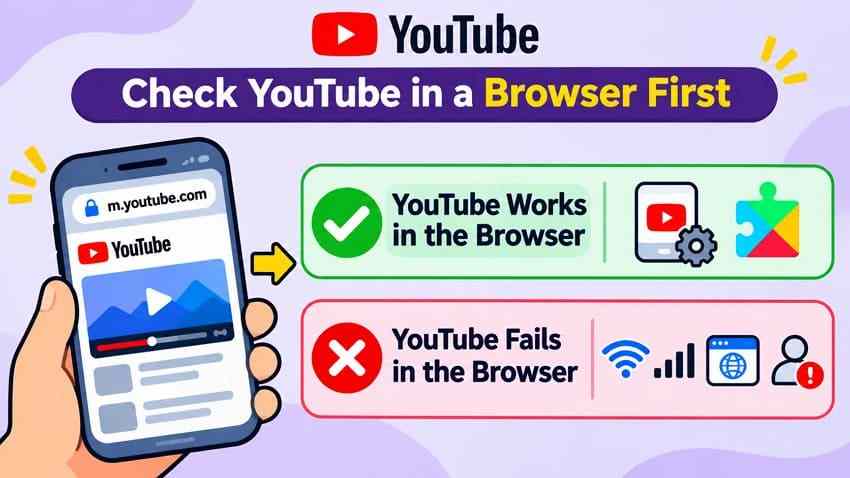
YouTube explicitly recommends its mobile website when an older app is no longer supported. Browser playback may differ from the app in offline downloads, notifications, or other features. See YouTube's supported-device guidance.
Part 2. Fix YouTube Won't Run Without Google Play Services: Safest Steps First
The seven fixes below are for Android phones that originally support Google Play services. Try one at a time, then reopen YouTube and play a video. If the device never shipped with licensed GMS, skip the repair sequence and use the browser alternative instead.
Choose the Lowest-Risk Fix Before Clearing Any Storage
| Fix | Main change | What to check before using it |
| 1. Enable Play services | Turns on a disabled, preinstalled service | Only if Enable appears |
| 2. Update Play services | Updates a Google system component | Certified, compatible device and working connection |
| 3. Update YouTube | Updates the app or Android version | Current YouTube requires Android 9.0+ for installation |
| 4. Clear YouTube cache | Removes temporary app data | Choose Clear cache, not Clear storage |
| 5. Reinstall or remove updates | Replaces or rolls back YouTube app files | May affect app settings and offline downloads |
| 6. Fix Play Store updates | Repairs store update and download problems | Store data clearing can reset preferences |
| 7. Clear Play services cache / storage | First temporary files; later sensitive service data | Storage clearing may affect transit passes, payment cards and sign-ins |
Avoid unofficial Google Play services APK packages, disabling Play Protect, bootloader changes, or a factory reset for this error. Such operations are unnecessary when a normal app update or browser fallback meets the goal.
Fix 1. Enable Google Play Services If It Is Disabled
Use this only if your certified device already includes Google Play services and Android actually offers an Enable control. Most devices do not allow you to uninstall or force stop this component normally.
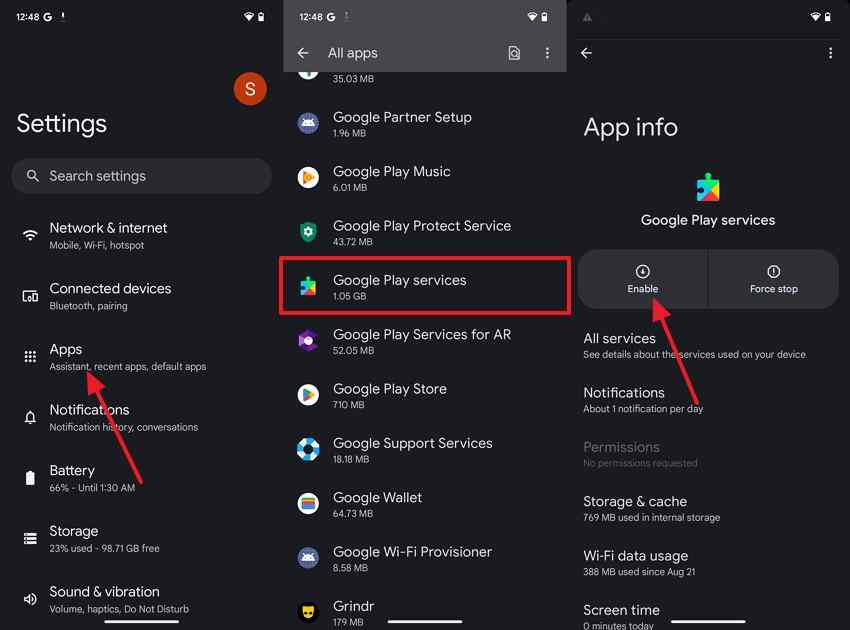
Step 1. Go to Settings > Apps > See all apps (or Manage apps). Locate Google Play services; some phones require Show system apps to display it.
Step 2. Tap Enable if shown. Reopen YouTube and test a video. If the app is already enabled, do not disable it as a troubleshooting experiment; move to the update check instead.
Fix 2. Update Google Play Services Through Official Settings
If the error requests an update, follow the method published in Google Play Help. Menu labels vary by Android build, so an absent option does not necessarily mean you should install an APK manually.
Step 1. Open Settings, find the Google services settings, tap your profile picture if shown, then open All services.
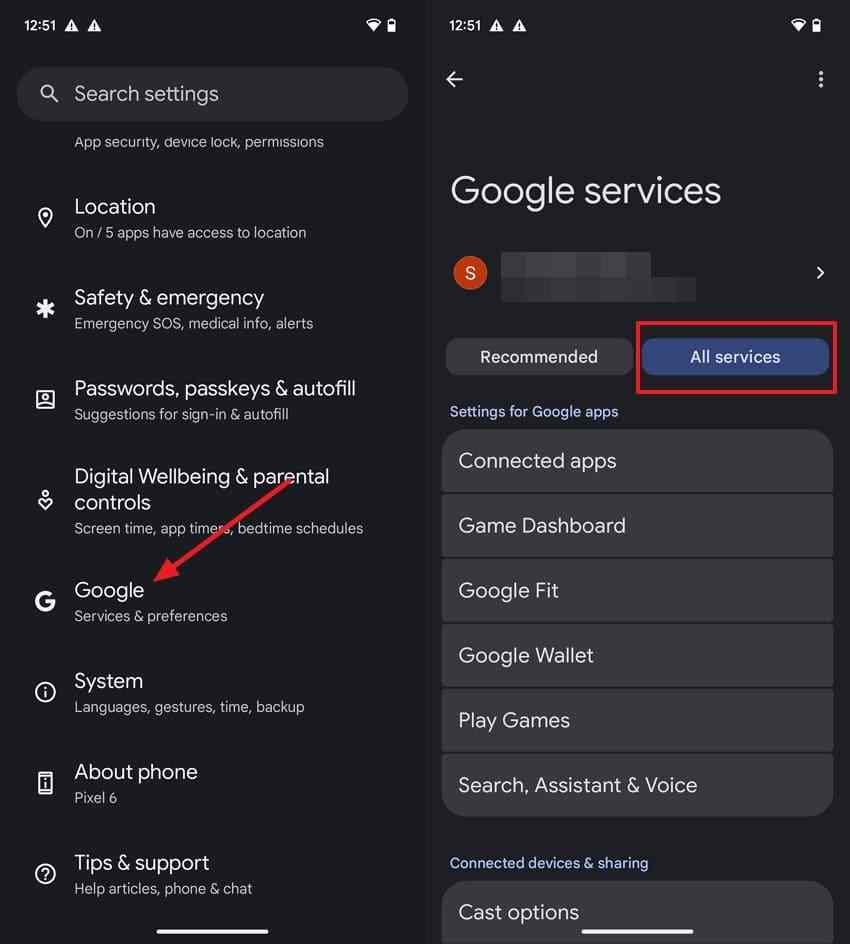
Step 2. Under Privacy & Security, select System services > Google Play services. Tap Update or Install if offered, keep the phone online, and let the operation finish.
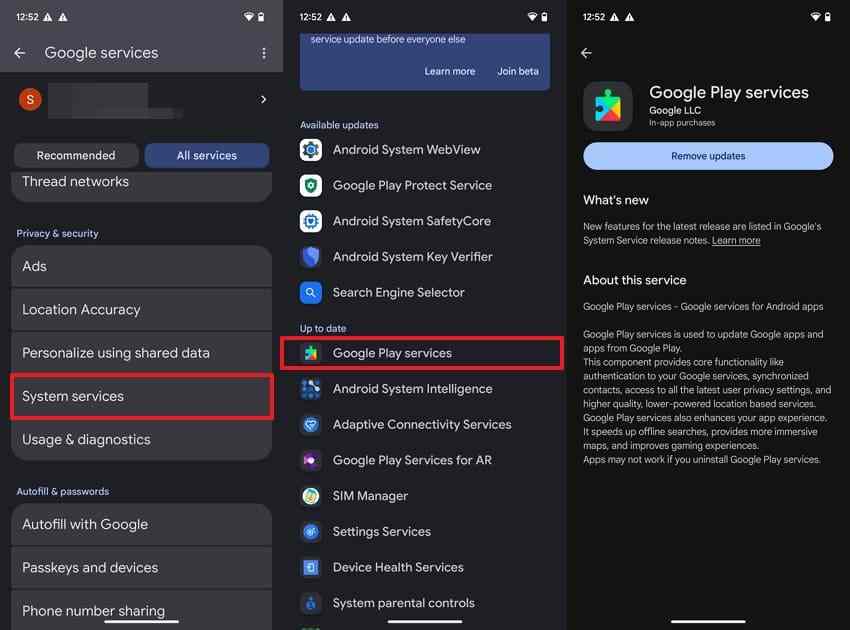
Success check: Reopen YouTube after the update and test a video. If there is no update button or the download remains pending, proceed to the Play Store and connectivity checks in Fix 6. An uncertified phone does not become certified by forcing an unrelated app installation.
Fix 3. Update YouTube and Check Android Compatibility
Google Play services currently supports Android 7.0 or later, but that is not the same as the YouTube app requirement. At the time of this review, YouTube Help says downloading the official Android app requires Android 9.0 or later. Even with a suitable Android version, the Play Store may find a particular device incompatible. Check YouTube's installation requirements before trying to install or update.
| Android and device state | What it means | Recommended route |
| Android 9.0+ and certified | May be eligible for the current official YouTube app | Install or update through Google Play Store |
| Android 7.x or 8.x | Google Play services may run, but the current YouTube app download requirement is higher | Update Android officially if available; otherwise use the browser |
| Older than Android 7.0 | Does not meet Google's current Play services support requirement | Use a compatible browser or a supported device |
| Android 9.0+ but GMS is not licensed or device not certified | Android version alone does not establish GMS compatibility | Check Google certification or use browser playback |
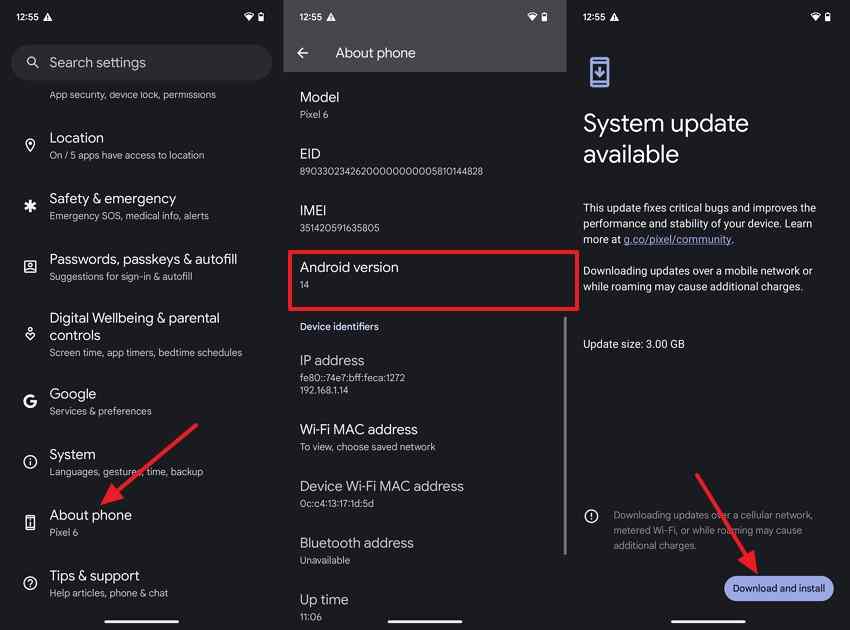
Step 1. Open Settings > About phone > Android version (the path varies). If your manufacturer offers an official system update, review its requirements before installing it.
Step 2. Open the Google Play Store > Profile > Manage apps & device. Under available updates, find YouTube and select Update. Alternatively, open the official YouTube store listing.
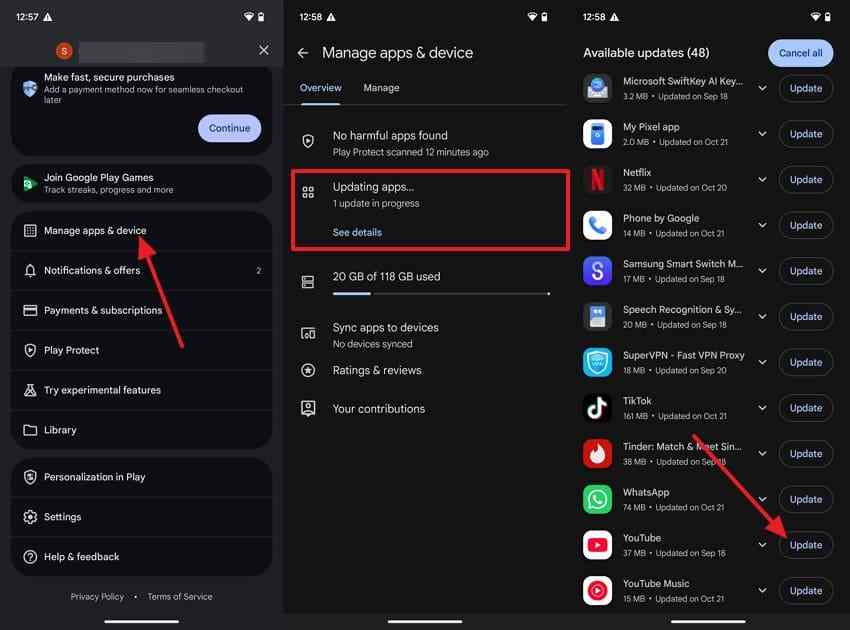
If the store says the app is not compatible or you cannot install a newer Android version, stop trying older or modified APKs. Use the supported mobile website instead.
Fix 4. Clear the YouTube App Cache, Not Its Storage
A temporary cache problem can affect app loading on an otherwise compatible device. Clearing cache is a narrower action than clearing storage or uninstalling YouTube.
Step 1. Go to Settings > Apps > YouTube > Storage & cache. Some manufacturers show simply Storage.
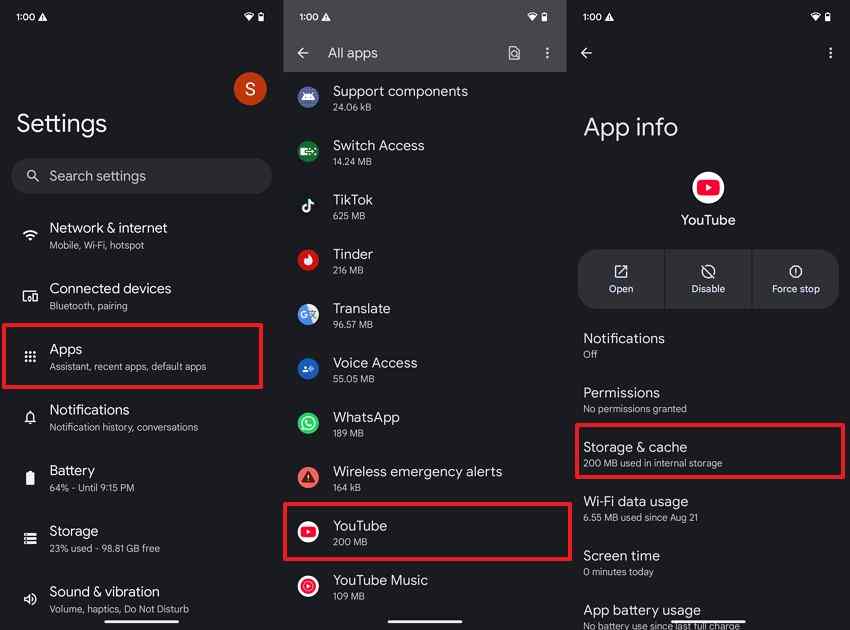
Step 2. Select Clear cache. Reopen YouTube and test playback.
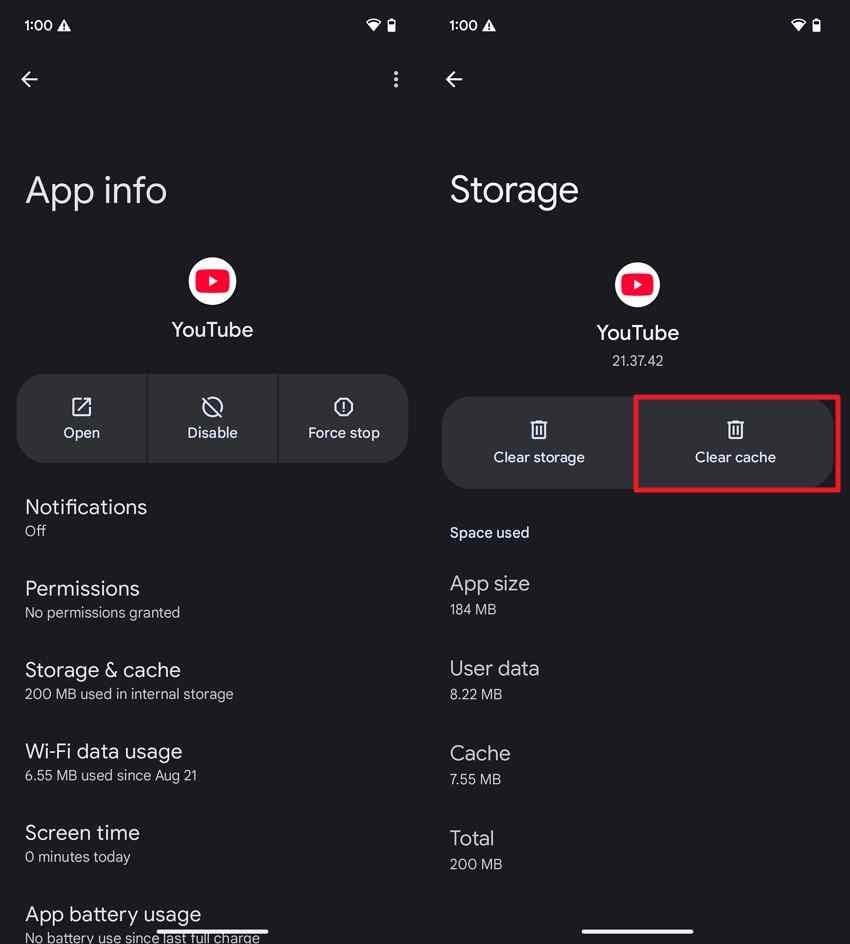
If it fails: Do not choose Clear storage merely because the cache step did not help. Storage clearing may reset the app and affect downloaded offline videos; use the supported update and reinstall paths only when warranted.
Fix 5. Reinstall YouTube or Remove Its Updates
If YouTube still fails on a supported phone after updates and cache clearing, replacing app files may help. Check whether the app was preinstalled: many phones allow only its updates to be removed, not the system copy.
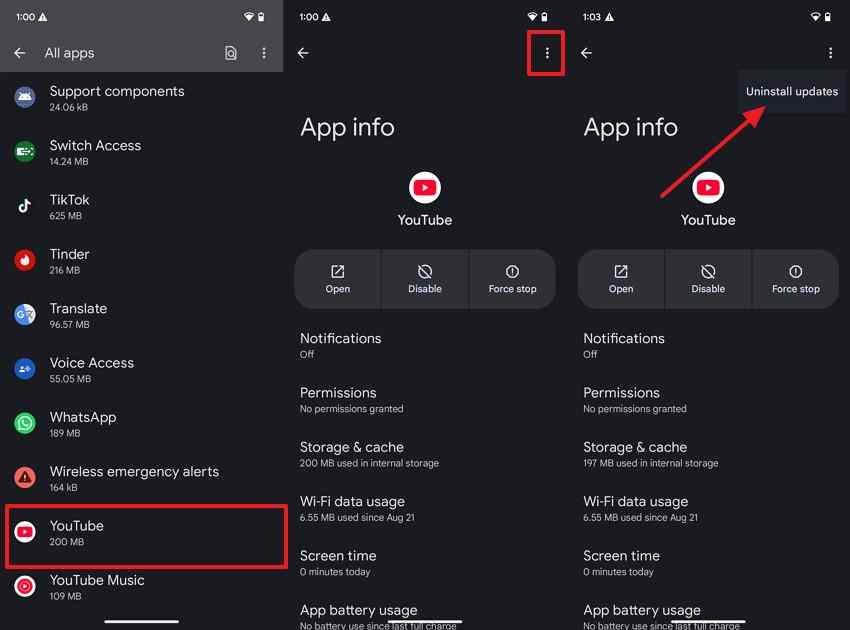
Step 1. Open Settings > Apps > YouTube. If an app menu offers Uninstall updates, use it only after checking important YouTube downloads and settings.
Step 2. For an app that can be removed, open its official Play Store listing and choose Uninstall. On preinstalled copies, this may remove only app updates.
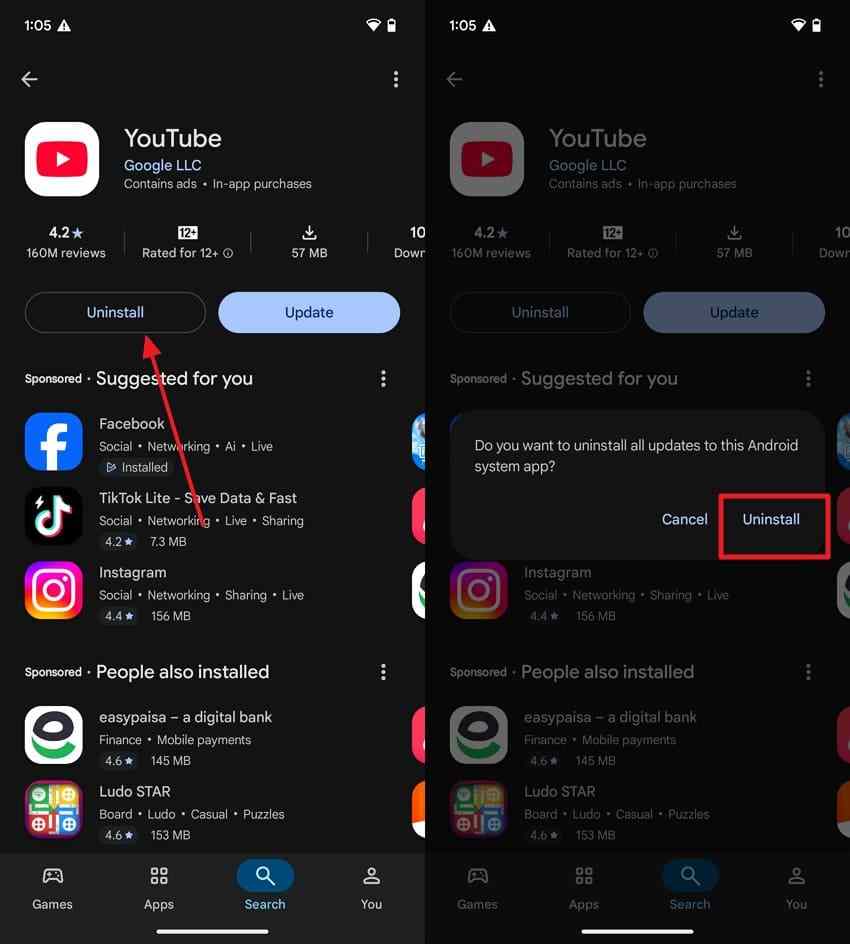
Step 3. Restart the phone, return to the official Play Store listing, and tap Install or Update. Sign in if needed and play a test video.
Before you proceed: An uninstall or app reset may remove local offline downloads or require you to restore preferences. If the store reports an unsupported Android version, the same installation will not fix that compatibility limit.
Fix 6. Resolve Google Play Store Update Problems
Choose this path if YouTube or Play services updates are stuck, queued indefinitely, or failing to download. Fix the underlying connection or Play Store problem before considering changes to Google accounts or Google Play services storage.
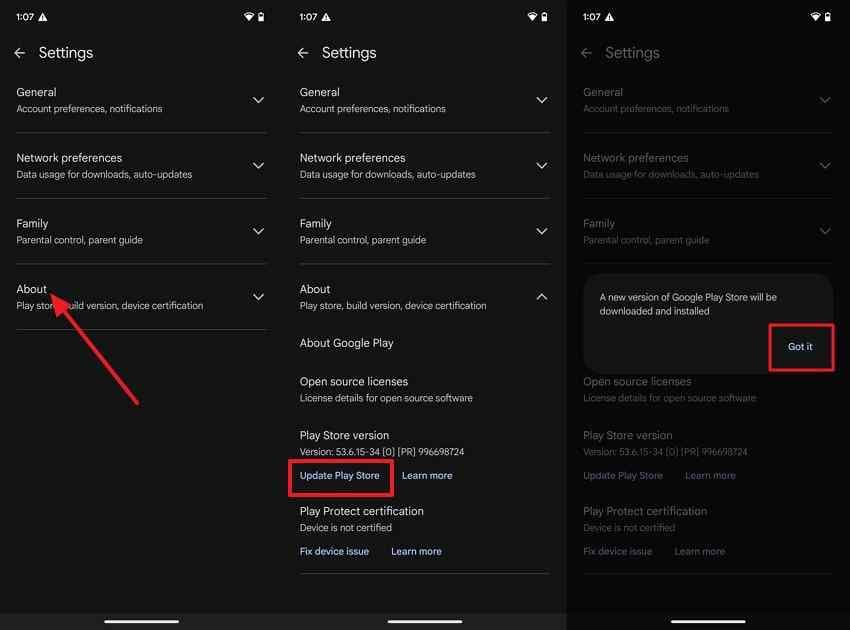
Step 1. Open Play Store > Profile > Settings > About and tap Update Play Store, if offered. Reopen the store after it finishes.
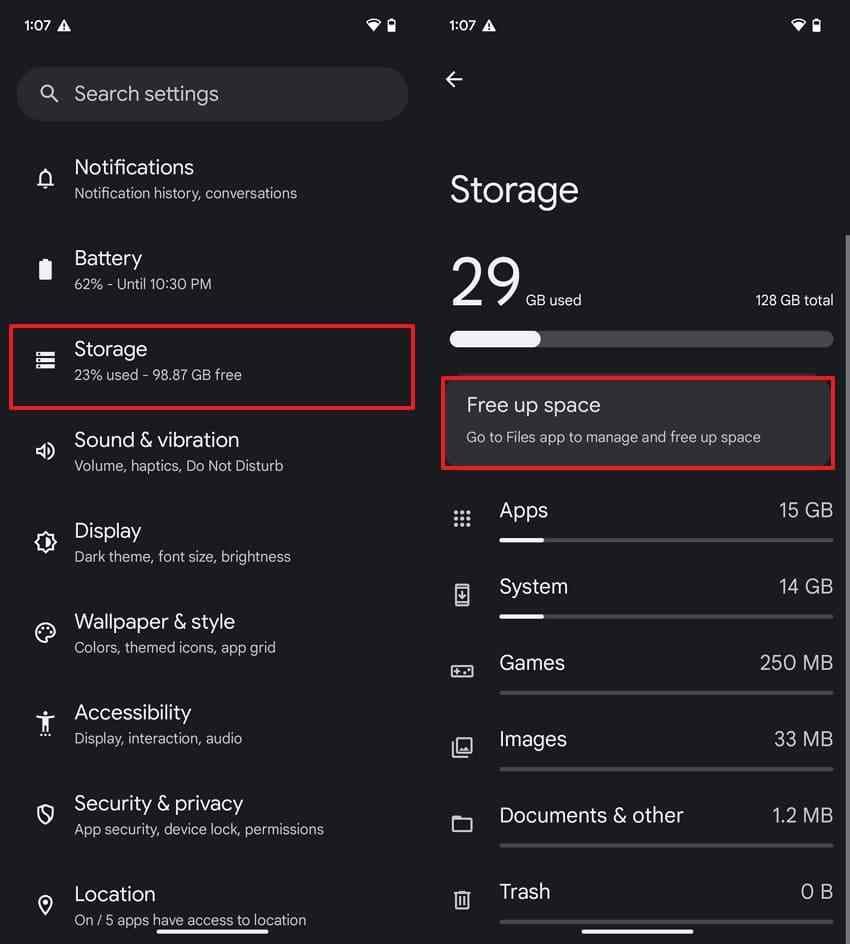
Step 2. Check that Wi-Fi or mobile data works, that the phone has sufficient free storage, and that automatic date and time are enabled. Restart the phone and try the YouTube update again.
Step 3. If downloads remain stuck, open Settings > Apps > Google Play Store > Storage & cache and try Clear cache first. Google also documents clearing store storage, but doing so can reset preferences such as parental controls or password protection.
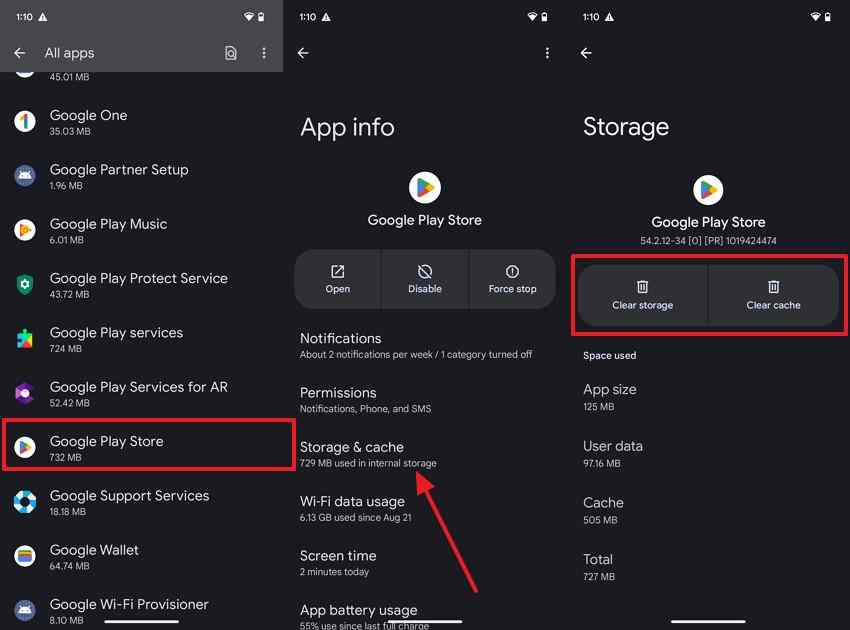
Note: The storage screen may show both Clear cache and Clear storage. Choose Clear cache first; clearing storage is a broader reset that can remove Play Store preferences.
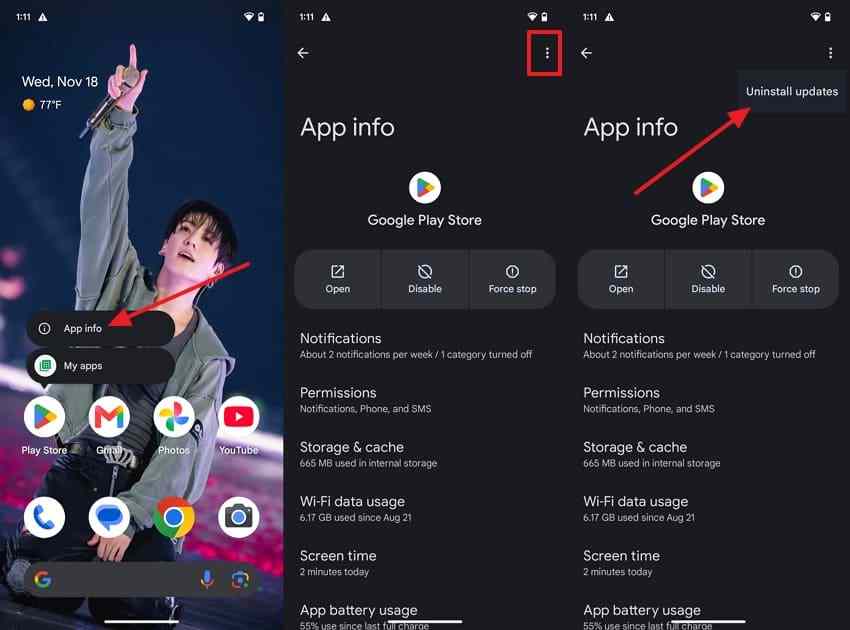
Step 4. If the store version itself appears stuck, check App info > More > Uninstall updates when that option exists, then return to Play Store > Settings > About to update it officially.
Google lists additional steps in its Play Store troubleshooting guide. Removing and re-adding your Google account is not a routine fix for this YouTube error: it can remove locally synchronized information and should only be considered for a diagnosed sign-in issue after safeguarding important account data.
Fix 7. Clear Google Play Services Cache; Clear Storage Only as a Last Resort
Only consider this on a compatible, certified device after the simpler fixes have failed. Google specifically warns that clearing Google Play services storage may delete passwords, transit cards, COVID cards, or virtual payment cards, and may require you to sign into your Google Account again or reauthenticate payment methods. Some transit passes cannot be restored once removed. If these items matter to you, confirm recovery options with your payment or transit provider before proceeding.
Step 1. Open Settings > Apps > Google Play services > Storage & cache. Choose Clear cache, then test YouTube again. Stop here if it works.
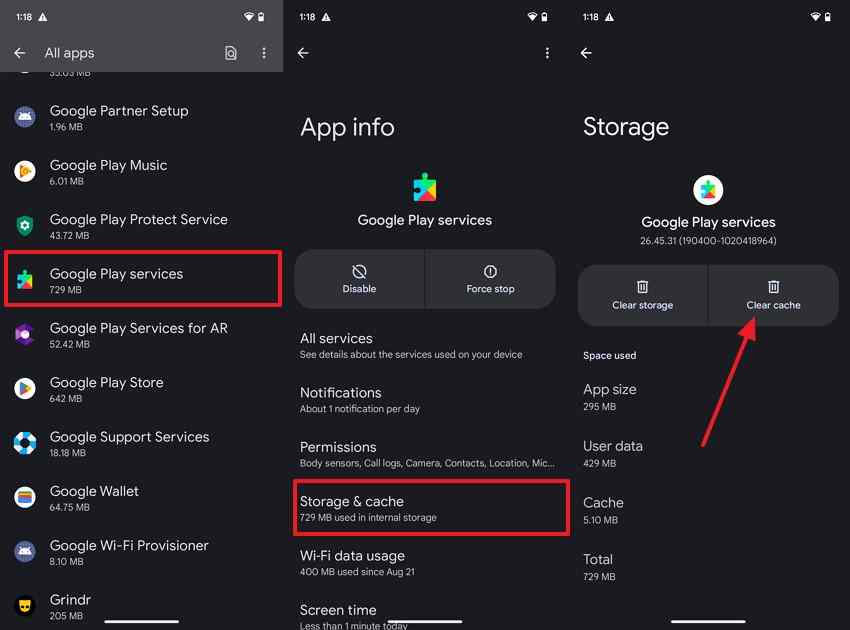
Step 2. Only if all other supported checks fail and you accept the data risks, open Clear storage > Clear all data (or Manage storage, depending on your device). Read the confirmation carefully before choosing Delete.
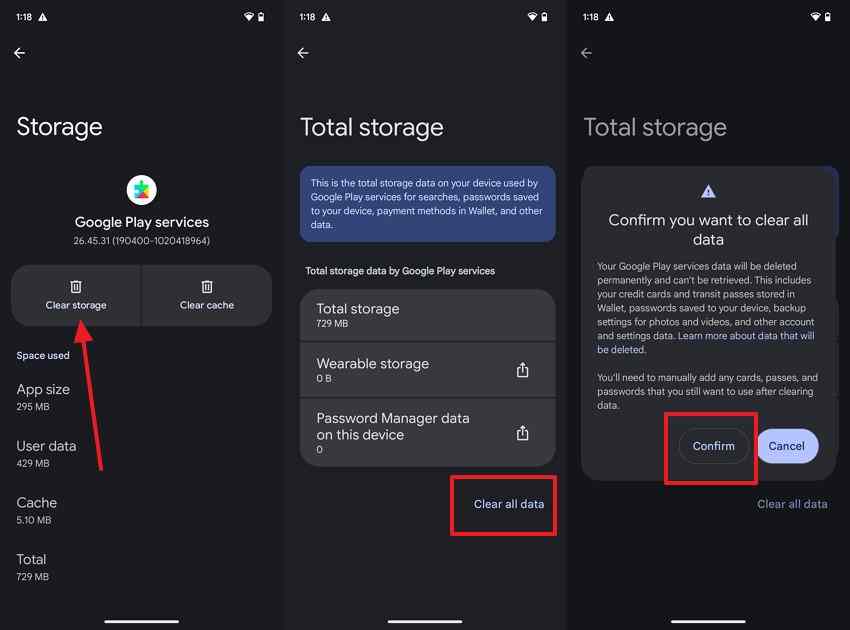
What to expect: You may need to sign in again or reconnect payment methods. This step is not guaranteed to fix YouTube and cannot make an uncertified device officially GMS-compatible. Read the Google Play services data warning and Google Wallet transit pass guidance before continuing.
Alternative: Use YouTube in a Browser on Devices Without GMS
If your phone never shipped with licensed Google Mobile Services, the official Android app may not work with that software configuration. Open the YouTube mobile website in a compatible browser instead. This also helps on Android versions that no longer meet the app's requirements.
Step 1. Open your browser and visit m.youtube.com. Play a public video; if it works, you have a viewing option without changing system software.
Step 2. If you want subscriptions or your watch history, sign in through the official website. Available features may differ from the Android app; browser sign-in does not install Google Play services on your device.
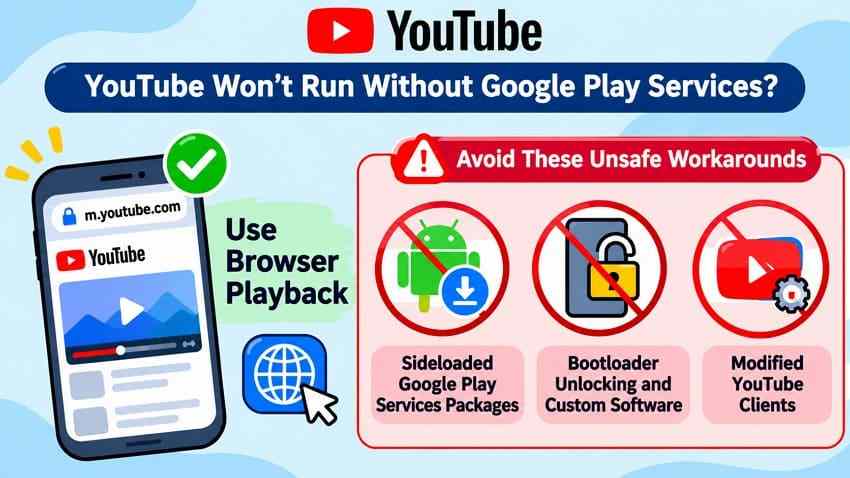
Avoid installing unknown Play services packages, unofficial patched YouTube apps, or flashing a custom ROM solely to bypass this warning. Sideloaded Google packages cannot by themselves provide manufacturer licensing or Play Protect certification. If the phone was previously certified and now shows a certification alert, use Google's device-fix process or contact its manufacturer.
If YouTube also fails in a working browser despite a stable connection, the issue may be general playback rather than Google Play services. Check YouTube videos not playing troubleshooting for that separate situation.
Conclusion
When YouTube won't run without Google Play services, the first question is whether your Android device officially supports Google apps. On a certified phone, check Play services availability, update Play services and YouTube, and clear only the YouTube cache before trying app reinstallation or Play Store troubleshooting. Clear Play services storage only after understanding the possible loss of payment credentials and transit passes.
If your device is uncertified, lacks licensed GMS, or cannot run the current YouTube app, use the mobile YouTube website when supported instead of risky system modifications. Successful playback in the browser is a valid solution; you do not need to change the phone to solve a viewing problem.
FAQ
-
Can I use YouTube without Google Play Services?
Yes. If the mobile browser on your device is compatible, visit m.youtube.com to watch videos. The official YouTube Android app may require Google Play services on GMS-supported devices, but browser playback does not require installing the Android app. -
Why does YouTube show the Play services error even when it is installed?
The service might be disabled, outdated, or unable to complete an update. Device certification and YouTube app compatibility can also cause problems. Check the exact alert, Play Protect certification, and the app version before clearing any storage. -
Can I safely install Google Play Services on a phone that shipped without GMS?
Installing an APK does not grant a manufacturer a Google Mobile Services license or make the phone Play Protect certified. Unofficial packages may be incompatible or unsafe. Use YouTube in a browser, or contact the device manufacturer for supported software options. -
What might happen if I clear Google Play Services storage?
Google warns that stored passwords, transit passes, COVID cards, and virtual payment cards may be removed. You may need to sign in again and reauthenticate payment methods. Some transit passes cannot be restored, so review those items and provider guidance before choosing Clear all data.


