


 TL;DR:
You can recover a lost Loom video by immediately checking the Loom Trash folder before the 30-day retention period expires, or by scanning your computer for temporary local recording files using data recovery software if the desktop app was used.
● Loom permanently removes deleted videos from the Trash folder after exactly 30 days, making native account restoration impossible beyond this time window.
● If a video is inaccessible due to workspace changes or account issues, search your email, messaging apps, or browser history for the original "loom.com" shared link, as the video may still load and allow manual duplication.
● Local data recovery using tools like Recoverit is only viable if the recording generated temporary local files on your device prior to cloud upload and those files have not yet been overwritten by new system data.
Ask AI for a summary
 ChatGPT
 Perplexity
 Gemini
 Claude
 Grok
Grok
Loom is one of the most popular tools for screen recording and quick video communication. Professionals, teachers, students, and content creators use it every day. It helps people explain ideas clearly without scheduling meetings. Instead of writing long emails, users can record their screen and speak naturally.
However, losing an important recording can be stressful. A video may be deleted by mistake, removed from a workspace, or become inaccessible due to account issues. This is where Loom recovery becomes important.
Many users search for how to recover lost Loom videos after facing such problems. To solve the issue correctly, it is also necessary to understand why Loom videos lost and how to prevent such situations in the future.
Part 1: What is Loom?

Loom is a video messaging and screen recording platform designed for simple and fast communication. It allows users to record their screen, camera, or both at the same time. Once recorded, the video is uploaded to the cloud, and a shareable link is created instantly. This process removes the need for large attachments or complicated file transfers.
Many people often ask what Loom is used for. It is commonly used for business updates, software demonstrations, onboarding training, classroom explanations, product walkthroughs, and customer support. New users also want to understand how to use Loom because the platform is simple. After installing the extension or app, you select your recording option, press record, and begin speaking. The recording is saved automatically in your account.
Key Features of Loom
- Screen recording: Record the full screen, a specific window, or a custom area.
- Camera overlay: Display your webcam video alongside the screen recording.
- Instant sharing link: Every recording generates a ready-to-share URL.
- Cloud storage: Videos are saved securely online in your account.
- Basic editing: Trim unwanted sections after recording.
- Folder organization: Group videos into workspaces and folders.
- Viewer tracking: Check who has watched the video.
- Cross-platform access: Available on browser, desktop, and mobile devices.
Understanding these features helps users avoid confusion and reduces the risk of accidental deletion.
Part 2: Common Reasons Why Loom Videos Are Lost
Before starting Loom recovery, it is important to understand what causes the issue. In many cases, the video is not permanently gone. It may be hidden, moved, or temporarily unavailable. When users search why Loom videos lost, they usually discover that the problem is linked to account changes or accidental deletion.
Below are the most common reasons:
- Accidental deletion: A user may remove a video while organizing folders.
- Trash folder expiration: Deleted videos remain in the trash for only 30 days.
- Workspace access removal: Leaving or being removed from a team workspace can restrict access.
- Account email change: Switching accounts may make older videos invisible.
- Subscription downgrade: Storage limits may lead to older content removal.
- Upload interruption: A poor internet connection may prevent full upload.
- Link modification: Edited or incomplete links may fail to open.
- Browser or extension errors: Cache issues or disabled extensions may block video access.
When users understand these causes, they can choose the correct solution to recover Loom videos.
Part 3: How to Recover Lost Loom Videos
If you are unable to find a recording, do not panic. There are several practical solutions available. The correct method depends on how the loss occurred. This section explains step by step how to recover lost Loom videos using different approaches.
Method 1: Use Recoverit Data Recovery Software

Recoverit can help when a Loom recording was saved locally before it was uploaded to the cloud. In some cases, temporary video files are stored on your computer during recording. If those files were deleted, they may still be recoverable as long as they have not been overwritten by new data. This method is useful when the problem is related to your device, not your online account.
Install Recoverit and select the drive where the Loom recording may have been stored. Run a deep scan and wait for the process to complete fully. Preview the recovered files carefully to identify the correct video. Always save the recovered file to a different drive to prevent data overwriting.
Step 1:Install Recoverit on your computer. Select the drive where Loom recordings were saved. Start a deep scan.

Step 2:Preview the detected video files.

Step 3:
Select the correct file and save it to a different storage location.

Method 2: Check the Loom Trash Folder
Loom keeps deleted videos in the Trash folder for 30 days. Many users forget about this feature and assume the video is permanently deleted. In most cases, recently removed recordings can be restored easily from this folder without using external tools.
Log in to your account and open the Trash section from the dashboard. Locate the missing video and select the Restore option. Once restored, the video will return to your main library and can be accessed or downloaded normally.
Step 1: Log in to your Loom account. Navigate to the Trash folder in your dashboard.
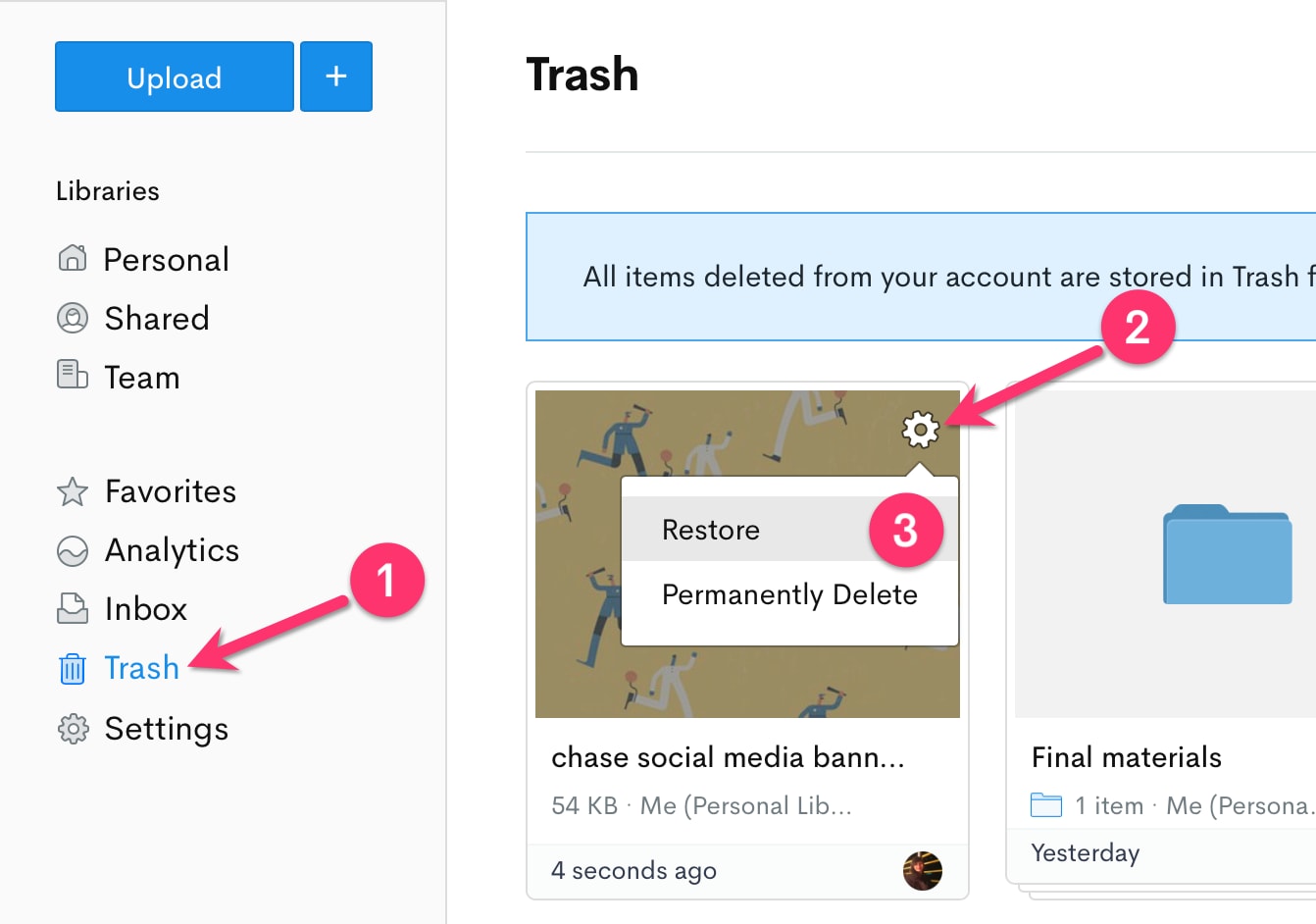
Step 2: Select the deleted video and click Restore. The file will return to your main library.
Method 3: Verify if the Video Was Shared via a link
Sometimes the video is still active, but you no longer see it inside your dashboard. If you shared the recording through email or messaging apps, the original link may still be working. This method is simple and often successful for shared content.
Search your email inbox, team chats, or messaging platforms for past Loom links. Use keywords such as the video title or recording date. Once you find the link, open it and confirm whether the video loads. If it does, download or duplicate it immediately to secure a copy.
Step 1: Open your email or chat platform. Search using keywords such as Loom or the video title.
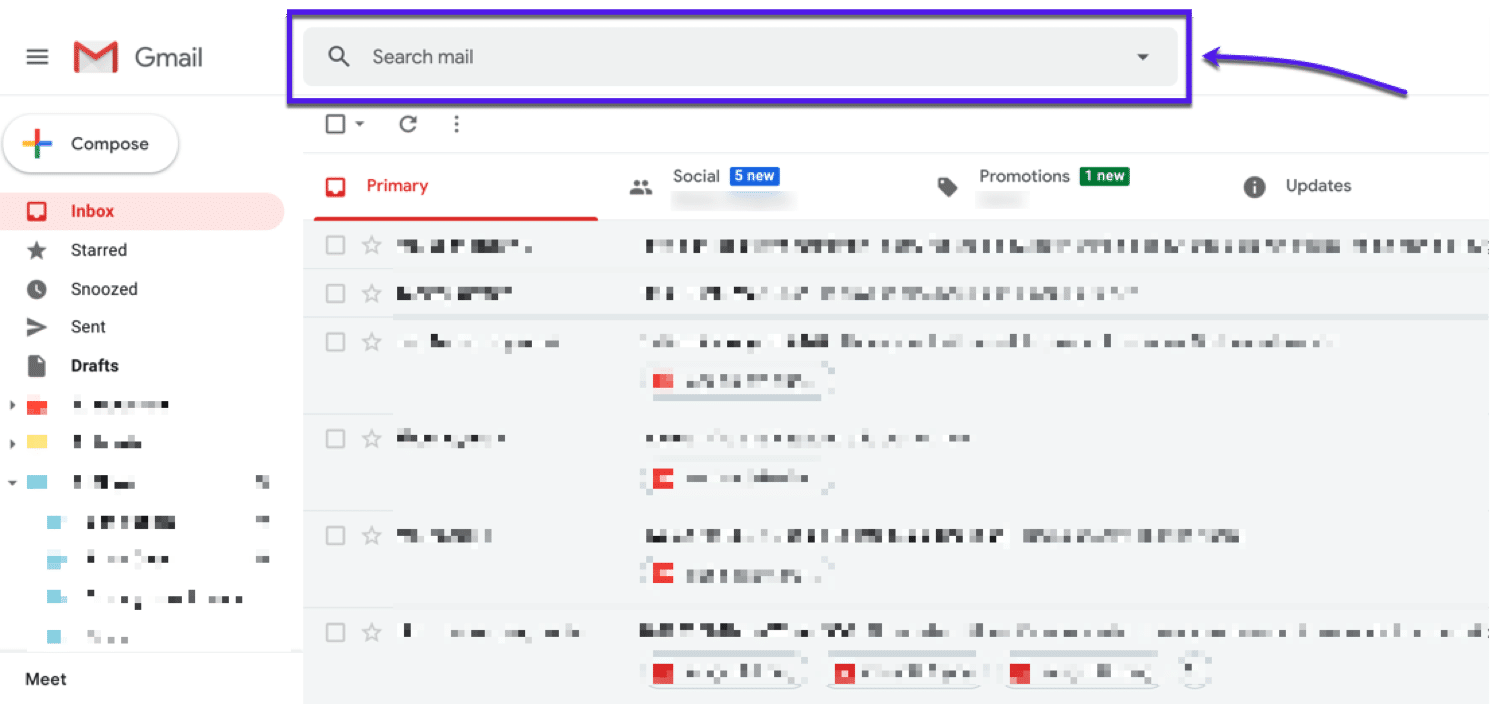
Step 2: Click the old link. If it opens, download or duplicate the video immediately.
This method is often effective and does not require technical tools.
Method 4: Check Browser Cache or History for Loom Video Links
Your web browser stores visited links and temporary data. If you accessed the video recently, its URL may still appear in your browsing history. This can help you retrieve the direct link even if it is missing from your account view.
Open your browser history and search for loom.com entries from the date you recorded or viewed the video. Click the relevant link and check whether it opens successfully. If the video loads, save the link and download the content as soon as possible.
Step 1: Open the browser history and search for loom.com results from the relevant date.
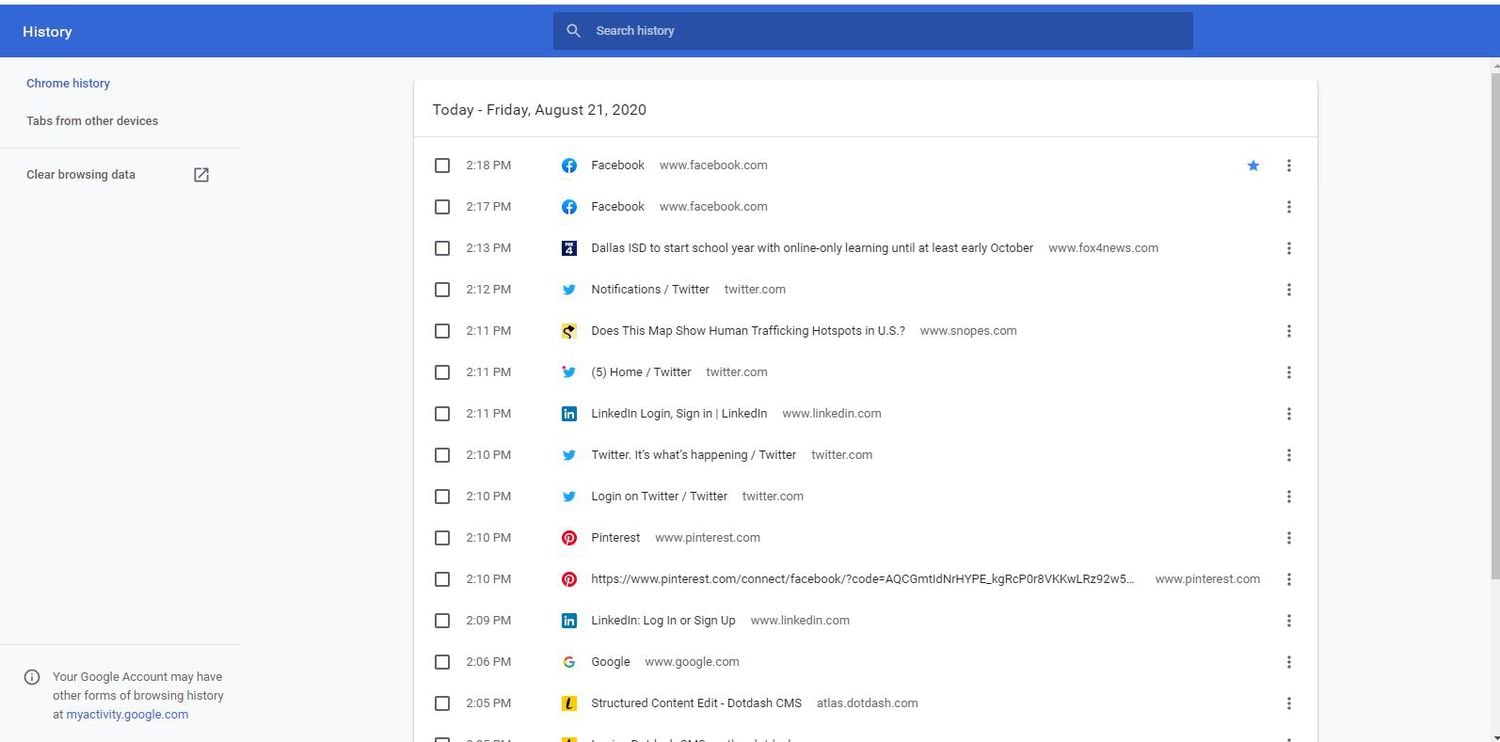
Step 2: Click the found link and verify whether the video loads.
Method 5: Restore from Cloud Backups
If you previously downloaded the recording, it may exist in your cloud storage. Many users sync their downloads automatically with online storage platforms. This method works well when you keep regular backups of important files.
Sign in to your cloud storage account and search using the video name, extension, or recording date. Check folders such as Downloads or Backup. Once found, download the file again and store it securely on your device. Consider keeping both a local and cloud copy for safety.
Step 1: Log in to your cloud account. Use search filters to locate the video by name or date.
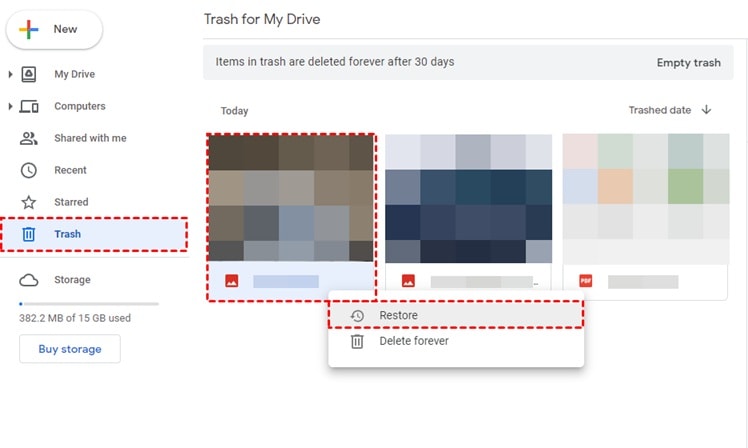
Step 2: Download and store the file safely on your device.
Method 6: Contact Loom Support
If the issue is related to account changes, workspace access, or subscription limits, contacting support may help. In some cases, the video may still exist in backend systems even if it is not visible to you. Clear and accurate information increases your chances of assistance.
Visit the official Help Center and submit a support request. Provide your account email, approximate recording date, video title, and workspace name. Wait for the response and follow any instructions provided by the support team.
Step 1: Visit the Help Center and submit a recovery request.
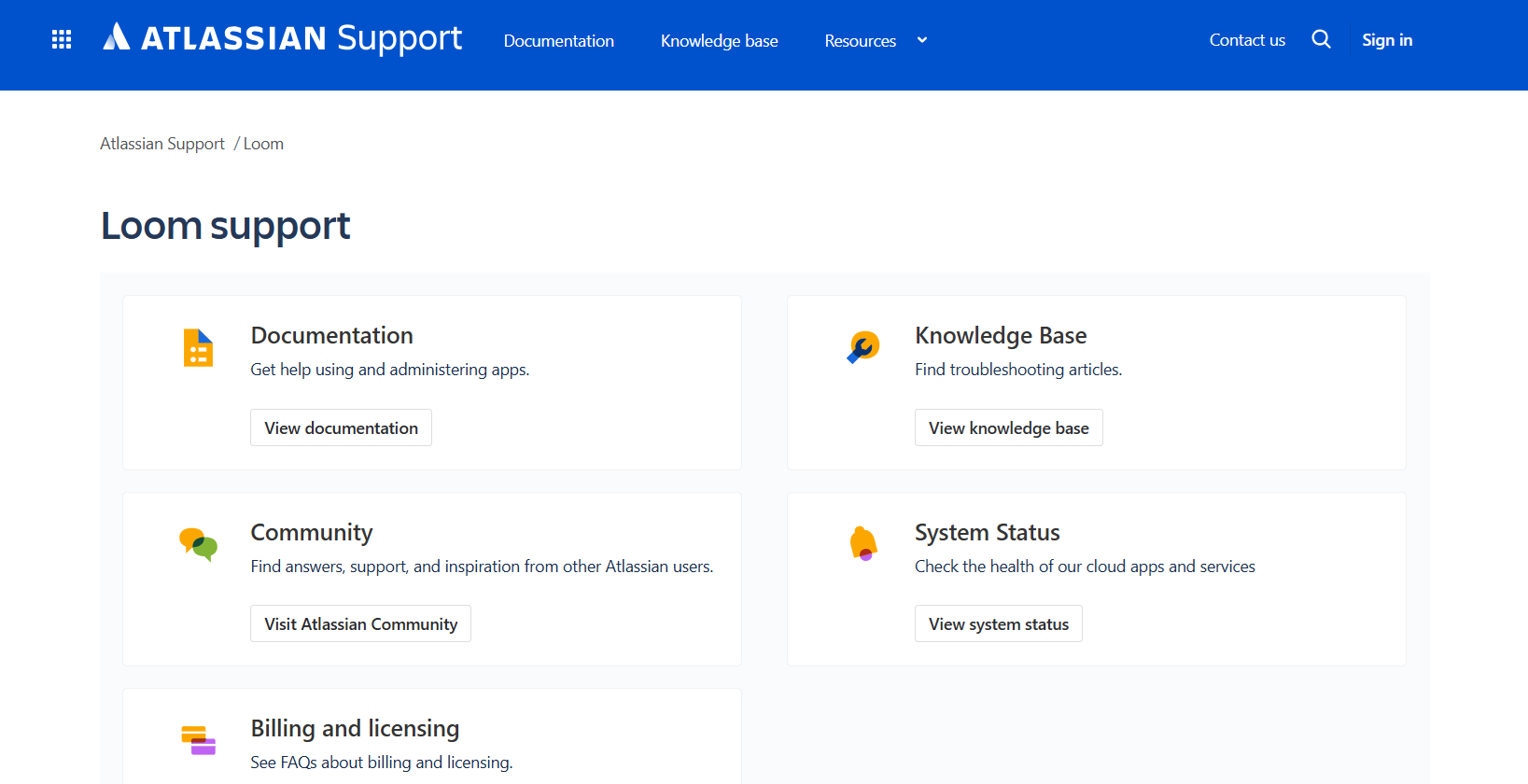
Step 2: Include the video title, recording date, and account email.
Part 4: Smart Ways to Prevent Loom Video Loss
Learning prevention strategies reduces the need for Loom recovery later. Many cases occur due to simple oversight. By following structured habits, users can protect their recordings effectively.
- Download important videos: Always keep an offline copy of critical recordings.
- Enable cloud backup: Sync videos with reliable storage services.
- Review trash periodically: Restore needed videos before 30 days expire.
- Maintain account consistency: Avoid switching between multiple email accounts.
- Monitor storage limits: Upgrade your plan if nearing space limits.
- Check upload completion: Wait until the upload process finishes completely.
- Organize folders properly: Clear labeling prevents accidental deletion.
- Maintain strong passwords: Protect account access from unauthorized changes.
These measures help prevent situations where users search for why Loom videos lost unexpectedly.
Part 5: Pro Tips for Loom Recovery
Acting quickly improves recovery chances. Deleted data becomes harder to restore over time. Careful handling also prevents further loss.
- Stop using the affected device: If you believe a Loom recording was deleted from your local system, stop using that device immediately. Continued use may overwrite the deleted file, which reduces the chance of recovery. Avoid installing new software or saving large files until recovery is complete.
- Check trash first: Always begin with the simplest step. Open the Loom Trash folder and look carefully before trying advanced tools. Many videos are still there and can be restored in seconds.
- Keep shared links saved: Maintain a separate document or spreadsheet where you store important Loom links. This ensures that even if the video disappears from your dashboard view, you may still access it through the saved URL.
- Record dates and titles: Keep a small log of major recordings, including the title and date. This information is very useful when searching your email, browser history, or when submitting a support request.
- Use a stable internet: A weak or unstable connection can interrupt uploads. Always wait until the upload is fully completed and confirmed. This prevents missing or partially saved videos.
- Avoid repeated deletions: Review carefully before confirming permanent deletion. Sometimes users delete files while cleaning up storage without checking their importance.
These actions make it easier to recover Loom videos if something goes wrong.
Conclusion
Loom is a powerful communication tool that simplifies video messaging. It saves time and improves clarity in professional and educational environments. However, accidental deletion, account changes, and storage limits can lead to missing recordings.
Understanding Loom recovery methods ensures that lost content is not always permanent. By learning how to recover lost Loom videos and applying preventive steps, users can protect their recordings effectively. Careful account management and regular backups are the safest long-term solutions.
FAQs
-
Can I recover permanently deleted Loom videos?
If a video has been removed from the trash folder after 30 days, recovery is usually very difficult. Loom permanently deletes videos after the retention period ends. In this situation, you can contact support and provide full details about the video. You should also check whether you saved a copy on your computer or in a cloud backup service. -
How long do deleted Loom videos stay in the trash?
Deleted videos remain in the Loom trash folder for 30 days. During this time, you can restore them with one click. After 30 days, the system permanently removes the video from your account, and normal restoration is no longer possible. -
Does Loom store videos locally on my computer?
Loom mainly stores recordings in the cloud under your account. However, temporary local files may be created while recording, especially when using the desktop application. These files are usually removed after upload, but in some cases, they may still exist on your device for a short time.


