

 TL;DR:
To send your DJI drone to specific GPS coordinates, secure a strong outdoor satellite lock, open the DJI Fly app map view, and either tap and hold to drop a pin or manually enter the latitude and longitude before tapping the Go To command.
● Supported on most consumer models but potentially absent on older or toy drones, this feature requires you to cache map tiles prior to your flight if operating in areas without internet access.
● You can halt the automated navigation and immediately resume manual control at any point by manipulating the controller sticks or pressing the stop button within the application.
● In the event of SD card corruption or accidental formatting, you can utilize the Recoverit software on Windows or Mac to run deep scans and restore lost flight logs or drone footage to an alternate drive.
Ask AI for a summary
 ChatGPT
 Perplexity
 Gemini
 Claude
 Grok
Grok
Do you want a drone to fly to a specific spot on a map? Many pilots do. They want the drone to reach a known point using GPS. This guide shows how to do that with the DJI Fly app. It keeps the steps clear and safe.
This article explains Drone geolocation. It explains what coordinate system do DJI drones use. It shows how to fly to GPS coordinates? It also covers file recovery with Recoverit. You get tips for safe GPS navigation. You get answers to common questions at the end.
Table of Contents
Part 1: What is Drone Geolocation?
Drone geolocation is the act of finding where a drone sits on the Earth. The drone gets location from satellites. The most common system is GPS. The drone uses the signal to hold position and to follow a path. Drone geolocation links the aircraft to a map point.
Pilots use this data for many tasks. They use it for mapping and for inspections. They use it for search and rescue and for simple travel. Strong satellite signals make Drone geolocation work well. If the signal drops, the drone may drift. Always watch the signal before you fly.
Part 2: What Coordinate System Do DJI Drones Use?
When you ask what coordinate system do DJI drones use, the short answer is latitude and longitude. This pair of numbers marks a place on Earth. Latitude shows north or south. Longitude shows east or west. The DJI Fly app displays these coordinates on the map.
DJI drones often use GPS and other satellite systems to get these numbers. The drone fuses the data to get a steady position. If you work with other mapping tools, you will use the same coordinates. That makes it easy to move points between maps and the DJI app.
Part 3: How to Execute “Go To” GPS Coordinates in the DJI Fly App?
This part answers how to fly to GPS coordinates. The DJI Fly app gives a map view and simple controls. Many models let you set a point and send the drone there.
Follow each step and keep safety in mind. Below are clear steps you can follow now.
Step 1. Enable GPS and Ensure a Strong Signal
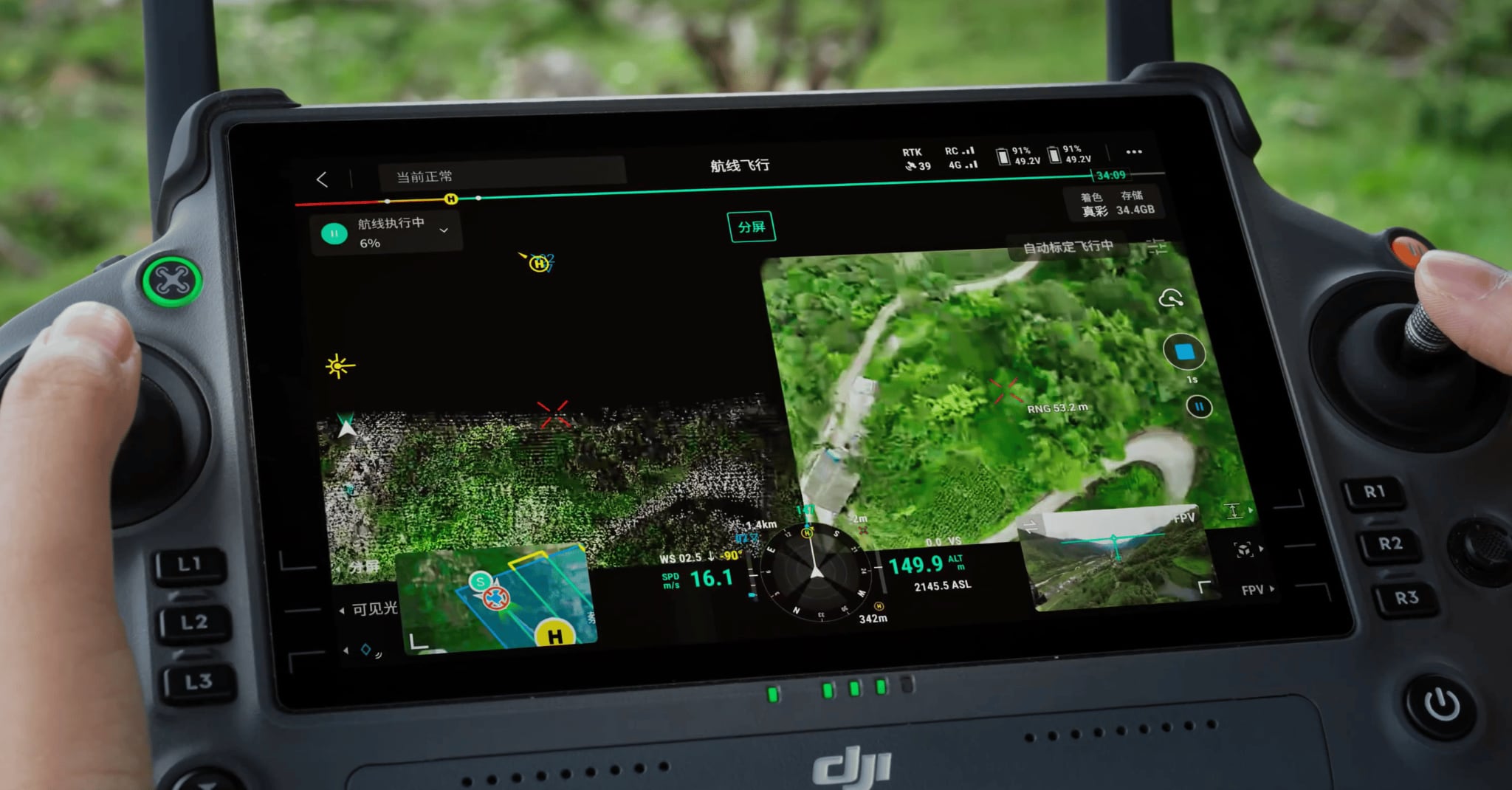
Start outdoors in a clear place. Avoid heavy tree cover and tall buildings. These block satellite signals. Power on the drone and the controller. Wait until the app shows a strong GPS lock. The app usually shows the number of satellites. Do not fly until the lock is good. A strong lock keeps the drone steady and helps the Drone's geolocation work correctly.
Step 2. Open the DJI Fly App and Connect the Drone
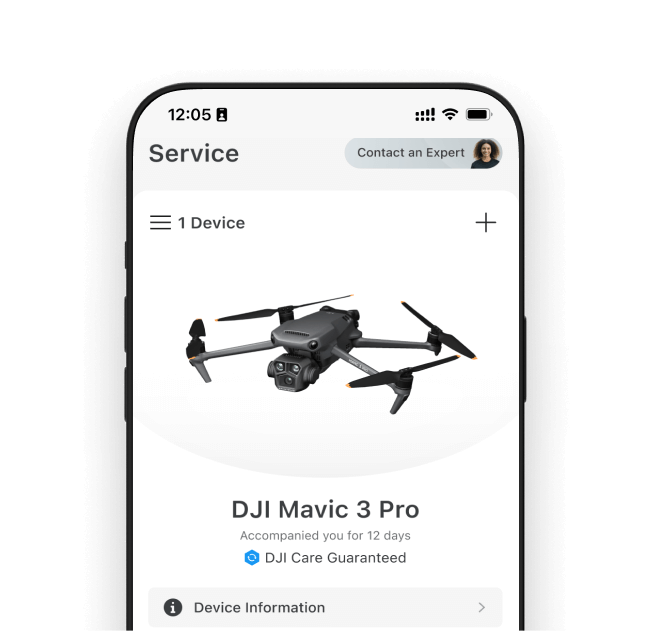
Open the DJI Fly app on your phone or tablet. Connect the remote to your device. Turn the drone on. The app should show a live camera view and status bars. Confirm battery levels, GPS strength, and compass health. If anything looks wrong, fix it before take off. The app will display the home point once the drone gets a stable GPS signal.
Step 3. Access the Map View
Tap the map area on the app screen. This expands the map to full screen. The map shows your current position and the home point. It also may show satellite imagery or basic map tiles. Zoom in to the area where you want to set a point. Use two fingers to zoom. The map helps you judge distance and hazards.
Step 4. Tap and Hold to Drop a Pin
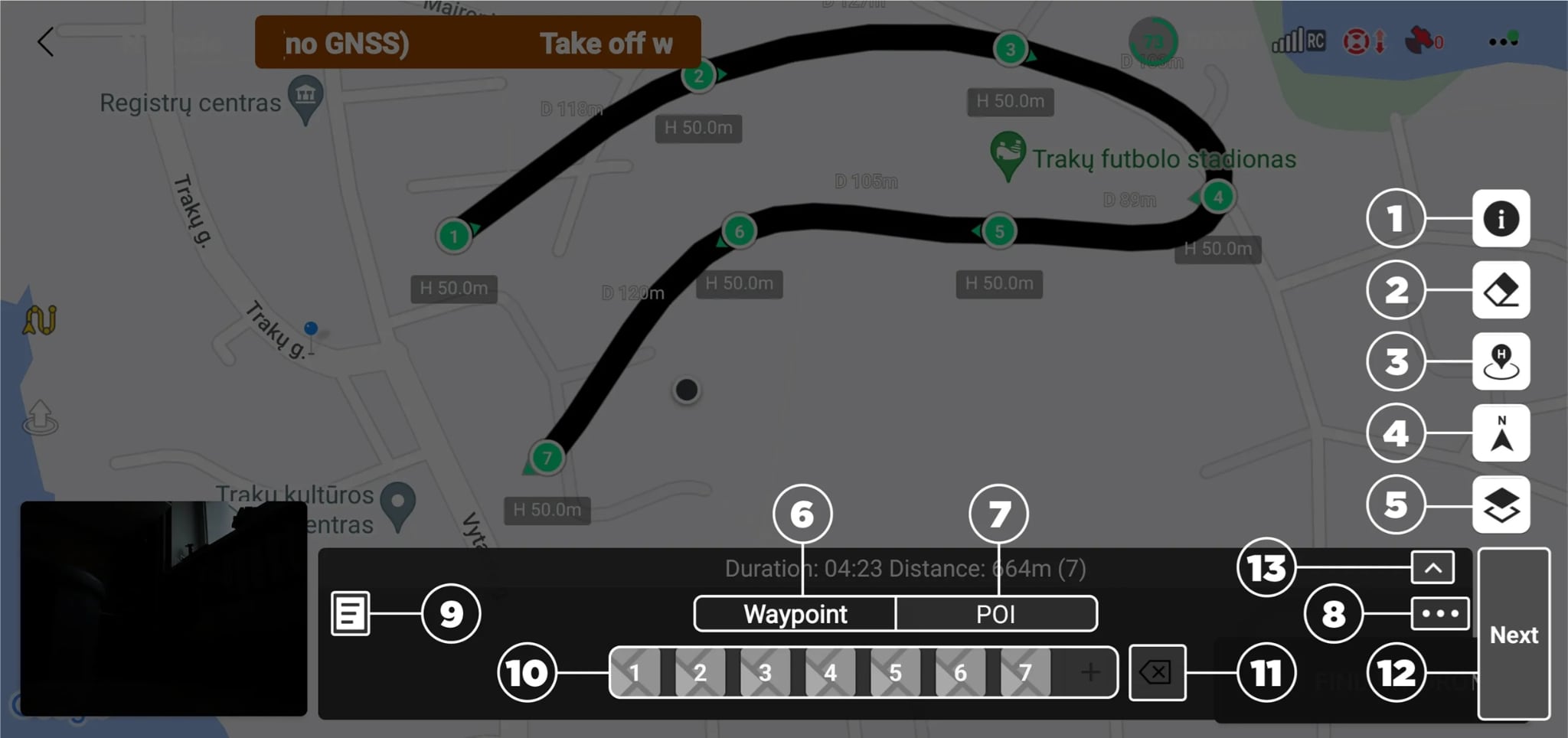
Find the spot on the map where you want the drone to go. Tap and hold that spot. The app will drop a pin. The pin marks the target location. Tap the pin to open its options. You will often see the distance and bearing from the drone to the pin. You can adjust the pin by dragging it if the spot needs a slight move.
Step 5. Enter Specific GPS Coordinates
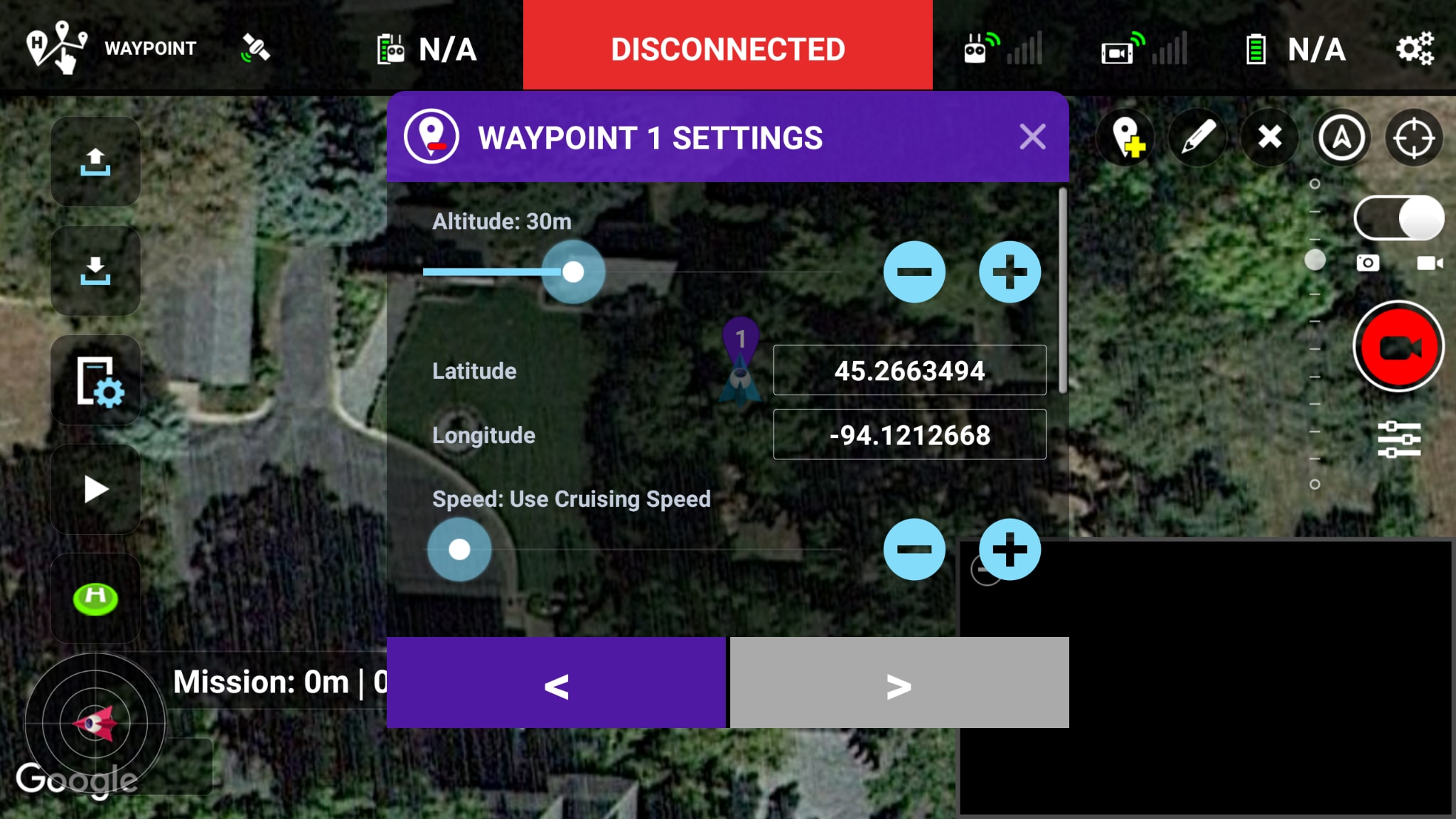
If you already have coordinates, enter them. Some versions of the app allow manual entry. Type the latitude and longitude carefully. Use the right format. Check signs for north, south, east, and west. After entry, the pin will move to the exact coordinate. This step directly links your external map to the DJI Fly app. It shows what coordinate system do DJI drones use in action.
Step 6. Confirm and Execute the Flight Command
Once the pin sits where you want it, confirm the action. The app will show a Go To or Fly To option on supported models. Tap it to start the move. Keep your hands on the radio. Monitor the drone as it flies. Watch for low obstacles and sudden wind. You can stop the command and take manual control at any time by using the sticks or the stop button in the app.
Part 4: Lost Flight Logs Data or DJI Media Files? Use Recoverit Today!
Many pilots face data loss. They often say things like:
"My SD card corrupted and I lost hours of footage."
"The flight log disappeared after a firmware update."
"I formatted the card by mistake while trying to move files.”
These are common and stressful problems. When flight logs vanish, you lose critical info. When media files go missing, you may lose proof of a mission. A recovery tool can help.
Recoverit is a tool many people use to recover lost files. It runs on Windows and Mac. It reads storage cards, internal drives, and external disks. It tries to rebuild deleted or damaged files. For DJI pilots, Recoverit can seek out video, raw photos, and log files.
The tool scans the drive deeply. It does a quick scan first. If that fails, it does a deep scan to find more lost data. You can preview files before saving. That saves you time. You can choose which files to restore. This keeps you from copying junk back.
Recoverit supports many video formats from drones. It can work on common issues like corruption, accidental formatting, and system crashes. It will not always recover every file. But it often finds what you need. Use it as soon as you notice a loss. The longer you wait, the higher the chance that the data gets overwritten.
Three Simple Steps to use Recoverit:
Step 1. Launch Recoverit and pick the drive that holds the lost files. This could be the SD card or a phone folder.
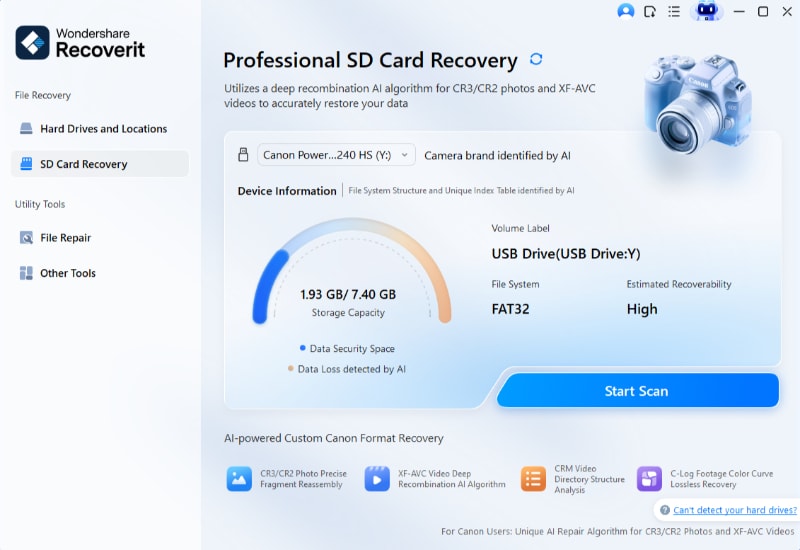
Step 2. Run a full scan. Start with a quick scan. If needed, run a deep scan. Wait for it to complete. The tool will list files it finds.
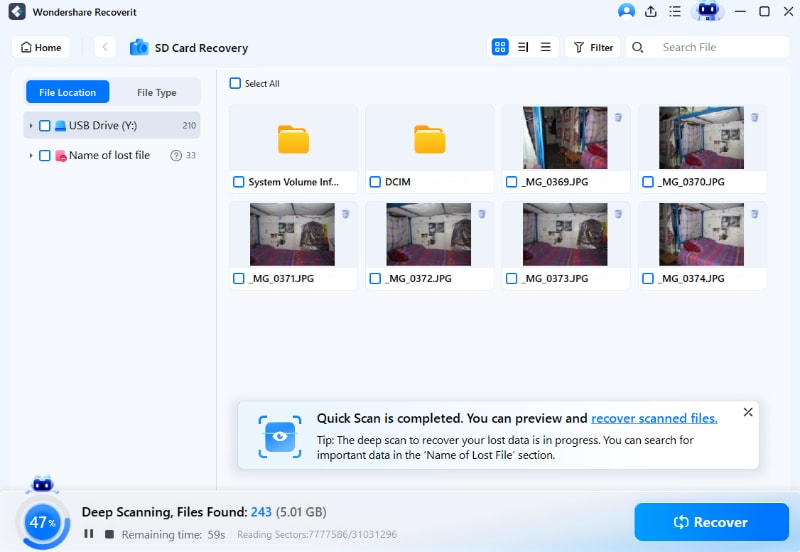
Step 3. Preview items and select what to restore. Save recovered files to a different drive. Do not save them back to the same card. This prevents overwriting additional lost data.

Recovering Drone Footage with Recoverit SD Card Recovery

Part 5: Pro Tips for Safe GPS-Based Drone Navigation
Using GPS helps you fly to points reliably. Still, you must follow safety rules. Here are practical tips for better results.
Intro: Use GPS systems with caution. Always be ready to take manual control. The following tips will lower the risk and improve success.
• Keep line of sight. Do not rely only on GPS. Seeing the drone makes it easier to spot hazards. • Check local rules. Some zones restrict where you can fly. Obey no-fly zones and local law. • Validate coordinates twice. A small typo can place your drone far from the intended spot. • Test with low altitude. For a new target, fly at a low height first. Confirm the area is clear. • Monitor battery life. GPS flights take power. Always keep a margin of spare battery. • Watch the map tiles. Offline maps may appear wrong. Download maps ahead if you need them. • Update firmware and app. Updates can fix GPS and mapping bugs that affect Drone geolocation. • Use the return to home wisely. Set a safe home point and verify it before automatic RTH triggers.
Conclusion
Guiding a drone to a set of GPS coordinates is very useful. The DJI Fly app gives you the tools to set a pin and send the drone there. To do this well, you must know what coordinate system do DJI drones use and how to use the app map. Always check GPS strength and watch your surroundings.
If you lose footage or logs, you can try a recovery tool like Recoverit. It often recovers lost files and logs. Use the app first to set points. Use safe flight steps. With care, you can use Drone geolocation to do mapping, inspection, and many other jobs.
Try Recoverit to Recover Lost Data
 Security Verified. Over 7,302,189 people have downloaded it.
FAQs
-
Can all DJI drones follow GPS points?
Most DJI consumer drones support basic Go To commands from the app. Some older or toy models may not. Check your model’s manual to confirm features. Firmware and app versions can also change what is available. -
Do I need internet to fly to a GPS point?
No. You do not need the internet to get GPS signals. The drone relies on satellites. The app may use map tiles that require the internet. Save or cache maps before you fly in areas with no connection. -
How do I confirm my coordinates are right?
Cross-check the latitude and longitude on a second map. Zoom in and compare landmarks. If possible, set a small test flight at low altitude to confirm the spot is safe.


