

 TL;DR:
When upgrading to a new drive, choose a disk clone to quickly transfer your existing OS, applications, and settings intact, but opt for a fresh install if your current system is compromised by performance drops, malware, or excessive bloatware.
● Disk cloning retains all user profiles, software licenses, and customized setups without requiring a lengthy reinstallation, but it requires hardware compatibility to boot successfully and will actively carry over any existing system clutter, misconfigurations, or errors.
● Performing a fresh install via the Microsoft Media Creation Tool completely wipes the system drive to rebuild a clean, optimized operating system, which demands the manual reinstallation of all third-party programs, hardware drivers, and preferences afterward.
● Regardless of the method you choose, completing the system migration requires you to physically install the new SSD, access your motherboard's BIOS/UEFI settings, and manually change the boot order to recognize the target drive or the installation USB.
Ask AI for a summary
 ChatGPT
 Perplexity
 Gemini
 Claude
 Grok
Grok
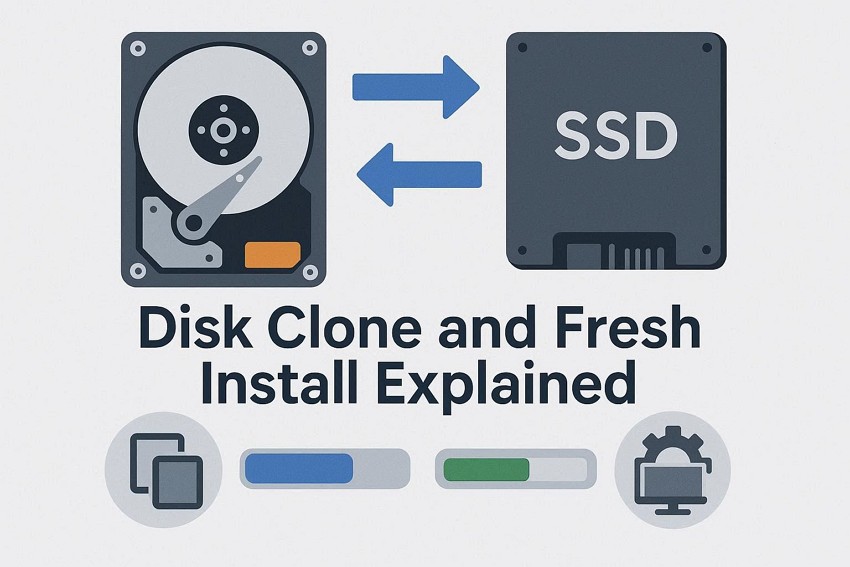
What if your work drive runs out of space, and system errors start to show more often than before? Large files are also more time-consuming to open, applications sometimes crash, and every week your system becomes less resilient. At this stage, you have two obvious options: you either copy your entire drive to a new disk or you decide to install a fresh system.
Yet, as most of you may be unaware of, there are a set of advantages and disadvantages to each point. Thus, this guide will define disk clone and fresh install in plain language so that you may choose the most appropriate option that can be fast, safe, and durable.
Try Recoverit to Perform Partition Recovery
 Security Verified. 3,591,664 people have downloaded it.
In this article

Part 1. What is Disk Cloning and How Does It Work?
Disk clone is a method that makes an exact copy of a full drive, and copies the system, apps, settings, and all files so the new drive can fully replace the old one. Hence, the copy includes partitions, boot data, and file structure, not just visible files. Once done, the new driver can start the system just like the old drive and work right away in the same or a similar computer.
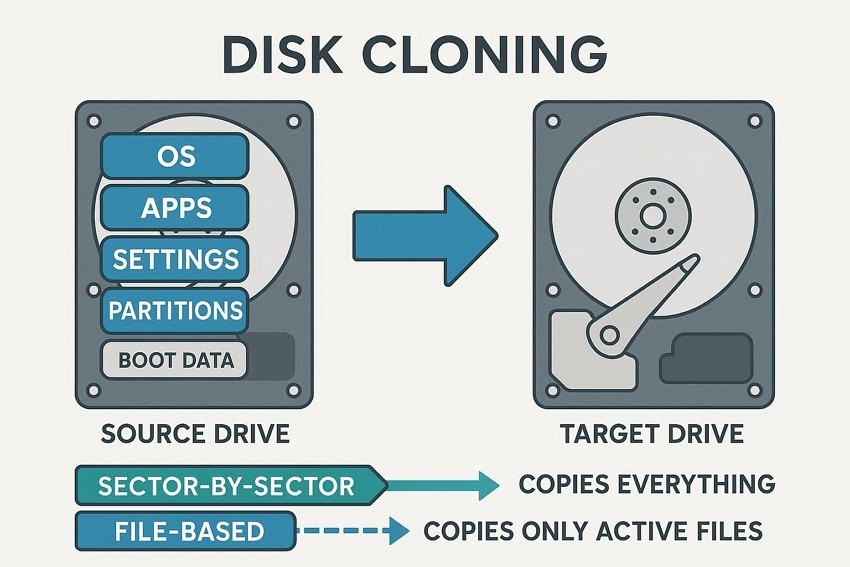
The disk clone tool reads data from the source drive in blocks and writes it to a new drive. One method, called "Sector-by-sector cloning," copies every part of the drive, even empty or deleted areas, and needs a drive of equal or larger size. Whereas another method, "File‑based cloning," copies only active files and rebuilds the file system, which is faster and can work with a smaller drive if space allows.
Part 2. 5 Benefits of Disk Cloning for Quick System Transfer
To better know if you need a disk clone or a fresh install, first see what type of benefits you can get from a disk clone:
- Your new drive boots fast with all apps and settings ready.
- You move Windows, apps, and files without a long reinstall time.
- Users switch to an SSD or a bigger drive without changing the setup.
- If the main drive fails, the clone lets you work again fast.
- You copy the same system to many PCs for a matching setup.
Part 3. Drawbacks of Disk Cloning You Should Know
Other than benefits, adhere to some of the limitations of "disk clone" to determine if it is worth considering:
- Needs a full drive and cannot store multiple backup versions easily.
- Copies all data, a slow process, making it ineffective for partial backups.
- The target drive must match the hardware, or the system may not boot.
- Local clones can fail too, and backups may be outdated.
Part 4. What is a Fresh Install and When to Consider It?
Fresh install refers to the system whereby you completely overwrite the system drive and install a new instance of the operating system. This provides you with a clean, fresh system with no old applications, no old settings, and no remnants of files. Therefore, the setup utility prepares the system part and installs a clean install of Windows or another operating system with minimal parts and drivers only.
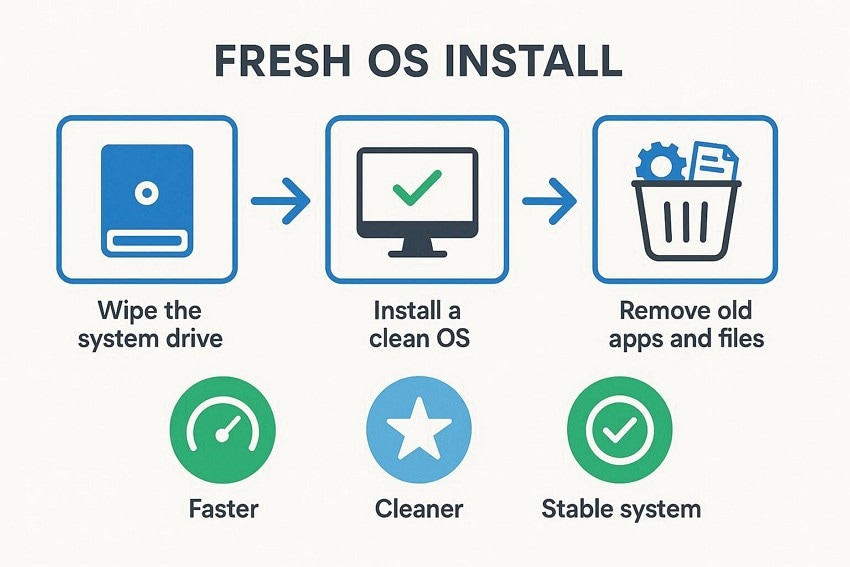
Once done, you can re-add the apps and tools you absolutely require, which helps maintain the system fast, clean, and stable. Therefore, it is an excellent option when there are severe issues in the system or broken files, and other solutions have not helped. It also helps when a PC has too many preloaded apps, old drivers, and years of leftover files that slow it down and waste space.
Advantages and Disadvantages of a Fresh Install for System Performance
After having the basics, you might get confused between a disk clone and a fresh install. Therefore, this section lists some of the significance and disadvantages of a fresh install to make the right choice:
Advantages
- Clean OS starts fresh, removing old settings, junk, and leftover drivers.
- Wipes preinstalled apps, registry errors, and many types of malware.
- Only required apps are installed, freeing space and reducing background processes.
- Rebuild the system from scratch, installing only the software you actually need.
Disadvantages
- You must reinstall programs, licenses, and reset preferences after installation.
- The system drive is wiped, so anything not backed up will disappear.
- Installing Windows, updates, and apps takes hours and extra effort.
- You may need to change the boot order and manually install drivers.
Part 6. Step-by-Step Guide: How to Clone a Disk Safely
Wondershare UBackit has a lot of built-in tools and functionalities that make it an efficient tool. With the help of Wondershare UBackit, you can easily clone the system or data disk. Furthermore, it supports MBR and GPT partitions, which further ease disk data cloning.
If you opt for the "disk clone" option, tools like Wondershare UBackit can clone a disk and move your system safely on Windows. It is guided below:
- Choose the "Clone" section on the tool and pick the "Clone Disk" option.
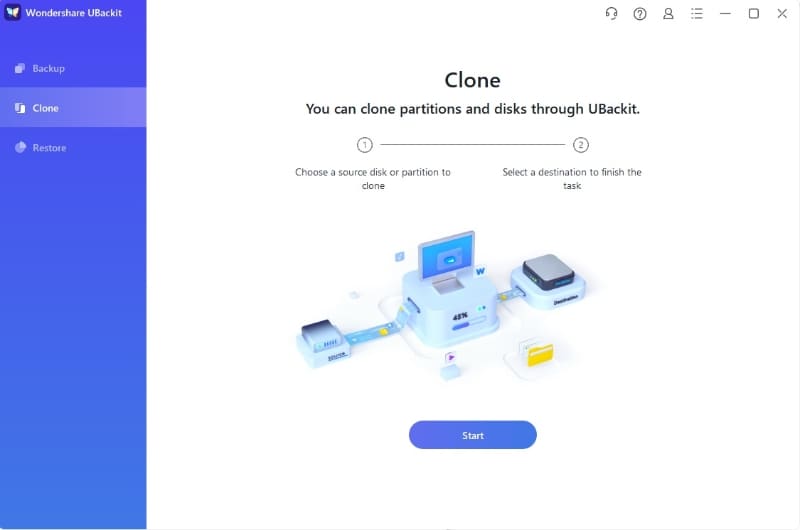
- After that, choose the hard drive that you want to clone and then hit the Next option.
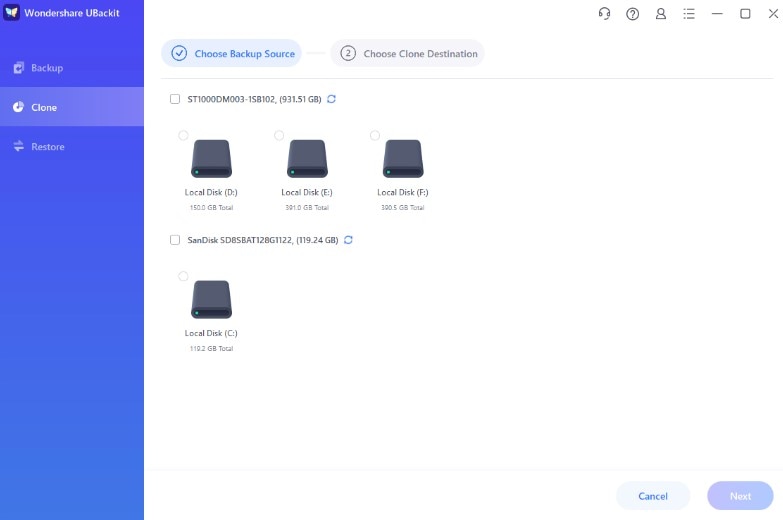
- Choose your Destination Disk (the new drive where the data will be moved). Ensure this disk has enough capacity to hold the source data, then click Next.
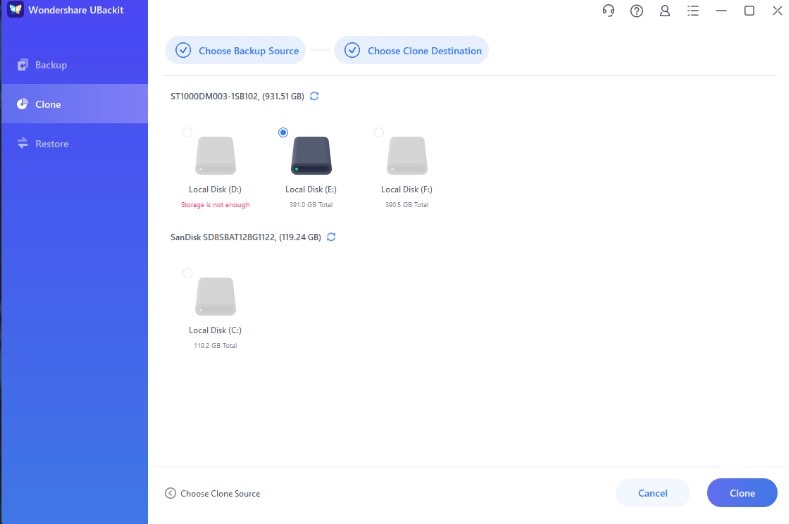
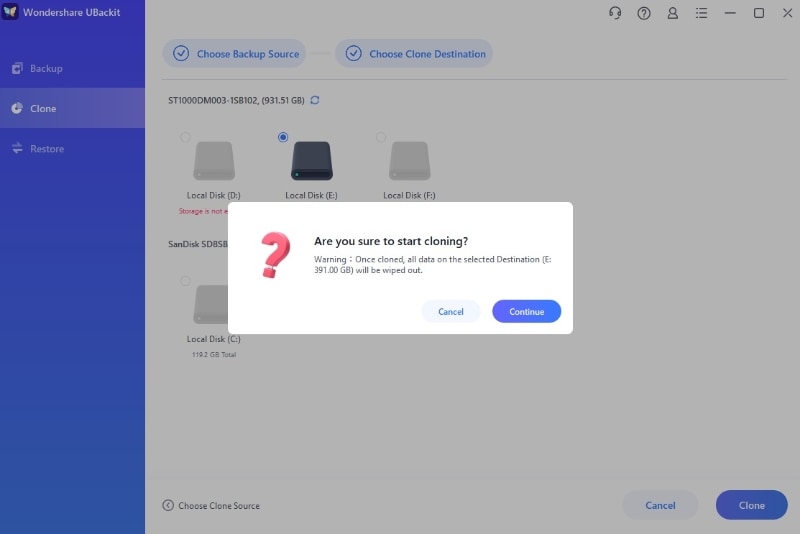
- A warning prompt will appear, informing you that data on the destination disk will be overwritten. Review your selection carefully and click Continue to authorize the process.
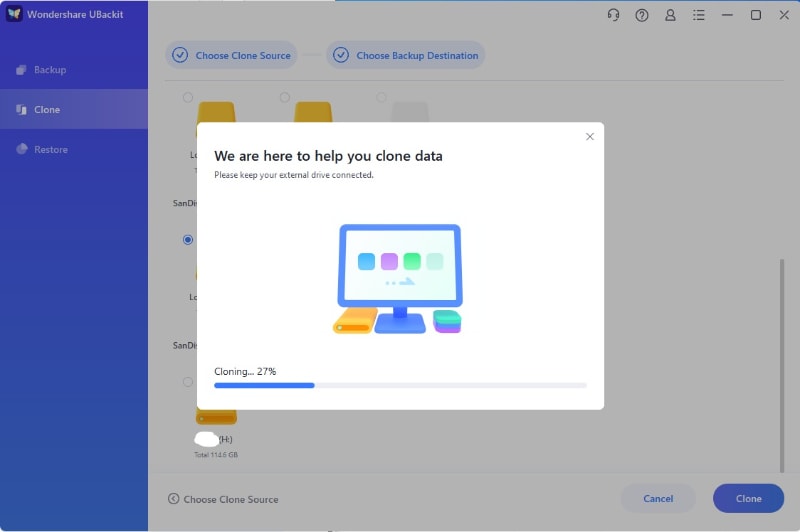
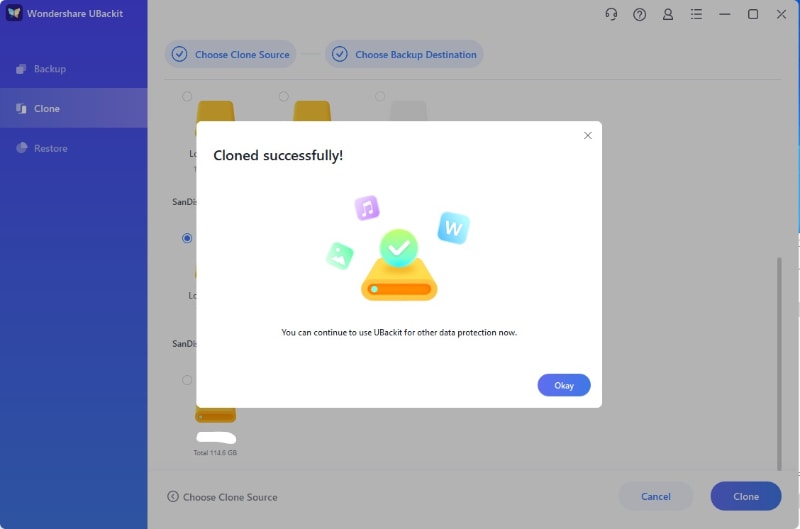
- The cloning process will begin. You can monitor the Progress Bar to see the real-time status of the data transfer. It is important not to disconnect your drives during this phase.
- Once the "Disk Clone Completed Successfully" message appears, you have safely cloned your disk. You can now use the new drive as a bootable disk or a secure backup.
Part 7. Step-by-Step Guide: Performing a Fresh Install
For those who want a fresh install, you can use the Microsoft Media Creation Tool, which provides a clean, official copy straight from Microsoft. The tool downloads the latest Windows build with updates, reduces risk from third-party files, and guides you to make a bootable USB or DVD. Additionally, it works if your PC cannot start, since you can create media on another computer to reinstall or fix Windows safely, as illustrated:
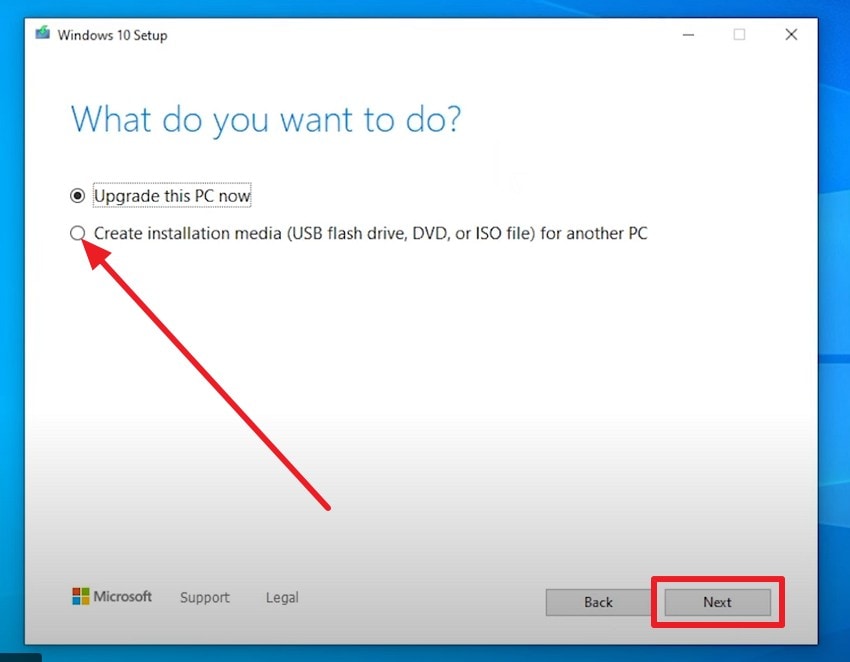
- Download the Microsoft Media Creation Tool, and during installation, select the "Create Installation Media (...) For Another PC" option, then press "Next."
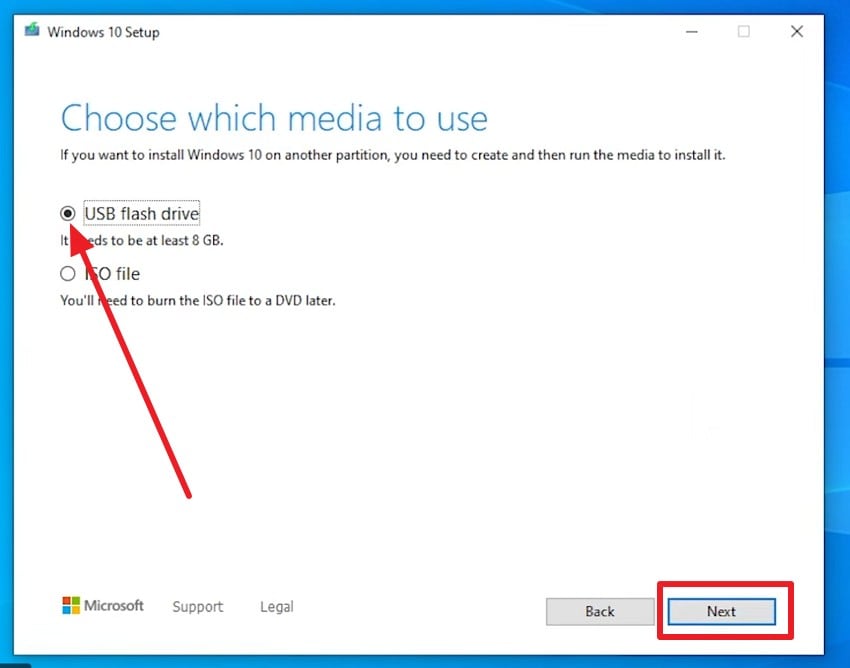
- After that, choose a language or an architecture, and one directed to the "Choose Which Media to Use" interface, pick "USB Flash Drive" and "Next."
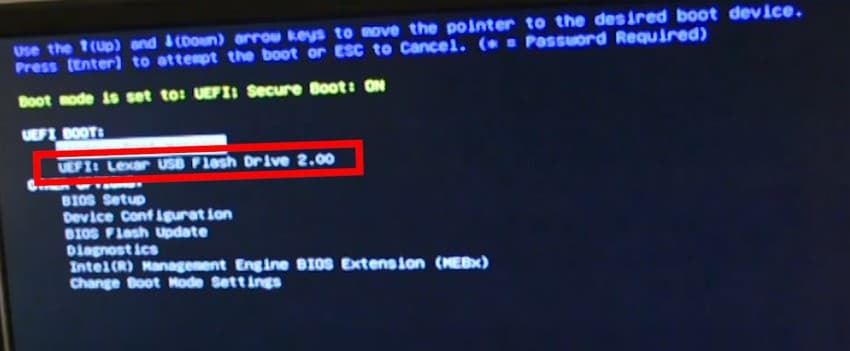
- As you identify the removable drive on the new screen and finish the process, turn off the PC, open the case, remove the HDD, and insert the SSD. Then, access the BIOS menu and locate the option for the flash drive, select it, and wait for Windows to boot.
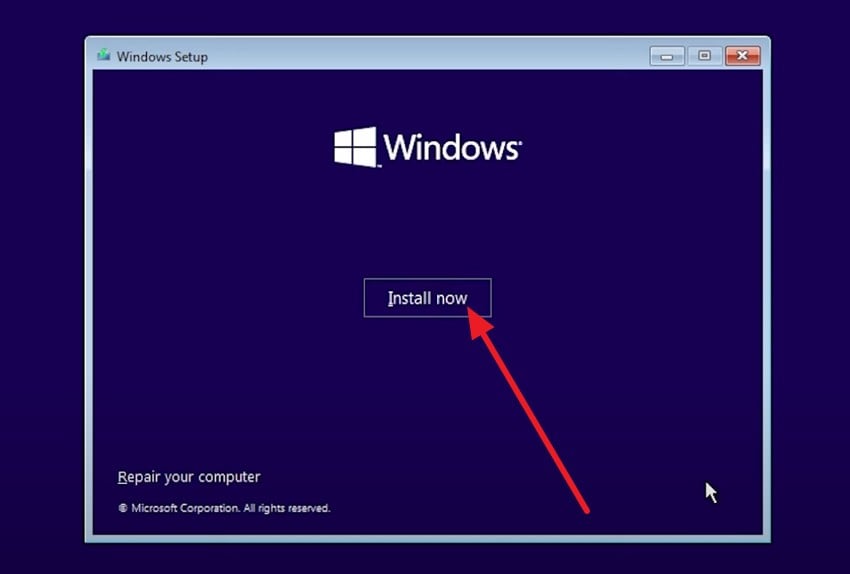
- Choose the basic settings, and pick the "Install Now" button to continue. After that, the system asks for a license key; you can enter it now or skip it.
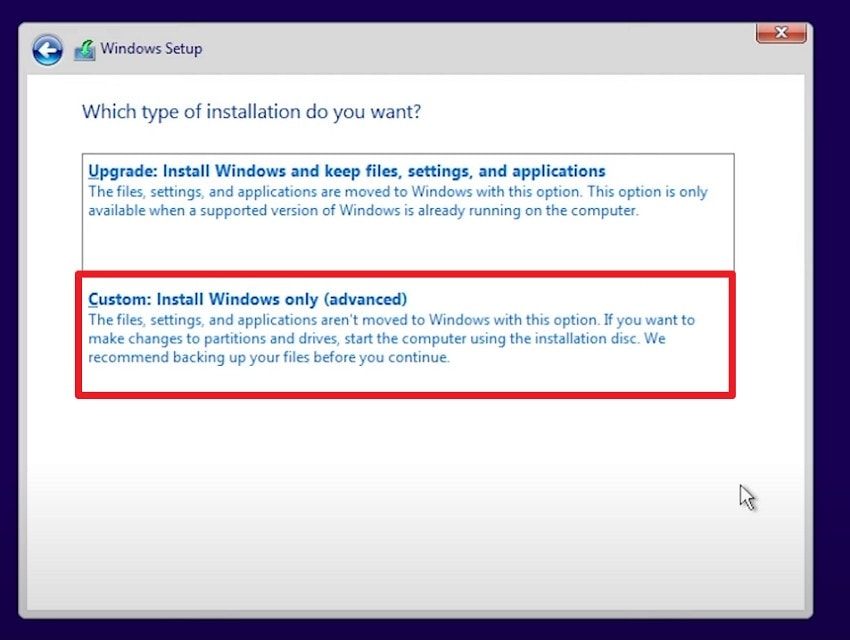
- Then, choose the "Custom: Install Windows Only (Advanced)" option on the "Which Type of installation do you want?" interface.
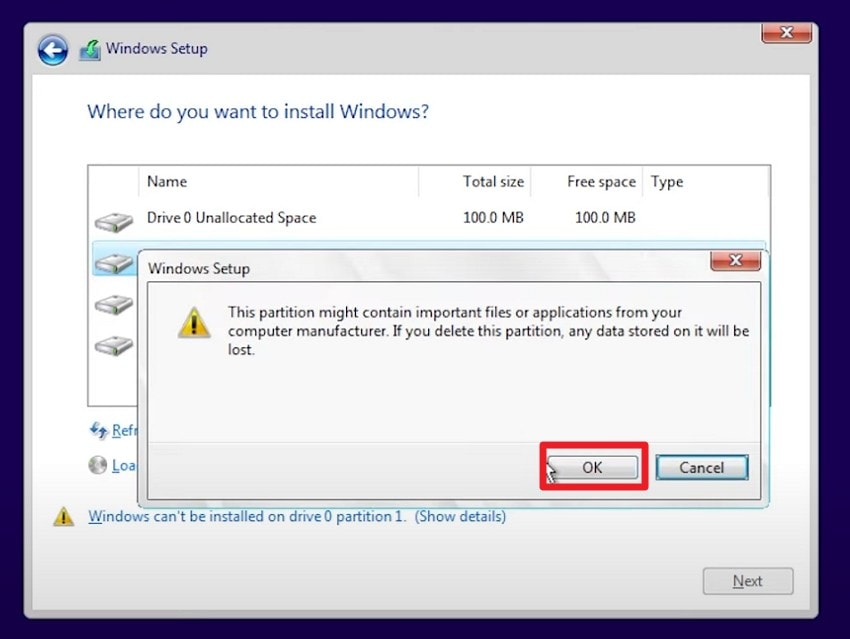
- After that, select the "Delete" option for the given drives to perform a fresh install, then press "OK" to confirm. Once done, the Window will automatically start the process, so wait until it ends.
Part 8. Disk Clone vs. Fresh Install: Which Is Right for You?
For those who seek to make a quick decision between "disk clone" and a fresh start, adhere to the listed table:
| Aspect | Disk Clone | Fresh Install |
|---|---|---|
| What It Does | Copies your entire existing drive (OS, apps, settings, data) to a new disk as‑is. | Wipes the system drive and installs a brand‑new copy of Windows from installation media. |
| Speed & Effort | Much faster; you avoid reinstalling Windows and apps and redoing all settings. | Slower; you must reinstall Windows, drivers, and all programs, and reconfigure everything. |
| Keeps Programs & Settings | Yes, everything comes over, including licenses, tweaks, and user profiles. | No, only what you manually reinstall or restore from backups returns. |
| Carries Over Old Issues | Yes, clutter, misconfigurations, and some malware or errors can come along. | No, most junk, bugs, and infections are removed; you get a "like new" system. |
| When It Shines | Upgrading to an SSD or a larger disk when Windows is already running well, and you just want the same system on a better drive. | Fixing serious performance problems, OS corruption, malware, or when you want a completely fresh, minimal setup. |
| Technical Difficulty | Generally easy with a cloning tool; mostly wizard‑driven. | Higher, you need to install media, correct boot, partition selection, and driver installs. |
Which Should You Choose?
Therefore, disk cloning is the best option when your Windows is running smoothly without viruses, and you upgrade hardware primarily, e.g., changing the HDD to a bigger SSD. It conserves time and stores all applications, drivers, and games without reinstalling them.
Otherwise, reformat your system (Fresh install) when it crashes, displays errors, contains malware, or becomes slow after cleaning it up. A clean install is the best way to achieve maximum performance, clear out old files, erase existing applications, and leave your PC fresh with no junk and bloatware.
Pro Tip: How to Migrate Your OS to a New Drive with UBackit
Why waste hours reconfiguring your personalized desktop and professional software on a new computer? UBackit simplifies the complex process of OS transfer into a straightforward workflow, allowing you to migrate your system environment to any target disk seamlessly and boot up instantly.
Key Features
- Disk Upgrade: Keep all the data like files and settings of your old disk on a new hard disk with bigger storage.
- Full Backup: Clone the entire computer disk to prevent data loss due to disk crashes.
- Tackle Disk Damage: Clone damaged disks to prevent secondary damage during data recovery.
Simple Guide to Upgrade Your System Without Reinstalling
- Source & Destination Pairing
Launch UBackit and enter the Migration section. The software automatically detects your current system partition. All you need to do is choose your new SSD or HDD from the list of available drives as the target destination.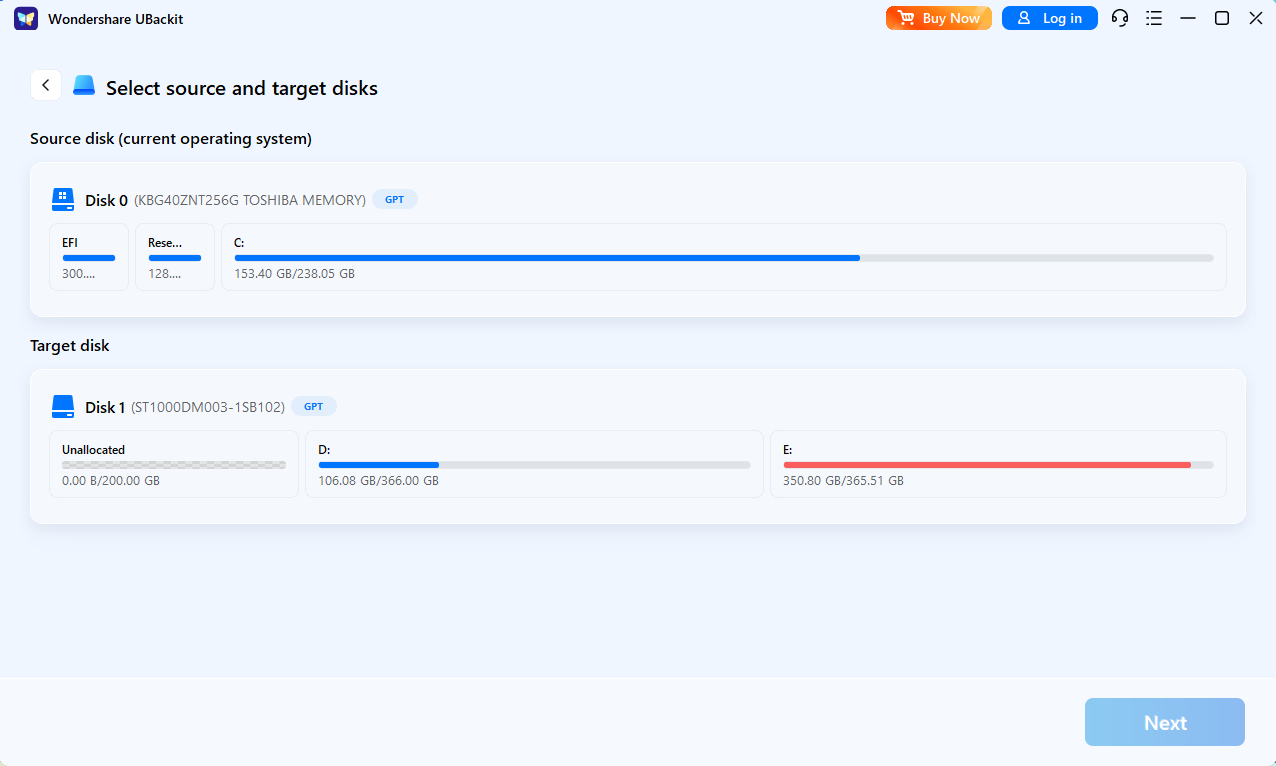
- Initiate Migration
Click Start Migration to begin. UBackit will create a bit-for-bit replica of your entire system environment, including Apps, settings, and personal files. The process ensures your data is transferred to the new disk safely without any loss.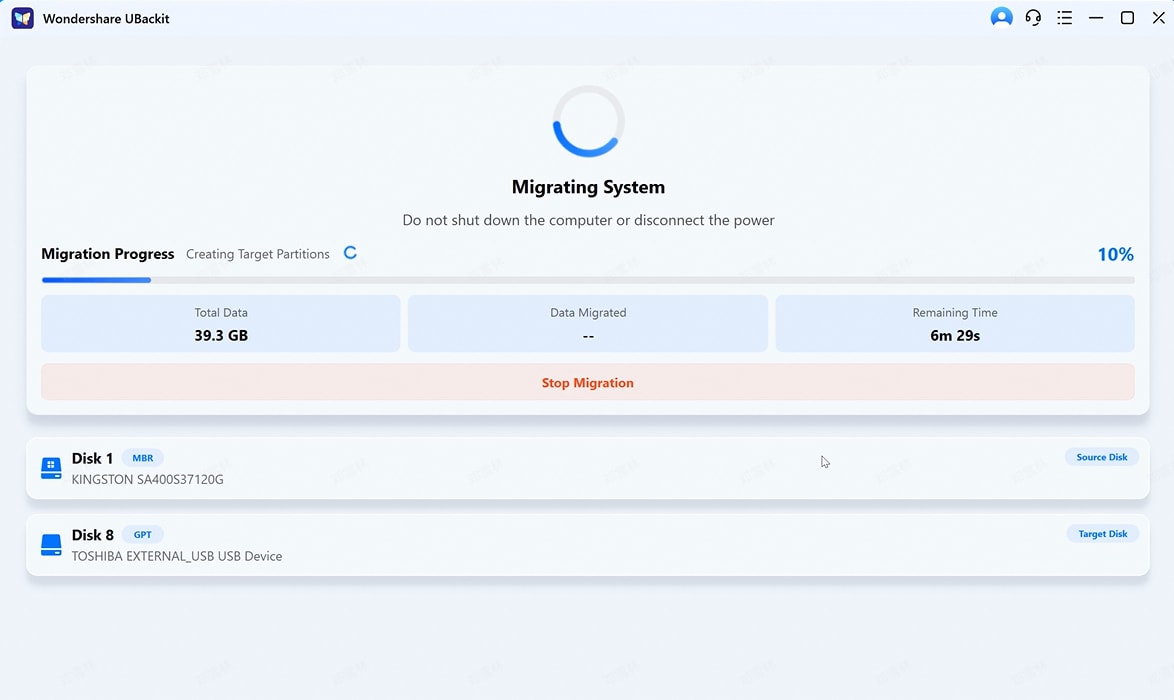
- Boot & Run
Once the migration is complete, shut down your PC. Restart and enter your BIOS/UEFI settings to set the new target disk as the primary boot device. You can now enjoy a faster system performance on your new drive.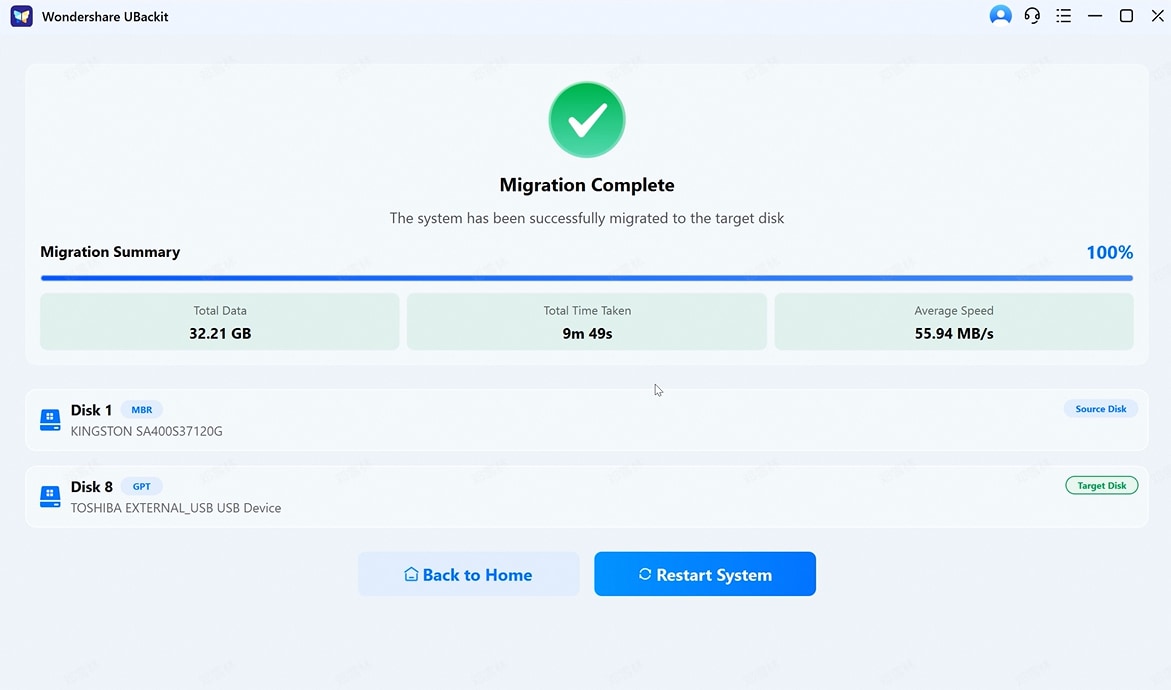
Conclusion
To sum up, this guide has explained "disk clone" and a fresh install for SSD upgrades. Additionally, both methods are explained in detail to help you choose the one that best suits your system's condition, speed, and safety requirements. However, if any files get lost during either process, use Recoverit to recover data easily and safely on PC or Mac.
FAQ
-
1. Which method is safer for critical files?
Neither "disk clone" nor a fresh install is fully safe without a separate backup of files. However, with an external or cloud backup, both methods are equally safe for important data. -
2. Which method improves SSD performance more?
Fresh install improves performance more because it removes old junk, errors, and unnecessary background apps. In contrast, cloning keeps your current system state, so old bloat or misconfigurations remain on the SSD. -
3. Can I use the same SSD for both methods?
Yes, you can clone first, test the system, and later perform a fresh install on the SSD. Also, always back up critical files before re-partitioning or reinstalling to avoid accidental data loss.


