

 TL;DR:
Recovering a Steam Deck requires flashing Valve's official recovery image onto an 8 GB or larger USB drive to reinstall SteamOS, a process that fixes severe boot failures but risks erasing local data.
● To access the recovery menu, connect the prepared USB drive to the powered-off device using a USB-C adapter, then hold the Volume Down and Power buttons simultaneously.
● A full system reinstallation wipes local partitions, meaning lost game saves can only be automatically restored if Steam Cloud was enabled prior to the crash or if manual backups exist.
● Retrieving deleted data without a backup using Wondershare Recoverit strictly requires removing the internal drive or SD card, connecting it to a separate computer, and running a deep scan before new files overwrite the storage.
Ask AI for a summary
 ChatGPT
 Perplexity
 Gemini
 Claude
 Grok
Grok
The Steam Deck is a handheld gaming device developed by Valve Corporation. It allows users to play PC games in a portable form. Many people use it daily for gaming, browsing, and even light work. Over time, large game files, updates, and apps can affect system stability.
When technical issues appear, Steam Deck recovery becomes necessary. System errors, failed updates, or storage corruption can make the device unstable. In such cases, using a Steam Deck recovery image can restore the operating system. This guide explains how to recover the Steam Deck with the Steam Deck recovery image in a clear way.
It also explains how to recover Steam Deck data and how to recover lost data from the Steam Deck after the reset process.
Table of Contents:
Part 1: What is Steam Deck Image Recovery?
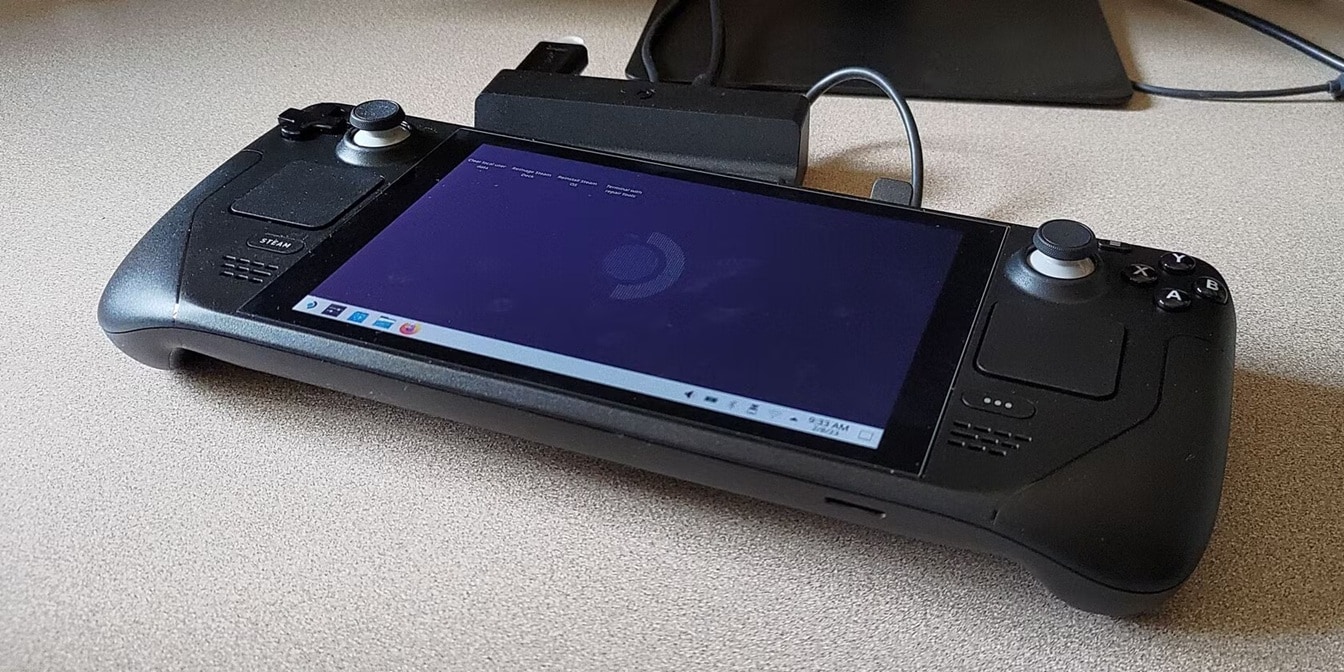
Steam Deck recovery is the official process of restoring the device when the operating system stops working properly. It repairs broken system files and resets damaged configurations. If your Steam Deck fails to boot or keeps freezing, recovery is often the safest solution.
During Steam Deck recovery, the system software is reinstalled. This restores essential components of SteamOS. The process removes corrupted files and replaces them with fresh copies. While this helps fix serious problems, it may also erase local data. That is why it is important to understand how to recover Steam Deck data before starting.
Steam Deck recovery can include different levels of restoration. Some options only repair system files. Other options completely reinstall the operating system. Choosing the correct method depends on the type of issue you face. Careful preparation reduces the risk of permanent data loss.
Part 2: Common Reasons You May Need Steam Deck Recovery
Steam Deck usually runs smoothly. However, system software can fail due to different reasons. In those moments, Steam Deck recovery becomes an effective fix. Understanding the cause helps you decide when recovery is required.
Below are common situations that require action:
- System fails to boot: The device stays on a black screen or does not move past the startup logo.
- Update failure: An interrupted update may damage system files and prevent normal startup.
- Storage corruption: Internal storage may show read or write errors.
- SD card issues: Improper removal can lead to damaged partitions.
- System crashes: Games and apps close without warning.
- Accidental modification: Changes made in Desktop Mode may affect core files.
- Malware or unwanted software: Unsafe downloads can damage system stability.
- Severe performance issues: The device becomes extremely slow and unstable.
When these problems cannot be fixed through basic troubleshooting, knowing how to recover Steam Deck with Steam Deck recovery image becomes important.
Part 3: What is the Steam Deck Recovery Image?
The Steam Deck recovery image is an official system image file provided by Valve. It contains the complete SteamOS installation package. This file allows users to reinstall the operating system from scratch.
The Steam Deck recovery image works like a repair disk. It can reset system partitions and restore factory settings. When used correctly, it removes corrupted system files and replaces them with fresh versions. This ensures stable performance again.
This image is especially useful when the device cannot enter normal mode. It allows full Steam Deck recovery even if the main system is damaged. However, since it may remove personal data, users must later learn how to recover Steam Deck data through backups or recovery tools.
Part 4: How to Recover Steam Deck with Steam Deck Recovery Image
Before starting, prepare a USB drive with at least 8 GB of storage. You also need access to a working computer. Ensure your Steam Deck battery is sufficiently charged to avoid interruptions.
This section explains how to recover Steam Deck with Steam Deck recovery image in a safe and organized way. Follow each step carefully. Avoid turning off the device during installation.
Step 1: Create and Boot the Recovery Drive
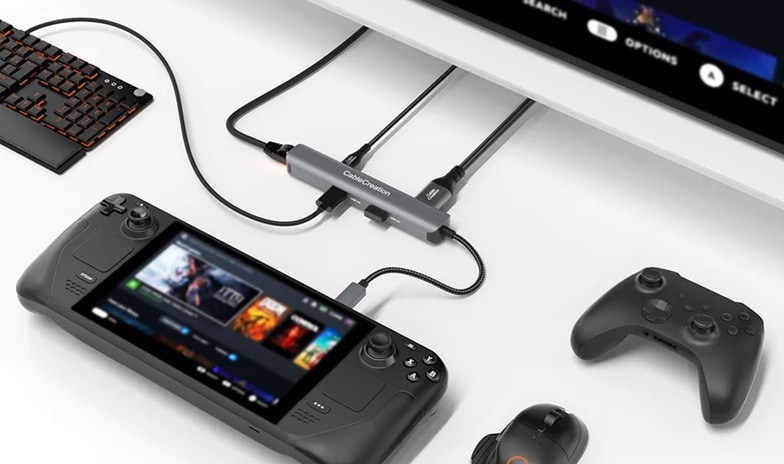
Download the Steam Deck recovery image from the official website of Valve. Use an image writing tool on your computer to write the file onto a USB drive. After the process finishes, safely remove the USB drive.
Connect the USB drive to the Steam Deck using a USB-C adapter. Turn off the device completely. Hold the volume down button and press the power button. From the boot manager screen, choose the USB device to load the recovery environment.
Step 2: Reinstall the Operating System
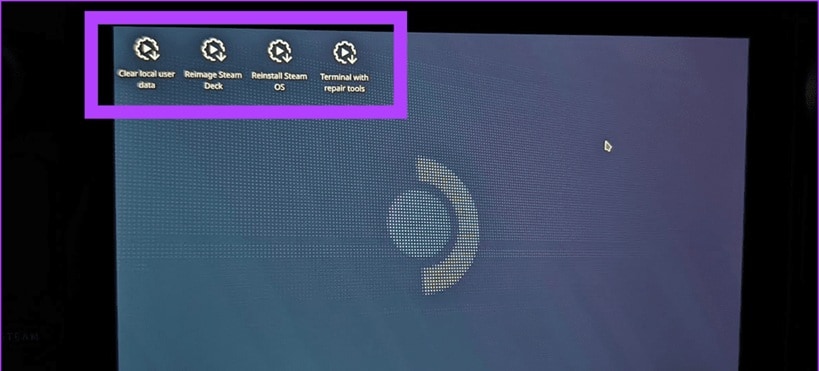
Once the recovery menu appears, select the reinstall option. This will begin Steam Deck recovery using the Steam Deck recovery image. The system will remove corrupted partitions and install fresh files.
Wait patiently until the installation completes. The device may restart several times. After finishing, remove the USB drive and reboot normally. You have now completed how to recover Steam Deck with Steam Deck recovery image.
Part 5: How to Recover Lost Data After Steam Deck Recovery
After system restoration, you may notice missing files. Game saves, screenshots, and downloads may disappear. At this point, users often ask how to recover lost data from Steam Deck safely.
Below are three reliable methods to restore important files.
Method 1: Syncing with Steam Cloud
Many modern games automatically store save data online through Steam. If cloud sync is enabled, your saved data remains secure even after a system reset.
This is one of the easiest ways to recover Steam Deck data with a recovery image. You do not need external tools if cloud backup is active. It directly supports how to recover Steam Deck data after system restoration.
Step 1: Sign in to your Steam account. Reinstall the game from your library.

Step 2: Launch the game while connected to the internet. Steam Cloud will automatically download the saved data to your device.
Method 2: Restoring from Manual Backups
Some users create manual backups before performing a Steam Deck recovery. These backups may be stored on an external drive or SD card. This method is helpful in recovering data from Steam Deck sd card recovery image situations.
Manual backups provide strong protection against data loss. If you copied game folders or save files, you can restore them easily after the system reset. This method also answers how to recover lost data from the Steam Deck without relying on the cloud.
Step 1: Insert your external drive or SD card into the device. Switch to Desktop Mode and open the file manager.
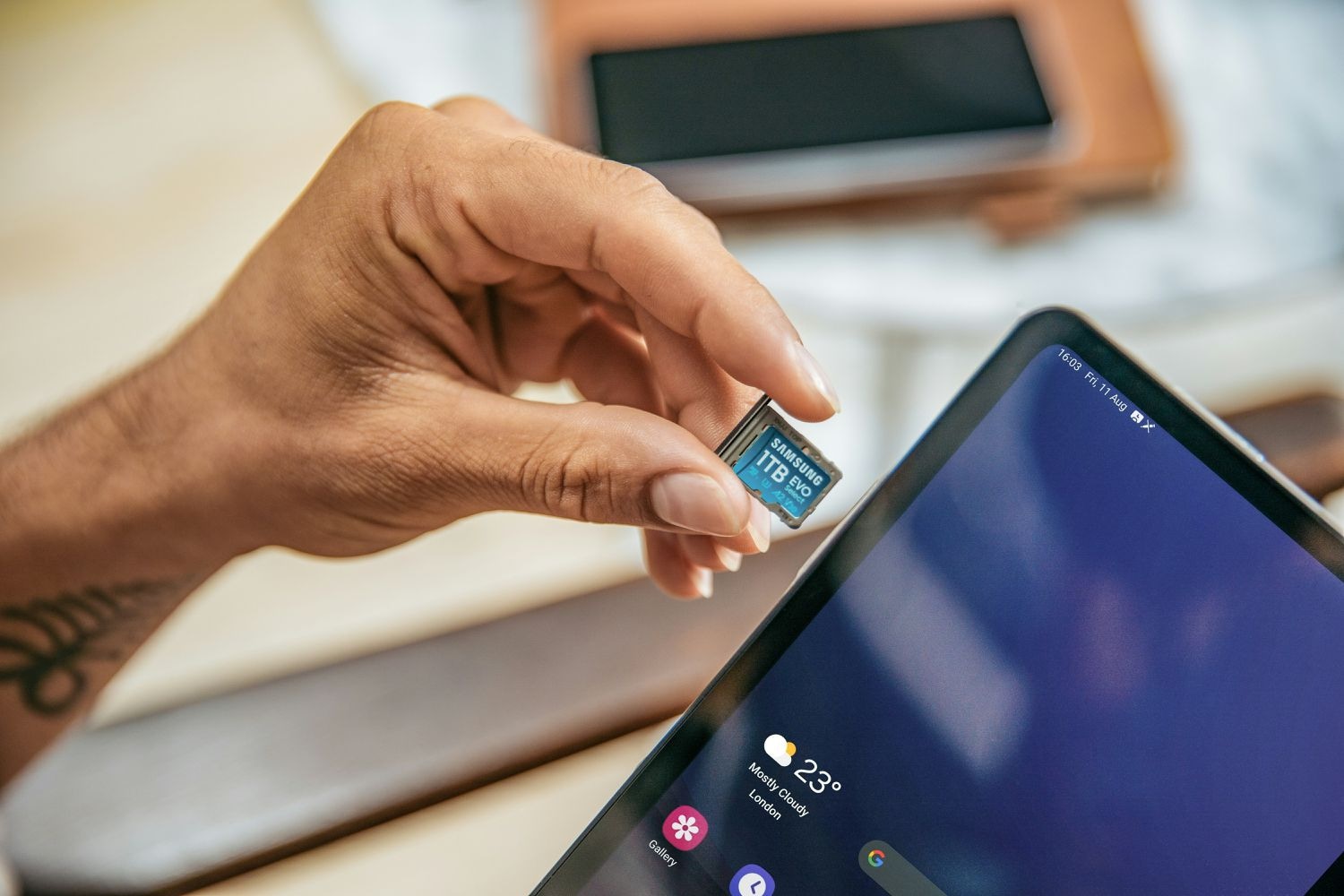
Step 2: Locate the backup folder. Copy the saved files back into their original game directories. Restart the game to confirm restoration.
Method 3: Use Recoverit
If no backups exist, third-party data recovery tools can provide another option. Wondershare Recoverit is designed to scan storage devices and locate deleted or lost files. It works by searching sectors of the drive that may still contain recoverable data. Even if files are no longer visible, traces may remain until they are overwritten.
This method can recover Steam Deck data with a recovery image even after the system has been reinstalled. The software performs a deep scan of internal storage, SD cards, or connected external drives. It carefully examines file structures and attempts to rebuild damaged data fragments.
It is especially useful for users searching for how to recover Steam Deck data in serious loss situations. While success is not guaranteed in every case, acting quickly improves the chances. Avoid installing new files on the affected storage before scanning, as new data can overwrite recoverable content.

Step 1:Remove the Steam Deck storage or connect the SD card to a computer. Install and launch Recoverit. Select the drive for scanning.

Step 2:Allow the deep scan to finish. Preview found files and select the ones you want to restore.

Step 3:
Save them to a different storage location to avoid overwriting.

Part 6: Smart Tips for Safe Steam Deck Maintenance
Steam Deck recovery is helpful, but prevention is better. Proper care reduces system failures and protects data. Following these tips can reduce the need for frequent resets.
- Enable Steam Cloud regularly: Make sure Steam Cloud is turned on in your account settings. This feature automatically syncs game progress to your online profile. If your system fails, your saves can be restored after login without extra effort.
- Create manual backups monthly: Copy important game folders and personal files to an external drive or large SD card at least once a month. Regular backups reduce stress during system problems. They also give you full control over your data.
- Avoid forced shutdowns: Do not press and hold the power button unless the device is completely frozen. Forced shutdowns can damage system files and cause storage errors. Always use the proper shutdown option from the system menu.
- Install official updates only: Stick to stable system updates released by Valve. Beta updates may contain bugs that affect performance or storage stability. Installing only official versions keeps the operating system secure.
- Monitor storage space: Check your available storage often. When storage becomes too full, performance may drop and files may become corrupted. Keeping free space allows the system to function smoothly.
- Remove SD cards safely: Before removing an SD card, use the safe eject option in Desktop Mode. Pulling it out without ejecting can damage file structures. Safe removal protects both the card and your saved data.
- Avoid suspicious downloads: Only install games and software from trusted sources. Unknown files may contain harmful code that affects system stability. Safe downloads reduce the risk of corruption and data loss.
- Keep recovery tools ready: Download and store a copy of the recovery image on a separate USB drive. In case of emergency, you will not need to search for it. Being prepared makes the recovery process faster and less stressful.
Proper maintenance makes Steam Deck recovery less frequent and reduces the need to learn how to recover lost data from Steam Deck repeatedly.
Conclusion
Steam Deck is a reliable gaming device, but technical problems can happen at any time. When system errors appear, Steam Deck image recovery offers a stable solution. Using the Steam Deck recovery image restores the operating system safely.
Understanding how to recover Steam Deck with Steam Deck recovery image prepares you for serious issues. At the same time, knowing how to recover Steam Deck data and how to recover lost data from Steam Deck protects your progress. With proper backups and safe practices, you can maintain long term system stability and avoid major data loss.
FAQs
-
Will Steam Deck recovery delete all my data?
Steam Deck recovery can delete local files if you choose a full reinstall or factory reset option. Game saves stored only on the device may be removed. However, cloud saves usually stay safe if Steam Cloud was enabled before the recovery. The final result depends on the recovery option you select, so always check the details before starting. -
Is the Steam Deck recovery image safe to use?
Yes, the Steam Deck recovery image is safe when downloaded from the official source provided by Valve Corporation. It is designed specifically for the Steam Deck and helps reinstall the operating system correctly. Avoid downloading it from unknown websites to reduce the risk of damaged or modified files. -
Can I recover data after reinstalling SteamOS?
Yes, in many cases, you can recover your data after reinstalling SteamOS. If your games support cloud backup, your saves can sync again after login. You can also restore files from manual backups stored on external drives or SD cards. If no backup exists, data recovery software may still help, especially if you act quickly and avoid overwriting the storage.


