

If Windows shows a drive or volume as RAW and asks you to format it, do not format it yet. A RAW partition usually means Windows can detect the storage device but cannot read the file system. Your files may still be recoverable, but formatting, DiskPart, CHKDSK, partition repair, or saving new files can reduce your chances.
This guide explains how to choose RAW partition data recovery software, how to recover data from a RAW partition safely, when free tools such as TestDisk or PhotoRec make sense, and when Recoverit Partition Recovery is a better guided option before repair.
In this article
Part 1. What Is a RAW Partition?
A RAW partition is a partition Windows can detect but cannot mount as a usable file system. It may appear in File Explorer, Disk Management, or a recovery tool, but Windows cannot open it normally.
What Does a RAW Partition Mean?
A RAW partition means the operating system cannot recognize the file system metadata it needs to read files and folders. This can happen to internal drives, external hard drives, USB drives, memory cards, SSDs, and removable storage.
Typical Windows messages include You need to format the disk before you can use it, The volume does not contain a recognized file system, or a partition status showing as RAW in Disk Management.
RAW vs. NTFS, FAT32, and exFAT
NTFS, FAT32, and exFAT are file systems. They organize file names, folders, permissions, free space, and file locations. RAW is not a real file system for normal storage use. It is a Windows status that means the file system cannot be read correctly.
| Status or file system | What it means | Can Windows open files normally? |
| NTFS | Common Windows file system for internal and external drives. | Yes, if the volume is healthy. |
| FAT32 | Older removable-storage file system with broad compatibility. | Yes, if the volume is healthy. |
| exFAT | Common file system for large removable drives and memory cards. | Yes, if the volume is healthy. |
| RAW | Windows cannot read the file system structure. | No. Recover files first, then repair or format later. |
Can Data Be Recovered From a RAW Partition?
Yes, you can often recover data from a RAW partition if the drive is still detected and the original file data has not been overwritten. RAW partition recovery software scans beyond the damaged file system and searches for recoverable file records or file signatures.
Recovery becomes harder when the drive has physical damage, too many unreadable sectors, SSD TRIM has cleared blocks, encryption keys are missing, or the partition was formatted and reused.
Should You Recover Data or Repair the Partition First?
Recover first. Repair later. Microsoft documents CHKDSK as a tool that checks the file system and file-system metadata of a volume. On a RAW partition, the file system is not readable, and repair attempts may change disk structures before recovery.
Avoid formatting, DiskPart clean, partition deletion, partition creation, and boot-sector repair until your important files are copied to another drive.
Part 2. Common Signs a Partition Has Become RAW
Recognizing a RAW partition early helps you avoid destructive fixes. These are the most common signs.
| Sign | What it usually means | What to do first |
| Windows asks you to format the drive | The file system cannot be mounted. | Cancel the prompt and recover files first. |
| Disk Management shows RAW | The partition is detected, but Windows cannot read NTFS, FAT32, or exFAT metadata. | Do not delete or recreate the partition. |
| Drive opens with an error | The volume may be corrupted or missing readable file-system records. | Scan with recovery software before repair. |
| Files and folders disappear | The directory structure may be damaged. | Stop writing to the drive immediately. |
| Capacity still looks correct | The device may be readable even if the file system is not. | Recovery software may still be able to scan it. |
| Drive disconnects, clicks, or freezes | Hardware failure may be involved. | Create an image if possible or contact a lab. |
Part 3. Why Does a Partition Become RAW?
A partition can become RAW for logical or physical reasons. Knowing the likely cause helps you choose the safest recovery path.
- File system corruption: damaged NTFS, FAT32, or exFAT metadata can prevent Windows from mounting the partition.
- Power loss or unsafe removal: disconnecting a drive during writing can leave file-system structures incomplete.
- Damaged boot sector or partition information: corrupted boot records, partition tables, or volume metadata can make the partition inaccessible.
- Bad sectors or failing storage: a hard drive, SSD, USB drive, or memory card with physical faults may lose readable metadata.
- Interrupted formatting or resizing: failed partition operations can leave the partition in an unreadable state.
- Malware or firmware issues: malicious changes or controller problems can damage normal access to the file system.
- Encryption confusion: encrypted volumes may appear inaccessible without the correct BitLocker password or recovery key.
Part 4. What to Do Before RAW Partition Recovery
Before choosing RAW partition recovery software, protect the drive. These precautions reduce overwriting and avoid repair actions that can make recovery harder.
| Precaution | What to do | Why it matters |
| Stop writing new data | Do not copy, move, download, or save files to the RAW drive. | New data may overwrite recoverable files. |
| Avoid formatting | Cancel the Windows format prompt. | Formatting rebuilds the file system and can reduce recovery chances. |
| Avoid creating new partitions | Do not delete, recreate, or resize the RAW partition. | Partition operations rewrite structures needed for recovery. |
| Do not run DiskPart clean | Avoid clean and clean all. | Microsoft says clean removes partition or volume formatting, while clean all sets every sector to zero. |
| Install recovery software elsewhere | Install tools on a different internal drive or external drive. | Installing on the RAW drive can overwrite lost data. |
| Check BitLocker encryption | Look for a password or BitLocker recovery key if the drive was encrypted. | Encrypted data cannot be recovered in readable form without the correct key. |
| Clone an unstable drive | Create a disk image before scanning if the drive is failing. | Scanning an image is safer than repeatedly reading unstable hardware. |
| Use another recovery destination | Save recovered files to a separate drive. | Saving files back to the RAW partition may overwrite remaining data. |
Part 5. Best RAW Partition Data Recovery Software and Methods
The best method depends on whether you need to recover files, rebuild partition access, work with a corrupted file system, or handle physical failure. Start with file recovery when the data matters.
Method 1. Recover RAW Partition Data With Recoverit
Recoverit Partition Recovery is the best beginner-friendly option for recovering files from RAW, lost, deleted, formatted, corrupted, or inaccessible partitions. It gives a guided workflow: choose the RAW partition, scan, preview files, and recover them to another location.
Recoverit is useful when Windows detects the drive but cannot open the partition, the partition asks to be formatted, or the file system is damaged. It cannot repair a physically failed disk, guarantee recovery, recover overwritten data, or decrypt BitLocker without the correct password or recovery key.
- Best for: users who want a guided RAW partition recovery workflow with preview.
- Works with: readable internal drives, external hard drives, USB drives, memory cards, and other detected storage.
- Useful features: deep scan, file preview, filters, and recovery to a separate destination.
- Important limit: recovery depends on drive health, overwriting, encryption, and detectability.
Method 2. Find Lost Partitions and Copy Files With TestDisk
TestDisk is a free, open-source tool for lost partitions and damaged partition tables. CGSecurity's documentation explains that TestDisk can search for partitions and rewrite the partition table when the correct partitions are selected.
Use TestDisk carefully. If your priority is data safety, first list files and copy important files to another drive. Only write partition changes after you have a backup or disk image and you are confident the detected partition is correct.
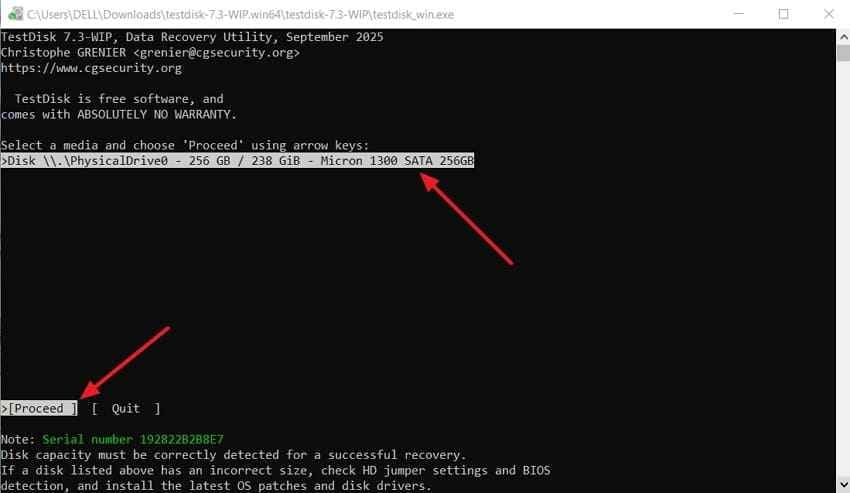
Step 1. Select the RAW disk. Open TestDisk, choose Create, select the physical disk that contains the RAW partition, and choose Proceed.
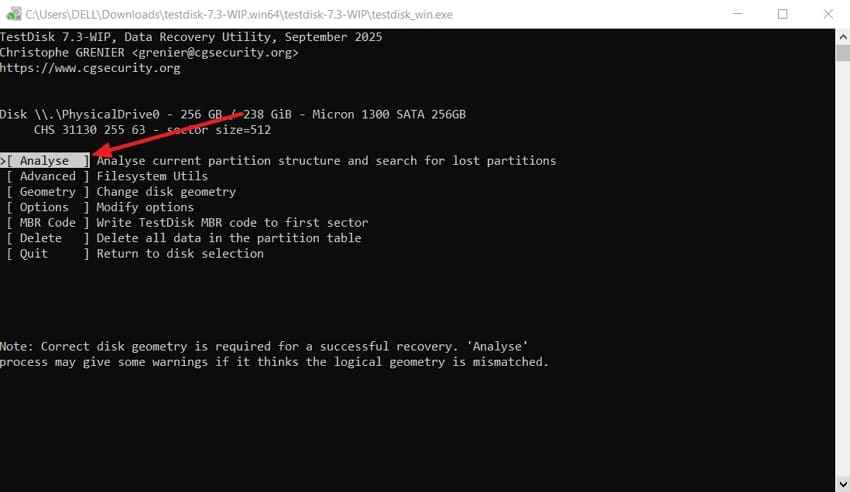
Step 2. Analyze the partition table. Choose the partition table type TestDisk detects, then select Analyse.
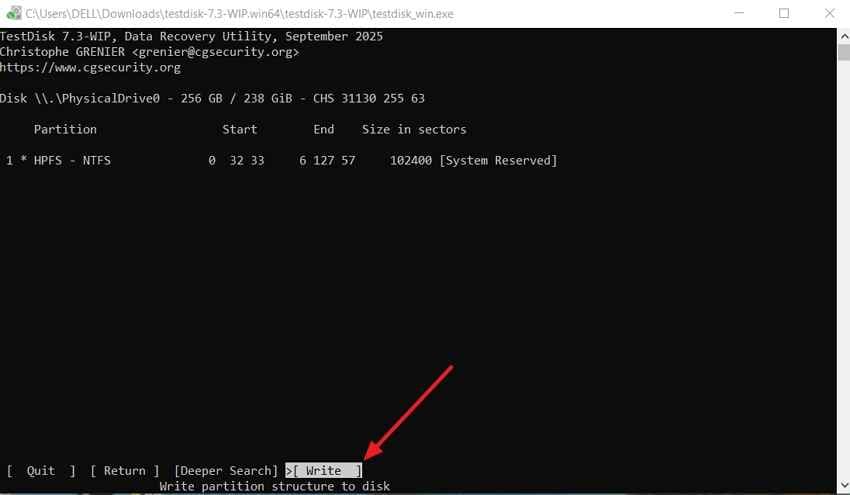
Step 3. Search and copy files first. Run Quick Search or Deeper Search. If TestDisk finds the original partition, list files, copy needed files to another drive, and use Write only after your data is protected.
Method 3. Recover Files From a Corrupted File System With PhotoRec
PhotoRec and QPhotoRec recover files by signature instead of relying on the damaged file system. This makes them useful when the partition cannot be mounted or TestDisk cannot safely restore access.
The tradeoff is organization. Signature-based recovery may lose original file names and folder paths. Use it when free recovery matters, when the file system is badly damaged, or when you can sort recovered files manually.
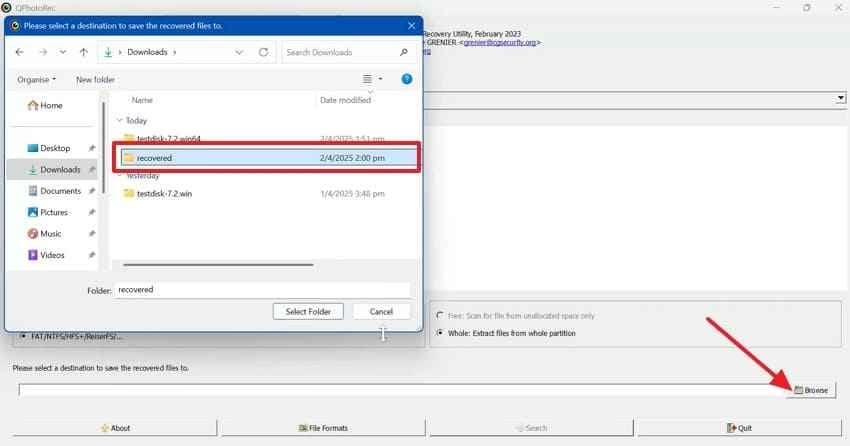
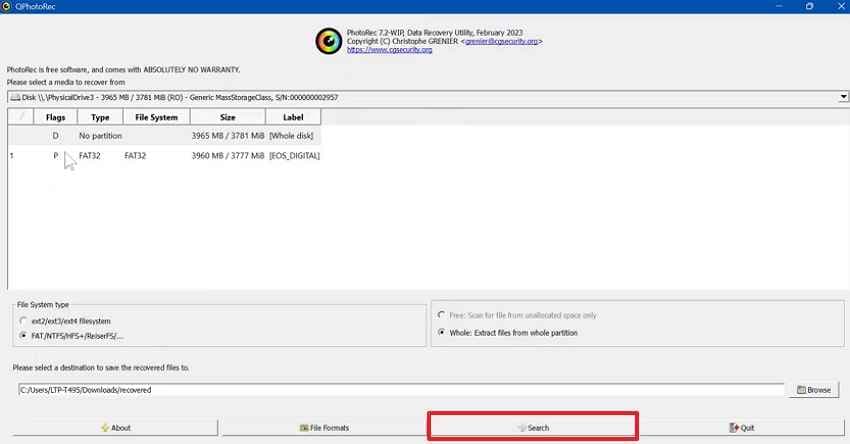
Step 1. Select the RAW drive and destination. In QPhotoRec, choose the RAW drive or partition, then click Browse and select a different drive for recovered files.
Step 2. Start signature-based recovery. Click Search to scan the RAW partition for known file signatures and recover files to the destination folder.
Method 4. Use a Professional Data Recovery Service
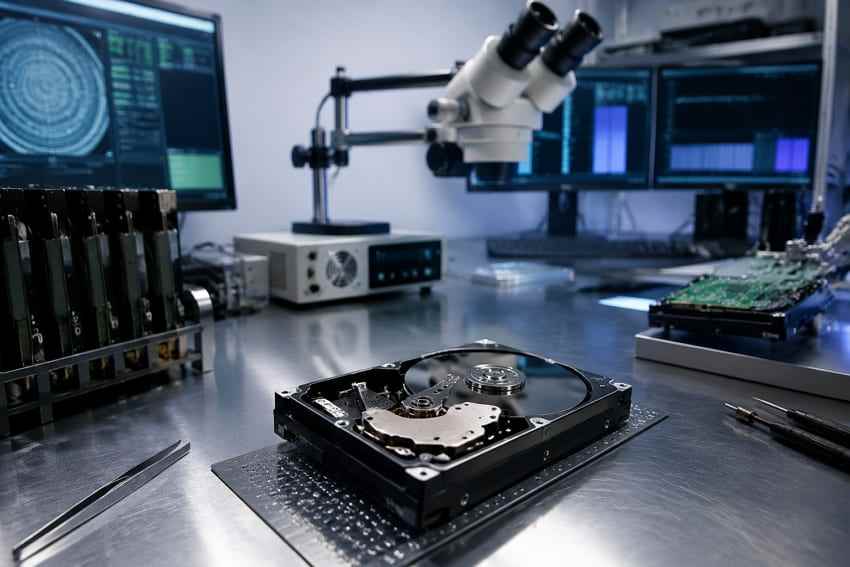
A professional data recovery service is the safer choice when the drive clicks, fails to spin up, overheats, disconnects repeatedly, has severe bad sectors, or is not detected by any computer. Consumer software needs readable storage. Labs have specialized equipment for hardware-level recovery, but they cost more than DIY tools.
Part 6. Compare RAW Partition Recovery Options
Use this comparison to choose the right RAW partition recovery software or method for your situation.
| Option | Cost | Best for | Main limitation |
| Recoverit | Free scan and preview; recovery limits depend on the edition | Recovering files from RAW, formatted, corrupted, lost, or inaccessible partitions with a guided workflow. | Cannot repair physical damage or guarantee recovery. |
| TestDisk | Free | Finding lost partitions, listing files, copying files, and repairing certain partition-table problems. | Text-based interface and risky if users write the wrong partition table. |
| PhotoRec or QPhotoRec | Free | Recovering files from damaged or formatted partitions when file-system recovery fails. | May lose original names and folder structure. |
| Professional recovery service | Highest cost | Physically damaged, clicking, undetected, or severely failing drives. | More expensive and slower than software recovery. |
| User need | Best option | Why |
| Best option for beginners | Recoverit | It provides scan, preview, filters, and recovery without command-line steps. |
| Best free option for technical users | TestDisk and PhotoRec | They are powerful, free, and suited to users who understand partitions and recovery destinations. |
| Best option for lost partition structures | TestDisk first, Recoverit if repair is not safe | TestDisk focuses on partition tables; Recoverit focuses on recovering files when access remains broken. |
| Best option for corrupted file systems | Recoverit or PhotoRec | Recoverit is easier to use; PhotoRec is free and signature-based. |
| Best option for physically failing drives | Professional recovery service | Physical problems need lab equipment, not repeated DIY scans. |
Part 7. How to Recover Data From a RAW Partition With Recoverit
Use Recoverit when the RAW partition is detected by your computer and you want to recover files before formatting or repairing the partition. Install Recoverit on a different drive, not on the RAW partition.
Step 1. Select the RAW Partition
Launch Recoverit, go to Hard Drives and Locations, and select the RAW drive or partition that contains the lost files.

Step 2. Scan the RAW Partition for Lost Files
Recoverit starts scanning the selected location. Let the scan finish if possible. Use the file type, path, size, and date filters to locate important files faster.

Step 3. Preview and Export Recovered Files
Preview recoverable files, select what you need, click Recover, and save the files to another drive. Do not save recovered files back to the RAW partition.

Part 8. How to Repair a RAW Partition After Recovering Files
After your files are safely recovered and verified, you can repair or rebuild the partition for future use. Do not treat these steps as recovery steps. They are repair steps after data protection.
- Check the drive's physical health: review S.M.A.R.T. status, listen for clicking, and watch for disconnects before repair.
- Try TestDisk repair only when appropriate: if the partition table or boot sector is the issue, TestDisk may help after files are backed up.
- Delete and recreate the partition if repair fails: use Disk Management only after your files are recovered.
- Format with a supported file system: choose NTFS for Windows internal drives, exFAT for cross-platform external drives, or FAT32 only when required by older devices.
- Restore recovered files: copy verified recovered files back only after the partition is stable.
- Replace the device if failure is confirmed: a drive that keeps returning to RAW should not store important files.
Part 9. When RAW Partition Recovery May Be Impossible
RAW partition recovery is not always possible. These are the most common reasons recovery attempts fail.
| Failure reason | What it means | What you can do |
| Original data was overwritten | New files replaced the old file data. | Try deep scan, but complete recovery may not be possible. |
| SSD TRIM cleared blocks | Deleted or freed SSD blocks may have been cleared by the system. | Stop using the SSD and scan quickly, but expect limited results. |
| Drive is not detected | The computer cannot read the hardware. | Try another cable or enclosure once, then consider a lab. |
| BitLocker key is missing | Encrypted data cannot be unlocked. | Search for the recovery key in your Microsoft account, work or school account, printout, or saved USB copy. |
| Disk image has too many unreadable sectors | The drive may be physically failing. | Stop repeated scans and use professional recovery if the data is important. |
Microsoft states that Microsoft Support cannot retrieve, provide, or recreate a lost BitLocker recovery key. If a RAW partition is encrypted, recovery requires the correct key or password.
Part 10. How to Prevent a Partition From Becoming RAW Again
Recovery software helps after data loss, but prevention is safer. Use these habits to reduce RAW partition problems.
- Safely remove external storage: eject USB drives, memory cards, and external disks before unplugging them.
- Avoid sudden power loss: do not disconnect storage while files are being copied, moved, or written.
- Use reliable cables and enclosures: faulty USB bridges and loose cables can corrupt writes.
- Monitor drive health: check S.M.A.R.T. status and replace drives with growing bad sectors or repeated errors.
- Avoid interrupting partition operations: let formatting, resizing, and migration tools finish completely.
- Keep regular backups: use a second local copy and a cloud or offsite copy for important files.
- Do not keep using unstable drives: if a repaired drive becomes RAW again, replace it.
Conclusion
A RAW partition looks serious, but your files may still be recoverable if the drive is detected and the data has not been overwritten. The safest order is simple: stop using the drive, recover data from the RAW partition, save files to another location, verify the recovered files, and only then repair or format the partition.
For most users, Recoverit Partition Recovery is the easiest RAW partition recovery software because it provides a guided scan and preview workflow. TestDisk and PhotoRec are strong free tools for technical users, while professional services are better for physically failing or undetected drives.
FAQ
-
What is the best RAW partition data recovery software?
Recoverit is a strong option for most users because it provides guided RAW partition scanning, file preview, filters, and recovery to another drive. TestDisk and PhotoRec are useful free tools for technical users. -
Can I recover data from a RAW partition without formatting?
Yes, you can often recover data from a RAW partition without formatting if the drive is still detected and the data has not been overwritten. Use recovery software first, then repair or format the partition after files are saved. -
Why does CHKDSK say it is not available for RAW drives?
CHKDSK works with recognized file systems and file-system metadata. A RAW partition does not have a readable file system for CHKDSK to check, so Windows may block the command. -
Is it safe to use DiskPart on a RAW partition?
Use DiskPart only after recovery. Commands such as clean remove partition information, and clean all overwrites every sector. Both can make recovery harder or impossible. -
Can Recoverit recover BitLocker RAW partitions?
Recoverit may help recover files from a BitLocker RAW partition only when the drive is detected and you have the correct BitLocker password or recovery key. It cannot bypass or recreate a missing encryption key.


