 TL;DR:
To successfully recover lost SanDisk files on a Mac, immediately halt all write operations to the affected storage to prevent permanent overwrite and verify the physical device is still detectable in macOS Disk Utility.
● Choose SanDisk RescuePRO Standard or Deluxe specifically for SD cards and USB flash media, Wondershare Recoverit for guided external HDD and SSD logical recovery with a 500 MB free limit, or R-Studio 7.5 for complex lost partitions.
● Skip software scans and seek professional laboratory assessment if the SanDisk device is entirely missing from Disk Utility, repeatedly disconnects, displays 0 bytes, or exhibits physical overheating.
● Always decline macOS prompts to initialize or erase unreadable drives, never save recovered files back to the original source, and anticipate that SSD TRIM processes can permanently clear deleted blocks before any tool can retrieve them.
Ask AI for a summary
 ChatGPT
 Perplexity
 Gemini
 Claude
 Grok
Grok
Looking for SanDisk recovery software for Mac? The right choice depends on what you lost and where it was stored. Deleted camera photos on an SD card, an accidentally formatted SanDisk USB stick, and an inaccessible external SSD are different recovery cases. Mac recovery software may help when the storage device is detected and its data is still readable, but it cannot repair a failed controller or reverse overwritten data.
SanDisk does not offer one universal first-party file-recovery program for every drive. Its third-party recovery software directory lists multiple Mac programs, while its separate RescuePRO for macOS guide explains recovery for supported removable media. SanDisk lists Wondershare Recoverit in the Windows section of its directory, not its Mac section; Recoverit's own Mac documentation separately confirms Mac support.
This comparison covers eight tools, including SanDisk-linked RescuePRO and general-purpose applications such as Wondershare Recoverit hard drive recovery. If the files matter, stop writing to the affected SanDisk device now. Do not initialize, format, run First Aid, or save recovered files back to it before protecting the data.
In This Article
-
- 1. Recoverit - Broad Logical Recovery Across SanDisk Storage
- 2. SanDisk RescuePRO - Dedicated Flash-Media Recovery
- 3. SecureRecovery - Drive and Partition Scanning
- 4. Disk Drill - Guided Scans and Disk Images
- 5. EaseUS Data Recovery Wizard - Simple Mac Recovery With Trial Restrictions
- 6. R-Studio - Advanced File Systems and Lost Partitions
- 7. Tenorshare 4DDiG - Guided Recovery and Preview
- 8. Data Rescue 6 - Scans, Clones, and Recoverable-File Preview
Part 1. What SanDisk Recovery Software Is Available for Mac?
The main distinction is between a software publisher, a device manufacturer that links to a product, and the type of storage the software can actually scan. SanDisk's reference list is a starting point, not a ranking or a promise of compatibility with every SanDisk drive.
SanDisk's Third-Party Recovery List vs. SanDisk-Developed Apps
SanDisk's macOS self-help list includes RescuePRO, Disk Drill, EaseUS Data Recovery Wizard, R-Studio, Data Rescue, SecureRecovery, and 4DDiG, among other utilities. These products are developed and supported by their respective publishers. Recoverit is evaluated here as an additional Mac option based on Wondershare's own Mac product specifications, not as an officially endorsed Mac application from SanDisk.
For cards and USB media, SanDisk also publishes a dedicated RescuePRO Mac walkthrough. RescuePRO is an LC Technology product; SanDisk provides download or activation guidance for eligible offers but sends installation and troubleshooting questions to LC Technology.
Stop Writing to the Card, USB Drive, HDD, or SSD
- Deleted photos or videos: Stop shooting, recording, or copying to the same SD or microSD card. Avoid testing it by taking another photo.
- Formatted USB or external drive: Do not reformat again, initialize it, partition it, or run a file-system repair before recovery.
- SSD with missing files: Stop writes immediately. Depending on the enclosure, operating system, and SSD, TRIM or other block-clearing behavior may make deletion recovery impossible even without later user file copies.
- Readable files remain: Copy important accessible files to a separate healthy drive before doing anything that could alter the source.
Check Whether macOS Can See the Physical SanDisk Device
Open Disk Utility from Applications > Utilities, then choose View > Show All Devices. Look for the physical card reader, USB device, or external disk in the sidebar. A device may be visible here even if Finder cannot mount its volume. Apple's Show All Devices instructions explain the distinction between physical devices, containers, and volumes.
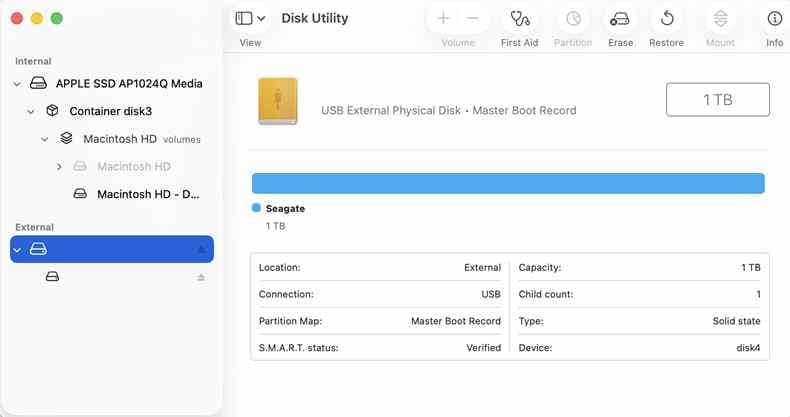
Note: The illustrated external disk is a generic Disk Utility example, not a SanDisk model. If your actual device is absent, repeatedly disconnects, overheats, or has a damaged connector, skip full software scans and see Part 7.
Part 2. Choose Recovery Software by SanDisk Device and Data Loss
A practical first decision is whether you have removable camera media, an external SSD or HDD, a complicated partition problem, or a device that is not communicating with the Mac.
Removable Cards and USB Media: RescuePRO or General Recovery Software?
| SanDisk Device or Symptom | First Software to Evaluate | Important Limitation |
| SD, microSD, CFexpress; missing camera photos or videos | RescuePRO Standard/Deluxe or Recoverit SD Card Recovery | Check the exact media type and video format; avoid any new camera writes |
| Detected USB flash drive; deleted or formatted files | Recoverit, RescuePRO, Disk Drill, or EaseUS | Save results to the Mac or another drive; some free plans exclude certain media |
| External SanDisk SSD; deleted files or inaccessible volume | Recoverit or a confirmed SSD-capable app; RescuePRO Deluxe for SSD only where applicable | TRIM and block clearing can prevent recovery; standard RescuePRO is not an HDD/SSD substitute |
| External HDD or lost partitions | Recoverit for supported logical loss; R-Studio for complex layouts | R-Studio's advanced disk and partition controls have a steeper learning curve |
| Physical disk absent, 0 bytes, severe instability, or physical damage | Professional assessment rather than repeated scans | Ordinary Mac recovery software cannot read storage that the OS cannot access |
For card-specific recovery details, see the existing Recoverit guide to recovering SD card data on Mac. For an ordinary SanDisk USB, the more focused SanDisk USB recovery guide covers that device category without turning this software comparison into a second repair article.
External HDDs and SSDs: Check Mac and File-System Support
Mac access to a volume is not the same as recovery-software support. For example, macOS can normally read an NTFS disk without offering native NTFS writing, while software may still be able to scan a readable NTFS volume. Encryption requires legitimate access credentials; no recovery tool should be assumed to decrypt locked storage automatically.
| File System | Typical Context | Mac Recovery Check |
| APFS | Mac-formatted SSD or external drive | Confirm APFS and encryption support; deletion on SSDs can be affected by TRIM |
| HFS+ (Mac OS Extended) | Older Mac-formatted volumes | Confirm HFS+ scan support and whether a damaged volume is still readable |
| exFAT / FAT32 | Camera media and cross-platform portable drives | Confirm removable-media support, file-size needs, and whether the disk remains detectable |
| NTFS | Windows-formatted external media | Verify NTFS recovery support independently from macOS write access |
Lost Partitions and Advanced Recovery
When a partition is deleted or the file-system layout is damaged, basic deleted-file tools may not provide enough control. R-Studio can scan underlying disks, search for lost partitions, work with disk images, and reconstruct supported RAID configurations. These operations are better suited to experienced users who can identify the correct physical disk and avoid writes to it. A disk image made from a sufficiently stable device can also reduce repeated access during later analysis.
Why Disk Utility First Aid Is Not a Recovery App
Apple's Disk Utility First Aid checks and repairs certain directory and formatting errors. It does not undelete photos or retrieve files from a reformatted drive. Because repair changes disk structures, copy or recover needed files before using First Aid on an at-risk source. If the physical device is unreliable, seek specialist guidance rather than attempting First Aid repeatedly.
Part 3. Eight SanDisk Recovery Software Options for Mac
These eight entries are organized by the problem each tool is useful for, not by an unverified recovery-success ranking. macOS versions and free/trial terms below reflect publisher information checked on October 8, 2026; they are not results of hands-on compatibility testing for every Mac or SanDisk model.
1. Recoverit - Broad Logical Recovery Across SanDisk Storage
Wondershare Recoverit for Mac is a practical option for users managing several types of SanDisk storage: SD and microSD cards, USB flash drives, external HDDs, and SSDs. It scans detected and readable media affected by deletion, accidental formatting, lost partitions, or certain file-system errors. Its separate SD Card Recovery workflow is useful for camera and drone footage, while the general drive workflow covers portable disks.
Wondershare's current Mac page lists macOS 27 alongside earlier versions, and its Mac free-edition page states that eligible users can scan, preview, and recover up to 500 MB for free. Advanced media recovery can help with supported fragmented recordings, but neither that feature nor a regular scan can restore data already overwritten or inaccessible because of physical hardware failure.
- Best fit: Mac users with logically damaged but detectable cards, USB storage, and external drives who want one guided interface.
- Watch for: Free-size limits, access permissions, the exact source selection, and SSDs whose deleted blocks may have been cleared.

2. SanDisk RescuePRO - Dedicated Flash-Media Recovery
RescuePRO is developed by LC Technology. SanDisk's Mac installation and recovery guide covers supported SD, microSD, CFexpress cards, and USB drives. RescuePRO Standard and Deluxe focus on flash media; Deluxe offers additional camera and fragmented-video capabilities. LC Technology separately markets a RescuePRO Deluxe for SSD product for supported external SSDs, not internal Mac system drives.
LC Technology's RescuePRO product information lists Mac OS X 10.8 or later as a minimum requirement, not a guarantee that every current macOS release has been tested. Trial editions can evaluate results, but exporting recovered files requires an eligible license or activation offer.
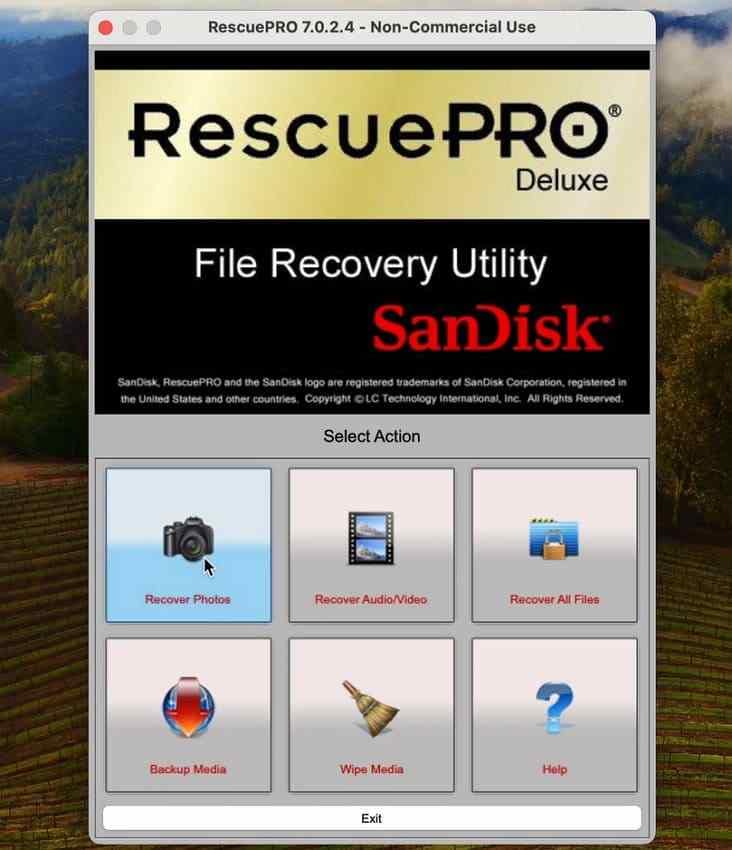
- Best fit: Supported SanDisk camera cards and USB flash media, particularly when a valid RescuePRO offer or license is available.
- Watch for: The difference between Standard, Deluxe, and SSD editions; media capacity and file-format needs; old screenshots may not match a current build.
3. SecureRecovery - Drive and Partition Scanning
SecureRecovery from Secure Data scans supported HDDs, SSDs, flash storage, and disk-image files. Its Mac listing specifies macOS 10 or newer and Apple M1/M2 support, with tools for deleted files, damaged partition layouts, reformatted file systems, and image-based recovery. A demo lists the files found so users can evaluate results before buying.
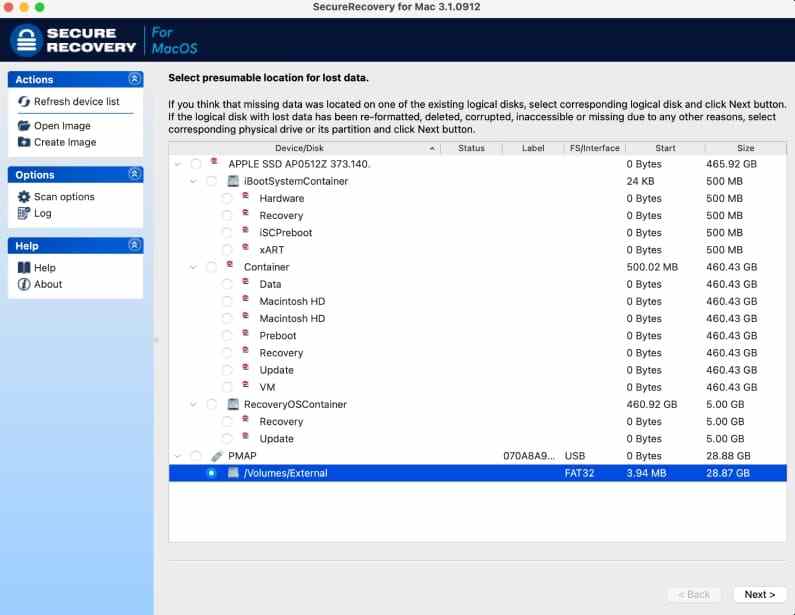
Best fit: Users evaluating recoverable files and partition structure before purchasing. The publisher's broad macOS requirement should not be mistaken for explicit testing on every newest macOS and Apple chip.
4. Disk Drill - Guided Scans and Disk Images
Disk Drill for Mac supports scans of compatible removable cards, flash drives, external HDDs, SSDs, and disk images. CleverFiles' current download page advertises Disk Drill 6.3 for macOS 10.15-26.x, while its separate system-requirements table also marks macOS 27 as supported by Disk Drill 6. These publisher pages differ, so verify the exact build before installing on macOS 27. It offers scanning and preview without buying PRO; unrestricted general file recovery requires an applicable paid license. Disk-image creation and supported data-protection features can be useful in certain cases.
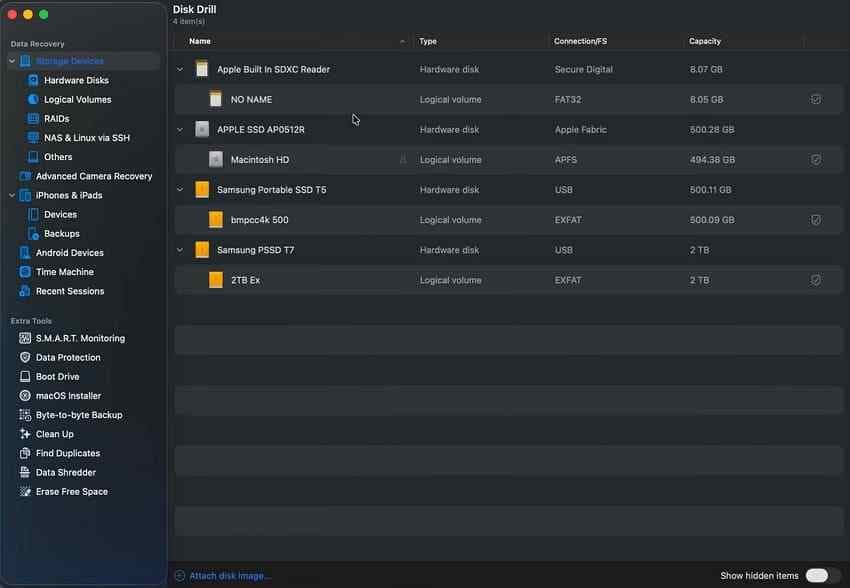
Best fit: Users who want to inspect recoverable files and assess image-based recovery. For macOS 27, resolve the differing CleverFiles support statements for your intended Disk Drill release first.
5. EaseUS Data Recovery Wizard - Simple Mac Recovery With Trial Restrictions
EaseUS Data Recovery Wizard for Mac Free covers supported USB media, HDDs, SSDs, and memory cards and lists macOS 27 compatibility. Its free edition normally starts with 500 MB of recovery; the vendor says an additional 1.5 GB may be unlocked through qualifying sharing. However, EaseUS's free-recovery knowledge base states that SD-card recovery requires purchase. Users should also distinguish the free edition from a preview-only trial.
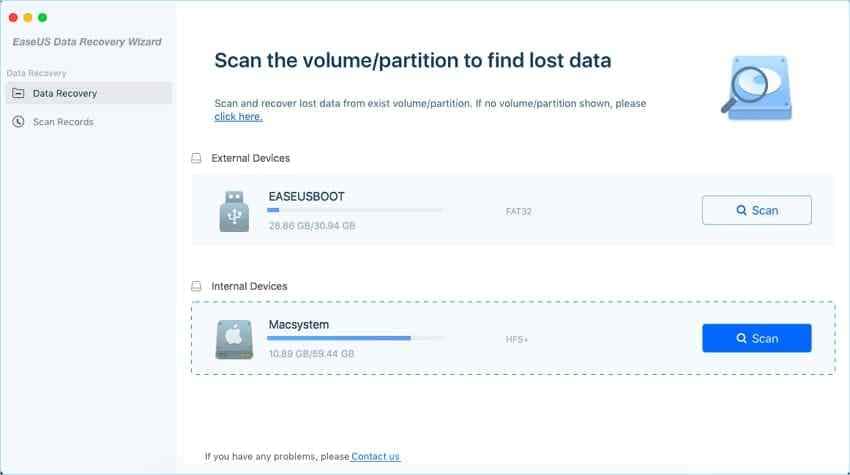
Best fit: Straightforward Mac file recovery from supported drives when the edition and destination media meet the license terms. For a SanDisk SD card, check the paid restriction before relying on the advertised free allowance.
6. R-Studio - Advanced File Systems and Lost Partitions
R-Studio for Mac is a technical recovery environment for analyzing damaged file systems, searching lost partitions, inspecting images, and working with supported complex disk and RAID structures. Its current Mac download page lists version 7.5 build 191805, released June 8, 2026, for macOS 10.14 through 26 and Apple M1-M4. The demo can recover individual files up to 1024 KB; larger supported images may be previewed.
Best fit: Advanced users who understand disks, partitions, and imaging. This is R-Tools Technology's disk-recovery product, not the similarly named RStudio statistical programming application.
7. Tenorshare 4DDiG - Guided Recovery and Preview
4DDiG Mac Data Recovery lists recovery from supported USB drives, cards, HDDs, SSDs, and cameras. Its current product page advertises macOS 10.12 through 27 and Apple M1-M6/T2 support. Mac users can scan and preview recoverable files for free, but should review paid export and license conditions before assuming recovered files can be saved without purchase.
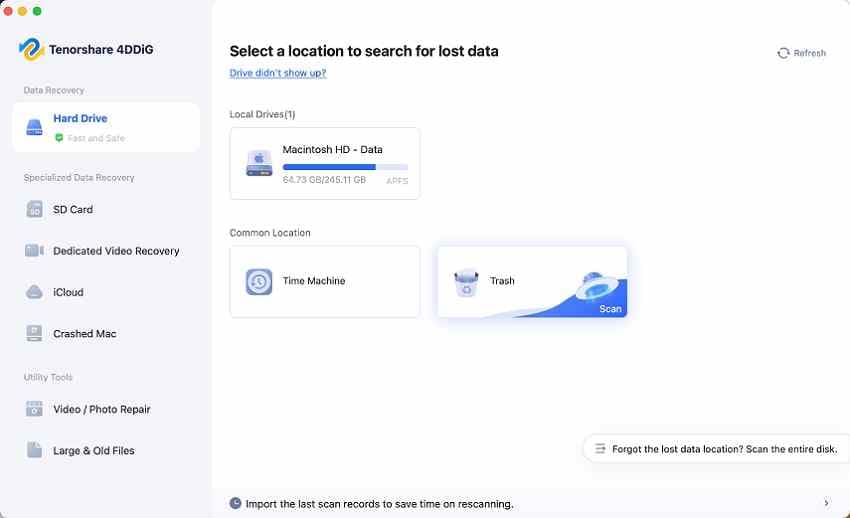
Best fit: Guided file searches across several detected SanDisk device types. The original interface image is illustrative and may differ from the current release.
8. Data Rescue 6 - Scans, Clones, and Recoverable-File Preview
Prosoft Data Rescue 6 supports compatible SD, CF, USB, HDD, and SSD recovery and provides Quick Scan, Deep Scan, cloning, and advanced scanning controls. The publisher's product page expressly lists macOS 10.12 through 13 and Apple M1/M2, while its support page says "macOS 10.12 or later" without naming every newer release. For macOS 14, 15, 26, or 27, confirm build-level support with Prosoft before relying on it.
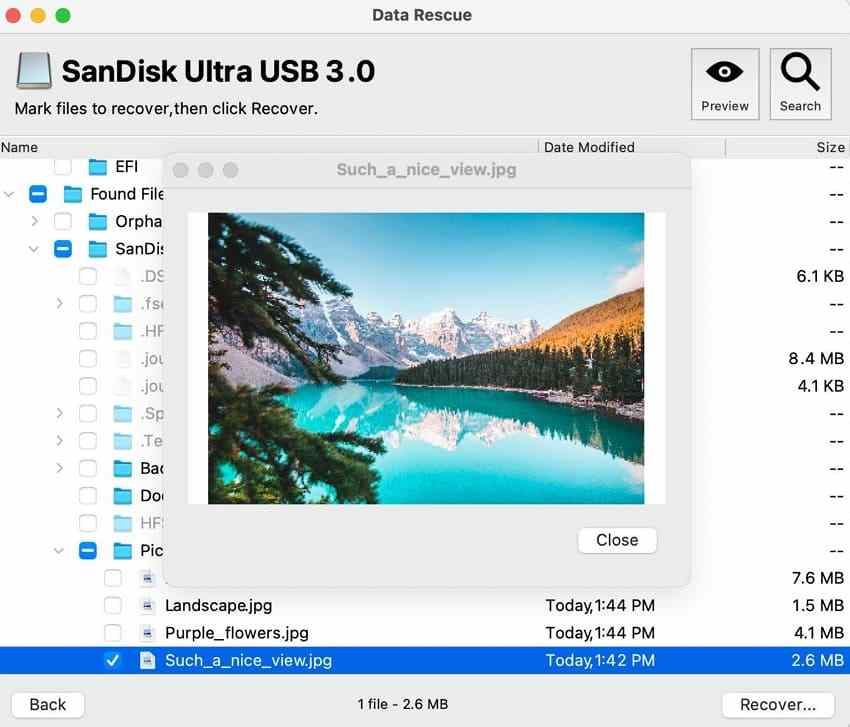
Best fit: Users who value preview, scans, and disk images and whose system meets Prosoft's verified version requirements. The publisher currently describes up to 1 GB of free recovery for new users.
Part 4. Compare the Eight Tools Without Overpromising
The table uses publisher-advertised compatibility and license details checked on October 8, 2026. A supported operating system does not mean every SanDisk model, file system, encryption state, or data-loss mechanism has been tested. Always preview actual results before paying when the publisher offers that option.
Software, Device Scope, macOS Support, Skill Level, and Free Limits
| Tool | SanDisk Storage Fit | Publisher-Listed Mac Support | Typical Scenario / Skill | Free or Trial Conditions |
| Recoverit | SD/microSD, USB, HDD, SSD | macOS 10.15 through 27 on current Mac product page | Deletion, formatting, logical damage; beginner | Scan and preview; up to 500 MB free recovery |
| RescuePRO Standard / Deluxe | Flash cards, USB; separate SSD edition | OS X 10.8+ minimum stated by LC Technology | Lost media files, supported fragmented video; beginner | Trial available; export needs an eligible activation or license |
| SecureRecovery | USB flash, HDD, SSD, disk image | macOS 10+; vendor mentions M1/M2 | Deletion, file system and partition problems; intermediate | Demo scans/lists findings; paid recovery |
| Disk Drill 6.3 | Cards, USB, HDD, SSD | 10.15-26.x on download page; separate requirements table lists 27 (verify) | Guided scans, disk images; beginner | Scan and preview; general recovery requires PRO |
| EaseUS Data Recovery Wizard | USB, HDD, SSD, cards | macOS 10.9-27 | Deletion, formatting; beginner | 500 MB standard free allowance, potentially 2 GB after sharing; SD card requires paid edition |
| R-Studio 7.5 | Removable disks, HDD/SSD, partitioned media | macOS 10.14-26; Apple M1-M4 | Complex partitions, damaged file systems; advanced | Demo recovery up to 1024 KB per file |
| Tenorshare 4DDiG | Cards, USB, HDD, SSD | macOS 10.12-27; M1-M6/T2 on current page | Deletion and formatted media; beginner | Free scan/preview; check paid export terms |
| Data Rescue 6 | Cards, USB, HDD, SSD | 10.12-13 expressly shown on product page; broader support wording needs confirmation | Scanning, cloning, unmounted volumes; intermediate | Up to 1 GB for new users per publisher |
SanDisk's Reference Pages Are Not a Ranking
SanDisk's third-party directory groups available options. It does not establish their relative recovery rates, certify specific Mac builds, or take responsibility for individual third-party licenses. The manufacturer's warranty also does not reimburse ordinary data-recovery costs. Publisher terms, current downloads, and exact model compatibility take priority over a directory listing.
What to Verify Before Installing a Mac Recovery App
- Exact macOS release and Mac chipset: Do not assume support for macOS 27 because an app supports macOS 26 or says "latest Mac."
- Device category: Standard RescuePRO flash-media coverage differs from its separately branded external-SSD product.
- Free vs. trial: Scanning, previewing, and exporting recovered files are separate entitlements.
- Source access: A disk that does not appear as readable storage is not a normal software recovery case.
- Recovery destination: Have enough space on a different healthy disk before starting.
Part 5. Recover Supported SanDisk Cards and USB Drives With RescuePRO
SanDisk's current macOS instructions describe choosing a file category, selecting the correct detected device, scanning, and opening the output folder. These steps apply to compatible removable media; they are not directions for repairing a failed SSD or a physically broken card reader.
Check the Official RescuePRO Guide, Edition, and Download
Start with the SanDisk RescuePRO macOS support guide and follow its LC Technology download route rather than third-party mirrors. The program may require a purchased license or a promotional key supplied with an eligible product. Make sure the installed Mac version matches your OS and selected media; a free evaluation is not the same as free file export.
Select, Scan, and Review Files in RescuePRO
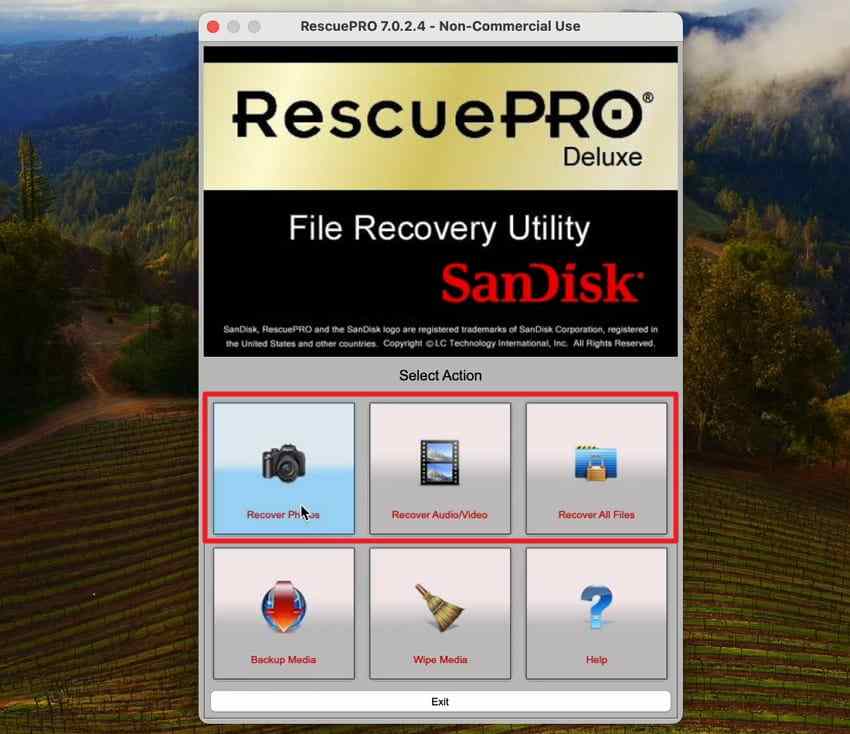
Step 1. Open RescuePRO and Choose the Recovery Category
Connect the SanDisk card through a reliable reader or connect the USB flash drive directly. Launch the installed Mac version of RescuePRO. Select photos, audio/video, or all files according to what was lost. Do not choose media-wiping functions.
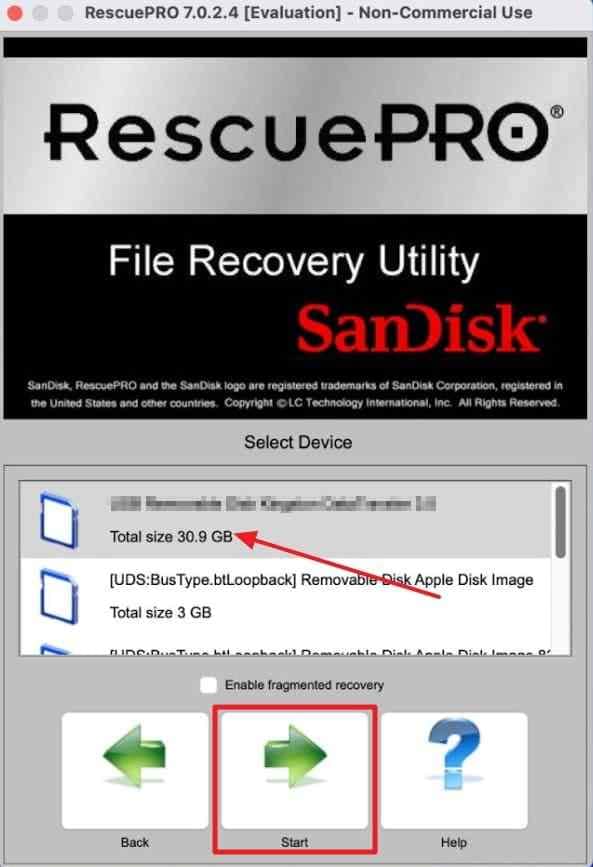
Step 2. Select the Correct Physical Media and Start the Scan
Identify the SanDisk card or USB by the capacity shown in the device list, then choose Start. Double-check that you did not select the Mac's internal disk or another connected removable device.
Step 3. Inspect the Output Folder
Let the scan finish and open Output Folder to review results. SanDisk's Mac guide says RescuePRO writes recovered output to the computer's internal drive. Verify several important photos and videos before reusing or formatting the card, and keep that recovered copy away from the affected source.
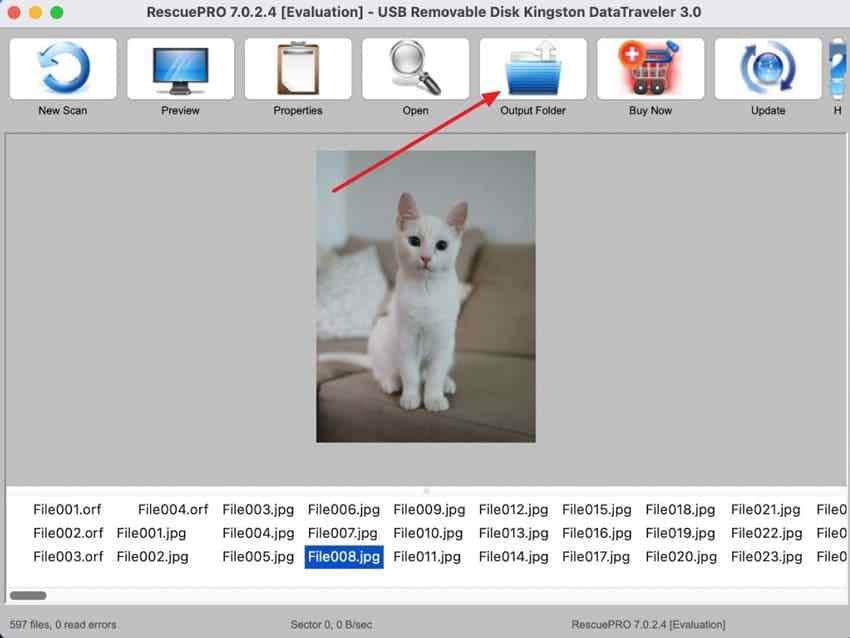
Note: The images above come from an earlier RescuePRO Mac interface. Button placement can differ in a newer release; follow the current SanDisk and LC Technology instructions for your installed build.
Which RescuePRO Edition Fits the Media?
| Edition | Documented Use | License or Download Check |
| RescuePRO Standard | Supported SD, microSD, USB and other flash media | Use the LC Technology Mac trial or a compatible activation offer; recovery export requires a valid entitlement |
| RescuePRO Deluxe | Additional media formats, HD video and supported fragmented recordings | Confirm which card formats and capacities apply; vendor recommends Deluxe for some high-resolution video needs |
| RescuePRO Deluxe for SSD | Supported external SanDisk SSDs, not Mac internal system drives | Separate SSD-specific download and license; do not substitute the flash-media edition |
LC Technology currently advertises one-year terms for purchased licenses. Promotional keys and media compatibility can vary, so use the exact offer from the SanDisk package rather than assuming every card includes a RescuePRO license.
Part 6. Recover SanDisk Files on Mac With Recoverit
For a detected SanDisk USB drive, external HDD, SSD, or memory card, Recoverit provides a guided way to find files lost through supported logical problems. It is particularly helpful when you own several SanDisk device types or when a general storage scan is more suitable than RescuePRO's flash-media focus.
Select the SanDisk Source in Recoverit for Mac
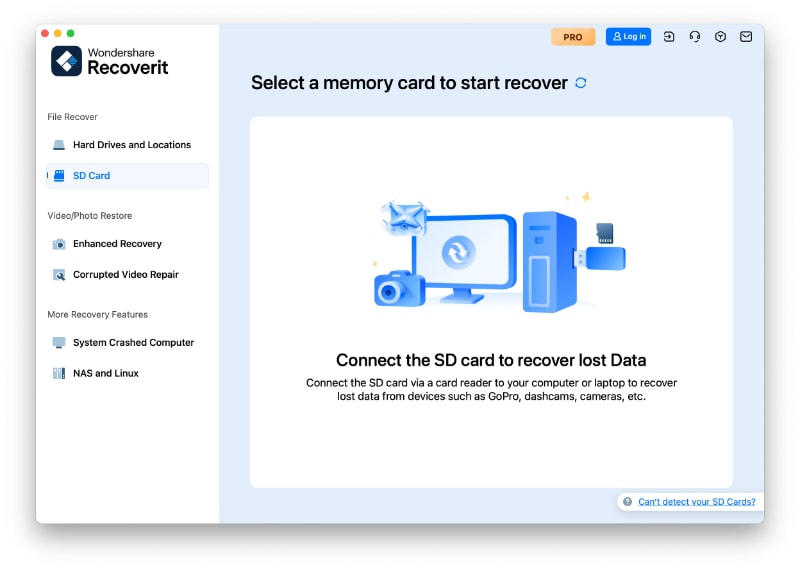
Step 1. Choose the Correct Recovery Area
Install Recoverit on the Mac's healthy storage, then connect the affected SanDisk device through a stable connection. For a camera SD or microSD card, open SD Card Recovery and select the recognized media. For a USB stick or external hard drive/SSD, use Hard Drives and Locations (or the equivalent drive list shown in your version), then choose the original source.
Step 2. Scan the Detected Device
Start the scan, leave the storage connected, and examine results by file path or file type. Use available filters to narrow down photos, videos, documents, and RAW camera files. Avoid writing anything to the SanDisk source while the scan is running.
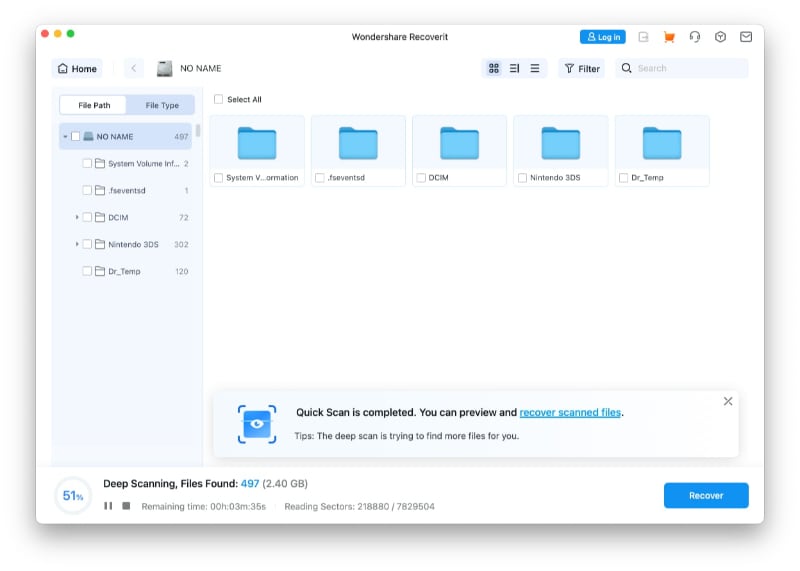
Step 3. Preview and Save to Another Healthy Drive
Open supported previews to check the files you need. Select the results and click Recover, then choose an internal Mac folder or a different external drive with enough free space. Do not save to the original SanDisk card, USB, or SSD. Open several recovered files afterward to confirm that they are usable.
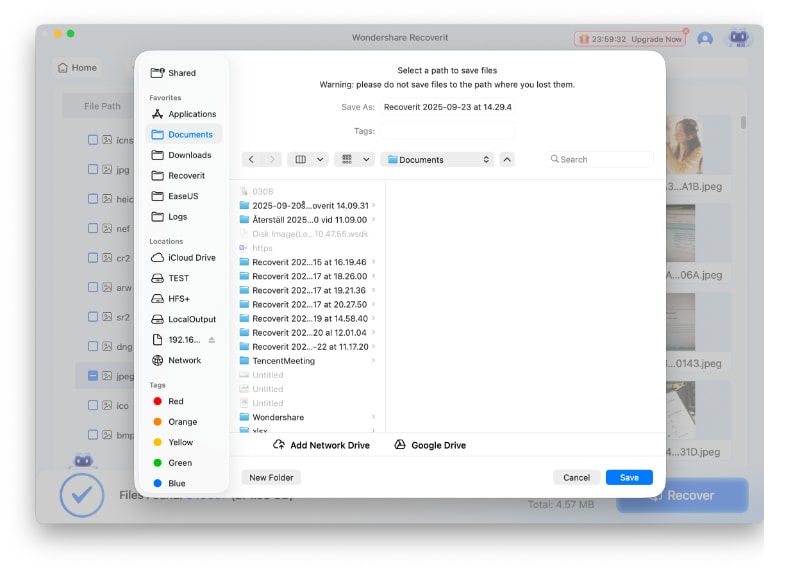
What Recoverit Cannot Recover
Recoverit cannot make macOS detect a physically failed device, bypass a password, defeat encryption without valid credentials, or recover data that storage has already overwritten or cleared. A missing Finder volume is not always fatal if the physical disk remains visible and readable, but an absent disk, repeated USB disconnections, a broken connector, or severe heat is a reason to stop ordinary scanning. For broader recovery scenarios, see Recoverit's memory card recovery and USB flash drive recovery pages.
Part 7. If the SanDisk Device Is Missing or Damaged
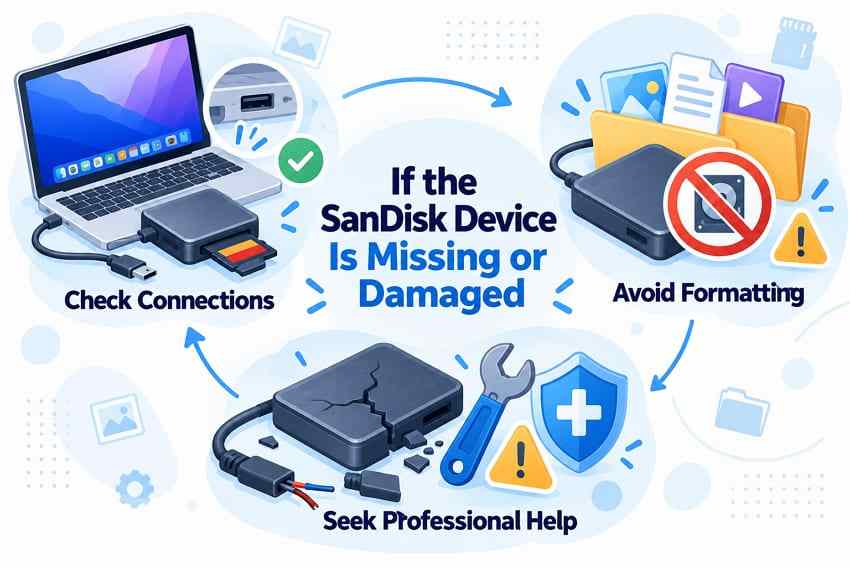
Choosing recovery software is premature if your Mac cannot communicate reliably with the SanDisk storage. A short connection check can distinguish an unreadable file system from a missing physical disk, but repeated reconnecting is not a repair method.
Check the Reader, Cable, Port, Power, and Disk Utility Once
For a physically intact card or drive, try one known-good compatible port, reader, cable, or another Mac. Avoid loose USB hubs and provide the correct power source for an external HDD when required. Then open Disk Utility and choose View > Show All Devices. Note whether the device appears with a plausible capacity, merely has an unmounted volume, or fails to appear entirely. Do not repeatedly test a device that overheats or disconnects.
Decline Initialize and Erase Prompts While Files Are Needed
If macOS offers to initialize an unreadable SanDisk drive, decline until the files have been backed up, recovered, or assessed by a specialist. Apple's initialize-a-device instructions explicitly describe erasing and reformatting, which are inappropriate as a first data-recovery step. Likewise, do not use First Aid on an unstable device simply to make a scan possible.
When Professional Recovery Is the Safer Route
Stop ordinary software attempts if the SanDisk media has a bent connector, visible damage, signs of overheating, repeated disconnects, unexpectedly tiny or zero capacity, or is missing from Disk Utility on more than one known-good connection. With high-value photos or business data, contact a reputable recovery laboratory before further DIY actions. A warranty replacement addresses product failure, not the retrieval of unbacked files.
Conclusion
The best SanDisk recovery software for Mac is the one that fits the actual device, file system, and data-loss situation. RescuePRO is worth checking for the SanDisk removable media documented by SanDisk and LC Technology; the separate SSD edition has narrower requirements. Recoverit is a broader choice for supported logical file loss across detected cards, USB drives, HDDs, and SSDs. For complex partition work, technical users may prefer R-Studio. In every case, protect the source, confirm the Mac can read it, and recover to a different healthy drive before considering repair or formatting.
FAQ
-
Is SanDisk RescuePRO available for Mac?
Yes. SanDisk publishes a RescuePRO for macOS guide covering supported SD, microSD, CFexpress cards, and USB drives. LC Technology develops and supports the software. Check your exact RescuePRO edition, Mac compatibility, and license or eligible promotional offer before installing. -
What Is the Best SanDisk Recovery Software for Mac?
There is no single best choice for every device. RescuePRO is a focused option for compatible flash media; Recoverit covers a broader range of detected cards, USB devices, HDDs, and SSDs with supported logical data loss; R-Studio adds advanced partition and disk-analysis controls. Check the source condition and free-versus-paid export terms before choosing. -
Can SanDisk Recovery Software Recover a Formatted Drive?
Sometimes. A formatted card or drive may still hold recoverable data if the relevant blocks have not been overwritten or cleared. The result depends on whether the operation was a quick or full format, the file system, the device type, and any later writes. Stop using the source and scan it before reformatting. -
Can I Recover Files From a SanDisk SSD on Mac?
Recovery software can sometimes scan a supported SanDisk SSD when macOS detects the physical storage and readable data remains. However, SSD TRIM, block clearing, encryption, subsequent writes, and hardware failure can make deleted data unavailable. Do not use standard flash-card RescuePRO as a substitute for SSD-specific compatibility checks.


