

 TL;DR:
To recover files from an unallocated storage device without formatting, immediately stop using the drive and run a data recovery tool like Recoverit to scan for lost partition structures, ensuring you save the extracted files to a completely different physical disk.
● Do not use DiskPart commands or Windows Disk Management to initialize the disk or create a New Simple Volume beforehand, as these operations write new structures that can overwrite the remaining recoverable file system metadata.
● Assigning a missing drive letter in Windows 10 and Windows 11 only works if the volume is currently healthy and accessible, whereas true unallocated space requires data extraction before any partition repair.
● Software recovery is strictly limited to stable, detectable devices; if the drive clicks, repeatedly disconnects, or fails to appear in the BIOS or Device Manager, you must halt DIY attempts and use a professional data recovery service.
Ask AI for a summary
 ChatGPT
 Perplexity
 Gemini
 Claude
 Grok
Grok
Quick answer: If a disk, SD card, USB drive, or external hard drive suddenly shows as unallocated, do not format it, initialize it, create a new volume, or run DiskPart commands first. Unallocated space means Windows no longer sees a usable volume in that area. In many cases, the files may still exist on the storage device until they are overwritten. The safest first move is to stop using the drive, scan it with a data recovery tool, preview the files, and recover them to another storage device.
Recoverit's new partition recovery workflow is built for exactly this kind of heavier data-loss case: unallocated space, RAW partitions, missing volumes, inaccessible disks, and SD cards that ask to be formatted. Instead of pushing users to rebuild the volume first, it helps analyze the affected storage device, locate recoverable data from the lost partition area, preview results, and recover files before any formatting or partition write-back step.
This guide explains how to recover files from unallocated space without formatting. It also shows how the new Recoverit partition recovery value fits the user journey, when Windows Disk Management can help, when a missing drive letter is a different problem, and when you should stop DIY recovery and contact a professional service.
The article focuses on Windows 11 and Windows 10 because unallocated space is usually checked in Disk Management. The same data-safety logic applies to external HDDs, SSDs, USB flash drives, memory cards, and camera cards: recover important files first, then repair or recreate the volume only after your data is safe.
Try Wondershare Recoverit to Recover Files From Unallocated Space
 Security Verified. Over 7,302,189 people have downloaded it.
In this article
Part 1. Can You Recover Files From Unallocated Space Without Formatting?
Yes, you can often recover files from unallocated space without formatting, but the result depends on what happened to the partition and whether the old data has been overwritten. When a disk area becomes unallocated, Windows no longer has a normal volume to open. That does not automatically mean every file has disappeared. It often means the partition record, file system metadata, or volume entry is missing or damaged.
The right recovery order is important. If you create a new volume, format the space, initialize the disk, or write new files to the same drive, you may replace the metadata that recovery software needs. For that reason, the safest sequence is:
- Stop using the affected drive immediately.
- Do not create a new partition or volume yet.
- Recover files to a different disk, not back to the unallocated drive.
- Only after recovery, decide whether to recreate, format, or replace the partition.
Recoverit Partition Data Recovery supports recovery from lost, deleted, formatted, corrupted, RAW, and other inaccessible partition scenarios. For an unallocated disk, the practical value is that you can scan the affected storage device and preview recoverable files before making changes in Windows Disk Management.
| What you see | What it usually means | Safest first action |
| Disk Management shows unallocated space | Windows does not see a usable volume in that region. | Recover files first, then create a new volume if needed. |
| Drive appears as RAW | The file system is unreadable or damaged. | Use RAW drive recovery before formatting. |
| Drive letter disappeared but volume is healthy | The partition may still exist, but Windows has no assigned letter. | Assign a drive letter in Disk Management if the volume is accessible. |
| External drive clicks, disconnects, or is not detected | The storage device may have physical or electronic failure. | Stop DIY attempts and consider professional recovery. |
Part 2. Unallocated vs RAW vs Missing Drive Letter
Many articles treat unallocated space, RAW partitions, and missing drive letters as the same problem. They are related, but the correct fix is different.
| State | How it appears in Windows | What to do if files matter |
| Unallocated space | The area has no usable volume in Disk Management. | Do not create a new volume until files are recovered. |
| RAW partition | The drive exists, but Windows cannot read the file system. | Recover files first; format only after recovery. |
| Missing drive letter | The volume is present and healthy, but File Explorer does not show it. | Assign a drive letter if the volume is initialized and accessible. |
| Not initialized disk | Windows asks you to initialize the disk. | If it previously stored files, recover or clone first before initializing. |
Microsoft explains that Disk Management can initialize drives, create and format volumes, change drive letters, and extend or shrink volumes. It also notes that Disk Management works the same in Windows 10 and Windows 11. That makes it useful for diagnosis, but it also means you need to understand which operations write changes to the disk before clicking through a wizard.
If the drive is a USB flash drive, memory card, or camera card, use the same caution. A card that looks unallocated after sudden removal, camera interruption, or accidental deletion may still contain recoverable files. You can also continue with Recoverit pages for USB drive recovery or memory card recovery if the device type is more specific.
Part 3. What Not to Do Before Unallocated Disk Recovery
Before you recover data from an unallocated disk, avoid actions that write a new structure to the same storage space. Some Windows tools are safe for checking the drive. Others are safe only after recovery.
| Action | Why it is risky | Safer alternative |
| Create a New Simple Volume | It creates a new volume in the unallocated region and may lead to formatting. | Recover files first, then create the new volume. |
| Format the partition | Microsoft warns that formatting a volume destroys data on that partition. | Use recovery software or backup restore before formatting. |
| Run DiskPart create partition primary | It creates a new primary partition on the selected disk, not an old-file recovery path. | Use it only after the data is already recovered or no longer needed. |
| Save recovered files to the same disk | New writes can overwrite the files you are trying to recover. | Save recovered files to another internal drive, external drive, or cloud-synced folder. |
| Keep reconnecting a failing drive | Mechanical or electronic failure can worsen with repeated attempts. | Power it off and contact a recovery lab. |
In short, unallocated disk recovery is not about making the drive usable as fast as possible. It is about securing the missing files first. Once your data is recovered, you can use Windows tools to create a new simple volume or format the drive for future use.
Part 4. How Recoverit's New Partition Recovery Helps With Unallocated Space
Use this method when your priority is to recover data from unallocated disk space before formatting or rebuilding the partition. Recoverit's new partition recovery workflow is designed to handle more complex partition-loss scenarios, including unallocated space, RAW partitions, lost volumes, missing drive letters, and storage devices that are detected but cannot be opened normally.
The core product value is simple: protect the current disk state first, identify recoverable data from the lost partition area, preview the result, and recover files before making risky partition changes. This is more aligned with real user pain than telling users to immediately create a new volume in Disk Management.
New version value: recover before partition changes
Recoverit is not only for ordinary deleted-file cases. It is positioned for heavier partition-loss scenarios where users still see the disk but cannot access the original volume, folder structure, or drive letter.
| New Recoverit partition recovery value | What it means for an unallocated disk | User benefit |
| Lost partition structure detection | Scans the affected disk for clues from the original partition and file system structure, such as MBR/GPT and common Windows file systems where recoverable metadata remains. | Users are not limited to guessing or creating a new blank volume first. |
| RAW, unallocated, and inaccessible-disk coverage | Addresses complex states where the storage device is detected but Windows cannot open the original data area normally. | Matches high-stress scenarios such as SD cards asking to be formatted or external drives showing unallocated space. |
| Original folder and file relationship recovery | Attempts to show recoverable files with their original folder paths when the file system metadata is still usable. | Helps creators and office users recover projects, photos, videos, and documents in a more organized way. |
| Preview before recovery | Lets users check files before saving them to another safe location. | Reduces blind recovery and helps users confirm whether the important files are still recoverable. |
| Controlled partition recovery flow | Keeps formatting, new-volume creation, partition write-back, or other disk-structure changes after data protection. For advanced partition operations, use backup, verification, and rollback options when available in the release. | Gives users a safer order: recover data first, then repair or rebuild the partition. |
This method fits common cases such as:
- An external hard drive partition disappeared after a power cut or unsafe removal.
- A disk that previously stored files now shows a large unallocated region in Disk Management.
- A USB drive or SD card is detected, but Windows cannot open the old volume.
- You need project folders, photos, videos, or documents before creating a new volume.
- Multiple volumes disappeared from a work drive and you want to check recoverable partition data before writing changes to the disk.
Step 1. Select the affected disk or unallocated area
Install and open Recoverit on a working computer. Select the affected disk, lost partition area, or connected external device from the drive list. If the original volume is not shown, choose the physical disk that contains the unallocated space. This keeps the recovery focus on the storage area where the lost partition data may still exist.

Step 2. Scan for lost partition data
Start the scan and wait for Recoverit to analyze the selected storage device. The new partition recovery workflow is meant to look beyond a visible drive letter and help locate recoverable data from lost, RAW, unallocated, or inaccessible partition areas. You can use file type, file name, size, or path filters when available to narrow the results. If you are recovering from a large HDD or a drive with many folders, allow the scan to continue long enough to find more file records.

Step 3. Preview and recover files to another drive
Preview the files you need, check whether important folders and file names are available, select the target files, and click Recover. Save the recovered files to a different storage device. Do not save them back to the same unallocated disk, because new writes can overwrite remaining recoverable data.

After recovery, open several important files from the destination drive to confirm they work. Then decide whether to recreate the original partition, create a new simple volume, format the drive, or replace the storage device. If the release provides advanced partition write-back, verification, or rollback controls, use them only after file recovery or backup, not before.
Try Wondershare Recoverit to Recover Files From Unallocated Space
Security Verified. Over 7,302,189 people have downloaded it.
Part 5. When to Use Disk Management or DiskPart
Windows Disk Management is useful, but it should be used in the right order. Microsoft describes Disk Management as the built-in Windows tool for initializing drives, creating and formatting volumes, changing drive letters, and extending or shrinking volumes. Those are management operations, not data recovery guarantees.
Case 1. Assign a drive letter only when a volume still exists
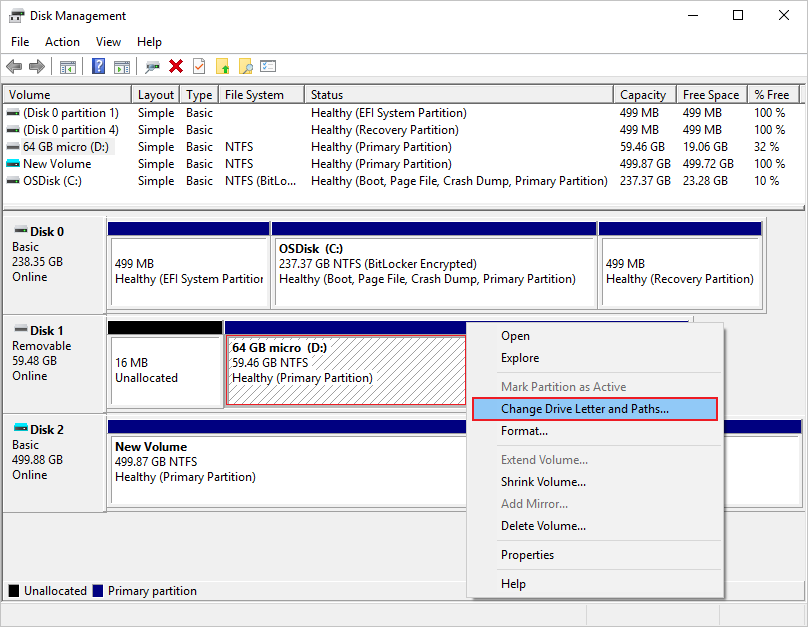
If Disk Management shows a healthy volume without a drive letter, assigning a letter may make it visible in File Explorer again. This is not the same as recovering files from unallocated space. Microsoft says the drive-letter procedure applies to a new or existing drive that is initialized and accessible, and it also notes that an unallocated drive may not be ready to receive a drive letter.
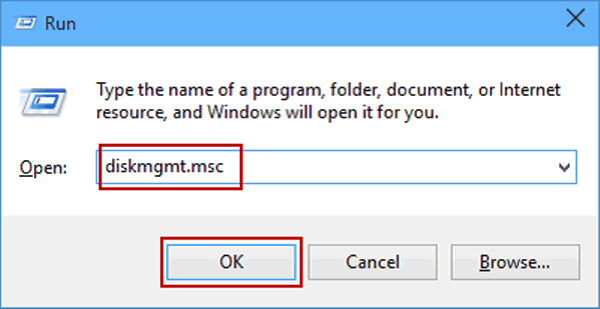
- Right-click the Start button and open Disk Management.
- Find the volume. Confirm it is not marked as unallocated.
- Right-click the volume and choose Change Drive Letter and Paths.
- Select Add or Change, choose a letter, and confirm.
Case 2. Create a new volume only after data recovery
If Disk Management shows true unallocated space, Windows may let you create a New Simple Volume. This can make the disk usable again, but it is a post-recovery step. Microsoft explains that creating a new partition requires unallocated space, and the wizard includes a Format Partition step. Microsoft also warns that formatting a volume destroys data on that partition. If you still need old files, recover them first.
- Recover or back up important files from the affected disk first.
- Open Disk Management.
- Right-click the unallocated region and choose New Simple Volume.
- Choose the volume size and drive letter.
- Format the new volume only after your files are already safe.
Case 3. Use DiskPart only when you no longer need data from that space
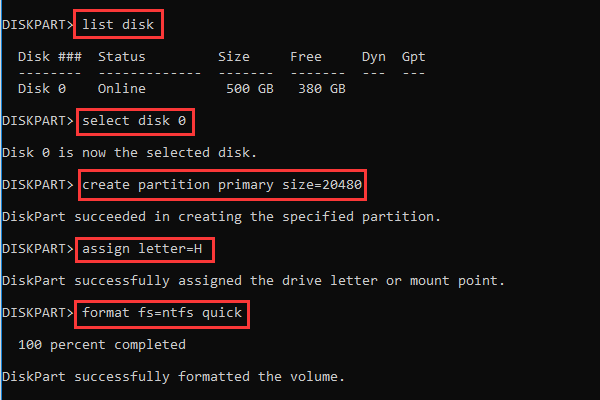
DiskPart is powerful and easy to misuse. The Microsoft DiskPart create partition primary command creates a primary partition on the selected basic disk. That is not a file recovery method. If you choose the wrong disk or create a new partition before recovery, you may make the recovery job harder.
Use DiskPart only if you have already recovered the files, you have a verified backup, or you do not need data from the unallocated region. If the affected disk contains work files, family photos, camera footage, or business documents, choose recovery first.
Part 6. Restore Files From Backup
If you have a recent backup, restore from it before trying repair operations. Backup restore is safer than recreating partitions blindly because it does not depend on the damaged disk structure.
- Connect your backup drive or open your backup tool, such as File History, Windows Backup, OneDrive, or another backup system you already use.
- Find the folders that were stored on the missing partition.
- Restore the files to a different healthy drive.
- Open key files to confirm that the backup copy is usable.
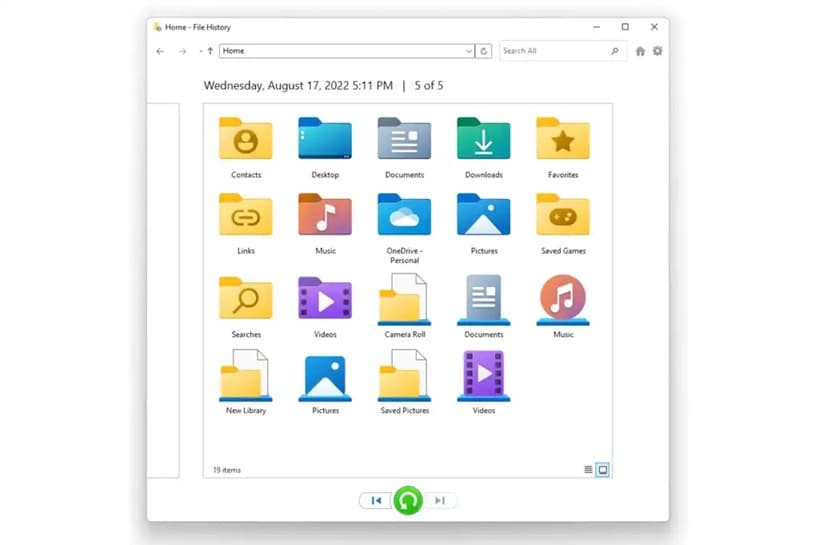
If the backup is incomplete or outdated, use recovery software for the missing files before changing the unallocated disk.
Part 7. When Professional Data Recovery Is Safer
Software recovery is appropriate only when the storage device is still detectable and stable enough to scan. Stop using the drive and consider a professional data recovery lab if you notice any of these signs:
- The external drive clicks, beeps, spins down, or disconnects repeatedly.
- The disk is not detected in BIOS, Disk Management, or Device Manager.
- The device was dropped, exposed to water, burned, or physically damaged.
- The drive contains critical business data and you have no second copy.
- The drive is encrypted and you do not have the correct recovery key or password.
Recoverit cannot repair physically failed hardware or bypass encryption. Recovery also cannot be guaranteed when data has been overwritten. If the only copy is highly valuable, avoid repeated scans and let a qualified lab inspect the device.

Part 8. How to Prevent Unallocated Space From Happening Again
You cannot prevent every partition issue, but you can reduce the risk and improve recoverability.
- Keep at least one backup of important files on a separate device or cloud service.
- Use Safely Remove Hardware before unplugging USB drives, SD cards, or external disks.
- Avoid repartitioning or formatting a drive while copying files.
- Use a UPS or stable power source for desktops and large external drives.
- Check drive health if a disk repeatedly becomes RAW, unallocated, or slow to mount.
- Do not test risky DiskPart commands on drives that contain important files.
- For camera or drone cards, stop recording before removing the card and format only after backups are complete.
If a partition disappears again after recovery, treat it as a possible storage reliability issue. Recover your files, then consider replacing the drive instead of continuing to store important data on it.
Conclusion
An unallocated disk does not always mean permanent data loss. It means Windows no longer sees a normal volume in that space. The safest response is not to format, initialize, or create a new partition immediately. First, recover files from the unallocated space to another storage device. Then use Disk Management, DiskPart, or formatting only after the important data is safe.
Recoverit is a practical first step when the disk is still readable and you need the files before fixing the partition. It helps scan the affected storage device, preview recoverable data, and save selected files away from the problem disk. If the storage device is physically damaged, unstable, encrypted without the key, or no longer detected, stop DIY attempts and consider professional help.
FAQ
-
What is new about Recoverit partition recovery for unallocated disks?
Recoverit's new partition recovery workflow is positioned for complex partition-loss cases such as unallocated space, RAW partitions, missing volumes, inaccessible disks, and SD cards that ask to be formatted. It focuses on scanning the affected disk, locating recoverable data from the lost partition area, previewing results, and recovering files before formatting or rebuilding the partition. -
Can I recover files from unallocated space without formatting?
Yes, in many cases you can recover files from unallocated space without formatting if the old data has not been overwritten and the storage device is still detectable. Do not create a new volume or format the disk first. Scan the affected disk, preview the files, and recover them to another drive. -
Does unallocated space mean my data is gone?
No. Unallocated space means Windows does not currently see a usable volume in that area. The old files may still exist on the device, especially if you have not written new data to the same disk. Recovery depends on overwriting, file system damage, encryption, and drive condition. -
Should I create a New Simple Volume to fix an unallocated disk?
Create a New Simple Volume only after recovering or backing up the files you need. The Windows Disk Management wizard is useful for making the disk usable again, but it is not the first step if you still need data from the unallocated space. -
Can assigning a drive letter recover an unallocated partition?
Usually no. Assigning a drive letter helps when a healthy existing volume has no letter. If Disk Management shows the space as unallocated, Windows does not see a usable volume to assign. Recover the files first, then recreate the volume if needed. -
Is DiskPart safe for unallocated disk recovery?
DiskPart is not a data recovery tool. Commands such as create partition primary create a new partition on the selected disk. Use DiskPart only after your data has been recovered or when you no longer need files from that unallocated space. -
When should I use a professional data recovery service?
Use a professional service if the drive is not detected, makes unusual sounds, disconnects repeatedly, was physically damaged, or contains highly critical data with no backup. Software recovery cannot repair hardware failure or guarantee recovery from overwritten or encrypted data without the correct key.


