
 TL;DR:
When your computer displays a "No Hard Disk Found" error, immediately secure your data by refusing system prompts to format, initialize, or run CHKDSK, and diagnose the root cause by checking if the drive is visible in BIOS/UEFI or Windows Disk Management.
● If the drive is completely missing from BIOS/UEFI, physically reseat the SATA cables, M.2 NVMe connections, or external USB enclosures; however, if the drive emits clicking or grinding noises, immediately disconnect power as this indicates mechanical hardware failure requiring professional services.
● When the drive is visible in Windows Disk Management but missing from File Explorer, it may be marked as RAW, Unallocated, or Offline—do not assign a drive letter or alter partition tables unless the volume is confirmed healthy, to prevent permanent data corruption.
● You can utilize Recoverit Hard Drive Recovery to extract trapped files from inaccessible or corrupted partitions, with the strict prerequisite that the drive must still be logically detectable by the motherboard or OS; software cannot scan physically dead or entirely invisible drives.
Ask AI for a summary
 ChatGPT
 Perplexity
 Gemini
 Claude
 Grok
Grok
When your computer shows “No Hard Disk Found” or your hard drive is not detected, access to storage can stop instantly. The issue may appear during startup, Windows installation, BIOS checking, system recovery, or after connecting an external drive. Sometimes the cause is simple, such as a loose cable, wrong boot order, missing drive letter, or faulty USB port. Other times, it may point to file system corruption, drive failure, or physical damage.
The safest approach is not to rush into formatting, initializing, reinstalling Windows, or running repair commands. If the drive contains important files, protect the data first. This guide explains how to diagnose hard drive not detected problems, fix No Hard Disk Found errors safely, and recover data when the drive is still readable enough for recovery software.
In this article
Part 1. What “No Hard Drive Found” Means
The “No Hard Drive Found” or “No Hard Disk Found” error means your computer cannot access the storage drive it expects to use. The exact meaning depends on where the message appears.
| Error Type | What It Means | Where It Usually Appears | Data Risk Level |
|---|---|---|---|
| No Hard Drive Found | The system cannot detect the physical HDD or SSD. | BIOS, startup screen, Windows setup, or recovery screen. | High if the drive contains important files. |
| No Hard Disk Found | Similar to No Hard Drive Found. The disk is not detected at the expected hardware or firmware level. | BIOS, boot screen, installer, or diagnostics. | High if detection fails repeatedly. |
| No Boot Device | The drive may exist, but no bootable operating system is found. | Startup screen before Windows loads. | Medium to high depending on partition condition. |
| Drive Not Showing in Windows | Windows may detect hardware, but File Explorer does not show the drive. | File Explorer or Disk Management. | Depends on RAW, unallocated, or missing drive letter status. |
| External Hard Drive Not Detected | The USB drive or external HDD is not appearing correctly. | File Explorer, Disk Management, Device Manager. | Depends on cable, enclosure, power, or file system status. |
- Internal HDD or SSD Not Detected: An internal drive detection problem may come from a loose SATA cable, missing power connection, poor M.2 seating, disabled BIOS settings, storage controller issues, incorrect boot mode, or drive failure.
- External Hard Drive Not Detected: An external drive may fail to appear because of a bad USB cable, weak USB port, damaged enclosure, power shortage, driver issue, file system corruption, or physical drive damage.
- When This Error May Point to Hardware Failure: Clicking sounds, beeping, grinding, repeated disconnection, overheating, failed diagnostics, or BIOS invisibility can suggest physical failure. If important data is on the drive, stop repeated attempts and consider professional help.
Part 2. Quick Diagnosis: Where Is the Drive Missing?
Before trying fixes, identify where the drive is missing. Each situation needs a different next step.
| Situation | What It Usually Means | What to Do First |
|---|---|---|
| Drive is missing from BIOS or UEFI. | Hardware-level detection issue, loose connection, controller setting, or drive failure. | Check cables, ports, power, M.2 seating, and controller settings. Stop if the drive makes abnormal sounds. |
| Drive appears in BIOS but Windows will not boot. | Boot order, boot files, system partition, or boot mode issue. | Check boot order and Windows recovery options. Avoid reinstalling before data is safe. |
| Drive appears in Disk Management but not File Explorer. | Missing drive letter, unsupported file system, RAW partition, or damaged volume. | Assign a letter only if the partition looks healthy. Recover data first if RAW or unallocated. |
| Drive shows RAW, Unallocated, Unknown, or Not Initialized. | Partition table or file system problem. | Do not format or initialize. Recover data before repair. |
| External drive has light or sound but does not appear. | Cable, port, power, enclosure, driver, or file system issue. | Try another cable, port, computer, or enclosure if safe. |
| Drive makes clicking, beeping, grinding, or scraping sounds. | Possible physical drive failure. | Power off and seek professional recovery if files are important. |
| Drive contains important data. | Higher data loss risk during repair attempts. | Recover or back up files first, then continue troubleshooting. |
| Drive is new and empty. | It may need initialization or formatting before use. | Initialize only if you are sure the drive has no needed data. |
Part 3. Before You Fix It: Protect Your Data First
A hard drive not detected problem can become worse if repairs are rushed. Before changing disk settings, running repair commands, or reinstalling Windows, protect the data.
| Avoid Before Recovery | Why It Can Be Risky |
|---|---|
| Initialize Disk | Can change disk structure and make existing data harder to access. |
| Format | Rebuilds the file system and may reduce recovery chances. |
| CHKDSK /f or /r | Can modify file system records while repairing errors. |
| Reinstall Windows | May overwrite data on the system drive. |
| Convert disk type or change partitions | Can alter partition tables and metadata. |
| Repeated restarts on a clicking drive | Can worsen physical damage. |
| Random BIOS mode changes | AHCI/RAID or UEFI/Legacy changes may stop an existing system from booting. |
Use these safe rules:
- Stop using the drive if files are important.
- Do not format, initialize, or partition the drive before recovery.
- Do not run CHKDSK before recovering needed files.
- Save recovered files to another healthy drive.
- Stop immediately if the drive clicks, beeps, grinds, overheats, or disconnects repeatedly.
- Contact a professional if the drive is not detected anywhere and contains important data.
Part 4. Fix “No Hard Drive Found” in BIOS or UEFI
If the drive fails before Windows loads, start with BIOS or UEFI checks. These checks help confirm whether the computer can see the drive at the firmware level.
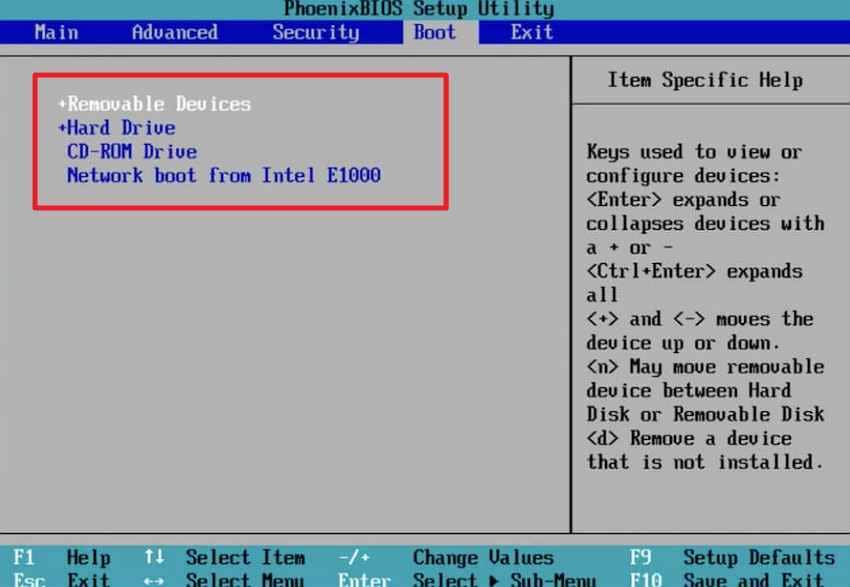
1. Check Whether BIOS Detects the Hard Drive
A “No Hard Disk Found” message often starts when BIOS or UEFI cannot read the installed drive. If the drive does not appear at all, check physical connections, ports, power, or drive health.
- Restart > Enter BIOS/UEFI with “F2,” “F10,” “Delete,” or “Esc.”
- Then, open “Storage,” “System Information,” or “Boot” > Confirm that HDD, SSD, or NVMe appears.
2. Confirm Boot Order and Storage Mode Settings
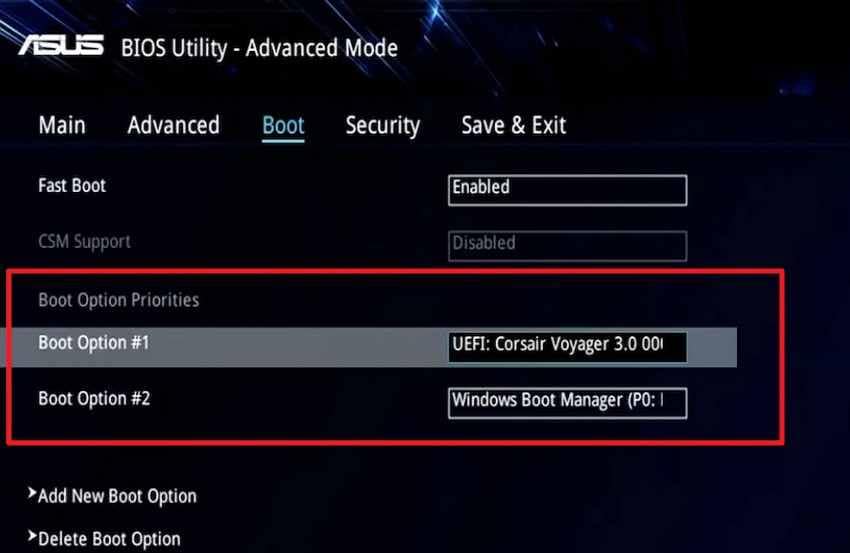
If the drive appears in BIOS but the system does not boot, the boot priority may be wrong. Do not randomly change AHCI, RAID, UEFI, or Legacy settings. Changing these modes can make an existing Windows installation fail to boot.
- In the “Boot” tab in BIOS/UEFI, check “Boot Option Priorities.”
- Set “Windows Boot Manager,” “Hard Drive,” or the internal drive as “Boot Option #1.”
- If a USB drive is listed first, move it below the internal drive. Press “F10” to save changes and restart.
3. Reset BIOS or UEFI Settings to Default
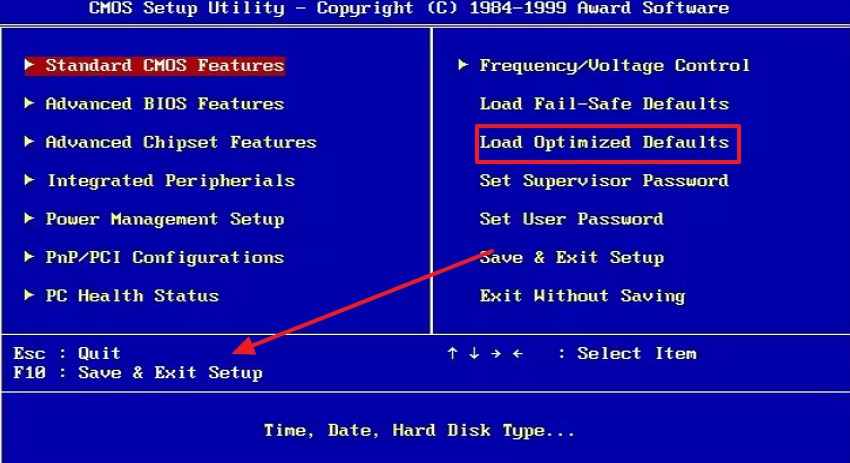
Incorrect firmware settings may cause detection or boot issues. Resetting defaults can help if settings were changed accidentally. After resetting, confirm the drive still appears and the correct boot option is selected.
- In BIOS/UEFI, choose “Load Optimized Defaults,” “Load Setup Defaults,” or “Load Fail-Safe Defaults.”
- Then, press “F10” to save changes.
4. Check SATA, NVMe, AHCI, RAID, UEFI, and Legacy Settings
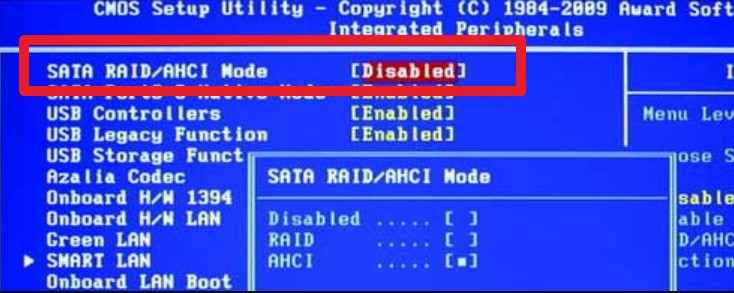
Storage controller and boot settings must match the drive and Windows installation. If the drive disappeared after a BIOS update or hardware change, compare the current setting with the original setup.
- Open “Advanced,” “Storage,” or “Integrated Peripherals.”
- Check SATA/NVMe mode, AHCI/RAID, and UEFI/Legacy, but keep the original mode unless confirmed.
5. Update BIOS Only When It Is Safe to Do So
An outdated BIOS can sometimes cause drive detection issues, especially after installing newer SSDs or NVMe drives. However, BIOS updates carry risk.
Only update BIOS when:
- The update comes from the official manufacturer support page.
- The update matches your exact model.
- The laptop is charged and plugged in.
- You can avoid interrupting the process.
- Important files are already backed up or recovered.
A failed BIOS update can prevent the computer from starting.
Part 5. Fix Internal Hard Drive or SSD Detection Problems
If BIOS checks do not solve the problem, check physical connections and internal drive seating. Turn off the computer and disconnect power before opening the case.
1. Reseat SATA Data and Power Cables
Start by turning off the PC and removing the power cable completely. Open the case, then reconnect the SATA data cable and power cable firmly. Even a slightly loose connector can stop the drive from being detected.
2. Check M.2 NVMe SSD Seating
For an NVMe SSD, poor slot contact can create detection problems during startup. Remove the SSD carefully, place it back at the correct angle, and tighten it. Make sure the drive sits flat, and the screw holds it securely.
3. Try Another SATA Port, Cable, or Power Connector
If the “No HDD found” still shows, the cable or the motherboard port may be faulty. Connect the drive through another SATA port and use a different SATA cable. A separate power connector can also help rule out power delivery issues.
4. Test the Drive on Another Computer or Enclosure
To confirm the source of the problem, test the drive outside this computer. Use another PC, a SATA-to-USB adapter, or a compatible external enclosure. If the drive appears there, the original system may have connection issues.
5. Run Manufacturer or PC Hardware Diagnostics
At this point, run built-in diagnostics or the drive manufacturer’s testing tool. Dell, HP, Lenovo, Seagate, Western Digital, and Samsung offer drive checks. Stop further repairs if diagnostics show failure, especially with important data.
Part 6. Fix “No Disk Drive Found” in Windows
If BIOS detects the drive but Windows does not show it in File Explorer, check Disk Management and drivers carefully.
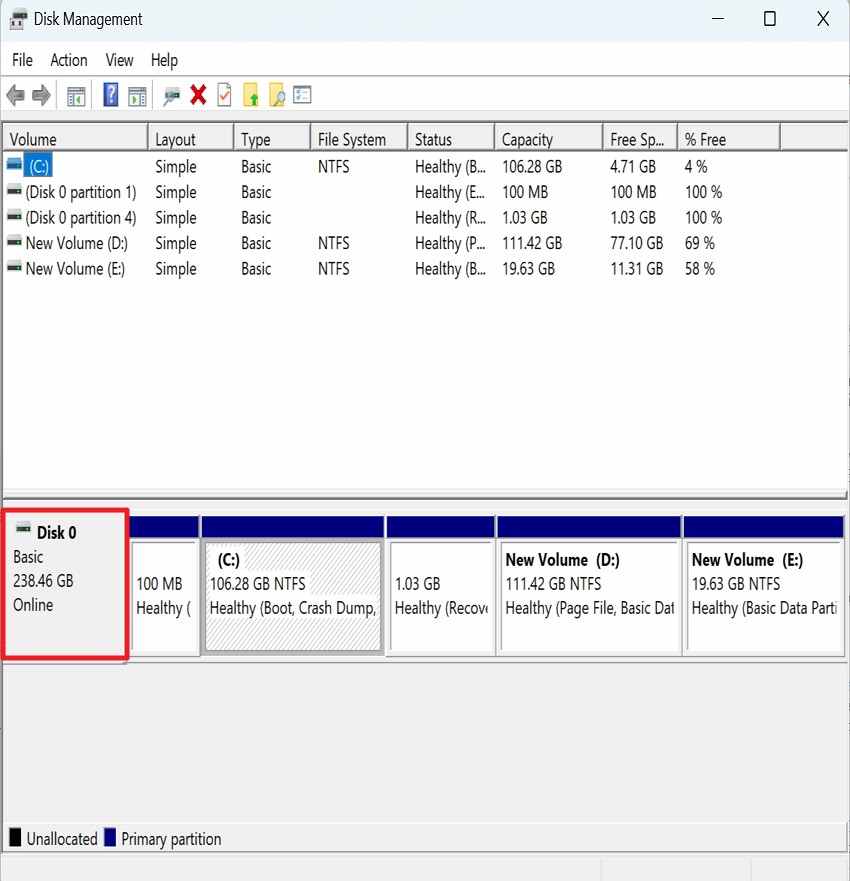
1. Check Disk Management First
Disk Management shows whether Windows detects the drive even when File Explorer does not. If the disk shows RAW, Unallocated, Unknown, or Not Initialized and contains important files, do not format or initialize it. Recover data first.
- Press “Win + X > Disk Management” and check whether the drive appears as Online, Offline, RAW, Unallocated, or without a drive letter.
2. Assign or Change the Drive Letter
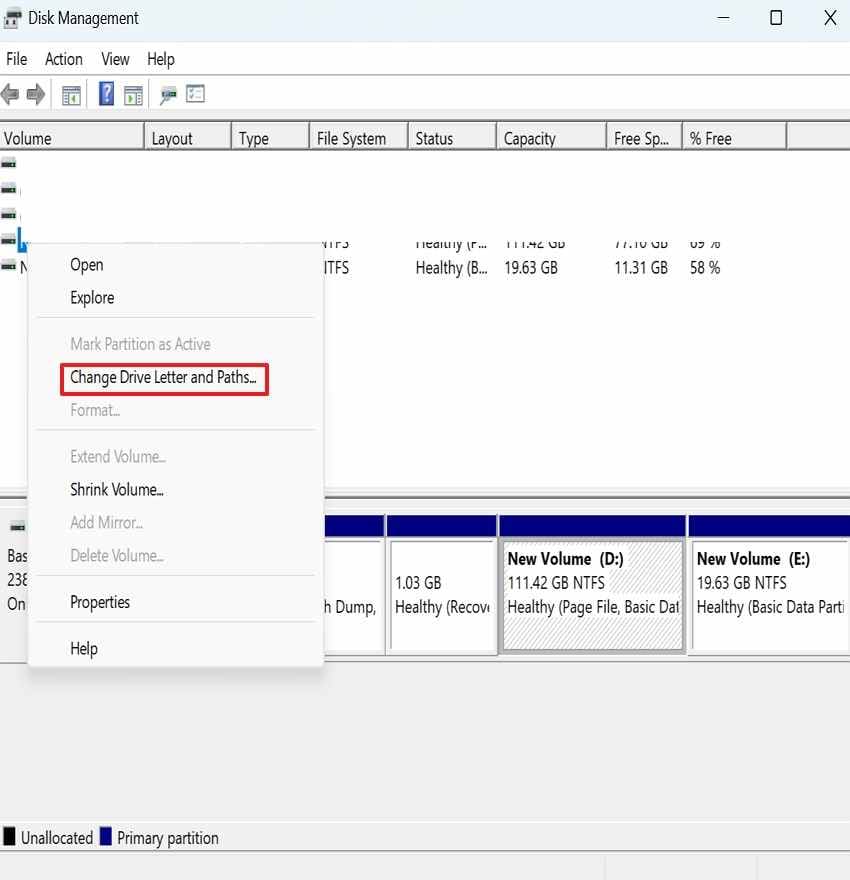
A healthy partition may disappear from File Explorer if it has no drive letter. Only use this method if the partition appears healthy. If the partition is RAW, unallocated, or asks to be formatted, do not assign random fixes before recovery.
Step 1: In Disk Management, right-click the “Visible Partition > Change Drive Letter and Paths.”
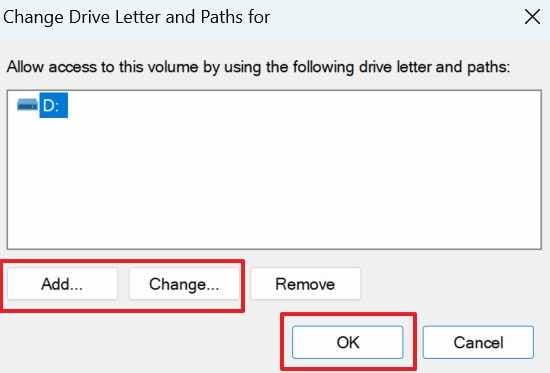
Step 2: Choose “Add or Change > Select a Letter > Press OK.”
3. Bring the Disk Online
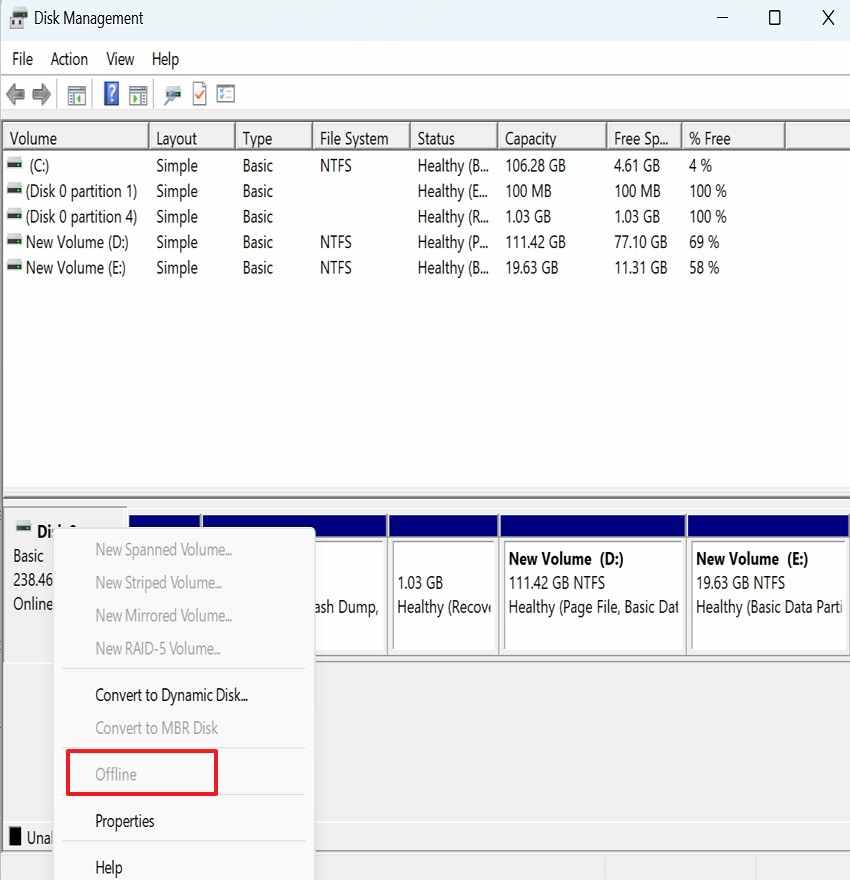
Windows may mark a disk as Offline, especially after moving drives between computers. If Windows asks to initialize, format, or convert the disk, cancel first if files are important.
- Right-click the disk label, such as "Disk 1,” then choose “Online.”
- If Windows asks to initialize or format, cancel first when files are important.
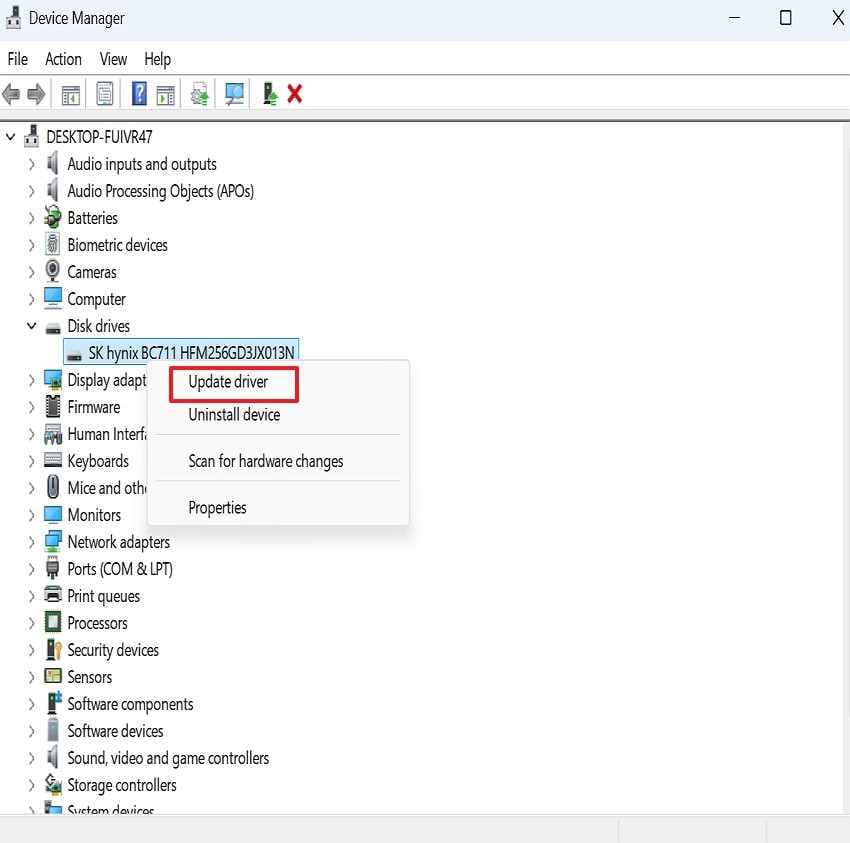
4. Update or Reinstall Storage Controller and Disk Drivers
Driver issues can stop Windows from reading a connected drive correctly. If updating does not help, you can uninstall the device and restart the computer to let Windows reinstall it. Do not format the drive during this process.
Step 1. Press “Win + X > Device Manager >Disk Drives> Update Driver.”
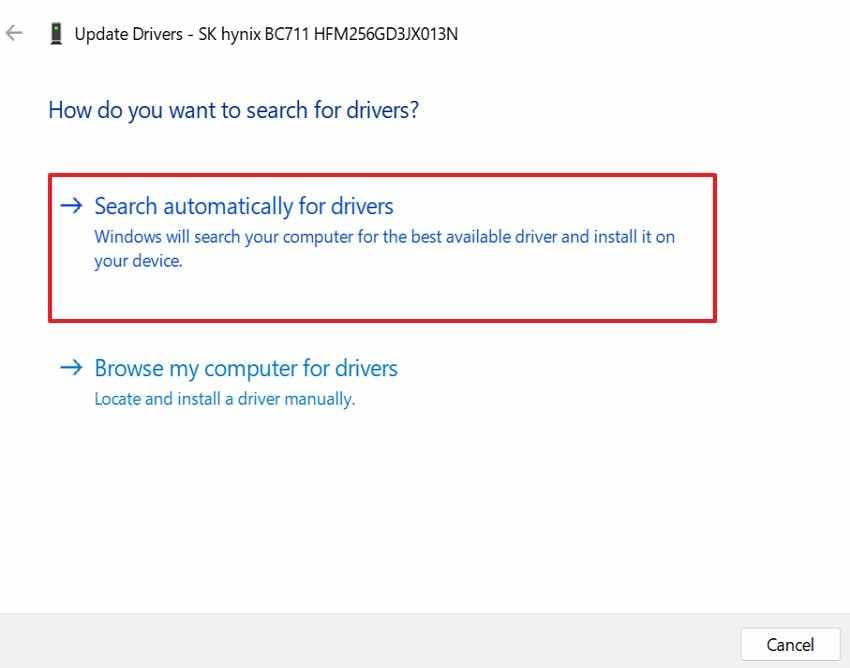
Step 2. Choose “Search Automatically For Drivers” to update the Storage Controller and Disk Drivers.
5. Avoid Initializing or Formatting If You Need the Data
Initializing or formatting is usually for new empty disks or disks you are ready to erase. If the drive contains important files, recover them first.
Do not initialize or format when:
- The drive was used before.
- The disk suddenly appears as Not Initialized.
- The partition shows RAW.
- The drive becomes Unallocated unexpectedly.
- The disk contains photos, documents, videos, work files, or backups you need.
Recover files first, then decide whether to repair, initialize, format, or replace the drive.
Part 7. Fix External Hard Drive Not Detected
If an external hard drive is not detected, the issue may come from USB connection, power, enclosure, driver, file system, or the drive itself.
1. Try Another USB Port or Computer
Connect the drive to another USB port, preferably one directly on the computer. Avoid front-panel ports if they are unstable.
If the drive works on another computer, copy important files immediately.
2. Replace the USB Cable or Adapter
A damaged cable may provide power but fail to transfer data. Use a compatible, reliable cable or adapter and test again.
For portable 2.5-inch HDDs, weak USB power can also cause detection problems. Try another USB port or powered connection if available.
3. Bypass USB Hubs and Docking Stations
USB hubs and docking stations may limit power or interrupt connection stability. Plug the drive directly into the computer.
If the drive works directly, the hub or dock may be the problem.
4. Check Power Supply for Desktop External Drives
Larger external hard drives often need a separate power adapter.
Check:
- Power adapter
- Wall socket
- Power switch
- Power light
- Drive spin-up behavior
If the drive powers on and off repeatedly, stop using it and check the adapter or enclosure.
5. Test the Enclosure Separately from the Drive
A faulty external enclosure can hide a healthy internal drive. If the enclosure is removable and not encrypted, testing the drive in another enclosure may help.
Be careful with encrypted external drives or manufacturer-specific enclosures. Removing the drive from the enclosure may affect access if the enclosure handles encryption.
Part 8. Recover Data When the Hard Drive Is Not Detected
When the hard drive not detected problem continues after basic checks, focus on data recovery before deeper repairs. Recovery software can help only when the drive is still detectable enough to scan.
When Recovery Software Can Help
| Recovery Software May Help | Recovery Software Cannot Help |
|---|---|
| Drive appears in BIOS or UEFI. | Drive is not detected anywhere. |
| Drive appears in Disk Management. | Drive clicks, beeps, grinds, or scrapes. |
| External drive is detected but files are inaccessible. | Drive is burned, dropped, water-damaged, or physically broken. |
| Partition shows RAW or inaccessible. | Drive motor, heads, PCB, or memory chips have failed. |
| Drive has a lost partition. | Drive is completely dead or does not spin. |
| Files were deleted or the drive was formatted. | Data was overwritten or physically destroyed. |
If the drive is completely invisible to BIOS, Disk Management, another computer, and a compatible enclosure, software cannot scan it. In that case, professional recovery is the safer option.
Recommended Tool: Recoverit Hard Drive Recovery
Use Recoverit Hard Drive Recovery when the drive is still detectable enough to scan, such as a RAW partition, lost partition, inaccessible external drive, deleted files, formatted drive, or folder that will not open.
Recoverit can help when:
- Windows detects the disk but files are inaccessible.
- A partition becomes RAW or lost.
- An external drive appears but folders will not open.
- Files were deleted or lost from a detectable drive.
- A formatted drive still appears in Disk Management.
- You need to preview recoverable files before saving them.
- You want to save recovered files to a different healthy drive.
Important: Recoverit cannot repair a physically dead drive. If the drive clicks, beeps, grinds, overheats, or is not detected anywhere, stop scanning and contact a professional recovery service.
Key Features
- Recover Detectable Drive Files: Scan detectable drives and recover documents, photos, videos, and folders.
- Recover RAW or Lost Partitions: Recover data from damaged partitions when Windows shows RAW, lost, or inaccessible volumes.
- Preview Before Recovery: Check whether files are usable before saving them.
- Save Files Safely Elsewhere: Save recovered files to another healthy drive to avoid overwriting data.
- Support for External Storage: Recover files from external hard drives, USB drives, and other readable storage devices.
How to Recover Data When the Hard Drive Is Not Detected Using Recoverit
Use these steps only when the drive is still readable enough to appear in BIOS, Disk Management, Windows, or another computer.
Step 1. Select the Detected Drive Location
Go to “Hard Drives and Locations” and choose the detected local disk, USB drive, external drive, or lost location, then click “Scan” to begin recovery.

Step 2. Scan the Drive and Find Lost Files
Recoverit will scan the selected drive and show recoverable files under the “File Location” tab.

Step 3. Preview and Recover Files Safely
Open a file preview to confirm the data is usable, then select the files you need. Press “Recover” and save them to another healthy drive, not the affected disk.

Part 9. How to Prevent Hard Drive Detection Errors
Once the drive works again, the following storage habits can help prevent future “No HDD found” errors:
- Back Up Files: Save important files to the cloud, external drives, or network storage before failures happen.
- Track SMART Alerts: Check drive health with SMART tools, and replace disks showing repeated warnings early.
- Prevent Power Loss: Use proper shutdowns and safely eject external drives before removing cables from ports.
- Use Quality Connections: Choose quality cables, stable ports, and trusted enclosures for consistent drive detection results.
- Replace Failing Drives: Replace drives that disappear repeatedly, even after cables, ports, and diagnostic tests are fine.
Conclusion
A hard drive not detected or No Hard Disk Found error needs calm, careful handling. Start by checking where the drive is missing: BIOS or UEFI, Windows Disk Management, File Explorer, another computer, or an external enclosure. Use non-destructive checks first, such as cables, ports, boot order, drive letter assignment, drivers, and power supply.
If the drive contains important data, do not format, initialize, run CHKDSK, reinstall Windows, or change partitions before recovery. Recover data first when the drive is still detectable enough to scan.
Recoverit can help recover data from detectable drives, RAW partitions, lost partitions, formatted drives, and external drives that still appear in Windows or Disk Management. However, if the drive clicks, beeps, grinds, overheats, or is not detected anywhere, stop using it and contact a professional data recovery service.
Frequently Asked Questions
-
Q1. Why does my computer show no hard drive found?
It usually appears when the computer cannot detect the expected storage drive. Common causes include loose cables, disabled BIOS settings, wrong boot order, driver issues, enclosure problems, file system corruption, or drive failure. -
Q2. What should I do first when my hard drive is not detected?
Check whether it appears in BIOS or UEFI, Disk Management, File Explorer, or another computer. If the drive makes clicking, beeping, grinding, or scraping sounds, stop powering it on. -
Q3. Can I recover data from a hard drive that is not detected?
Only if the drive is still detectable enough for software to scan. If the drive appears in BIOS, Disk Management, or another computer, recovery software may help. If it is physically dead or invisible everywhere, professional recovery is needed. -
Q4. Should I initialize a disk that is not detected?
No, not if it contains important files. Initialize only new empty disks or disks you are ready to erase. If the disk was used before, recover data first. -
Q5. Should I format a RAW or unallocated hard drive?
No. Recover important files first because formatting can change file system records and reduce recovery chances. -
Q6. Why is my hard drive detected in BIOS but not Windows?
The issue may be a missing drive letter, RAW partition, corrupted file system, driver problem, boot order issue, or unsupported file system. Check Disk Management before formatting. -
Q7. Why is my external hard drive light on but not showing?
The drive may receive power but still have a cable, port, enclosure, driver, power supply, or file system issue. Try another cable, USB port, computer, or enclosure if safe. -
Q8. Can Recoverit fix a hard drive that is not detected?
Recoverit can scan drives that are still detectable in BIOS, Disk Management, Windows, or another computer. It cannot repair physically dead, clicking, grinding, or fully undetected drives.



