
 TL;DR:
BitLocker data recovery strictly requires you to first unlock the encrypted drive using the correct password or 48-digit recovery key, as no software or professional service can bypass the encryption without these credentials.
● Locate your missing recovery key by checking your linked Microsoft account, work or school device portal, or saved USB files, ensuring you match the first 8 characters of the on-screen Key ID to identify the correct record.
● If Windows cannot boot, access the Windows Recovery Environment (WinRE) to unlock the volume via Command Prompt using the manage-bde tool, then immediately use robocopy to transfer critical files to an external drive before attempting any system repairs.
● Deploy data recovery software like Recoverit only if files are deleted, missing, or the successfully unlocked partition appears as RAW, but never format a corrupted BitLocker drive prior to unlocking and extracting the data.
Ask AI for a summary
 ChatGPT
 Perplexity
 Gemini
 Claude
 Grok
Grok
BitLocker protects files by encrypting the drive. That protection is valuable, but it can also make recovery stressful when Windows asks for a recovery key, the system will not boot, the drive becomes inaccessible, or important files are deleted from an encrypted volume.
BitLocker data recovery is different from normal hard drive recovery. You cannot simply scan a locked encrypted drive and expect recovery software to read the files. The drive must first be unlocked with the correct password or the 48-digit BitLocker recovery key. After the drive is unlocked and readable, you can copy files, recover deleted data, or scan the unlocked volume with recovery software.
You should only attempt BitLocker data recovery on a device you own or are authorized to access. This guide explains how to find the BitLocker recovery key, unlock the encrypted drive safely, copy important files first, recover data when Windows will not boot, and use Recoverit only after the BitLocker drive is unlocked.
In this article
Part 1. Can BitLocker Data Be Recovered?
Yes, BitLocker data can be recovered if you can unlock the encrypted drive with the correct password or 48-digit recovery key. The safest process is to find the recovery key first, unlock the drive, copy important files to another safe location, and then use recovery software only if files were deleted, missing, corrupted, or inaccessible after unlocking.
Recovery software cannot bypass, break, remove, or decrypt BitLocker encryption without the correct credentials. If you do not have the password or recovery key, BitLocker-protected files usually remain inaccessible. A professional recovery service may help with physical drive damage or read errors, but encrypted file access still requires the BitLocker key.
What BitLocker Data Recovery Can and Cannot Do
Before trying any recovery method, understand what BitLocker recovery can actually achieve.
The most important rule is simple: unlock first, recover second. If the drive is still locked, recovery software cannot read the decrypted file contents.
Part 2. Quick Diagnosis: Choose the Right BitLocker Recovery Method
Identify your exact situation before taking action.
| Situation | Best Recovery Method | Note |
| You have the 48-digit BitLocker recovery key. | Unlock the drive, then copy important files first. | Use the key before trying any scan or repair. |
| You can still sign in to Windows. | Back up files from the unlocked drive immediately. | Avoid changing encryption, TPM, BIOS, or reset settings before backup. |
| Windows will not boot, but you have the key. | Use WinRE, a recovery USB, or another PC to unlock and copy files. | Confirm drive letters first because they may change in recovery mode. |
| The BitLocker drive is RAW, corrupted, or inaccessible. | Unlock the drive first, then recover or image the data. | Do not format the drive before recovery. |
| Files were deleted from an unlocked BitLocker drive. | Use recovery software to scan the unlocked partition. | Stop saving new files to that drive. |
| BIOS, TPM, Secure Boot, or hardware changes triggered recovery. | Enter the recovery key, then back up files before changing settings again. | Keep a safe copy of the key afterward. |
| Key ID does not match your saved key. | Match the first 8 characters of the Key ID with the correct saved recovery key. | Key ID is not the recovery key itself. |
| The drive may have physical damage. | Image the drive or contact a professional recovery service. | The BitLocker key is still required to access encrypted files. |
| You inherited or are handling another person’s device. | Use only authorized access and check legal, family, account, or organization records for the key. | Do not try bypass tools or unauthorized access. |
| You do not have the BitLocker recovery key. | Search all possible key locations first. | Recovery is usually impossible without the key. |
Part 3. Find Your BitLocker Recovery Key First
Before using any BitLocker data recovery software, find the correct recovery key. The recovery key proves authorized access and unlocks the encrypted volume.
1. Check Your Microsoft Account
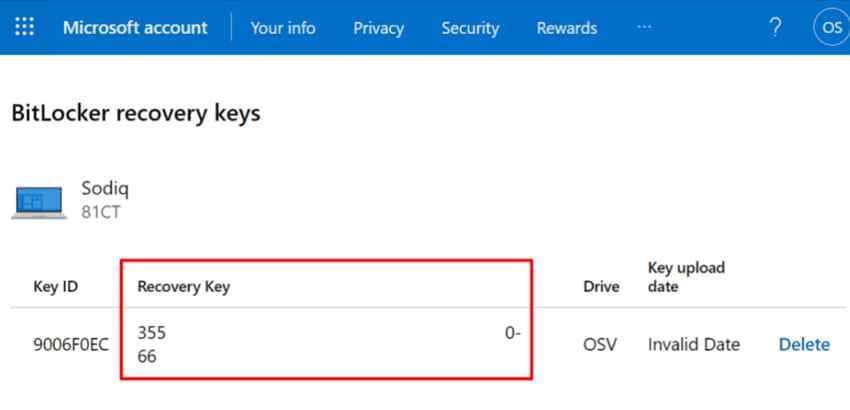
If BitLocker saved the key online, it may appear inside the Microsoft account used during device setup. Open Microsoft’s BitLocker recovery key page on another working device. Then, sign in, find the matching Key ID, and use its recovery key.
2. Check a Work or School Account
If the device was connected to a work or school account, the recovery key may be stored under that organization’s account system. Sign in to the work or school device portal if available, check Devices, and look for BitLocker keys.
If you cannot access the key directly, contact the organization’s IT administrator.
3. Ask Your Organization’s IT Administrator
Managed devices often store BitLocker recovery keys with company, school, or organization IT systems. Contact IT support and provide:
- Device name
- Username or email
- Serial number if available
- BitLocker recovery Key ID
- Proof of authorization if required
The Key ID helps IT match the correct recovery key..
4. Check Printed Copies, USB Drives, or Saved Text Files
BitLocker recovery keys may also be saved outside Microsoft accounts.
Check:
- Printed recovery key pages
- USB drives
- Saved text files
- Screenshots
- Password managers
- External backups
- Device setup folders
- Family or owner records
- IT documentation
Do not store the recovery key together with the encrypted device in an insecure location.
5. Match the Recovery Key ID with the Correct Key
If your account contains multiple BitLocker recovery keys, match the correct one before entering it.
The Key ID helps you identify the correct recovery key. It is not the recovery key itself. Look at the first 8 characters of the Key ID shown on the BitLocker recovery screen, then match it with the saved key record.
Part 4. Recover Data from a BitLocker Drive When You Have the Key
After finding the correct password or recovery key, unlock the BitLocker drive first. Then copy important files to a safe location before running repairs, scans, resets, or reinstallations.
1. Unlock the BitLocker Drive in Windows
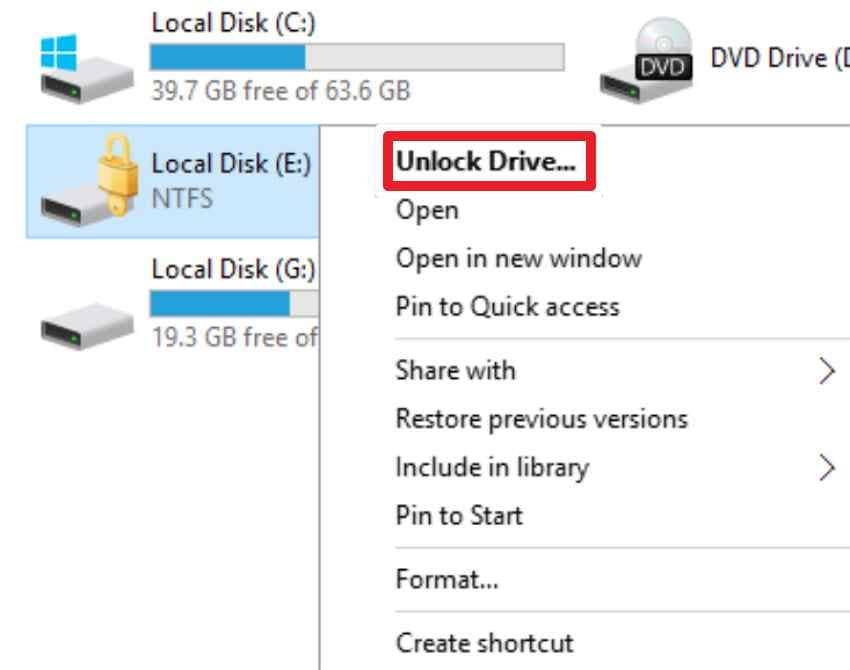
Use this method when Windows opens, and the locked drive appears in File Explorer. It supports BitLocker drive recovery by unlocking the drive before any file access. Follow the steps below to safely unlock the drive in Windows:
Step 1: Open File Explorer and locate the locked drive under “This PC.” Right-click the drive and select “Unlock Drive > Enter Recovery Key.”
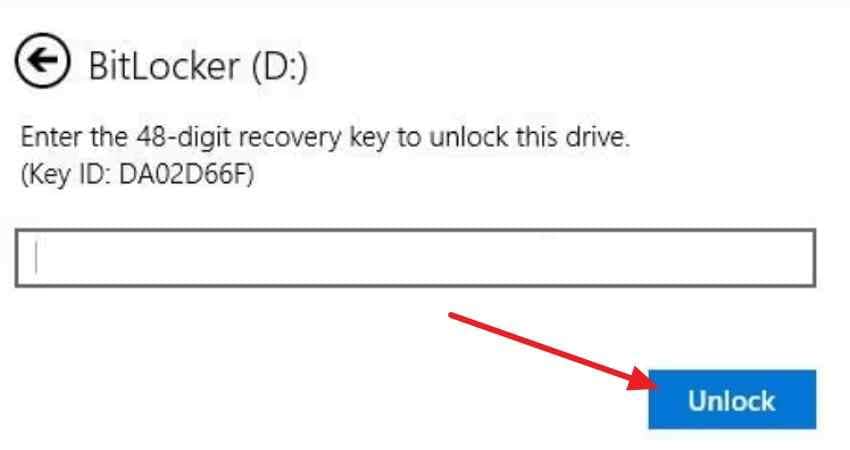
Step 2: Enter the 48-digit recovery key and select “Unlock.”
2. Unlock the Drive with manage-bde
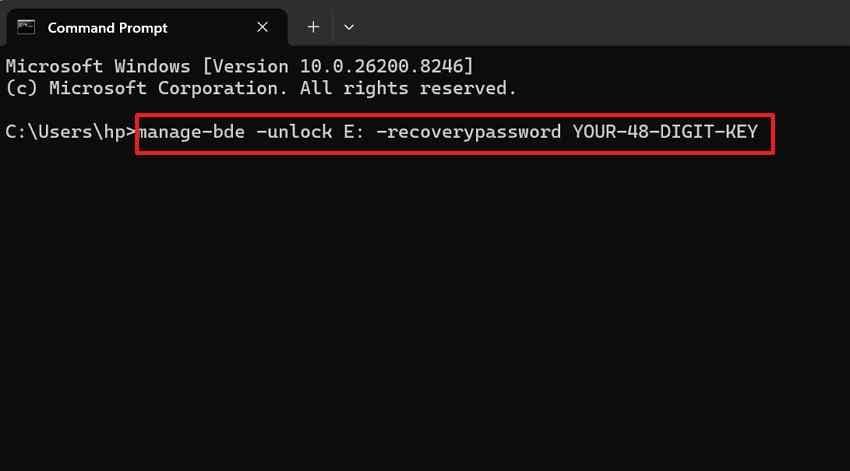
This method is useful when File Explorer cannot unlock the drive properly. The official command-line tool can unlock BitLocker using the correct recovery password or key. Continue with the instructions below if you prefer Command Prompt access:
- Open “Command Prompt” as an admin, then confirm the locked drive letter.
- Next, run “manage-bde -unlock E: -recoverypassword YOUR-48-DIGIT-KEY,” replacing E: and the key correctly.
3. Copy Important Files to Another Safe Drive
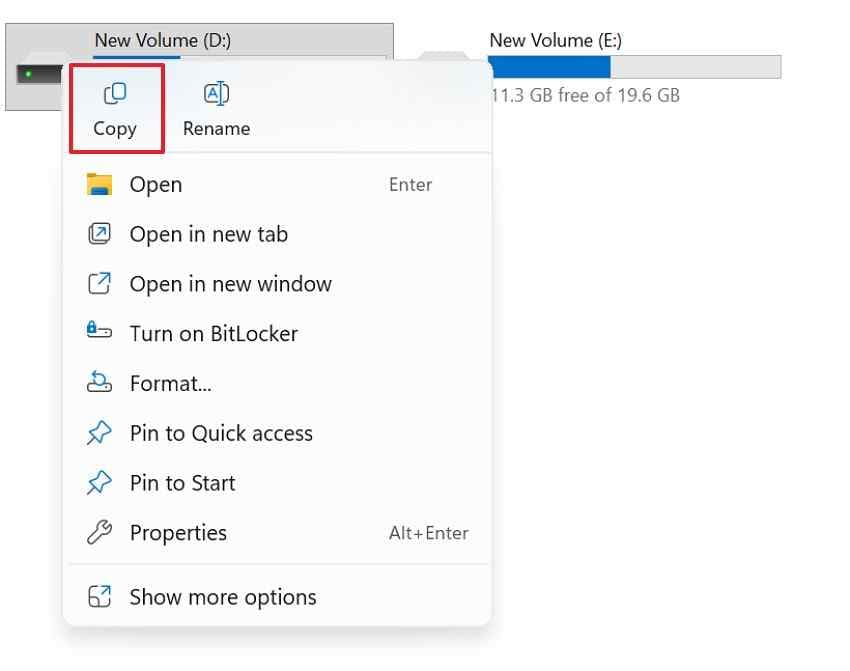
After unlocking, copy important folders to a separate external or internal drive. This protects recoverable data before any deeper BitLocker file recovery scan begins. First, use the instructions below to move your files safely:
- After unlocking the drive, connect another storage device with enough free space.
- Copy important files to that safe drive first, then open several copied files to confirm they work.
4. Recover Deleted Files Only After the Drive Is Unlocked
If files were deleted from a BitLocker drive, unlock the drive first. Then use recovery software to scan the unlocked volume.
If the drive locks again, unlock it before scanning. Recovery tools cannot correctly read encrypted file contents from a locked BitLocker volume.
Part 5. Recover Data from a BitLocker Drive When Windows Will Not Boot
If Windows will not start, BitLocker data recovery may still be possible if you have the recovery key. The goal is to unlock the drive outside normal Windows and copy files before repair.
1. Unlock the Drive from Windows Recovery Environment
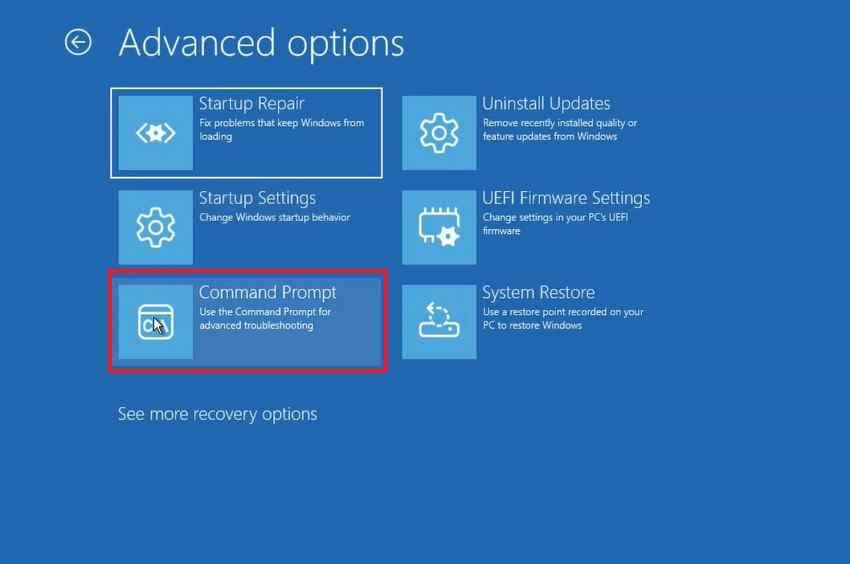
Try this method when Windows cannot boot, but recovery options are still open. WinRE lets you access the Command Prompt before Windows loads normally.
Step 1: Enter “Windows Recovery Environment (Interrupt Startup 3 Times) > Troubleshoot > Advanced Options > Command Prompt.”
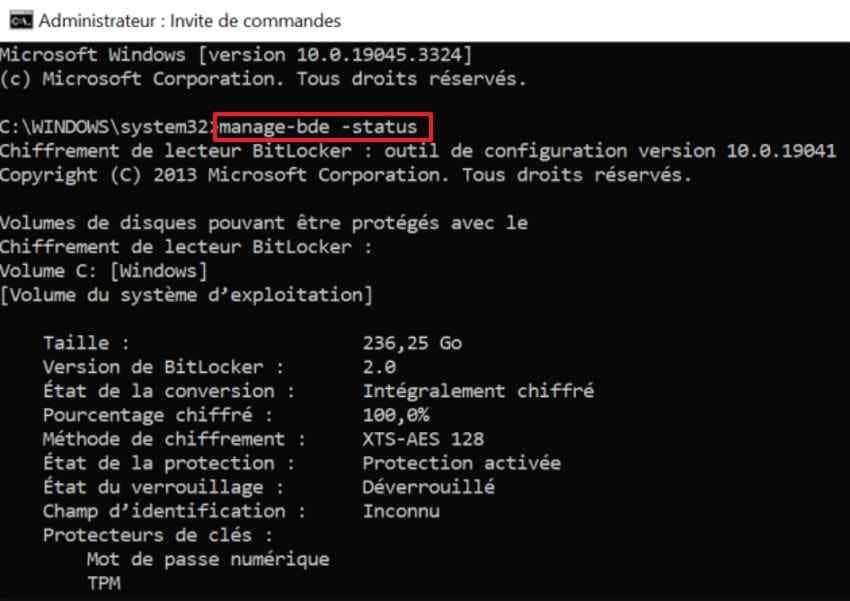
Step 2: Type “manage-bde -status” and note the locked BitLocker drive letter. Run “manage-bde -unlock C: -recoverypassword YOUR-48-DIGIT-KEY,” replacing details correctly.
2. Copy Files to an External Drive After Unlocking
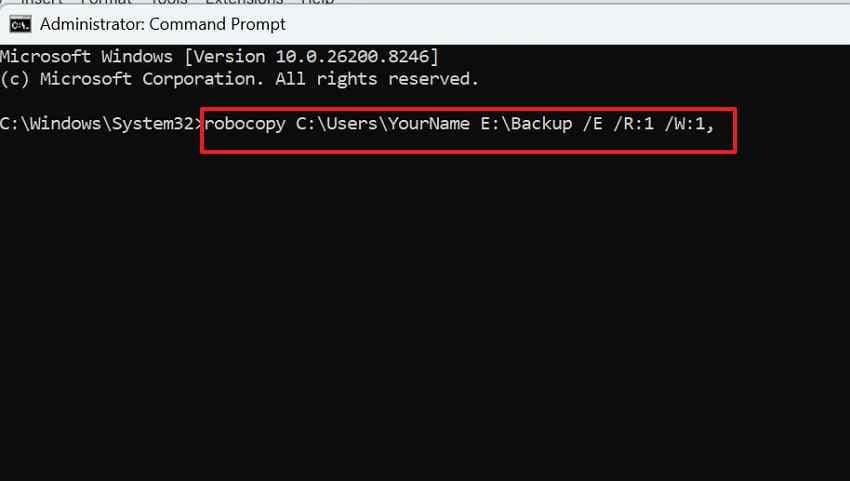
After the drive unlocks, copy personal files before repairing Windows. This protects important data from failed repairs or accidental reset choices, so follow the instructions below:
- In WinRE, connect an external drive and identify its drive letter in Command Prompt.
- Following this, use “robocopy C:\Users\YourName E:\Backup /E /R:1 /W:1,” replacing folder paths correctly.
3. Use a Bootable Recovery Environment If Windows Cannot Start
Use this option when WinRE does not open or the system loops repeatedly. A recovery USB can start the PC without loading the installed Windows. Follow the instructions below to see how this fix works:
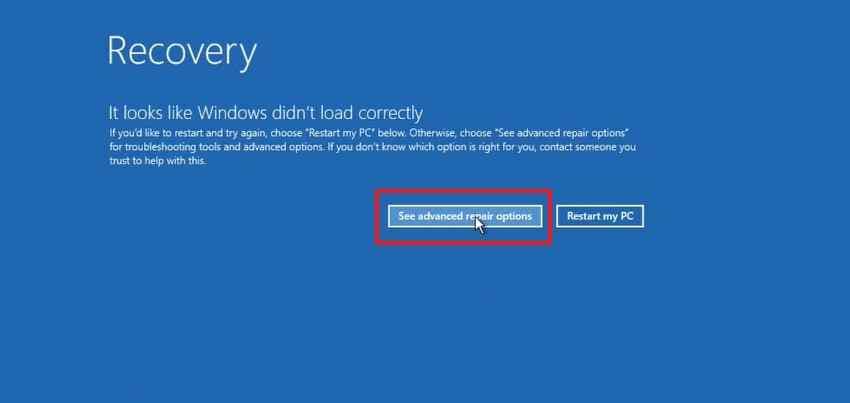
Step 1. Boot from the recovery USB, then select “Repair Your Computer > Troubleshoot > See Advanced Repair Options.”
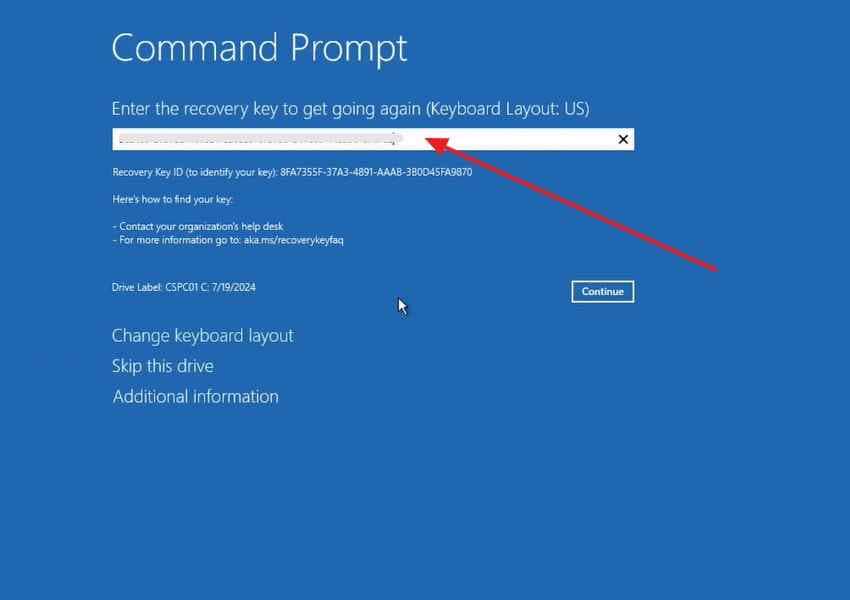
Step 2. Select “Command Prompt,” then enter the recovery key if BitLocker requests it and click “Continue.”
4. Use a Bootable Recovery Tool When the System Has Crashed
If the computer cannot boot normally, a bootable recovery environment can help you access files after the BitLocker drive is unlocked. If the drive may be physically failing, avoid repeated scans and consider imaging or professional recovery first.
You can use Recoverit’s Crash Computer Recovery feature to create a bootable USB on another working computer and access files from the crashed PC when the drive can still be unlocked and read.
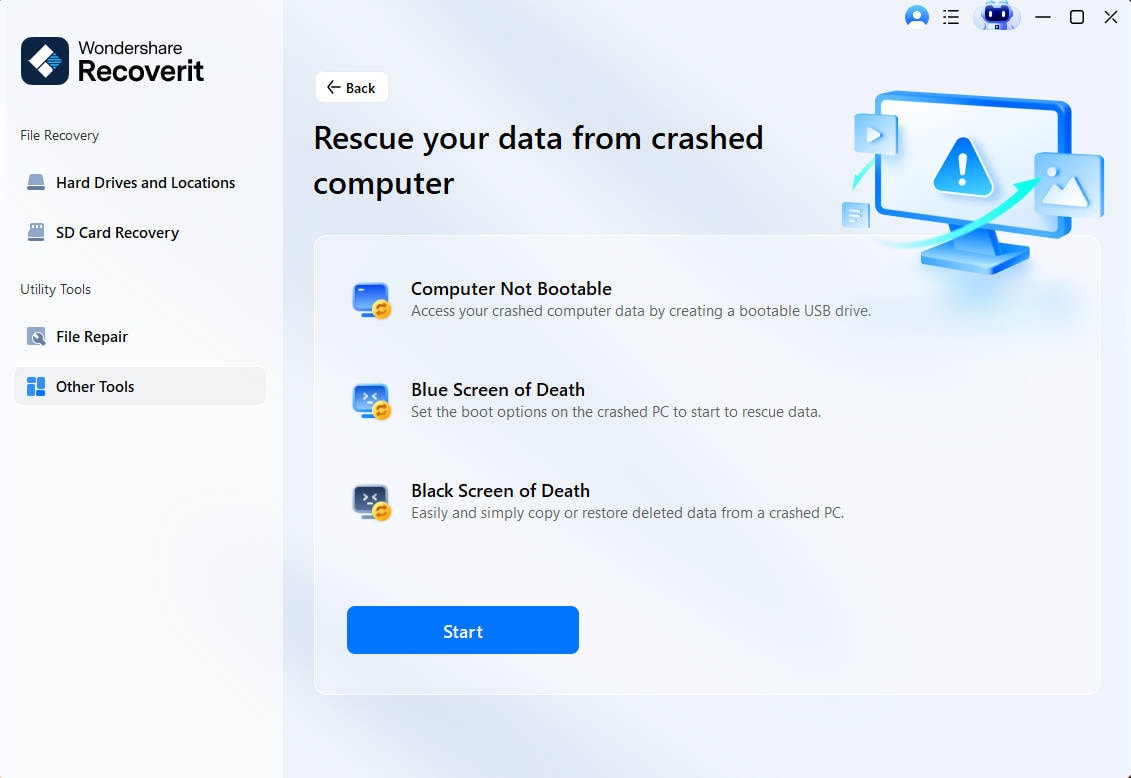
Step 1. Launch Recoverit on a working computer and access “Other Tools.” Click “Start” to begin creating a bootable recovery drive.
Step 2. Connect a USB drive with more than 4GB of space, then select it in Recoverit. Then select “Start” and note that the USB data will be erased.

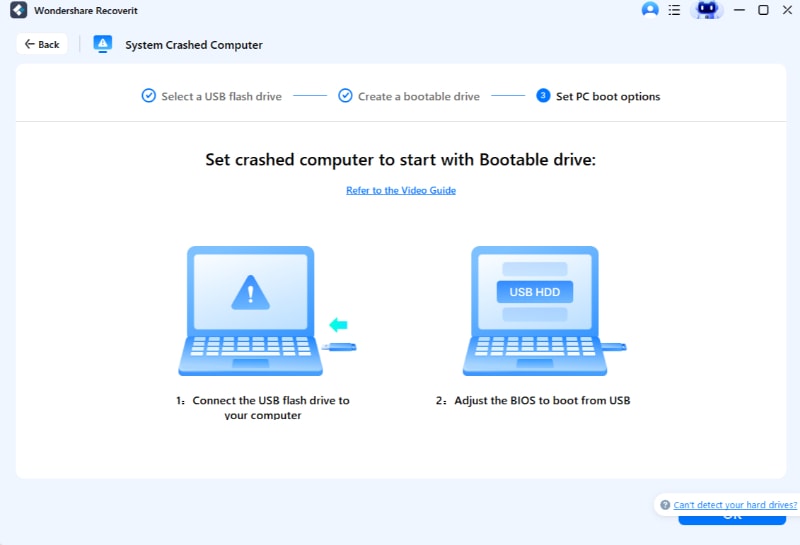
Step 3. Insert the bootable USB into the crashed PC and set the BIOS to boot from USB. Unlock the BitLocker drive with the recovery key, then use the “Hard Drive Copy” option to export files to an external drive.
Part 6. What If You Do Not Have the BitLocker Recovery Key?
If the BitLocker recovery key is missing, recovery options become very limited. Do not trust tools that claim to bypass, remove, crack, or unlock BitLocker encryption without credentials.
1. Check Every Possible Key Location First
Search carefully before giving up. Check:
- Microsoft account
- Work or school account
- IT administrator records
- Printed documents
- USB drives
- Saved text files
- Screenshots
- Password manager
- External backups
- Device owner records
If this is an inherited or family device, check whether the original owner saved the recovery key in their Microsoft account, documents, printed records, password manager, or organization account.
2. Understand Why Software Cannot Bypass BitLocker Encryption
BitLocker is designed to protect data from unauthorized access. Recovery software cannot decrypt or read protected files without the correct password or recovery key.
Software can scan a BitLocker drive only after the encrypted volume is unlocked and readable.
3. Contact IT Support or the Device Owner
If the device belongs to an office, school, or previous owner, contact the correct administrator or authorized owner. Managed devices often store recovery keys under organization-controlled accounts.
4. When Professional Data Recovery May Help
Professional recovery may help if the encrypted drive has hardware damage, bad sectors, controller issues, or read errors. However, the recovery key is still required to access decrypted files.
A lab may be able to image a damaged drive, but encryption remains in place unless the correct key is available.
5. When Resetting the PC Is the Only Remaining Option
If no password or recovery key exists and no authorized account can provide it, resetting the PC may be the only way to make the device usable again. This is not data recovery. Resetting can remove files, apps, and settings.
Do not reset the device if your goal is to recover files and you still have possible key locations to check.
Part 7. Use BitLocker Data Recovery Software After Unlocking the Drive
BitLocker data recovery software should be used only after the encrypted drive is unlocked. Once the BitLocker drive is unlocked and appears as a readable volume, Recoverit can scan it like a normal accessible drive.
Recoverit may help recover:
- Deleted files from an unlocked BitLocker drive
- Files from a formatted BitLocker partition after unlocking
- Missing files from an accessible encrypted volume
- Data from a RAW or corrupted BitLocker volume after unlocking
- Files from an image or readable copy when the key is available
- Photos, videos, documents, archives, and other common file types
Recoverit cannot unlock, decrypt, crack, remove, or bypass BitLocker encryption. The correct password or recovery key is required first.
Key Features for BitLocker File Recovery
- Targeted Location Recovery: Select the specific unlocked BitLocker partition instead of scanning every drive.
- Preview Before Recovery: Check photos, videos, documents, and other files before saving them.
- File Filters and Search: Locate needed files faster by type, path, name, or scan result category.
- Disk Image Recovery: Scan a drive image or readable copy when available.
- Safe Export: Save recovered files to another healthy drive to avoid overwriting data.
How to Recover Files from an Unlocked BitLocker Drive with Recoverit
Once the BitLocker drive is unlocked and readable, follow these steps.
Step 1. Select the Unlocked BitLocker Drive
Launch Recoverit and open “Hard Drives and Locations.” Choose the unlocked BitLocker drive from the available locations, then start the scan.

Step 2. Scan and Locate Lost Files
Recoverit will scan the selected drive and display recoverable files. Use “File Location,” “File Type,” “Filter,” or “Search File” to find needed data faster.

Step 3. Preview and Recover the Files
Preview photos, videos, or documents before recovery and select the files you need, click “Recover,” then save them to another safe drive.

Part 8. How to Prevent BitLocker Data Loss in the Future
BitLocker file recovery becomes easier when recovery keys and backups stay protected. The following practices help prevent future encrypted-drive data loss:
- Recovery Key Backup: Save the full 48-digit key before updates, repairs, resets, or encryption changes safely.
- Multiple Storage Locations: Keep copies in your Microsoft account, printed records, USB drive, and password manager.
- Pre-Reset Data Backup: Move important files elsewhere before reinstalling Windows or choosing any reset option first.
- BIOS and TPM Caution: Check BitLocker status before changing firmware, Secure Boot, TPM, or internal hardware settings.
- Automatic File Protection: Use File History, OneDrive, or external drives to maintain regular backup copies.
Conclusion
BitLocker data recovery works only after the encrypted drive is unlocked with the correct password or 48-digit recovery key. Recovery software cannot bypass BitLocker encryption, recreate a lost key, or read locked encrypted files directly.
Start by finding the BitLocker recovery key in your Microsoft account, work or school account, IT records, printed copies, USB drives, saved text files, or password manager. After unlocking the drive, copy important files to another safe location before attempting repair, reset, formatting, or deeper recovery.
If Windows will not boot, use WinRE, a recovery USB, manage-bde, and robocopy to unlock and copy files. If the drive is unlocked but files are deleted, missing, RAW, or inaccessible, Recoverit can help scan, preview, and recover files from the unlocked volume. If you do not have the recovery key, data recovery is usually not possible.
FAQs
-
Q1. Can BitLocker data be recovered without the recovery key?
Usually no. Without the correct password or 48-digit recovery key, BitLocker-protected files remain encrypted and inaccessible. Recovery software cannot bypass BitLocker encryption. -
Q2. Where can I find my BitLocker recovery key?
Check your Microsoft account, work or school account, organization IT administrator, printed copies, USB drives, saved text files, screenshots, password manager, or device owner records. -
Q3. Is the Key ID the same as the recovery key?
No. The Key ID helps identify the matching recovery key. It is not the 48-digit recovery key itself. -
Q4. How do I unlock a BitLocker drive with manage-bde?
Open Command Prompt as administrator and run manage-bde -unlock E: -recoverypassword YOUR-48-DIGIT-KEY. Replace E: with the correct drive letter and enter your real recovery key. -
Q5. Can I recover deleted files from a BitLocker drive?
Yes, if the drive is unlocked and the deleted data has not been overwritten. After unlocking, use recovery software to scan the accessible BitLocker volume. -
Q6. Should I format a RAW BitLocker drive before recovery?
No. Do not format first. Unlock the BitLocker drive with the correct key, then recover or image the data before formatting. -
Q7. Can a professional recovery service recover BitLocker data without the key?
A professional service may help with physical damage or read errors, but encrypted file access still requires the BitLocker password or recovery key. -
Q8. Can Recoverit recover files from a BitLocker drive?
Yes, after the BitLocker drive is unlocked. Recoverit can scan the accessible volume, preview files, and recover selected data to another safe drive. It cannot unlock, decrypt, or bypass BitLocker encryption.



