 TL;DR:
A seemingly dead SSD can often be revived without specialized tools by resolving basic connection faults, performing hardware resets, or clearing system conflicts.
● Isolate hardware issues by testing the SSD with different cables or on another computer, and attempt a power cycle by disconnecting the data cable while leaving the power connected for 30 minutes to reset the internal controller.
● On Windows systems, check Disk Management to initialize the drive if it appears as "Unallocated," but avoid using the advanced `diskpart` tool unless absolutely necessary, as executing the `clean` command will permanently wipe all existing partitions.
● If the SSD remains unresponsive to basic fixes, prioritize using data recovery software like Recoverit (compatible with Windows and macOS) to extract your files before attempting any formatting or full drive resets.
Ask AI for a summary
 ChatGPT
 Perplexity
 Gemini
 Claude
 Grok
Grok
Solid State Drives, or SSDs, are used in almost every modern laptop and desktop. They are faster than traditional hard drives and help your system start up in seconds. But like any device, SSDs can stop working suddenly. It might happen after a power failure or without any clear reason. When that happens, it can be worrying because your files, photos, and important work might all seem lost.
The good news is that a dead SSD does not always mean permanent damage. Many drives that stop working can be brought back to life with a few simple steps.
In this guide, you will learn how to fix dead SSD drives easily, why SSDs fail, and what you can do to avoid these problems in the future. These steps are simple and safe to try at home. You can repair SSD issues or even revive a dead SSD drive with patience and care.
Try Recoverit to Recover Lost Data
 Security Verified. Over 7,302,189 people have downloaded it.
Table of Contents
Part 1: Common Reasons Why SSDs Stop Working
Before you learn how to repair dead SSD hard drive problems, it helps to understand what might cause them. Knowing the reason behind SSD failure can save time and help you choose the right fix. Many issues are small and can be solved without special SSD repair tools. Others are more serious but still manageable.
Common Reasons
Power Surges A power surge can send too much electricity into your SSD, damaging its small circuits. After that, it may not respond or be detected by your system.
Faulty Cables or Ports Damaged or loose cables are one of the most common causes of SSD failure. Sometimes, the SSD is fine, but the cable or port is not. Replacing them can make the drive work again.
Outdated Firmware Firmware is the software that helps the SSD communicate with your computer. If it is outdated or corrupted, your SSD might stop working or behave unpredictably.
Overheating SSDs do not have moving parts, but they still get hot. Too much heat can shorten their life and cause slow performance or total failure.
Corrupted System Files When system files get damaged, your SSD may appear dead even though the drive itself is healthy. The computer might fail to boot or load files properly.
These reasons show that even though SSDs are fast and modern, they can still fail. The good thing is that many problems can be fixed at home with simple methods.
Part 2: 7 Easy Fixes to Try for a Dead SSD
Many users think a dead SSD is beyond repair, but that’s not always true. In many cases, the problem is minor. You can often fix a dead SSD drive by following some easy steps. These methods are safe to try and do not require special technical skills. Each one can help repair SSD problems or fix SSD drives that suddenly stop working.
Fix 1: Check the Cable and Port
This is the first and easiest step when learning how to fix dead SSD drives. Sometimes, the connection between the SSD and the computer is the issue. It might be loose or damaged.
Why use it:
Cables can break or become loose with use.
A faulty port may not supply enough power.
The fix takes only a few minutes.
No tools or programs are needed.
Step 1: Turn off the computer. Unplug both the data and power cables from your SSD.

Step 2: Try using a different cable and a different port on your motherboard.
After reconnecting, turn on your system. If the SSD appears again, you have fixed the issue. Sometimes, you don’t need to repair NVME SSD hard drive problems at all — just replace the cable.
Fix 2: Try the SSD on Another Computer
If checking cables doesn’t help, the problem may be with your computer, not the SSD. Testing it on another system can confirm that.
Why use it:
Helps check whether the drive is truly dead.
Detects motherboard or BIOS issues.
Saves time before using repair SSD tools.
Can reset the SSD hardware connection.
Step 1: Remove your SSD and connect it to another working computer.
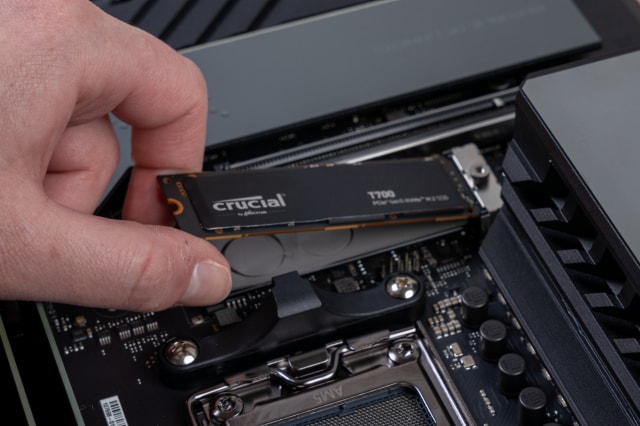
Step 2: Open File Explorer or Disk Management to see if it appears.
If it shows up on another device, the issue lies in your main system. This test often helps people fix SSD drives by ruling out hardware problems.
Fix 3: Power Cycle the SSD
A power cycle resets the SSD’s internal memory and controller. This method is simple but can be surprisingly effective.
Why use it:
Resets frozen SSD controllers.
Clears small electronic errors.
Safe and quick to perform.
Can revive a dead SSD drive without software.
Step 1: Disconnect the SSD from the computer but leave it connected to power for 30 minutes.
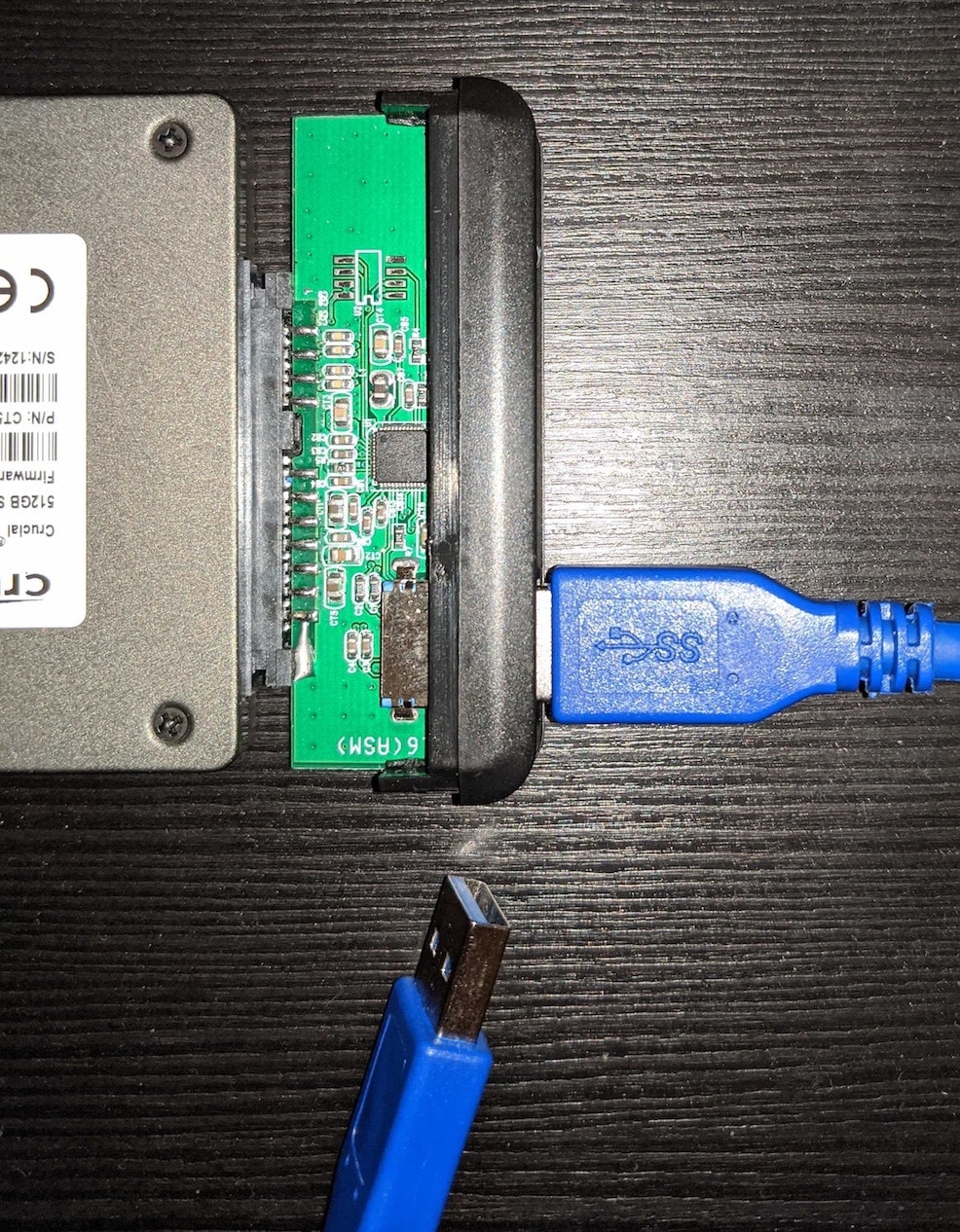
Step 2: Unplug it completely, wait for five minutes, then reconnect it to your system.
After this, many SSDs start responding again. This fix is often used before trying to repair dead SSD hard drive problems with tools.
Fix 4: Update SSD Firmware and Drivers
Firmware and drivers help your SSD and computer work together. If they are outdated, your drive may stop functioning properly.
Why use it:
Fixes bugs that cause SSD failure.
Restores communication with the system.
Improves performance and stability.
Prevents repeated drive disconnections.
Step 1: Visit the official website of your SSD brand. Look for the latest firmware and driver updates.
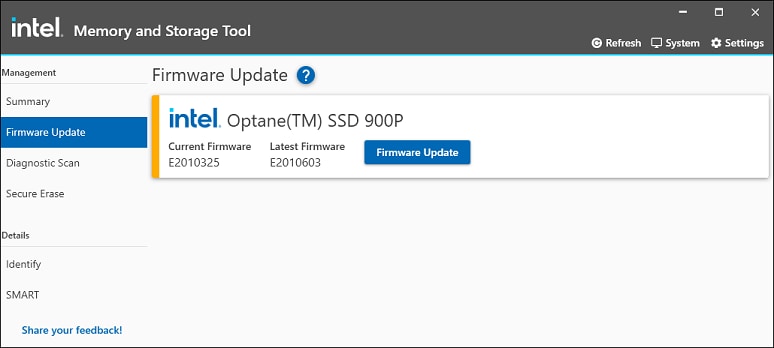
Step 2: Download and install them carefully, following the instructions.
This update can often repair NVME SSD hard drive detection problems or other performance issues. Many users notice the drive returning to normal after updating.
Fix 5: Check Disk Management (Windows)
Sometimes, Windows detects the SSD, but it doesn’t show up in File Explorer. Disk Management can help you find and activate it.
Why use it:
Shows all connected drives.
Helps initialize unrecognized SSDs.
Allows assigning or changing drive letters.
Detects unallocated space for repair.
Step 1: Right-click the Start button and select “Disk Management.”
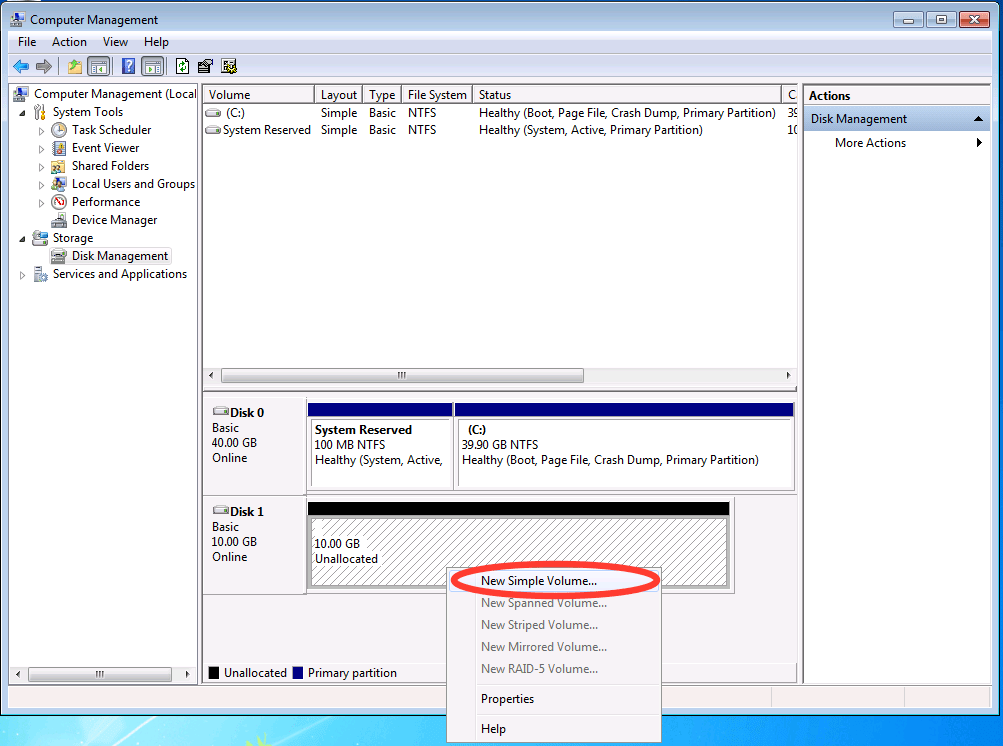
Step 2: Look for your SSD in the list. If it says “Unallocated,” right-click and choose “New Simple Volume.” Follow the wizard to assign a letter and format it.
This process can fix a dead SSD drive that’s simply missing a partition. It’s a safe and common solution for users trying to fix SSD drives on Windows.
Fix 6: Boot in Safe Mode
Safe Mode starts Windows with only basic drivers. It can help when other programs or drivers are stopping the SSD from working.
Why use it:
Disables conflicting software.
Clears boot errors.
Allows running basic repair SSD tools.
Makes it easier to back up important data.
Step 1: Restart your computer and press F8 repeatedly. Choose “Safe Mode” from the menu.
Step 2: Once loaded, check if the SSD appears. If it does, move your files to another location.
Booting in Safe Mode has helped many users repair SSD issues by avoiding driver conflicts and system errors.
Fix 7: Clean the Drive with Diskpart (Advanced)
If your SSD is still not working, Diskpart might help. This built-in Windows tool can reset the drive and remove corrupted partitions.
Why use it:
Removes old or broken data partitions.
Helps start fresh with a clean SSD.
Repairs system configuration issues.
Effective for advanced repair of NVME SSD hard drive cases.
Step 1: Type “cmd” in the search bar, right-click “Command Prompt,” and select “Run as Administrator.”
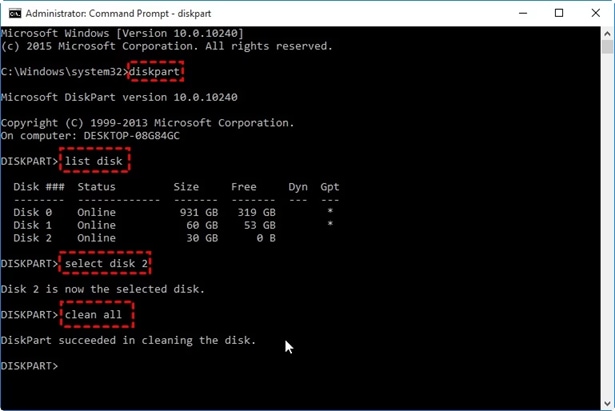
Step 2: Enter these commands:
diskpart
list disk
select disk X
clean
exit
Replace “X” with your SSD number. Restart your computer and format the SSD in Disk Management afterward.
This method can often repair SSDs that no other fix could help.
Part 3: Use Recoverit to Rescue Data from a Dead SSD
If your SSD remains unresponsive after trying the fixes, data recovery software is your best option. Recoverit is a trusted program used to restore data from dead or damaged drives. It works with internal and external SSDs and can handle all file types.
Recoverit has a simple design that helps users easily recover files without stress. It scans deeply and finds data even when your SSD is unreadable. You can use it before attempting any full reset, so you don’t lose your important files.
Why Use Recoverit
Works with all types of SSDs.
Recovers deleted, lost, or formatted data.
Easy for beginners to use.
Scans deeply for hidden data.
Supports Windows and macOS.
Helps revive a dead SSD drive by saving your data safely.
Steps to Recover Data Using Recoverit
Step 1: Install Recoverit on another drive. Open it and select your dead SSD from the device list.

Step 2: Click “Start.” The tool begins scanning automatically. You will see files appearing on the screen as they are found.

Step 3: After scanning, preview your files. Select what you need and click “Recover.” Save the files on another disk or USB drive.

This is often the final step before replacing your SSD. Even if you cannot repair dead SSD hard drive parts, you can still save what matters most.
Conclusion
If your SSD stops working, don’t panic. Most SSD problems come from small issues like bad cables, outdated drivers, or software errors. With the steps above, you can fix a dead SSD drive at home and often bring it back to life.
If the drive cannot be revived, tools like Recoverit can help you recover your data safely. Once your files are secure, consider replacing the SSD with a new one. Remember to take care of your new drive by following the pro tips above. Knowing how to fix dead SSD drives saves time, money, and stress in the long run.
FAQs
-
Can a dead SSD be repaired?
Yes. In many cases, you can fix SSD drives using simple methods such as checking cables, updating firmware, or power cycling. If the controller is damaged, you might need help from professionals. -
2. What causes an SSD to stop working suddenly?
Common causes include outdated firmware, faulty cables, sudden power loss, or overheating. Sometimes, the issue is as simple as a bad connection. -
Can data be recovered from a dead SSD?
Yes. You can use Recoverit or other safe SSD repair tools to recover your files. Always save recovered data to another drive to prevent further loss.



