
 TL;DR:
If an MBR or GPT partition table becomes corrupted and the drive shows as RAW, unallocated, or asks to be initialized, scan the affected area to extract your files to a separate safe drive before applying any disk conversion or rebuild commands.
● Do not use Disk Management or DiskPart to initialize, format, clean, or create new simple volumes on the damaged disk, because these actions write a new layout that can permanently overwrite the original file metadata.
● Native repair utilities have strict prerequisites; run CHKDSK exclusively on mounted volumes with an assigned drive letter, and execute MBR2GPT only on validated, healthy MBR system disks rather than using it as a recovery tool.
● Software recovery requires a stable and detectable disk, so you must abandon DIY attempts and contact a professional lab if the hardware clicks, repeatedly disconnects, or fails to appear in BIOS/UEFI.
Ask AI for a summary
 ChatGPT
 Perplexity
 Gemini
 Claude
 Grok
Grok
Quick answer: If Windows says the partition table is corrupted, a GPT partition is missing, an MBR disk suddenly shows unallocated, or the drive asks to be initialized or formatted, do not convert, initialize, clean, format, or rebuild the partition table yet. Stop writing to the disk, check whether the physical drive is detected, recover important files to another storage device first, and only then try partition-table repair or conversion.
A corrupted MBR or GPT partition table usually means the operating system has lost the map that describes where partitions begin and end. The files may still exist on the disk, but repair commands can overwrite the remaining map. That is why data recovery should come before Disk Management, DiskPart, MBR2GPT conversion, CHKDSK repair, TestDisk write actions, or Windows reinstall steps.
Recoverit's new partition recovery workflow is built for this risk point. When a drive is detectable but its partition table, GPT entry, MBR record, RAW volume, or unallocated area is damaged, Recoverit helps scan the affected disk, locate recoverable files from lost partition areas, preview files, and recover them to another safe drive before any structural repair.
In this article
-
- Method 1. Confirm the disk style and disk status
- Method 2. Assign a drive letter if the volume is healthy
- Method 3. Run CHKDSK only on a mounted volume
- Method 4. Use TestDisk carefully on a clone or image
- Method 5. Use MBR2GPT only for validated healthy MBR system disks
- Method 6. Repair boot files only for system-disk boot errors
- Method 7. Clean, convert, initialize, or format only as a final reset
Part 1. What Is an MBR or GPT Partition Table?
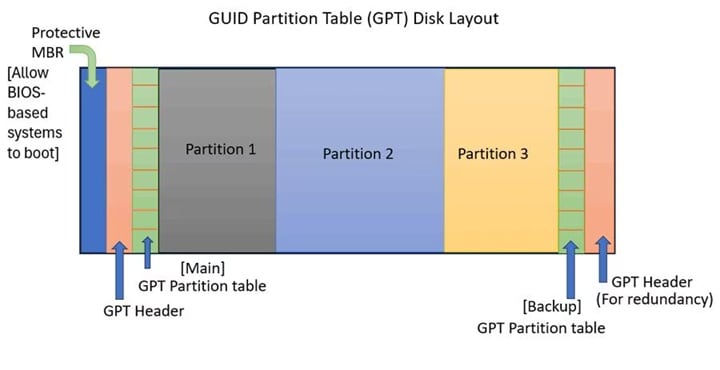
A partition table is the disk map that tells the operating system where each partition starts, where it ends, and what type of data it contains. Without that map, Windows may still detect the physical disk but show the space as unallocated, RAW, not initialized, or inaccessible.
MBR, short for Master Boot Record, is the older partition style. It stores partition information near the beginning of the disk. GPT, short for GUID Partition Table, is the newer style used by modern UEFI-based systems and large-capacity disks. Microsoft's Windows and GPT FAQ explains that GPT supports larger disks, more partitions, primary and backup partition tables, and CRC protection for partition-table integrity.
| Partition style | Plain-English meaning | Why corruption matters |
| MBR | Older disk map used by many BIOS/legacy systems. | Important partition information is concentrated near the start of the disk, so damage there can hide the whole partition layout. |
| GPT | Modern disk map used by most UEFI systems and large drives. | GPT has backup metadata, but corruption can still make partitions appear missing, RAW, or unallocated. |
| Protective MBR on GPT disks | A compatibility area that prevents older MBR-only tools from treating a GPT disk as empty. | Older tools or incorrect repair steps can misread the disk and cause users to choose the wrong fix. |
For a broader background page, Recoverit also has a guide on GPT partition recovery. This article focuses specifically on corrupted MBR/GPT partition tables and the safest data-first order.
Part 2. Signs Your MBR or GPT Partition Table Is Corrupted
Partition table corruption can look like several different disk problems. Use the symptom table before choosing a repair method.
| Symptom | What it may mean | Safest first action |
| Disk Management shows the disk as unallocated | The partition entry may be missing, deleted, or overwritten. | Do not create a new volume. Recover files or scan the disk first. |
| Windows asks to initialize the disk | Windows cannot read the current disk layout. | Do not initialize a used disk before data recovery. |
| Partition shows RAW | The partition exists, but the file system or partition metadata is unreadable. | Recover data before CHKDSK or formatting. |
| GPT protective partition appears | Windows or a tool may be reading only the protective MBR or an incompatible disk state. | Stop writing to the disk and verify the disk style before repair. |
| System disk does not boot after conversion or resize | EFI system partition, BCD files, or partition layout may be damaged. | Recover important files first if the disk is unstable or no backup exists. |
| One partition disappeared but the disk is detected | A volume entry, drive letter, or partition table record may be damaged. | Scan the lost partition area before repartitioning. |
| The disk clicks, disconnects, or is not detected | The issue may be physical hardware failure, not only GPT/MBR corruption. | Stop DIY work and consider a professional recovery lab. |
Common causes include interrupted partition resizing, sudden power loss, unsafe removal, malware, incorrect MBR/GPT conversion, accidental deletion in Disk Management or DiskPart, failing sectors, and unstable external enclosures.
Part 3. What Not to Do Before Partition Table Recovery
The fastest click is often the most damaging one. If the disk contains important files, avoid any command or wizard that writes a new disk layout before you recover the data.
| Action | Why it is risky before recovery | Use it when |
| Initialize the disk | Initialization writes a new disk layout to a disk Windows cannot currently interpret. | Only for new blank disks, or after old data is recovered. |
| Create New Simple Volume | It allocates space that may still contain files from the old partition. | Only after recovery or when old data is not needed. |
| Format the partition | Formatting creates a new file system and removes the old file index. | Only after recovered files are verified elsewhere. |
| Run CHKDSK with /f or /r | CHKDSK can write repairs to file system metadata and is not a partition table recovery tool. | Only on a mounted volume after backup or recovery. |
| Run DiskPart clean | Microsoft says clean removes all partitions or volume formatting from the selected disk. | Only as a final reset after files are safe. |
| Convert MBR to GPT or GPT to MBR on a damaged disk | Conversion changes the disk layout and may fail if the current table is already damaged. | Only after validation, backup, and data protection. |
| Write a rebuilt partition table with TestDisk | Writing a repaired table changes disk metadata. The wrong choice can hide remaining data. | Prefer a disk image or clone; proceed only when you understand the found layout. |
Microsoft's DiskPart clean documentation is especially important here: on GPT disks, the command overwrites GPT partitioning information, including the protective MBR. That is a reset step, not a recovery-first step.
Part 4. Recover Data From a Corrupted GPT or MBR Partition Table With Recoverit
Use Recoverit when the disk is detectable but the partition table is corrupted, the volume appears RAW, the disk shows unallocated, or a partition disappeared after conversion, resizing, deletion, or a failed repair. Recoverit is not a partition-table repair utility. Its job is to recover files from readable storage before you attempt partition conversion, initialization, clean, formatting, or rebuild operations.
For related recovery paths, see Recoverit's partition recovery hub and corrupt partition recovery guide.
New version value: partition recovery before conversion or rebuild
The new version selling point should be explicit for this page: recover data first before conversion, initialization, clean, or repartitioning. That message matches the P1 topic matrix and gives users a safer alternative to destructive partition-table fixes.
| New Recoverit partition recovery value | How it maps to corrupted MBR/GPT cases | User benefit |
| Lost partition area scanning | Scans disks that show missing partitions or unallocated space. | Users can try file recovery before writing a new partition table. |
| RAW and inaccessible partition coverage | Handles cases where the partition exists but Windows cannot open it normally. | Users are not forced to format just to access files. |
| Original folder and file relationship recovery | Attempts to preserve folder paths and file names when metadata is still usable. | Useful for project drives, backup disks, work folders, photos, and videos. |
| Preview before recovery | Lets users confirm documents, photos, videos, and archives before saving. | Reduces blind recovery and supports conversion at the right moment. |
| Recover to another safe storage device | Keeps new writes away from the corrupted disk. | Protects remaining recoverable data before repair commands. |
Step 1. Select the affected disk or lost partition area
Install Recoverit on a working system drive or another healthy disk, not on the affected drive. Open Recoverit and select the disk, RAW partition, lost partition area, or unallocated area that matches the damaged MBR/GPT disk.

Step 2. Scan the corrupted partition table area
Click Scan. Let the scan continue long enough to locate file types and folder structures from the damaged partition table area. If the drive is large, use filters by file type, size, date, or folder path after results appear.

Step 3. Preview and recover files to another drive
Preview files that matter most. Select the documents, photos, videos, archives, or project folders you need, then click Recover. Save them to another internal drive, external drive, NAS, or cloud-synced folder. Do not save recovered files back to the damaged disk.

After recovery, open several important files from the destination drive. If the affected disk was a system disk, confirm personal folders and work files are safe before attempting boot repair, MBR2GPT conversion, reinstall, or clean installation.

Part 5. Repair or Rebuild the Partition Table After Data Is Safe
Once your files are recovered or backed up, choose the repair method that matches the disk state. Do not use every method in sequence. Partition-table work should be deliberate.
Method 1. Confirm the disk style and disk status
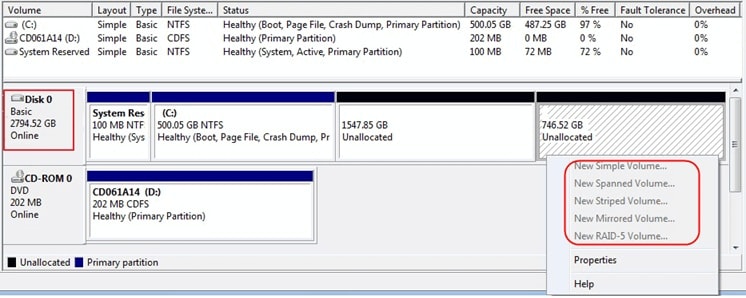
Open Disk Management first. Microsoft describes Disk Management as the Windows tool for initializing disks, creating and formatting volumes, and using GPT or MBR depending on system and drive needs.
- Right-click Start and choose Disk Management.
- Identify the affected disk by capacity and disk number.
- Check whether it is GPT, MBR, RAW, unallocated, offline, or missing a drive letter.
- If the disk is physically unstable, stop and do not run repair commands.
Method 2. Assign a drive letter if the volume is healthy
If the volume is healthy but missing from File Explorer, it may only lack a drive letter. This is lower risk than formatting or rebuilding.
- In Disk Management, right-click the healthy volume.
- Select Change Drive Letter and Paths.
- Choose Add or Change and assign an unused letter.
- Open File Explorer and copy important files if the volume mounts.
Method 3. Run CHKDSK only on a mounted volume
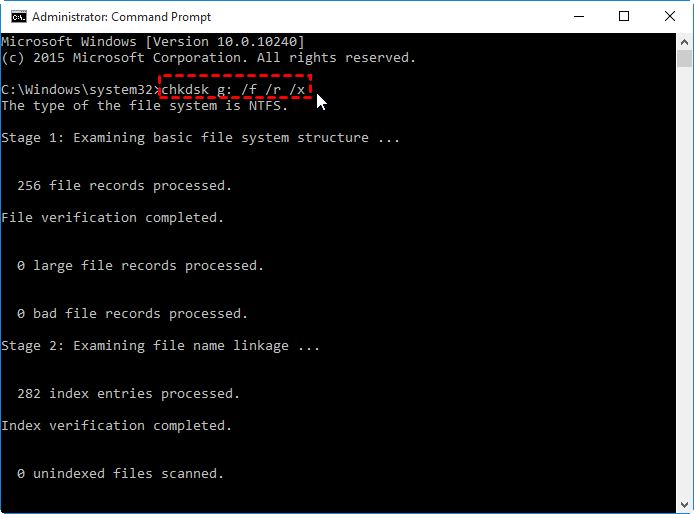
Microsoft's CHKDSK documentation explains that CHKDSK checks file system metadata and can fix logical errors when repair parameters are used. That makes it useful for mounted file-system issues, but not for a deleted partition table or unallocated disk.
- Use this only after backup or recovery.
- Open Command Prompt as administrator.
- Type chkdsk X: /f, replacing X with the drive letter.
- If Windows says CHKDSK is not available for RAW drives, stop using CHKDSK and use recovery or a partition specialist workflow.
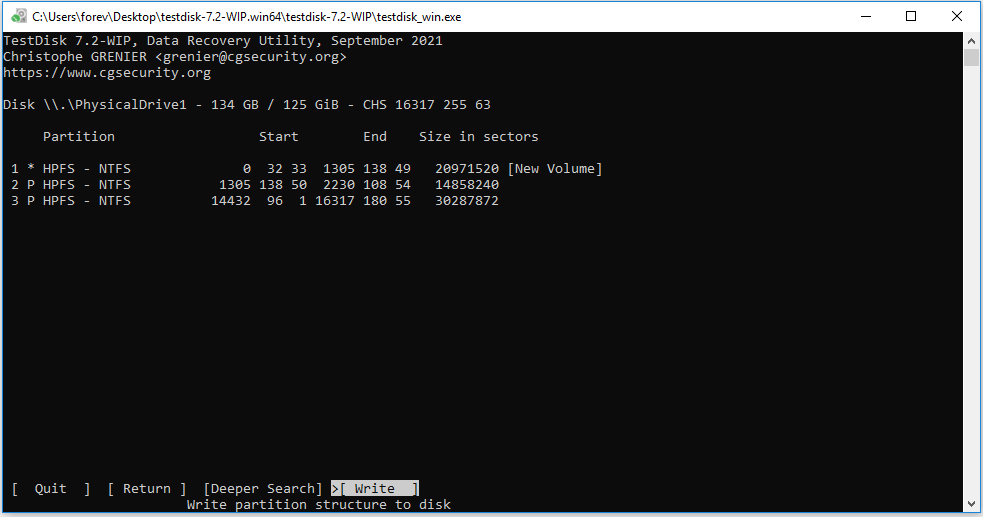
Method 4. Use TestDisk carefully on a clone or image
TestDisk is an open-source recovery utility designed to recover lost partitions and make some non-booting disks bootable again when the cause is software damage, human error, or certain malware. It can also write partition table repairs, so use it carefully.
- Prefer working from a disk image or clone when the data is important.
- Use Analyse to inspect found partitions before writing anything.
- Do not accept a found layout unless sizes, labels, file systems, and files match what you expect.
- Recover files first if you are not confident about the correct table.
Method 5. Use MBR2GPT only for validated healthy MBR system disks
MBR2GPT is not a corrupt partition table recovery tool. Microsoft's MBR2GPT documentation explains that the tool validates an MBR system disk and converts it to GPT if validation passes. During conversion, GPT metadata and layout information are applied, an EFI system partition may be created, and boot configuration data is updated.
Use this only when your goal is converting a healthy eligible MBR system disk to GPT. If the partition table is already corrupted, recover the data first and avoid conversion until the disk layout is understood.
- Open an elevated Command Prompt.
- Run mbr2gpt /validate /disk:0, replacing 0 with the correct disk number.
- Proceed with conversion only if validation passes and you have a backup.
- After conversion, switch firmware boot mode as Microsoft instructs.
Method 6. Repair boot files only for system-disk boot errors
If the problem is a Windows system disk that no longer boots, do not jump straight to reinstalling Windows. After files are safe, use Windows Recovery Environment or Microsoft boot-repair guidance for boot files. Microsoft support articles for boot errors use DiskPart to identify whether a disk is GPT or MBR and then rebuild boot files with the appropriate command flow.
This belongs after data recovery because boot repair can write to EFI, BCD, and system partitions. It also does not help a non-boot external data disk whose problem is a missing partition entry.
Method 7. Clean, convert, initialize, or format only as a final reset
If files are recovered and you only need to reuse the disk, then resetting the disk layout is possible. Treat this as a final reset, not recovery.
Microsoft's Windows Setup guidance for MBR/GPT partition style uses diskpart, select disk, clean, and convert gpt for manually wiping and converting a drive to GPT. That workflow intentionally reformats the selected drive. It is appropriate only when the data is already safe or no longer needed.
- Verify recovered files on another drive.
- Back up anything still needed.
- Use Disk Management or DiskPart only on the correct disk.
- Create a new volume and format it for the operating system and device you will use.
Part 6. When Professional Recovery Is Safer
Software recovery is suitable only when the disk is detectable and stable enough to scan. Stop DIY work and contact a professional data recovery lab if:
- The drive clicks, grinds, beeps, or disconnects repeatedly.
- The disk is not detected in BIOS/UEFI, Disk Management, Device Manager, Finder, or Disk Utility.
- The drive was dropped, exposed to water, overheated, or physically damaged.
- The disk contains irreplaceable business, legal, client, or family files.
- Multiple tools find conflicting partition layouts.
- You suspect encryption and do not have the BitLocker, FileVault, or other recovery key.
Recoverit cannot fix failed physical storage, rebuild every partition table, decrypt protected storage without the valid key, or promise a complete recovery. Recovery depends on disk condition, overwriting, encryption, TRIM behavior, and detectability.
Part 7. How to Prevent MBR/GPT Partition Table Corruption
- Back up files before shrinking, extending, merging, converting, deleting, or cloning partitions.
- Do not interrupt firmware updates, OS installs, partition conversions, or disk cloning jobs.
- Use stable power or a UPS during disk operations.
- Safely eject external drives before unplugging them.
- Check disk health before large partition changes.
- Use MBR2GPT validation before conversion, and keep logs for troubleshooting.
- Avoid mixing several partition managers on the same disk after one operation fails.
- For SSDs, stop using the drive immediately after partition loss because TRIM and background cleanup can reduce recoverability.
Conclusion
A corrupted MBR or GPT partition table is a data protection problem before it is a repair problem. If the disk asks to be initialized, converted, formatted, cleaned, or repartitioned, pause and recover the data first.
Recoverit's new partition recovery workflow gives this page a clear launch message: scan lost, RAW, inaccessible, or unallocated partition areas; preview recoverable files; recover them to another safe storage device; then repair the partition table, convert MBR/GPT, rebuild boot files, or reset the disk only after data is protected.
FAQ
-
Can I recover data from a corrupted GPT partition table?
Yes, recovery is often possible if the disk is still detectable and the data has not been overwritten. Stop using the disk, avoid initialization or formatting, and recover files to another storage device before repair. -
Is GPT easier to recover than MBR?
GPT can be more recoverable in some logical cases because it keeps primary and backup partition metadata, but recovery is not certain. Disk condition, overwriting, encryption, and the exact corruption matter more than partition style alone. -
Should I convert MBR to GPT to fix a corrupted partition table?
No. MBR2GPT is for validated eligible MBR system disks, not damaged partition-table recovery. If the disk has missing files, RAW volumes, or unallocated space, recover data first and convert only after the disk layout is safe and understood. -
Does DiskPart clean fix GPT corruption?
DiskPart clean resets the selected disk by removing partitions or volume formatting. It can make a disk ready for reuse, but it is destructive and should be used only after recovery or when no old data is needed. -
Can CHKDSK repair a corrupted partition table?
CHKDSK repairs file system errors on a mounted volume. It does not rebuild a deleted MBR or GPT partition table. Use it only after backup or recovery when the volume has a drive letter and is stable enough to repair. -
What is new about Recoverit partition recovery for MBR/GPT issues?
The new partition recovery workflow is positioned for lost, RAW, inaccessible, or unallocated partition areas. It focuses on scanning the affected disk, previewing files, and recovering data before conversion, initialization, clean, or repartitioning. -
When should I stop trying DIY partition table recovery?
Stop if the drive is not detected, makes unusual noises, disconnects, has physical damage, contains irreplaceable data, or shows conflicting partition layouts in different tools. A professional lab is safer in those cases.



