

 TL;DR:
To resolve PCIe 6.0 SSD overheating and stop thermal throttling during heavy workloads, install a dedicated heatsink and enable Link State Power Management within your Windows PCI Express power settings.
● Reapply thermal pads for proper M.2 drive contact and install active motherboard cooling fans directly over the SSD to safely disperse trapped heat.
● Update the drive's firmware via the manufacturer's official management tool to optimize workload efficiency, and establish thermal alerts using monitoring software like Core Temp or Hard Disk Sentinel.
● If continuous overheating results in system crashes or inaccessible files, use Wondershare Recoverit to retrieve corrupted data, utilizing its 500MB free recovery allowance and pre-restore file preview features.
Ask AI for a summary
 ChatGPT
 Perplexity
 Gemini
 Claude
 Grok
Grok
A gamer notices sudden frame drops and stuttering while loading large open-world titles, even though the system has top-tier hardware installed. The real culprit often turns out to be an overheating PCIe 6.0 SSD pushing thermal limits under heavy workloads. As next-gen storage drives deliver extreme speeds, heat buildup becomes a serious performance barrier.
This article explains how to quickly and effectively fix PCIe 6.0 SSD overheating, helping restore stable performance and eliminate lag. With the right cooling methods and optimization techniques, users can maintain peak speed, reliability, and long-term health of their storage system.
Try Recoverit to Perform Data Recovery
 Security Verified. 3,591,664 people have downloaded it.
In this article
Part 1. Why PCIe 6.0 SSDs Run So Hot - 6 Causes
As storage technology continues to advance, PCIe 6.0 SSDs deliver extreme speeds that naturally come with higher heat output. Understanding the root causes of PCIe 6.0 SSDs overheating helps apply the right fixes and prevent performance drops.
- Extreme Data Transfer Speeds: PCIe 6.0 SSDs push massive amounts of data at once, increasing power consumption and heat generation during sustained workloads.
- High Controller Workload: The SSD controller performs complex operations at very high speeds, leading to rapid heating under heavy workloads such as gaming or rendering.
- Insufficient Cooling Solutions: Many systems lack adequate heatsinks or thermal pads for next-gen SSDs, leading to poor heat dissipation.
- Compact M.2 Form Factor: The small size of M.2 drives limits airflow around the SSD, trapping heat in tight spaces inside modern PC builds.
- Continuous Heavy Usage: Activities like 4K video editing, large file transfers, and gaming sessions keep the drive under constant load, increasing thermal stress.
- Poor Case Airflow Design: Inadequate system ventilation prevents hot air from escaping efficiently, leading to rising SSD temperatures over time.
Part 2. 5 Signs Your PCIe 6.0 SSD Is Overheating
After understanding why heat builds up in high-speed storage, the next step is identifying the warning signs early. Recognizing these symptoms helps prevent permanent performance damage and data slowdowns.
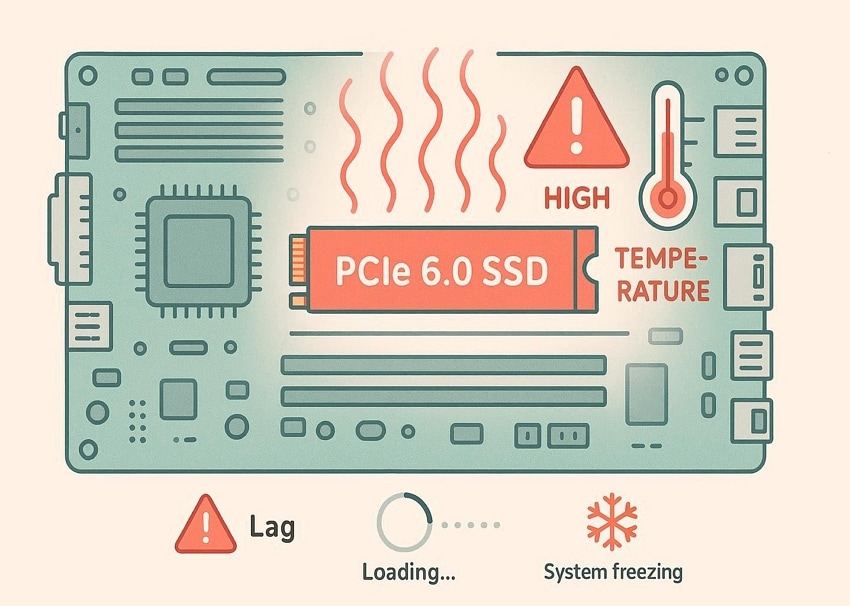
- Sudden Performance Drops: File transfers or game load times unexpectedly slow down due to thermal throttling activating on the SSD PCIe 6.0.
- Frequent System Lag or Stuttering: Applications freeze or stutter during heavy workloads as the drive reduces speed to control temperature.
- High SSD Temperature Warnings: Monitoring tools or BIOS alerts indicate the SSD temperature consistently exceeding safe operating limits.
- Unexpected System Freezes: The computer may temporarily hang when the SSD overheats during intensive read/write operations.
- Longer Boot and Load Times: Windows startup or software load times become noticeably slower as the SSD struggles to maintain peak performance.
Safe Temperature Range for PCIe 6.0 SSDs
As PCIe 6.0 SSDs follow similar NVMe controller thermal behavior as previous-generation high-speed drives, their safe operating temperatures are generally aligned with industry NVMe standards. However, exact limits can vary by manufacturer, controller design, and cooling solution.
Part 3. From Heat to Speed: Fix PCIe 6.0 SSD Overheating Today
Now that you understand the causes of PCIe 6.0 SSD overheating and the warning signs, it becomes much easier to take corrective action. The following solutions will help you quickly and effectively move from heat-related slowdowns back to stable, high-speed performance.
Way 1: Install a High-Quality Heatsink
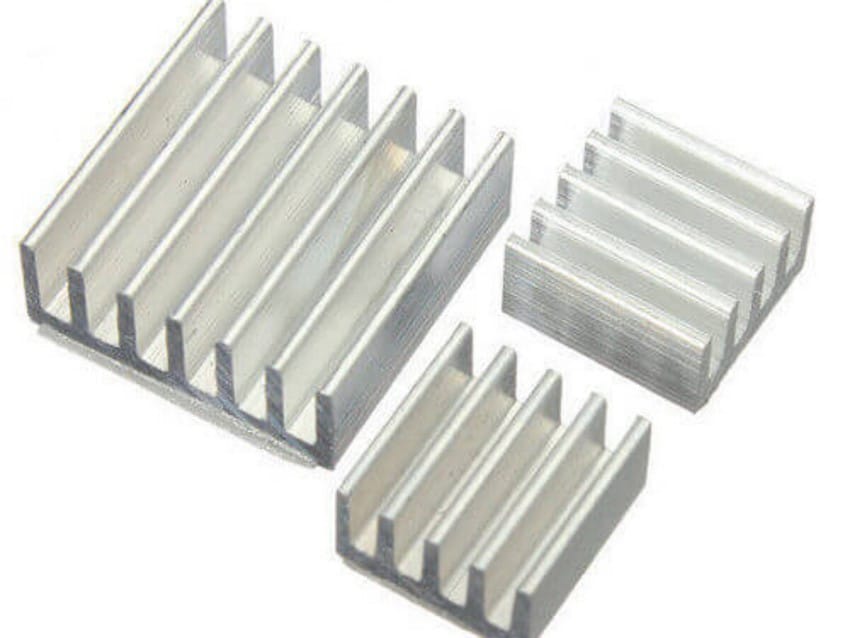
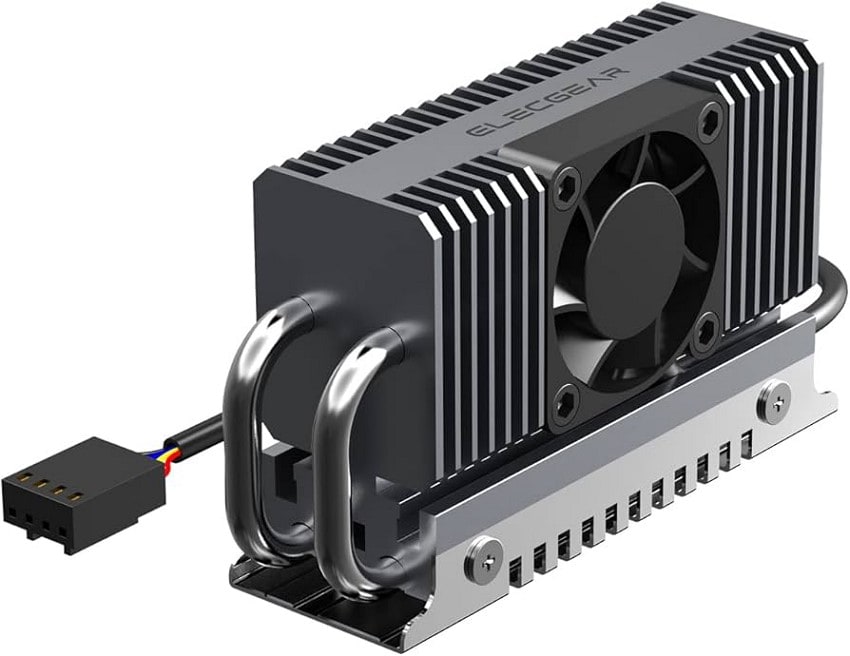
Upgrading your system with a reliable heatsink is one of the most effective ways to manage PCIe 6.0 SSD overheating. A well-designed cooling solution helps maintain stable performance for your PCIe 6.0 SSD, ensuring smoother operations during heavy workloads and preventing unnecessary slowdowns caused by rising temperatures.
Way 2: Improve PC Case Airflow
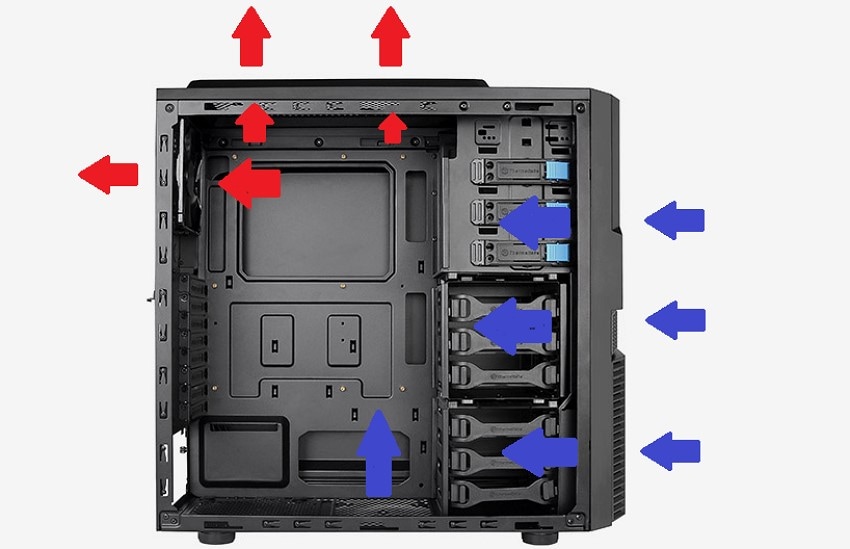
Better airflow inside your PC case plays a key role in controlling SSD PCIe 6.0 temperatures. When cooling is optimized, your PCIe 6.0 SSD stays within safe limits even during intensive tasks. Proper ventilation helps reduce heat buildup and supports consistent performance across demanding applications.
Way 3: Use Active Cooling Solutions
Using active cooling solutions is an effective way to manage PCIe 6.0 SSD overheating in high-performance systems. By adding dedicated fans or motherboard-integrated cooling, airflow is directed precisely over the PCIe 6.0 SSD, reducing heat buildup during intensive tasks. This approach helps maintain consistent speeds, prevents thermal throttling, and ensures long-term reliability.
Way 4: Update Firmware and Drivers
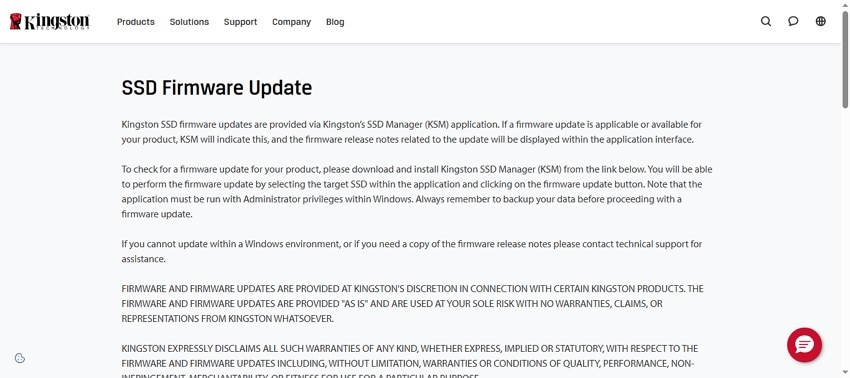
Keeping your system updated is essential for improving SSD PCIe 6.0 efficiency and thermal control. Updated firmware enhances how your PCIe 6.0 SSD distributes workloads, helping reduce overheating. This ensures better stability and optimized performance across all storage-intensive tasks. To learn how to update firmware and drivers, read the steps provided next:
Update Firmware
Instructions. Visit the SSD manufacturer's website and download their official management tool. Open the software and let it automatically detect your installed PCIe 6.0 SSD.
Update Drivers
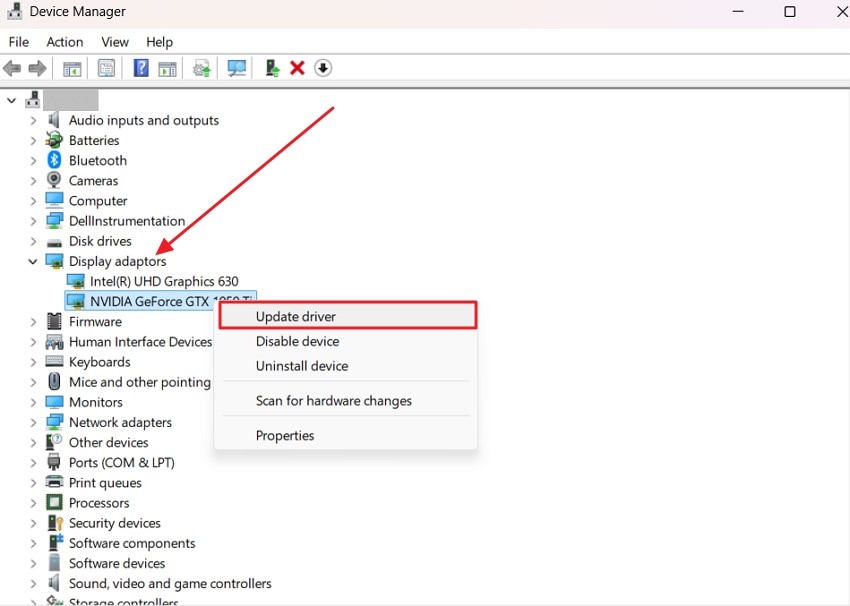
- Launch Device Manager on your system, then expand the "Display Adapters" category in the side panel. Find your installed GPU driver, right-click it, and choose "Update Driver" to begin the update.
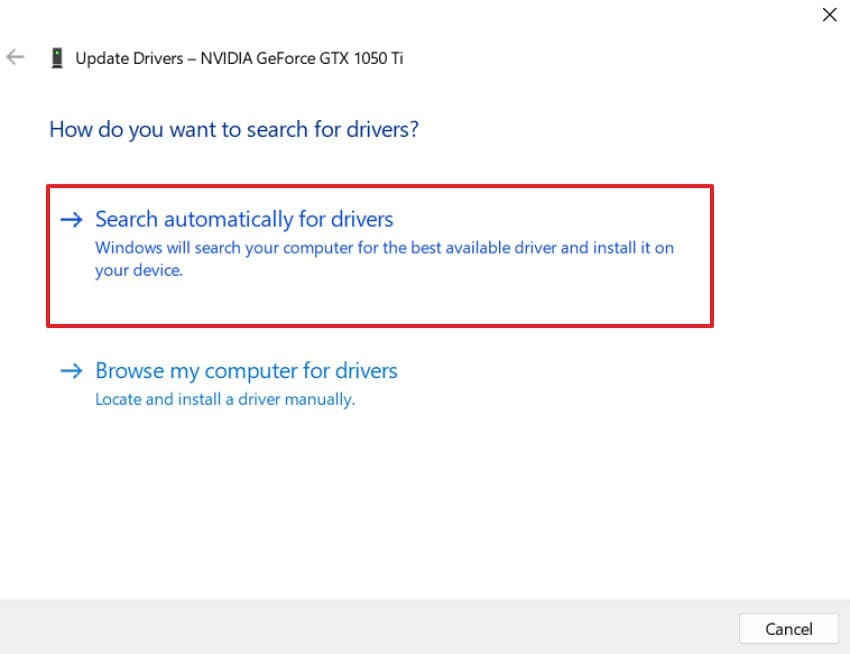
- In the next window, select "Search Automatically for Drivers" to allow your system to locate, download, and install updates.
Way 5: Avoid Overloading the SSD
Managing workload effectively can help reduce PCIe 6.0 SSD overheating during heavy usage. When your SSD PCIe 6.0 is not overloaded with continuous tasks, it performs more consistently. Balanced usage ensures smoother operations and prevents sudden temperature spikes that may affect overall system responsiveness.
Way 6: Enable Power Management Settings
Adjusting power settings is a smart way to control SSD PCIe 6.0 heat levels in demanding environments. Your PCIe 6.0 SSD benefits from optimized energy use, resulting in lower operating temperatures. This helps maintain steady performance while reducing the risk of overheating during regular computing tasks. Here is how you can enable power management settings:
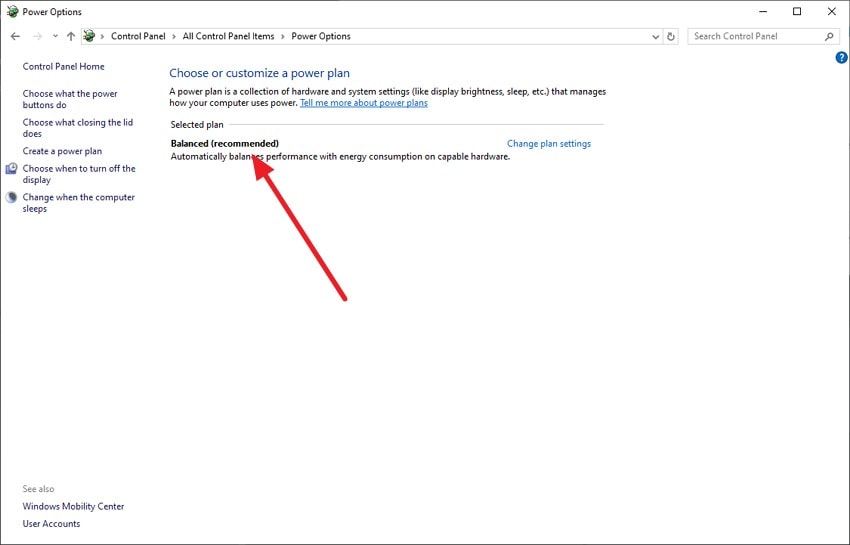
- Go to Control Panel and select “Power Options,” or search for it directly from the Start menu. Select the “Balanced” plan to reduce excessive power usage on your PCIe 6.0 SSD.
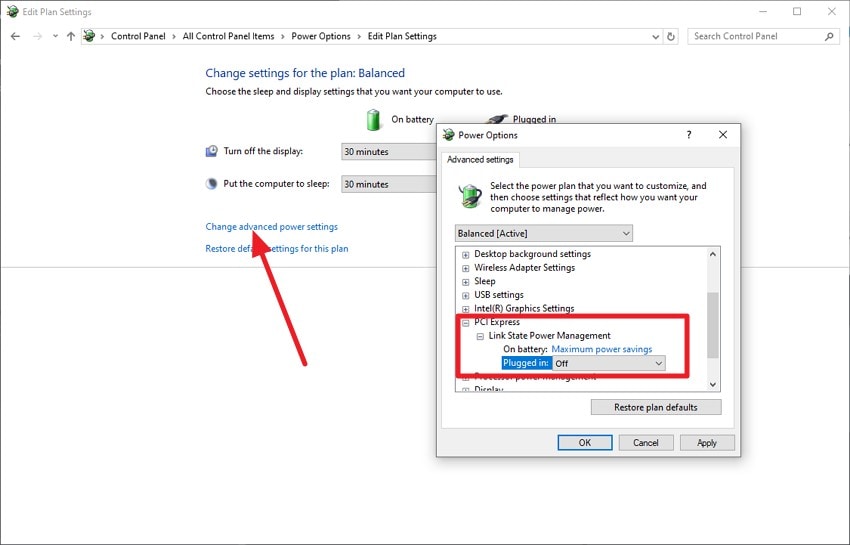
- Select “Change Advanced Power Settings” to open detailed options. Expand the “PCI Express” section and enable “Link State Power Management” to reduce energy consumption. Click “Apply” and “OK” to save settings, helping lower heat output and maintain stable SSD performance.
Way 7: Reapply Thermal Pads Properly
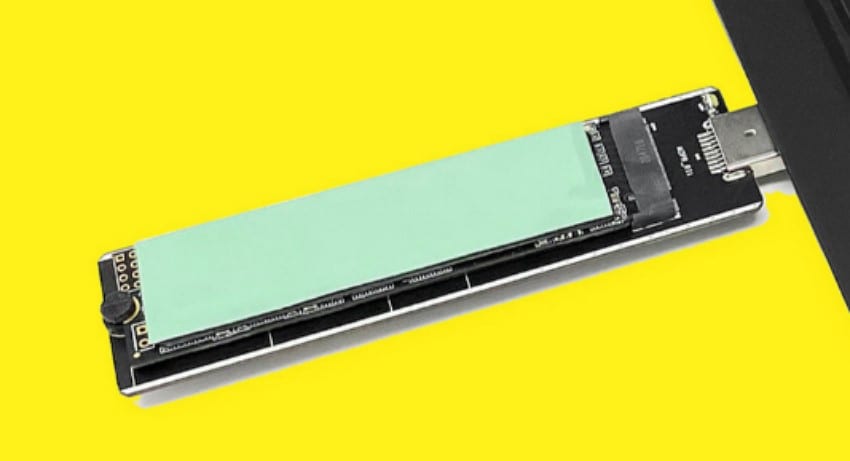
Proper thermal pad application improves heat handling in PCIe 6.0 SSDoverheating scenarios. A well-maintained SSD PCIe 6.0 setup ensures better contact and efficient heat transfer. This simple improvement supports long-term stability and keeps your SSD running smoothly under continuous heavy workloads.
Part 4. How to Check SSD Temperature for Peak Performance
After applying effective cooling fixes, the next step is making sure your results last. Regularly monitoring temperature lets you catch early signs of PCIe 6.0 SSD overheating. Provided below are some of the ways to check your SSD temperature:
Use Built-in Tools
Built-in tools like Task Manager and BIOS provide a quick way to monitor PCIe 6.0 SSD activity and temperature trends. These options help detect early signs of PCIe 6.0 SSD overheating, ensuring your system maintains stable performance without relying on third-party software. Here is how you can check the temperature:
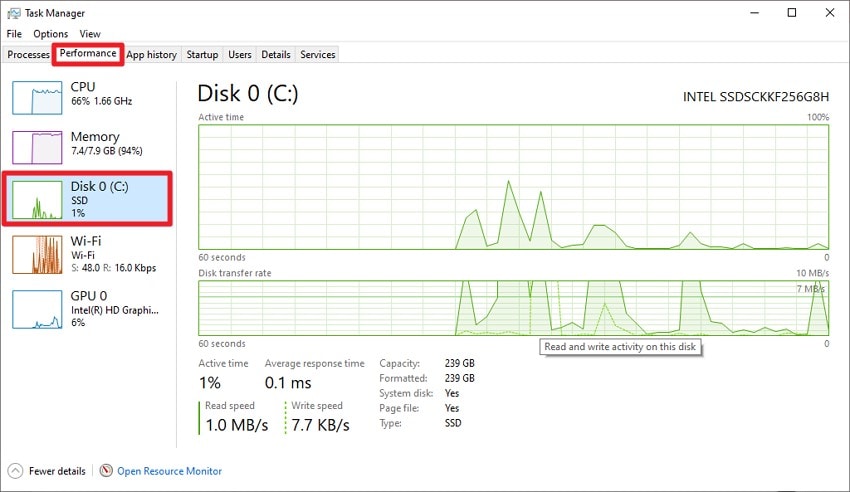
Instructions: Press Ctrl + Shift + Esc to launch Task Manager quickly on your system. Click on the “Performance” tab to view system resource usage and hardware activity. Choose the disk corresponding to your PCIe 6.0 SSD from the left panel to monitor its activity.
Third-Party Monitoring Software
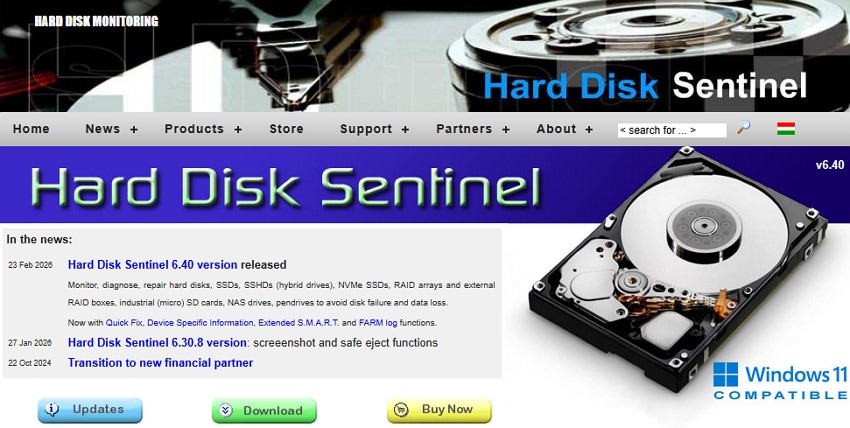
Third-party monitoring software such as Hard Disk Sentinelprovides advanced real-time tracking of PCIe 6.0 SSD health, temperature, and performance metrics. These tools help users quickly identify PCIe 6.0 SSD overheating issues before they impact speed or stability. With detailed alerts and analytics, they ensure consistent performance, improved cooling management, and long-term data protection under heavy workloads.
Set Temperature Alerts
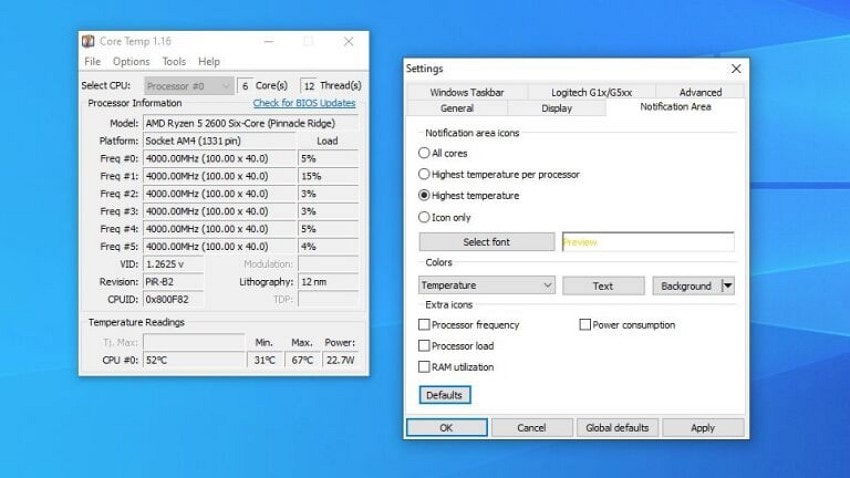
Setting temperature alerts helps you proactively manage SSD PCIe 6.0performance by warning you when heat levels rise above safe limits. These alerts help detect PCIe 6.0 SSD overheating early, so you can take immediate action before throttling or damage occurs. It ensures stable speed, better cooling control, and long-term drive reliability. Tools like Core Temp help you set temperature alerts by installing them on your system.
Pro Tip: When Overheating Causes Crashes or Data Loss - Recoverit Helps
When PCIe 6.0 SSD overheating leads to unexpected crashes, system freezes, or even data loss, the situation can quickly become stressful, especially when important files are involved. In such cases, having a reliable recovery solution becomes essential to restore access to lost or damaged files without further complications. Tools like Recoverit provide a simple way to retrieve data from crashed or inaccessible drives, even after overheating-related failures.
Whether files were lost during a crash or became unreachable due to thermal shutdown, recovery software can help minimize damage. It also supports multiple device recovery, allowing users to restore files from SSDs, HDDs, USB drives, and even external storage devices. With up to 500MB of free data recovery, it provides a helpful starting point for users facing unexpected data loss.
Key Features Offered by Recoverit
- Batch Data Recovery: Recoverit allows users to restore multiple files at once, making it faster and more efficient to recover data lost due to PCIe 6.0 SSD overheating or system crashes.
- Multiple File Format Support: It supports a wide range of file types, including documents, videos, images, and archives, ensuring complete recovery in the event of a PCIe 6.0 SSD failure.
- Preview Before Saving: Users can preview recoverable files before restoring them, helping ensure the correct data is recovered safely after PCIe 6.0 SSD overheating incidents.
Step For Recovering Data Using Recoverit
If PCIe 6.0 SSD overheating has caused data loss or made files inaccessible, you can recover your important data using Recoverit by following these steps:
1. Select the PCIe 6.0 SSD
Connect your SSD to the system and open Recoverit. From the home screen, choose your PCIe 6.0 SSD as the target drive to begin recovery.

2. Start Deep Scanning
Once selected, the software will perform a deep scan of your PCIe 6.0 SSD to locate lost or corrupted files. After scanning, select the files you want to recover and proceed.

3. Preview and Save Files
Before final recovery, preview the detected files to confirm accuracy. Then click the “Recover” option to safely restore data from your PCIe 6.0 SSD to a secure location.

Part 3. Preventing Future Overheating & Data Disasters - 5 Tips
Keeping your SSD PCIe 6.0 cool not only improves speed but also protects your data from unexpected failures and thermal stress over time. Here are some of the effective tips that will surely help:
- Maintain Regular Temperature Monitoring: Use reliable tools to track your PCIe 6.0 SSD's overheating trends and catch early warning signs before they escalate into serious performance issues.
- Optimize System Airflow Consistently: Keeping your PC case airflow balanced ensures your SSD PCIe 6.0 stays cool even during prolonged gaming, editing, or heavy data transfers.
- Avoid Continuous Heavy Workloads: Spacing out large file operations helps reduce stress on your PCIe 6.0 SSD, preventing heat buildup and maintaining stable long-term performance.
- Keep Firmware and Drivers Updated: Regular updates improve thermal management and efficiency, helping your SSD PCIe 6.0 operate smoothly under demanding conditions.
- Use Reliable Power Protection: Stable power delivery protects your PCIe 6.0 SSD from sudden spikes and reduces the risk of overheating-related system instability or data loss.
Conclusion
To sum it up, this article provides a detailed guide to fixing PCIe 6.0 SSD overheating issues, covering identification of causes and warning signs, effective cooling solutions, and prevention tips. By following these methods, users can restore stability, improve performance, and avoid data loss caused by excessive heat. For unexpected file loss, Recoverit offers a reliable recovery solution with support for multiple devices and up to 500MB of free recovery.
FAQ
-
1. What causes PCIe 6.0 SSD overheating?
PCIe 6.0 SSD overheating is mainly caused by high-speed data transfers, limited airflow, heavy workloads, and insufficient cooling solutions inside the PC case. -
2. How can I reduce PCIe 6.0 SSD overheating quickly?
You can reduce PCIe 6.0 SSD overheating by installing a heatsink, improving airflow, updating firmware, and avoiding continuous heavy usage. -
3. Can overheating lead to data loss on PCIe 6.0 SSDs?
Yes, severe PCIe 6.0 SSD overheating can cause crashes, corruption, or inaccessible files. In such cases, Recoverit can help restore lost data, supporting multiple devices and offering up to 500MB of free recovery space. -
4. What should I do if my SSD data is lost due to overheating?
If data is lost due to a PCIe 6.0 SSD overheating, Recoverit is a reliable tool for recovering files from SSDs, HDDs, and other storage devices, offering batch recovery and file preview options.


