 TL;DR:
To fix a silent HDMI monitor, first check the manufacturer's exact model specifications to verify it actually contains built-in speakers, then manually select the display as the active output device in your system settings.
● If the monitor has speakers but remains silent, select it directly in Windows 11 under Settings > System > Sound or macOS under System Settings > Sound; if missing in Windows, check Device Manager to enable hidden devices or update the specific Intel, NVIDIA, or AMD display-audio driver.
● For supported Samsung or LG Smart Monitors, isolate hardware defects by running the built-in Sound Test or Sound Self-Diagnosis located in the monitor's on-screen Support menu to verify speaker functionality independently of the computer's HDMI output.
● If the display lacks internal speakers, it cannot produce sound regardless of settings; you must route audio by connecting powered speakers to the monitor's documented audio-out jack or directly to the computer, while avoiding HDMI-to-DVI cables that do not transmit audio.
Ask AI for a summary
 ChatGPT
 Perplexity
 Gemini
 Claude
 Grok
Grok
An HDMI monitor with no audio is not always broken. HDMI can carry video and audio, but the monitor must have built-in speakers or a documented audio-out path to produce sound. If the monitor has speakers, check the computer's output device, monitor volume, HDMI connection, and display-audio driver. If it has no speakers, route audio to headphones or external speakers instead.
This guide starts by checking what the exact monitor can do, then separates Windows 11, Mac, connection, driver, Samsung, and LG troubleshooting so you do not waste time changing settings that your display does not support.
In this article
Part 1. Check Whether the HDMI Monitor Can Produce Sound
Before changing Windows, macOS, or driver settings, confirm whether the display can actually play or pass HDMI audio. A monitor that has no speakers can still show perfect HDMI video, and a headphone jack is useful only if the model is designed to pass incoming audio through that port.
| Monitor Type | What HDMI Audio Can Do | Best Next Step |
| Built-in speakers | The monitor can play HDMI audio when the source sends audio to it and the monitor is not muted. | Continue with Parts 2 to 6. |
| Audio-out only, no speakers | The monitor may pass HDMI audio to headphones or powered speakers if the manual documents that behavior. | Use the audio-out route in Part 7. |
| No speakers and no audio-out | The monitor has no local way to reproduce the HDMI audio signal. | Select speakers, headphones, USB audio, or Bluetooth audio on the source device. |
Find the Exact Audio Specification by Model Number
Find the model number on the monitor label or information menu, then check the manufacturer's product specifications or manual. Look specifically for built-in speakers, speaker wattage, headphone out, or audio out. Do not rely only on a retailer listing.
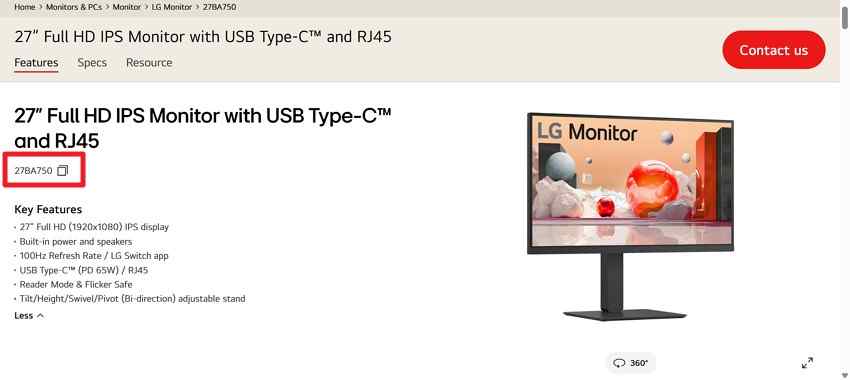
Important: If the official specifications list no internal speakers, silence from the monitor itself is expected. An audio-out jack can be useful on some models, but confirm that the manual says it carries audio from HDMI before assuming it does.
Part 2. Send Computer Audio to the HDMI Monitor
If the monitor supports HDMI audio, make sure the computer is actually sending sound to it. A correct picture does not prove that the correct audio output is selected.
Select the Monitor as the Windows 11 Sound Output
Microsoft's current Windows audio guidance places output selection under Settings > System > Sound. Use this first when Windows still sees the display.
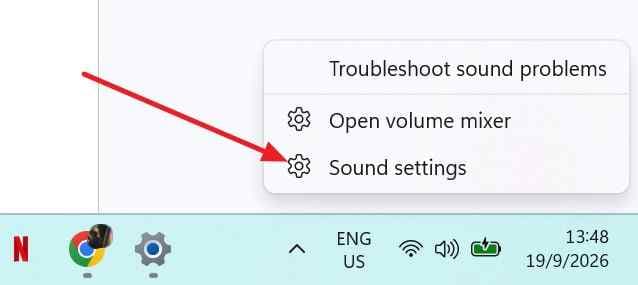
Step 1. Right-click the taskbar speaker icon and open Sound settings, or go to Settings > System > Sound.
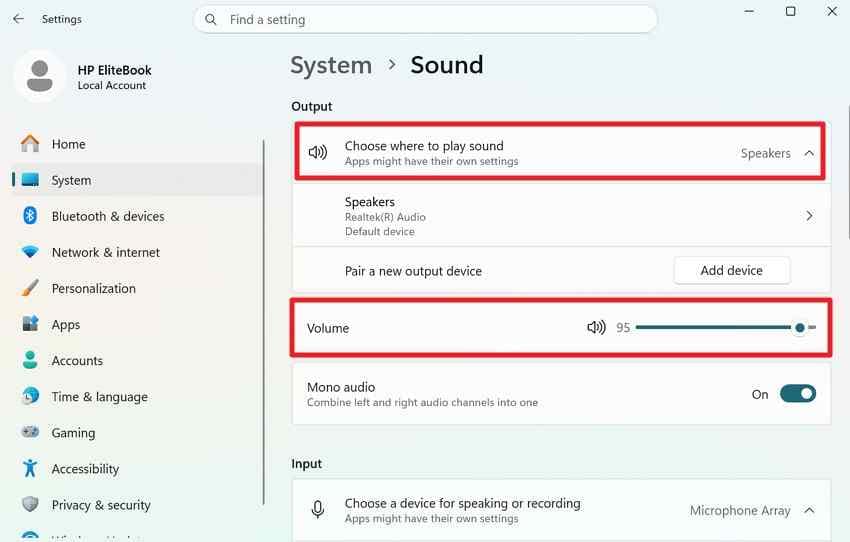
Step 2. Under Output or Choose where to play sound, select the monitor, TV, or display-audio device. Raise the volume and test audio.
Set the Monitor as the Default Playback Device When Needed
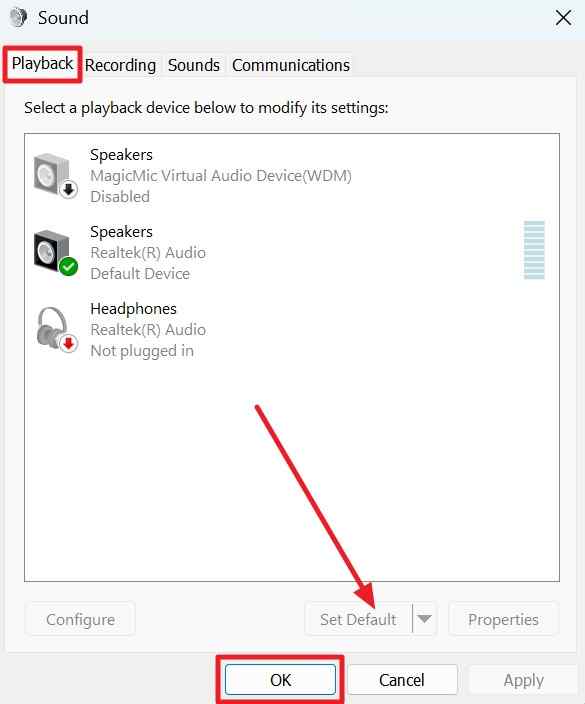
If a desktop app keeps sending audio to another device, open Settings > System > Sound > More sound settings > Playback. Select the HDMI display-audio device and choose Set Default when that is the behavior you want for compatible apps.
Check the Volume Mixer for an App-Specific Problem
If Windows system sounds work through the monitor but one app is silent, check that app before reinstalling drivers.
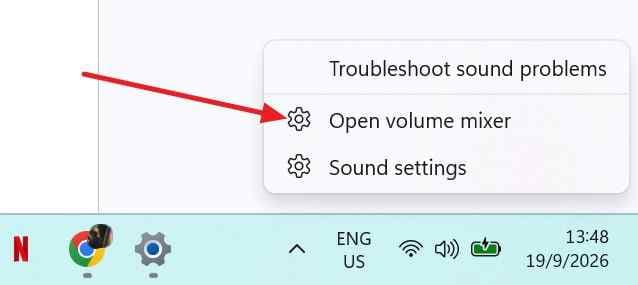
Step 1. Right-click the taskbar speaker icon and select Open volume mixer.
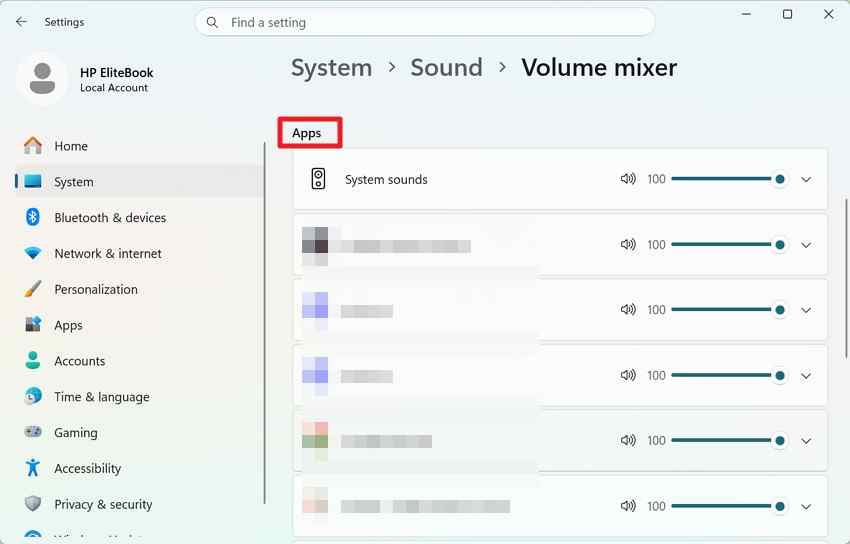
Step 2. Under Apps, make sure the affected program is not muted or set to zero. If Windows shows an app-specific output selector, make sure it is not routed to another device.
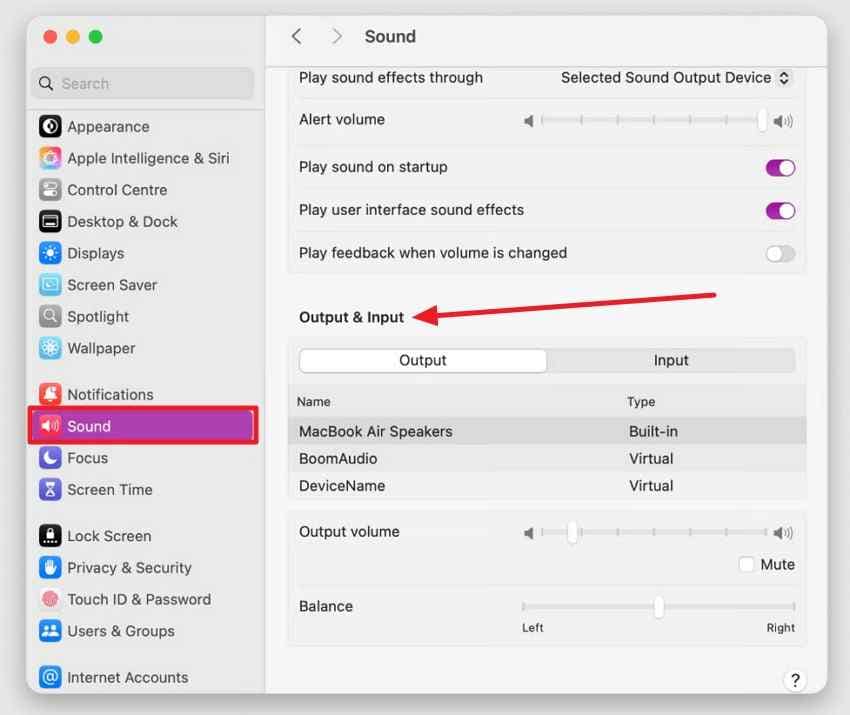
Select the HDMI Display Under Sound Output on Mac
Apple's current HDMI guidance for Mac says to choose the HDMI device in the Sound output pane when the display is not receiving audio.
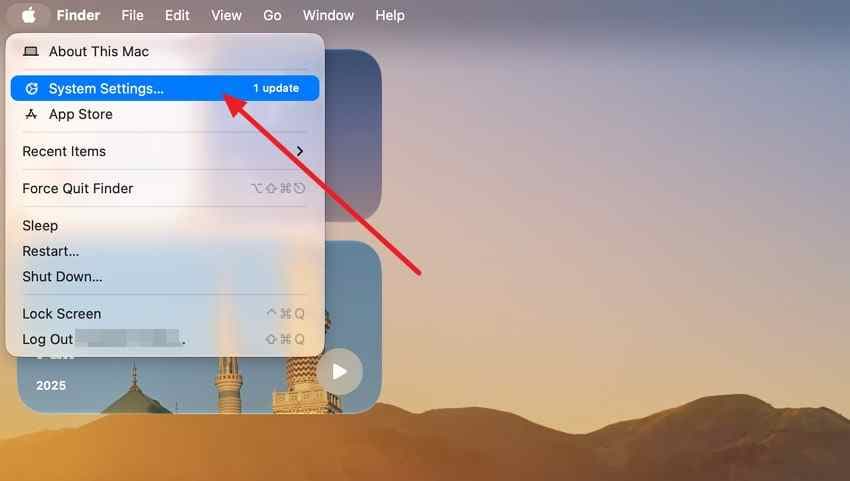
Step 1. Open the Apple menu > System Settings.
Step 2. Select Sound, then choose the HDMI display under Output. If the Mac uses an adapter, confirm that the adapter itself supports audio.
Part 3. Check the Monitor's Own Audio Controls
Correct computer settings do not rule out a monitor-side issue. Volume, mute, speaker selection, headphone detection, and sound-test features are controlled by the monitor and vary by model.
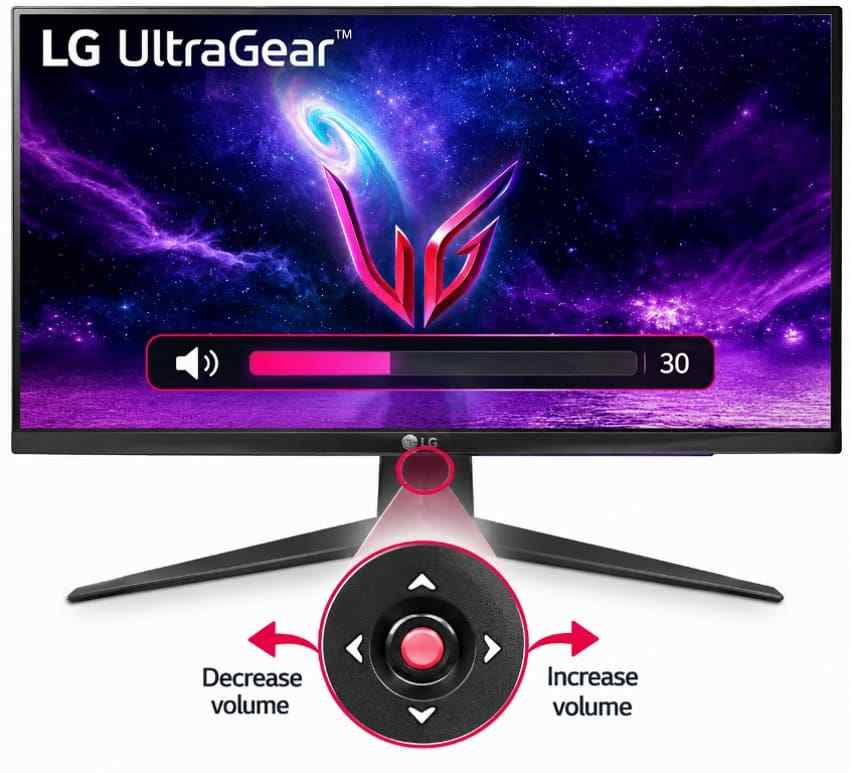
Raise Monitor Volume and Remove Mute
Step 1. Use the monitor's joystick, buttons, or remote to open its on-screen menu. Look for Sound, Audio, or a volume control.
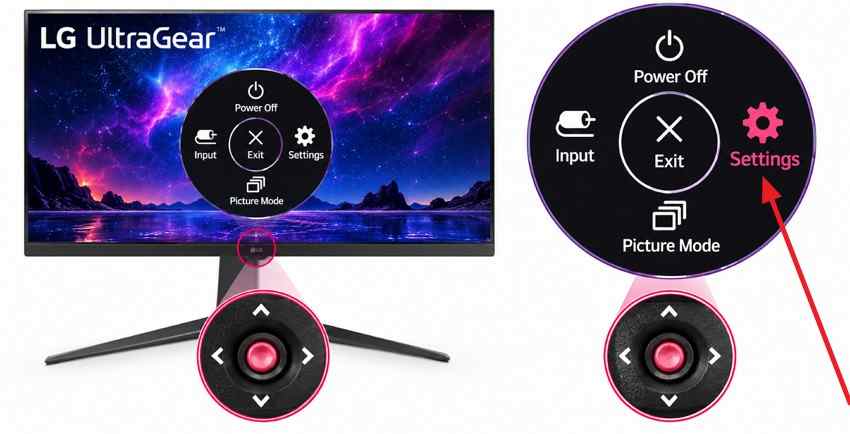
Step 2. Raise the monitor volume and turn off mute. Some monitors show a volume bar directly when the joystick is moved left or right.
Select Internal Speakers or the Correct Audio Output
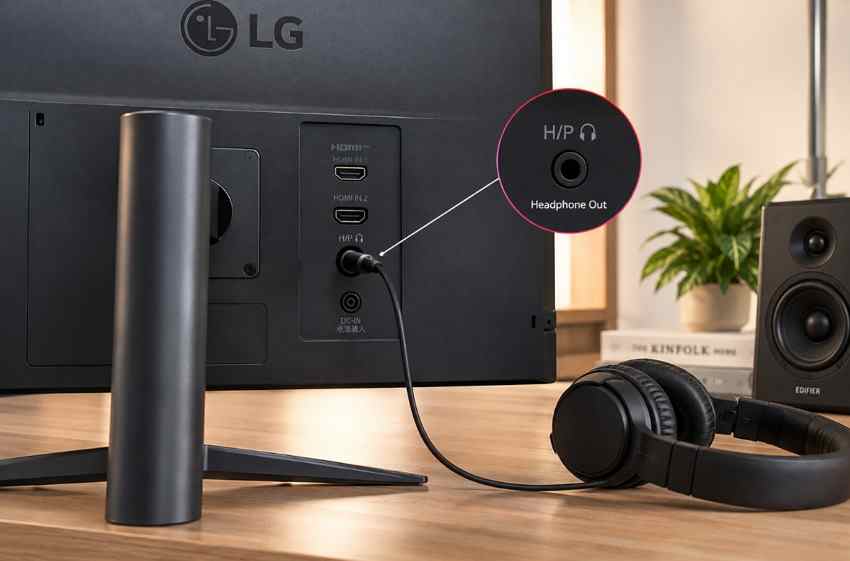
LG monitor sound troubleshooting confirms that speaker availability and audio-port behavior differ by model. If the monitor offers a speaker-output setting, select its internal speakers for a built-in-speaker test. If headphones or powered speakers are connected to the monitor's audio-out jack, disconnect them temporarily and test again.
Use a Sound Test on Supported Smart Monitors
A built-in sound test is valuable because it checks the monitor's speakers independently of the computer's HDMI output. If the test tone works, return to the source device, output selection, cable path, or drivers. If the test itself fails, use the monitor manufacturer's support path.
Part 4. Repair the HDMI Audio Connection
If the computer and monitor settings look correct, isolate the physical signal path. Video can continue to work even when Windows or the monitor does not establish the expected audio endpoint.
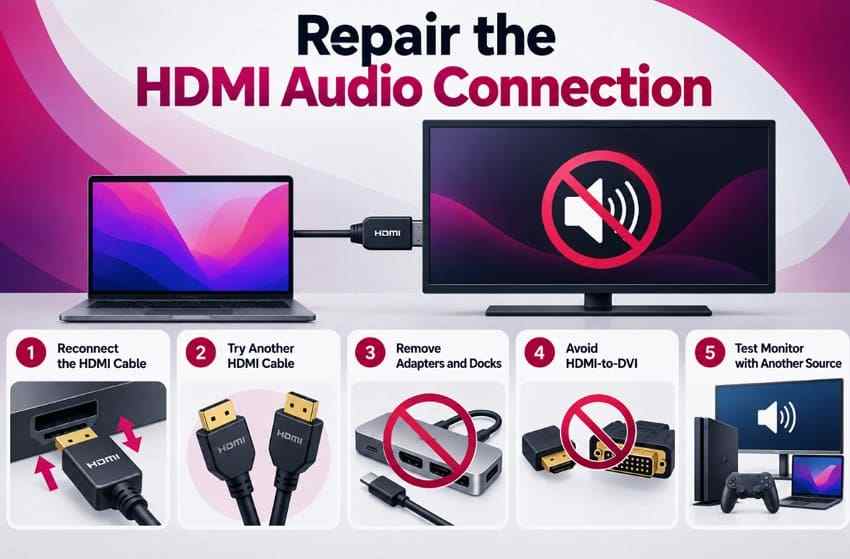
- Reconnect the HDMI cable: Disconnect both ends, then reconnect them firmly. If the monitor has another HDMI input, test it.
- Try a known-good HDMI cable: Use a cable already confirmed to carry audio and video with another device.
- Bypass docks, KVM switches, splitters, and adapters: Connect the computer directly to the monitor to remove intermediate compatibility problems.
- Avoid HDMI-to-DVI when audio is required: LG's current Windows 11 monitor audio guidance notes that HDMI-to-DVI can provide video without sound. Use a direct audio-capable connection or a separate audio route.
- Test another HDMI source: Connect a different laptop, console, or streaming device to the same monitor input. If that source plays sound, focus on the original computer or adapter.
Part 5. Restore a Missing HDMI Display-Audio Device in Windows
If the monitor is absent from Windows sound outputs, treat that as a detection or driver problem rather than repeatedly changing monitor volume. Microsoft notes that missing audio devices can result from disabled, missing, outdated, or incorrectly loaded drivers.
Check Device Manager for Disabled or Missing Devices
Step 1. Open Device Manager and expand Sound, video and game controllers. HDMI audio may appear under a graphics-vendor name such as Intel, NVIDIA, or AMD instead of the monitor model.
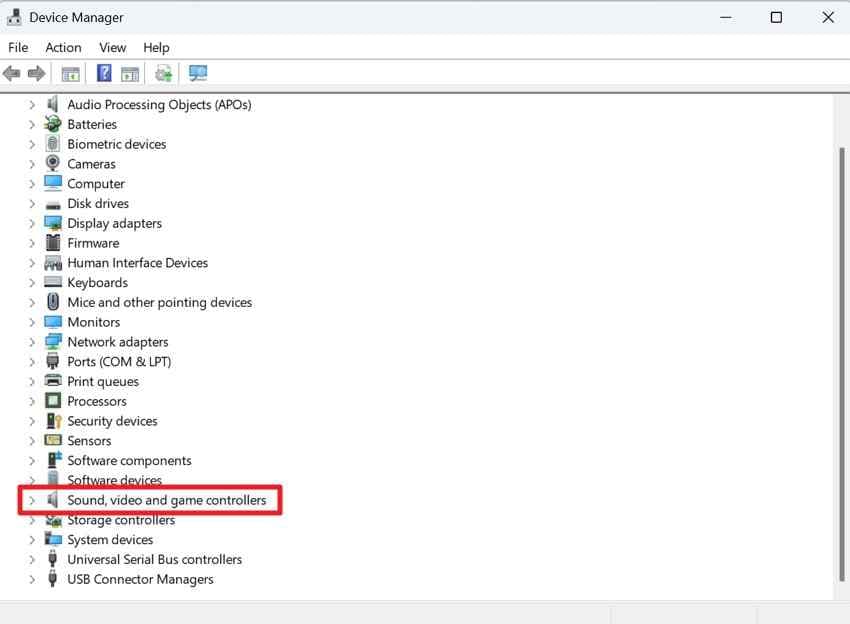
Step 2. If the display-audio device has a disabled icon, right-click it and choose Enable device. If it is not listed, use View > Show hidden devices, then continue with a hardware scan.
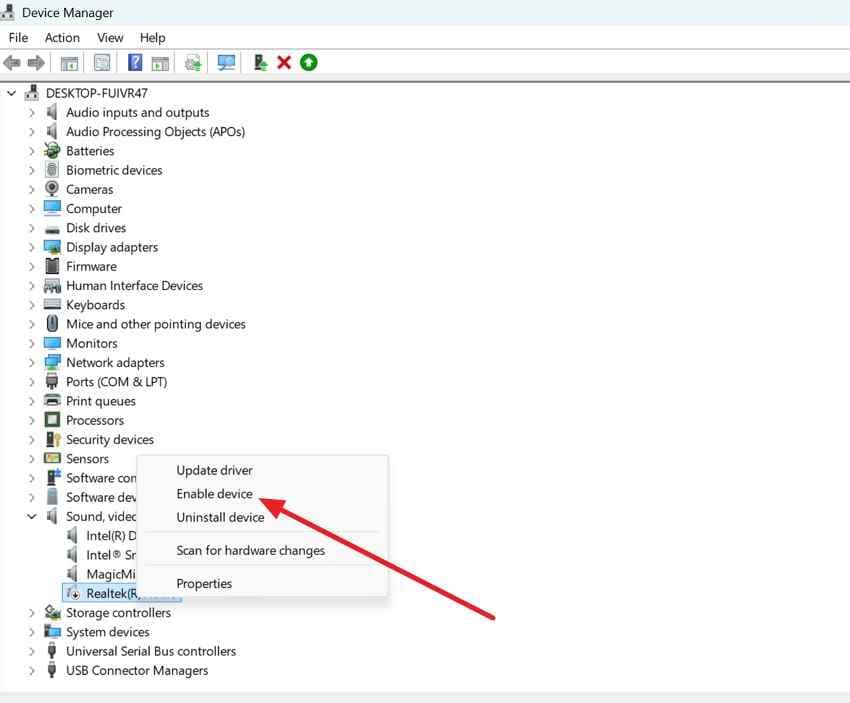
Rescan, Update, or Roll Back the Display-Audio Driver
Microsoft's missing audio output device guide recommends scanning for hardware changes and installing the correct manufacturer driver when the device is absent.
Step 1. In Device Manager, select Action > Scan for hardware changes, then recheck the audio list.
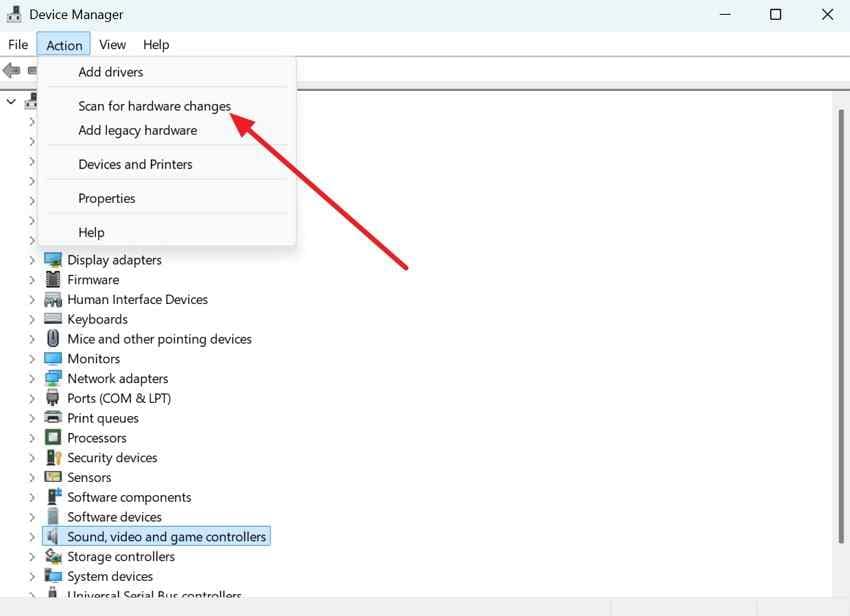
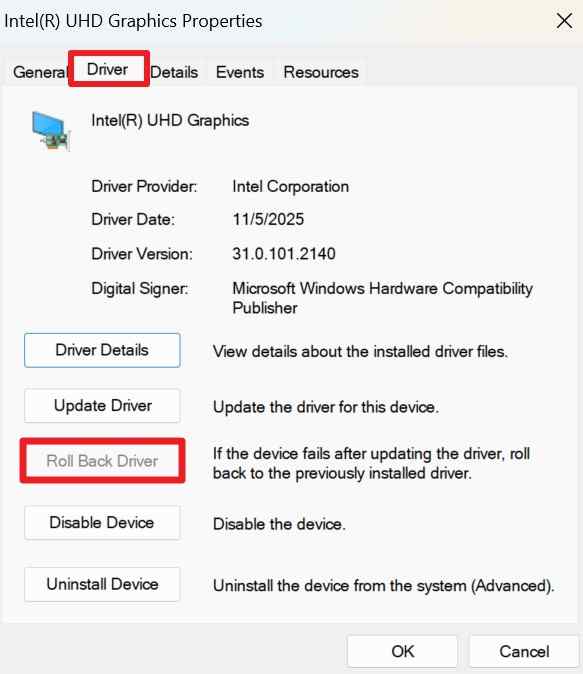
Step 2. If the HDMI audio endpoint still does not appear, install the current graphics or display-audio driver for the exact PC or GPU. On laptops and prebuilt desktops, prefer the PC maker's tested driver when it differs from a generic GPU package. If the problem started immediately after a driver update and Windows offers Roll Back Driver, test the previous driver instead of changing multiple components at once.
Run the Windows 11 Audio Troubleshooter in Get Help
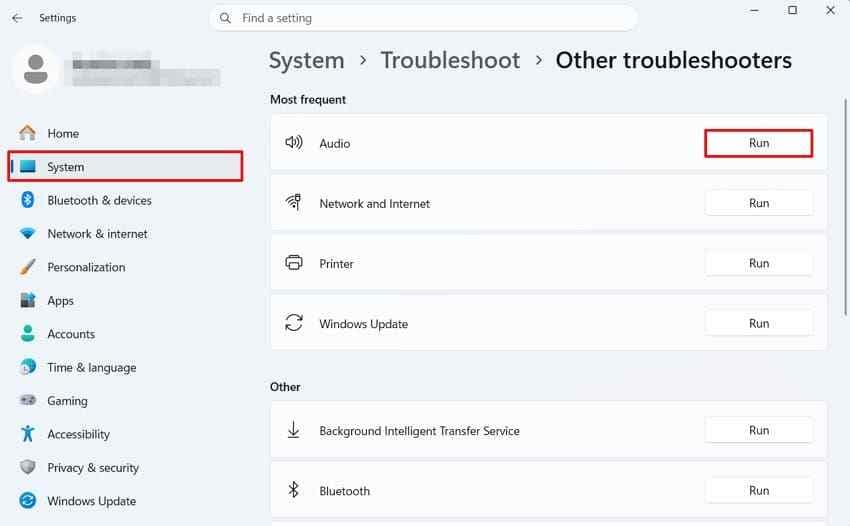
The old Settings > System > Troubleshoot > Other troubleshooters > Audio path is no longer the main Windows 11 flow. Microsoft now directs Windows 11 users to the automated audio troubleshooter in the Get Help app. Open Get Help, search for audio troubleshooter, allow diagnostics, and follow the results.
Part 6. Fix Samsung or LG Monitor HDMI Sound
Samsung and LG monitor lines do not share one universal speaker design or menu. Check the exact model before assuming that a sound test, internal speakers, or a particular menu path exists.
Samsung Monitor: Confirm Speakers and Run Sound Test
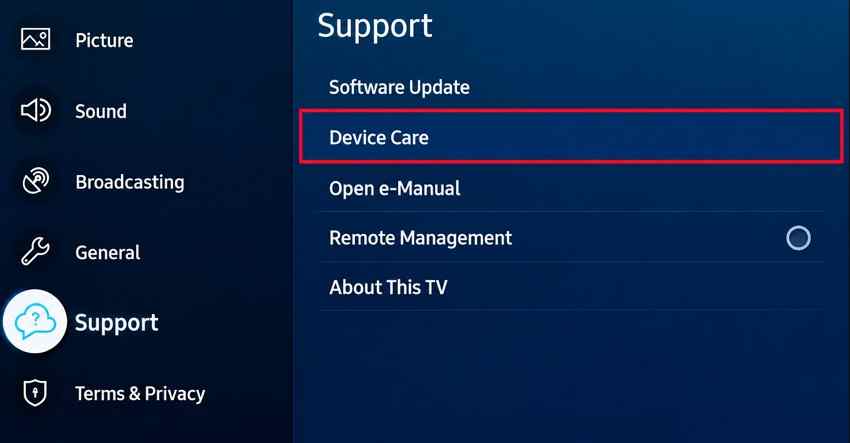
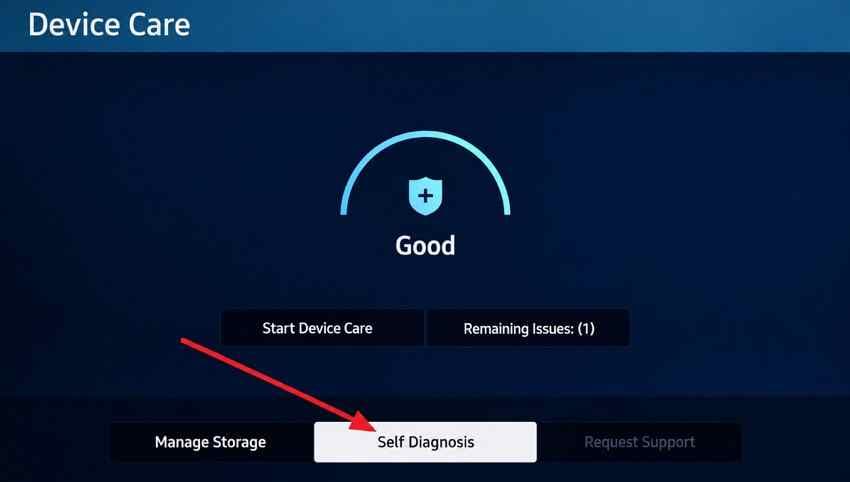
Samsung's monitor audio troubleshooting says some monitor models with remote-style controls provide a Sound Test. The common path is Support > Self Diagnosis > Sound Test; on some models, Device Care appears between Support and Self Diagnosis.
Step 1. Open the monitor's Support menu. If your model shows Device Care, open it.
Step 2. Open Self Diagnosis when that option is available.
Step 3. Run Sound Test. If the test sound plays, the speakers are functioning and the next checks should be the HDMI source, cable, output device, and drivers.
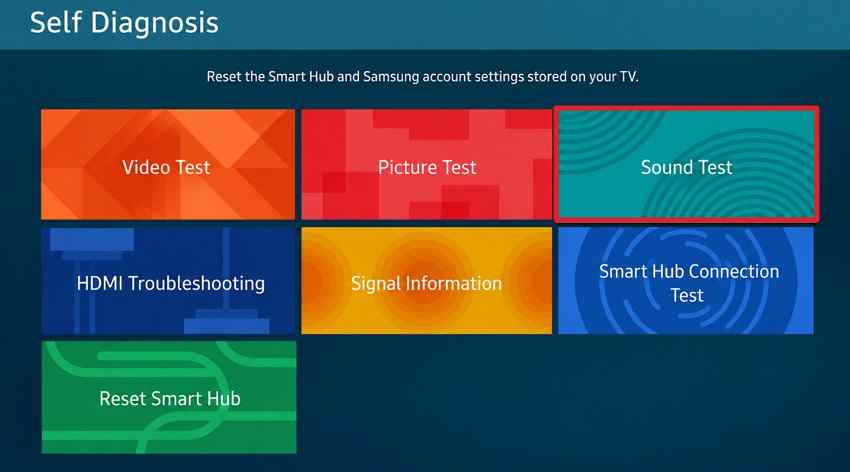
Note: If the Samsung model has no built-in speakers, a Sound Test may not exist. Check the product specifications before troubleshooting speaker output.
LG Monitor: Confirm Speakers and Run Sound Self-Diagnosis
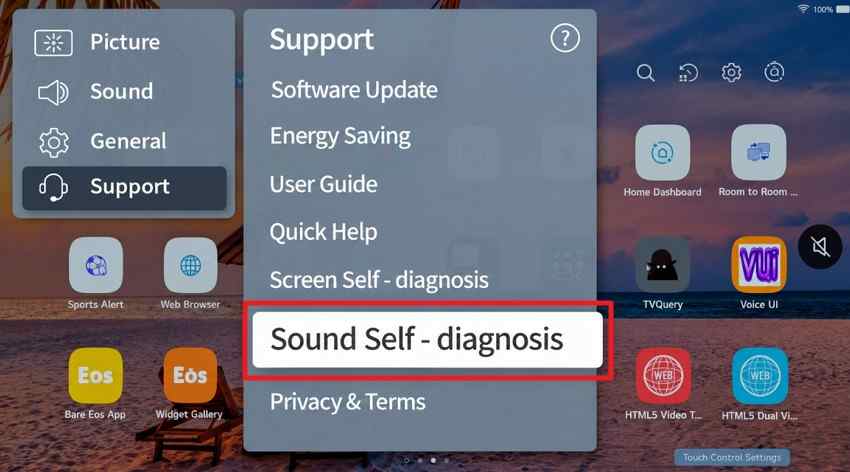
For supported LG Smart Monitors, LG's current path is Settings > Support > Sound Self-Diagnosis. Standard monitors may not provide this feature.
Step 1. Press the remote's Settings button, then open the on-screen settings menu.
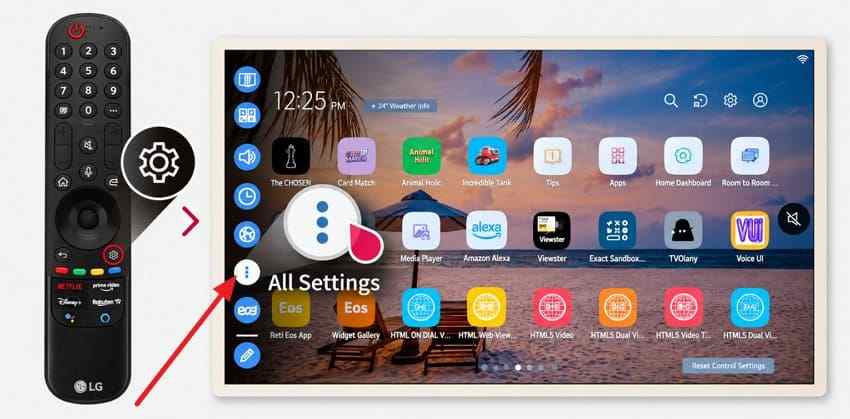
Step 2. Select Support > Sound Self-Diagnosis and listen for the test audio. If the test passes, return to the computer output, HDMI connection, or display-audio driver.
Follow the Exact Model Manual When Menus Differ
Do not apply Smart Monitor menu paths to a basic office or gaming monitor. If the expected Sound, Device Care, Self Diagnosis, or Speaker Select option is missing, search the manufacturer support site by model number and follow that manual instead.
Part 7. Add Audio When the Monitor Has No Speakers
If the exact model has no built-in speakers, stop troubleshooting it as though the speakers are broken. Choose an audio route that the monitor or source device actually supports.
Connect Powered Speakers to the Monitor's Audio-Out Port
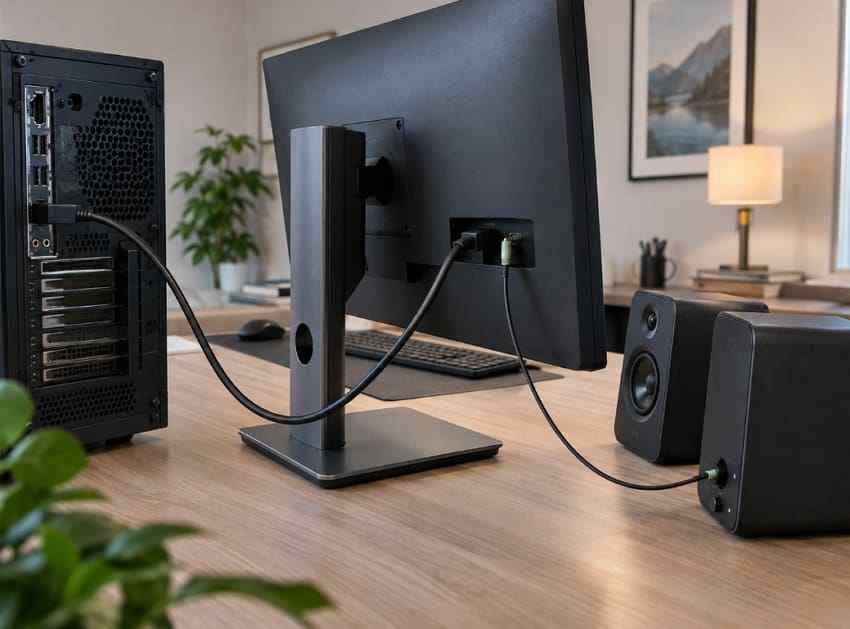
If the manual confirms that the monitor's headphone or audio-out jack carries audio from HDMI, connect powered speakers or headphones to that jack, keep the monitor selected as the source device's audio output, and adjust the relevant monitor or speaker volume.
Connect Speakers or Headphones Directly to the Computer
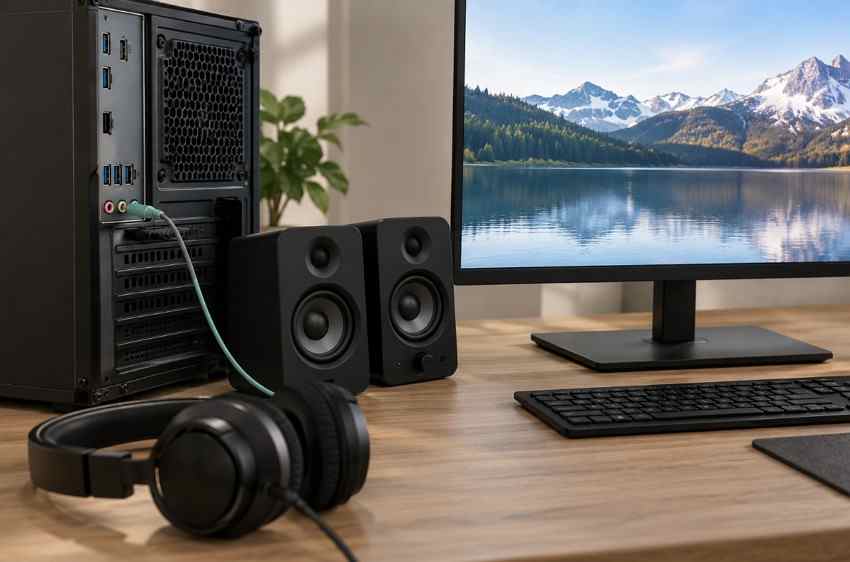
If the monitor has no speakers or supported audio-out path, select speakers or headphones connected directly to the computer. USB and Bluetooth audio can also work when supported. In Windows or macOS, switch the output away from the HDMI monitor to the device you actually want to hear.
Choose a Console-Compatible Audio Route for Non-PC Sources
For a console or streaming device, use the monitor's documented audio-out jack or another output supported by the source. An HDMI audio extractor is another option when the source and display do not provide a usable audio path, but choose one that supports the video resolution, refresh rate, HDR, and audio format you need.
If the problem is a missing audio file rather than HDMI playback: HDMI troubleshooting will not restore a deleted recording, song, or local audio file. First check Recycle Bin, backups, and cloud history. If a saved audio file is deleted or inaccessible on readable storage, see this guide to recover deleted audio files. Recoverit is a data recovery tool; it does not repair HDMI, speakers, drivers, or monitor hardware.
Conclusion
When an HDMI monitor has no sound, first confirm whether the exact monitor has built-in speakers or a supported audio-out path. If it does, select the correct Windows or Mac output, check monitor volume, test the direct HDMI connection, and restore a missing display-audio device only when Windows no longer detects it.
For Samsung and LG monitors, use only the diagnostics documented for the exact model. If the display has no speakers, route audio elsewhere instead of treating silence as a fault.
FAQ
-
Why Does My HDMI Monitor Show Video but Have No Sound?
Video can work while audio is silent because the monitor has no speakers, the wrong output device is selected, the monitor is muted, the HDMI audio endpoint is missing, or the cable or adapter path is not carrying audio correctly. Confirm the monitor's speaker specification first. -
How Do I Know if My Monitor Has Built-In Speakers?
Find the exact model number and check the manufacturer's official specifications or manual. Look for speaker wattage or a built-in speaker listing. A headphone or audio-out jack does not necessarily mean the monitor has internal speakers. -
Why Is My HDMI Monitor Missing From Windows Sound Output?
Windows may not be detecting the display-audio endpoint because it is disabled, hidden, not enumerated after the HDMI connection, or affected by a display-audio or graphics driver problem. Check Device Manager, scan for hardware changes, and install the correct manufacturer driver. -
Can HDMI Carry Audio to a Monitor Without Built-In Speakers?
Yes, HDMI can carry audio even when the monitor has no internal speakers. However, you will hear it only if the monitor has a supported audio-out path to headphones or external speakers, or if you route audio from the source device another way.



