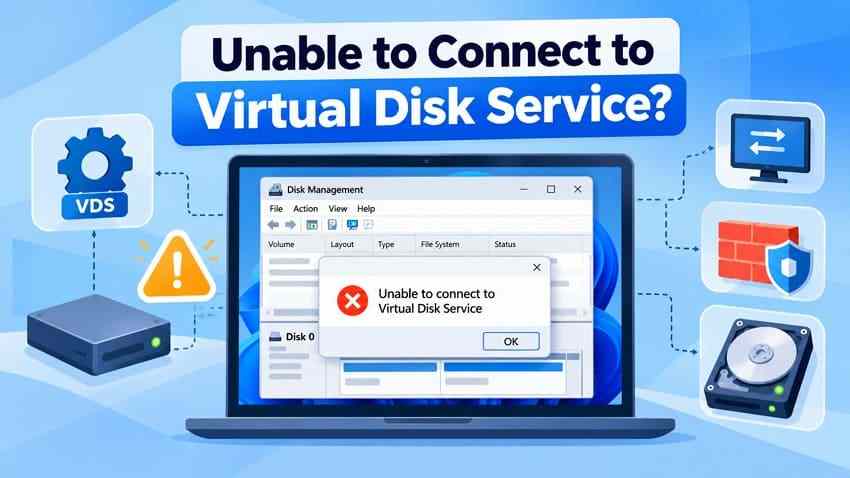
If Windows 11 or 10 displays "Unable to connect to Virtual Disk Service" when you open Disk Management, first determine whether you are managing disks on your own computer or connecting to another PC. For a local error, check the Virtual Disk service, its dependencies, and attached storage. For a remote error, review network access and Remote Volume Management firewall rules. Start with checks that do not change disk contents.
This message can prevent Disk Management from listing drives or changing partitions, but it does not by itself mean your files have been deleted. The seven fixes below cover common causes and show when to stop. If a partition is also missing, protect the data before initializing, formatting, or attempting a partition-table repair.
First safety check: If an affected drive contains irreplaceable files, do not select Initialize Disk, Format, Delete Volume, or run diskpart clean. These actions are not solutions to a VDS connection failure.
In This Article
-
- Fix 1. Start or Restart the Virtual Disk Service
- Fix 2. Check Remote Procedure Call Services
- Fix 3. Restart Disk Management and Windows
- Fix 4. Check Connected Drives and Storage Drivers
- Fix 5. Check Windows Firewall for Remote Disk Management
- Fix 6. Repair Corrupted Windows System Files
- Fix 7. Check Event Viewer and Conflicting Storage Software
Part 1. What Causes the Unable to Connect to Virtual Disk Service Error?
Virtual Disk Service (VDS) is an older Windows disk-management service used by some storage-management components. Windows also has a newer Storage Management API. A failed Disk Management connection may therefore be a service problem, a stalled storage device, an issue with the management console, or a remote access problem rather than a lost partition. See Microsoft's VDS documentation.
What the VDS Error Means for Local and Remote Management
Local PC: Disk Management is trying to work with disks on the computer in front of you. A disabled VDS service, failed RPC dependency, nonresponsive enclosure, or storage driver problem is more relevant than a firewall exception for remote management.
Remote computer: You are using Computer Management to connect to another Windows machine. Microsoft documents a specific failure when a remote system does not support VDS or firewall rules prevent the connection. In an authorized domain environment, this is when Remote Volume Management rules matter. See Microsoft Disk Management troubleshooting.
Symptoms, Causes, and Non-Destructive Diagnosis
| What you see | Possible explanation | First safe check |
| Disk Management cannot load any drives | VDS unavailable or a storage enumeration problem | Check the Virtual Disk service and disconnect nonessential removable devices |
| "Connecting to Virtual Disk Service" never finishes | Unresponsive external device, controller, or console | Close the console; test without removable storage |
| Error appears only when connecting to another computer | Remote permissions, domain setup, VDS or firewall | Check authorized remote access and Remote Volume Management rules |
| One drive is missing, but Disk Management opens normally | Connection, driver, or partition problem on that drive | Check Device Manager and compare non-destructive disk listings |
| Virtual Disk repeatedly crashes | Conflicting software, driver or damaged OS components | Review Event Viewer and then investigate services |
A useful distinction comes from a real Windows user report: a newly installed SSD appeared in Device Manager even while Disk Management could not connect. That anecdote does not establish the cause, but it illustrates why hardware detection and the Disk Management console should be checked separately.
Part 2. How to Fix Unable to Connect to Virtual Disk Service in Windows
Try the relevant fixes in order and reopen Disk Management after each one. On a normal local PC, skip the remote firewall fix. These steps are intended to restore access without modifying existing partition layouts. If a disk clicks, disconnects repeatedly, or is suspected of physical failure, stop intensive DIY testing and consider professional help.
Fix 1. Start or Restart the Virtual Disk Service
Use this when: Disk Management cannot connect locally and the Virtual Disk service is disabled or fails to start. The normal startup type is Manual; a Manual service being stopped while idle is not necessarily an error.
Step 1. Press Windows + R, enter services.msc, and select OK.
Step 2. Find Virtual Disk, open Properties, and inspect Startup type. If it is Disabled, change it to Manual and select Apply. Do not switch it to Automatic merely because it stops when idle.
Step 3. If the service is stopped, select Start. If it is running but unresponsive, close active disk-management windows before using Restart, when available. Reopen Disk Management by entering diskmgmt.msc in Run.
Expected result: Disk Management opens and lists the connected disks. If starting VDS fails with a specific service error, record the error code and continue to the dependency and Event Viewer checks rather than repeatedly forcing restarts. Microsoft lists Virtual Disk as a Manual service in its Windows service guidance.
Fix 2. Check Remote Procedure Call Services
Use this when: Virtual Disk will not start or its Properties window reports a dependency failure. VDS relies on Windows service and COM/RPC infrastructure; do not change unrelated services to make the error disappear.
Step 1. In Services, check Remote Procedure Call (RPC), DCOM Server Process Launcher, and RPC Endpoint Mapper. They should normally be running on a functioning Windows system.
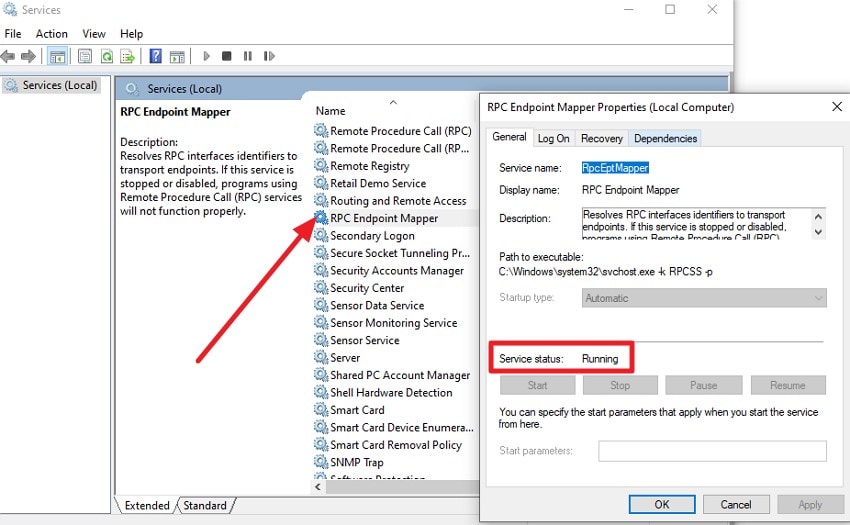
Step 2. Open Virtual Disk > Properties > Dependencies and note any dependencies that are not running. Keep the normal startup configuration of core Windows services; do not try to disable or manually restart RPC to troubleshoot VDS.
Step 3. Try Disk Management again. If a core dependency is missing or stopped, note the exact error and move to the system-file checks or contact your system administrator.
Video walkthrough: How to Fix Disk Management Could Not Start Virtual Disk Service (Edmund Mindaros, 2024). The video covers the same general error; use the safeguards and local/remote distinction in this guide if its steps differ.
Fix 3. Restart Disk Management and Windows
Use this when: The console is frozen at a connection message, but Windows otherwise works and the service settings look normal.
Step 1. Close Disk Management. If it will not respond, press Ctrl + Shift + Esc and end the Microsoft Management Console task only if that is the frozen window; close any other MMC snap-ins first.
Step 2. Select Start > Power > Restart. A restart is preferable to shutting down and powering back on when Fast Startup might preserve parts of the previous driver session.
Step 3. Press Windows + R, enter diskmgmt.msc, and check whether the disk list loads.
Expected result: The console opens without hanging. If the problem returns as soon as a removable device is connected, proceed to the next fix instead of repeatedly restarting.
Fix 4. Check Connected Drives and Storage Drivers
Use this when: Disk Management hangs after you connect an external SSD, USB drive, card reader, docking station, or other storage device.
Step 1. Safely disconnect nonessential external storage and card readers. Do not unplug the Windows system drive or a device that is actively transferring files. Restart Disk Management.
Step 2. If the console opens again, reconnect known-good devices one at a time. Stop reconnecting a device that repeatedly hangs the system, disconnects, or shows signs of failure.
Step 3. Open Device Manager and expand Disk drives and Storage controllers. Open Properties on any entry with a warning icon and record its error code. Check Windows Update or the device manufacturer for an appropriate signed driver rather than installing a random driver package.
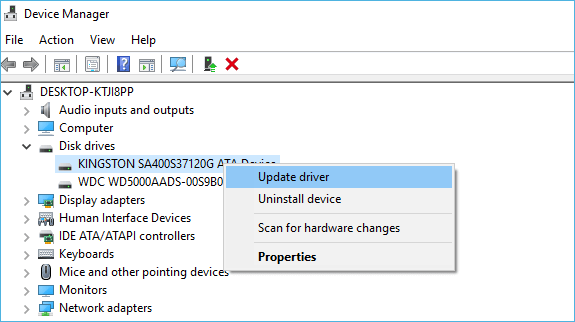
Expected result: Windows identifies the problematic connection, controller, or driver and Disk Management can enumerate disks again. If a valuable drive is unstable, prioritize data protection; do not initialize it as a troubleshooting shortcut.
Fix 5. Check Windows Firewall for Remote Disk Management
Use this only when: You are explicitly using Disk Management to manage disks on another computer. A local VDS error does not justify opening firewall rules or port 135.
Step 1. Confirm that the remote computer is reachable, that you have administrative permission, and that the machines meet the documented domain-based remote management requirements. Ask your network administrator to confirm the policy before changing rules.
Step 2. On the managing and target computers, review Windows Defender Firewall with Advanced Security (wf.msc). Under Inbound Rules, find the appropriate Remote Volume Management group and enable only the rules your organization approves for the trusted management network. Microsoft documents the VDS exceptions for Vds.exe, Vdsldr.exe, and TCP port 135 for this scenario.
Step 3. Alternatively, an administrator may enable the corresponding rule group on each authorized computer from an elevated Command Prompt using the following command:
netsh advfirewall firewall set rule group="Remote Volume Management" new enable=yes
Step 4. Reconnect through Computer Management > Connect to Another Computer > Storage > Disk Management. If the remote computer is not on a supported domain setup, use an approved Remote Desktop session and run Disk Management locally there instead.
Expected result: The remote disk-management connection succeeds. Revert temporary exceptions when the task is complete if required by your security policy. Do not expose VDS or RPC management ports to an untrusted network. Source: Microsoft remote Disk Management guidance.
Fix 6. Repair Corrupted Windows System Files
Use this when: VDS still fails after simpler checks and Windows logs or other behavior suggest damaged system components. These commands repair Windows components, not lost partitions. Back up important accessible files first, especially if the system disk may be unstable.
Step 1. Open Command Prompt as administrator and run DISM.exe /Online /Cleanup-Image /RestoreHealth. Wait for the process to complete; it may use Windows Update as a repair source.
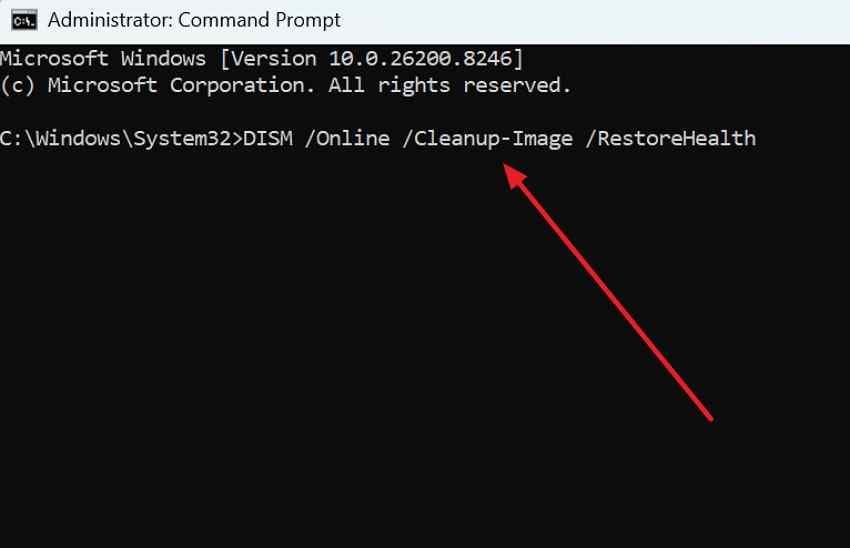
Step 2. Next run sfc /scannow. Allow the verification to finish and review whether Windows reports repairing files.
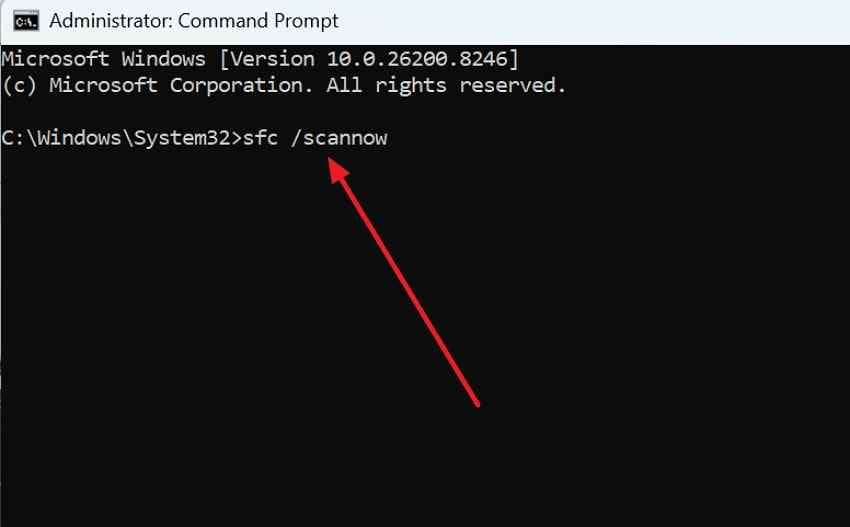
Step 3. Restart Windows and reopen Disk Management. If DISM cannot find its repair source or SFC reports unrepaired corruption, review the generated logs and Microsoft repair guidance rather than attempting a clean install without protecting data.
Expected result: If component corruption caused the connection failure, Disk Management may start normally after repair and reboot. See Microsoft DISM and SFC guidance.
Fix 7. Check Event Viewer and Conflicting Storage Software
Use this when: VDS starts but crashes again, or the error appeared after installing partition managers, virtual-drive utilities, storage-controller software, or security software.
Step 1. Press Windows + R, run eventvwr.msc, and open Windows Logs > System. Filter recent errors around the time Disk Management failed. Check Virtual Disk Service, Service Control Manager, and applicable storage-related providers; note the timestamp, event ID, and error details.
Step 2. If a third-party conflict appears likely, perform a careful clean boot: open msconfig, select Services, check Hide all Microsoft services first, then temporarily disable remaining non-Microsoft services. In Task Manager, review Startup apps and disable nonessential third-party startup apps for the test.
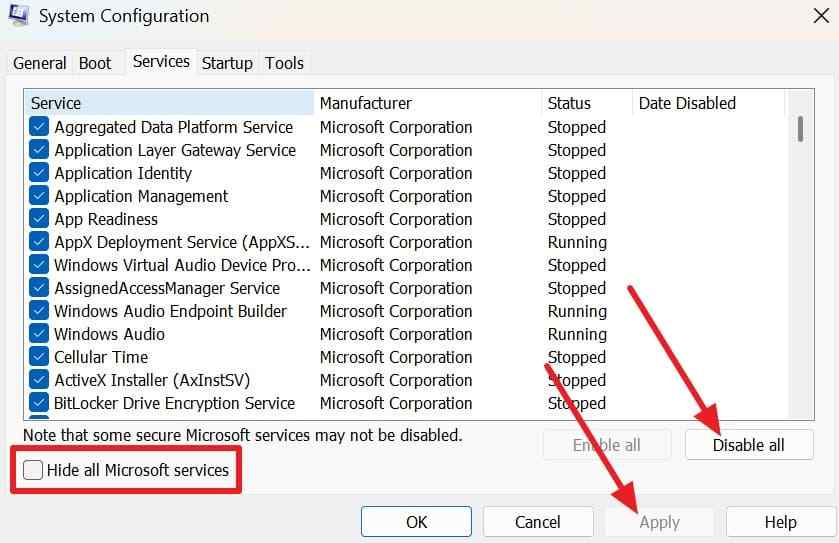
Step 3. Restart and test Disk Management. If it works, re-enable items gradually to isolate the conflict. Restore your normal startup settings when testing is complete, and do not leave essential security or backup services disabled.
Expected result: A repeatable correlation between a third-party service and VDS failure identifies where to seek an updated driver or vendor fix. Microsoft documents selective startup as a diagnostic process, not a permanent system configuration; see System Configuration troubleshooting.
Part 3. What to Do If Disk Management Still Cannot Connect to Virtual Disk Service
If all seven fixes fail, do not assume the disk itself is damaged. Use read-only checks to see whether Windows detects the storage hardware through other interfaces. This distinction helps you decide whether you are dealing with the console, a storage driver, a missing partition, or an actual hardware failure.
Check Disk Management Versus DiskPart Results
From an elevated Command Prompt, start diskpart, wait for the DISKPART> prompt, and type list disk. Exit with exit. From elevated PowerShell, run Get-Disk. These are inspection commands when used exactly as shown; do not continue with clean, format, convert, delete, or initialize.
| Tool | What it can tell you | How to interpret the result |
| Disk Management | Whether the graphical console enumerates volumes | A console failure alone does not prove missing data |
| DiskPart: list disk | Whether disks are listed through DiskPart | Failure can corroborate a storage/service problem; do not run write commands |
| PowerShell: Get-Disk | Whether the newer Storage Management interface detects disks | A disk visible here but not in Disk Management helps narrow the fault |
| Device Manager | Whether Windows recognizes the storage device and driver | Hardware detection does not guarantee a valid, accessible partition |
Microsoft notes that the older VDS interface has been superseded by the Windows Storage Management API. The tools may therefore report different results; do not treat a single failed tool as conclusive proof of data loss.
Differentiate Service Errors From an Undetected Physical Drive
If Disk Management opens but one drive is absent, check its cable, power, enclosure, and Device Manager entry. If the disk is labeled RAW, Not Initialized, or Unallocated, its data may still be present, but the correct next step depends on whether the disk is new or previously held files. Do not initialize a previously used drive merely to make it appear in File Explorer.
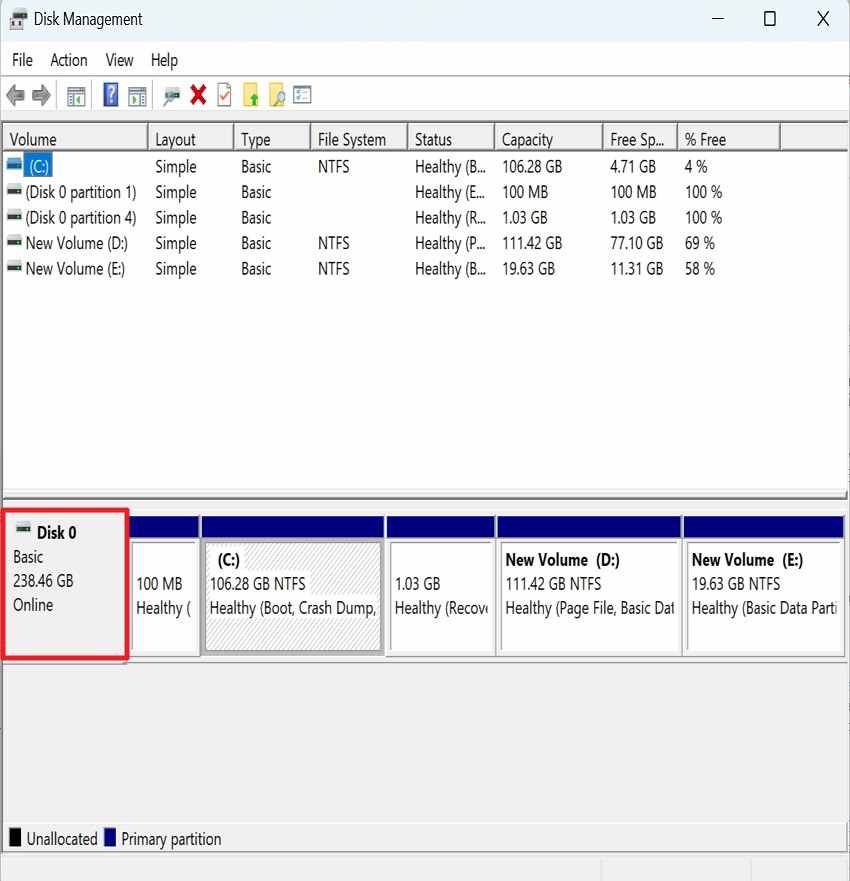
If a drive vanishes from Device Manager as well, disconnects repeatedly, or makes unusual noises, stop repeated scans and power cycles. Recovering files from physically unstable storage is a different problem from fixing Windows VDS, and professional assessment may be safer.
Part 4. How to Recover Lost Partitions Using Wondershare Recoverit
A VDS connection error by itself is not a sign that a partition was deleted. Consider partition or file recovery only if a separate symptom exists, such as a previously used disk becoming Unallocated, a missing volume after repartitioning, or files disappearing from a readable drive. Wondershare Recoverit Partition Recovery is a data-recovery option for supported storage; it does not fix Windows services, storage drivers, or broken hardware.
When Partition Recovery Is Actually Relevant
Recoverit is relevant if the affected disk is stable enough to be detected and its previous partition or files are missing. It can scan readable storage for recoverable data from a lost partition. The official Recoverit Windows Guide also describes a separate Recover Partition operation, which restores a partition-table entry. That operation changes disk metadata, so it must not be confused with simply copying recovered files to another drive.
Before scanning: Stop using the affected storage, protect existing backups, and confirm that the selected disk is the correct one. If Windows cannot enumerate the storage or the drive is physically failing, do not assume a software recovery tool can access it.
Stop Writes and Save Recovered Files Elsewhere
For important data, favor file-first recovery before any partition-table write-back. The following workflow describes the lower-risk objective: find the recoverable files, copy them off the source, and verify the copies before changing disk structure.
Step 1. If possible, launch Recoverit from a healthy Windows installation or a different suitable PC. Open the disk/partition recovery area and select the readable disk containing the lost data; verify its capacity and identity before scanning.
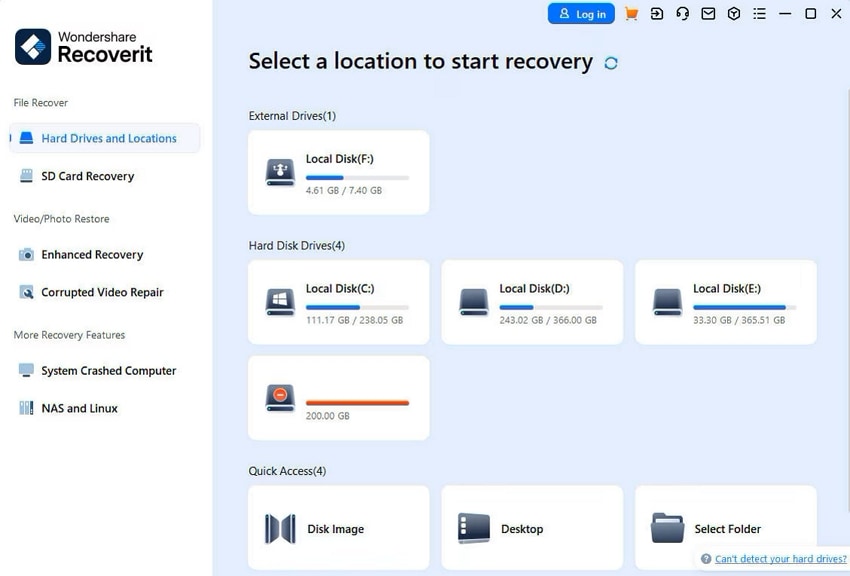
Step 2. Allow the scan to identify recoverable files. Use supported file-type and location filters, and preview critical documents, photos, or videos when available. A preview confirms only what can be viewed, not that every file will be recovered.
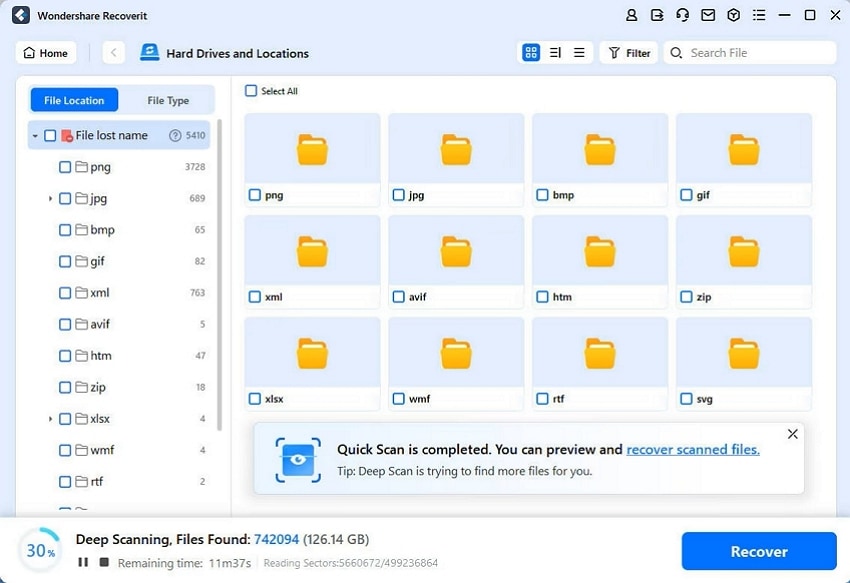
Step 3. Select the files you need, click Recover, and save them to a different healthy physical drive. Open representative files from the destination to check that the recovered copies work.
If the objective is to restore the original partition entry: Recoverit's separate Partition Recovery workflow can identify a missing partition and present a layout preview before Recover Partition. Confirm the disk identity and layout, protect essential data first, and understand that accepting the operation writes a partition-table entry. If you cannot verify the layout or the disk has hardware problems, stop and get expert help rather than experimenting.
When Recoverit Cannot Repair VDS or Physical Hardware
Recoverit does not restart VDS, repair RPC, configure Windows Firewall, fix storage controllers, repair a mechanically failed drive, or bypass BitLocker encryption without the proper key. A drive that is not detected or disconnects repeatedly may require hardware diagnosis or professional recovery. Recovery of deleted or overwritten data is never guaranteed; results depend on storage health, encryption, and how much the affected space has been reused. For exact product procedures, compare the official Guide with the Partition Recovery feature page.
Part 5. How to Prevent Virtual Disk Service and Disk Management Problems
Keep Windows and storage-controller drivers updated through Windows Update or the hardware manufacturer. Use reliable power, cables, USB ports, and external enclosures; safely eject removable storage; and remove obsolete virtual-disk utilities only after checking whether other software depends on them. In managed environments, review approved remote-management firewall policies rather than leaving broad exceptions enabled.
Back up important files to a separate device or trusted backup service and periodically test restores. Backups protect against loss if you must eventually replace a disk or rebuild partitions; they are not a substitute for diagnosing a VDS service or driver error.
Conclusion
The "Unable to connect to Virtual Disk Service" error usually calls for service, RPC, device, or Windows troubleshooting, not an immediate disk repair. Start by checking whether the problem is local or remote, then test the Virtual Disk service, storage connections, drivers, and system files. Remote management may also require approved firewall rules. If a partition is independently missing, protect its files before changing disk metadata. Recoverit can assist with eligible data recovery, but it cannot repair VDS or a failed physical drive.
FAQ
-
Why does Disk Management say "Unable to connect to Virtual Disk Service"?
Disk Management may be unable to reach VDS because the service is disabled or failing, a storage device or driver is unresponsive, or the remote connection is blocked. First distinguish a local console failure from an authorized remote-management error. -
Is it safe to restart Virtual Disk Service in Windows 11?
Restarting the service is generally a non-destructive troubleshooting action, but close disk-management tasks first. The usual startup type is Manual, so being stopped when idle does not itself mean VDS is broken. Do not restart core RPC services as a substitute. -
Why does Virtual Disk Service keep stopping automatically?
VDS can start on demand and stop when it is no longer needed. Repeated failures while Disk Management is opening are different: check Event Viewer, connected storage, service dependencies, and recent third-party software changes. -
Can I access my hard drive if Virtual Disk Service is not working?
Often yes. Files on healthy mounted volumes may remain accessible in File Explorer even if Disk Management cannot open. If one disk is missing, verify its connection and device detection before trying recovery. Do not initialize or format a previously used disk just to restore access.


