Windows 11 version 22H2 is no longer supported, and Microsoft's standard Windows 11 download page does not provide a historical 22H2 ISO. Released on September 20, 2022, this update introduced Start menu folders, a redesigned Task Manager, and accessibility improvements. Some users still need build 22621 for a controlled compatibility test, a virtual machine, or a legacy deployment.
This guide explains what Windows 11 22H2 introduced, how to assess an existing ISO, and when an older installation makes sense. It also covers safer ways to move from 22H2 to a supported Windows 11 release, what to do when an update fails, and how to protect important files before reinstalling. For ordinary internet-connected computers, upgrading is the better choice.
In This Article
Part 1. What Is Windows 11 Version 22H2?
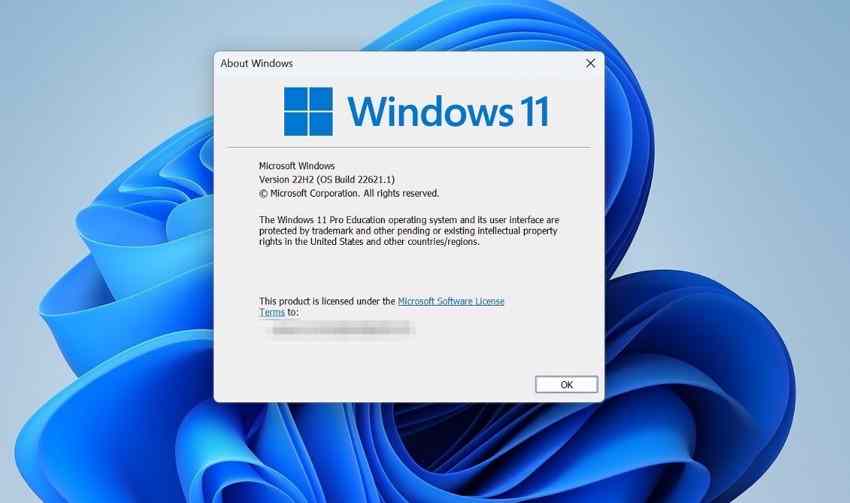
Windows 11 22H2, also called the Windows 11 2022 Update, was the first major feature update after Windows 11's initial release. Its base OS build is 22621. The release remains relevant to administrators checking an old installation or matching software to a specific Windows build, but no edition of 22H2 receives regular security updates now.
Release Date, Build Number, and Edition-Specific End of Support
Microsoft released Windows 11 22H2 on September 20, 2022. The end-of-servicing date depends on the edition. The deadlines below are confirmed in Microsoft's Windows 11 release information and official lifecycle notices.
| Windows 11 22H2 edition | Last day of regular updates | Support status in November 2026 |
| Home, Pro, Pro Education, Pro for Workstations, SE | October 8, 2024 | Out of support |
| Enterprise, Education, IoT Enterprise | October 14, 2025 | Out of support |
Windows 11 22H2 systems generally report build 22621.x, where the numbers after the decimal point reflect installed cumulative updates. Microsoft's final October 2025 release for the remaining serviced editions was build 22621.6060 (KB5066793). Installing that historical update does not make 22H2 a supported release again.
Check Your Current Windows 11 Version and Support Status
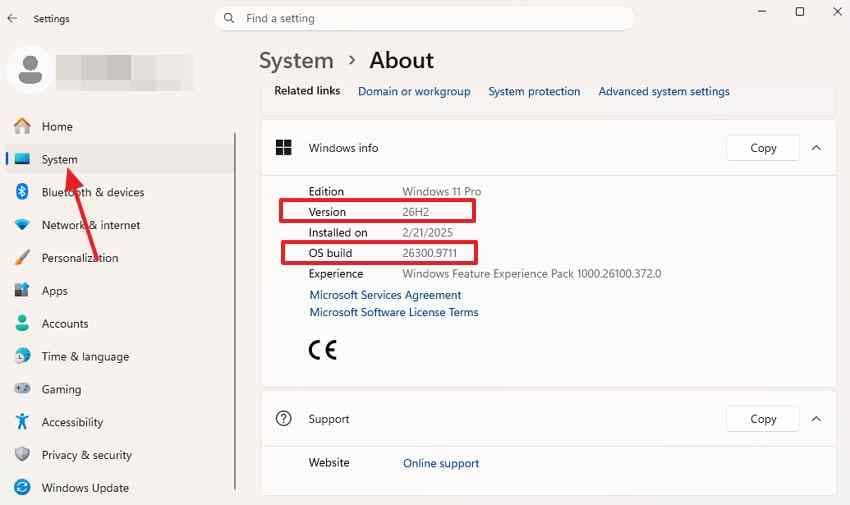
- Open Settings > System > About. Under Windows specifications, check Version and OS Build. Version 22H2 normally shows build 22621.x.
- Alternatively, press Windows + R, enter
winver, and select OK. Read the installed version and build.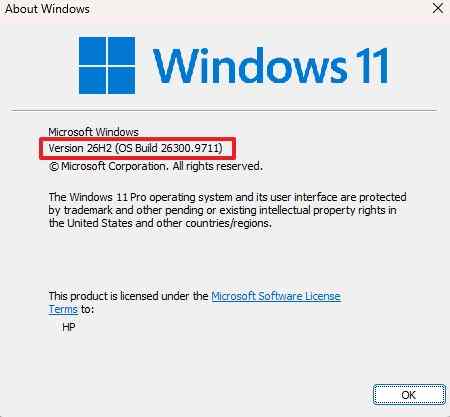
- Compare the Windows version and edition with the Microsoft servicing table.
What to look for: If the PC still shows 22H2, plan an upgrade. Avoid confusing Windows 11 22H2 with Windows 10 22H2; those are different products with different installation media and lifecycle dates.
Part 2. What Are the Main Features of Windows 11 22H2?
Many features associated with Windows 11 22H2 remain in later versions. The important distinction is whether they shipped with the September 2022 release or arrived through subsequent updates.
Start Menu, File Explorer and Task Manager
Windows 11 22H2 introduced folders for pinned Start menu apps, additional Start layout choices, and a redesigned Task Manager with a navigation sidebar, theme integration, and Efficiency mode for supported processes. File Explorer received a refreshed experience; tabbed browsing was rolled out through a later October 2022 update rather than being available to every device on the original launch day. See Microsoft's 22H2 feature documentation.
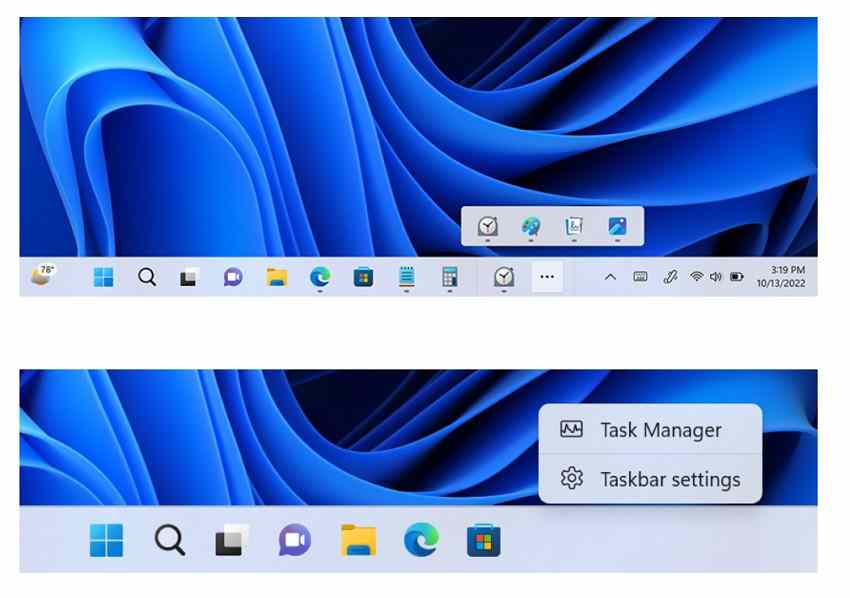
Snap Layouts, Accessibility, and Later Feature Drops
Dragging an application window toward the top of the screen makes Snap Layouts easier to discover. System-wide Live Captions, voice access, and additional Narrator voices were significant accessibility additions. Later feature updates expanded search, taskbar, and AI-related experiences, but those later rollouts should not be described as features available to everyone on September 20, 2022.
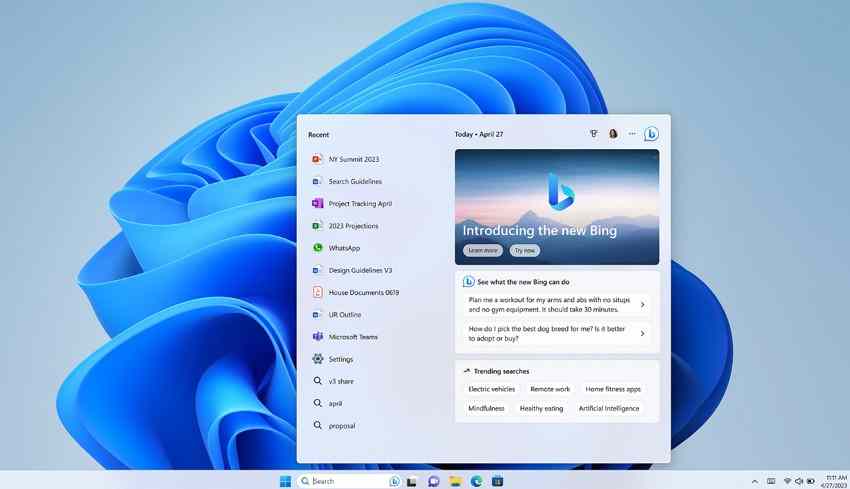
For someone choosing an operating system today, these features are not a reason to reinstall an unsupported release: newer supported Windows 11 builds include the relevant improvements and subsequent security fixes.
Part 3. How to Download Windows 11 22H2 ISO Safely
The first question is whether you really need the old 22H2 installation image. The answer determines which download source is appropriate.
| Your goal | Safest starting point |
| Install or upgrade Windows 11 on a normal PC | Use the current ISO or Installation Assistant on Microsoft's official download page. |
| Reproduce a legacy issue that specifically requires build 22621 | Use a previously retained, verifiable 22H2 ISO or check entitled Microsoft licensing/subscription channels. |
| Replace a damaged computer installation without losing irreplaceable files | Back up or recover the files first; do not perform a clean installation as a recovery shortcut. |
Why Microsoft No Longer Offers 22H2 on the Standard Download Page
As checked on November 2, 2026, Microsoft's Download Windows 11 page identifies the current public release as Windows 11 26H2. Its Installation Assistant, Media Creation Tool, and public ISO options are intended for the current release, not an archive of older 22H2 media.
Do not confuse the Windows 10 22H2 Media Creation Tool with a Windows 11 22H2 installer. A similar-looking version number does not make the download interchangeable.
Use a Verified Existing ISO or Authorized Historical Media
If 22H2 is necessary for testing or a managed legacy environment, start with an unchanged ISO previously downloaded from Microsoft and retained by your organization. Some licensed organizations or subscribers can also check available Windows media in the Microsoft 365 admin center or Visual Studio subscription downloads. Availability depends on entitlement and the actual catalog; do not assume those portals still offer the 22H2 image you need.
Use the right release, language, architecture, and edition for your licensed environment. If you cannot establish a trustworthy source and authenticate the file, do not install an unverified third-party mirror, preactivated ISO, or modified image. For everyday use, switch to a supported Windows 11 release instead.
Validate ISO Integrity and Avoid Repackaged Downloads
- Identify the file's original source and obtain a trusted SHA-256 value for the exact ISO release, language, architecture, and edition if available.
- Open PowerShell and run
Get-FileHash -Path "C:\Downloads\Windows11-22H2.iso" -Algorithm SHA256, replacing the example path with the actual ISO path. - Compare the entire displayed hash with the trusted value. A match supports file integrity; computing a hash without an independent trusted reference does not prove authenticity.
- Optionally mount the ISO and inspect its
sources\install.wim(orinstall.esd, if present) using DISM. For example, runDism /Get-ImageInfo /ImageFile:"E:\sources\install.wim" /Index:1, replacingE:with the mounted drive letter.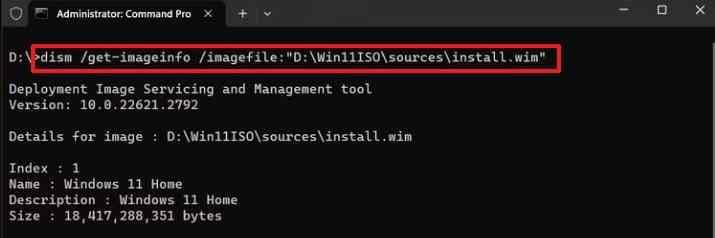
For an original 22H2 image, the installed Windows build family should correspond to 22621. Image metadata is a useful cross-check, but it is not a digital signature or proof that a download is safe. Microsoft documents both Get-FileHash and DISM image inspection.
Part 4. How to Install Windows 11 Version 22H2
Because Windows 11 22H2 is unsupported, the following steps are intended for justified legacy tests, controlled deployments, or same-version recovery scenarios, not routine installation on an internet-connected PC. Make a verified backup before proceeding. Downloading an ISO does not delete files; installing Windows can.
Method 1. Install Windows 11 22H2 Using an Existing ISO
Use this method when: You have an authenticated 22H2 ISO and a compatible existing Windows environment, such as a 22H2 test machine that needs a same-version reinstall. This is not a supported way to downgrade a newer Windows 11 release while keeping all apps and files.
- Back up documents, account data, recovery keys, and anything you cannot replace. Verify that you can open files from the backup.
- Right-click the verified ISO in File Explorer, choose Mount, and open the new virtual DVD drive.
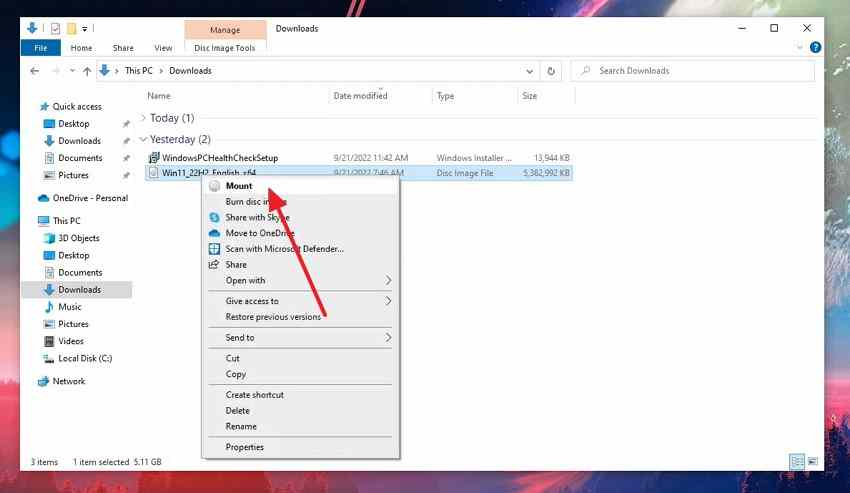
- Run
setup.exefrom within Windows. Follow the compatibility and licensing prompts shown for that particular 22H2 image.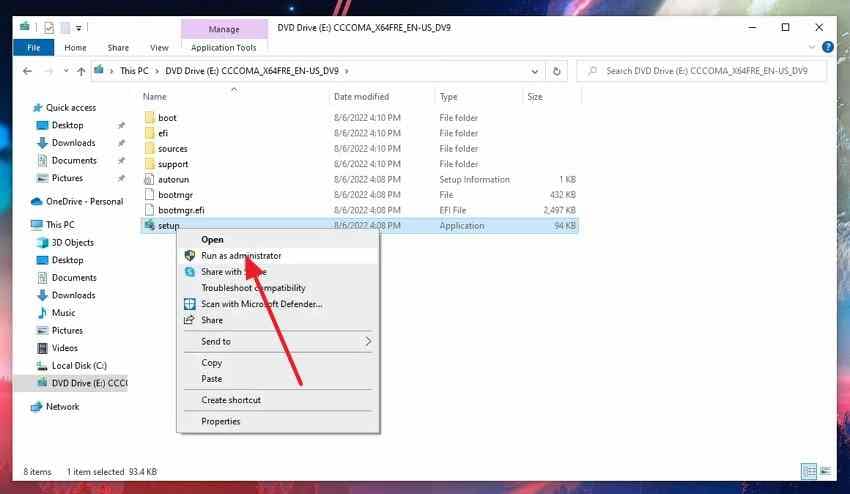
- At the Ready to install screen, review Change what to keep. Choose Keep personal files and apps only if Setup explicitly offers it and it matches your goal. Otherwise cancel and reassess before proceeding.
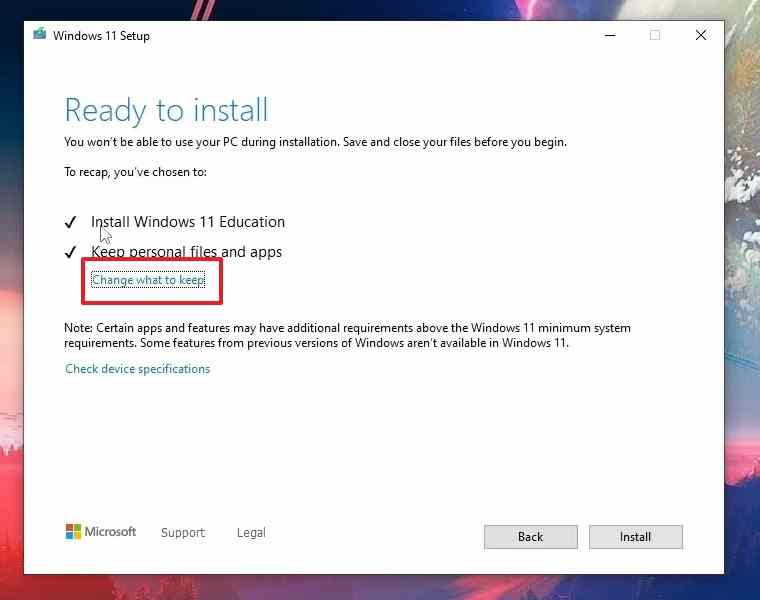
- Proceed only after checking the target edition and keep settings. Restart when Setup requests it, then run
winverand verify the build.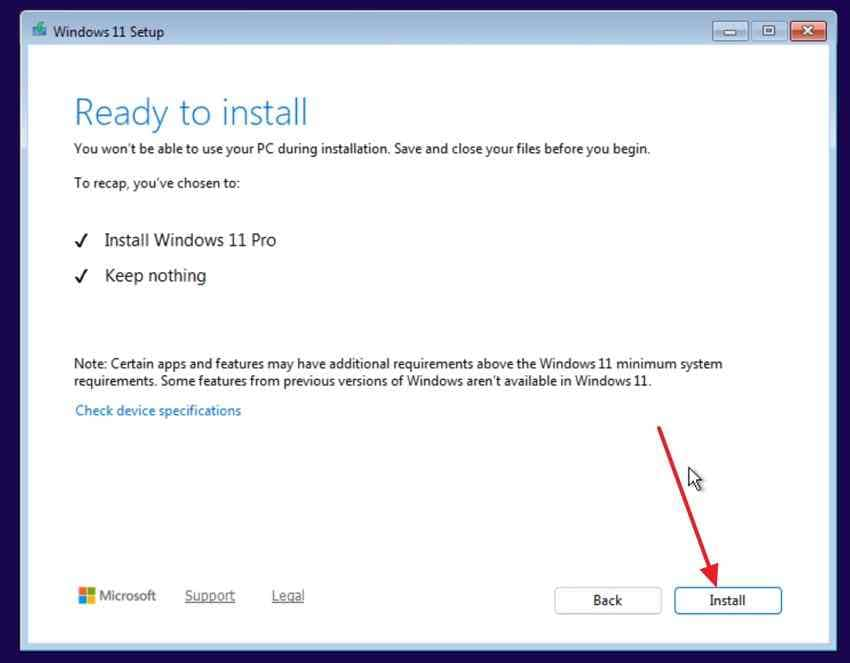
Expected result: Windows starts on the intended 22H2 build and your selected keep option has been honored. If the option to retain data is unavailable, do not assume files will survive. Use a compatible supported-version installation or restore the test machine from a known-good image instead.
Method 2. Clean Install Windows 11 22H2 From a USB Drive
Use this method only when: You have a legitimate historical ISO, a compatible test machine, a complete backup, and a genuine need for 22H2. A clean installation removes the previous setup and may destroy files on the selected system drive. If you are recovering data from that drive, stop before creating or booting the installer.
- On a separate working computer, download Rufus from its official site. Attach an empty USB flash drive of at least 8 GB; its existing contents will be erased.
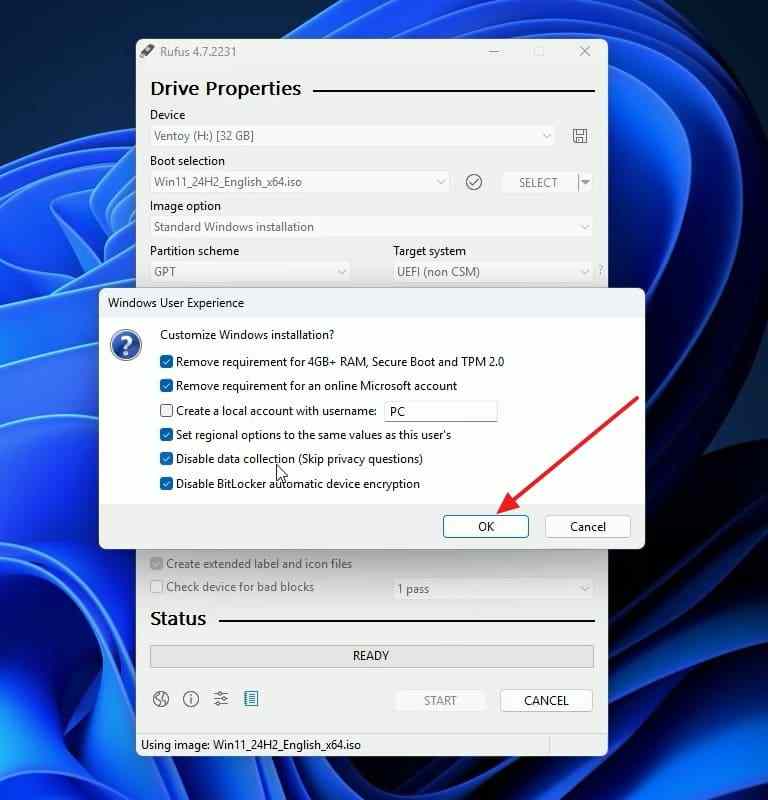
- In Rufus, select the correct USB device and your verified 22H2 ISO. Confirm that the partition scheme and target system match the test computer's firmware (for a compatible UEFI/GPT system, use the corresponding UEFI/GPT settings).
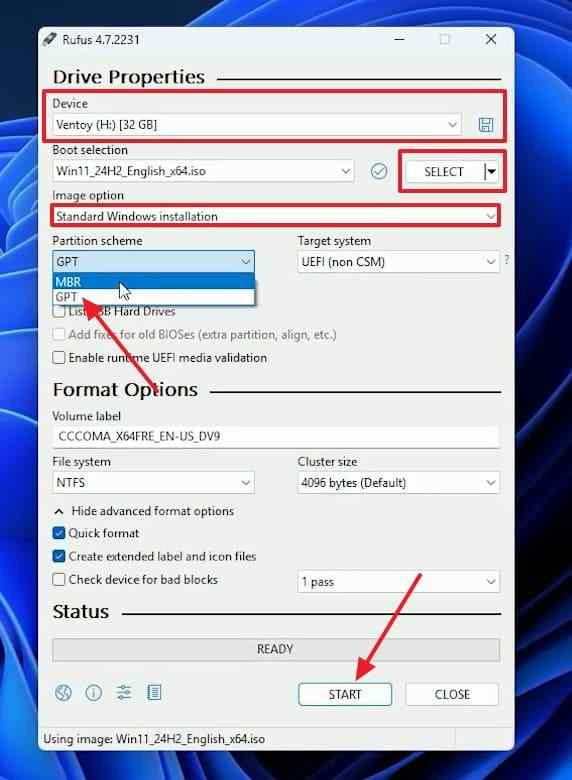
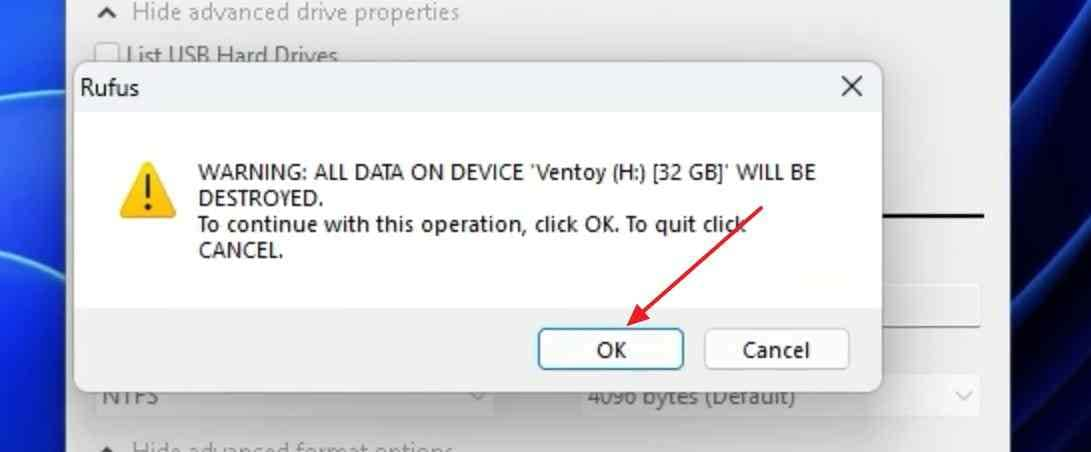
- Choose Start. Review any customization options without bypassing Windows 11 hardware protections. Confirm the USB-erasure warning only after checking the selected device. Wait for Rufus to report that the drive is ready.
- Boot the test PC from the USB drive using its manufacturer's boot menu. Follow Windows Setup and verify the intended edition and installation destination.
- Only after checking your backup and confirming the correct destination disk, choose the appropriate clean-install target and follow Setup's on-screen warnings. Do not delete partitions on a disk containing files you still need. Finish installation, then verify the Windows version with
winver.
Expected result: A controlled 22H2 installation for a supported legacy use case. It will still be out of support and must not be treated as a safe long-term daily-driver environment. If Setup reports a disk, TPM, or Secure Boot mismatch, stop and review the hardware requirements rather than forcing an installation.
Part 5. How to Update Windows 11 22H2 to a Supported Version
For a PC still on Windows 11 22H2, upgrading is the recommended route. As of November 2026, version 26H2 is Microsoft's current public Windows 11 release, while 25H2 remains supported for eligible devices. The 26H2 small enablement-package path is intended for 24H2 and 25H2, not a direct 22H2-to-26H2 enablement package. A 22H2 machine may therefore need a full feature upgrade, subject to compatibility and any safeguard hold.
Method 1. Upgrade Through Windows Update
- Back up important files and check that the PC meets the requirements of the offered Windows release.
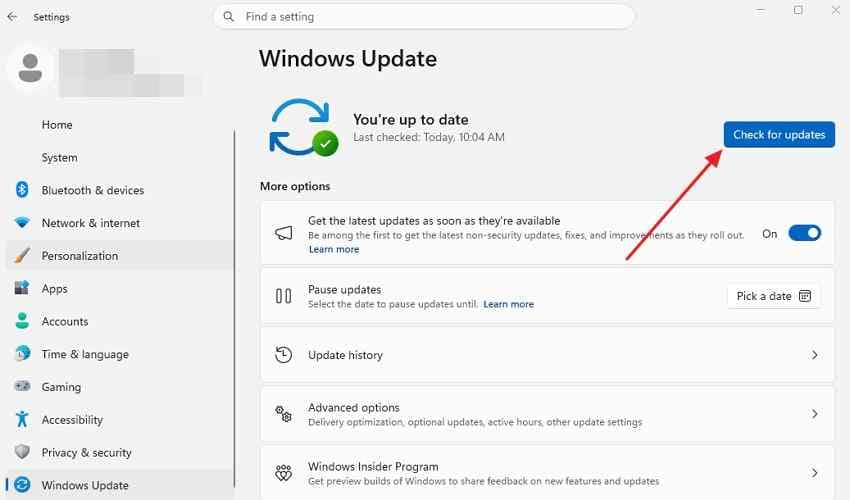
- Open Settings > Windows Update and select Check for updates.
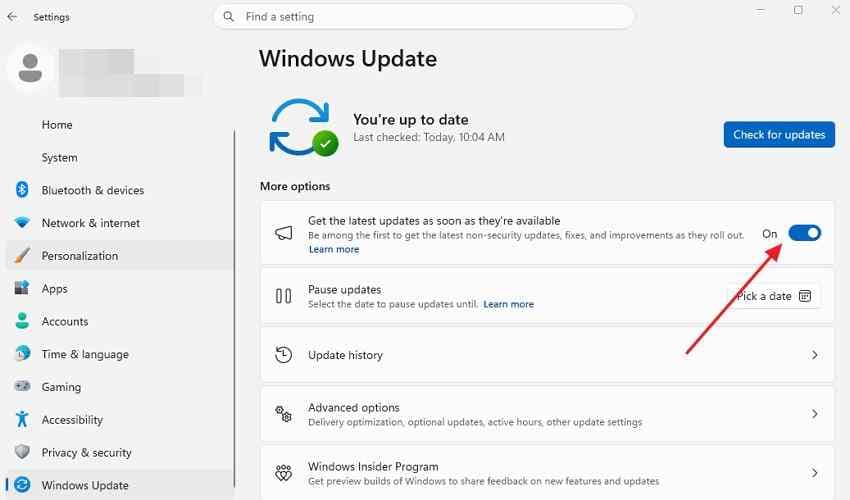
- If a supported feature update is offered, read its version and choose Download & install. Keep the device connected to power and allow it to restart as needed.
- After the update, run
winverto confirm the installed release and check for further security updates.
If no suitable update appears: The PC could be under organization management, have a compatibility safeguard hold, or need a different full-upgrade path. Do not assume that 26H2's enablement package can be installed directly on 22H2. Microsoft's 26H2 release guidance explains the supported enablement route.
Method 2. Upgrade Using Windows 11 Installation Assistant or ISO
If Windows Update does not offer a supported release and your PC is eligible, use Microsoft's current Windows 11 download page. The Installation Assistant is for compatible x64 PCs and requires sufficient free disk space; it is not the route for Arm-based devices.
- Visit Microsoft's Windows 11 download page. Download Windows 11 Installation Assistant or the current ISO, not a supposed 22H2 package.
- Run the Installation Assistant as an administrator, accept the license terms after the eligibility check, and follow the prompts. If using an ISO, mount it in the existing Windows session and run
setup.exe.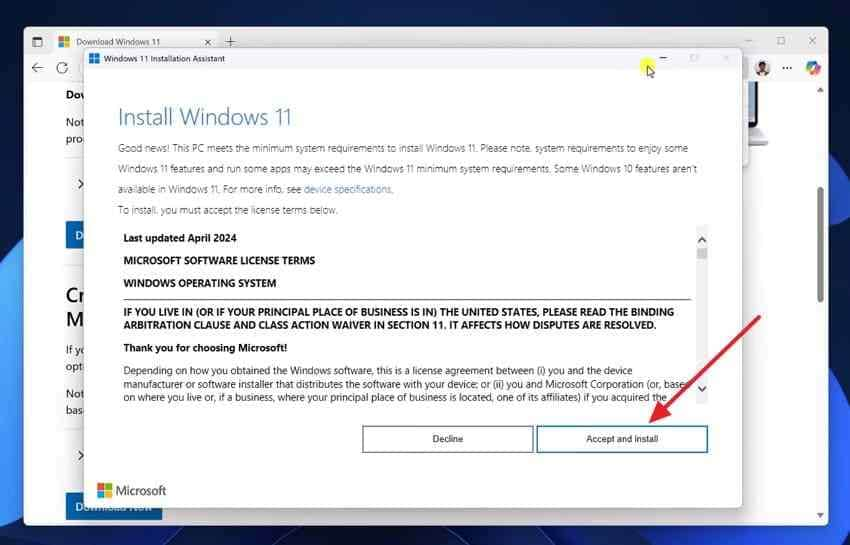
- Before committing, review the stated version and the Change what to keep choice, if offered. Stop if the option would remove data you need.
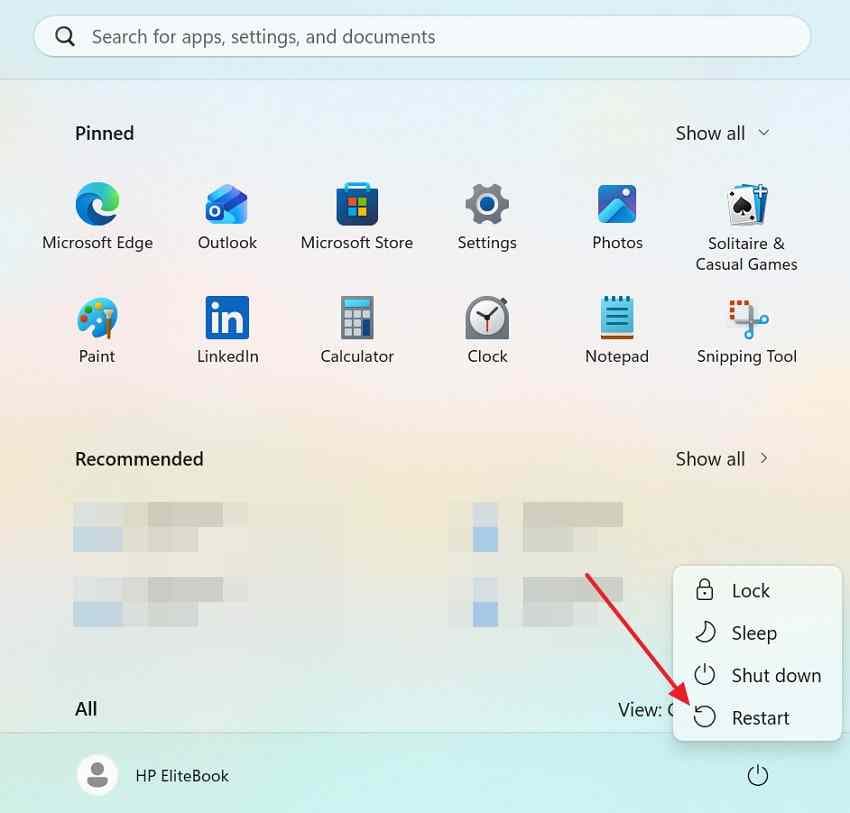
- Complete the upgrade and restart. Verify Version under Settings > System > About and confirm Windows Update is working.
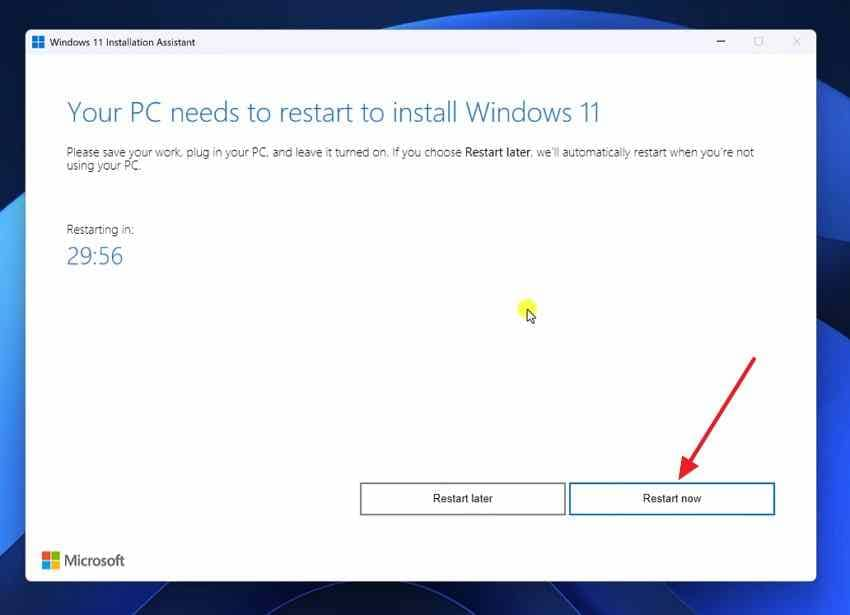
Expected result: The computer runs a currently supported release with eligible files and apps retained according to the confirmed Setup option. If you are blocked by requirements or a safeguard hold, investigate the specific error instead of bypassing it. See Recoverit's separate general Windows 11 installation guide for broader setup background.
Part 6. How to Fix Windows 11 22H2 Download and Update Problems
Not every error requires reinstalling Windows. Match the symptom to the next safe action. If important files are already missing, protect those files before reset, formatting, or a second installation attempt.
Fix 1. Windows 11 22H2 Download Is No Longer Available
If the public Microsoft download page only displays 26H2, the page is working as intended; it is not a failed 22H2 download. For a supported everyday PC, use the current media. If build 22621 is genuinely required for an isolated legacy test, check your own retained verified ISO or entitled Microsoft subscription/organizational download channels. Do not use modified or unverified mirrors.
Fix 2. Windows 11 Update Fails or Gets Stuck
- Note the update's exact error code, confirm that the device has free space and reliable power, and disconnect nonessential external peripherals.
- Open Get Help, search for Windows Update troubleshooter, and follow Microsoft's diagnostic steps. Restart the PC and try Windows Update again.
- If Windows starts normally and your important files are backed up, open an elevated Command Prompt and run
DISM /Online /Cleanup-Image /RestoreHealth. After it completes, runsfc /scannowseparately.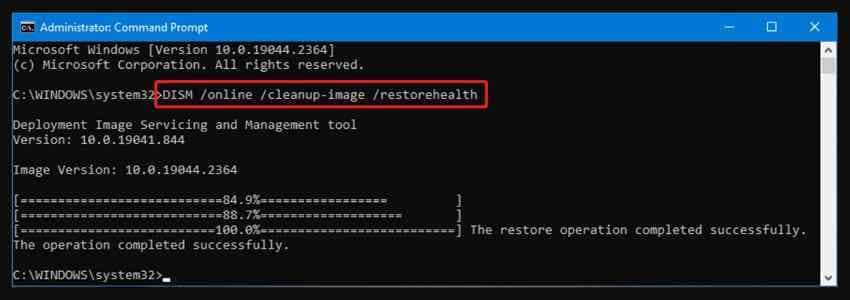
- Retry the supported feature update and check Settings > Windows Update > Update history for the result. If the device is managed by an organization, contact its administrator before changing update policies.
Expected result: The specific failed update can complete or provide a clearer error to investigate. The final October 2025 22H2 cumulative update, KB5066793, does not change 22H2 into a supported release; it is not a substitute for a feature upgrade. See Microsoft's Windows Update troubleshooting guidance.
Fix 3. This PC Cannot Run Windows 11
Check compatibility with Microsoft's Windows 11 system requirements. Important requirements include a supported processor, TPM 2.0, UEFI with Secure Boot capability, sufficient memory and storage, and compatible graphics.
- Run PC Health Check to identify the failing requirement rather than guessing.
- To inspect TPM, press Windows + R, enter
tpm.msc, and review the status and specification version.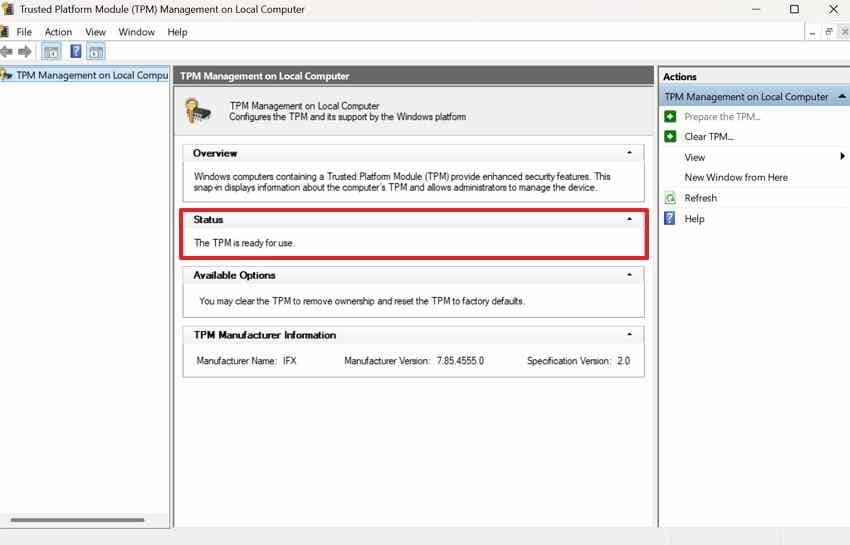
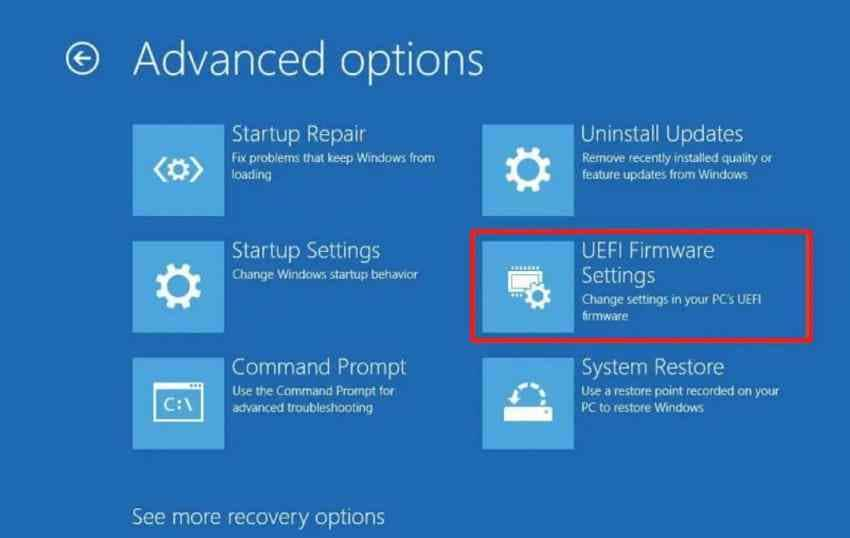
- If capable hardware has a disabled TPM or Secure Boot setting, consult the PC manufacturer's documentation before making firmware changes. Record your BitLocker recovery key and make a verified backup first.
- If the hardware cannot meet Windows 11 requirements, do not rely on an unsupported bypass for a secure working system. Use a supported device or an appropriate isolated test environment.
Expected result: You identify a supported fix or know when to stop. Avoid converting a system disk's partition layout or erasing volumes merely to make a Windows installer proceed.
Fix 4. Windows 11 Update Causes Startup or Compatibility Issues
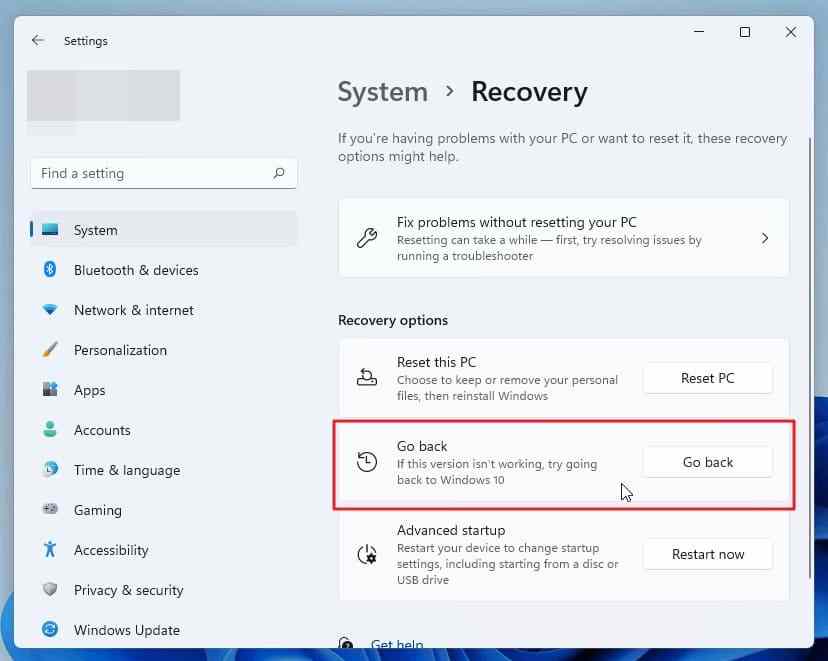
If Windows boots but an upgrade broke an app or driver, check for updated drivers from the PC manufacturer and review any available rollback. In Settings > System > Recovery, Go back is normally available for only about 10 days after a feature upgrade and may remove apps and settings changed since that upgrade.
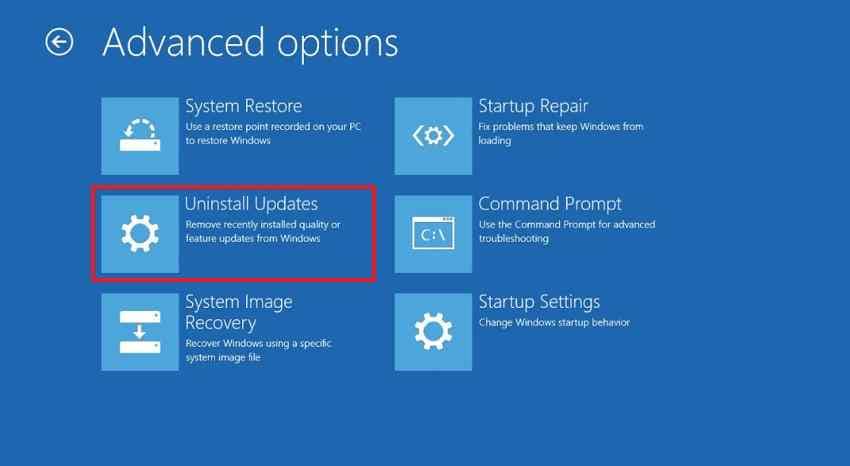
If Windows cannot start, Windows Recovery Environment offers Troubleshoot > Advanced options > Uninstall Updates on supported systems. Do not repeatedly reinstall or reset Windows if the drive may contain irreplaceable data. Back up accessible files first and consult Microsoft's recovery options before choosing a more destructive path.
Part 7. Recover Lost Files After Windows 11 Updates Using Wondershare Recoverit
Windows updates normally aim to preserve user data, so a missing file does not necessarily mean it was deleted. Check safe locations first. If a clean installation, partition change, or failed update really removed local files, Wondershare Recoverit for Windows may help scan readable storage for recoverable copies. It does not repair Windows or guarantee recovery.
When Local File Recovery Is Appropriate
Before scanning, search This PC for the filename, check the correct Windows account and hidden files, inspect OneDrive and available backups, and look for an existing Windows.old folder. Microsoft notes that Windows.old is normally retained for only a limited period after an upgrade, commonly 10 days; another reinstall can overwrite or replace it. See Microsoft's missing-files guidance.
If there is no accessible copy and the affected disk is still readable, stop creating or copying files on it. A fresh operating-system installation or installing recovery software onto the same disk may overwrite remaining data. When the missing data is important, use a different computer or an approved recovery workflow before further changes.
Recover Files to a Different Healthy Drive
Recoverit's official Windows Guide describes a location-based scan and preview workflow. Apply it only where you can safely access the affected drive without writing new data to it.
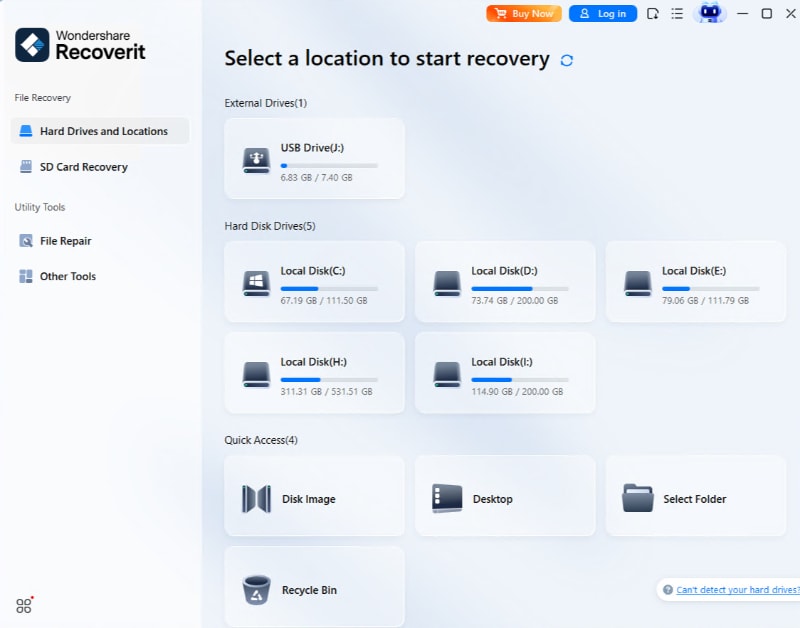
- Select the source: On a suitable Windows computer, open Recoverit and choose Hard Drives and Locations. Select the readable disk or partition that previously contained the missing files.
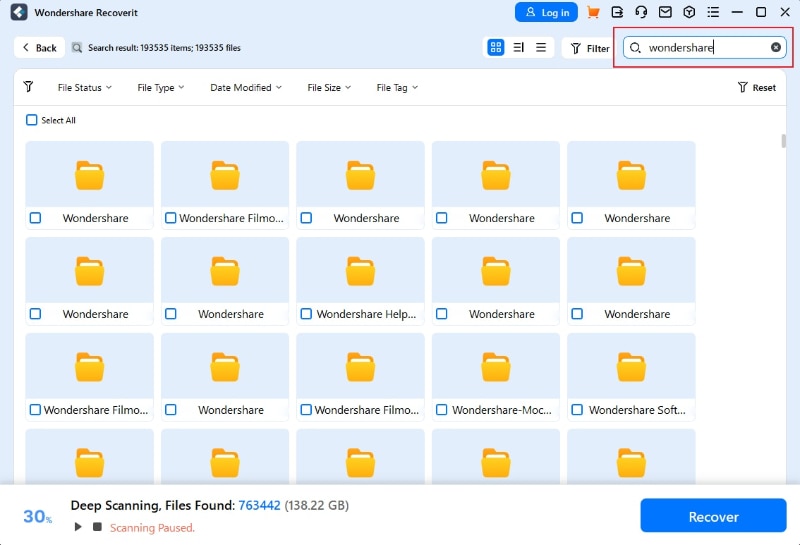
- Scan and inspect: Start the scan, review the results, and use available filters or preview controls to identify the documents, photos, or videos you actually need. Prefer letting the scan finish before saving files whose full content has not yet been located.
- Recover elsewhere: Select the recoverable files, click Recover, and save them to a different healthy physical drive. Open a sample of the saved files to check that they are intact.
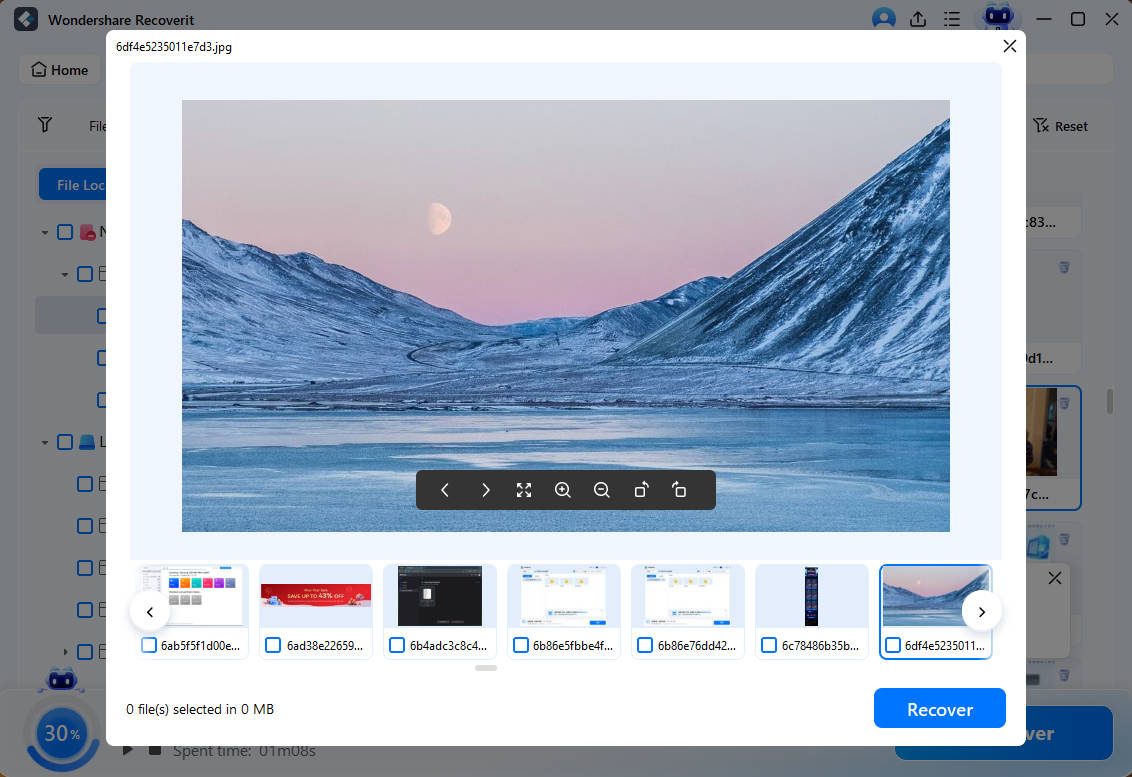
What success looks like: The recovered copy opens from the separate destination. If the desired file is not found or does not open, a normal scan cannot guarantee recovery; avoid repeatedly writing to the affected drive.
Recoverit Limitations and Unsupported Scenarios
Recoverit is for recoverable files on supported, readable storage. It cannot undo an overwritten file, repair a physically failed disk, bypass BitLocker encryption without a valid key, or restore a cloud-only file that never existed locally. SSDs can also make deleted data unrecoverable after TRIM or other block reclamation. For a drive that is clicking, disappearing, or not detected reliably, stop DIY activity and consult a qualified recovery service.
For exact current UI labels and workflow limits, refer to the official Recoverit Windows Guide. A file-recovery tool is not a substitute for the original backup or for repairing a failed Windows upgrade.
Conclusion
Windows 11 22H2 introduced useful Windows features in 2022, but every edition is now out of support. Microsoft's current public installer does not offer a historical 22H2 ISO, so use only authenticated legacy media when a specific test requires it. For normal use, move an eligible PC to a supported Windows 11 release and make a verified backup first. If an installation or update has already caused genuine local data loss, Recoverit may help scan readable storage, provided the original data has not been overwritten.
FAQ
-
Is Windows 11 22H2 still available for download?
Not from Microsoft's standard Windows 11 public download page, which now serves the current release. A verified copy saved earlier, or media still available to an eligible organization or subscriber, may be an option for a justified legacy requirement. Avoid unverified download mirrors. -
Can I still use Windows 11 version 22H2 after its end of support?
Yes, the installation can still run, but it no longer receives regular security updates. Use an isolated legacy test setup if you must retain 22H2, and upgrade normal connected PCs to a supported Windows version. -
Can I download Windows 11 22H2 without losing my files?
Downloading an ISO alone does not change your files. Installing it can: a compatible in-place installation may offer a keep-files option, while a clean installation can erase data on the selected drive. Make and verify a backup before either method. -
What is the difference between Windows 11 22H2 and 23H2?
22H2 uses OS build 22621; 23H2 uses build 22631 and was enabled on eligible updated 22H2 devices through a small enablement package. Both share much of the same underlying platform, but they have different feature enablement and support timelines. Windows 11 23H2 Home and Pro are also out of support as of November 2026.


