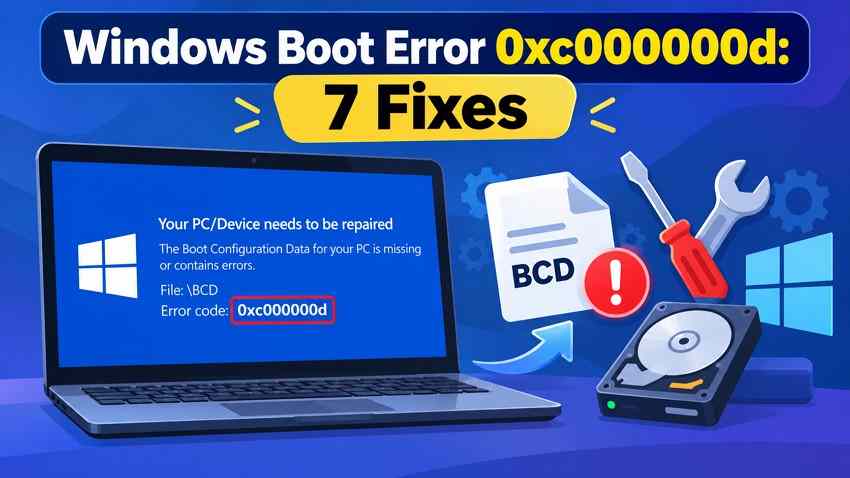
A Windows recovery screen showing error 0xc000000d can stop your PC before the sign-in page appears. It may say "Your PC/Device needs to be repaired" or identify a missing or invalid Boot Configuration Data (BCD) file. Failed updates, incorrect boot settings and storage problems can cause similar symptoms. The right repair depends on whether Windows can still find the system drive and which boot mode the PC uses.
Start with low-risk checks: disconnect unnecessary drives, confirm the boot order and try Startup Repair. Before rebuilding BCD or running disk-repair commands, identify the correct partitions, locate any BitLocker recovery key and protect important files. This guide separates Windows 11/10 repair steps from the older Windows 7 recovery process.
In this article
-
- Fix 1. Check Boot Order and Disconnect External Devices
- Fix 2. Run Windows Startup Repair
- Fix 3. Rebuild Boot Configuration Data Using Bootrec
- Fix 4. Repair Windows Boot Files Using BCDBoot
- Video Tutorial: Check the Demonstrated Repair Before Following It
- Fix 5. Use System Restore or Uninstall Recent Updates
- Fix 6. Check and Repair Windows System Files
- Fix 7. Check the System Drive for Errors
Part 1. What Does Error Code 0xc000000d Mean in Windows?
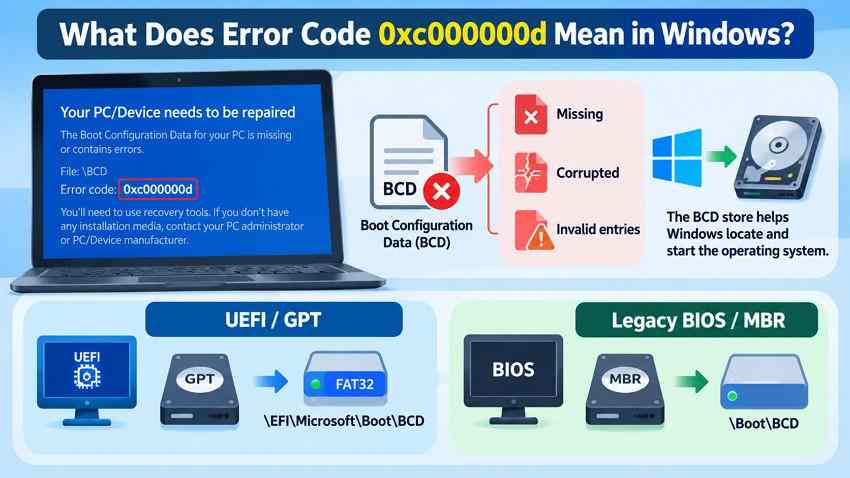
In Windows, 0xc000000d is the NTSTATUS code STATUS_INVALID_PARAMETER. On a boot recovery screen, it commonly appears with a message saying that BCD information is missing or invalid. The number alone does not prove the disk or BCD file is damaged; read the accompanying message and file path before choosing a repair. Searches for "0xc00000d" often omit one zero from the same intended boot error.
Confirm the Full Error and BCD Versus Hardware Symptoms
The error may identify \Boot\BCD or \EFI\Microsoft\Boot\BCD. These locations point toward a boot configuration problem. A drive missing from BIOS/UEFI, repeated clicking, or repeated disconnections is different: it may indicate a device, cable or controller fault and should be treated as a data-protection issue first.
| What you see | What to check first | Safer next action |
| Recovery screen names BCD or the EFI boot path | Boot order and BCD files | Try Startup Repair before command-line changes |
| System disk appears in firmware but Windows will not load | WinRE disk letters, encryption status and Windows folder | Identify the Windows installation and protect important files |
| Drive is missing in BIOS/UEFI or makes unusual noises | Storage hardware and connection | Stop repeated scans and consider professional diagnosis |
| Error started immediately after an update | Recent update or restore point | Try WinRE update removal or System Restore after data precautions |
UEFI/GPT and Legacy BIOS/MBR Differences
Modern Windows 11 systems generally boot through UEFI and a GPT disk; many older Windows 7 computers use legacy BIOS and MBR. These configurations store boot files in different places, so copying a command from another PC can target the wrong partition.
| Item | UEFI/GPT | Legacy BIOS/MBR |
| Typical system partition | Small FAT32 EFI system partition (ESP) | Active system partition |
| Typical BCD path | \EFI\Microsoft\Boot\BCD |
\Boot\BCD |
| BCDBoot firmware option | /f UEFI |
/f BIOS |
| What not to assume | The ESP has the letter C: | The Windows volume is the active boot partition |
Note: In BCDBoot, specifying /f also requires /s. On UEFI computers, /s has implications for the firmware boot entry. See Microsoft BCDBoot options before using an explicit destination.
Part 2. What to Do Before Fixing Windows Error 0xc000000d
The safest preparation is to enter Windows Recovery Environment (WinRE), identify the installation and check whether BitLocker protects the drive. Do not format, initialize, delete or change partition types while identifying a boot error. The disk letters displayed in recovery tools may differ from those used when Windows starts normally.
Enter WinRE and Identify the Correct Disk
Step 1. If Windows repeatedly fails to start, it may offer Automatic Repair. Otherwise, use compatible Windows installation or recovery media created on another working PC. Start the affected computer from the USB, then choose Repair your computer rather than Install now.
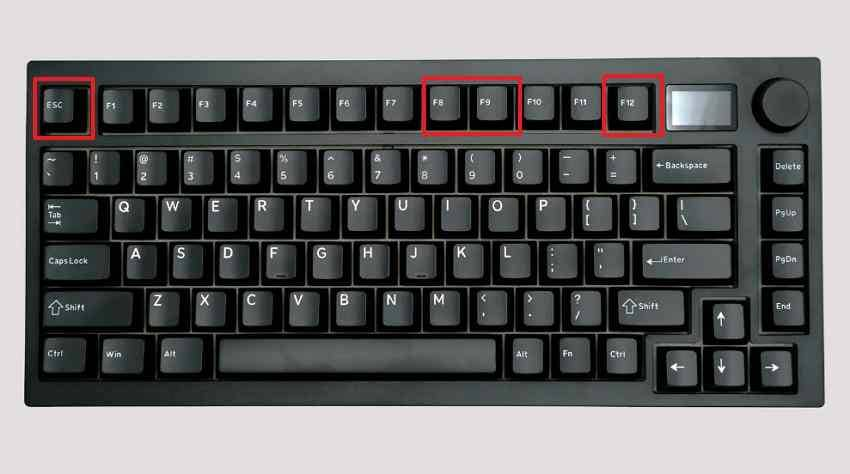
The startup-menu key depends on the manufacturer; common examples are F9, F12 or Esc. Use the one-time boot menu where possible instead of changing every firmware setting.
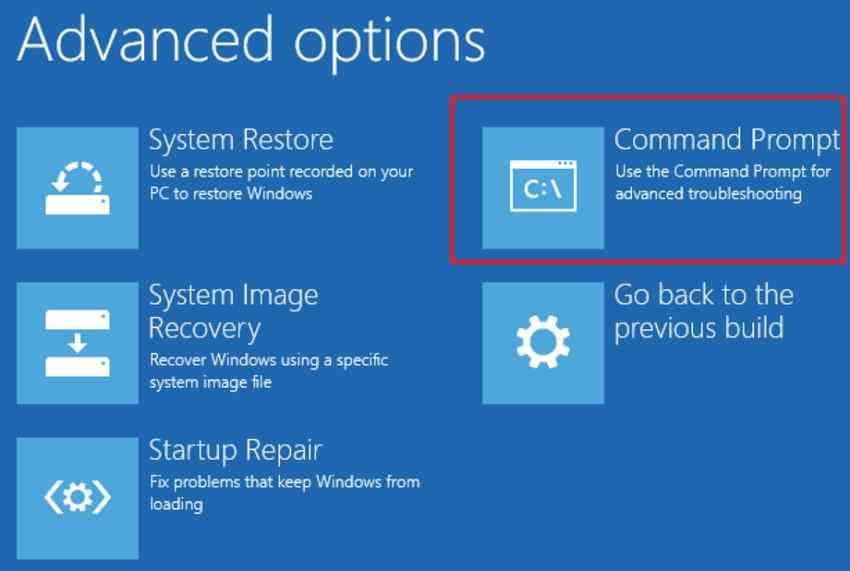
Step 2. In Windows 11/10, open Troubleshoot > Advanced options > Command Prompt. Windows 7 has a separate System Recovery Options menu, described in Part 4.
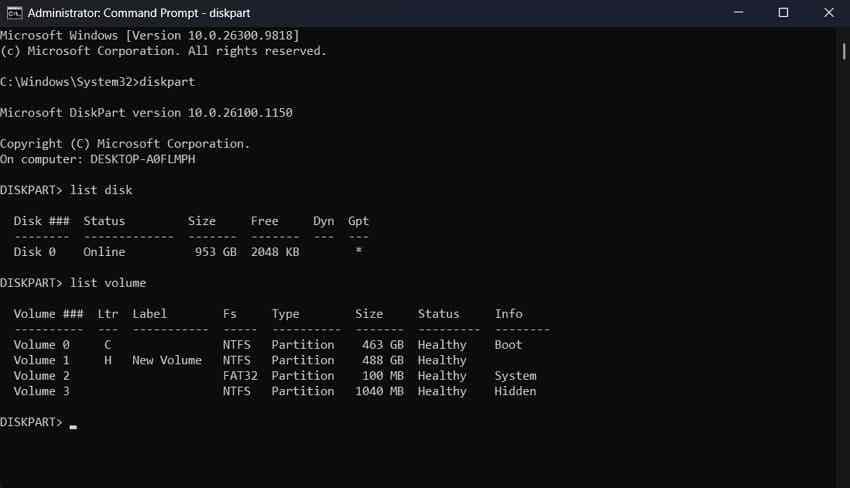
Step 3. At the WinRE command prompt, inspect disks and volumes without making changes:
diskpart
list disk
list volume
exit
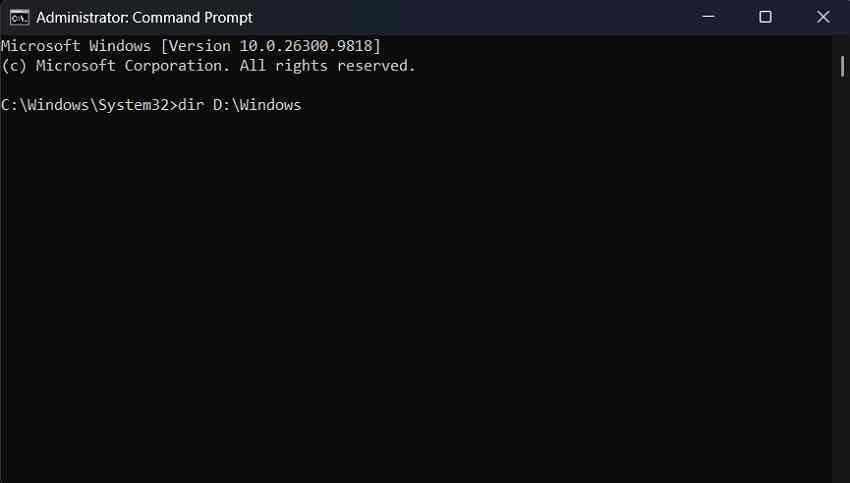
Look for the disk containing Windows. In list disk, an asterisk in the GPT column is a clue to GPT partitioning. Next verify the Windows folder using dir D:\Windows, substituting the letter shown on your computer. If that folder is not present, try the other identified Windows volumes rather than assuming C: is correct.
Save the BitLocker Key and Protect Important Files
Windows 10/11 may have BitLocker or device encryption enabled. Before using recovery tools, locate the 48-digit key on a different device through Microsoft BitLocker recovery key guidance. On a work computer, your organization may hold it. Microsoft cannot recreate a lost key.
Step 1. Run manage-bde -status in WinRE to inspect protection and lock status. Confirm the correct volume before trying to unlock it.
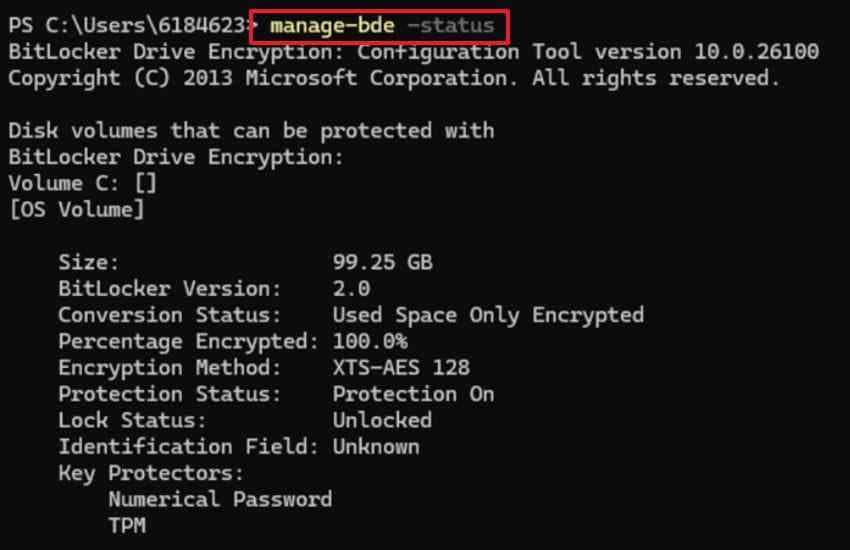
Step 2. If the Windows volume is locked and you have the valid recovery password, follow Microsoft's manage-bde unlock instructions and enter the appropriate volume letter and your real 48-digit key. For example, use the following pattern with your actual values:
manage-bde -unlock D: -recoverypassword YOUR-48-DIGIT-KEY-WITH-DASHES
Step 3. Protect irreplaceable documents before rebuilding boot files, resetting Windows, restoring a system image or repairing a questionable drive. A verified backup or a read-only recovery workflow on stable, detectable storage should come first. If the drive is not detected or is clearly failing, skip further DIY repairs and seek professional help.
Part 3. How to Fix Error Code 0xc000000d on Windows 11 and 10
These seven fixes progress from the least invasive to more technical repairs. Stop after Windows starts successfully. Skip any disk-write or BCD-changing step if you cannot identify the target drive with confidence or still need to protect important data.
Fix 1. Check Boot Order and Disconnect External Devices
Use this when: The problem started after connecting an external drive, changing firmware settings or installing a second disk.
Step 1. Shut down the computer, unplug nonessential USB drives, memory cards and docks, and start it again. Keep the keyboard and other essential devices connected.
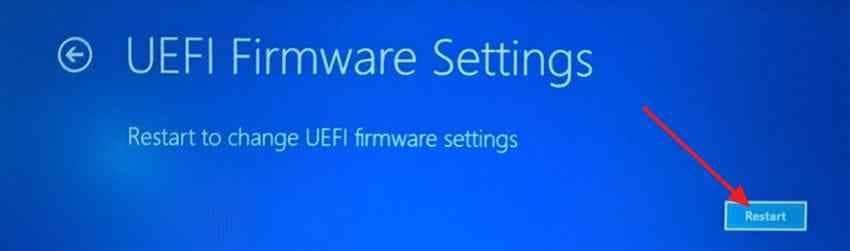
Step 2. If the error remains, open UEFI/BIOS settings using the vendor startup key or WinRE's UEFI Firmware Settings option. Locate Boot Order or Boot Priority.
Step 3. For UEFI systems, choose Windows Boot Manager associated with the intended system disk. On legacy BIOS systems, select the correct physical system disk instead. Save settings and restart.
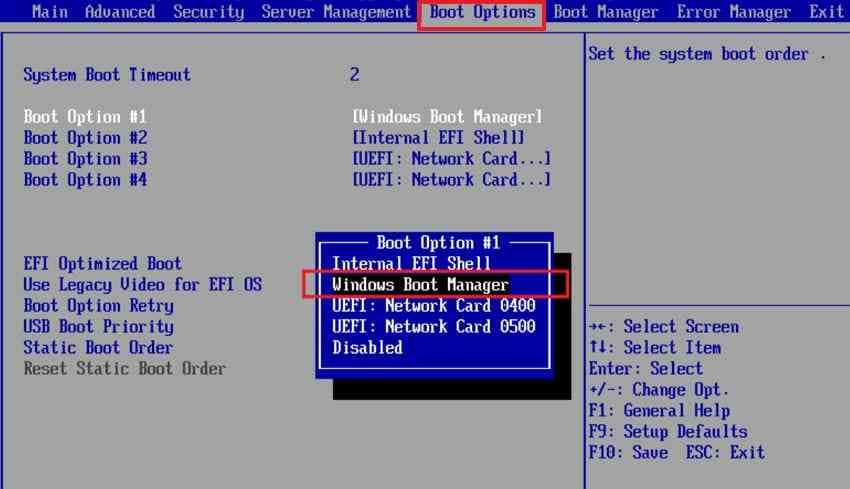
Expected result: Windows starts without the recovery screen. If not: Restore any original firmware settings you changed and continue to Startup Repair. Do not switch SATA/AHCI/RAID modes arbitrarily.
Fix 2. Run Windows Startup Repair
Use this when: The system drive is detected but Windows will not start, particularly after an interrupted update or a BCD-related recovery message. Microsoft Startup Repair can diagnose several common startup errors without requiring you to manually select boot partitions.
Step 1. In WinRE choose Troubleshoot > Advanced options > Startup Repair; select the Windows installation if prompted and allow the process to finish.
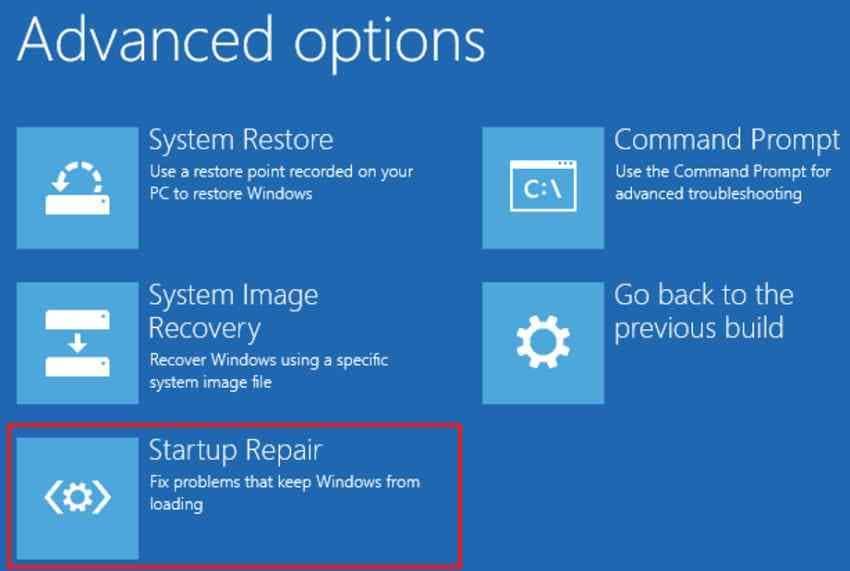
Step 2. Restart and check whether Windows loads. If Startup Repair reports that it could not repair the PC, choose Advanced options instead of repeatedly running the same tool.
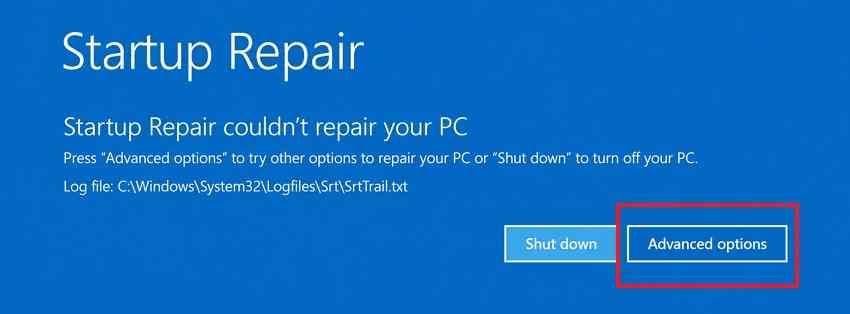
Step 3. If you need more detail, locate the Windows folder and inspect Windows\System32\LogFiles\Srt\SrtTrail.txt on the appropriate volume. A log can help identify a specific failed repair; it does not guarantee that the BCD is the only problem.
Fix 3. Rebuild Boot Configuration Data Using Bootrec
Use this when: The recovery screen points to missing or invalid BCD information and Startup Repair has not worked. Do not assume legacy MBR repair commands apply to UEFI/GPT computers.
Step 1. After confirming the correct Windows volume and protecting data, open Command Prompt in WinRE and scan for installations:
bootrec /scanos
Step 2. If appropriate installations are detected, attempt to rebuild the BCD:
bootrec /rebuildbcd
If prompted, choose the intended Windows installation. Restart to test the result. Bootrec may report zero installations if Windows is encrypted, inaccessible, already in the BCD or on a damaged volume; zero results do not prove that Windows was deleted.
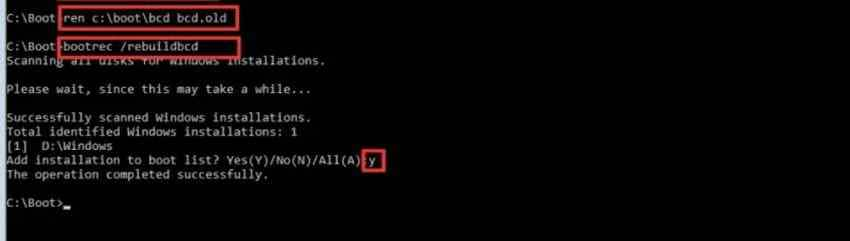
Step 3. On a verified legacy BIOS/MBR system, advanced recovery may require backing up and renaming the BCD on its actual system partition before rebuilding it. Microsoft documents this approach in Windows startup troubleshooting. Because partition letters differ in WinRE, do not copy a generic command that assumes C:\Boot\BCD is the right file.
If it fails: Move to BCDBoot only after verifying the system partition. Do not format the EFI partition to make Bootrec work.
Fix 4. Repair Windows Boot Files Using BCDBoot
Use this when: Startup Repair and Bootrec do not restore the boot files, but the Windows installation is readable and the correct partition arrangement is known. BCDBoot copies Windows boot files and can update BCD entries; it is not a disk-data recovery tool.
Step 1. In WinRE, use diskpart and list volume, then exit. Verify the installed Windows folder, for example with dir D:\Windows. Ensure that D: is the actual Windows partition before continuing.
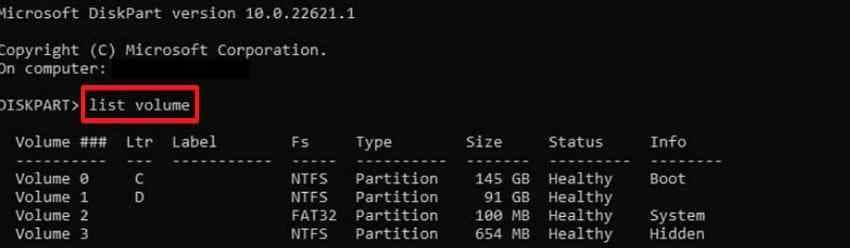
Step 2. When the intended system partition is correctly identified by Windows recovery tools, the following basic form can recreate boot files:
bcdboot D:\Windows
Replace D: with your verified Windows volume. On UEFI computers, BCDBoot can update the firmware boot entry. It may also change the boot order, so review the result before changing any other settings.
Step 3 - advanced, only with a verified system partition: If an expert needs to target the EFI or BIOS system partition explicitly and it has been assigned the letter S:, use the configuration matching the actual firmware type:
bcdboot D:\Windows /s S: /f UEFI
bcdboot D:\Windows /s S: /f BIOS
Note: These are alternatives, not consecutive commands. Use only the option matching the PC. Microsoft explains that using /s on UEFI does not create the usual NVRAM firmware entry, which may require separate firmware review. Do not assign S: to a guessed disk or format a partition.
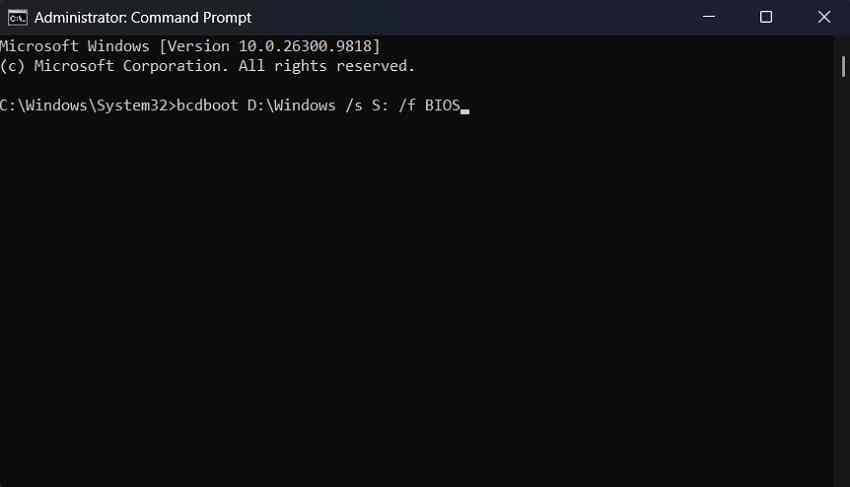
Expected result: BCDBoot reports successfully creating boot files and Windows starts after rebooting. If not: Stop changing partitions, verify the boot mode and seek an experienced technician if the system layout remains unclear. Refer to Microsoft BCDBoot documentation.
Video Tutorial: Check the Demonstrated Repair Before Following It
The following third-party video was provided with the article. Its individual commands and compatibility with UEFI/GPT, Windows 7 and BitLocker have not been independently verified in this review. Treat it as supplementary context, and use the written safety checks and official instructions above before entering commands.
Video source: provided YouTube tutorial. Playback and exact demonstration steps require CMS-side verification.
Fix 5. Use System Restore or Uninstall Recent Updates
Use this when: Error 0xc000000d appeared immediately after a Windows change and the system disk is detectable. A restore point or uninstallable update must be available; these tools cannot repair failed physical hardware.
Step 1. In WinRE open Troubleshoot > Advanced options > System Restore. Select a suitable restore point, review the affected programs, and let Windows finish.
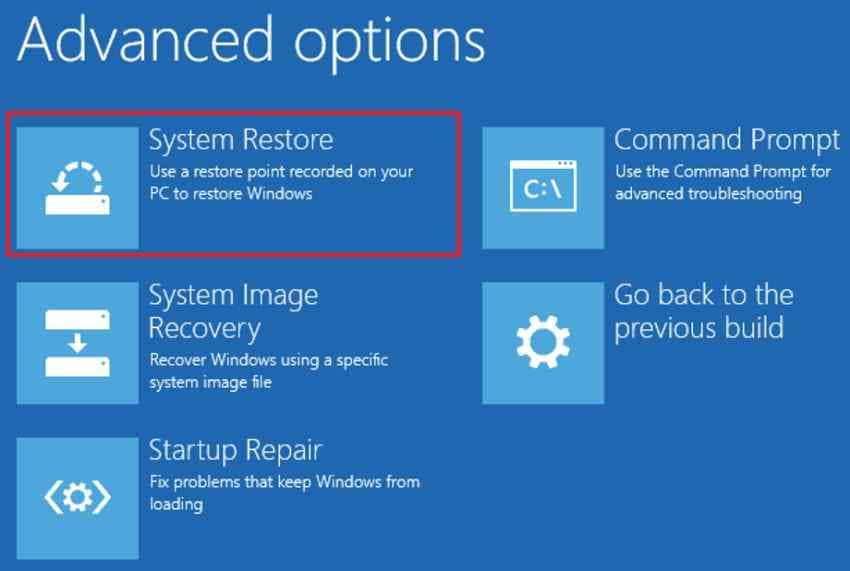
Step 2. If the issue followed a recent update, return to Advanced options > Uninstall Updates and choose the applicable option. The menu can differ by Windows release.

Expected result: Windows boots after the rollback. Fallback: If no restore point exists or rollback fails, continue only after checking backups; do not repeatedly restore over suspected failing storage.
Fix 6. Check and Repair Windows System Files
Use this when: The Windows partition is accessible but the OS still fails to load after boot configuration checks. System File Checker can inspect an offline Windows installation. More advanced DISM repair requires the correct Windows image and compatible repair source.
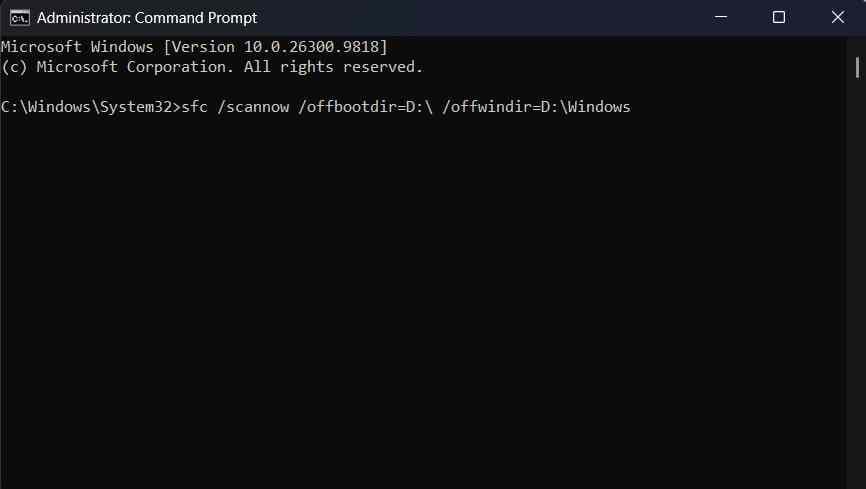
Step 1. Confirm the Windows volume letter. Microsoft SFC reference documents the offline /offbootdir and /offwindir options. For a simple setup where the Windows and selected boot directory are both on D:, the offline SFC pattern is:
sfc /scannow /offbootdir=D:\ /offwindir=D:\Windows
Note: Many UEFI computers have a separate EFI system partition. If so, the offline boot directory can differ from the Windows drive. Verify the applicable paths rather than blindly reusing D: for both switches.
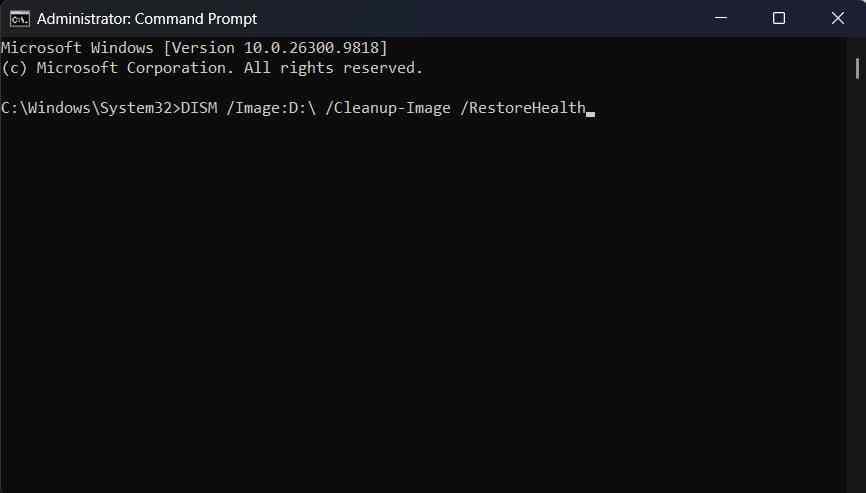
Step 2. When SFC cannot correct a confirmed component-store issue, an experienced user can service the offline Windows image using a verified repair source. See Microsoft image repair guidance. A general syntax for supported Windows 10/11 images is:
DISM /Image:D:\ /Cleanup-Image /RestoreHealth
Replace D: with the Windows partition found in WinRE. If DISM requires source files, obtain matching Windows installation media and use the documented image index. Do not paste a random /Source index or use online-mode instructions against offline Windows. If SFC and DISM fail, consider professional assistance before editing more system files.
Fix 7. Check the System Drive for Errors
Use this when: The system drive stays detected and stable, and a file-system issue remains plausible after simpler boot checks. A failing disk must be protected before any write-capable scan.
Step 1. Confirm the volume letter in WinRE. A read-only inspection command is:
chkdsk D:
This requests a report of file-system status without the /f repair switch. Even read-only scanning can place stress on a physically failing drive, so do not perform it on disks with clicking noises, severe read errors or repeated disappearance.
Step 2. If the device is stable and a verified backup or image is available, an informed user may consider chkdsk D: /f to modify file-system structures and attempt repairs. Do not run /r as a generic next step; it adds a more intensive surface check and can be inappropriate for marginal hardware.
Expected result: Any file-system issues are understood or repaired, then Windows boots normally. Fallback: If drive health is uncertain or CHKDSK returns repeated I/O errors, stop and use professional diagnosis or recovery. See Microsoft CHKDSK reference.
Part 4. How to Fix Error 0xc000000d on Windows 7
Windows 7 uses the older System Recovery Options interface instead of the Windows 11/10 WinRE layout. Microsoft ended Windows 7 security support on January 14, 2020; troubleshoot an older machine with appropriate safeguards and plan to move important data to a supported system when feasible.
Windows 7 System Recovery Options and Legacy Boot Differences
Step 1. On some Windows 7 PCs, repeatedly press F8 before Windows begins loading and choose Repair Your Computer. If unavailable, start from a compatible Windows 7 installation DVD or system repair disc. Choose Repair your computer > System Recovery Options.
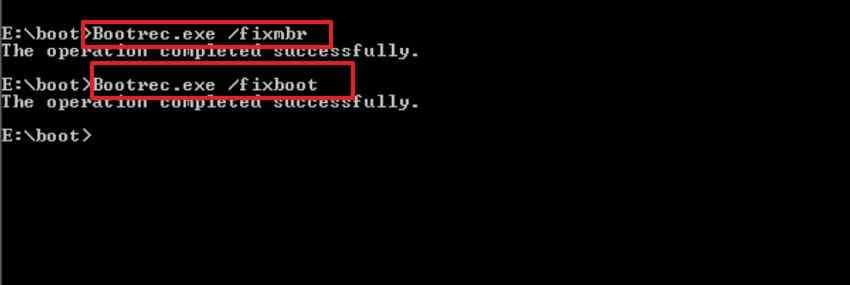
Step 2. Run Startup Repair first. If that fails, open Command Prompt and confirm whether the installed Windows 7 system actually uses legacy BIOS/MBR. For a verified legacy installation, Microsoft describes these boot-sector tools:
bootrec /fixmbr
bootrec /fixboot
Step 3. To search for an older Windows installation and attempt to add it to the BCD store, run:
bootrec /scanos
bootrec /rebuildbcd
Expected result: The correct Windows installation becomes bootable after restarting. If not: Check that the drive is still detected and the installation is accessible; avoid using MBR-specific commands on UEFI systems. Back up files before reinstalling Windows 7 or moving to a supported OS.
Part 5. What If Windows Error 0xc000000d Still Appears?
A repeated recovery screen does not automatically mean the BCD must be rebuilt again. The real problem may be an encrypted Windows volume, an incorrect system partition, failed storage or a damaged installation. Use these checks to choose the next safe action instead of repeatedly running the same commands.
When Startup Repair and Rebuilt BCD Still Fail
- Disk not visible in firmware: Check hardware and connections first. Software boot repair cannot reach an absent or failed device.
- BitLocker-protected partition: Confirm the valid recovery key and unlock status before any repair involving Windows files.
- UEFI/GPT system: Verify the Windows Boot Manager entry and EFI partition rather than attempting BIOS-only MBR fixes.
- Bootrec reports zero installations: Recheck the Windows folder and volume accessibility; the result alone does not establish data loss.
- BCDBoot cannot identify the target: Do not format or assign a random system partition; get expert help with the disk layout.
When to Use File Recovery, Image Restore, or Professional Help
If important data are still missing or inaccessible, recover them before attempting a Windows reset, clean install or full system-image restore. A system-image restore replaces the chosen system state and can overwrite newer changes. "Keep my files" in a Windows reset is not a substitute for an independent backup.
When a hard drive is clicking, repeatedly losing detection or exhibiting other physical symptoms, stop repeated scans and consider professional recovery. If the drive is stable and readable but Windows is simply unbootable, a bootable data-recovery workflow may be appropriate.
Part 6. Recover Files From an Unbootable Windows PC Using Wondershare Recoverit
A 0xc000000d boot error does not necessarily mean personal files were deleted. However, further boot repair or reinstallation can put important data at risk. If the internal drive is detected and sufficiently stable for software access, Wondershare Recoverit for Windows provides Crashed Computer Recovery, using bootable media to reach recoverable files without starting the installed Windows system. It does not fix the underlying BCD, firmware or hardware fault.
When Local File Recovery Is Appropriate
- Appropriate: The PC cannot boot, but the drive remains visible and accessible from supported bootable recovery media.
- Not appropriate: The disk is physically inaccessible, makes repeated clicking sounds or drops offline frequently. Stop scanning and seek specialist help.
- Encryption: BitLocker or device encryption requires the legitimate key and a supported unlocking path; Recoverit cannot bypass encryption or recreate missing keys.
Create Bootable Media and Recover Files to a Healthy Drive
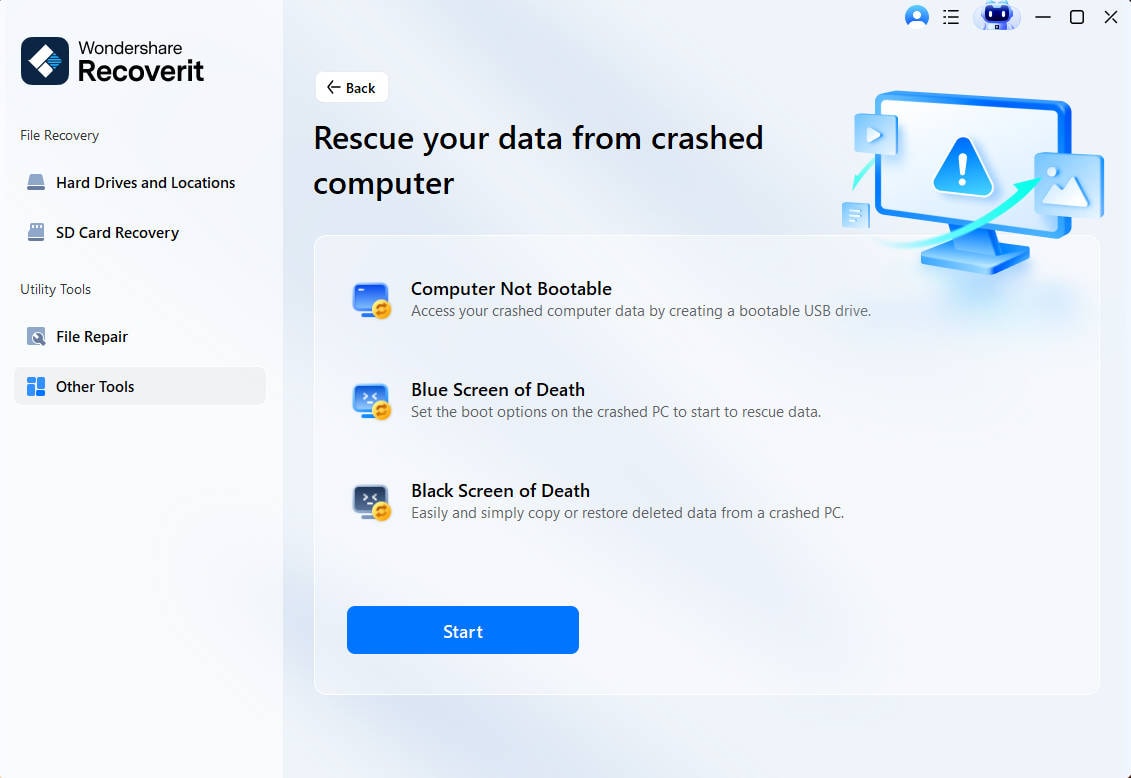
Step 1. Prepare another Windows PC. Install Recoverit on a working computer and open Other Tools > System Crashed Computer, then select Start. Connect a spare USB drive. Creating bootable recovery media will erase the selected USB, so copy its files elsewhere first.
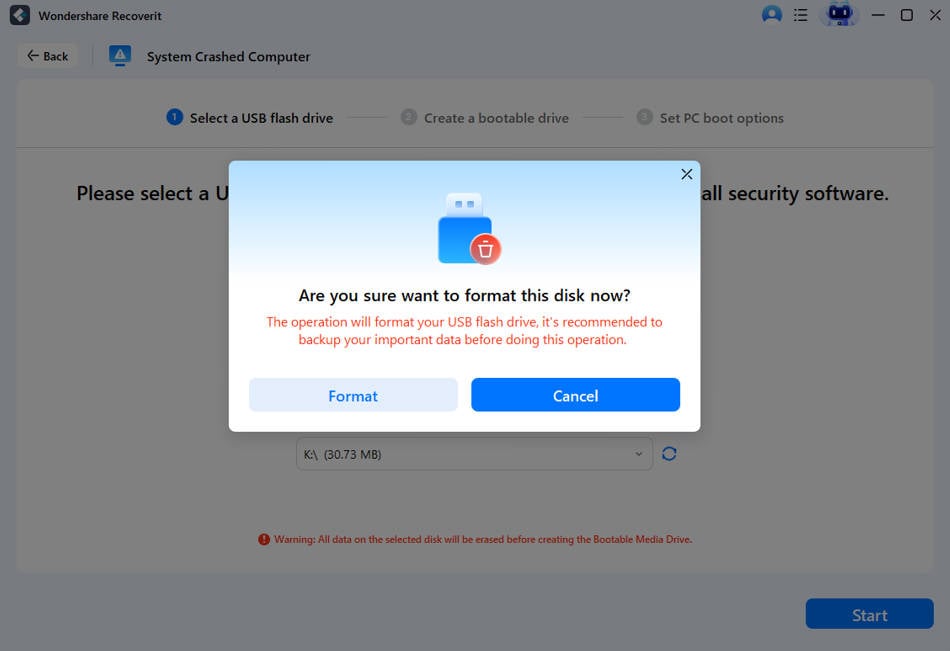
Step 2. Create the rescue drive. Select the correct spare USB drive, choose Create and review the formatting warning. Wait until bootable media creation finishes. Do not interrupt the process.
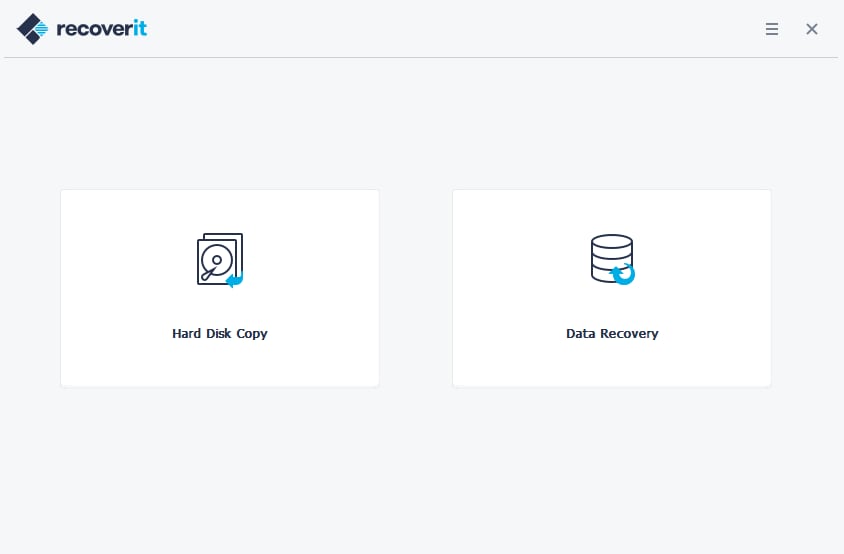
Step 3. Start the affected computer. Connect the newly created media, use the computer manufacturer's one-time boot menu and start Recoverit. If the drive is visible, choose Data Recovery, inspect the scan results and recover only the needed files to a separate healthy external drive.
After saving, verify that important documents open correctly on the destination. Do not write restored files back to the affected system drive. This workflow follows Recoverit's official Windows Guide; screen labels may differ slightly across releases.
Recoverit Limitations and Unsupported Scenarios
Recoverit is an option for eligible file recovery, not a tool for repairing Startup Repair, BCDBoot, BIOS/UEFI settings or physically failed hardware. Recovery also depends on whether sectors remain readable, whether files were overwritten and whether protected volumes can be legitimately unlocked. If a scan is not possible because the drive is unstable, stop instead of forcing repeated attempts.
Conclusion
Error 0xc000000d often appears when Windows cannot use the expected boot configuration, although storage and firmware problems can look similar. Check connected devices and boot order first, then try Startup Repair. If the drive is readable and the boot layout is confirmed, Bootrec or BCDBoot may help, while System Restore and carefully chosen system checks address other causes. Windows 7 requires its older recovery menus. Protect files before advanced repair or reinstallation; Recoverit can help retrieve data from eligible, accessible unbootable PCs, but cannot repair the boot fault.
FAQ
-
What does error code 0xc000000d mean on Windows 10 and 11?
The code is STATUS_INVALID_PARAMETER. When it appears on a Windows recovery screen referencing BCD, it often means the boot configuration is missing or invalid. Check the entire screen and confirm that the system drive is detected before treating it as solely a BCD problem. -
Can I fix error 0xc000000d without reinstalling Windows?
Often, yes. Start with the boot order and Startup Repair. Depending on what failed, Bootrec, BCDBoot, System Restore or an applicable offline system check may help. Reinstall only after confirming safer options and protecting important files. -
Does rebuilding BCD delete personal files?
Rebuilding BCD normally changes boot configuration rather than personal documents. However, selecting the wrong partition, formatting the disk or resetting Windows can cause data loss. Verify the target and back up files before advanced commands. -
Why does error 0xc000000d keep appearing after Startup Repair?
Startup Repair cannot resolve every failure. Repeated errors may involve a locked BitLocker volume, damaged EFI files, an incorrect boot entry, incomplete system recovery or failing storage. Inspect the WinRE disk layout and Startup Repair log, and seek help if drive health is uncertain.


