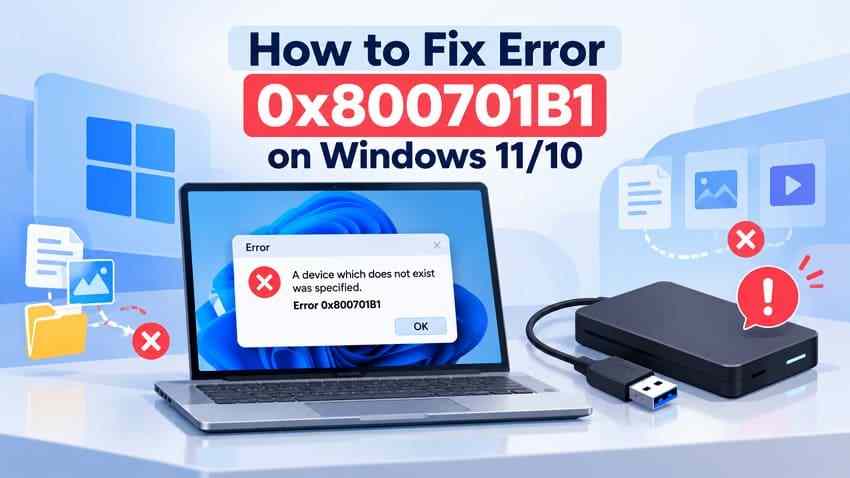
Error 0x800701B1 appears with the message "A device which does not exist was specified" when Windows 11 or Windows 10 cannot access the storage device required for an operation. You may encounter it while copying files to an external HDD, SSD, or USB drive, making a backup, or installing Windows. Start with a direct USB connection, a different cable or port, and adequate power. Do not format a drive that holds files you still need.
The correct fix depends on when the error appears. A file-copy failure calls for connection, driver, and drive-health checks; 0x800701B1 - 0xA001B during installation-media creation requires a separate USB setup workflow. Below are seven practical fixes, followed by safer options for missing files and unstable drives.
In this article
-
- Fix 1. Reconnect the External Drive and Change USB Ports
- Fix 2. Check Drive Detection in Disk Management
- Fix 3. Update or Reinstall USB and Storage Drivers
- Fix 4. Check USB Power Management Settings
- Fix 5. Update Windows and Storage Controller Drivers
- Fix 6. Check the External Drive for File System Errors Safely
- Fix 7. Test the Drive on Another Computer and Check Its Health
Part 1. What Causes Error 0x800701B1 on Windows?
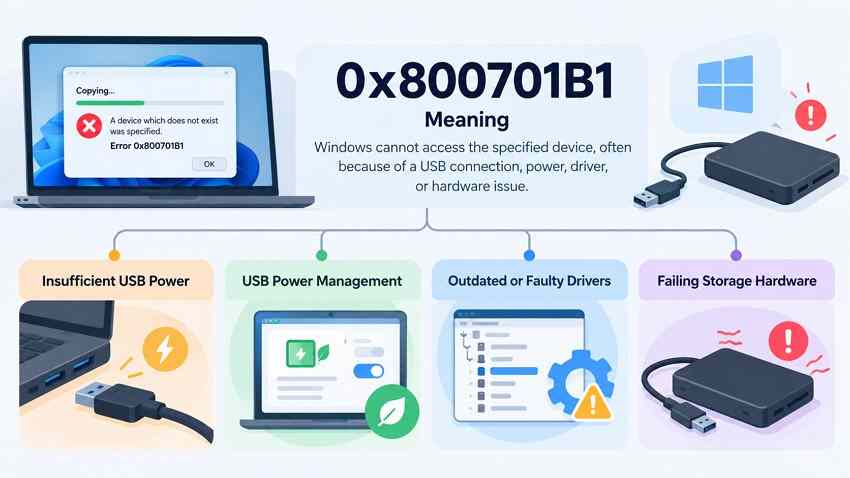
Windows displays this message when an operation targets a device that is not available to the system at that moment. The error alone does not identify whether the failure comes from the USB cable, enclosure, power supply, storage driver, file system, or drive hardware. First identify the operation and check if the drive remains visible in Disk Management.
Meaning of 0x800701B1 and Common USB Causes
The code corresponds to a Windows device-not-found condition. A drive can briefly appear in File Explorer and disappear during a large transfer, or remain visible but stop responding. Common possibilities include:
- Unstable connection: a loose connector, faulty cable, hub, or adapter interrupts access.
- Insufficient power: a bus-powered external disk draws more power than a port or hub can reliably supply.
- Driver or power-management fault: a controller or storage driver does not resume or communicate correctly.
- Storage or enclosure trouble: the disk, interface board, or file-system metadata is damaged.
File-Transfer Error vs. Media Creation Tool Error
Check where the message appeared before choosing a repair. Do not assume an installation-media error means your normal data drive is damaged.
| When it appears | Likely next step | What not to do |
| Copying or moving files to a USB or external drive | Try Fixes 1-5, then assess disk health. | Do not initialize, format, or run repair commands on the only copy. |
| Drive disappears from Disk Management | Check power, cable, USB enclosure, and another computer. | Do not force repeated scans on a clicking or unstable drive. |
| Media Creation Tool shows 0x800701B1 - 0xA001B | Use the separate installation-USB checklist in Part 3. | Do not overwrite a USB containing valuable data. |
| Files disappeared after disconnection | Preserve the source and check backups or software recovery on a stable readable device. | Do not save recovered files onto the affected drive. |
Part 2. How to Fix Error Code 0x800701B1 on Windows 11 and 10
Start with the first two low-risk checks. Continue only while the device is stable and the steps match your symptoms. If an external HDD clicks, disconnects repeatedly, or vanishes on every PC, jump to Part 4 rather than running disk-repair utilities.
Fix 1. Reconnect the External Drive and Change USB Ports
Use this fix when the error appears during file transfers or the drive repeatedly reconnects. USB power and cabling problems are often easier to isolate than software faults.
Step 1. Pause the copy operation, close programs accessing the drive, and safely disconnect it if Windows still provides that option.
Step 2. Connect the drive directly to another built-in USB port. If possible, try a known-good cable and avoid an unpowered hub. On a desktop, test a rear motherboard-connected port; for a powered enclosure, check its adapter.
Step 3. Wait for Windows to detect the drive, then open a small nonessential file or make a safe copy to a healthy disk. If the drive remains connected, retry the original transfer only after safeguarding important files.
If the error occurs on every port and cable, proceed to Disk Management. If the device makes abnormal noises or fails to stay connected, stop and follow Part 4.
Fix 2. Check Drive Detection in Disk Management
Windows Disk Management shows whether the drive has a recognized disk and volume. Use it for diagnosis before making changes.
Step 1. Right-click Start, open Disk Management, select Action > Rescan Disks, and look for the external drive by capacity and disk number.
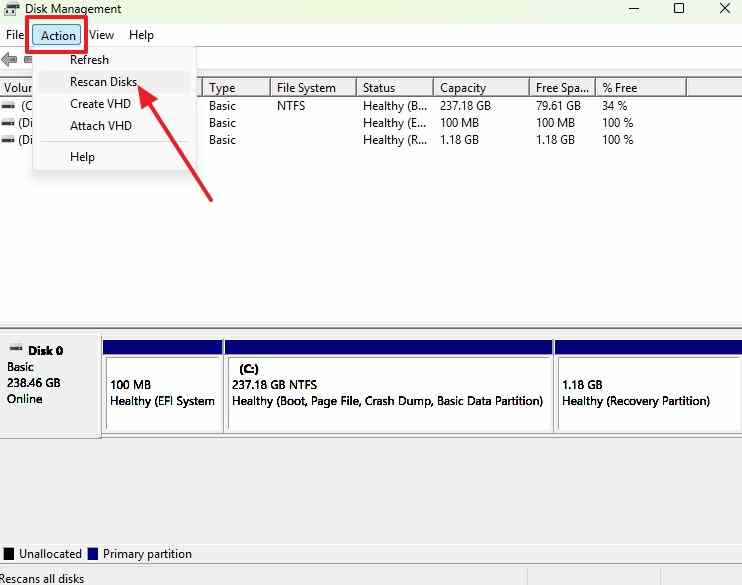
Step 2. Compare its condition with what you expected. A healthy data volume with no drive letter may allow Change Drive Letter and Paths > Add. Use this only when the correct accessible data volume is identified; do not modify the Windows system volume.
Step 3. If the disk appears as RAW, Not Initialized, Unallocated, or No Media, stop. These statuses are not a reason to click Initialize or Format when files must be preserved.
A drive that is visible and stable may qualify for further driver checks. A device missing from Disk Management even after cable and power testing needs hardware or enclosure diagnosis, not a forced software scan.
Fix 3. Update or Reinstall USB and Storage Drivers
Use Microsoft's Device Manager guidance if Disk Management sees the device but transfers keep failing, especially after a driver or Windows update.
Step 1. Right-click Start > Device Manager, expand Disk drives, right-click the affected device, select Update driver, then Search automatically for drivers.
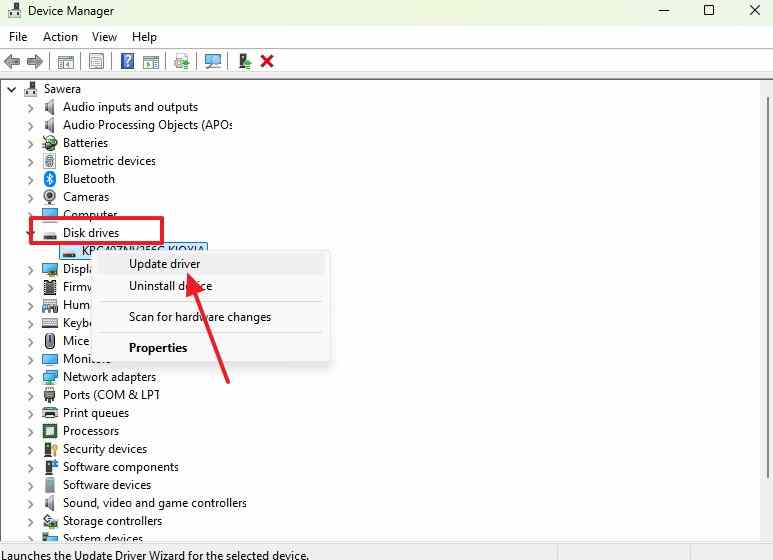
Step 2. If the driver appears faulty, save your work, disconnect safely if possible, and use Uninstall device for that device. Restart Windows to let it reinstall the driver; do not select an option that deletes driver software packages without a specific reason.
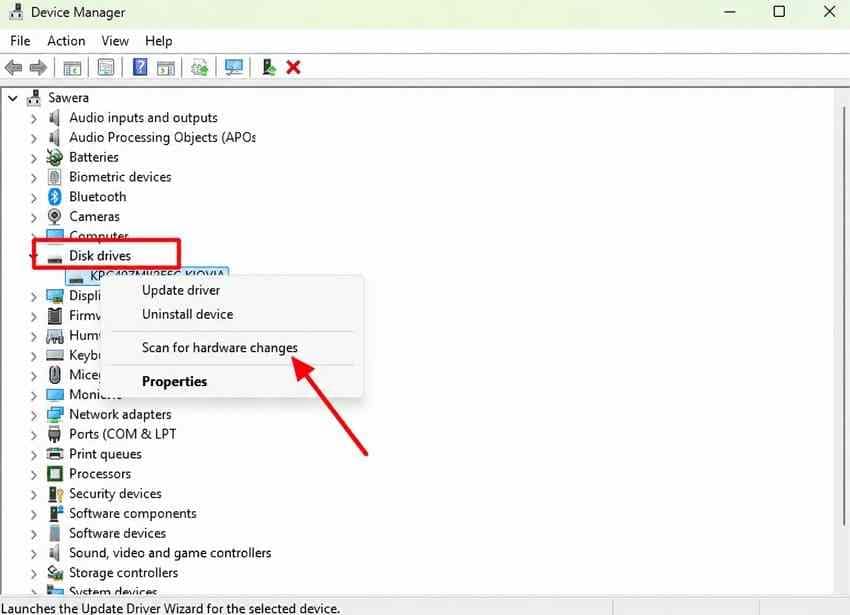
Step 3. Reconnect the drive and test a small safe transfer. If Windows reports the driver is current but the error persists, check the PC or enclosure manufacturer for a compatible driver or firmware update.
If the same disk fails on several computers, move on to drive-health checks rather than reinstalling more unrelated drivers.
Video tutorial: General 0x800701B1 troubleshooting
Fix 4. Check USB Power Management Settings
Use this only if the drive drops out after idling, sleeping, or resuming. USB power-saving features are normally useful and should not be disabled permanently as a routine first fix.
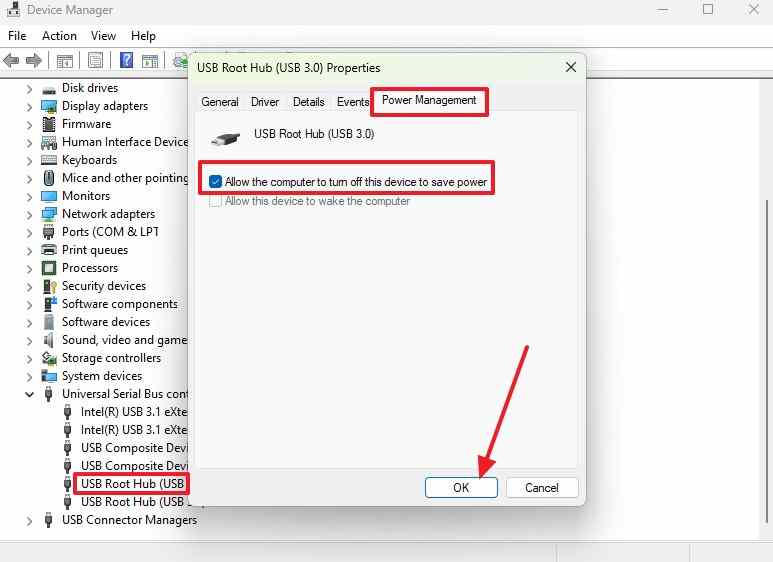
Step 1. Open Device Manager > Universal Serial Bus controllers. For the USB hub associated with the problem, inspect Properties > Power Management if that tab exists. Temporarily clear Allow the computer to turn off this device to save power and test whether the symptom changes.
Step 2. On systems that expose classic power-plan settings, open Control Panel > Power Options > Change plan settings > Change advanced power settings. The USB Selective Suspend option may be absent on modern Windows 11 power configurations.
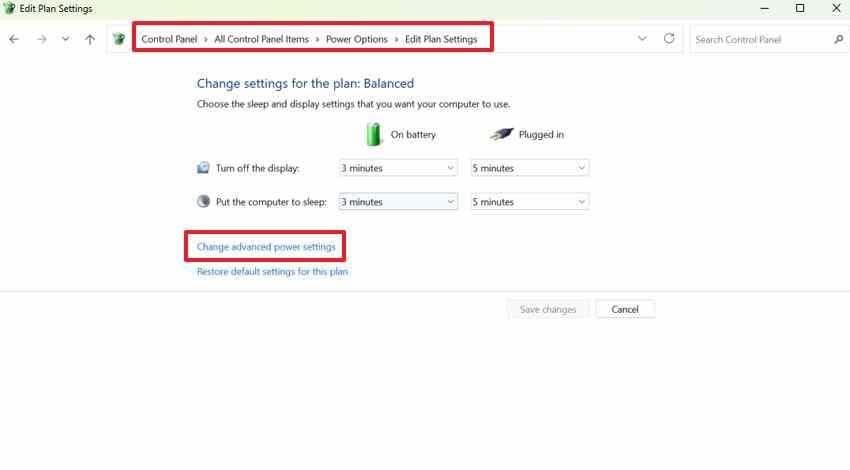
Step 3. If your computer provides a USB Selective Suspend setting, change it temporarily for troubleshooting, restart if required, and test. Restore normal power-saving settings if there is no improvement.
Note: Microsoft recommends USB selective suspend for power efficiency. A missing Power Management tab or setting is not itself an error.
Fix 5. Update Windows and Storage Controller Drivers
If the issue began after a Windows update or affects several USB devices, the host controller or chipset drivers may be involved. Prefer official Microsoft and computer-manufacturer sources.
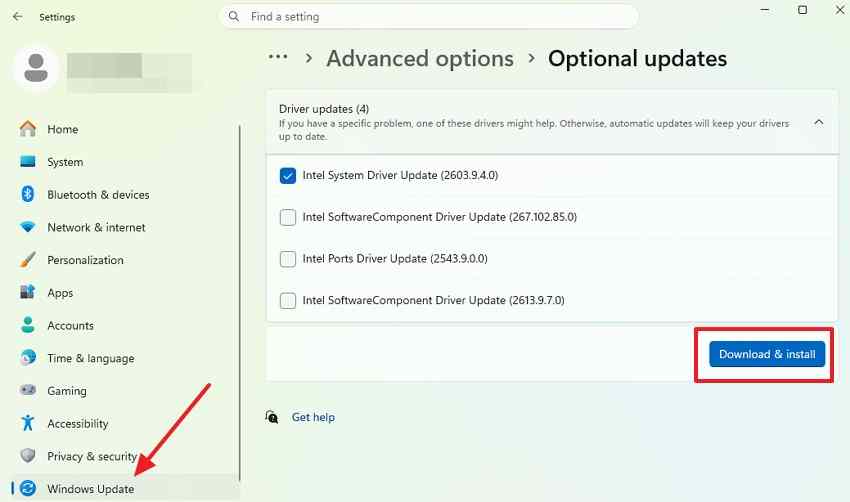
Step 1. In Windows 11, open Settings > Windows Update. In Windows 10, open Settings > Update & Security > Windows Update. Check for applicable updates and restart after installation.
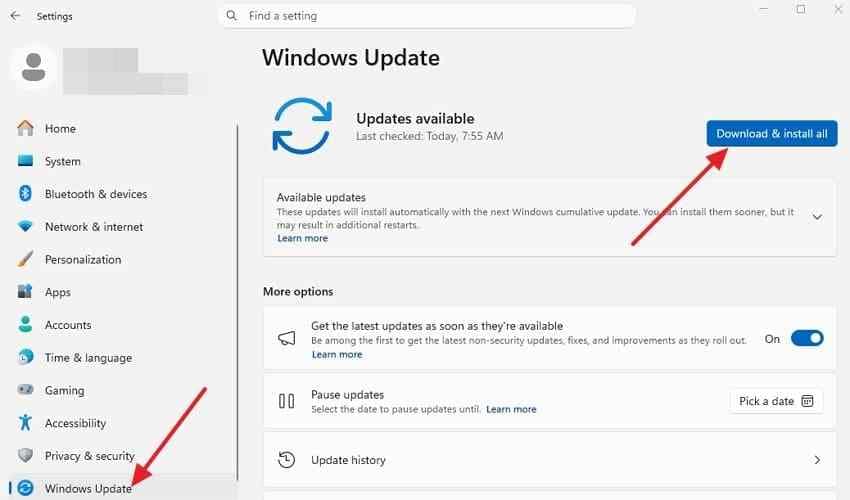
Step 2. Look for Advanced options > Optional updates > Driver updates where available. Install only clearly relevant USB, chipset, or storage driver updates.
Step 3. For unresolved issues, visit your PC or motherboard manufacturer, identify the exact model, and check for supported chipset and USB controller updates. Do not install unrelated third-party driver packs.
Re-test with a direct USB connection. Persistent failures on multiple machines are more consistent with a device, enclosure, or power problem.
Fix 6. Check the External Drive for File System Errors Safely
A file-system problem can cause read or copy errors, but 0x800701B1 alone does not prove corruption. This check is only appropriate for a stable, readable drive. If files are missing or the device is failing, prioritize backups or professional assessment.
Step 1. Confirm the drive letter in File Explorer or Disk Management. Stop if the drive is disappearing or making unusual mechanical noises.
Step 2. Open Command Prompt as administrator and enter chkdsk E:, replacing E: with the correct drive letter. Without repair switches, this reports file-system status rather than attempting to fix it.
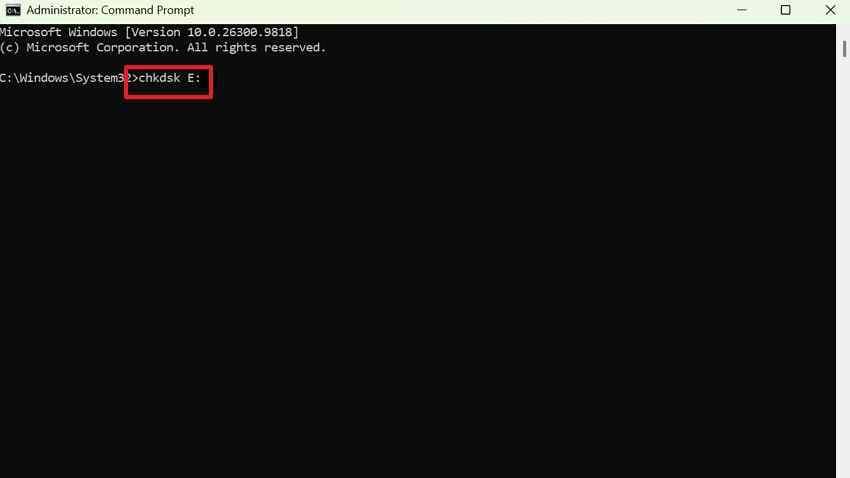
Step 3. Review the report. Microsoft explains that /f, /r, and /x perform repairs or additional disk operations. Do not run them on the sole copy of important data. After recovering or backing up files, consult Microsoft's CHKDSK documentation and use repair commands only when justified.
If CHKDSK cannot read the volume or the drive repeatedly disconnects, stop. It may need professional evaluation rather than additional software attempts.
Fix 7. Test the Drive on Another Computer and Check Its Health
This test helps distinguish an issue with your Windows PC from an issue that follows the storage device. Do not stress-test a disk with suspected mechanical damage.
Step 1. Connect the drive directly to another known-good computer with a different cable or enclosure if suitable. If it stays online and reads files there, prioritize copying irreplaceable files to healthy storage.
Step 2. If stable, use the drive manufacturer's diagnostic utility for a health check. On supported systems, Get-PhysicalDisk in PowerShell provides supplementary health information, but it is not a conclusive test for every USB enclosure or removable device.
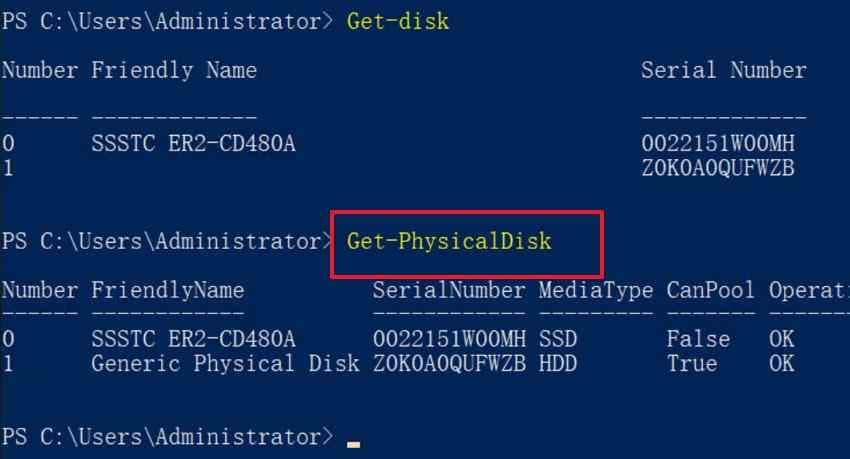
Step 3. If the same failure occurs on both computers, or diagnostics show serious problems, stop writing to the drive. Avoid repeated full scans; consult a qualified data recovery specialist for valuable files.
Part 3. How to Fix Error 0x800701B1 - 0xA001B in Media Creation Tool
The combined code has been reported when Windows Media Creation Tool cannot complete installation-USB creation. It is a related but distinct workflow: the error may involve the USB flash drive being written, and its presence does not prove that a separate external data drive has failed.
Important: Creating Windows installation media erases the chosen USB drive. Back up any valuable files elsewhere before proceeding. Never select a source disk containing files you still need.
Check the Installation USB and Media Creation Tool
Step 1. Use a blank USB flash drive with at least 8 GB of storage. Disconnect other removable disks so that the correct installation USB is easy to identify.
Step 2. Download the current tool from the official Windows 11 download page or Windows 10 download page, depending on the OS you are preparing. Avoid repackaged tools or unverified ISO downloads.
Step 3. Reconnect the blank USB directly, use a reliable port, and run the official Media Creation Tool with administrator permissions. Follow its prompts carefully and verify the selected USB drive before writing to it.
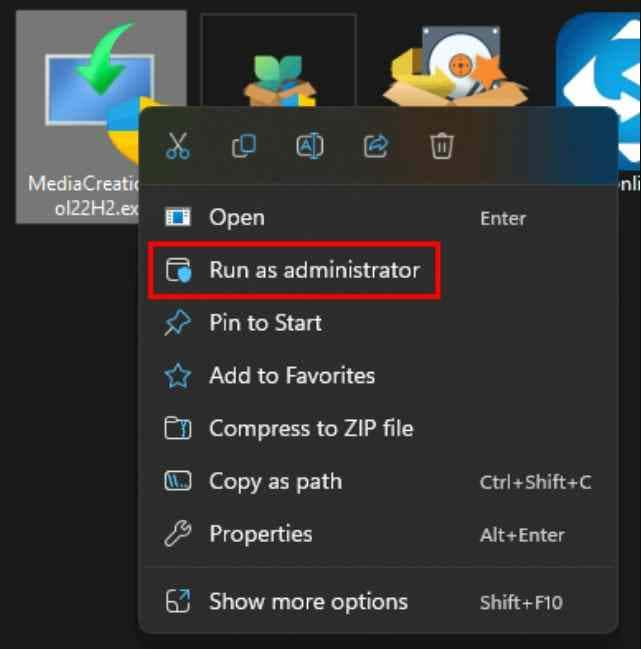
If the tool still fails, test a different known-good blank USB stick, and consider a different compatible computer. Do not assume that a partially filled USB drive is safe bootable media.
Create Installation Media Using an Official ISO When Appropriate
Microsoft offers ISO-based installation workflows as an alternative. Use its installation media instructions to obtain supported media, then write the ISO with a trusted compatible tool when you understand the required options.
Before writing, verify that the destination is the intended blank USB, not a backup or personal data drive. This process deletes files on the selected USB. If you cannot determine which drive is selected, stop rather than guessing.
Note: The embedded video in Part 2 explains general 0x800701B1 drive troubleshooting. It does not demonstrate this specific Media Creation Tool 0xA001B workflow.
Part 4. What If Error 0x800701B1 Still Appears?
Identify Recurring Disconnects and Hardware Damage
A repeating error after cable, port, driver, and power checks can indicate an unstable enclosure, failing drive, or controller problem. Open Event Viewer > Windows Logs > System and look for storage errors near the time of the failure. For example, Event ID 157 can indicate an unexpected disk removal, though it does not appear for every USB disconnect.
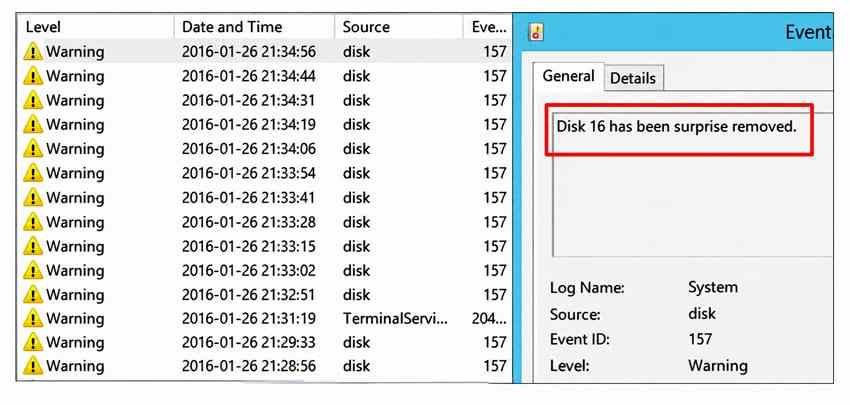
Also look for clicking, repeated spin-up and spin-down cycles, sudden disappearance from Disk Management, or failures on several PCs. These symptoms merit caution; do not continue software repairs just to make the error disappear.
When to Consult a Data Recovery Specialist
If the disk makes unusual mechanical noises, is no longer detected, or disconnects during every read, stop. A specialist may need to stabilize the device and image its readable areas before recovering files. Repeated reconnection, CHKDSK repair, or software scanning can increase stress on failing storage.
If the drive is stable and visible but files are missing, proceed to Part 5. If the files still exist and can be copied, back them up first rather than beginning recovery scans.
Part 5. Recover Lost Files After Error 0x800701B1 Using Wondershare Recoverit
Wondershare Recoverit for Windows is relevant when an interruption has caused actual file loss on a drive that is still readable and stable enough to scan. It does not repair USB ports, controller drivers, Windows installation, a faulty enclosure, or physically failed hardware. The software may help locate recoverable files from supported internal or external storage, but the outcome depends on overwriting and the disk's condition.
When Local File Recovery Is Appropriate
Check whether the missing files exist in a backup or another folder first. If the source is still recognized, does not repeatedly disconnect, and can be accessed by recovery software, a file scan may be reasonable. If the drive is absent from Disk Management, fails to remain powered, or makes clicking noises, seek professional assistance instead.
Recover Files to a Different Healthy Drive
Step 1. Stop saving new files onto the affected storage device. Install Recoverit on another healthy drive when possible. Open Hard Drives and Locations and select the affected readable external drive for scanning.
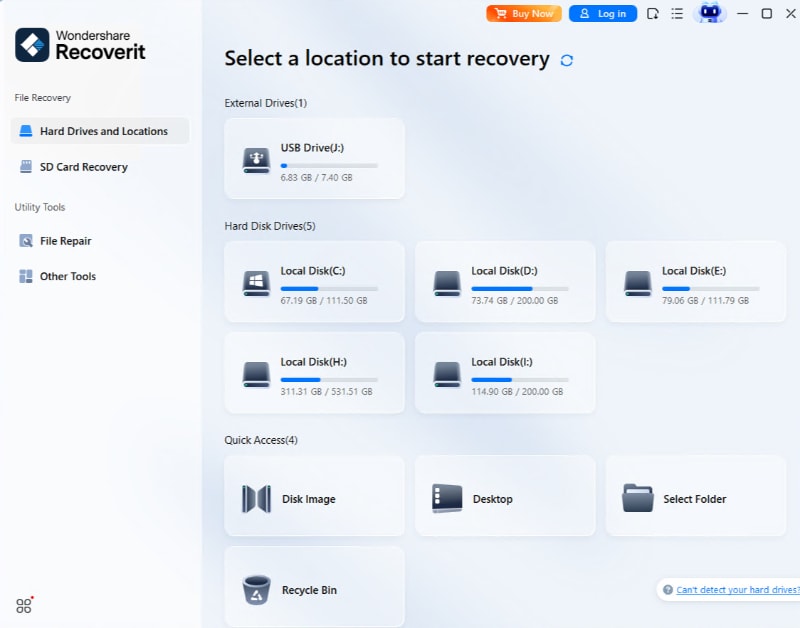
Step 2. Allow the scan to complete for the selected location. Review the results and use file-type or file-location filters where supported; avoid claiming that every file displayed can be recovered intact.
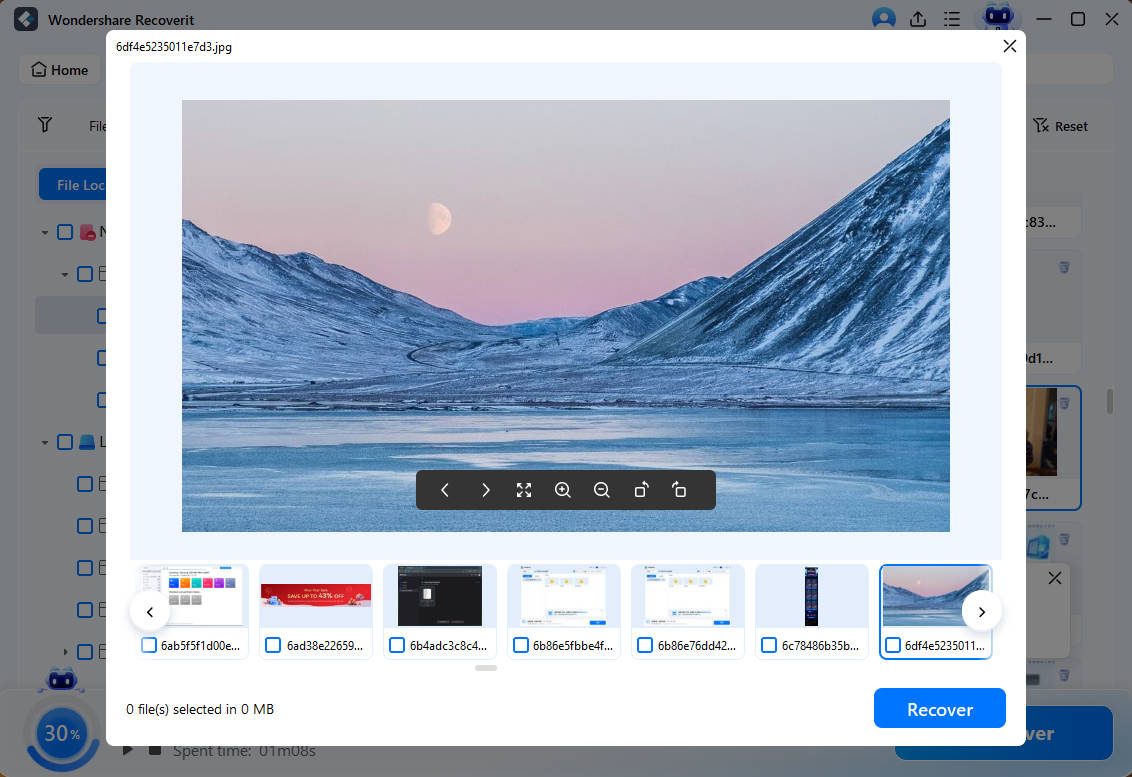
Step 3. Preview supported file types where available, select the files you need, choose Recover, and save them to a separate healthy storage device with enough space. Open a few recovered files to confirm that they work.
Recoverit Limitations and Unsupported Scenarios
Software recovery is not suitable for an inaccessible device that cannot stay connected. Recoverit cannot repair the root cause of 0x800701B1 or guarantee recovery from overwritten, unreadable, or severely damaged areas. If the drive is protected with BitLocker, access requires the legitimate unlock credentials; the software cannot bypass encryption.
For more information about supported steps, see the official Recoverit Windows guide. If your issue involves a readable USB stick rather than this particular error, the site also has a USB flash drive recovery guide.
Part 6. How to Prevent Error 0x800701B1 During File Transfers
Prevent Unsafe Removal and Maintain Independent Backups
Not every hardware fault can be prevented, but a few habits reduce avoidable connection problems and data loss:
- Use reliable connections: replace loose cables and avoid unpowered hubs for high-draw drives.
- Eject safely: let all copies finish before using Safely Remove Hardware when supported.
- Keep drivers current: use Windows Update and your device manufacturer for compatible storage drivers.
- Maintain a separate backup: keep at least one independent copy of important files, not just the only working external drive.
- Watch for warning signs: investigate unusual noises and recurring disconnects rather than repeatedly retrying large transfers.
Conclusion
Error 0x800701B1 generally means Windows lost access to the device it needed, not that one particular component has failed. Start with a different cable, direct USB port, adequate power, and Disk Management. If necessary, check drivers and disk health before attempting file-system repairs. The 0xA001B Media Creation Tool variant requires a separate installation-USB workflow. Protect your existing files first: when data is missing from a readable, stable drive, Recoverit may help retrieve it to another healthy destination. Stop DIY troubleshooting if hardware damage is suspected.
FAQ
-
What does error 0x800701B1 mean in Windows 11?
It means Windows could not access the device specified for the operation. This commonly appears during file copying, external-drive access, or installation and does not by itself identify a single defective component. -
How do I fix error 0x800701B1 when copying files to an external hard drive?
Start with a different cable and direct USB port, then check the drive in Disk Management. If it stays connected, review drivers and power settings. Back up accessible files before running any repair that writes to the disk. -
Why does error 0x800701B1 keep appearing after reconnecting my USB drive?
Persistent errors may reflect power supply, connector, enclosure, driver, or physical disk problems. Try another known-good computer and cable. If the drive clicks, disappears repeatedly, or cannot be recognized, stop DIY scans and seek professional help. -
Can error 0x800701B1 cause permanent data loss?
The code itself does not automatically delete files, but an interrupted write, file-system damage, or failing storage can lead to missing or corrupted data. Recoverit may help with files on readable, stable storage; it cannot repair failed hardware or restore overwritten data.


